Streams
In Marketo Engage, a program stream shows the order in which content will be sent to your audience. When a stream sends content to an audience, it is called a cast.
A stream casts your content from top to bottom on the schedule you define to program members that qualify.
Therefore, it is important to organize a stream based on your nurture goals. A stream can provide members with content based on their buying stage, behavior, product of interest, or any other criteria you designate.
Adding content to your stream
Once content is approved, there are three ways to add content to a stream:
-
Click the Add Content button within the stream.
-
Click the plus symbol (+) next to the stream name.
-
Right-click the asset in the navigation tree and select the program name and stream from the drop-down menu.
Demonstration: add content to a single stream
Learn how to add the emails you created previously to the Early-Stage-Prospects stream.
-
Rename Stream 1 to Early-Stage-Prospects and update its description.
-
Add 01-Email, 02-Email, and 03-Email to your Early-Stage-Prospects stream using the methods above.
Activating your content
Activation makes your content available for casting within your stream. Content is inactive by default to prevent sends before you are ready.
If a piece of content is not activated within a stream, the stream skips over that piece of content and casts the next activated piece of content in its place.
You can always choose to deactivate content temporarily if you want to make edits, or permanently if you do not want to cast it again.
You can activate one piece of content within a stream or activate an entire stream at once.
Click each tab to view the steps.
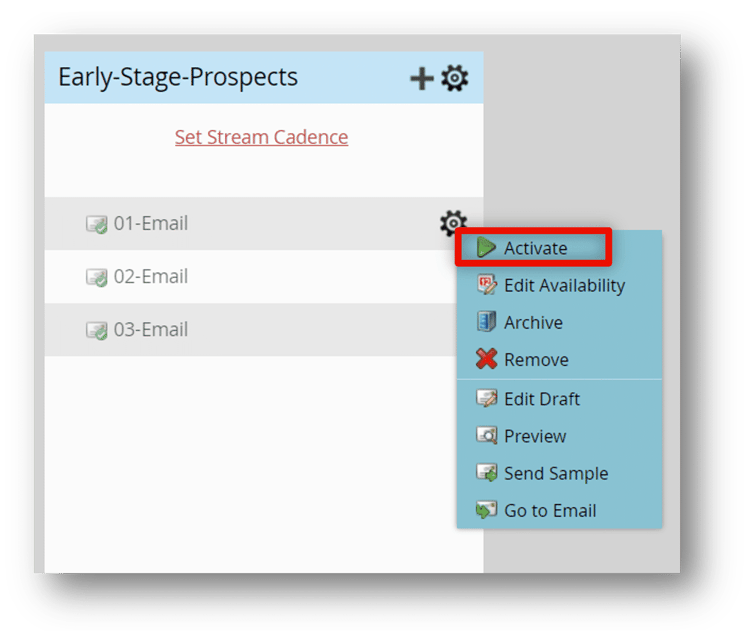
- Hover over the content and click the gear icon.
- Select Activate from the drop-down menu.
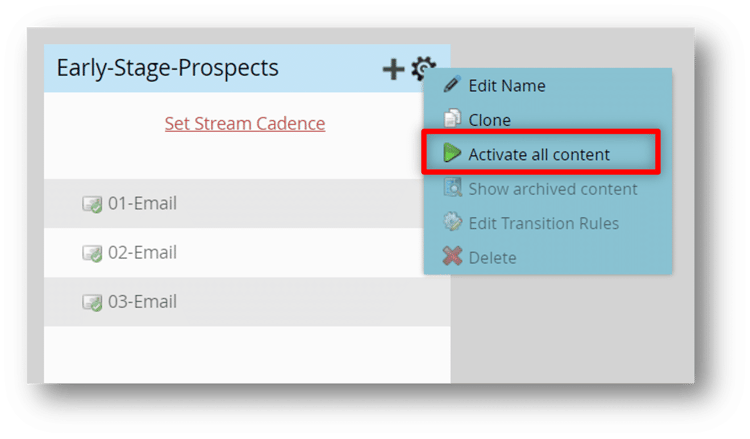
- Click the master gear icon at the top of the stream.
- Select Activate all content from the drop-down menu.
Demonstration: activate content in your stream
Learn to activate the content in the Early-Stage-Prospects stream by watching the expert activate each piece of content individually.
Edit availability of stream content
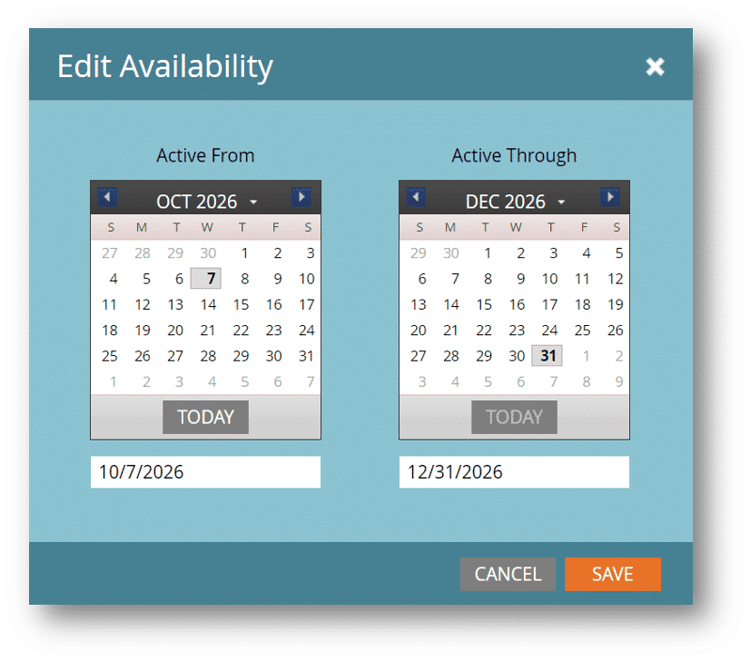
Content availability determines the timeframe in which your content will be cast. Editing the availability of the content ensures the content will activate and deactivate based on the schedule you set.
You can leave the “Active Through” field blank to activate a piece of content and make it available forever.
Demonstration: edit availability of stream content
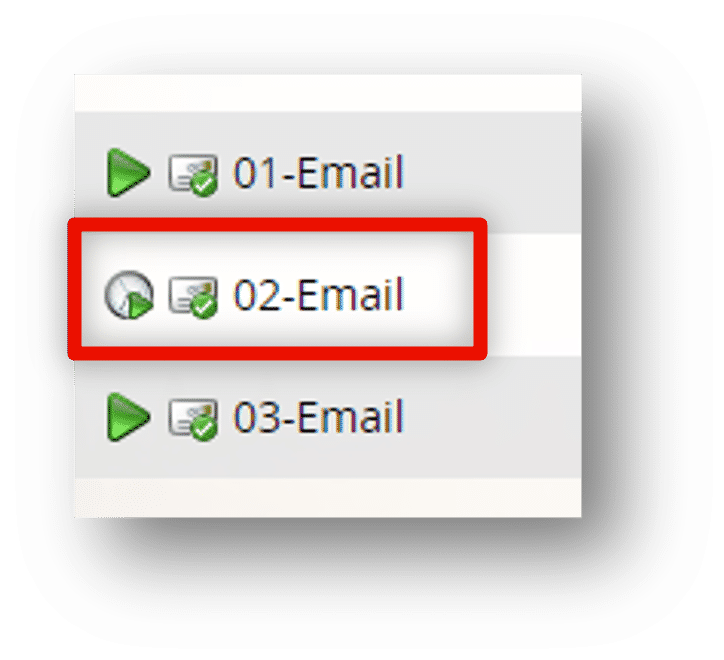
Learn how to edit the dates that the 02-Email will be available in the Early-Stage-Prospects stream to be valid from October 7 to December 31.
-
Hover over the 02-Email asset in the Early-Stage-Prospects stream and click the gear icon.
-
Select Edit Availability.
-
Update the Active From and Active Through dates and click Save.
Stream cadence
The regular interval that your stream casts content is called the stream cadence.
The cadence can cast content in daily, weekly, or monthly intervals, and can be cast in the recipient’s time zone, if desired.
The first cast of a stream’s content can differ from the regular cadence, which can be useful if you want the stream to go live on a specific date outside the regular cadence.
Demonstration: set stream cadence
Learn how to set the frequency of the stream emails to cast every Wednesday at 9:30am in the recipient's time zone.
-
Click Set Stream Cadence at the top of the stream.
-
Set Repeats to Weekly.
-
Set the First Cast date.
-
Set the Every field to 1 Week and the On field to W (for Wednesday).
-
Set the Time field to 09:30 AM and check the Recipient Time Zone checkbox.
Reprioritize stream content
One of the most useful features of working with an engagement program is that it lets you quickly prioritize and reprioritize the order of the email casts in a stream.
Reprioritization allows you to address unforeseen opportunities, last-minute announcements, and changes in your marketing tactics or strategy.
To reprioritize content, simply drag and drop it to the preferred order in the stream. Remember, the stream sends content in order from top to bottom.
The engagement program remembers which members have received an email. If you reorder content in the stream, Marketo Engage will send a member the next activated piece of content only if they have not already received it. You can be confident that a member will not receive the same piece of content twice.
Reprioritize stream content
One of the most useful features of working with an engagement program is that it lets you quickly prioritize and reprioritize the order of the email casts in a stream.
Reprioritization allows you to address unforeseen opportunities, last-minute announcements, and changes in your marketing tactics or strategy.
To reprioritize content, simply drag and drop it to the preferred order in the stream. Remember, the stream sends content in order from top to bottom.
The engagement program remembers which members have received an email. If you reorder content in the stream, Marketo Engage will send a member the next activated piece of content only if they have not already received it. You can be confident that a member will not receive the same piece of content twice.
Now that the engagement program is ready, learn how to add people to the program in the next step.