Manage people in an engagement program and activate
People can be added to an engagement program in many ways. The most common method is through a list import or via a smart campaign.
Best Practice: use a smart campaign to add people to your engagement program because of its flexibility and reusability.
You can add people based on the following:
Critieria
Example Triggers/Filters
Triggers:
- Visits Webpage
- Fills Out Form
- Is Created
Demographic Data
Filters:
- Industry
- Country
- Job Title
Special Filters
- Member of Smart List
- Member of Program
Demonstration: add people to your program using a smart campaign
When using a Smart Campaign to add people, one of the most popular ways is through the Add to Engagement Program flow step, where you can decide which Engagement Program and stream they should join.
-
Create a new Smart Campaign in your Campaigns folder.
-
In the Smart List tab, use the Person is Created trigger and Person Status (is Prospect) filter to identify your audience.
-
In the Flow tab, use the Add to Engagement Program to add them to your engagement program and the Early-Stage-Prospects stream.
-
In the Schedule tab, click Activate, then click Activate in the dialog box to activate your smart campaign.
Change engagement program cadence for an individual
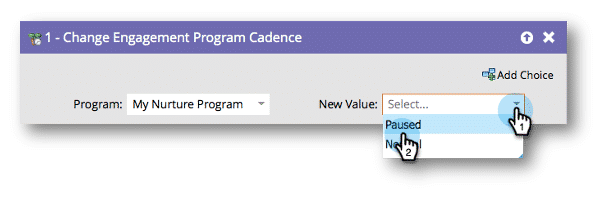
Each member of an engagement program has an individual program cadence marker that defines their ability to receive that program’s content. By default, each new member is marked as Normal, which allows them to receive content. When a member is Paused, they no longer receive content.
Use the Change Engagement Program Cadence flow step to change an individual program cadence. Pausing a person in an engagement program ensures their casting metrics stay intact, but deleting a member removes their metrics for reporting. You may want to pause members when they have achieved the program’s success status, such as being added to an opportunity or when they make a purchase from your website.
Demonstration: measure success and pause program cadence using a smart campaign
In this activity, you will watch an expert build a smart campaign where, if the contact us form is filled out AND the person is a member of your engagement program, change their program status to influenced and pause their cadence. To do this:
-
Create a new Smart Campaign named 02-Success-and-Pause.
-
In the Smart List tab, add the Fills Out Form trigger and select the Global Contact Us form, and then add the Member of Engagement Form filter and ensure the status is true and your program is selected.
-
In the Flow tab, add the Change Program Status flow step and change to Nurture > Influenced. Then add the Change Engagement Program Cadence flow step and set to Paused.
-
Activate your Smart Campaign.
Demonstration: change program status to on
Now that the engagement program is set up, we need to change the program status to on to launch it.
-
Click the program name in the navigation tree.
-
Under Settings, double-click Program Status.
-
In the dialog box, click the On radio button.
-
Click Save.
In the next step, learn how you can use metrics and reporting to ensure your Engagement Program is successful over time.