Get to know Marketo Engage
In this module, you’ll become acquainted with how an Adobe Marketo Engage instance operates.
You will:
-
Take a tour of the platform.
-
Understand best practices for organizing your programs and files.
-
Use program and file naming conventions effectively to help you find what you’re looking for quickly.
-
Learn how customers enter the database, what information is included, and how audience behavior is tracked.
The Marketo Engage interface
As you progress through the course, you will need to understand Marketo Engage-specific terms to successfully complete the course activities.
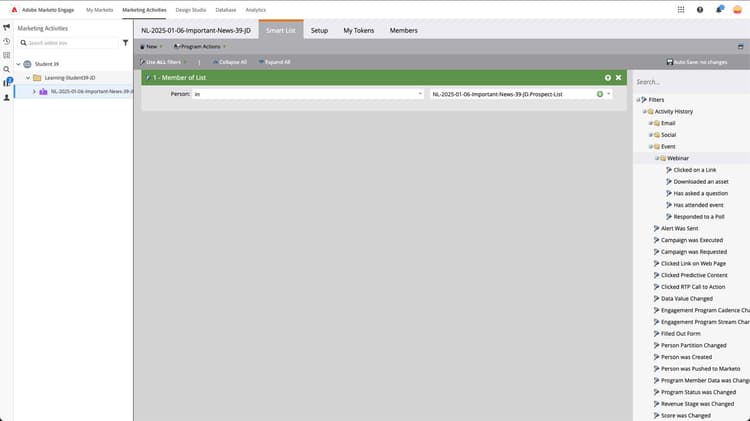
Click each + to learn more about the Marketo Engage workspace.
Navigation tree
The navigation tree contains various folders to organize marketing initiatives and assets. The navigation tree changes according to your location within Marketo Engage.
13
10
Navigation bar
The navigation bar enables you to access various parts of the core Marketo Engage platform, including marketing activities, design studio, database, and analytics.
35
2
Tabs
Tabs help you build various components of your initiative. This image shows tabs for a smart campaign, which tell Marketo Engage who you are targeting and what actions you want Marketo Engage to take.
62
7
Autosave
Marketo Engage automatically saves your changes as you work. The autosave date and time stamp in the upper-right corner lets you know work is saved the moment you make an update.
86
14
Help and resources
The Help button dropdown menu provides important resources, including the Marketo Engage Community and Marketo Engage product documentation on Adobe Experience League.
94
6
Canvas
The canvas is where you build various components of your initiatives, such as targeted lists and automated marketing logic (called smart campaigns).
50
50
In the next step, you'll learn best practices for organizing your Marketo Engage instance.