Design studio
The design studio is where global creative assets are stored in Marketo Engage. This includes global emails, landing pages, and forms, as well as templates, images, and files.
You can add almost any type of file to the design studio. A good practice is to upload all your approved assets to the design studio, which allows those assets to be used everywhere inside Marketo Engage and don’t require additional approval. Additionally, the assets have local links from the Marketo Engage library to your landing pages and emails, reducing the loading time for a better user experience.
There is no limit to the number of files you can add to the Design Studio. The size of each file is limited to 100MB, which is generally large enough for anything other than video files.

primary
--spectrum-gray-700
000000
white
primary
--spectrum-gray-700
000000
white
Adding images and files
There are two ways to add images and files to the design studio – uploading from your computer or importing them from the internet.
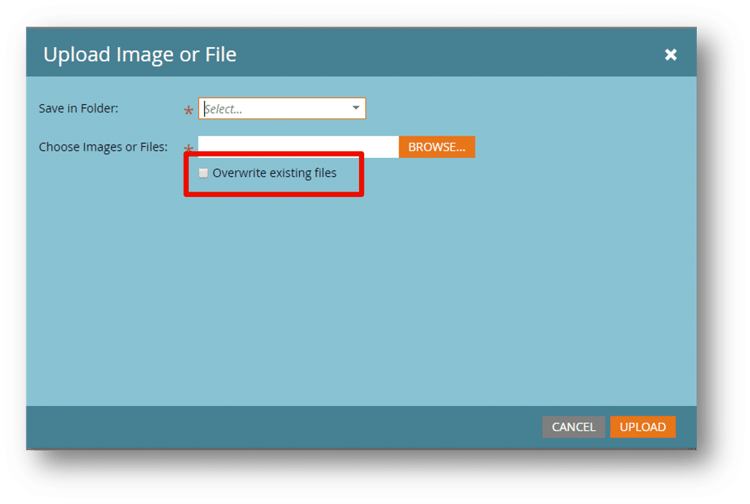
Upload image or file
- Select the destination folder.
- You can select multiple files to upload.
Note: All files must have unique filenames. If a filename already exists, the asset will not be updated unless the Overwrite existing files checkbox is checked. Be careful, because overwriting a file updates the file wherever it is currently used in Marketo Engage.
Import Images from web
-
Allows you to grab images from a webpage or from box.com and save them in the design studio.
-
Imports files in the exact dimensions, type, and resolution as they are on the page.
Note: You are responsible for ensuring you have copyright permission for the images collected.
Note: Some websites may not allow Marketo Engage to import images.
primary
--spectrum-gray-700
000000
white
primary
--spectrum-gray-700
000000
white
primary
--spectrum-gray-700
000000
white
primary
--spectrum-gray-700
000000
white
Organize the design studio
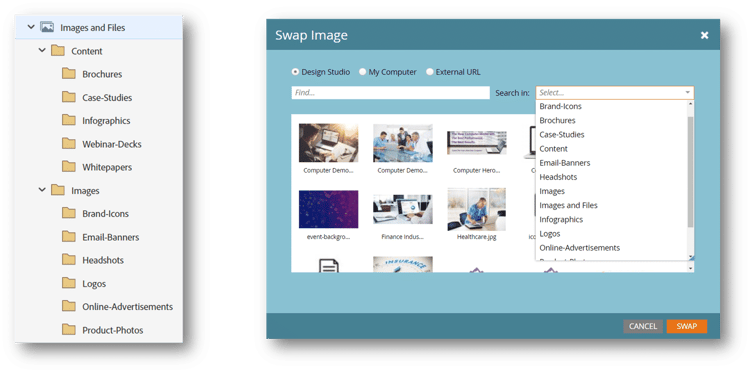
Take the time to create a set of folders in the navigation tree in design studio before importing assets. This will help you more quickly find the images and files you need for a program. In this example, the files are divided into Content and Images, and then further divided by content type or image use.
Any folders you create in the design studio appear in the Search In menu of the Insert or Swap Image dialog box. This allows you to search by folder when adding images to emails and landing pages.
primary
--spectrum-gray-700
000000
white
primary
--spectrum-gray-700
000000
white
Demonstration: upload files (images and a PDF)
Learn to create a Files folder in the Design Studio and upload image and PDF files.
-
Navigate to the design studio.
-
In the Images and Files section of the navigation tree, create a folder called Files-your student number-your initials.
-
Upload an image to your folder.
-
Import the Computer_Model_100_Brochure_Student#_Initials.pdf file (rename with your number and initials first).
In the next step, learn how forms are used and created in Marketo Engage.