Auto-response emails and smart campaigns
You are almost finished setting up this gated content offer, but there’s still one more asset to create: the email that contains the link to download the brochure. You also need to tell Marketo Engage when to send that email.
Operational vs. non-operational email review
In Module 2, you learned the differences between operational and non-operational email. Which type of email are you creating for this program?
Click the card to find out if you are correct.
Operational email
Right! An operational email is sent in response to a request or action by a person. It bypasses communication limits, restrictions, and unsubscribes.
Non-operational email
No. A non-operational email, like a general marketing email, is required to contain unsubscribe links and is subject to communication limits and restrictions.
Demonstration: create an auto-response email
Learn how to create the email that will be sent when a person completes the form on the landing page.
-
Create an email using the Slam Dunk template in the email editor.
-
Make changes and link the download button to the brochure PDF uploaded previously.
Create a smart campaign to send your email
The last step in creating your gated content program is to create the workflow that automates sending the email to people who submit the form on your promotional landing page.
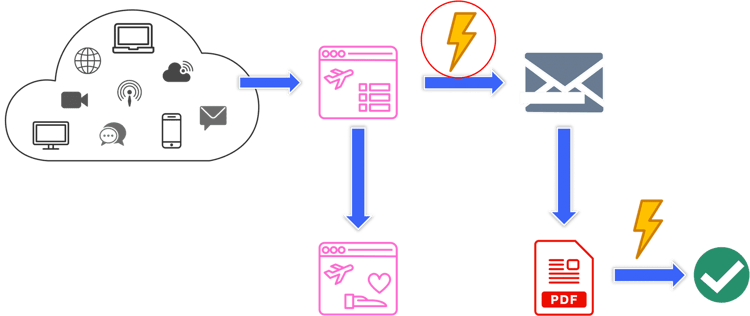
In the workflow diagram above, the lightning bolt represents the triggered smart campaign you need to build. Remember that a smart campaign can be described as an if/then statement.
Take a moment to write your own if/then statement, then click the card to reveal the answer.
What is the smart campaign if/then statement to send the email?
If a person fills out the form on the promotional landing page, then Marketo Engage sends them the email with the link to download the brochure.
Smart campaign qualification rules
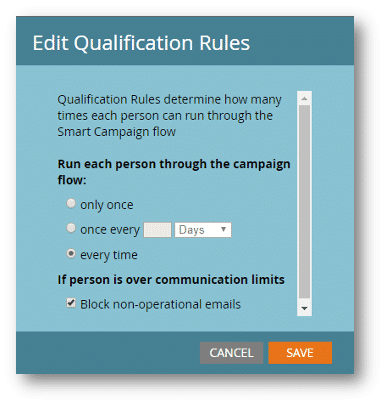
Qualification rules determine how many times each person can run through the smart campaign flow. Let’s go over how each option works.
-
Only once:
Run the campaign flow the first time the person qualifies and never again. This is good for programs that change the person status because that can only happen once.
-
Once every <time period>: Limits the number of times a person can run through the flow in a certain period, like once per hour or once per week. This is used when creating person scoring programs where you want to avoid over-scoring people for high-volume activities like webpage visits.
-
Every time: Runs a person through the campaign flow every time they qualify. This is useful when sending communications to people (like your gated content program) or when sending sales alerts.
The If person is over communication limits checkbox determines whether people receive non-operational emails if they are over the communication limits defined by your Marketo Engage administrator. Communication limits define the number of emails a person can receive both every day and every seven days. If a person is over the communication limits, the default is that non-operational emails are blocked to ensure you are not over-communicating with that person. However, you can make an exception in a smart campaign if your email is particularly important.
Demonstration: Trigger an auto-response email using a smart campaign
Learn how to create a smart campaign using the following if/then statement: If a person fills out the form on the promotional landing page, then Marketo Engage sends them the email with the link to download the brochure.
-
Create a smart campaign called 01-Auto-Email in the Campaigns folder.
-
On the Smart List tab, use the Fills Out Form trigger and make sure the promo landing page is added as a constraint.
-
In the Flow step, use the Send Email flow step, making sure it points to the email previously created.
-
Use the Change Program Status flow step to change the person's status to Web Content > Filled-out Form.
-
In the Schedule tab, click Edit next to Smart Campaign Settings and change the Run each person through the campaign flow radio button to "every time" and save.
-
Activate the smart campaign.
In the next step, you will create a Smart Campaign to measure the success of your gated content program.