Smart campaigns in Marketo Engage
What makes Marketo Engage programs so powerful? Smart campaigns! You can use smart campaigns to automate marketing logic to make your job easier and measure your team’s effect.
Now, let's give you a chance to build your own smart campaign. Remember, you need three things to create a smart campaign in Marketo Engage:
- Your Who, as defined on the smart list tab. This can be people in the database who meet certain criteria (filter) or who take specific actions (trigger), or even a combination.
- Your What, outlined in the Flow tab. This acts on the people identified in the smart list, either all at once (batch campaign) or one at a time in a trigger campaign.
- The Schedule tab defines your When. If this is a batch campaign, you’ll set a date and time or schedule a recurrence. If it’s a trigger campaign, you’ll activate it, and it listens indefinitely until you deactivate it.
Demonstration: measure success using a smart campaign
Create a smart campaign with this if/then statement: If a recipient clicks a link in the email, change their status to Influenced:
-
In the Smart List tab, use a Clicks Link in Email trigger referencing the email you created for this campaign.
-
In the Flow tab, use the Change Program Status option to change the person's status to Newsletter > Influenced.
-
In the Schedule tab, view the Engagement Map to see the Smart Campaign logic, then activate it.
The email dashboard
Creating an email and sending it to recipients is great, but how do you know if the email was effective? That’s where the Marketo Engage email dashboard comes in.
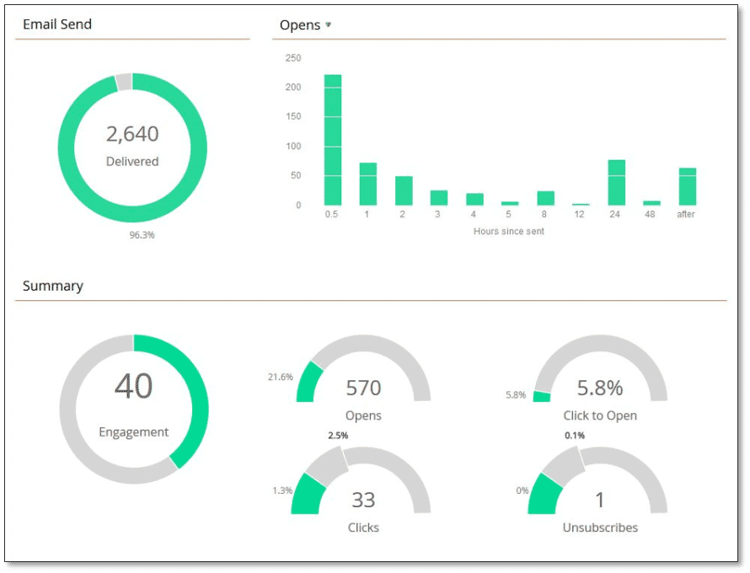
The Engagement Score is calculated via a proprietary algorithm. This is a holistic score that takes several metrics into account, including unique opens, unique clicks, how many people reach the success status of your program, and unsubscribes.
It gives your email a score of 0 to 100, with 50 being average. It is a great way to quickly see the performance of an email compared to other Marketo Engage emails.
Demonstration: view the email dashboard
Cloning
You created your newsletter for this month – how can you quickly create next month’s newsletter? Through cloning! Cloning in Marketo Engage creates a copy that you can customize for your next initiative. Marketo Engage allows you to clone:
-
An asset, such as emails, landing pages, or forms.
-
A Snippet.
-
A presentation from the Marketing Calendar HD.
-
A report.
-
An entire program, including all its assets and Smart Campaigns.
Clone and update your email program
In this demo, you will learn how to clone the email program you just created for next month’s newsletter by completing these actions:
-
Clone the program.
-
Add a period cost.
-
Edit the email.
-
Schedule it to send.
-
Approve it.
-
Update the smart campaign to measure success.
Next, review the key takeaways for creating Email Programs in Marketo Engage.