Create and approve an email asset
Now that you have created your email program, you will need to create your email to send to your audience. In this lesson, you'll learn about the different types of email you can send and how to use the Email Editor in Marketo Engage.
Operational and non-operational emails
There are two types of email you can send in Marketo Engage: Non-operational and operational.
Non-operational emails are marketing emails – they promote your product, service, or brand.
Operational emails are transactional – they're sent when a customer completes a specific transaction, such as filling out a form, making a purchase, registering for a webinar, and so forth.
Click each card to learn more about these emails.
Non-Operational emails
Non-operational emails
Marketing emails promoting your product, service, or brand.
These emails must contain an unsubscribe link and are not sent to unsubscribed people.
Operational emails
Operational emails
Emails sent when a customer completes a transaction, like buying something or registering for a webinar.
These emails provide information based on a person’s activity. They do not have an unsubscribe link and will go out to unsubscribed people. They cannot contain promotional content.
Marketo Engage email editor overview
In this video, explore the email editor to create HTML emails without coding, and learn about:
-
Elements of the email editor, including the email pre-header, alt text on images, and plain text versions of emails.
-
The difference between draft and approved emails.
Now that you know your way around the email editor, let’s create your first email and send yourself a sample to review.
Demonstration: create an email and send a sample to review
-
Use an email template in the Email Editor to draft a newsletter.
-
Send yourself a test email.
-
Approve the email asset.
The schedule and approval tiles
The schedule and approval tiles in the email program are crucial for ensuring your email is sent when you want it to be.
Click each tab to learn more.
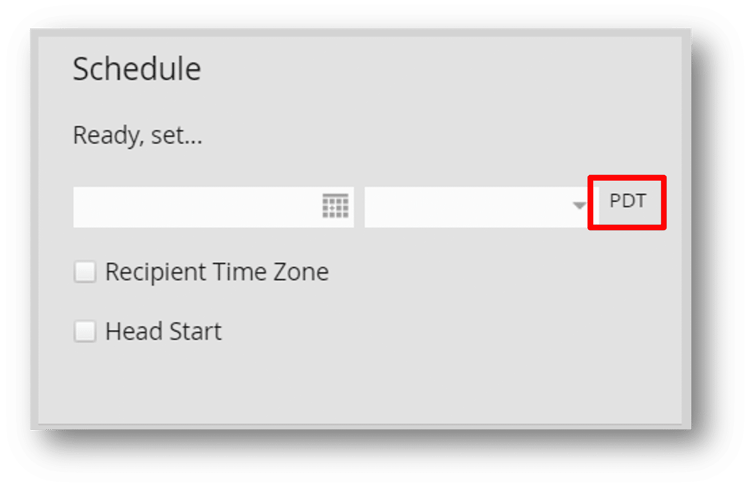
The schedule tile determines the date and time that your email will be sent. The time zone is the default time zone for your instance – you can change your time zone in Account Settings.
Select the Recipient Time Zone checkbox to deploy the email at the selected time in the recipient’s time zone.
The Head Start option processes your audience and email in advance for faster delivery times. Use this when sending to large audiences (more than 100,000 recipients) or for emails that require extensive dynamic personalization. This must be activated at least 12 hours before the scheduled send time.
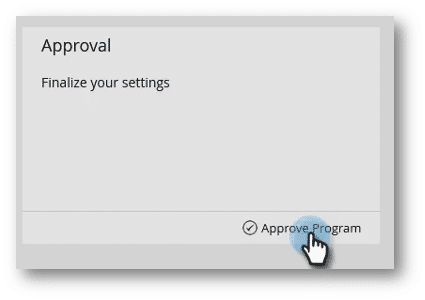
The Approval Tile is where you finalize your Email Program and schedule it to send.
Select “Approve Program” to finish creating your Email Program.
Demonstration: schedule the email to send at a specific date and time
Now you will tell Marketo Engage when to send the email by completing these tasks:.
-
Schedule the email to send at a specific date and time.
-
Send the email in the recipient's time zone.
-
Use Head Start.
Demonstration: approve your program
Finally, you need to approve your email program so it will send the email on the date and time you set.
In the next step, you'll learn how to use smart campaigns to measure the success of an email program.