Smart list overview
A smart list in Marketo Engage generates a dynamic, real-time list of prospects based on filter criteria you provide. It is one way to create reusable programs that fit each stage of a customer journey.
Smart Lists can use demographic data, behavioral data, and program data to identify a target audience.
Click each card to learn more about that type.
Demographic data
Demographic data
-
Job title
-
Location
-
Industry
-
Birth date
-
Other database info
Behavioral data
Behavioral data
-
Webpages visited
-
Forms filled out
-
Emails opened
Program data
Back Title
-
Membership
-
Status
-
Success
-
Creation date
Where are smart lists used?
Smart lists are used throughout Marketo Engage in various places.
Click each ">" to learn more.
Smart campaigns
People and smart lists
Because a smart list looks at everyone in the database and qualifies people based on the criteria you define, people can be on more than one smart list at a time.
For example, in the image below, you’ll see three people with different demographics, and two smart lists. While Elsa and Mateo each qualify for a different smart list, Darryl belongs to both the Western United States and Small and Medium-sized Businesses smart lists.
Additionally, because they are all C-level executives, they would all be included in a smart list that used those criteria.
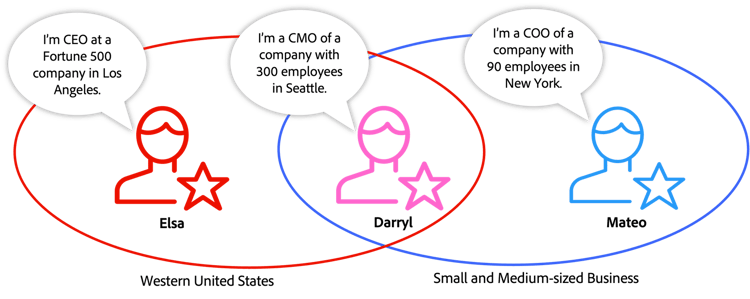
This diagram shows how people can qualify for different audiences based on their demographic data of location (Western United States) or company size (Small and Medium-sized Business).
Global smart lists
Like global assets, global smart lists are created once and can be used repeatedly in programs, reports, smart campaigns, and more.
Global smart lists are created and stored in the database tab, providing a great way to save time when targeting an audience regularly.
Build a smart list in 4 Steps
Smart lists are a way to create dynamic, real-time target audiences using the fields within your Marketo Engage Database. Building a smart list takes some planning but can be broken down into four steps:
- Drag filter(s) into your Smart List Canvas.
- Select an operator and values for each filter.
- For any Smart List with more than one filter, determine the filter logic.
- Apply any applicable constraints to your filters to get the exact audience you want.
In this example, you want to target people who are in large – or enterprise-level – Japanese companies.
Step 1: Drag filter(s) onto Smart List Canvas
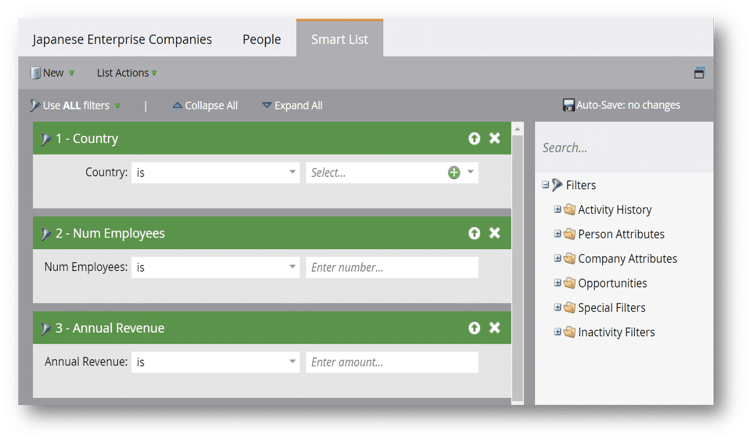
Once your smart list is created, drag one or more filters onto your canvas to determine which criteria will qualify people for this list.
This smart list targets people who are in large Japanese companies, so you will add three filters to the smart list: Country, Number of Employees, and Annual Revenue.
Step 2a: Select filter operators
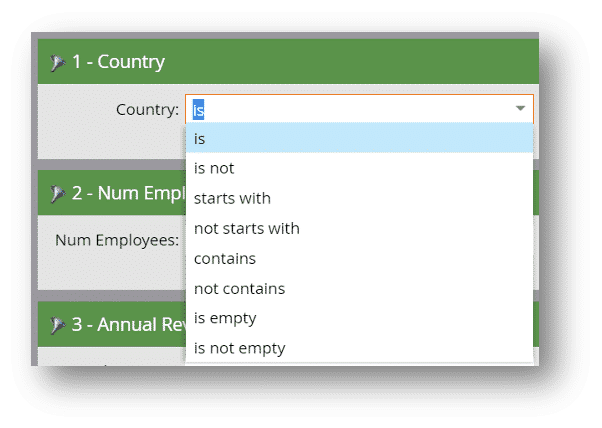
Select an operator for each of your filters. Operators tell the filter how to evaluate the data in a field in the Database – is the field empty? Is it set to a specific value, or does it contain a keyword?
In this example, the Country filter operator is set to “is”, because you want to target a Japanese audience; the Num Employees filter’s operator is “greater than” to identify larger organizations, and the Annual Revenue filter’s operator is “at least” to ensure a minimum amount of revenue.
Step 2b: Set filter values
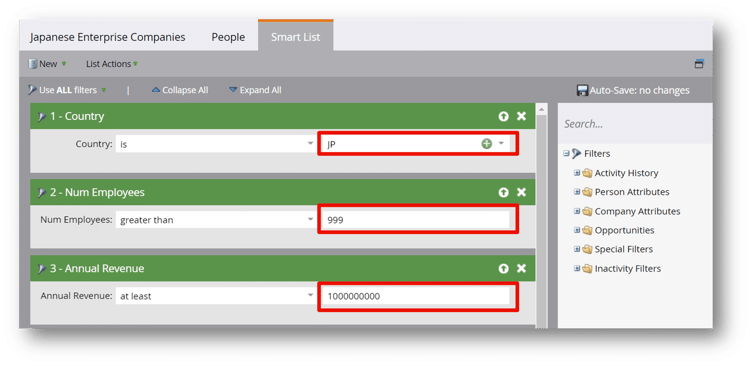
Set the value you’re using to determine if a record will be included in your Smart List. This value changes based on the filter and the selected operator. In these examples, note that the country you want to pick is Japan, coded as JP in your Database.
You want to target companies that have 1,000 employee or more, so you enter 999 for the Num Employees filter’s value.
Finally, you want to target companies with a revenue of at least one billion Japanese yen, so you put 1,000,000,000 in the Annual Revenue filter’s value field.
Also note that green plus sign in the Country value field – this means you can select multiple values for this field using a Multiple Value Chooser like this.
Step 3: Determine filter logic
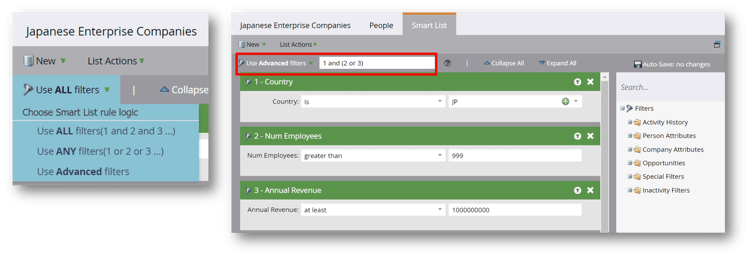
Define the order and priority Marketo Engage will evaluate your filters. By default, Marketo Engage evaluates the filters in order from top to bottom and requires that a company meet all these criteria to be included. But you are not limited to this type of evaluation. If you click Use Advanced Filters, you will see that any combination of AND/OR logic is available to build your Smart List.
For the example Smart List, you want to include companies that have a Country value of Japan, AND either their number of employees is greater than 999 OR their company’s annual revenue is at least one billion yen, as shown here as 1 AND (2 OR 3).
Step 4: Apply constraints (optional)
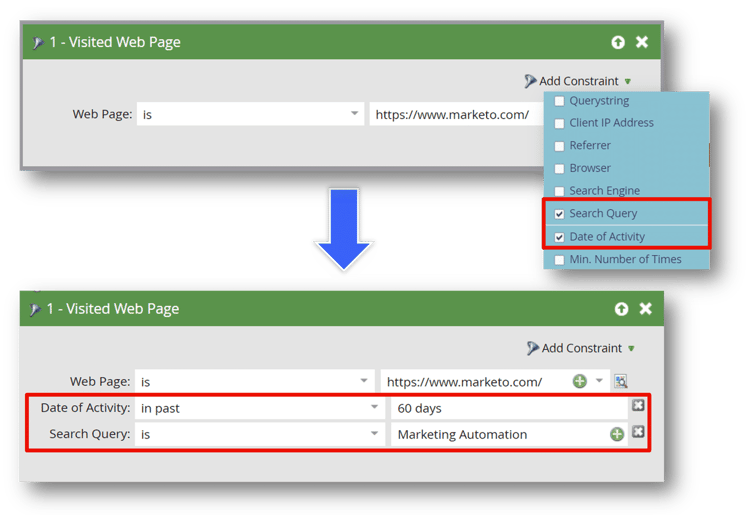
Apply any necessary constraints on your filters. This is not always necessary, but some filters allow you to be more precise in your criteria. For example, the Visited Web Page filter allows you to select from a list of constraints such as Search Query – which search term or terms led them to the page – or Date of Activity, to ensure that only newer activity is counted toward the results.
In our example, we do not need to apply any constraints to get the results we want.
Nested smart lists
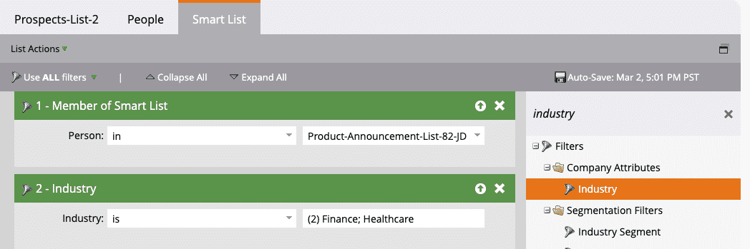
A smart list can reference another smart list using the member of smart list filter. This allows you to maintain smart lists more effectively. Updating the criteria of one master smart list will update any smart list that uses that list as well.
Demonstration: create a global smart list
In this video, you'll learn to create a global smart list in the database that targets executives and managers in the following industries:
-
Business services
-
Finance
-
Insurance
-
Software
In the next step, you'll create an email program that sends the product announcement to the audience defined by this list.