Measure success of your email program
In this final step, you’ll set up a smart campaign to measure your email program’s performance and learn more about the Marketo Engage email performance report.
Now that you have launched the email program, you want to ensure you know how it is performing. To do this, you'll follow the same steps as in the previous module to set up a smart campaign. When a recipient clicks a link in the email, their status will be changed to Influenced.
Demonstration: measure success using a smart campaign
You'll learn how to create a smart campaign using the following if/then statement:
If the recipient clicks the link in the email, their status changes to 'influenced'.
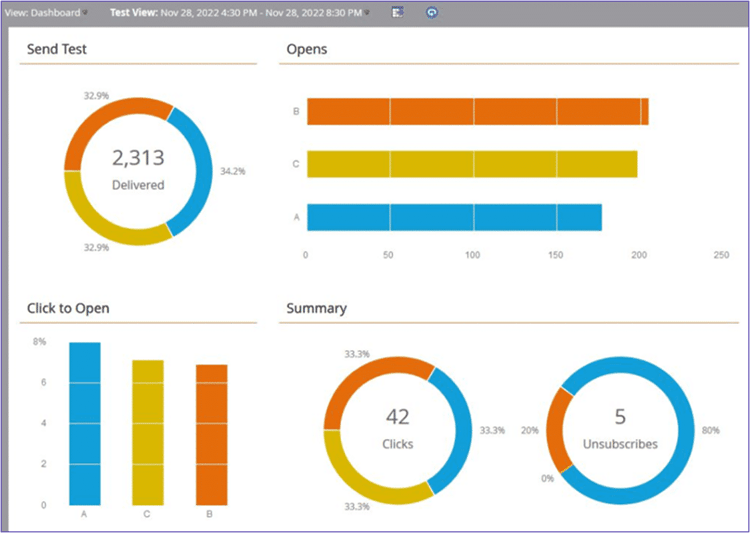
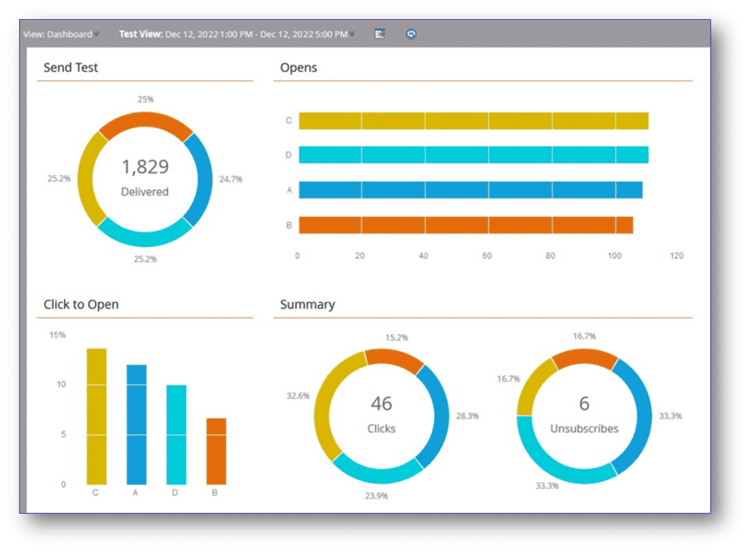
Email dashboard: A/B test view
When you use A/B testing in Marketo Engage, the email dashboard automatically displays the A/B test view, allowing you to see how the different versions of your test performed. Let's look at a couple of examples.
The email performance report: local and global assets
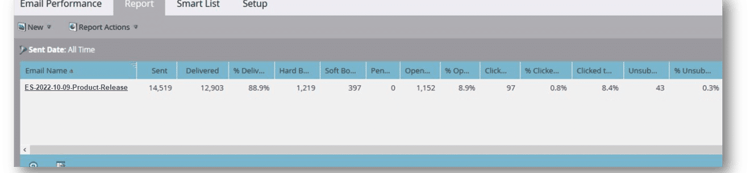
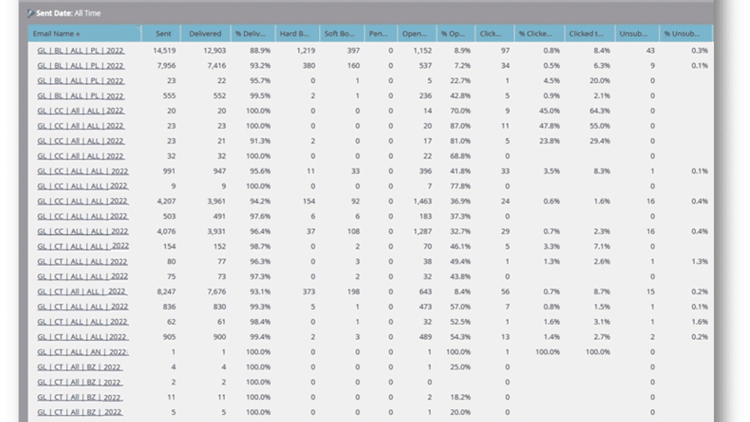
To see metrics beyond those in the dashboard, you can create an email performance report, which provides more email data such as hard bounces, soft bounces, pending emails, date of last activity, and so on.
You can create both local (within a program) and global (within the database) email performance reports.
Click each tab to learn more about each type.
Pulls all the data for that initiative. In an email program, the report displays all metrics associated with that specific deployment in the program.
Compares metrics across multiple programs. The global report allows you to view the metrics for multiple email program metrics at the same time.
Demonstration: create a local email performance report
Learn how to create a local email performance report for your email program.
In the next step, review the key takeaways for this module.