Create a request queue
You’ve mapped out the request queue needs at your organization, so now log in to Adobe Workfront and start creating them.
Verify the Queue Details, Routing Rules, Queue Topics, and Topic Groups sections are visible in the left menu when you’re looking at your request queue project. These can be added to the left menu through a layout template.
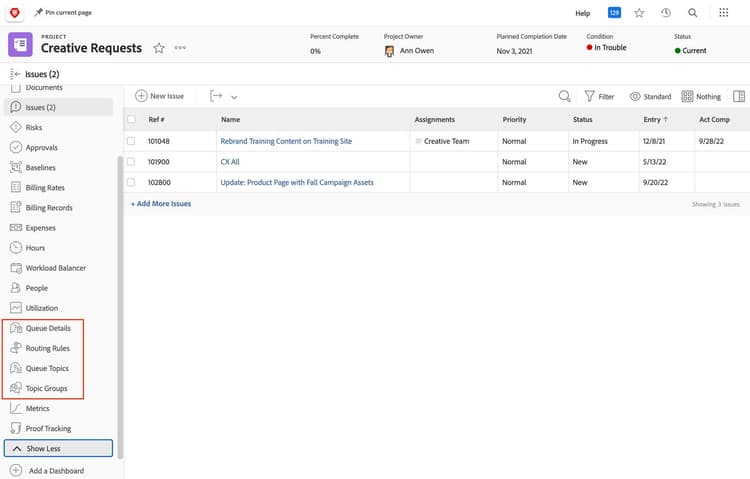
Setups for a request queue are in the left menu of the project.

Create the request queue project
In this video, you will learn how to:
-
Create a new project to serve as the request queue.
-
Set the Queue Details for the request queue.
Use custom forms to collect request information
Custom forms allow your organization to collect the specific information about projects, task work to complete, and more. You learned how to create custom forms in a previous module of this course.
Custom forms are commonly used with request queues, so the information required to complete the request is submitted with the request itself.

A custom form collects information specific to the request being made.
For a custom form to be used with a request queue, it needs to be the Issue object type.
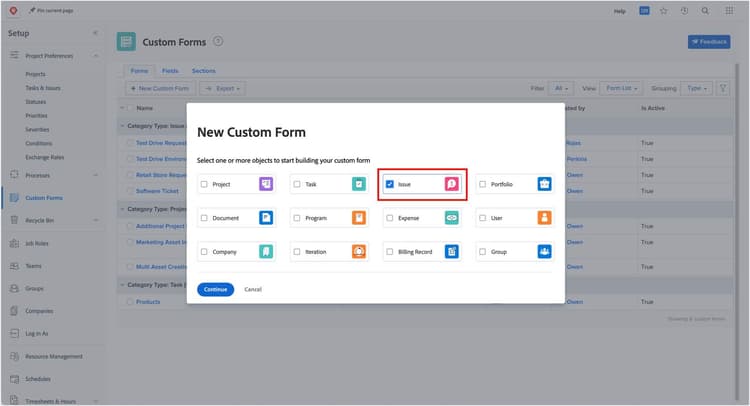
Select the Issue object type when creating a custom form for a request queue.
It’s recommended you create custom forms before creating queue topics, so you can assign the form as the queue topic is being made. Of course, you can assign custom forms later, if necessary.
If the workflow at your organization includes converting requests to projects, data from the request custom form can be transferred to a custom form on the project. To do this, the request (issue) custom form and the project custom form must contain the same fields.
Now you can create queue topics, topic groups, and routing rules to finish building out the request queue.
Configure the request queue
In this video, you will learn how to:
Create routing rules, so requests are automatically assigned to the right people.
Set up topic groups, to categorize and organize the types of requests.
Create queue topics for each type of request that will be made.
Test the request queue
Once the routing rules, topic groups, and queue topics are set up, test the request queue to verify everything is structured the way you want it and the queue is working as expected.
Check the Request Type field. If the queue you just made isn’t listed, update the status of the request queue project to Current. In the Queue Details, ensure the Publish as Help Request Queue option is checked.
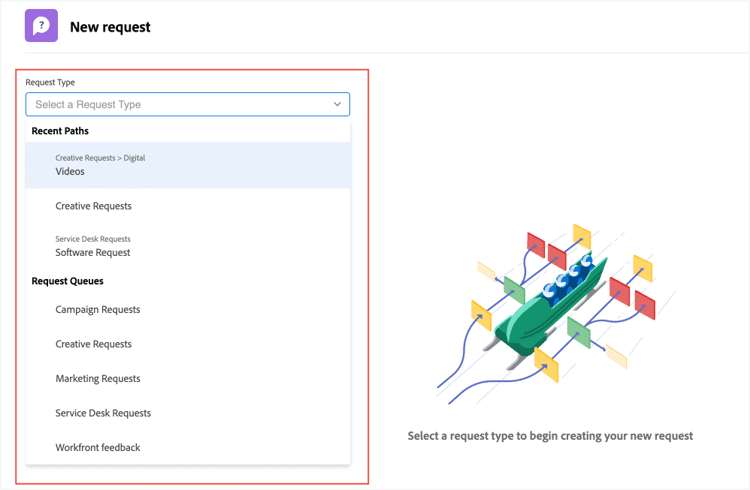
The next menu will be the topic groups, if you created any. If you created multiple layers of topic groups, you’ll see additional dropdown menus as you make selections.
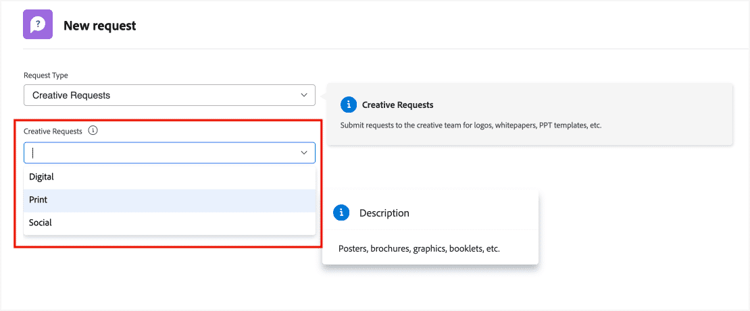
With the topic group selected, you’ll see the queue topics—the specific types of requests—that are nested under that topic group.
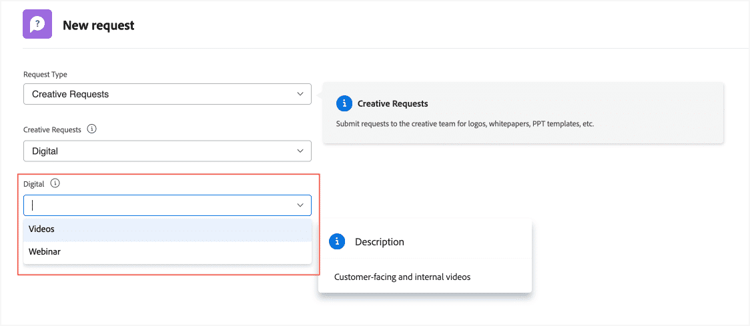
Select a type of request to ensure the custom form assigned to that queue topic appears.

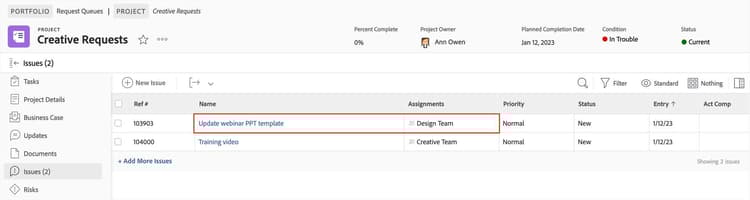
Now submit the request to verify it’s routed properly. Go back to the request queue project—or a report you have set up to track incoming requests—and confirm the request is assigned to the right person, job role, or team. If anything looks out of place, go back to the request queue project and make changes.
Request queue troubleshooting tips
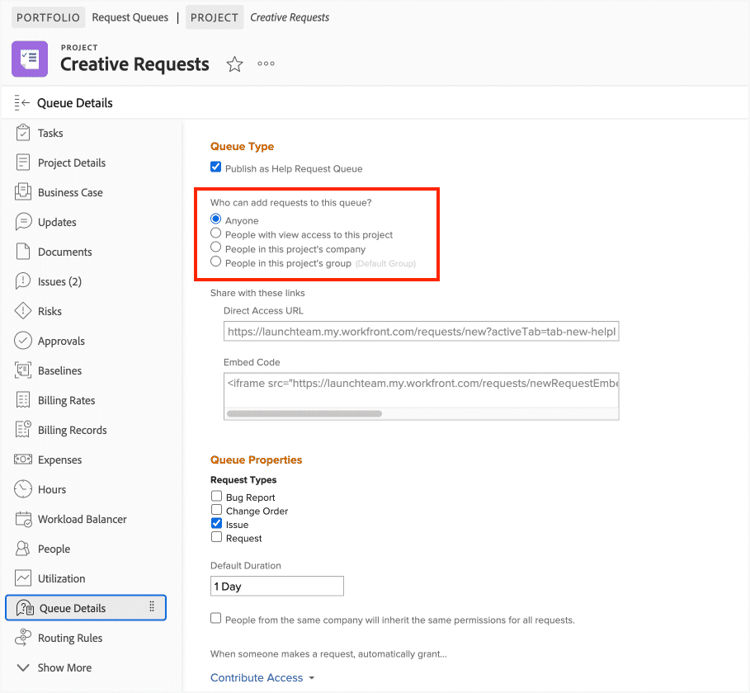
Access to the request queue is granted via the Queue Details.
If some users can see the name of the request queue in the Request Type dropdown menu but others cannot, verify the users fit the criteria of the Who can add requests to this queue setting. Go to the request queue project and open the Queue Details to see how this setting is configured.
When requesters have access to the request queue project in Workfront, you might have chosen the People with view access to this project option in the Queue Details. If you want them to only be able to submit requests to the queue, then select the appropriate option under the Who can add requests to this queue setting.
Manage incoming requests
How incoming requests are managed depends on the workflows and project lifecycles at your organization.
-
Requests might need to be reviewed and approved by a team manager, resource manager, or portfolio manager before work can begin.
-
Requests for quick, easy to complete ad-hoc work might be assigned as-is to a team member to complete, like fixing a typo on the company’s website.
-
Or requests may need to be converted to projects because the work needs to follow a certain process, such as developing webinar content or launching a marketing campaign.
In the next step, review best practice recommendations for request queues.