Best practices: request queue
Include descriptions for all parts of the request queue.
Descriptions on the request queue project, topic groups, queue topics, and routing rules let group administrators, future system administrators, or others who maintain request queues know exactly what each piece of the request queue does.
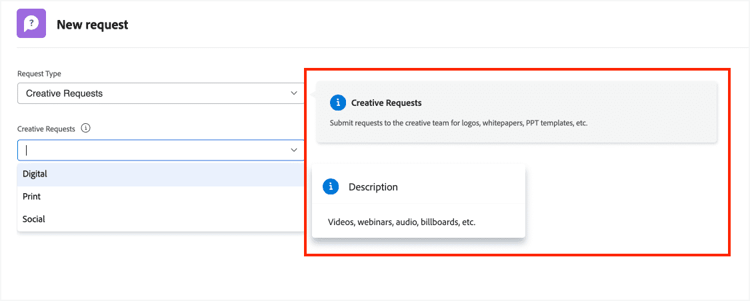
The description information on the project, topic groups, and queue topics appear when you hover over the information icon on the field in the new request window. The description doesn’t have to be long, just a brief comment about the purpose or use of the element.
Create a status called “Request Queue” to help identify queue projects.
A request queue “lives” in a project and must be in a project status that's equal to Current for the queue to be active.
To distinguish a request project from actual work projects with a “Current” status, create a project status to be used only on request queues called “Request Queue” or “Operational.” Make this status equivalent to “Current.” You can then use this status to help exclude or include request queue projects while writing reports.

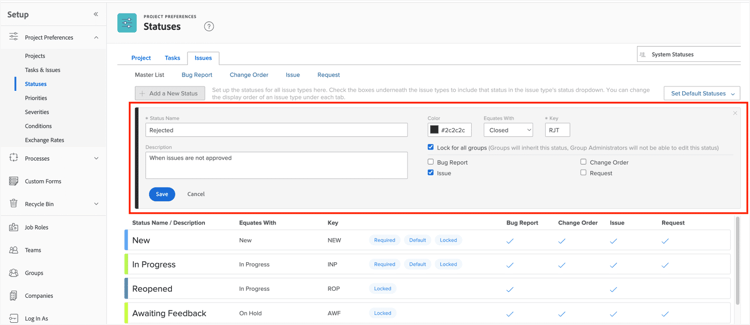
Create an issue status called “Rejected” when using issue approvals.
Set the If Rejected option on the approval process to the “Rejected” status. By using a “Rejected” status, this makes it clear the request was reviewed and rejected.
Assign "universal" custom forms to queues to capture consistent data.
A “universal” custom form gathers standard information needed for the request, regardless of the type of request being submitted.
Having a “universal” custom form that captures enterprise-wide information helps cut down on the number of custom forms you need to create and maintain. It also ensures that all requests are collecting the same information in the same way, which leads to consistent reporting and data analysis.
Set up the queue details settings so users see only the queues relevant to their needs.
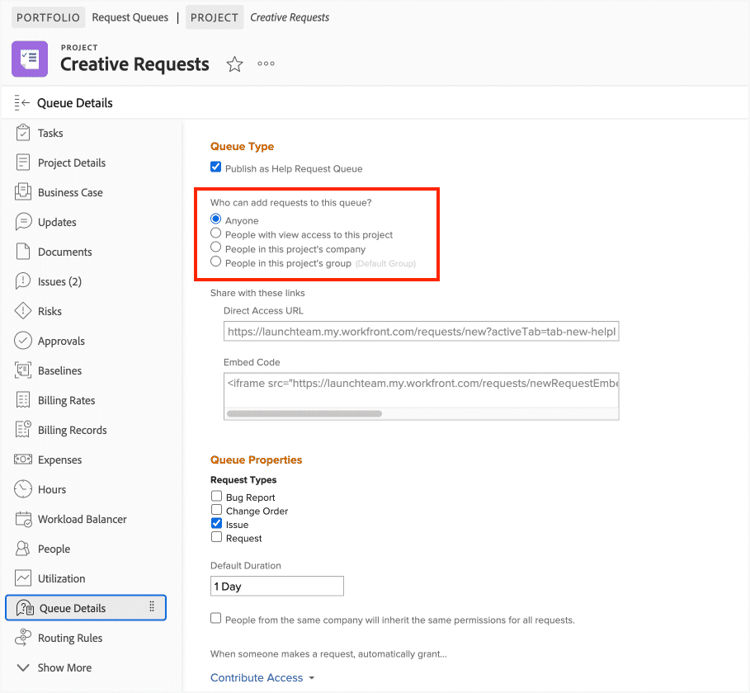
Avoid sharing request queues with "Anyone." In most cases, a request queue only needs to be shared with a certain set of people like a team, a vendor, customers, etc. When requestors see only what they need in the request queue list, it makes things easy to find and navigate.
Build a dashboard for requests so users can work on the issues directly.
Giving traffic coordinators, resource managers, system and group administrators, or assigned users quick and easy access to incoming requests means work doesn't get lost in the shuffle.
Remove the queue setup options for users who do not create queues.
Use a layout template to hide the fields in the left panel menu of a project. This ensures all request queues go through the proper process for creation (such as being reviewed by a governance committee) and are set up correctly by either a system or group administrator.
In addition, this helps keep the queue list organized and focused on the types of requests your organization needs.
Create a system administrator request queue for Workfront-related questions.
This provides a centralized location for users to submit questions and for admins to gather, monitor, and respond to Workfront-related issues. Queue topics might include questions, system setup changes, or new user training.
In addition, this information can be used to show leadership the time, effort, and value of the system administrator role and as a justification for an additional system administrator.
Audit request queues regularly to identify and unshare queues not being used.
A regular audit of the setups and items in your Adobe Workfront system helps keep it uncluttered and free of unneeded items. If a queue is no longer being used or monitored, verify users can no longer access it so work requests don’t fall into a void.
Use topic groups to organize queue topics to create shorter, easier to manage lists.
Topic groups increase user adoption and create less confusion by decreasing the initial list of options to select from. This allows users to easily find what they’re looking for without overwhelming them when trying to submit a request. Consider topic groups when more than 10 queue topics are part of a request queue.
In addition, topic groups allow system administrators and/or request queue managers to create a smooth navigational path for users and a better way to organize and report on the types of requests being submitted.

Use topic groups and queue topics to control the number of request queues.
Too many request queues make it hard for users to find what they need. Rather than creating multiple queues, consolidate related queues using topic groups and queue topics.
Fewer queues also help traffic coordinators, system administrators, or others managing the queues, allowing them to find the information they need more quickly, without having to navigate to multiple request queue projects.
Create multiple request queues if different access is needed for different request queues or if consolidating queues would be confusing to users.
Set up routing rules for each queue topic.
At minimum, set up a default routing rule. Routing rules ensure someone will always be assigned the incoming request, so work doesn't fall through the cracks.
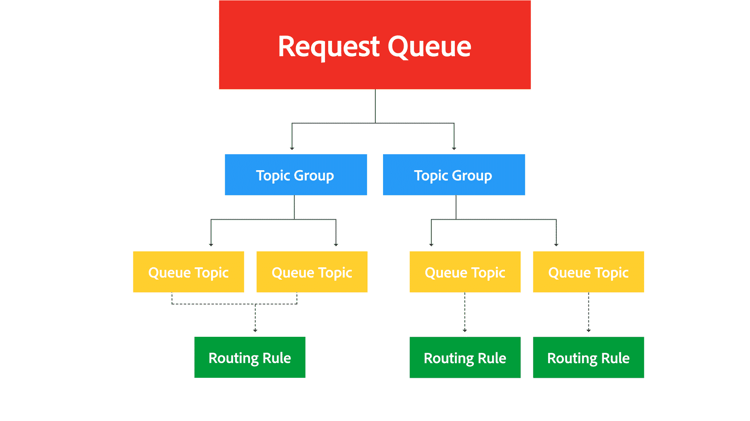
Leverage topic groups and queue topics when selective routing is needed.
Routing rules cannot be applied to fields of a custom form. If different types of requests need to be routed to different teams or individuals, then make each type of request its own topic group or queue topic so the work can be routed properly.
Route requests to a team, rather than an individual.
When requests are sent to the team, it gives the whole team visibility into the requests being made and what upcoming work might entail. Everyone can watch the Teams page for new items or keep track of what’s new with a report on a dashboard.
It also ensures that when the traffic manager or other person in charge of reviewing or assigning the incoming requests is unavailable, a backup is automatically available and has access to the request information.
