Permissions to objects
Just because a user has the license and access level to create and manage projects, that doesn’t mean they have access to every project in Adobe Workfront.
A user must be given permissions to specific items. Permissions to individual projects, documents, tasks, etc., are granted through the Sharing option on that item.
This image illustrates the combination of access and sharing permissions that lead to what is referred to as the “user rights”—what the user can get to in Workfront.
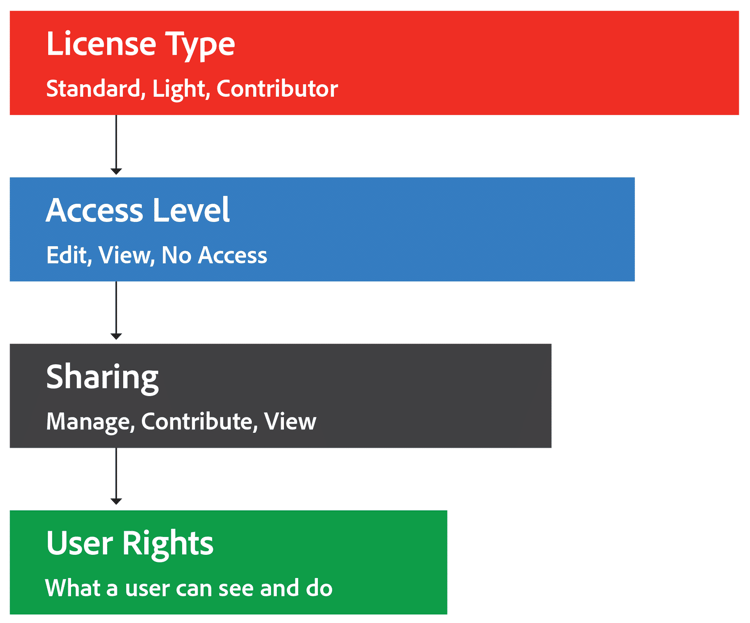
In the License Types and Access Levels lesson, you learned how licenses and access levels start building a user’s rights in Adobe Workfront by granting the ability to access and use different parts of the system. Now let’s look at the final aspect of user rights: sharing.
Sharing objects in Adobe Workfront
Sharing is how access to specific objects is granted in Adobe Workfront. An object can be shared by the user who created it or by a user the item was already shared with.
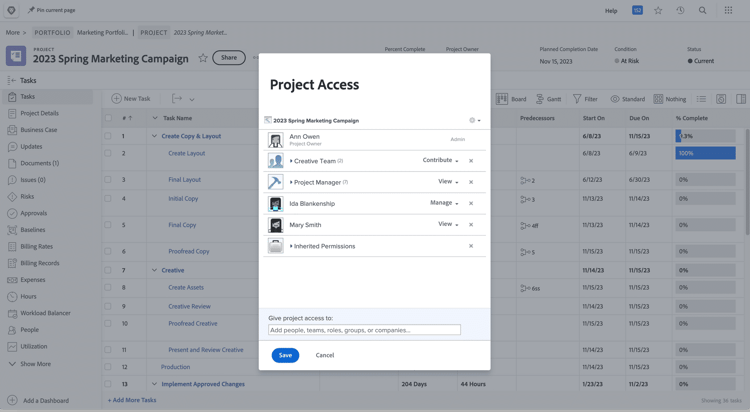
Individual objects can be shared through the Sharing menu option, which opens the item's access window.
Let's look at an example of when an item would need to be shared.
Ann and Daniel are project managers at your organization. They both have a Standard license and access level so they can create and manage projects in Workfront.

Daniel needs insight into what Ann's team is working on for an upcoming user conference. He tries to access Ann's project but can’t, even though they’re both project managers and have the same access level.
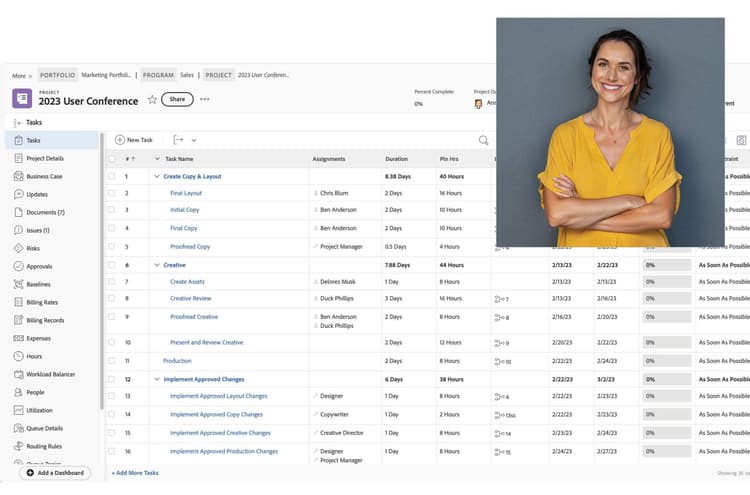
That’s because the last step of user rights isn’t in place—the sharing. Ann needs to “share” the project with Daniel so he can see the work being done.

primary
--spectrum-gray-700
000000
white
primary
--spectrum-gray-700
000000
white
Overview of sharing
Objects in Workfront—projects, reports, documents, and more—can be shared with:
- Individual users.
- People who are assigned a specific job role.
- All members of a team.
- All members of a group.
- Everyone in a Workfront company.
Note: You’ll learn more about job roles, teams, groups, and companies in Workfront in the next lesson.
Sharing permission levels
You can control the level of permissions someone has on an object: View, Contribute, or Manage.
Click the cards to learn about each sharing permissions level.
View
Contribute
Manage
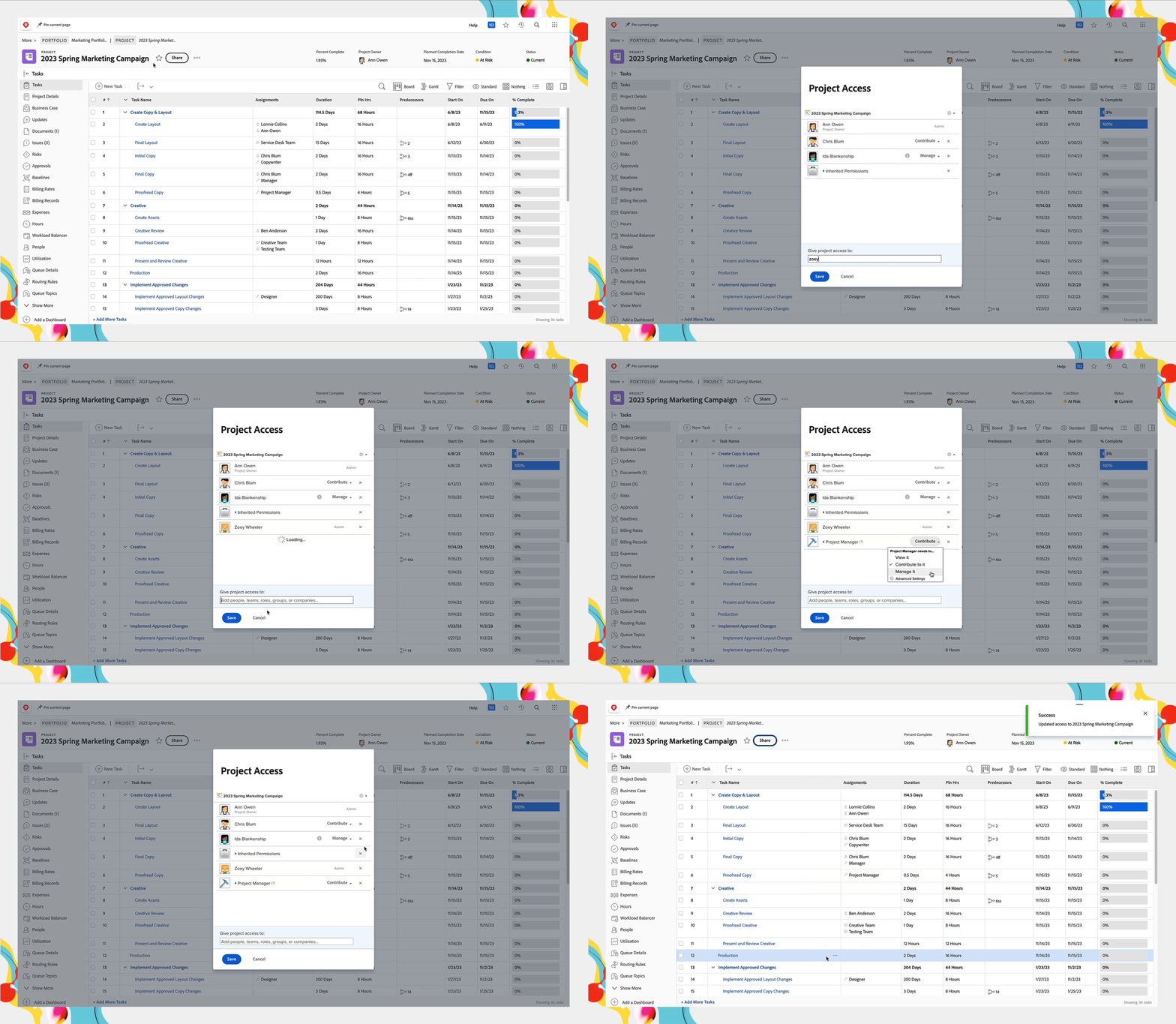
Share an object
-
Open the item to share—a report, project, etc.—by clicking its name.
-
Select the Share button in the project header.
-
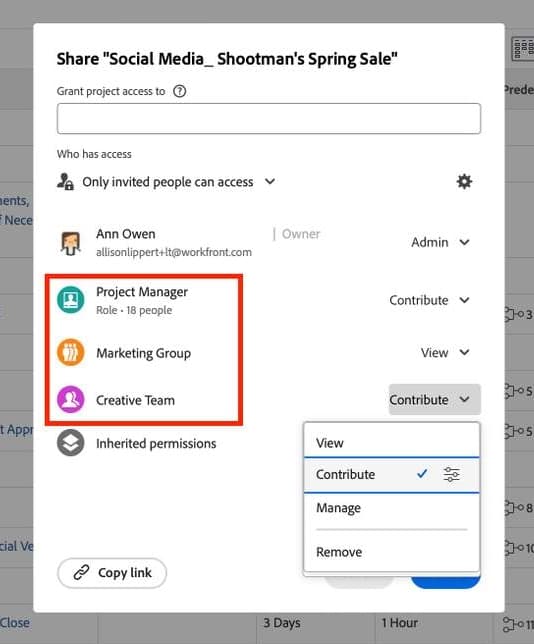
Enter the name of the user, job role, team, group, or company in the Give project access to field.
-
Grant the appropriate level of permissions—View, Contribute, or Manage—to the user you’re sharing with by selecting from the dropdown menu.
-
If needed, select Advanced Settings to fine-tune the permissions.
-
Click the X next to users, job roles, teams, groups, or companies who shouldn’t have access to the object.
-
Click Save.
Inherited permissions
Workfront objects also are shared through inherited permissions. Inherited permissions are when a child object inherits the permissions of a parent object.

For example, a portfolio is shared with the creative marketing team. By default, the programs in that portfolio inherit the same permissions. And the projects within those programs inherit those same permissions.
Those permissions even extend to the tasks, issues, and other objects associated with the project.
You can see who has inherited permissions to an object in the sharing access window.
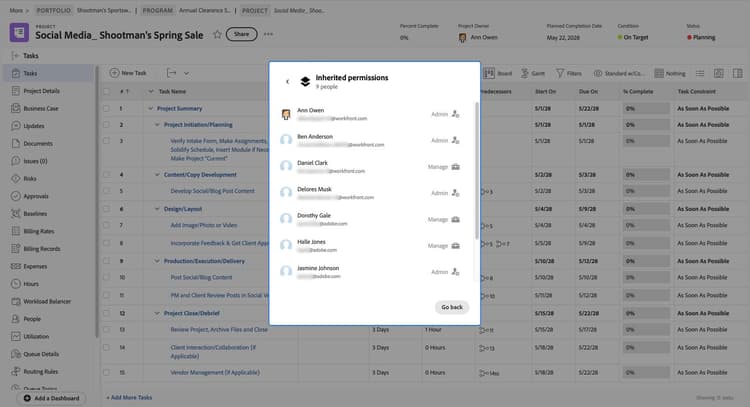
View who inherited permissions to an item through the item's access window.

Best practices: permissions
Click the > (expand sign) next to each best practice for more detail about these recommendations and why you should consider implementing them with your Adobe Workfront instance.
Restrict what users can do with items through sharing rather than an access level.
Using a larger organizational unit like groups and teams when sharing items in Workfront—projects, reports, and so on—means you can quickly and easily share the object with a select set of people all at the same time. Adding individual users’ names to the sharing window can be cumbersome and time consuming.
This also makes it easier to maintain the sharing on an item. As team members are updated in Workfront, an item’s sharing permissions update automatically, granting new team members access to the item and removing access for former team members.
In the next step, you'll learn about Adobe Workfront's organizational units.