License types and access levels
Licenses and access levels control what a user can do in Adobe Workfront.

Licenses and access levels
In this video, you will learn how to:
- Determine which Adobe Workfront license type to assign to users.
- Fine-tune access to features in Workfront with access levels.
Pro tip
primary
--spectrum-gray-700
000000
white
primary
--spectrum-gray-700
000000
white
Additional license types
Adobe Workfront offers two other license types that provide limited access to features and information in Workfront: Contributor and External.
-
Contributor licenses allow users to submit, track, update, review, and approve requests made through Adobe Workfront. This license also allows users to upload and approve documents, as well as approve projects, tasks, and issues.
-
External licenses are designed primarily for sharing documents with people who don't use Workfront. External licenses are assigned automatically by Workfront when a document is shared with people who don't have a Workfront login. This is the most restrictive license type.
These licenses are commonly used by Adobe Workfront customers to grant limited access to Workfront to vendors, clients, or internal stakeholders who aren’t otherwise using Workfront. These users often just need to make a request through a Workfront request queue or review the work associated with a request they made.
Pro tip
primary
--spectrum-gray-700
000000
white
primary
--spectrum-gray-700
000000
white
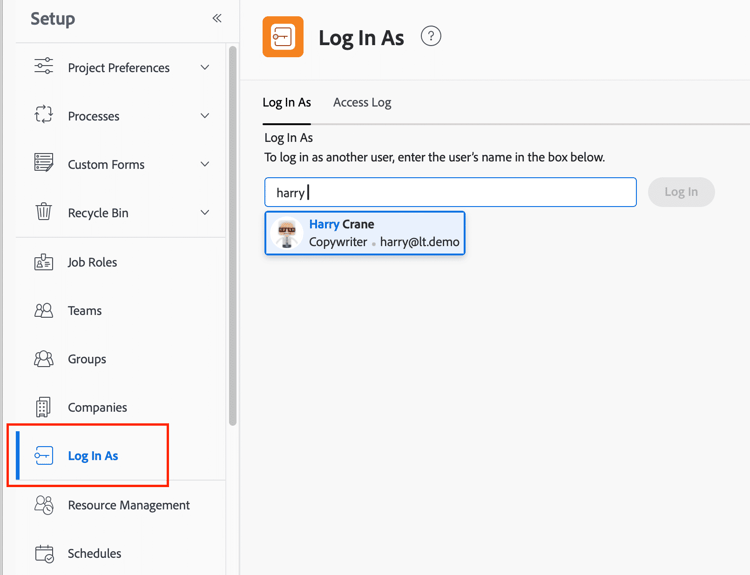
Log In As in the Setup area allows system administrators to log in as other users to check their access settings.
Best practices: Licenses and access levels
Click the > (expand sign) next to each best practice for more detail about these recommendations and why you should consider implementing them with your Adobe Workfront instance.
Start with less access for users when setting up access levels.
Limit yourself to only the access levels necessary to accomplish your work goals.
Ideally, four or five access levels would capture the needs of most users in Adobe Workfront.
The access level ensures that when a Workfront object is shared with a user, the user has the rights they need to edit it, delete it, and so on. You can make access levels more general because sharing on individual items can be configured to be more specific.
In addition, having fewer access levels can make it easier to maintain a clutter-free system and implement a strategy, which also can lead to quicker onboarding for new users or when users switch departments or roles.
Copy and modify an existing access level, rather than creating a new access level.
Uncheck the “Share System-wide” box on each object in all access levels.
Sharing an object system-wide is often used as a crutch to allow certain users to see items in Workfront. This happens when the Workfront group structure is lacking or when sharing permissions aren’t fully understood. When items are shared system-wide, it means everyone can see the item that is shared. Depending on the type of information being kept in the system, this could lead to privacy issues.
For example, you may be working with several vendors inside Workfront to check progress, provide approvals, etc. If the Share System-wide box is selected or set as a default, that makes information available to all vendors.
By unchecking the option altogether, you make it so a user with the permission to share must determine the specific person or people—either through a company, group, or team—they want to share the object with.
Consider activating the “Never allow users to delete comments” setting.
Document what each access level can do in the Description box.
Be detailed with the description, listing what the settings are for each object type. This helps system administrators—present and future—know exactly what each access level does without having to dive into the access level itself to review the settings.
This also can make comparing access levels easier when looking at them in a report. The description field can be added to the view to quickly see how access levels differ and, possibly, why a different access level was created.
Assign at least two users to the global system administrator access level.
Limit the number of system administrators in favor of group administrators.
System administrators have access to everything in Workfront, including global system settings. The settings that group administrators can access are controlled by the system administrator and apply only to that specific group.
Having group administrators allows the system administrators to delegate many responsibilities, allowing them to focus on bigger picture items, rather than the day-to-day maintenance of Workfront. Group administrators can more easily keep in touch with the needs of their groups, which provides better service for users.
Next, learn how licenses, access levels, and object sharing work together.