Phase 4: take the project live

Streamline project creation
Karen needs to understand which fields convey the most important information so her Workfront users can streamline project creation.
With the right type of information, she can write reports based on what they want to see.

Fill In the project details
When your organization begins to create projects, Workfront recommends keeping things simple. Focus first on what’s needed to get the project created easily, yet accurately, so project managers can get it up and running quickly.
- Create the project using your organization’s preferred method. This could be converting a request, using a template to create a project, or starting a blank project so you can build out the timeline yourself.
- Fill in the Project Details, focusing on the most important information for your organization.
- Your users don’t need to fill out every field and checkbox in the Project Details with each project they create. Use templates to pre-fill information, then focus on the project name, description, status, project owner, custom forms, etc.
- Modify the project timeline so work gets done by the right people. This could include removing unneeded tasks, adding tasks for additional work, adjusting due dates, and assigning the work to team members.
- Then take the project live by changing the status of the project to Current, so the work can begin!
Mastering these basics ensures your users have successful projects and get top-notch reporting data. Then, once everyone is familiar with how things work, your users can move into more advanced project creation and management, looking at things like task constraints, resource management, finances, and more.
Find your projects
Once projects are created, project managers need to know how to access them so they can see how work is progressing, make updates, and so on. Karen needs to learn the different ways to find projects in Workfront so she can provide recommendations on the best way to locate work for the teams at her organization.
One of the most commonly used Workfront tools is a dashboard. Many Workfront customers create custom reports that show the projects in progress, then add these reports to dashboards they create to help people do their best work.
For example, you may have a dashboard that contains reports showing:
-
Incoming work requests.
-
Requests that have been converted into projects.
-
Projects that are in the Current status.
-
Projects that are in the Planning status.

Some Workfront managers and planners prefer to work from the Projects area because it shows all the projects they have access to.
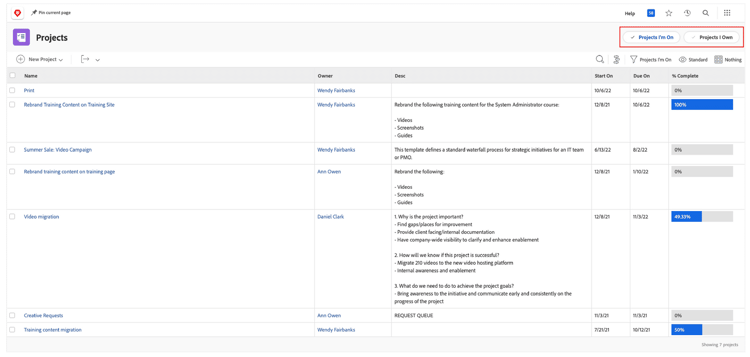
Quickly filter the list using the buttons at the top-right of the window.
-
Projects I’m On: Shows projects you’re involved with in one of the following ways: you’re assigned a task in the project; you created the project; your name is in the Project Sponsor field; or your name is in the Project Owner field.
-
Projects I Own: Shows every project that has your name in the project owner field, regardless of what Status the project is in.
Other options for finding projects include:
- Favorites list: With the project open, add it to the list with the Favorites icon. Then access it from the icon at the top of your Workfront window.
- Pinned items in the top bar: With the project open, click the Pin Current Page link. The project name appears in the top bar for easy access.
- Recents list: Workfront keeps track of the most recent items you open. Access this list from the Favorites star icon.
- Program and Portfolio: If you have access, you can go directly into a program or portfolio and click the Projects section in the left panel.
- New Home: Add the My Projects widget to your workspace to access your projects along with other assigned work.
- Search: Click the Search icon in the navigation bar. Narrow your search by object type, then type in your search terms.
Find work assignments
When tasks from projects are assigned to team members or other individual contributors, they can find them in Workfront Home. Karen needs to know which users will manage their work in Home, but first she needs to learn what information is available in Home before she makes any changes to a user’s workflow.
What Is Workfront home?
Workfront Home allows individual contributors to view all work items assigned to them in a central location. The different areas help users to view all their work more efficiently.
Home is a flexible space that allows each user to customize the space. The widgets provide users a way to choose the type of information that is displayed to suit their work needs.
To learn more about Home, select the markers on the image below.
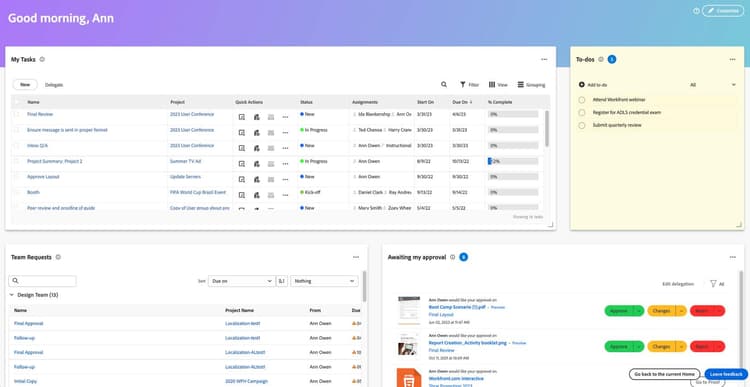
Widgets are the foundation of Home. Widgets allow users to choose the type of information displayed on the page so it best meets their work needs.
Add widgets using the Customize button. Remove a widget from the page with the three-dot menu in the upper-right corner of each widget.
Resize a widget using the resize icon in the bottom-right corner. Drag a widget to the desired position. You may need to resize a widget so it fits in the space available.
Select the Customize button to add widgets to Home by opening the Customize panel then selecting the Add Widget button on the desired widget.
Users can also select a colorful banner for the top of the page.
In the next step, you'll learn how to close out a project.