Phase 3: project creation

Know the options
As a system administrator, Karen identifies her organization’s preferred method of creating projects.
To do so, she needs to know what the options are.

Project creation options
Workfront customers create projects in a variety of ways, depending on the team and the project purpose. Let’s look at the three main ways for creating a project:
- Convert a request
- New from a project template
- New from scratch
Karen’s organization has an intake process where requests are routed for review to project managers, resource managers, or traffic coordinators. She already established these queues and routing rules as the system administrator. Now let’s focus on what managers and coordinators are doing with these requests after they are submitted in Workfront.
A common Workfront workflow is to convert requests into full-fledged projects.
- Start by finding the request from the Requests area, dashboard, or other method your organization uses to manage requests.
- Open the request to review the information submitted.
- Click the Issue Details of the request to review the request description, information collected through a custom form, and attached documents to determine whether a project is needed.
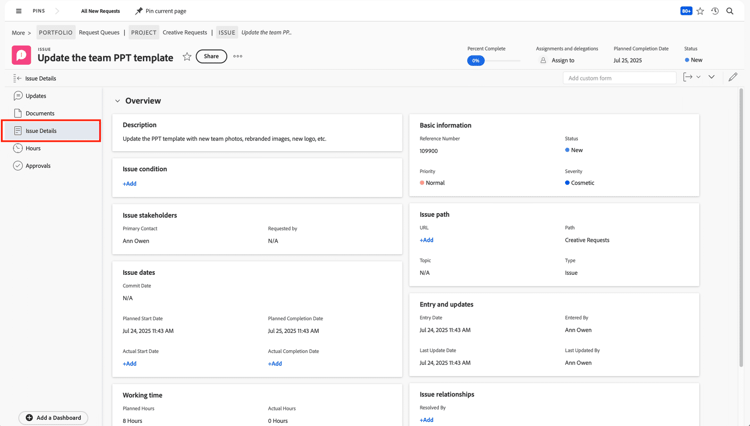
Find the submitted request from the Requests area of Workfront to review its details.
Pro Tip
When you start using Workfront for projects, start small. Introduce Workfront by planning and managing a few smaller-scale projects that your team is comfortable with. This gives everyone time to get used to work management in Workfront before diving into the more complex projects at your organization.
Adobe Workfront recommends your team or organization establish standards or guidelines for when requests are converted to projects. But in general, a project is needed when the request:
- Takes more than 2-3 hours of work to complete.
- Requires work from more than one person.
- Results in creating a new deliverable or multiple deliverables.
- Aligns with a strategic initiative at your company.
primary
--spectrum-gray-700
000000
white
primary
--spectrum-gray-700
000000
white
Convert a request to a project
When converting a request to a project, you want to start with an existing project template, or you create the project plan completely from scratch. No matter which option you choose, you can customize the project to your needs after conversion.
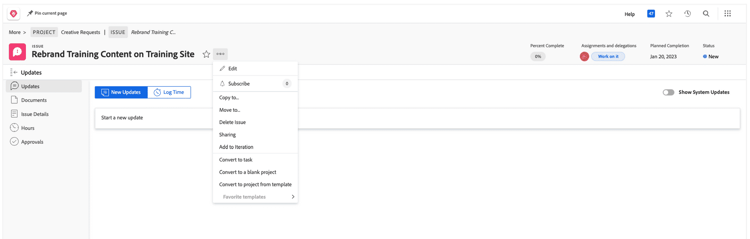
To learn how to convert a request to a project, select the markers on the image below.
Templates serve as a framework for new projects, with pre-built tasks needed to complete the deliverable, placeholder assignments, and a structured timeline. Templates allow you to build and start projects faster, as well as ensure consistency for more accuracy and completeness across your similar projects and reporting.
Convert a request to a project using a project template
- Open the issue to convert.
- Select the More (3-dot) menu.
- Select Convert to project from template.
- Select the appropriate project template.
Not all requests may follow the pre-built tasks needed to complete the deliverable in a project template you have. You may want to build the project timeline yourself in a blank project.
Convert a request to a project from scratch
- Open the issue to convert.
- Select the More (3-dot) menu.
- Select Convert to a blank project.
Create a project from a template and from scratch
Not all projects start from a request and that’s okay. You can create a project from a project template or from scratch.
In this video, you will learn how to:
- Create a project from a template.
- Create a project from scratch.
As a system administrator, you can set the status of new projects to Planning through global default settings. Planning (or your organization’s equivalent) is the recommended Workfront project status as users make changes to a project before it goes live and sends out notifications.
Regardless of which project creation method your users choose, the basic steps are the same:
- Select the creation method.
- Pick a project template, if applicable.
- Fill in the details.
- Click Create.
In the next step, learn how to take a project live.