Phase 1: work intake

Identifying and establishing how teams accept project requests is one of Karen’s responsibilities as a system administrator. She needs to know how teams take on new work and how to streamline processes so they are efficient and gather the information teams need to make decisions about requests.
Karen and her teams decided that project and other work requests will be submitted through request queues. Users can easily make and manage their requests through the Requests area in Adobe Workfront.
Requests
With request queues set up, Karen can direct her users to leverage these queues to manage work right from the beginning.
As a system administrator, it's important for Karen to understand not only how things are configured from the back end but also how work progresses from the user perspective.

Make a request
In this video, you will learn how to:
- Navigate to the Requests area.
- Make a request.
- View your submitted requests.
- Find a draft of a request.
Where to find requests
There are multiple ways in Workfront to find requests. As you're exploring your organization's workflows and setting up processes in Workfront, you may find that some ways of managing requests suit different workflows, groups, or teams.
Explore some places in Workfront where you can find requests in the tabs below.
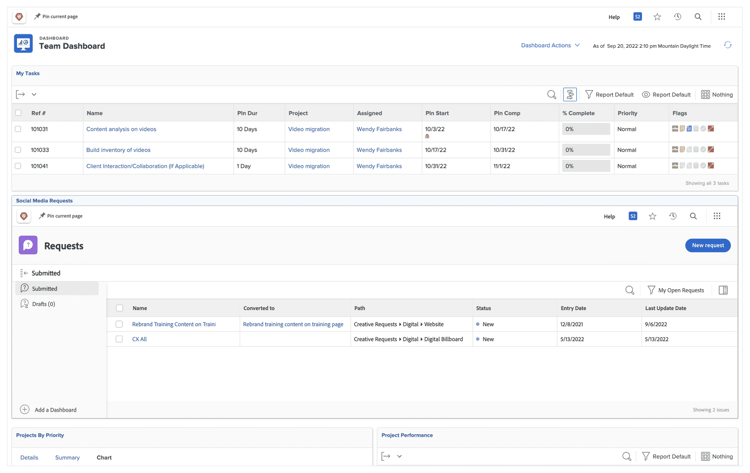
Many Workfront customers write custom reports that display incoming requests, track requests that have been converted to projects, and more. These individual reports are assembled into a dashboard, so everything can be viewed easily and quickly. Workfront recommends this method of request management, as it can be customized to your organization’s needs.
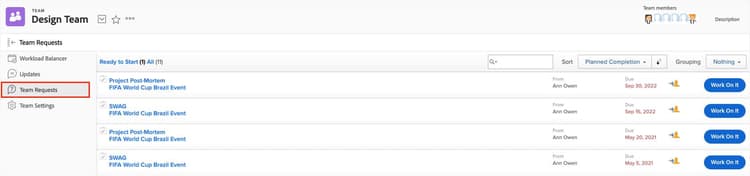
When requests are routed to a team, they appear on the Teams page in the Team Requests section. From there, team members can self-assign work or a team lead can assign work.
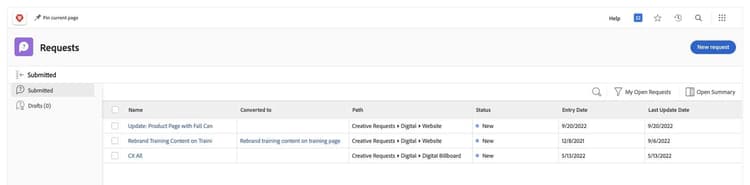
The Submitted page in the Requests area shows the requests you have access to that are still open or unresolved. Change the filter to see all submitted requests you have access to, just your requests, or just your open requests. To quickly see the details about a request, select it in the list and open the summary panel.
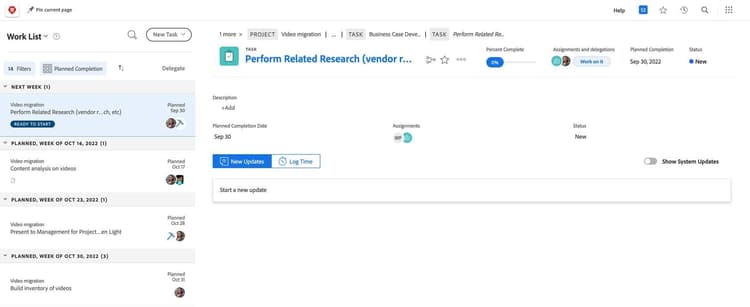
Requests are labeled as an issue in Home, because that is how the back end of Workfront handles requests made through a request queue. When an issue is assigned to a user, it appears in the user’s Workfront Home page.
When using New Home, users can access requests through several widgets, including My Work and My Requests.
Once your users know where to find requests, they can kick things off by getting those requests approved.
In the next step, you'll learn how to set up approval processes.