Customize object areas and details
Continue to streamline navigation in Adobe Workfront by customizing the left panel menus for the different areas and objects of Workfront.
The left panel menus allow users to access additional information about the item they’re looking at—the Task Details on a task, the documents associated with a project, and so on. Putting these sections in the order that matches the steps of a workflow, or simply putting the most commonly used sections at the top, can help users find information faster.
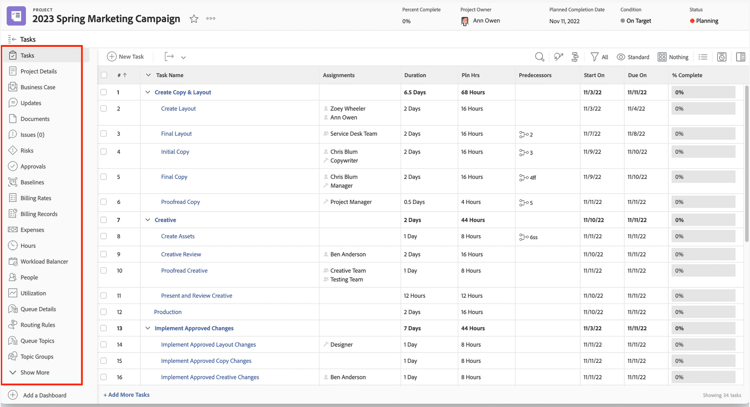
The left panel menus allow users to see additional information about the item.
You also can hide sections of the left menu so they’re not visible. This helps reduce the visual clutter in the menu by removing sections that aren’t used by the team or at your organization.
Customize the left panel
In this video, you will learn how to:
- Remove items from the left panel.
- Add items to the left panel.
- Rearrange items in the panel.
As Karen customizes the left panel, she keeps a few things in mind:
- Users can add dashboards to their workspace using the Add custom section option and rearrange the order of the items in the left panel. When you change a layout template, those changes merge with customizations users have made, without overwriting them.
- The left navigation panel does not show up on the Portfolios, Programs, Projects, or Templates areas (the ones selected from the Main Menu) unless the left panel is customized in the layout template.
- The Projects area is a great place to add dashboards for project managers, resource managers, and others whose Adobe Workfront landing page or main workspace is the Projects area. You could do the same on the Portfolios or Programs areas for your portfolio/program managers or the Requests area for your requestors.

Customize the Details section of an item—project, task, document, etc.—so users can easily find the information relevant to their work assignments.
The Details page on many Workfront objects contains two sections by default: the Overview section and the Finance section. The fields in these sections are native to Workfront.
However, all of those fields may not be relevant to your organization or the work users are doing.

Details sections are available for many Workfront items, such as projects and documents.
If there is a custom form attached to the item, that appears in the Details section, too. The fields on the custom form are controlled by the form itself, not the layout template.
Customize the details section
In this video, you will learn how to:
- Navigate to the Details area of an Adobe Workfront object.
- Show and hide Details fields via a layout template.
- Adjust the order of the sections in Details.
Customize object headers
In addition to customizing the left panel menu and the details sections of objects in Adobe Workfront, you can determine which fields appear in the page headers of projects, tasks, and issues.
By default, Workfront displays five fields at the top-right of the page headers. But sometimes this information isn’t relevant to your users and they’d like to see something different. You can customize these fields through a layout template.
Click the plus icons on the image below to learn how to customize a header.

As Karen edits the page headers, she's taking note of a few things:
-
You can add only fields that are part of the Overview area of the object’s Details section and that are not editable. These are fields that are filled in automatically by Workfront and that users cannot edit.
-
You can include editable fields that are already part of the default headers, such as Project Owner, Status, or Percent Complete.
In the next step, you’ll learn how to streamline the options in the filter, view, and grouping lists.