Customize navigation in workfront
Layout templates streamline what features and areas a user can see and access in Adobe Workfront, allowing users to focus on what’s important to them.
The parts of the Workfront window that can be customized include:
- Main Menu
- Left panel menu on area and object pages
- Details window on objects
- What page users land on when they log in
- Page headers for projects, tasks, and issues
- Filter, view, and grouping lists

Create a layout template
Adobe Workfront recommends building layout templates around sets of people who do similar work and need access to the same parts of Workfront.
For example, there are designers across several groups at Karen’s organization who do the same type of work in Workfront. So Karen creates a single layout template and assigns it to everyone in that job role.
Not only does this ensure users have access to the parts of Workfront they need to do their work, but it also means fewer layout templates for administrators to create and maintain.
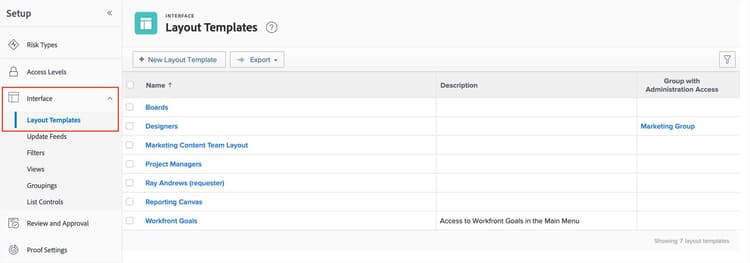
System administrators create layout templates from the Setup area.
Step 1
Expand Interface in the left menu of the Setup area. Select Layout Templates.
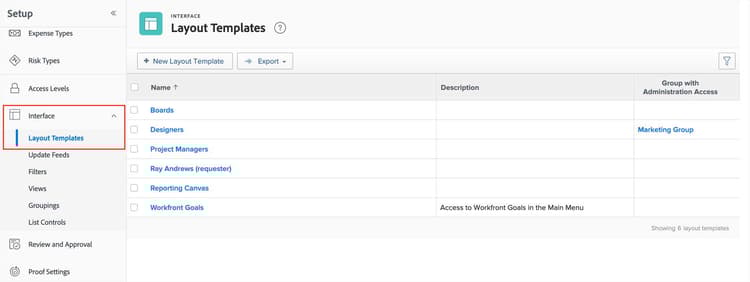
Step 2
Select the New Layout Template button.

Step 3
Give the layout template a name at the top-right corner.

Step 4
Add a Description to the layout template. The combination of the layout template’s name and description helps you and other administrators know who the layout template is built for.
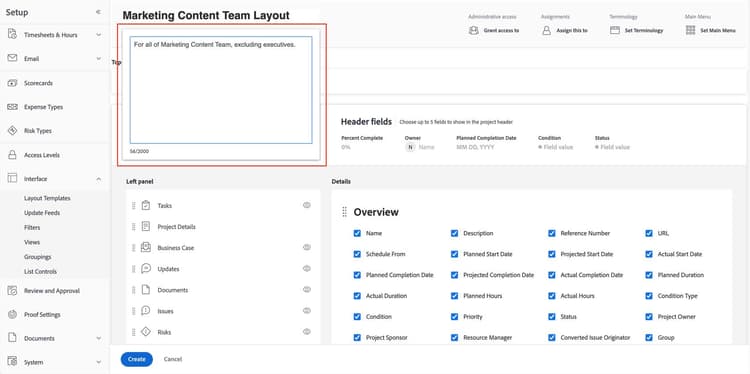
Step 5
Click Create to save the layout template.
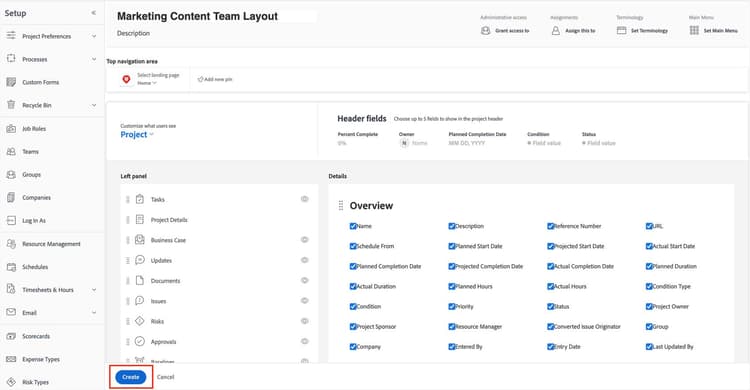
Click the name of the layout template in the list to open it again and customize the settings.

Pro Tip
primary
--spectrum-gray-700
000000
white
primary
--spectrum-gray-700
000000
white
Group administrators and layout templates
Group administrators can help create and maintain layout templates. Group administrators may know their processes and users better than a global system administrator does.
Allowing group administrators to manage layout templates for their users alleviates some of the system configuration responsibilities from the global system administrator and may offer faster response time when changes are needed.
Layout templates can be created from the group’s main page.
- Select Setup in the Main Menu.
- Select Groups in the left panel.
- Click the group’s name to open it.
- Select Layout Templates in the left panel.

Group administrators can create layout templates from the group’s main page.
Note: Layout templates created by group administrators are not automatically assigned to users in the group.
Streamline navigation in workfront
Be mindful when hiding options—you don’t want to hide something a user needs as part of their day-to-day workflows. Remember, it’s easy to add more options to the Main Menu if needed, but it may cause friction if someone has access to something and it’s taken away.
Customize the main menu
In this video, you will learn how to:
- Set up the main menu in a layout template.
- Remove items from the main menu.
- Add items to the main menu.
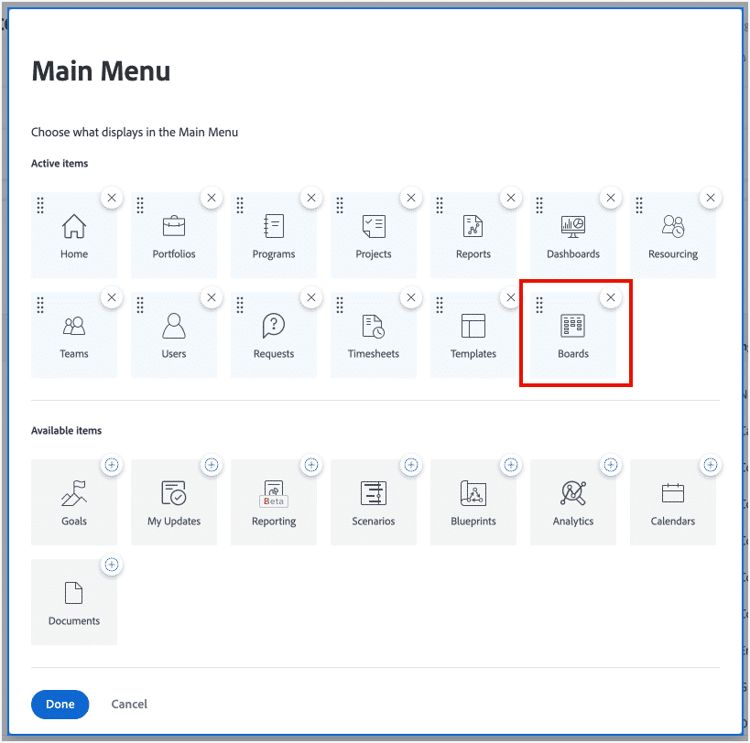
Add Boards to the Main Menu to provide users another way to manage their work.
Support work management agility
The way teams across Karen’s organization manage and complete work is different on a team-by-team basis. Teams that work in a hybrid manner—mixing work methodologies like agile and traditional waterfall project management—need tools with the functionality they need to support and manage their work.
To support this flexible way of working, Karen can add Boards to the Main Menu.
Landing page and pins in the navigation bar
Karen can customize additional navigation options via the layout template:
- The landing page, which is the Workfront page users see when they log in.
- Pins, which are shortcuts to areas of Workfront, reports, dashboards, or other Workfront items.
Landing page
The Select landing page option sets not only the page that users see when they log in to Workfront but what page they’ll go to when they click the icon at the far-left side of the navigation bar.
Setting the landing page ensures users can immediately access the information most relevant to them when they log in—Home for team members who manage assignments through the Work List, requestors to the Requests area, project managers to the project list, and so on.
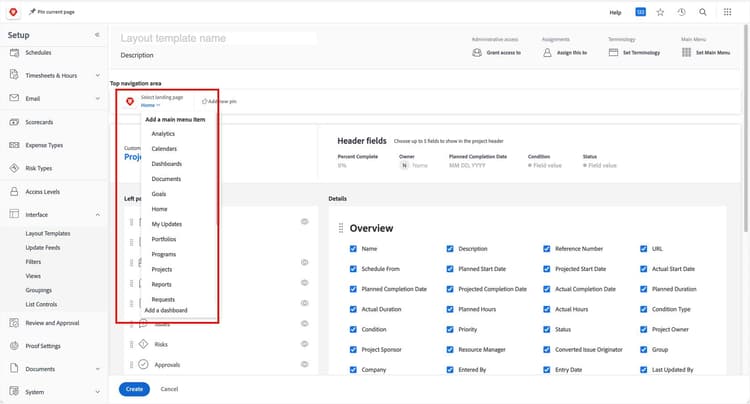
Set the section of Adobe Workfront that users land on when they log in.
Pins
The Add new pin link allows the administrator to pin a Main Menu item or a dashboard and push the pins out to all users assigned to the layout template. The pins appear in the navigation bar across the top of the Workfront window and provide users a quick, easy way to access Workfront items they use frequently.

Main Menu items and dashboards can be pinned via a layout template.
Click each card to see a tip about adding pins to layout templates.
Pin items everyone will use.
User pins display on the right.
Put dashboards in custom sections, rather than pins.
You don’t have to include pins on the layout template.
In the next step, you’ll learn how to customize object areas, details sections, and page headers.