Customize home and terminology
Ensure the information needed to complete work assignments is visible in Workfront home.
Many team members and other individual contributors manage their work assignments through Workfront Home. Karen knows that having quick, easy access to information about the assignments contributes to getting the work done correctly and on time.
Karen can customize the widget configuration in Home to give team members greater control over how they manage their work.

Working with home
Workfront home is a flexible workspace that individuals can arrange to highlight the work that is most important to them. Widgets help team members track their work assignments, whether they are tasks, approvals, or team requests.
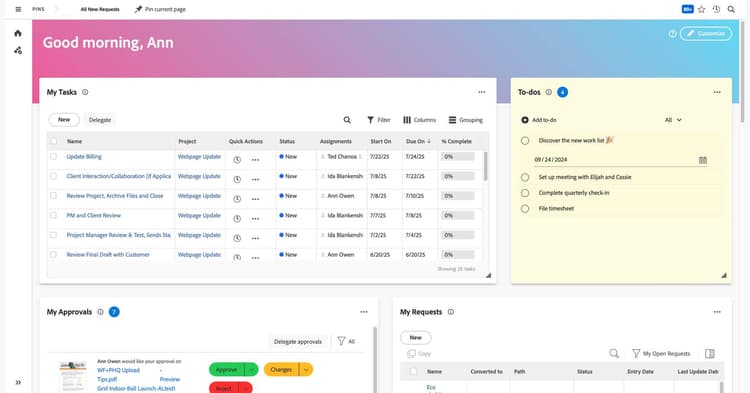
Workfront Home uses widgets to display information.
Widgets allow team members to see when they’re tagged in Workfront updates or create their own to-do list right in Workfront. They even can add a splash of color to the page by selecting a colorful page banner.
Customize home
Several teams at Karen's organization have requested that everyone have the same widget configuration in Home, to make working together an easier and more consistent experience. Karen can do this through the layout template.
Workfront users are automatically assigned an initial widget configuration based on their assigned Workfront license type. Once they have been assigned a layout template, that is the widget configuration they see.
Configure the home layout
A layout for the widgets in home can be customized by system or group administrators through a layout template, so everyone assigned that template sees the same layout in Home.
Step 1
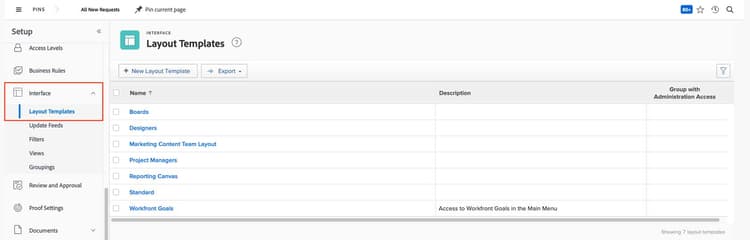
Navigate to the Setup area from the Main Menu. Open an existing layout template or create a new one.
Step 2

Select Home from the Customize what users see menu. The Design & layout section is selected by default.
Step 3
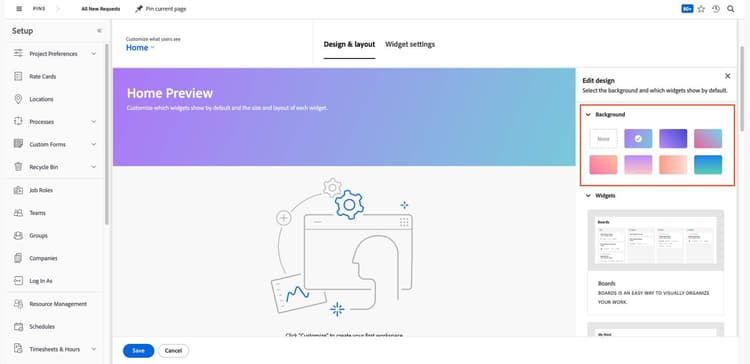
Select a background color theme for the top banner in the Edit design panel on the right side of the window.
Step 4
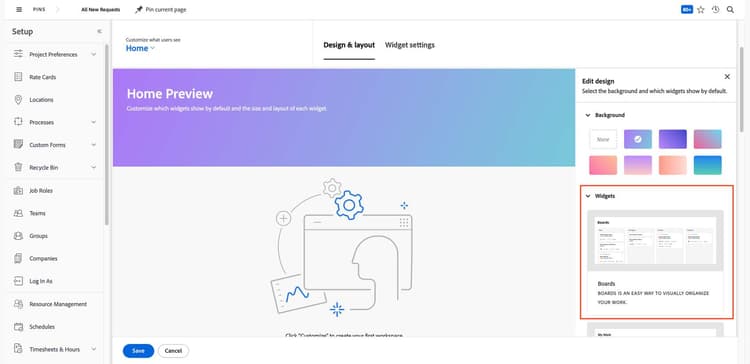
Add widgets to the Home Preview workspace. Hover over the widget options in the Edit design panel and select the Add widget button.
Step 5
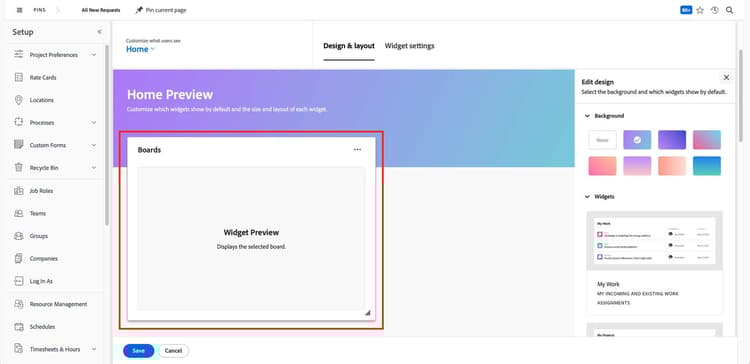
Resize the widgets by dragging the bottom-right corner until the widget is the desired height and width. Drag widgets to the desired position in the layout.
Modify the filters, columns, and groups in widgets
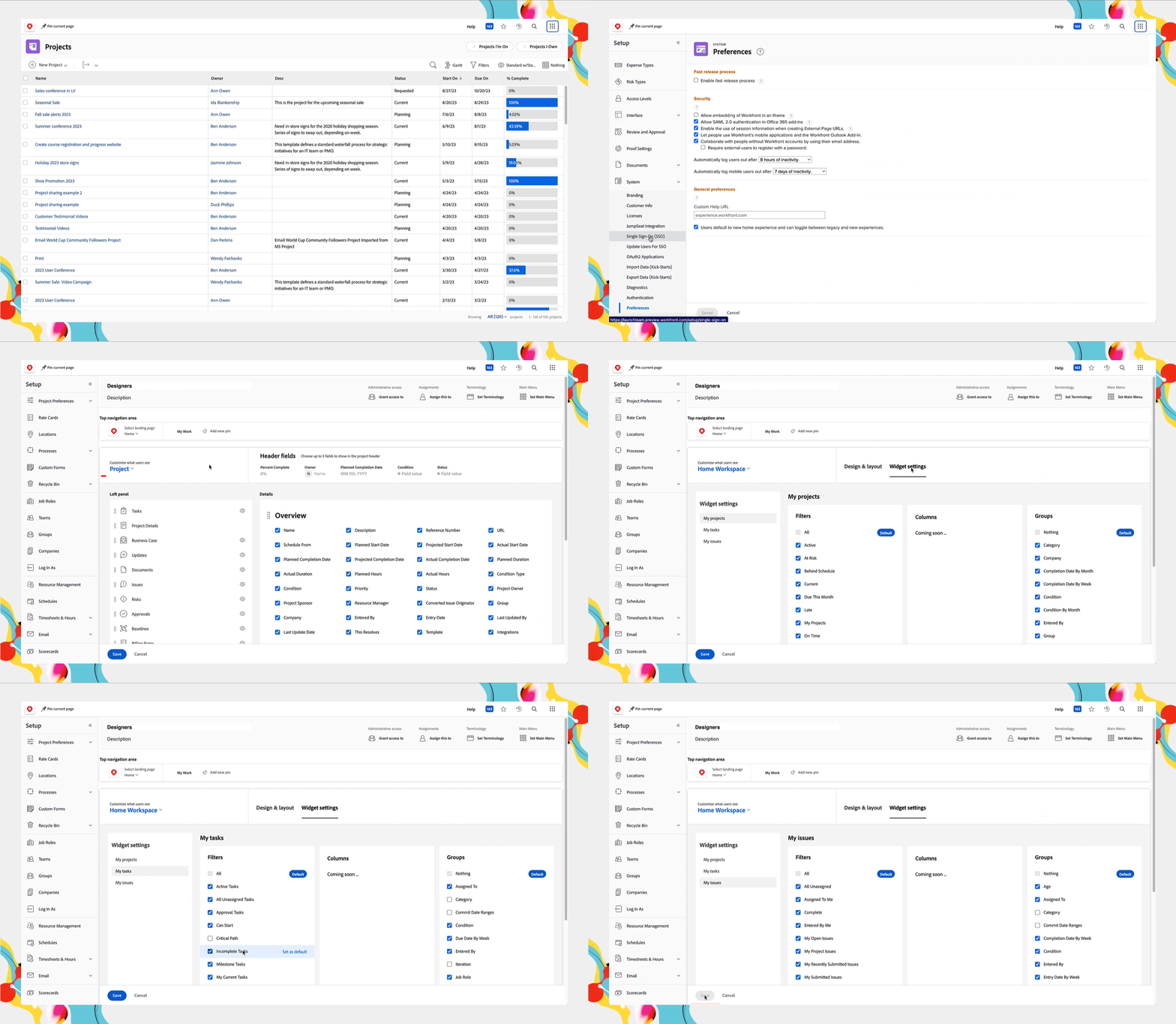
Filters, columns, and groups can be used in widgets to modify the information displayed. The system or group administrator can customize the options seen in the My projects, My tasks, or My issues widgets through the layout template.
-
Navigate to the Setup area from the Main Menu. Open an existing layout template or create a new one.
-
Select Home from the Customize what users see menu. Select the Widget settings section.
-
Select the desired widget in the left panel—My projects, My tasks, or My issues.
-
Hide Filters, Columns, and Groups options by unchecking the boxes.
-
Set a Default option for each column, if desired.
-
Add Filters, Columns, or Groupings you have created to the lists with the Add button at the bottom of each column.
-
Save changes when the layout template is complete.
Streamline the view with priorities
The priorities page that is part of Workfront home is a streamlined, intuitive experience designed for team members and others who are assigned task work in Adobe Workfront.

The Priorities page displays items assigned to you. It does not show items assigned to your team.
If your organization doesn't want to use the Priorities page, it can be disabled at a global system level.
-
From the Main Menu, select Setup.
-
In the left panel, expand the System section.
-
Select Preferences.
-
Uncheck the box next to Enable the Priorities worklist to hide the Priorities page from all users in your Workfront instance.
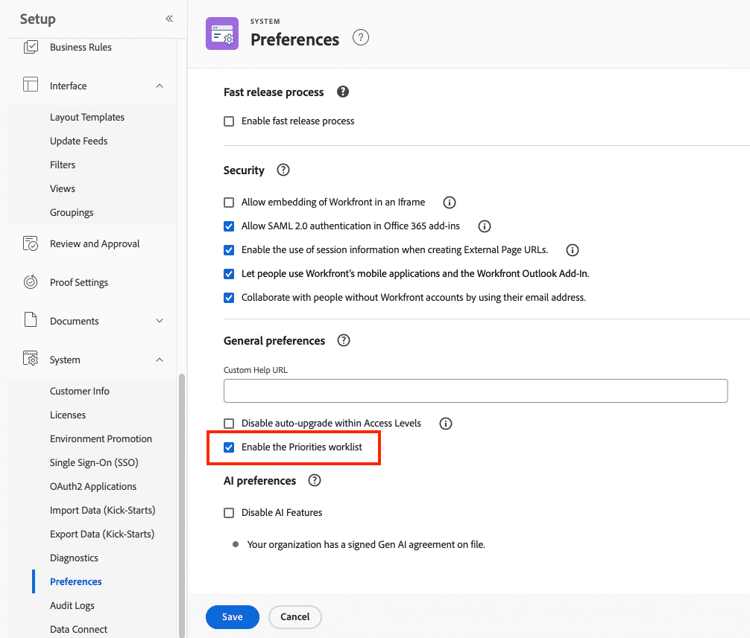
Checking the box turns on the Priorities page for all users in your Workfront instance.
Update the summary panel
The Details section of the Summary Panel can be customized through the layout template.
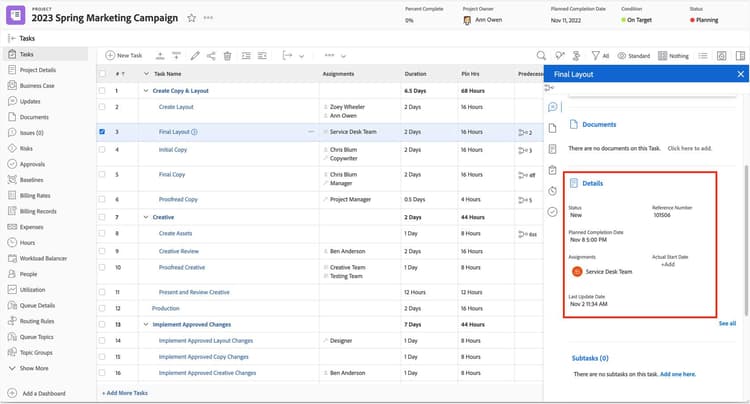
The Summary panel displays information about the selected task or issue.
In the Setup area, edit an existing layout template or create a new one to customize the Summary panel. The Details area in the panel can display up to 16 fields.
-
Select Summary panel from the Customize what users see dropdown menu.
-
On the left, select the object type for which you want to customize the Summary panel—Tasks or Issues.
-
In the Choose a category to customize section, select the type of task or issue to customize—Working on, Requests, or Approvals.
-
Click the +Add Field button, then select a field from the list.
-
Drag the field tiles into the desired order. You can have four rows of four fields each.
-
Repeat these steps for each object type and category, as desired.
-
Save the layout template when you're done.
Make Adobe Workfront’s terminology match your organization’s terminology through a layout template.
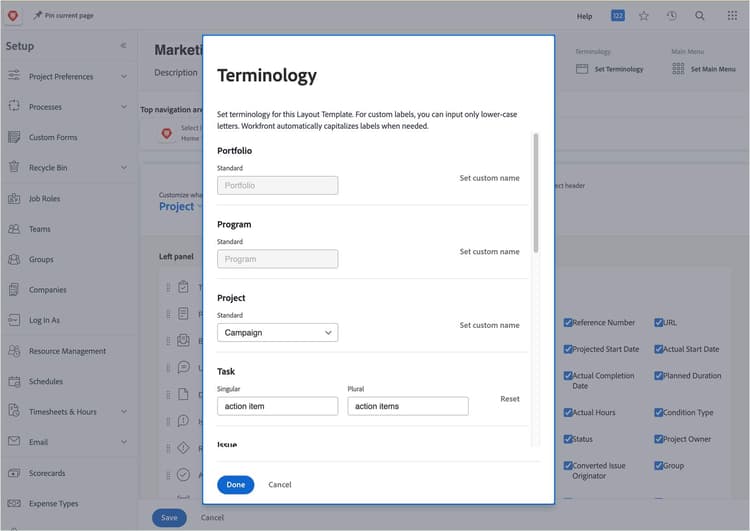
Some terminology in Workfront can be customized through the layout template.
Use the terminology mapping you did earlier in this course as your guide when updating the default terminology used across Workfront. Ensure the updates made in the layout template match the language your organization uses.
The terminology set through the layout template appears where the default labels would appear in most places throughout Workfront.
The new terminology appears in Workfront once a user has logged out and logged back in.
primary
--spectrum-gray-700
000000
white
primary
--spectrum-gray-700
000000
white
Customize Workfront terminology
In this video, you will learn how to update Adobe Workfront terminology to match your organization’s terminology.
In the next step, you'll learn how to assign layout templates to users.