Assign layout templates
With layout templates created, you’re ready to assign them to Adobe Workfront users so they can take advantage of a streamlined and customized Workfront window.
Remember, Adobe Workfront recommends building layout templates around sets of people who do similar work and need access to the same parts of Workfront, such as a group, team, or job role.
If multiple layout templates are assigned to the same user, only one layout template is visible to the user. The layout template assigned to the person as an individual user overrides all others. If they’re not assigned a template at the individual level, the hierarchy continues with the layout template assigned to the primary job role, the home team, and the home group.
Assign and manage access to layout templates
In this video, you will learn how to:
- Assign layout templates to users, job roles, groups, or teams.
- Allow group administrators to control layout templates.
Testing layout templates
Now that layout templates are created, Karen tests them. She uses the Log In As feature in the Setup area to test the template as someone who use it. This allows her to see and navigate Workfront as that user.


Test layout template configurations by logging in as a user assigned that template.
As Karen tests the layout templates, she walks through all the processes the people using that template go through—finding assignments in Home, navigating through projects, making a request, and so on.
She identifies steps in the process where it might be helpful to have the Main Menu items in a different order, a needed filter was hidden by mistake, or places where fine-tuning the layout template could produce a better user experience.
Don’t be afraid to make changes after a template has been created. Continue to get feedback on what your users need—and want—to see and access in Workfront. Remember, layout templates are meant to create a clean and easy Workfront experience.
Best practices: layout templates
Start with a “standard” layout template, then copy and make the changes needed.
Layout template creation goes faster when you copy an existing template that contains the settings that exist across all layout templates. Then you can make changes needed for the specific set of users that will be assigned the template. This way, you don’t have to re-create setups from scratch and can avoid duplication of effort.

Create as few layout templates as possible.
When making layout templates, try to make them in a way that will satisfy the needs of most people on a team, in a group, assigned the same job role, etc., as possible. Fewer layout templates mean less maintenance needed by system and group administrators.
Keep layout templates as simple as possible by managing menu options.
Less is more when it comes to layout templates. Ensuring layout templates contain only the needed Main Menu options, left panel menu sections, object detail fields, list options, etc., removes unnecessary noise and simplifies navigation for users. If users have too many things to click on, Workfront quickly becomes confusing. Well-designed layout templates help improve a user’s efficiency and ability to work easily in Workfront. Which, in turn, leads to user adoption.
Be mindful when hiding options—you don’t want to hide something the user needs as part of their day-to-day workflows.
As your organization’s use of Workfront grows, don’t forget to surface relevant features in the layout templates so users can take advantage of them.
Create layout templates for sets of users, not individuals.
Build layouts around sets of people who do similar work and need access to the same parts of Adobe Workfront. Not only does this ensure users have access to the parts of Workfront they need to do their work, but it also means fewer layout templates for system and group administrators to create and maintain.
If users request “specialized” layout templates, train them on how to use Pins in the navigation bar and add their own custom sections in left panel menus. This might fulfill their needs without having to create additional layout templates.
Keep workflows and processes in mind when creating layout templates.
Ensure all users can access everything they need to do their work:
- Options in the Main Menu, with the most used menu items in a prominent position (or organize the Main Menu alphabetically).
- Left panel menu sections, in an order that facilitates the workflow.
- Standard and custom fields visible in Home, to allow users to complete assignments without having to dig into tasks/issues for needed information.
After creating the layout template, use the Log In As feature in the Setup area to test the template as someone who will be using it. Walk through each step of that person’s workflow to ensure they have what they need.
Use the lists customization to hide unneeded filters, views, and groupings.
Less is more. Hiding filter, view, and grouping list options that aren’t relevant to your users’ daily workflows narrows down the lists, which makes it easier for users to find what they need faster. Focus first on commonly used objects, such as projects and tasks.
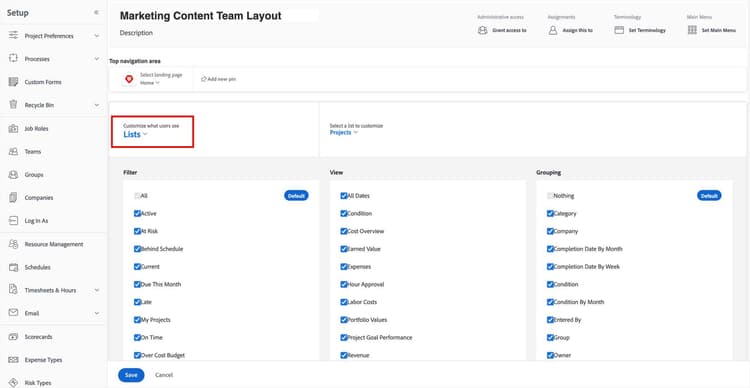
Share custom filters, views, and groupings through the lists customization.
If you’ve created filters, views, and groupings that display information specific to users’ daily processes, it’s easy to share these through the layout templates. This ensures everyone assigned that layout template has filter, view, and grouping options relevant to their workflows.
Use the Add Filter/View/Grouping link at the bottom of each list column to add additional options.
Customizing the information that you want visible to your users through the layout templates is also a time-saver for system and group administrators because they won't have to share each filter, view, or grouping option individually.