Schedules
A schedule defines and captures when users are available to complete work.
Schedules in Adobe Workfront indicate the days of the week and daily hours team members will be working. They also include information like the time zone that users are in and company-designated holidays when they’ll be unavailable.

Create schedules
In this video, you will learn how to:
- Create and modify a schedule.
- Assign a schedule to users.
- Understand how Adobe Workfront uses schedules when calculating the timeline of a project.
Assign a schedule
As you learned in the Create Schedules video, schedules can be assigned to users, either individually or using a bulk edit. A few things to consider when assigning schedules:
- If no schedule is assigned to a user, Workfront uses the system default schedule.
- It’s recommended that the schedule assigned to a user matches their time zone.
- When new Workfront users are created, they’re automatically assigned the system default schedule.
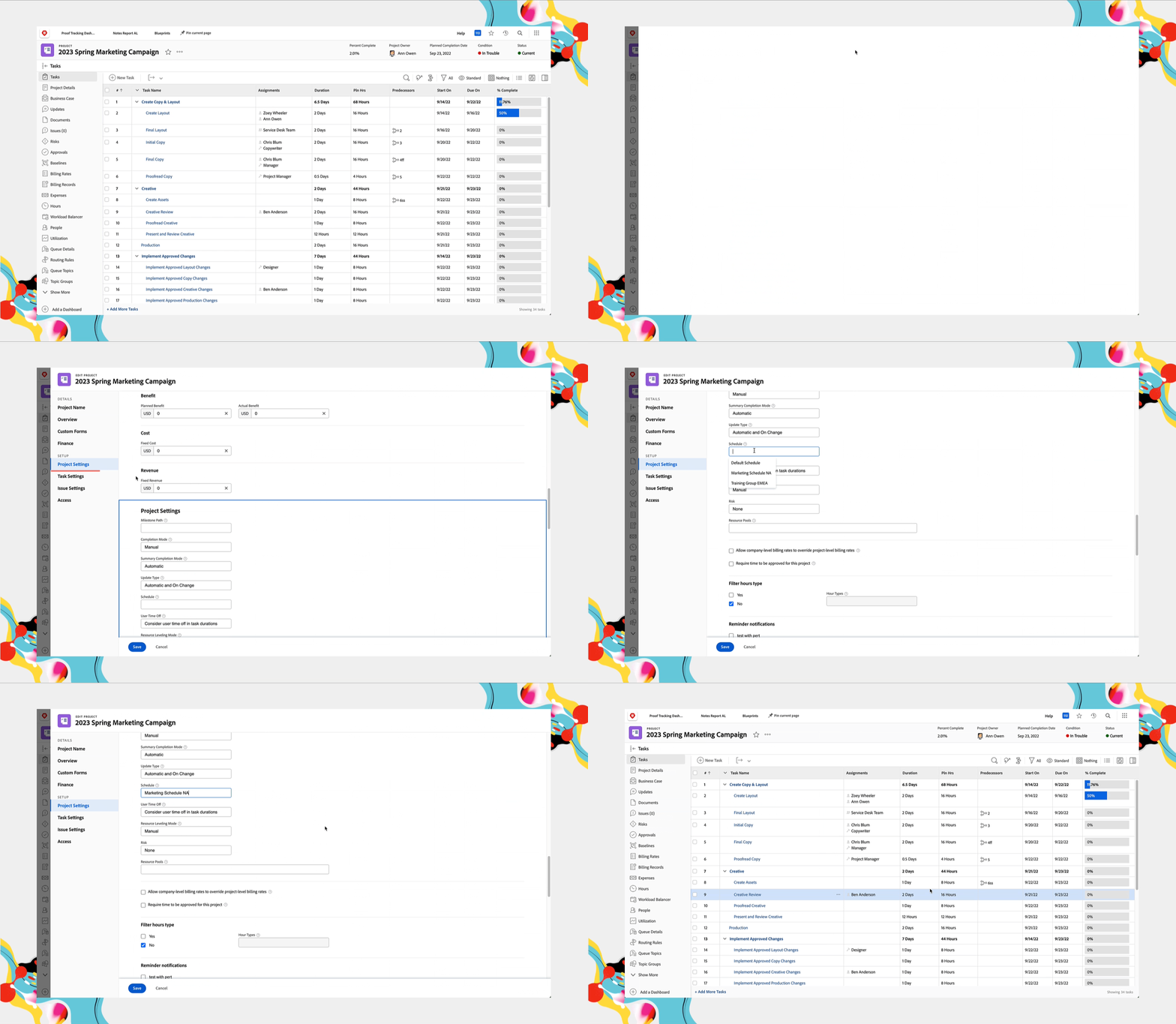
You also can assign schedules to projects and project templates through the item's Details section, as shown below. Scroll to the Settings section and choose an option from the Schedule field.
Set the default schedule
The system default schedule is used by Adobe Workfront whenever a specific schedule isn’t designated elsewhere.
Step 1
Navigate to the Setup area and select Schedules in the left menu. Open the Default Schedule that came with the system.

Step 2
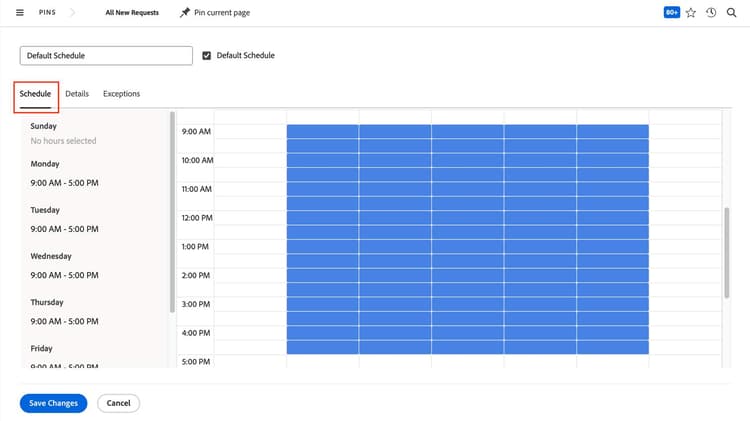
Define your organization’s hours of operation—the work week and the working hours—in the Schedule tab.
Step 3
Change the time zone in the Details tab. For the default schedule, it's recommended to use the time zone and work week schedule of the company headquarters or the location where most of your users work.

Step 4
Select which groups can assign the schedule to group members and projects in the Groups with View Access setting.
The Group with Administrative Access field grants permission for the group administrators of the selected group to edit this default schedule. Note: Because this is the system-wide default schedule, you may not want anyone other than the system administrator to have edit access.

Step 5
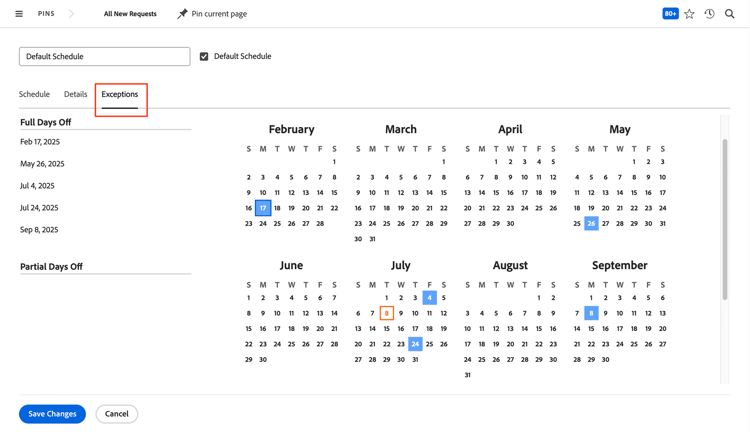
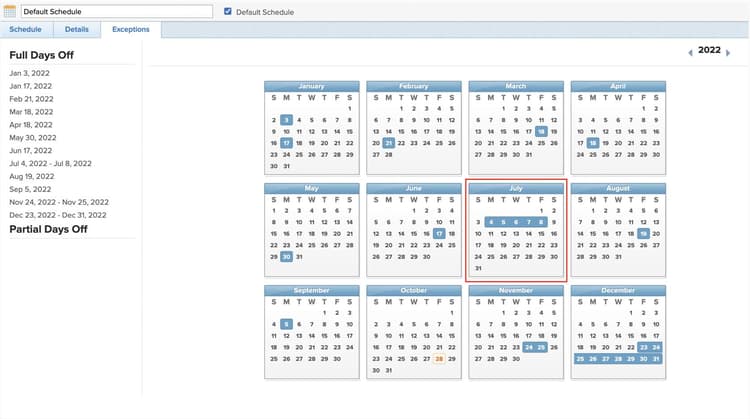
In the Exceptions tab, mark holidays and other company time off—in other words, days when users won’t be working.
Step 6
Check the Default Schedule box at the top of the window to set this as the system default. You can rename the schedule if desired, but leaving it named Default Schedule makes it clear which schedule is the system default.
Note: Only a system administrator can set the default schedule for the Adobe Workfront instance.

Click Save Changes. This schedule is now the default for your Workfront instance.
Create a schedule
It’s an Adobe Workfront best practice to limit the number of schedules created in your system. (After all, fewer schedules mean less to maintain.) However, additional schedules might be needed when:
- Employees are in different time zones or different regions.
- There are part-time workers who work fewer hours per week than your full-time employees.
- Team members don’t work your organization’s standard schedule, such as those who work a four-day week vs. a five-day week.
Create a new schedule from scratch by clicking the +New Schedule button in the Schedules area.
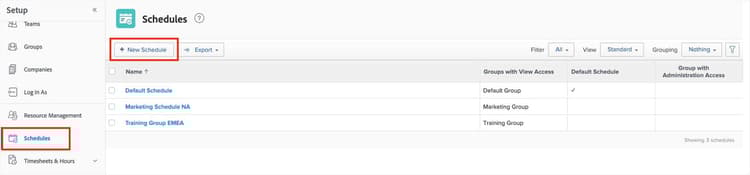
Create new schedules if needed, but try to limit the total number.
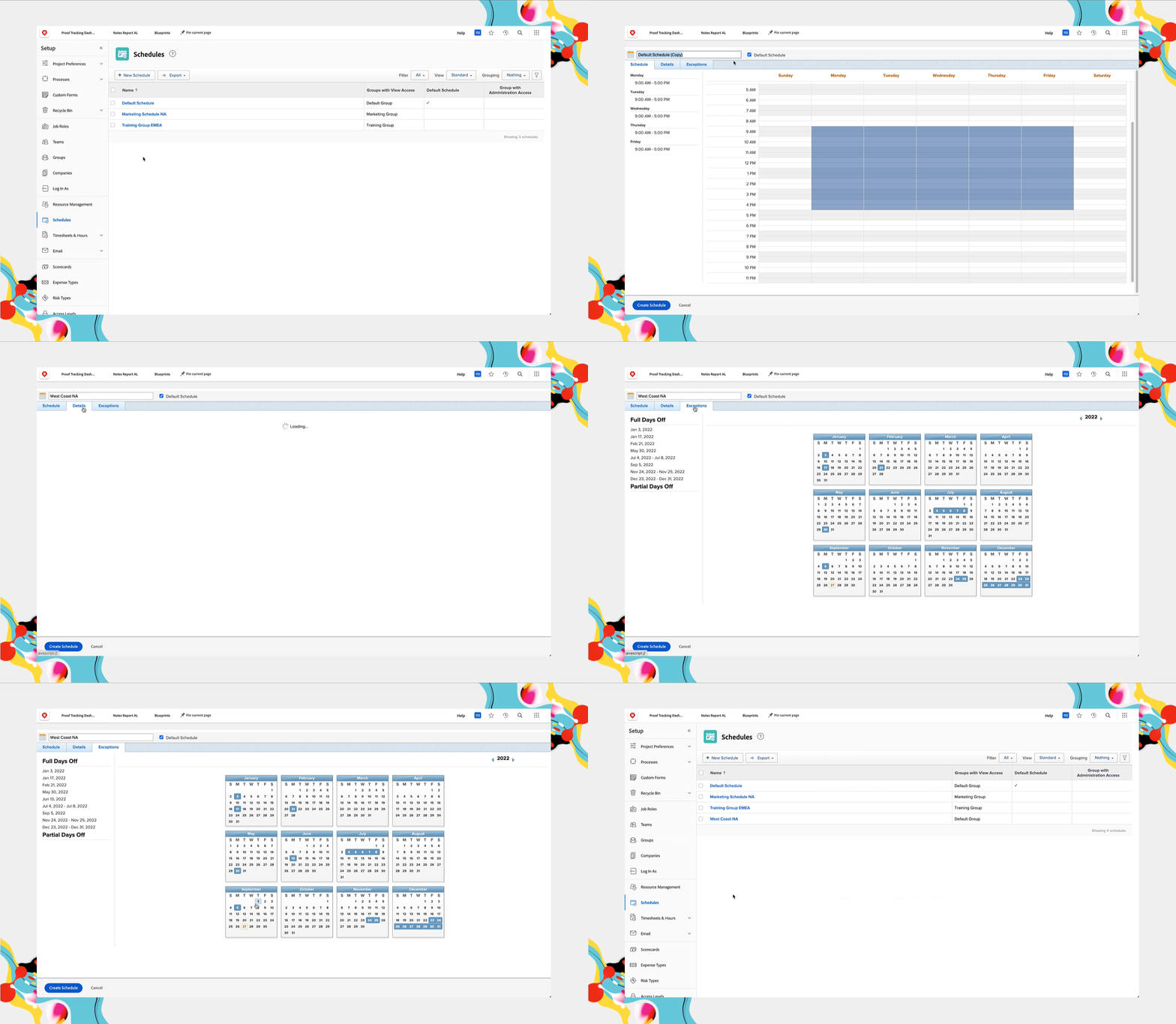
Copy a schedule
You may find it faster and easier to copy an existing schedule and make changes. For example, you could copy the schedule for the U.S. Mountain time zone and update it for the U.S. Pacific time zone.
- Check the box next to the schedule you want to copy, then select Copy.
- Give the schedule a new name, then adjust the settings in the Schedule, Details, and Exceptions tabs, as needed.
- Click Create Schedule when you’re done.

Pro tip
Before creating multiple schedules in Adobe Workfront, read through the Working Across Time Zones article. You'll find examples of how Workfront uses time zones in things like system-generated emails, plus tips for making it easier for users across multiple time zones to collaborate on projects.
How schedules and timelines interact
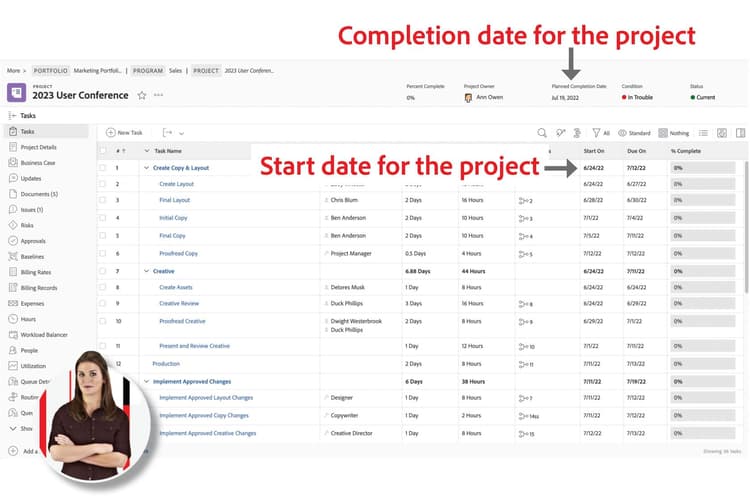
Let’s look at an example of how a schedule in Workfront can affect a project timeline.
The marketing team at Karen’s organization has a project that starts in early June and should finish in mid-August
The team is out of the office the first week of July for holidays in North America, so that week is marked on the schedule assigned to the project.
Let’s look at the part of the project where that first week of July would fall.
As Workfront calculates the timeline based on task durations and predecessors, it also looks at the schedule for those exceptions and “skips” those days in the project timeline, scheduling task start and due dates around the holiday week.

Group administrators and schedules
The Groups with View Access setting in each schedule determines which groups can use that schedule in Workfront.

In the Details tab, set which Adobe Workfront groups can use the schedule.
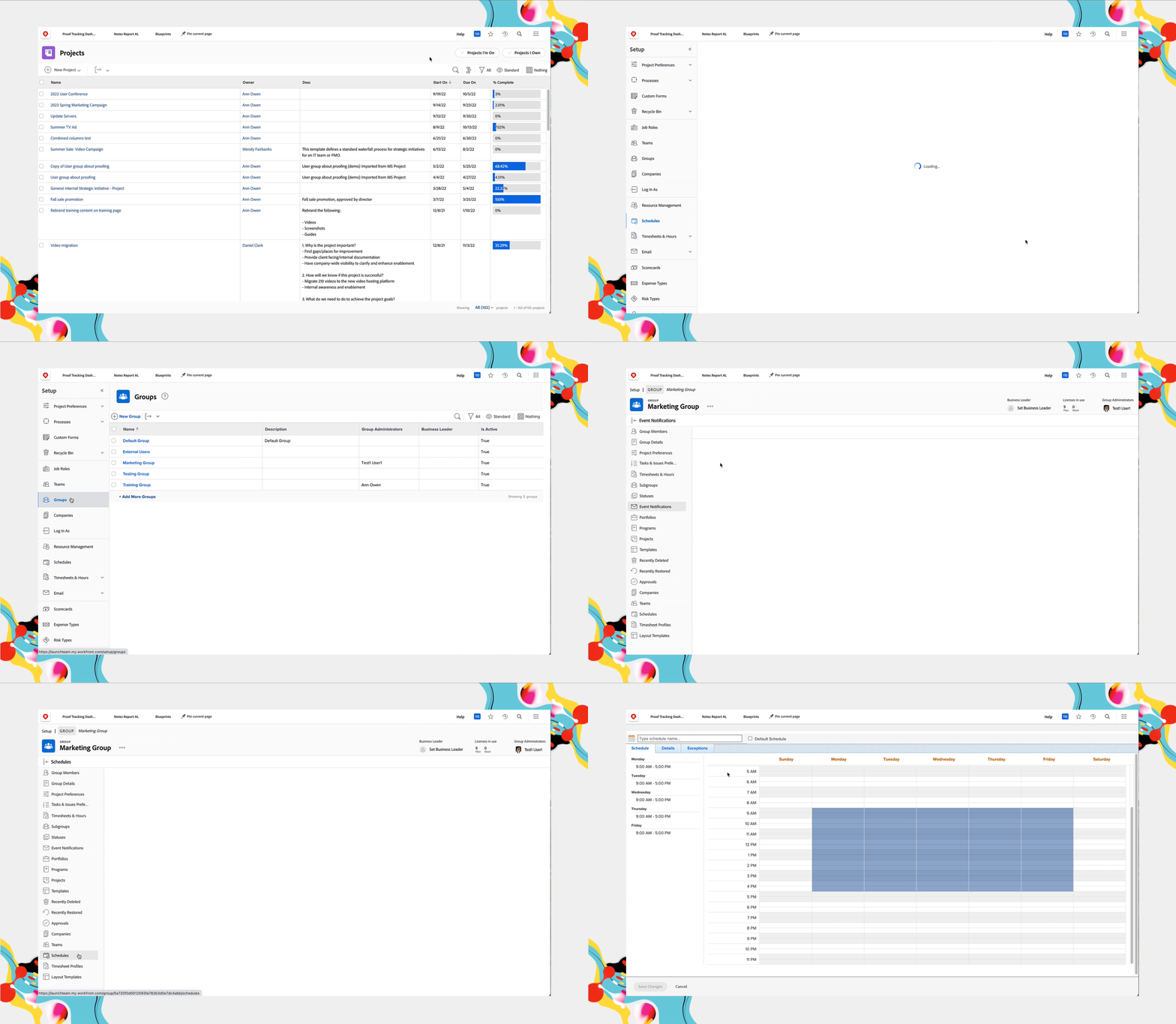
If there’s not an existing schedule that suits a group’s need, the group administrator can create and manage schedules for the groups and subgroups they manage.
- Select Setup from the Main Menu, then Groups in the left menu.
- Click the name of the group or subgroup to open its main page.
- In the left panel, select Schedules.
- Create or modify schedules, as needed.
Assigning schedules and understanding how Workfront prioritizes schedules when calculating project timelines helps everyone meet project deadlines. Plus, Karen knows that these setups help system and group administrators troubleshoot with their users when project timelines aren’t working as expected.
Best practices: schedules
Mark holidays for the current year, plus one or two years in advance.
That way, when project planning begins at the end of one year for the following year, the schedule is ready to go and project timelines are accurate.

The working hours on a schedule and in the project preferences should match.
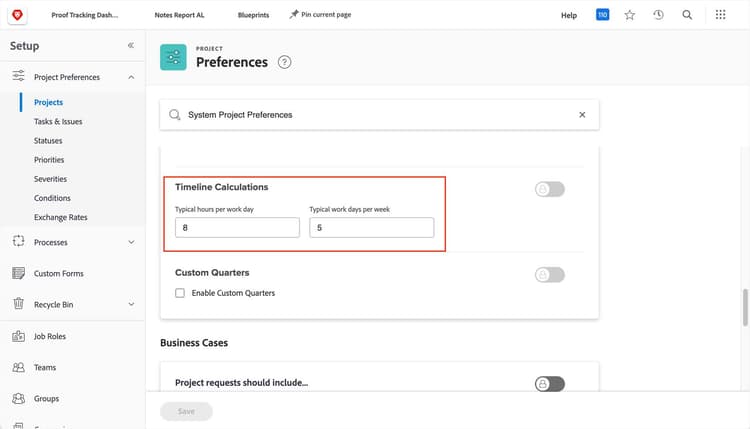
The total working hours in each working day on the schedule should be equal to the number of hours in a day that is specified in the global project preferences. If the total working hours don’t match, this can result in seemingly incorrect date and time calculations in your project timeline and reports.
For example, if the system preference is eight hours in a day and the schedule assigned to a project has only seven working hours a day, you’ll notice that a task with a one-day duration takes more than one day to complete, because it’s trying to fit in the eight hours.
Note: The system global project settings are done in Setup > Project Preferences > Projects > Timeline Calculations > Typical hours per work day.
Add a reminder to the calendar to update schedules at a set time each year.
Update the schedules in your Workfront instance with national holidays, company holidays, and other days users won’t be working on a regular basis. System or group administrators can do this at a set time each year, either at the end of the year or when holiday schedules are released by human resources, so project timelines, resource planning, etc., reflect accurate user availability.

In the next step, you'll learn how to set up project, task, and issue statuses to support your organization's workflows.