Project, task, and issue statuses
Statuses are one of the most important setups in Adobe Workfront because they establish the steps in your organization's workflows.
The status of a project, task, or issue lets everyone know what the current state of the work is. Having well-structured statuses helps your users easily follow the standard workflows and execute their project and task work.
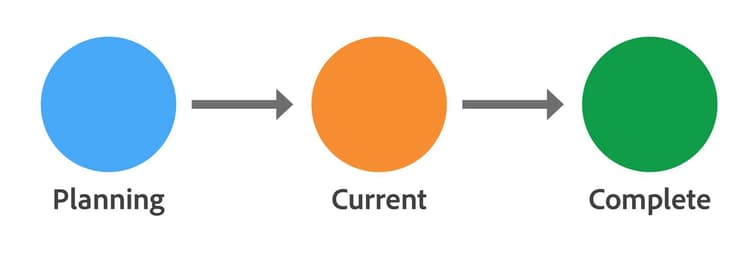
Global project, task, and issue statuses are used by everyone in the company. In addition, system and group administrators can create custom statuses for groups to support different workflow needs.
Get started with statuses
Because statuses support and drive your organization’s workflows, the system administrator must understand the workflows for projects, tasks, and issues (including requests submitted through a request queue).
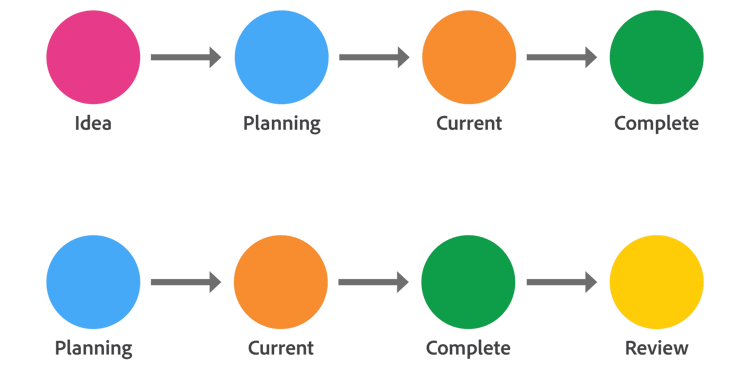
Karen—the system administrator for her organization—starts by mapping out the basic statuses her organization uses to indicate the different steps that projects, tasks, and issues must go through. Her statuses look something like this:

Then Karen can determine whether additional statuses are needed. For example, the organization might need an issue status that indicates feedback is needed before work proceeds.
Workfront recommends keeping the number of statuses to a minimum. Fewer statuses means an easier-to-understand workflow and less confusion.
Create project, task, and issue statuses
Before creating statuses, Karen looks at the global system default statuses that come with Adobe Workfront.
Karen's organization might be able to use the default statuses as-is. Or she might change the status names to match the organization’s terminology.
Reminder: Karen matched her organization's terminology with Workfront terminology in the first module of this course as she mapped out the organization's workflows.

In this video, you will learn how to:
- Identify the system default statuses.
- Create global system statuses for projects, tasks, and issues.
- Reorder, rename, lock, or hide a status.
primary
--spectrum-gray-700
000000
white
primary
--spectrum-gray-700
000000
white
Create statuses for groups
Some project, task, and issue statuses are used globally across your organization. However, different departments likely have minor differences in their workflows.
For example, product development and events marketing both use Planning, Current, and Complete statuses for their projects.
But each department has workflow steps that are particular to their groups. These steps may require additional but different statuses to keep work moving.
Custom statuses for groups can be created and managed by either the system administrator or the group administrator.
Allowing group administrators to create statuses for the groups they manage eliminates the need for dozens of system-wide statuses. Plus, it ensures each group follows their prescribed workflow steps to keep work flowing.
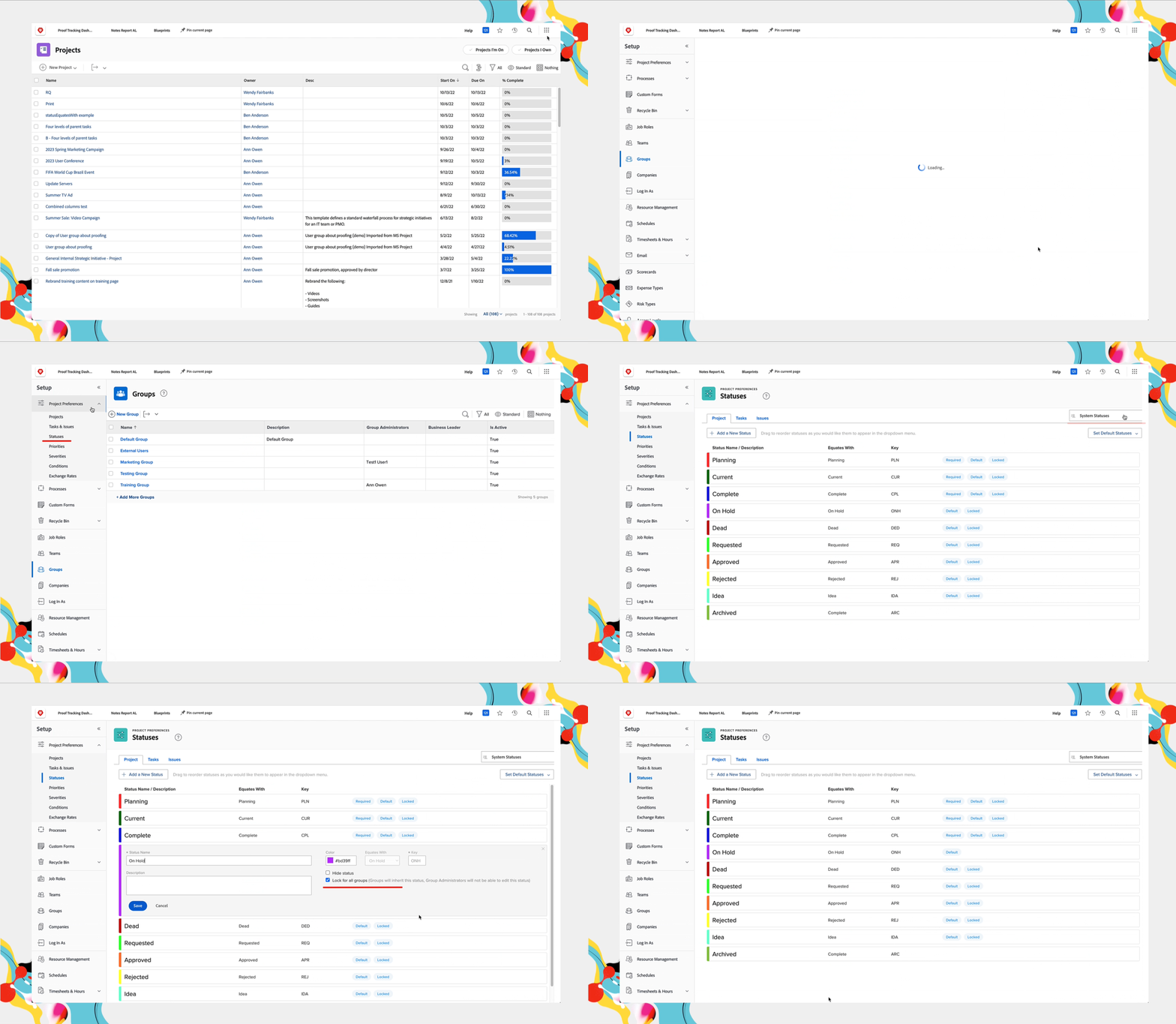
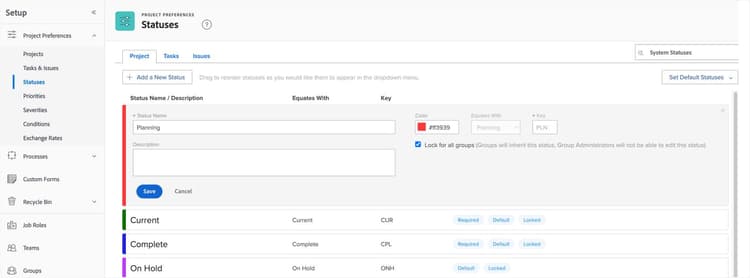
System administrator: unlock the status
The first step to allowing group administrators to modify an existing status—such as renaming it to match a group’s terminology—is for the system administrator to unlock the status.
- Select Setup from the Main Menu.
- Expand Project Preferences in the left panel menu and select Statuses.
- Verify that System Statuses is selected at the top of the window.
- Click Edit on the status to unlock.
- Uncheck the Lock for all groups box.
- Select Save to complete the changes.
System administrator: select the group when customizing statuses
The system administrator can customize statuses for groups from the Statuses section in the Setup area. Start by selecting the group name at the top of the window.
The statuses displayed are the ones for the selected group. New statuses can be created and existing statuses can be edited to match the group's workflows.
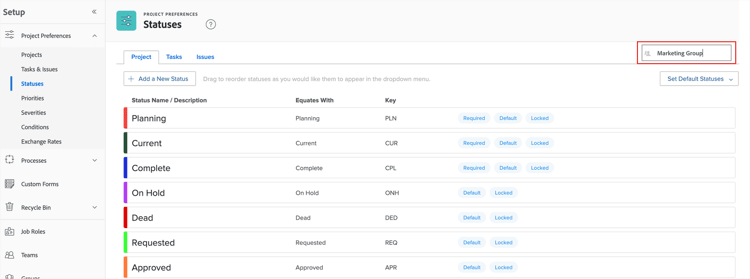
The system administrator can customize group statuses by selecting the group at the top of the Statuses window.
primary
--spectrum-gray-700
000000
white
primary
--spectrum-gray-700
000000
white
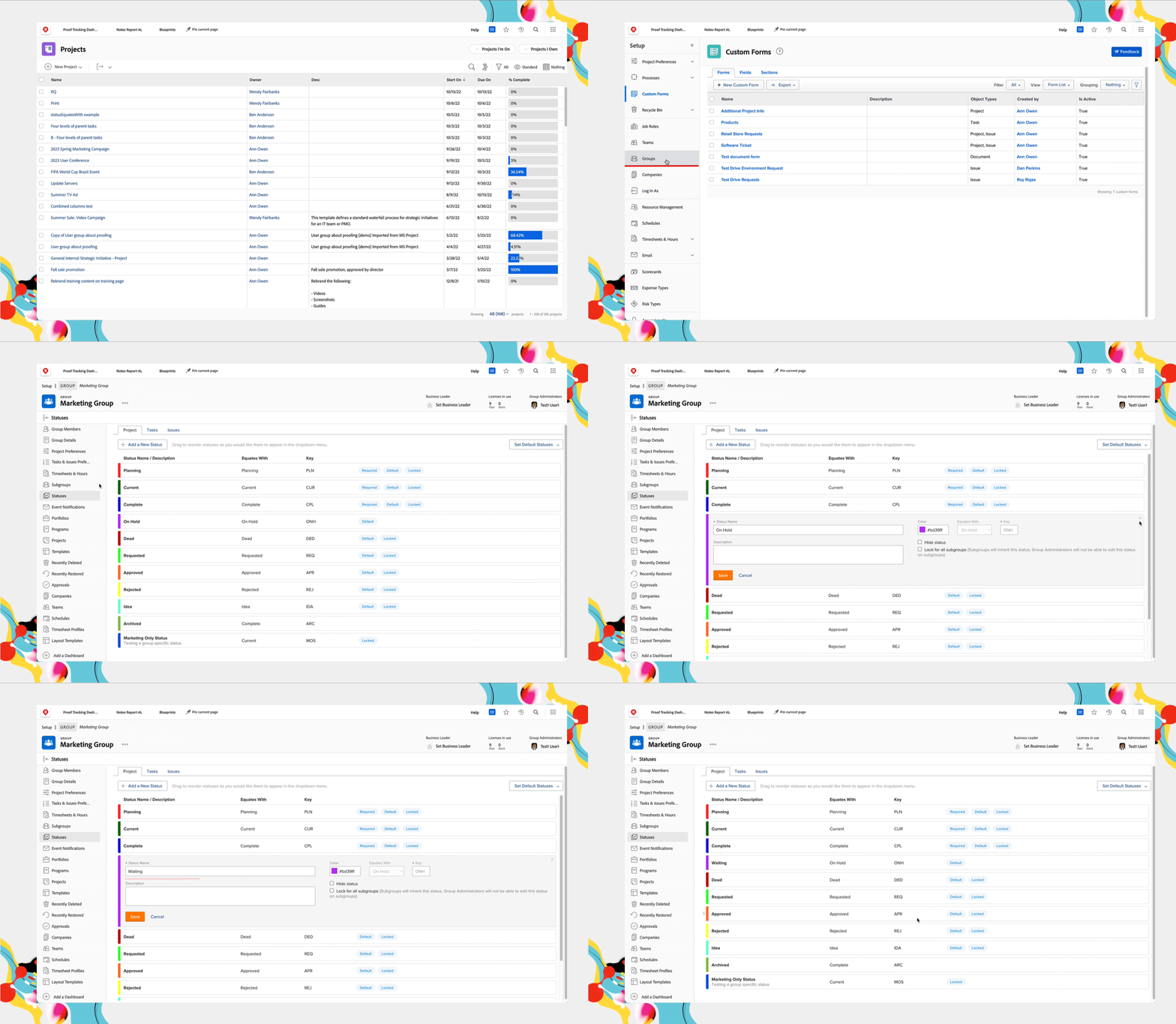
Group administrators: customize unlocked statuses for the group
Group administrators can customize systemwide statuses that have been unlocked by the system administrator. This could include renaming the status to match the group's workflow steps or assigning a different color to the status.
- Select Setup from the Main Menu.
- Select Groups from the left panel menu, then open the group by clicking its name in the list.
- Select Statuses in the left menu of the page for that group.
- Select the Project, Tasks, or Issues tab to find the status to be customized.
- Click Edit next to an unlocked status.
- Update the Status Name, Description, and Color to match the group's workflow requirements.
- Save when done.
Group administrators: create new statuses for the group
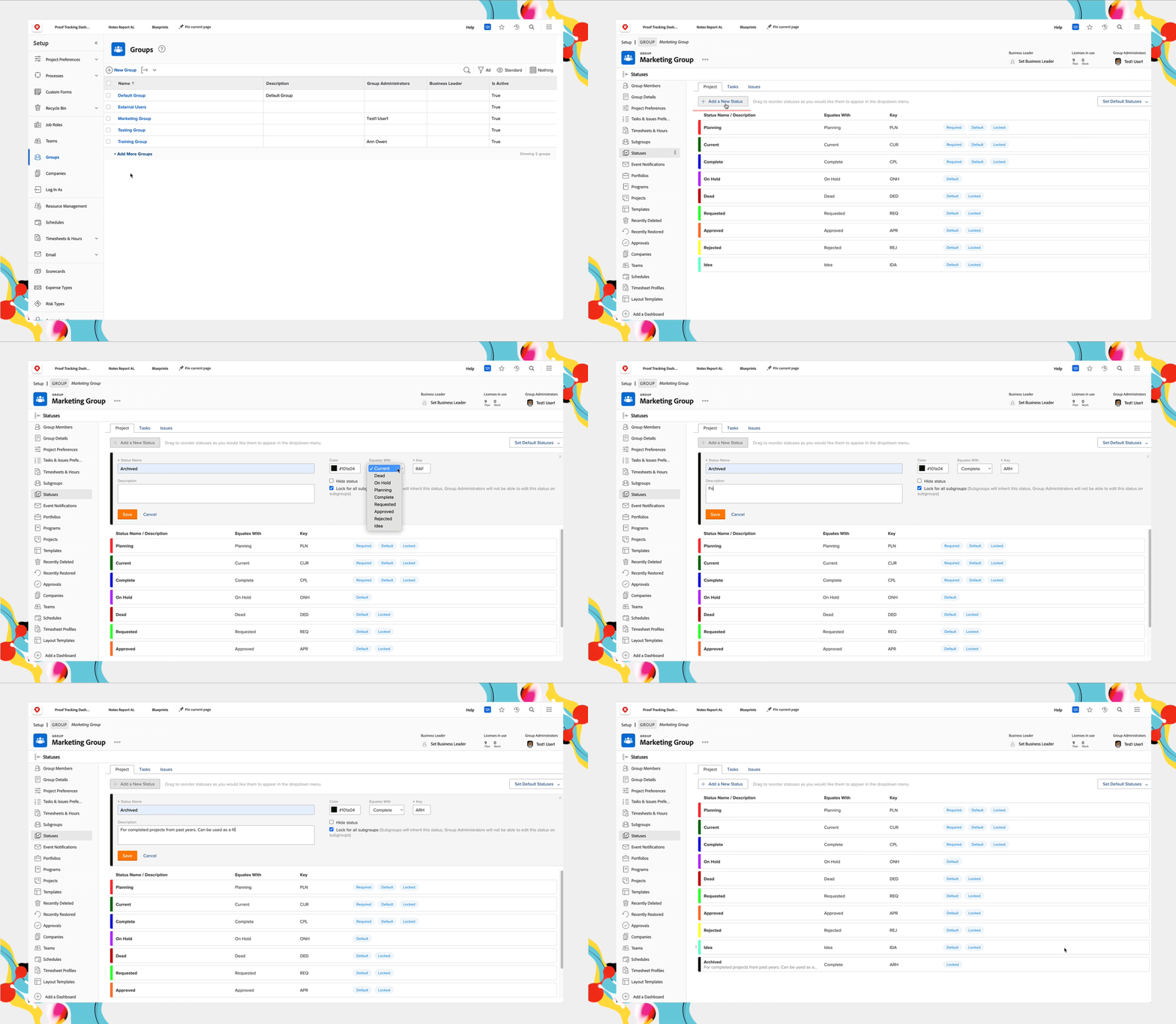
Group administrators can create additional statuses for their groups that are needed for the group's processes.
- Open the page for the group from the Groups section of the Setup area.
- Select Statuses from the left panel menu to display the status list for that group.
- Select the Project, Tasks, or Issues tab, depending on what type of status you need to create.
- Select the Add a New Status button.
- Fill in the Status Name, Description, Key, etc., for the new status.
- Select Save when done.
Pro tip
primary
--spectrum-gray-700
000000
white
primary
--spectrum-gray-700
000000
white
Using group statuses
To use the group statuses for projects, tasks, and issues, the group must be assigned to the project in the Project Details.
This makes the custom project statuses that group uses available in the Status menu. In addition, the group's custom task and issue statuses will be available to use on that project.
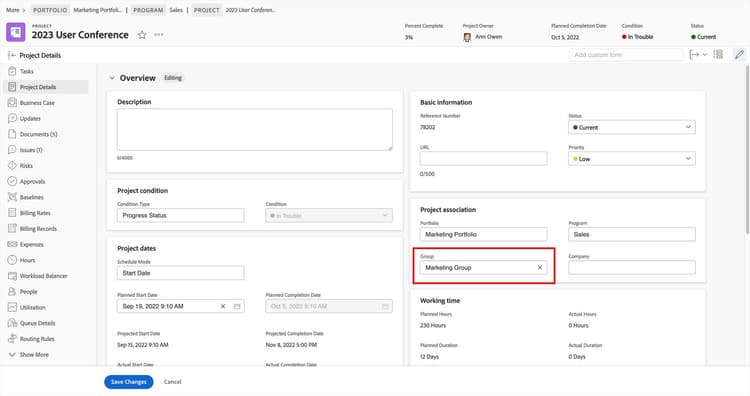
Select the group in the Project Details window to use that group's custom statuses on the project.
primary
--spectrum-gray-700
000000
white
primary
--spectrum-gray-700
000000
white
Best practices: statuses
When renaming default statuses, keep the original purpose of the status the same.
Some actions in Adobe Workfront are triggered by system default statuses. Changing the intent of a status can impact how Workfront behaves in certain situations and affect reporting.
For example, the default task status of Complete tells Workfront to change the percent complete of a task to 100%. The Complete status also lets Workfront know that work on dependent tasks can begin. If you changed the name of the status to Waiting, you might intend to indicate that work on a task is paused but Workfront treats the task as done and kicks off the next steps in the project.
Keep global custom statuses to a minimum.
Less is more. In addition to creating unnecessary maintenance, too many custom statuses create confusion, especially when working on cross-functional projects. Instead, make custom statuses group specific. This keeps your Adobe Workfront environment cleaner and better positioned for expansion to other groups in the future. Work with your governance or oversight committee and stakeholders to identify the statuses your organization's groups need to use.
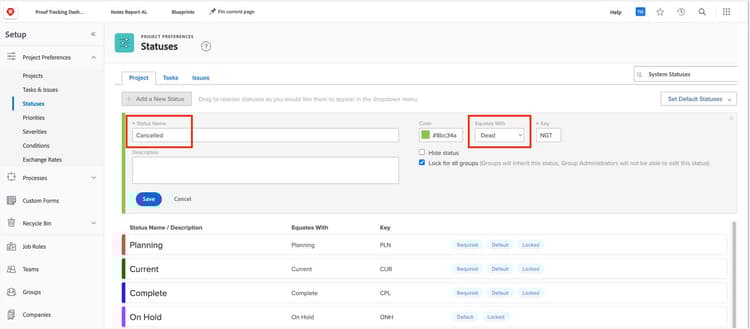
If you create a custom project status for Cancelled, equate the status with Dead.
If you equate Cancelled with Complete, you can’t use the status to cancel a project unless all tasks are marked complete and all the issues are closed. But if you equate Cancelled with Dead, you can cancel the project without changing anything in the historical record.
Do not use project statuses in place of tasks to indicate progression of a project.
Keep project statuses simple to indicate high-level phases of progression, like Planning, Current, Complete, etc. Let the tasks, task statuses, and the task percent complete tell you how work is progressing overall on the project. These task-level indicators roll up into the project percent complete, the project condition, and the project progress status, all of which are better and more accurate indicators of project progression than a project status. In addition, this task-level information provides better project reporting.