Task and issue preferences
Task and issue preferences are applied when a user creates a new task or issue or performs certain actions with one of those items.
A few of these settings apply only to tasks, and some only to issues, but several settings apply to both. Like project preferences, task and issue preferences should be set for how they’ll be used most of the time by most of your users.
Set task and issue preferences
Find task and issue preferences by:
- Selecting Setup from the Main Menu.
- Expanding the Project Preferences section in the menu.
- Selecting Tasks & Issues.
Confirm the search bar at the top of the window says System Tasks & Issues Preferences so the changes you make affect everyone in Workfront.

Task and issue preferences are under the Project Preferences section.
Key preferences
Although you’ll want to look at all the task and issue preferences, focus on some key task and issue preferences first.
Click the tabs to learn about these settings.
The Start Date establishes the start date assigned to a task when it’s created. Ask your project managers and other stakeholders if they’d prefer this to be the planned start date of the project or the date the task is created.

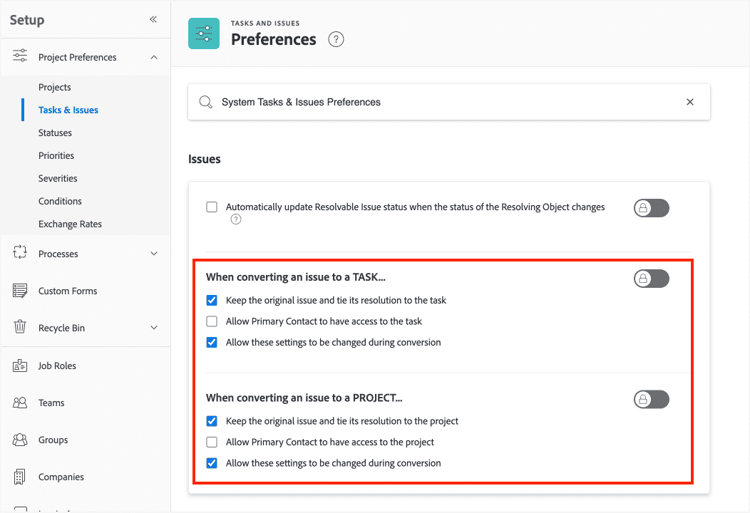
The When converting an issue settings control what happens with an issue when it’s converted to a task or project. This conversion process is a common workflow step in Adobe Workfront, especially with work requests made through a request queue.
Talk with your project managers and other stakeholders when deciding if the original issue should be kept after it’s converted. Some Workfront customers keep the issue for reporting reasons, such as reviewing the number of requests submitted each quarter.
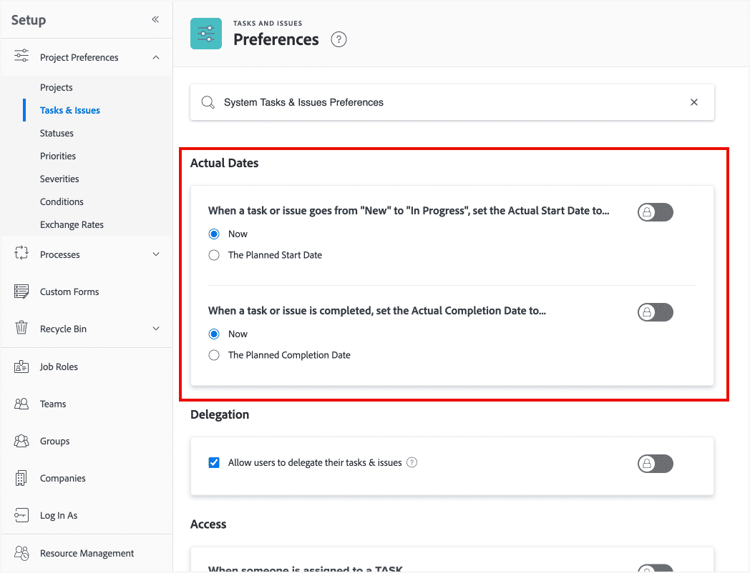
If actual dates are important to your reporting, it’s recommended you select Now for both options in the Actual Dates section. Actual dates are recorded when the item’s status changes to In Progress or Complete.
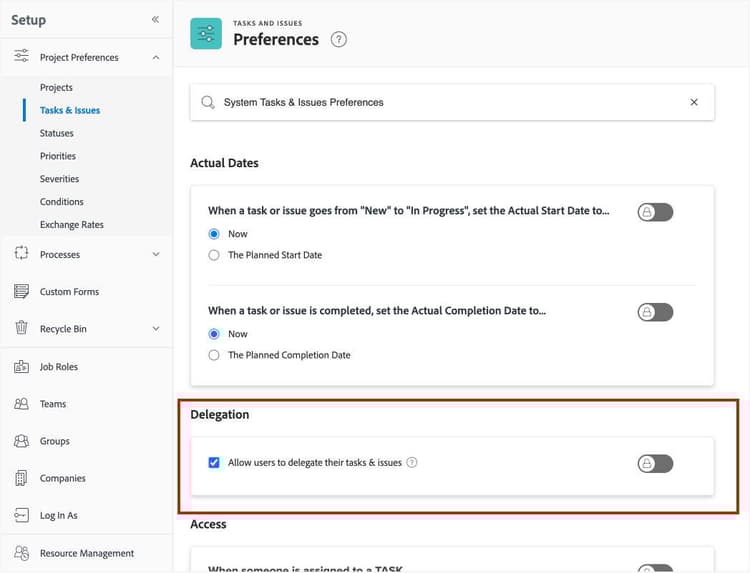
Making sure that work gets done while someone is out of the office is key to meeting deadlines. The Allow users to delegate their tasks & issues setting means assignments can be redirected to someone else, ensuring there are no gaps in the workflow.
primary
--spectrum-gray-700
000000
white
primary
--spectrum-gray-700
000000
white
Best practices: task and issue preferences
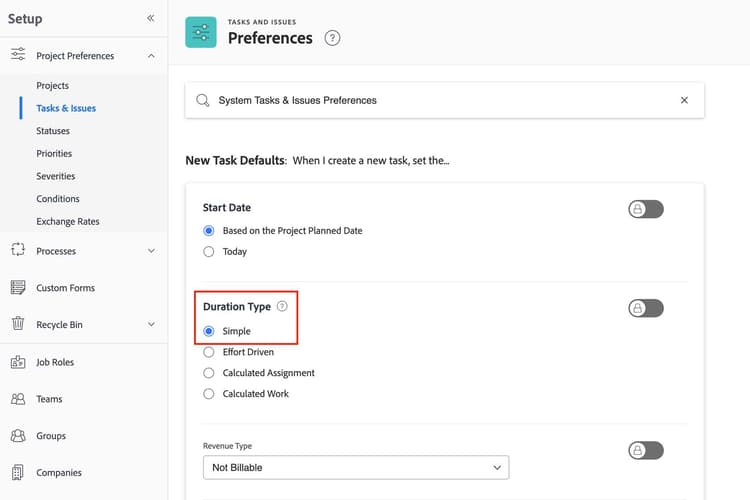
Set the default task duration type to Simple.
Duration types define the relationship between the task duration, planned hours, and the number of people assigned to the task.
With Simple as the global system default, all tasks created manually have this duration type. Planned hours are divided evenly among the task assignees across the length of the duration. The Simple duration type can simplify project planning, as it allows you to make changes to the task assignees and planned hours without affecting the task’s duration, planned start date, or planned completion date.
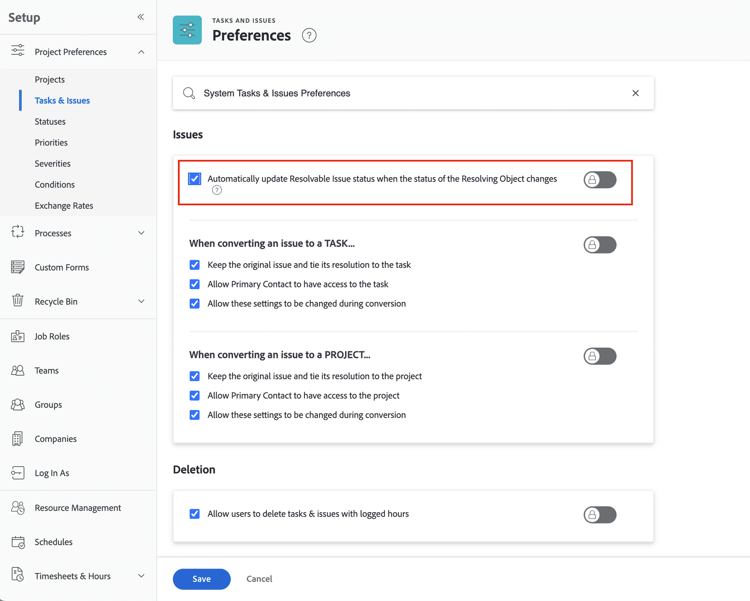
Check the option for Automatically update Resolvable Issue status.
When an issue is converted to a project, this preference setting “links” the statuses of the two items. Updating the status of the project (the resolving object) will automatically update the issue status. This means the requester can see progress being made on their request, even if they don’t have permissions to see the entire project in Workfront.
In the next step, you'll learn about in-app and email notification settings.