Project preferences
Follow one basic rule with project preferences: Set them up as they’ll be used the majority of the time by the majority of users.
Project preferences establish the default settings for all new projects.
Let’s look at an at example in Karen's organization: Every department except one starts projects in the Planning status, so Planning should be the default status assigned to new projects.
But what about that one department that needs something different?

Some preferences can be set at a global level but then customized by group administrators. This allows group administrators to tailor settings to meet the needs of the groups and teams they work with.
Look for the lock/unlock toggle as you’re working in the Setup area. This toggle indicates the setting can be unlocked for group administrators. Unlock the setting by clicking the toggle, as seen below.
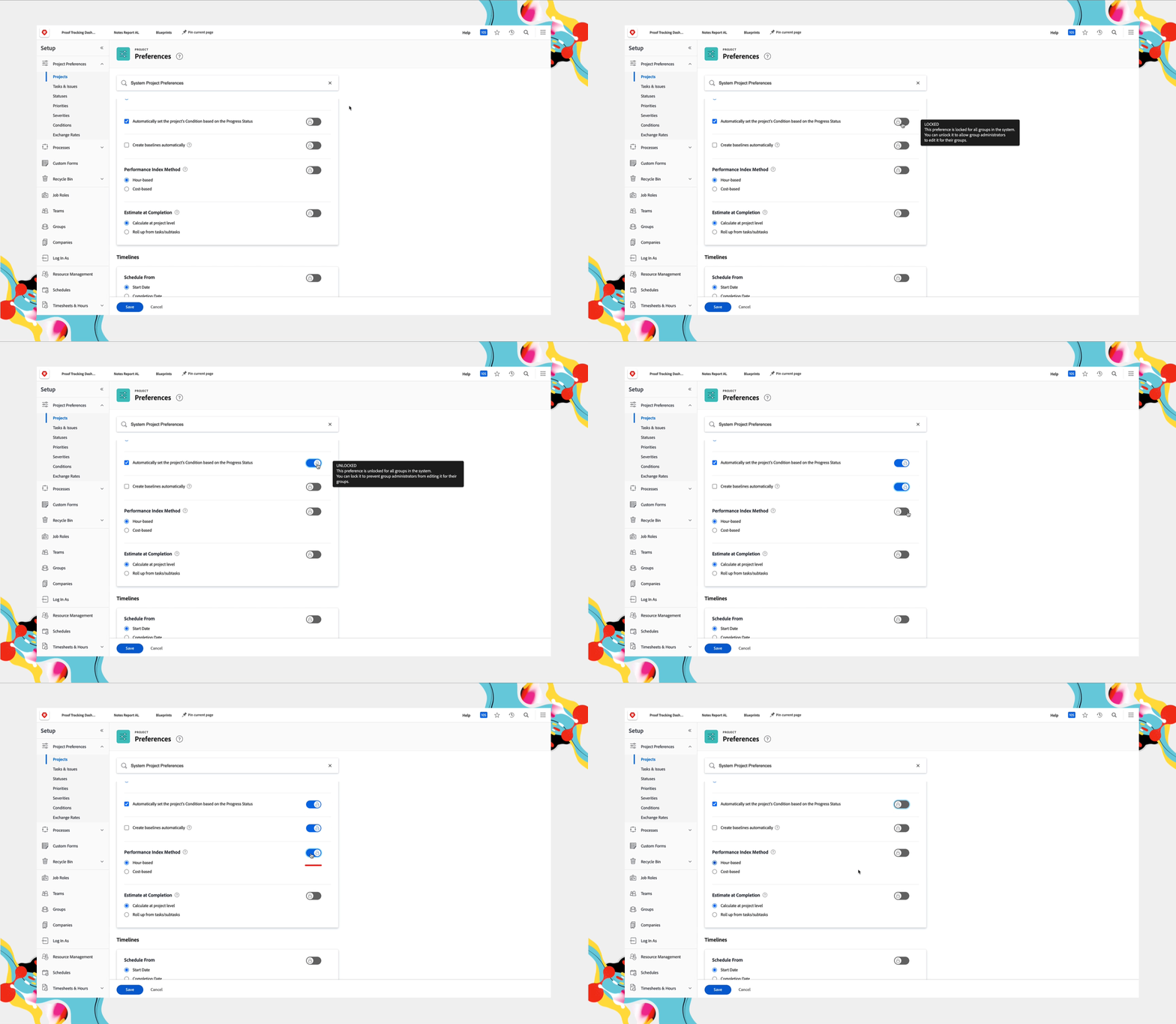
Set project preferences
Find the project preferences by:
- Selecting Setup from the Main Menu.
- Expanding the Project Preferences section in the menu.
- Selecting Projects.
- Checking the search bar at the top of the window to confirm it says System Project Preferences. This lets you know these settings will be global system configurations.

Project Preferences are accessed in the left menu of the Setup area.
Key preferences
These key settings tend to have the most immediate effects on project workflows and how your users interact with projects, so focus on them first.
Click the tabs to learn about these preferences.
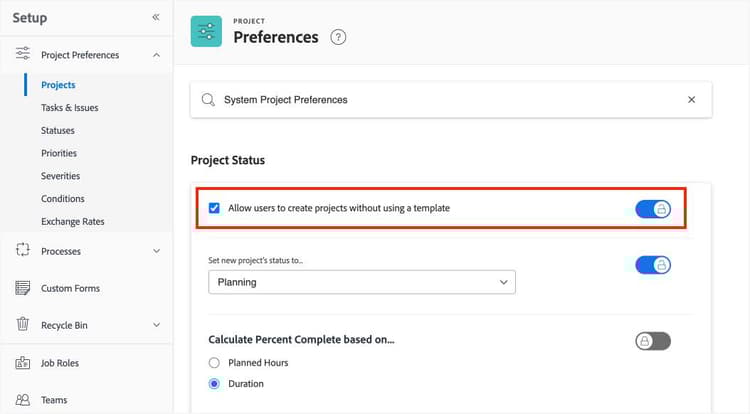
The Allow users to create projects without using a template setting allows the system administrator to remove the ability to create blank projects and require that all projects be created with a project template.
Many organizations want projects created with templates, because templates ensure consistency across projects of the same type.
If some groups at your organization need to create blank projects, this setting can be unlocked so it can be controlled by group administrators.
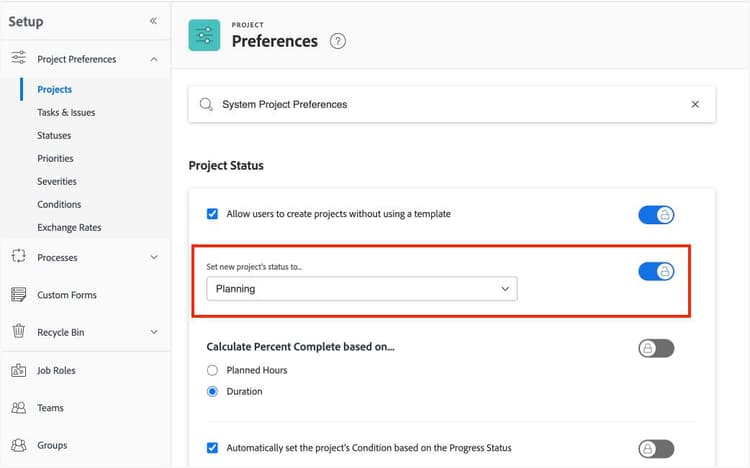
The Set new project’s status to option establishes the status all newly created projects will have by default. Adobe Workfront recommends this preference be set to Planning (or your organization’s equivalent), not Current.
A Current status indicates a project is live and work is actively being done. It’s rare that a project would be in this status upon creation.
The Planning status suppresses notifications to task assignees and project team members as changes to the project plan are made. Receiving notifications before the project is live can be confusing for those involved.
This setting can be unlocked to be customized by group administrators.
The Schedule From option determines how the project timeline is calculated and behaves.
The Start Date option takes the start date for the project and calculates when the project will finish. Workfront recommends this option, as it’s the most common and makes planning project dates easier, especially for users new to project management in Adobe Workfront.
However, teams at your organization might plan projects based on when the work should be completed—the Completion Date. Workfront recommends waiting to use completion date after a certain level of proficiency in Workfront has been established.
If different groups at your organization plan and manage projects differently, you can:
-
Unlock the preference so it can be modified by group administrators.
-
Adjust the setting on project templates used for projects that need a different Start From setting.
-
Adjust the setting on individual projects, based on the requirements for the specific project.

The Life After Death preferences control what users can do with a project once it’s been marked Complete or Dead (or your organization’s equivalents).
If you need users to upload the final copies of reports or add tasks to track post-project activities, be sure to select the appropriate options in this section.

Many of the preference settings can be adjusted while working with a project or on a project template. But setting the defaults gives your project managers one less thing to do and ensures projects function as your users expect.
Pro tip
primary
--spectrum-gray-700
000000
white
primary
--spectrum-gray-700
000000
white

The User Time Off setting in Project Preferences controls how user time off is calculated in projects.
Best practices: project preferences
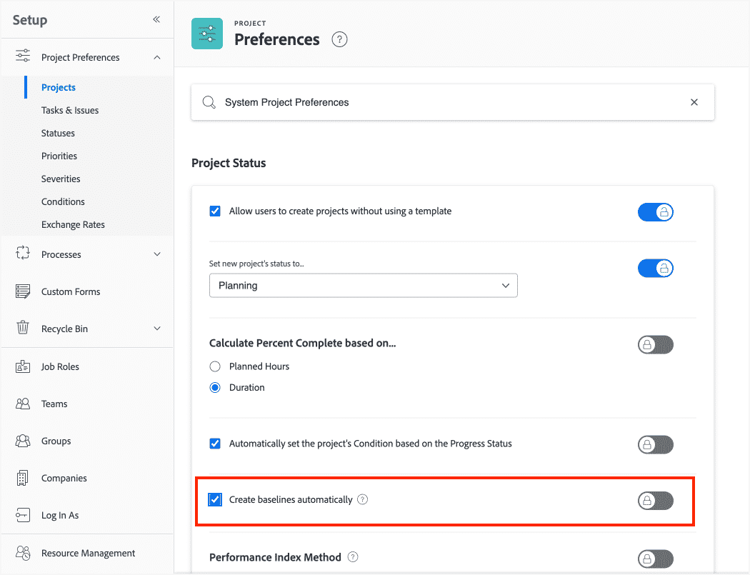
Enable the setting to create project baselines automatically.
With the Create Baselines Automatically option turned on, every time you change a project status to Current, Adobe Workfront automatically records a project baseline. This “snapshot” of the project provides historical information about how the project’s plan changed over time. For example, you can compare the original project plan with the current plan when showing leadership how shifting priorities or scope creep affected the project's deadlines.
Check all the options in the Business Cases section of the project preferences.
Enable all five options to allow project managers, planners, and others to include any of those sections in the business case on a project. If the options aren’t enabled, then they do not appear in the business case window. Users can leave any of the fields blank if it’s not needed for a particular project, but they can’t enable a field at the project level. These options can only be enabled globally.

In the next step, you'll learn about task and issue preferences.