Notifications
Email and in-app notifications provide visibility into the work being done in Adobe Workfront, allowing teams to collaborate more easily.
Event notifications are sent when something happens to an item in Workfront, such as when a comment is posted or a task is assigned to a user. These notifications help keep work flowing and often are key to deadlines being met.
Managing notifications
Let's take a look at how Karen is managing notifications at her organization as she works on her Adobe Workfront setups.
1. Recommended notifications
Karen knows Workfront is configured with the recommended notifications enabled by default. She leaves the settings as-is when her organization first starts using Workfront.
Why? Because neither Karen nor her users know yet what notifications are needed or the most helpful for the organization’s workflows.
2. Make updates later
Once everyone is in the habit of creating projects, assigning tasks, and marking work as complete in Workfront, Karen and her users will have a better idea of which notifications are helpful.
Karen then can update the notification settings using the steps in the Manage Global Notifications section below.

Manage global notifications
System administrators—like Karen—can disable and enable event notifications at a system-wide level so the changes apply to all users. Verify the search bar says System Event Notifications at the top of the Email Notifications page.

Check the boxes next to the notifications then click the Activate icon.
Activate notifications
- Select Setup from the Main Menu.
- Expand Email in the left menu and select Notifications.
- Confirm you’re on the Event Notifications tab.
- Check the boxes next to the notifications you want to activate.
- Select the Activate button at the top of the list.
Activate an individual notification by clicking the toggle to the left of the notification name so the blue is showing.
Deactivate notifications
Deactivate several notifications by checking the boxes and clicking the Deactivate button.
Or deactivate a single notification by clicking the toggle so the gray is showing.
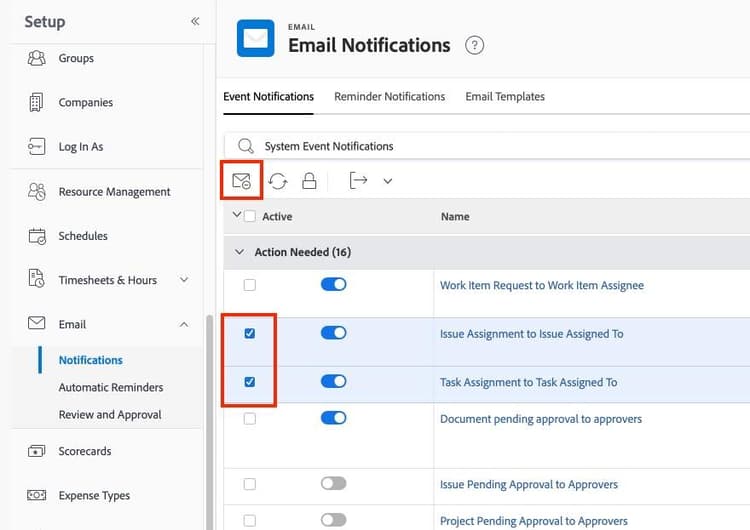
Check the boxes next to the notifications then click the Deactivate icon.
Recommended notifications
When you open the Notifications section, you'll see many notifications are active by default. Adobe Workfront recommends leaving these notifications turned on, as many are vital to everyday work.
You may need to activate additional notifications to support the workflows and processes used by the teams at your company. The article Event Notifications Available in Adobe Workfront describes all the notifications available, to help you decide which ones will be useful.
Click the tabs for lists of recommended notifications. Not all of these recommendations are active by default, so you may need to turn some of them on.
Action Needed
- Work Item Request to Work Item Assignee
- Document Pending Approval to Approvers
- Project Pending Approval to Delegated Approver
- Task Pending Approval to Delegated Approver
- Issue Pending Approval to Delegated Approver
- Issue Assignment to Issue Assigned To
- Task Assignment to Task Assigned To
- Work Item Request to Team
- Access Request to User
- Document Request Add to Requestee
Requests I Have Made
-
Document Approval Status Change to Requestor
-
Request Document Add to Issue Primary Contact
-
Document Request Complete to Requestor
-
Request Add to Issue Primary Contact
-
Request Closed to Issue Primary Contact
-
Request Assignment to Issue Primary Contact
-
Request Status Change to Issue Primary Contact
Communication
-
Request Note Add to Issue Primary Contact
-
Work Item Comment to Thread Participants
-
Work Item Comment to Work Item Assignee
-
Someone Includes Me on a Directed Update
-
Someone Includes My Team on a Directed Update
-
Work Request Reply to Work Requester
Approval Information
-
Delegated Issue Approval Status Change
-
Delegated Project Approval Status Change
-
Delegated Task Approval Status Change
-
Document Approval Cancel to Approver
-
Approval Delegation to Another User
Information About Work Assigned to Me
-
All Predecessor Task Completion to Task Dependents on Assigned Team
-
Request Document Add to Issue Assigned To
-
Task Planned Completion Date Changed
-
Issue Planned Completion Date changed
-
Issue Status Change to Issue Assigned To
Information About Projects I'm On
-
Task Commit Date Change to Project Owner
-
Issue Commit Date Change to Project Owner
Miscellaneous Information
-
Announcement Was Added
-
Document Request Cancel to Requestee
-
Error Notification
-
Project Added to a Portfolio or Program
-
Object Share to User
Allow group administrator control
Group administrators can customize the notification list further, based on their group and subgroup workflows. To allow group admins to manage notifications, the system-level notifications need to be unlocked by the system administrator.
- Navigate to the Events Notifications tab of the Notifications page.
- Confirm the search bar says System Event Notifications.
- Unlock a single notification for all group administrators by clicking the toggle in the Group Access column so the blue appears.
- Unlock multiple notifications by checking the box to the left of each notification and clicking the unlock icon in the toolbar above the list.

Check the boxes next to several notifications then click the unlock icon to grant group access.
In the next step, you'll learn to customize preferences and notifications for groups.