Share and attach custom forms
To collect the specific information your organization needs, share custom forms so they can be attached to projects, tasks, requests, and more in Adobe Workfront.

Share a custom form
By default, when a custom form is attached to an object—such as a project or task—any user assigned to that object can view and fill out the custom form.
However, for a user to attach a custom form to an object, the custom form must be shared with that user or the Workfront team, job role, group, or company they are part of.
-
Open the custom form and select Share at the top of the window.
-
In the Grant custom form access to field, type the name of the user, team, job role, group, or company that should be able to attach this custom form to items in Workfront.
-
Select the user, team, job role, group, or company from the list that appears.
-
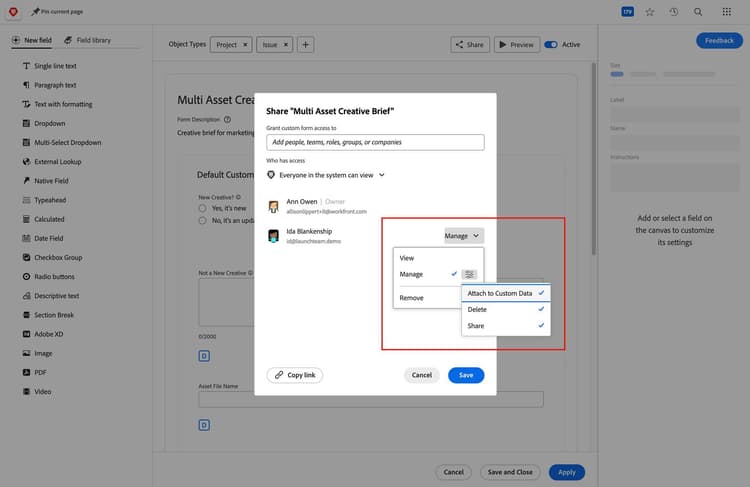
Adjust the access the users have to the custom form.
- View allows them to see and fill out the custom form. For them to attach this custom form to items, select the Attach to Custom Data option in the Advanced Settings.
- Manage gives users with a Standard license the ability to edit the custom form itself.
-
Click Save to save the sharing changes.
System-wide access
Custom forms also can be shared with everyone in your Adobe Workfront instance, if needed, through the Share option on the custom form.
When a custom form is visible system-wide, users can see the form and fill it out on Workfront items they’re assigned to but cannot attach the custom form to other objects. The ability to attach the form is granted using the Attach to Custom Data option described in the previous steps.
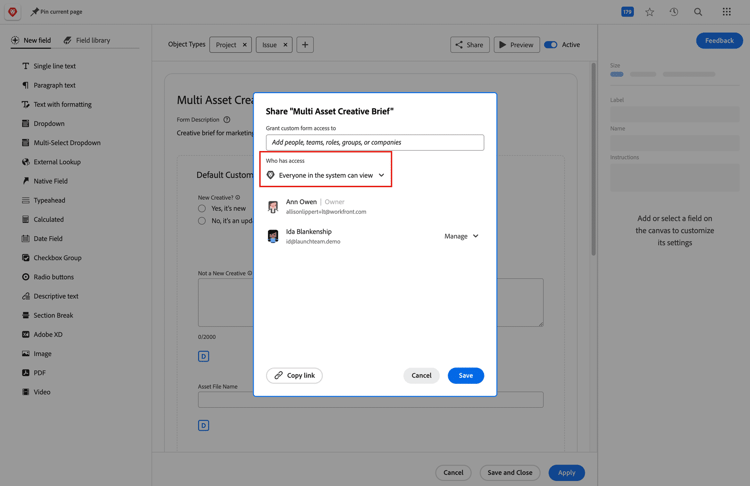
Most organizations want to ensure everyone using Workfront can fill out the custom form when it’s attached to objects they work with and view the form’s data in reports. In this case, ensure Everyone in the system can view is selected from the Who has access dropdown menu.

If you want to limit who can access the custom form, select Only invited people can access from the Who has access field. Then the custom form is available only to the people, teams, job roles, groups, or companies listed in the Share window.
With custom forms built and shared, you can start attaching them to projects, request queues, templates, and more.
Custom forms in Adobe Workfront can be made for and attached to 12 different object types, as seen in the following image.

Custom forms can be created for multiple object types in Adobe Workfront.
Remember, custom forms are specific to the object or objects they were created for. So, when you're attaching custom forms, you’ll only see the options available for the object type you’re working with—project, task, issue, document, and so on.
Add custom forms to items
When custom forms are attached to objects and who attaches them depends on your organization’s workflows, processes, and Workfront system setups. Be sure to build these steps into the workflows used by your teams.
Attach a Custom Form to an Existing Object
Karen knows that custom forms can be attached to existing objects, such as a project, as information needs to be gathered. She makes sure her users know how to do this when she teaches them about custom forms.
You can add up to 10 custom forms on an object.
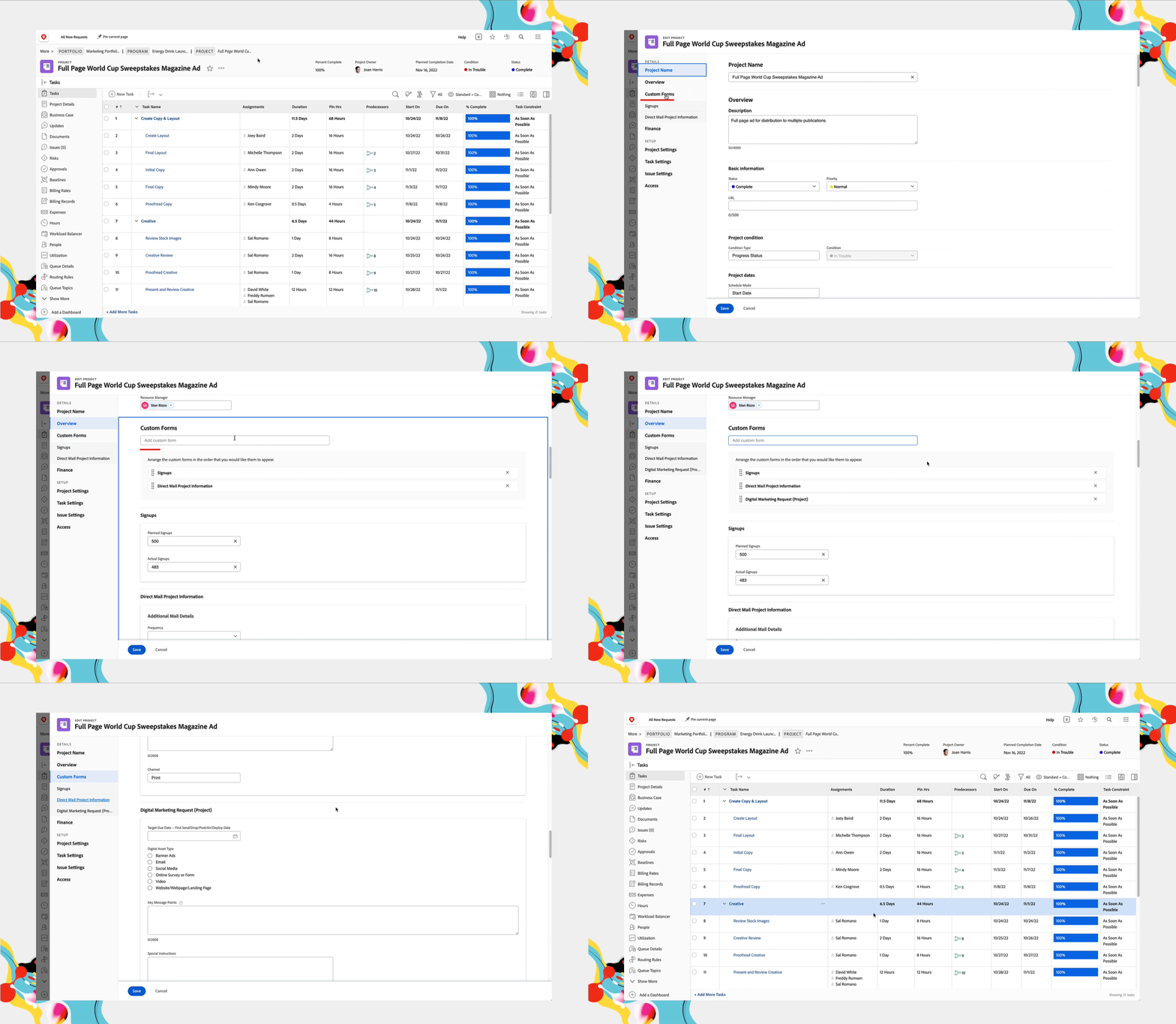
Click the + (plus sign) on the image below to learn how to attach a custom form to an existing object.
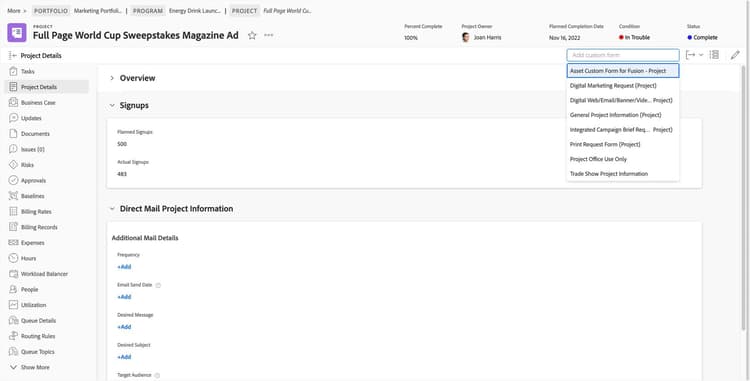
Add a custom form with the edit menu
You can attach custom forms to an object by selecting Edit from the More menu in the item’s page header. The Custom Forms section of the edit window allows you to rearrange the order of the attached custom forms, as well as remove attached forms.
Add a custom form to multiple items
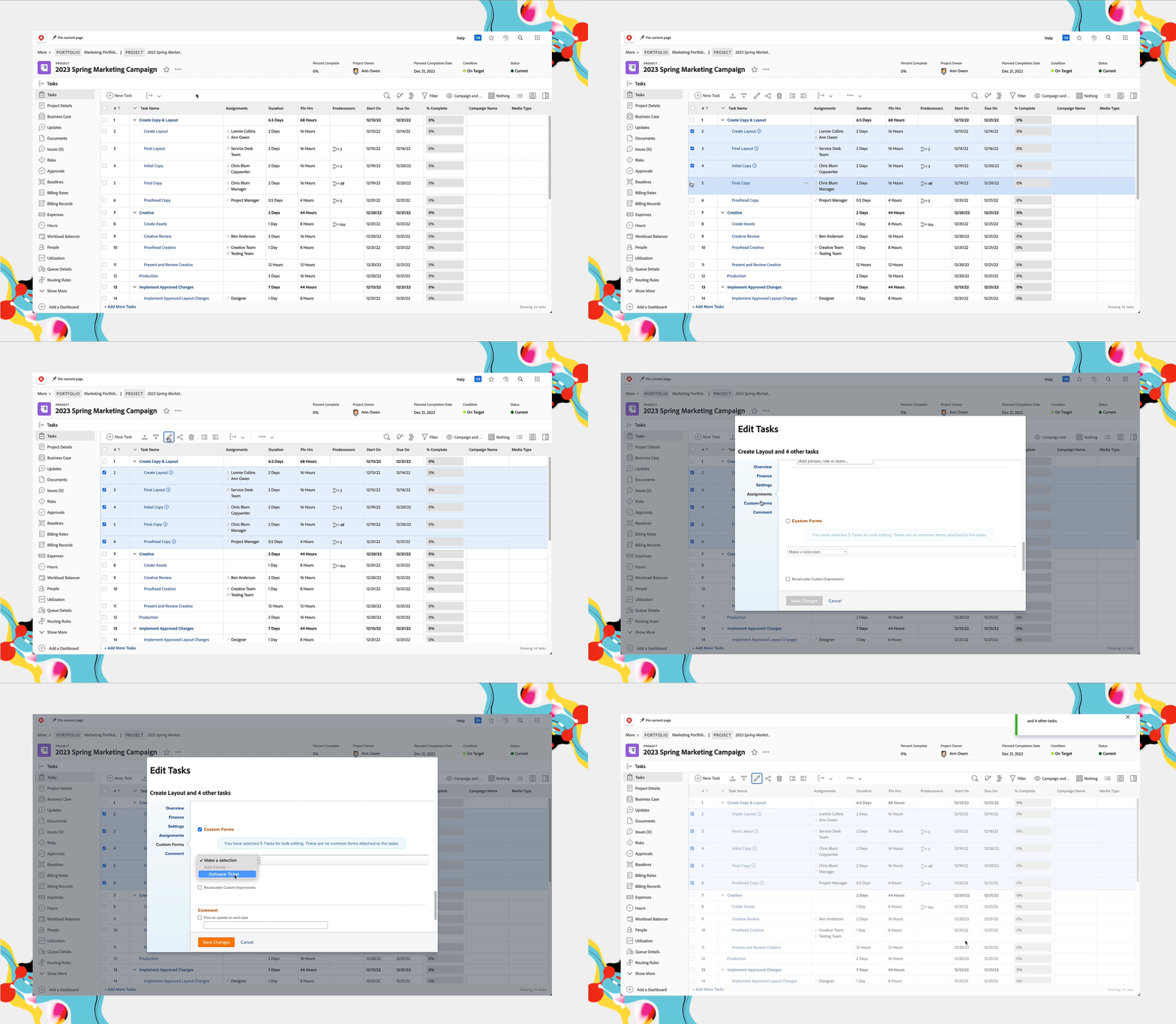
Use Workfront’s bulk edit functionality to add the same custom form to multiple items at the same time.
- Navigate to a list that contains the items the custom form should be attached to.
Select the items in the list by checking the box next to each item’s name.
Select the Edit (pencil) icon in the toolbar at the top of the list.
Click Custom Forms in the left panel or scroll to the Custom Forms section.
Click into the Make a selection field and choose the custom form.
Click Save Changes when you’re done.
Attach a custom form to a project template
To help project managers and others creating projects save time, Karen follows a Workfront recommendation of attaching custom forms to project templates. She attaches custom forms to both the project and tasks within the template.
This way, when a project is made with that template, the custom forms are automatically attached. This helps ensure the right custom forms are part of all projects, which means data across projects of the same type will be consistent and more accurate when reported on.
Click the + (plus sign) on the image below to learn how to attach a custom form to a project template.
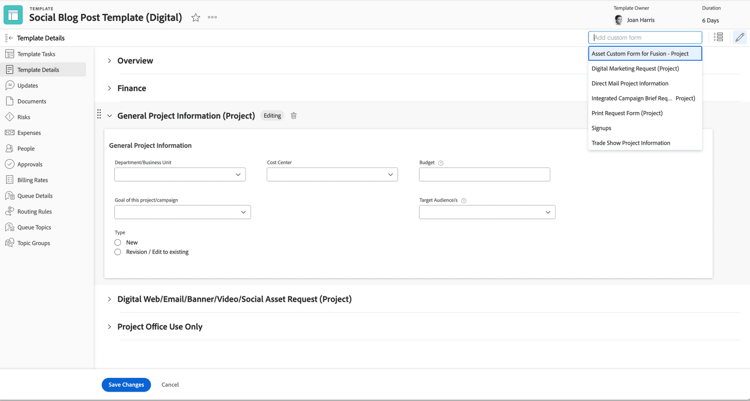
Find and open the project template.
Select Template Details in the left panel menu.
Click into the Add custom form field to see a list of custom forms available for the object type you’re working with. Or start typing in the name of a custom form.
Select the desired custom form. It automatically attaches to the object.
Fill out any custom form information that you want to be part of every project created with this template.
For example, if the custom form contains a field for “asset type” and this project template is used for video production, then you can preselect “video” in the “asset type” field.
Remember to Save Changes when you’re done.
You also can attach custom forms to project templates by selecting Edit from the More menu on the template page—just like you did for a project.
Note: You also can attach custom forms to tasks in a project template.
Attach a custom form to a request queue
Karen knows that one of the most common places in Workfront that users see and fill out a custom form is when making a request through a Workfront request queue. These forms are attached as part of the request queue setups so the form is always there, ready to be filled out when a request is made.
In the next step, you'll learn how to fill out custom forms and view custom form information.