Fill out and view custom forms
Filling out custom forms completely and properly is key to consistent, correct data across your Adobe Workfront system.
Karen already mapped out her organization’s workflows and processes, so she can identify where and when custom forms need to be filled out. She makes sure that everyone involved in those workflows knows why the custom forms are important and how to fill them out.
She also ensures users who need to see the custom form information can easily access it

Fill out and view a custom form
In this video, you will learn how to:
- Fill out a custom form.
- View custom form information using a View.
- View custom form information using a report.
- Make a PDF of the object details, including the custom form information.
primary
--spectrum-gray-700
000000
white
primary
--spectrum-gray-700
000000
white
Bulk edit custom forms
When you bulk edit multiple items in a list, only the custom forms attached to all the selected items can be edited. A message shows you how many items were selected and how many custom forms are common among those items.

During a bulk edit, you can edit only those custom forms that are attached to all items.
Delete and deactivate custom forms
Deleting a custom form from Adobe Workfront deletes all custom data on objects that custom form is attached to. This deleted data cannot be recovered.
If a custom form is no longer needed, it’s recommended you deactivate the form so historical data is retained. When a form is deactivated:
- Users can no longer select the form when attaching custom forms to items.
- The custom form stays attached to items that are already using it.
- The data collected by the custom form remains in Workfront. This means you can continue to report on this information.
- Fields from the custom form remain available for in-line editing in a View.
To deactivate a custom form, open the form from the Custom Forms area of the Setup menu. In the top menu bar of the custom form, toggle off the Active option (the field turns gray when the custom form is not active). Don’t forget to save the change.
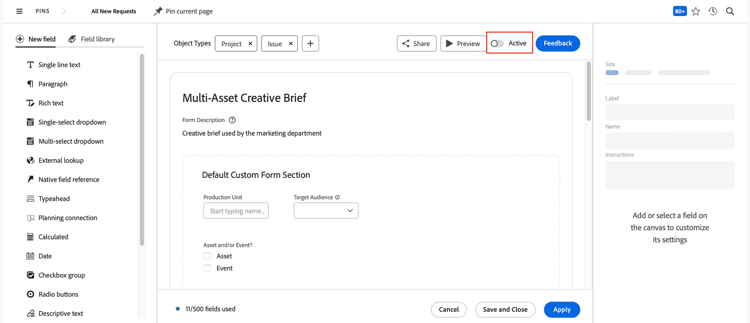
If you re-activate the custom form, it retains its previous settings and users can interact with it like it was never deactivated.
Removing or deleting custom fields
Removing a custom field from a custom form deletes all data that was entered in that field wherever that custom form is attached. Data also is deleted if the custom field is deleted from Adobe Workfront entirely. The deleted data cannot be recovered.
To remove a custom field from a custom form but not lose the data that has been answered, you’ll want to “move” that field to another form. Learn more in the Remove a Custom Field Without Losing Data That Users Have Entered section in the Delete a Custom Field or Widget from the System article.
In the next step, you’ll learn some best practices for making, managing, and using custom forms.