Create a custom form
Custom forms serve as a centralized place to collect and save details that are important to the work your organization is doing.
Custom forms can be used in a variety of ways in Adobe Workfront.
- Marketing groups often use custom forms as creative briefs that provide information about the latest campaign or an asset to be created.
- Manufacturers use custom forms to collect the specifications when a new product is requested or updates to existing products are needed.
- Professional services organizations use custom forms to record information about the clients they’re working with.
Custom forms in Workfront are attached to objects, allowing users to provide and view information specific to that work item. Custom forms are commonly used on projects, tasks, and requests.
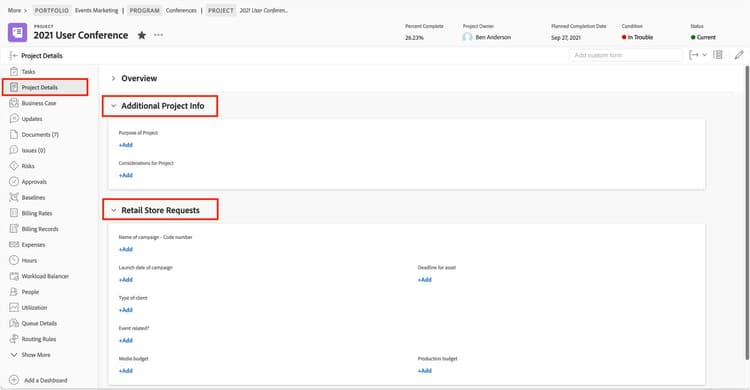
Custom forms collect information specific to your organization and workflows.
Custom form information is reportable, which means the information can be included in custom-created Views as well as custom reports. This provides easy access and visibility to the data.
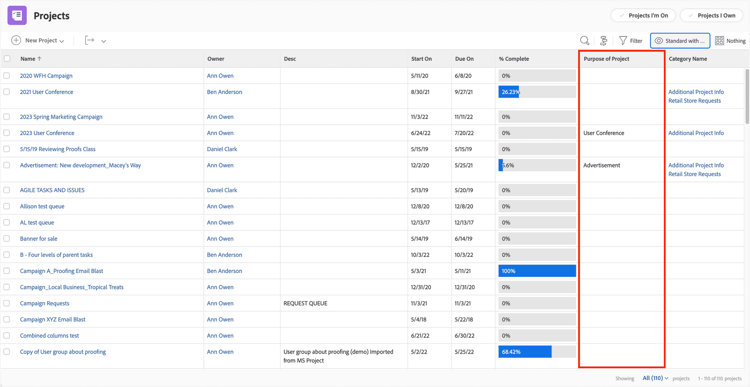
Custom form information can be displayed in a list report.
Before she creates custom forms, Karen talks with project managers, team members, leadership, and other stakeholders about what information they need to collect and how they’re going to use that information—in weekly status reports, as part of the daily workflow, for summary reports, and so on.
Then she sketches out what fields the custom forms should contain and how those fields should be organized. This helps Karen ensure the custom form collects all the required information, and that it’s organized in a way that makes it easy for users to fill out.

Who creates custom forms?
Custom forms are generally created and maintained by the Workfront system administrator, although some Workfront customers allow group administrators to create custom forms. A Workfront Standard license is required.
It’s recommended you limit the number of people who can create custom forms in your Workfront instance. This helps control the number of custom forms created, ensures consistency, and prevents duplicate forms.
In addition, Workfront recommends creating guidelines for naming custom fields and custom forms.

Create a custom form
In this video, you will learn how to:
- Select which objects to make a custom form for.
- Add fields in a variety of formats.
- Organize the custom form using section breaks.
Note: The Label of a custom field is the name that users see when they view and fill out the custom form. The Name on a custom field is what Workfront uses in places like reports and API interactions. The Label and Name can be different, although Workfront doesn’t recommend changing the Name field once the custom form is being used. Learn more in the Design a Form With the Form Designer article.
primary
--spectrum-gray-700
000000
white
primary
--spectrum-gray-700
000000
white
Add object types to the custom form
As you inventory and create custom forms for your organization, you might find the same custom form would work for different object types. A common example of this is an issue custom form that’s used for a request queue (remember, Workfront treats requests as an issue) and on a project.
Rather than creating and maintaining different custom forms, you can add an object type to a form.
-
Navigate to the Custom Forms section in the Setup area.
-
Click the name of the custom form to open it.
-
The object types on which the custom form can be used are listed at the top of window. Click the + icon to open the dropdown list of object types.
-
Select the desired object type.
-
Click Save and Close to finish.
primary
--spectrum-gray-700
000000
white
primary
--spectrum-gray-700
000000
white
Display and skip logic in custom forms
In this video, you will learn how to:
Add display logic to a custom form, to hide custom fields from view that aren’t relevant.
Add skip logic to a custom form, so users are directed to a certain section of the form.
Preview and test the fields that have skip or display logic applied.
In the next step, you’ll learn to share custom forms and attach them to objects in Adobe Workfront.