Solidify the project template
Establish the project details that will be applied to all projects made with that template.
Update the project details
Karen identified her users' needs and created the project that serves as the base for her template.
Now, she cleans up the project details. Accurate project details bring clarity and precision to project management and reporting.

Open the project and then access the project details by:
-
Clicking Project Details in the left menu, or
-
Selecting Edit from the 3-dot menu in the project header
Note: The project details window that opens with the Edit option gives you access to fields that are not visible when using Project Details in the left menu.
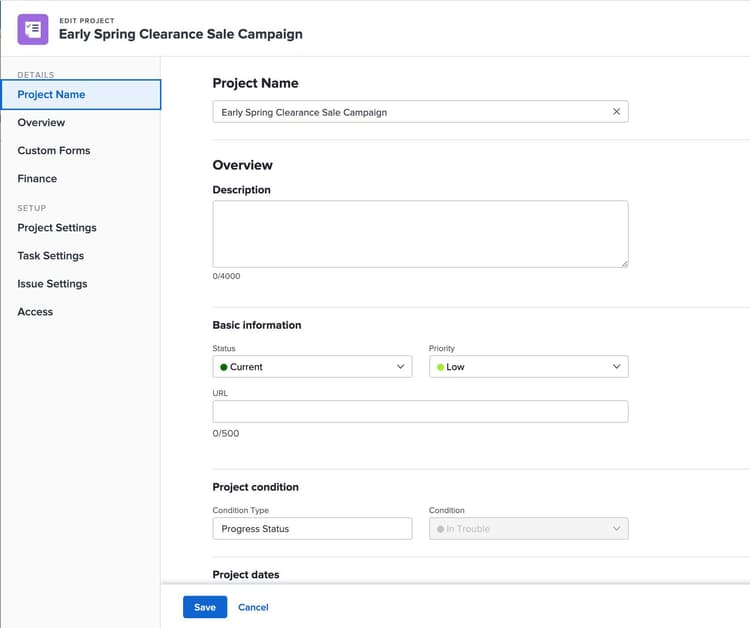
Fill in project detail information that you want to carry over to the template.
Project details checklist
- Select a Schedule Mode—Start Date or Completion Date.
- Fill in the Group and Company fields.
- Verify the Project Owner and Project Sponsor are correct.
- Attach the appropriate project custom forms. If the project will be created by converting a request, confirm the intake custom form is attached. This is pivotal for reporting.
- Choose a milestone path for the project (if applicable).
- Select a default schedule (if applicable).
- Select resource pools (if applicable).
- Assign a global project approval process (if applicable).
- When someone is assigned to a task from this project, give them Contribute access to the project.
- Restrict access settings for viewers, contributors, and managers.
Use the tips and checklists below to ensure you’re incorporating best practices into your templates as you add and edit tasks.
Build the project plan
As you modify or build the project you'll use as a template base, ensure you have the right framework laid out with the task list.
When a template is set up properly, it provides a good foundation for project managers to get projects created and started quickly. It also allows for efficient, effective changes once the project goes live.
Focus first on these five key pieces of information for any project:
- Begin task names with a verb to make them action-oriented.
- Enter duration in days (for example, 1 day) and avoid fractional durations. Partial-day durations sometimes affect the project timeline’s accuracy.
- Add planned hours to indicate the amount of effort the task will take. Estimate the planned hours to the best of your ability (and add a buffer).
- Establish predecessors to establish dependencies between tasks and build out the project timeline.
- Assign job roles to tasks. These serve as placeholders until individuals are assigned.
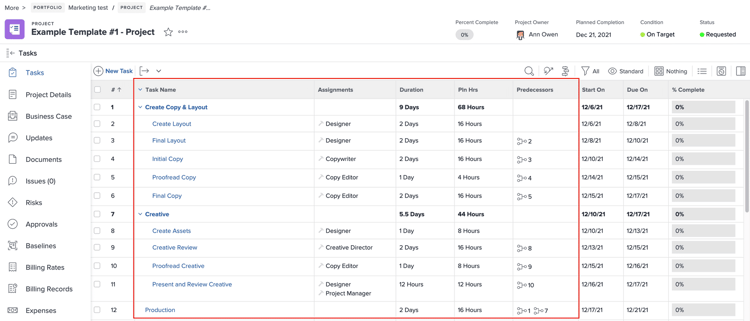
When setting up a project template, focus attention on these five fields — Task Name, Assignments, Duration, Planned Hours, and Predecessors.
Other tips for building the project timeline
- Add a “Project Summary” task that is a parent task to all subsequent tasks in the project plan. This rolls up information like total plan duration and planned hours, making it easy to see how long the project will take to complete.
- Establish start and due dates on a task with the duration and predecessors.
- Begin task names with a verb—such as "Edit copy" or "Review plans." This makes it clear for everyone what needs to be done.
- Assign milestones and task approvals to the appropriate tasks.
- Parent tasks should not be assigned to users or job roles.
- Attach custom forms to tasks.
- Attach documents to tasks or to the project itself.
- Set task constraints to “As Soon As Possible” if scheduling from a start date.
- Use the Chain feature to quickly set up predecessors on tasks.
Check with your organization to see if there are additional recommendations or requirements to follow when creating project templates.
Pro Tip
primary
--spectrum-gray-700
000000
white
primary
--spectrum-gray-700
000000
white
Once project details are set and the project timeline is structured properly, it’s time to create the template.
Save a project as a template
- Open the project you've been building as the base for your template.
- Select Save as Template from the More (3-dot) menu in the project header.
- Name the template, following your organization's template naming convention.
- Add custom forms.
- Clear unneeded data, such as documents, assignments, or sharing options.
- Remove unwanted tasks.
- Click Finish and Save Template.

To create a template, open the project and select Save as Template from the menu.
Final checks
After you create the template, do a quick check of the task list, Template Details, and other settings before you share the template with others.
A few things to check include:
- Remove your name from the Template Owner field, or replace it with another user's name. The name in this field is automatically assigned as the Project Owner when projects are created using this template.
- Fill in the Project Sponsor and Resource Manager fields, if the same people will fill those roles for each project created with this template.
- Update the Portfolio and Program fields to match where you want projects to be saved.
- If any custom forms fields will contain the same information for every project that uses this template, go ahead and fill in those fields.
Create a template from scratch
You can create a template from scratch, much like you can create a project from scratch. However, this is not the preferred way of making templates for many Adobe Workfront users because it can be time-consuming.
- Navigate to the Main Menu and select Templates.
- Select New Template. A new template opens.
- Name the template at the top-left of the window.
- Add tasks, durations, planned hours, predecessors, and job role assignments.
- Verify the details are set as needed by clicking the Template Details section in the left menu or selecting Edit from the 3-dot menu in the page header.
- Set the task settings—such as task constraints and predecessors—to keep your timeline flowing smoothly. Use a bulk edit to update the same information on multiple tasks.
- Edit the Task Details to ensure each task has the information needed, such as milestones, approvals, custom forms, etc.
Note: When you create tasks using inline editing, you won't be able to edit all of the task settings.

Update task names, duration, and other information visible on the page using inline editing.
In the next step, you'll learn how to share and maintain a project template with your users.