Share and maintain project templates
With the project template solidified and created, it's time to share it with others so they can start using it.
Template sharing
By default, the templates Karen created are visible only to her; she is the only person who can use or edit them. For others to use the templates, Karen must share them with at least View permissions. This is done through the Template Sharing option.
- Open the template.
- Select Template Sharing from the More (3-dot) menu in the page header.
- Enter the names of the people, job roles, teams, groups, or companies who will be using the template in the Give template access to field.
- Users need View access to be able to use the template when creating projects.
- Save when done.


Sharing a template with others allows them to use it when making projects.

Assign View access to most users.
If you prefer, you can edit Template Sharing directly from a list of templates. Select the template (or templates) and then click the Share icon and select Template.
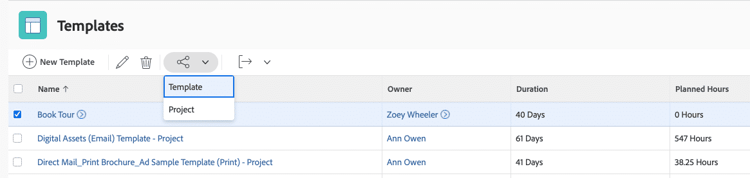
Adjust Template Sharing using the Sharing icon found on the list in the Templates area.
Permissions for editing templates
Manage permissions to allow users to edit the template. Adobe Workfront recommends limiting the number of people who can edit templates to avoid accidental or unapproved changes. Well-built, consistent templates are key to good work management and accurate reporting.
Both the person who created the template and the Template Owner (as set in the Template Details) have Manage permissions to the template by default.
Project sharing
If projects made with a specific template always need to be shared with the same people, establish that as part of the template itself with Project Sharing.
Project Sharing helps ensure the right people have access to the projects they need. And it's a time-saver for project managers, because they don't have to set up the same sharing permissions on every project they create or manage.
- Open the template.
- Select Project Sharing from the More (3-dot) menu in the page header.
- Enter the names of the people, job roles, teams, groups, or companies who need access to the projects made with this template in the Give project access to field.
- Assign the appropriate sharing permissions level—View It, Contribute to It, or Manage It—that users need for the project.
- Adjust the Advanced Settings for the permissions level, if needed.
- Save when done.
Once a project is made, the sharing can be adjusted for that individual project as needed.
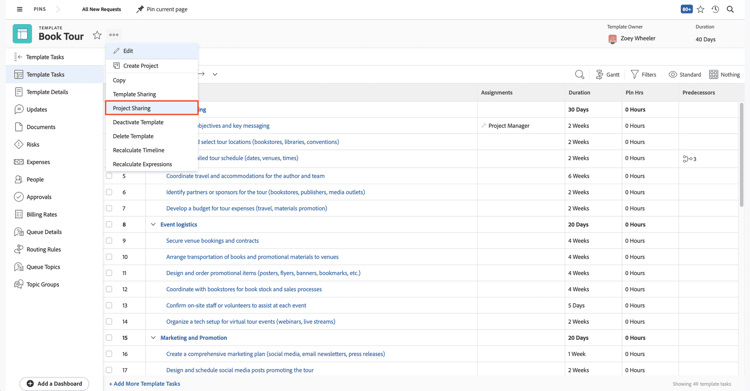
Project Sharing grants permissions to access projects made using this template.

Assign View access to most users.
A well-stocked—but carefully curated—template collection takes time to build.
Build a template library
As Karen launches Workfront, she is not rushing to create a lot of templates. She is being thoughtful and strategic so she builds what’s needed for teams to get up and running.
It's rare that a project template is perfect on the first try. Get feedback on templates in the first month or two from the teams using them. Are the durations and planned hours accurate? Are tasks missing? Is the right custom form attached?
Make updates to the templates as needed to get them working smoothly for the project managers and to ensure project deadlines are met.
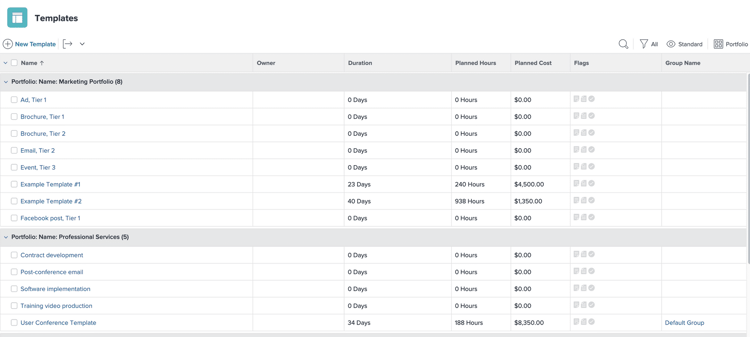
Different industries need different project templates.
As additional teams or departments start using Adobe Workfront, follow the steps outlined in this module to create project templates for them.
You also may introduce new templates as your organization adopts new processes.
Maintain project templates
As part of your project template strategy, set up governance around templates. Decide who should be able to create and modify templates. Not everyone should have access.
And don’t forget about template maintenance. Set up a regular cadence—such as twice a year—to check in with your project managers and other users to learn what’s working and what isn’t with the templates they use. Then make the updates requested.
You could even establish an Adobe Workfront request queue so users can submit their template updates whenever they’re needed.
Deactivate vs. Delete
When a template is no longer needed, you have two choices for how to manage it—deactivate it or delete it.
Deactivate
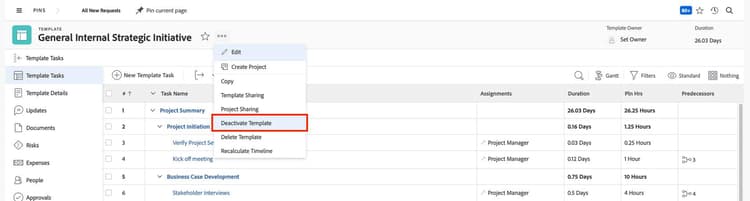
Deactivating a template leaves it in Workfront but removes everyone's access to that template. No new projects can be created with the template. Existing projects that use the template aren't affected.
- Open the template to deactivate.
- Select Deactivate Template from the 3-dot menu in the page header.
- The template is automatically deactivated and is no longer visible to users.
The template can be reactivated by selecting Reactivate Template from the More (3-dot) menu.
Delete
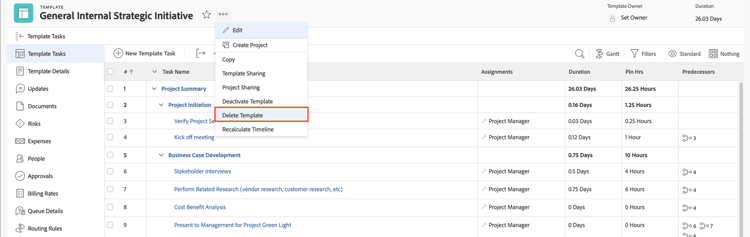
Deleting a template removes it from Workfront entirely. You'll receive a warning message asking you to confirm the deletion.
- Open the template to delete.
- Select Delete Template from the More (3-dot) menu in the page header.
- Select Yes, Delete It from the warning message that appears to continue with the deletion.
- The template is deleted and is no longer visible to users.
Note: A recently deleted template can be recovered from the Recycle Bin for 30 days by a system administrator or group administrator.
Existing projects that use the template aren't modified, but the Template field—where the name of the original template attached to the project appears—in the project details is blank.
Best practices: project template
Use templates when creating projects.
Project templates eliminate the guesswork for project managers (and others creating projects) about what tasks a project should contain, how to structure the timeline, etc. Templates are the most effective way to speed up project creation.
Importantly, templates provide consistency across projects of similar types, so that people, processes, and data points are detailed the same way every time. Even projects with quick turnarounds (one or two days) and minimal tasks can benefit from being created with project templates.
This consistency across projects results in more accurate data, which is vital when making decisions for your team, in your department, and across the organization.
Establish a naming convention for project templates.
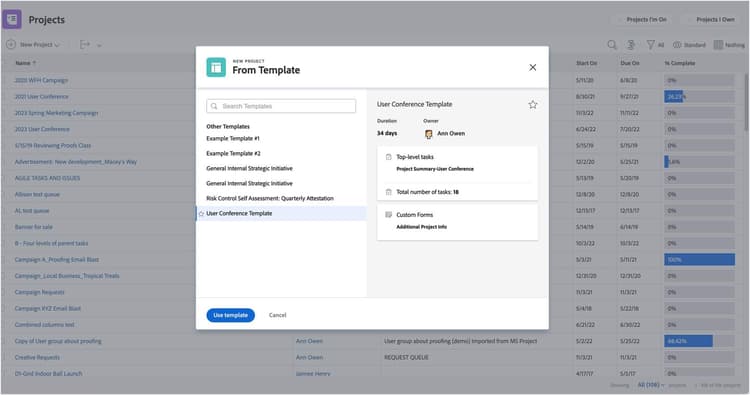
Consistent naming makes templates easier to find. It also helps project managers and others creating projects to select the right template when there are similarly named templates across multiple teams or departments.
Establish a select group of users who can make and update project templates.
Having well-built, consistent project templates is key to good work management and accurate reporting. Limit the number of users who can edit templates to avoid accidental or unapproved changes.
Use project sharing on a project template to automatically grant access to projects.
Access to specific projects is granted through the project itself. If the same group of people always need access to projects created with a specific template, add them under the Project Sharing option on the template. Not only can you control access to projects as soon as they’re created, this streamlines scalability efforts if permissions need to change in the future.
Note: Template Sharing grants access to the template itself. A user must have at least View permissions to make projects with the template.

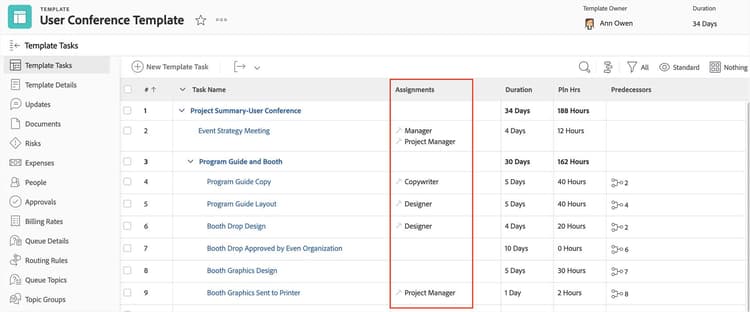
Assign tasks to job roles or teams, not to individuals.
When an individual user changes positions or leaves the organization, you’ll need to manually update project templates that include that person. This takes time on part of the system or group administrators or project managers.
If you use job roles or teams on templates, staffing changes won’t have a direct effect on your project templates because anyone assigned that job role or on that team could be assigned the work. This helps ensure work doesn’t slip through the cracks. Job role assignments also make assigning work to individual users easier, as Workfront can show you a list of people assigned that job role.
In addition, job roles are used by Workfront’s resource planning tools to help you calculate needed resources and plan for future work.
Limit the number of tasks in a template to the ones necessary to complete the work.
Avoid getting too granular when creating tasks in a project template. Over-complicated project templates result in a bad experience for users—project managers, resource managers, team members, and more. Too many tasks make the project timeline hard to manage, with overlapping task deadlines and multiple tasks assigned to the same job roles or individuals.
Use the task description to capture the steps of the task, rather than multiple tasks.
If multiple tasks in a row are assigned to the same job role/individual, that’s an indication those tasks could be combined. Having too many tasks assigned to a user may make them feel like there’s more work to complete, which can affect Workfront adoption.
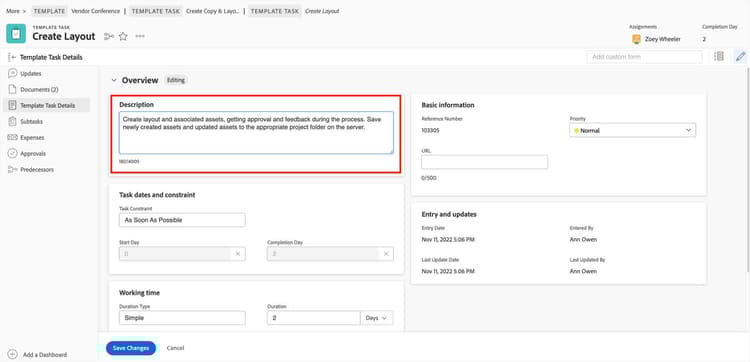
Ensure the templates include task durations, planned hours, and predecessors.
These three things—durations, planned hours, and predecessors—are the building blocks of the project’s timeline. These are key to knowing how long work will take and when it needs to be done. Use Workfront’s resource management tools—durations and planned hours, plus job role assignments—to calculate resource capacity, availability, and more.
If you’re unsure how to estimate durations or planned hours for the first time, work with the project team to define some initial estimates. Once you’ve used the template, meet with the project team again to determine where changes could be made to make the template more accurate. If users are logging time in Workfront, you can compare a project’s planned hours with actual hours to see where adjustments are needed.
Pre-configure project details and attach custom forms on the template.
Confirm the information that is standard for all projects is filled in on the project template. Not only does this help speed up project creation, it ensures necessary information is there and that it’s consistent across projects.
Attach project custom forms that match request custom forms to pull in submitted information when converting the request into a project using the template.
Regularly review and update project templates.
As processes and teams change, project templates should be updated. Establish a regular cadence, such as quarterly, to check which templates aren’t being actively used. You can deactivate these, so they’re still in Workfront but won’t appear on template selection lists.
Check templates to ensure they have all the information needed before sharing.
Because templates will be used again and again to make projects, you’ll want to verify everything is set up properly and completely. This leads to consistency across all projects and accurate data for reporting.
In addition to task settings like duration and planned hours, some things to review before sharing templates include:
- Schedule From setting
- Task constraints
- Project owner, sponsor, group, and company
- Portfolio and program
- Milestone path and steps
- Approval processes
- Users assigned tasks on projects have Contribute access to the project
- Resource pools
- Reminder notifications
- Schedule
- Currency setting (if applicable)
- Attach standard documents
- Attach necessary customs forms
- Check the project team to make sure there aren’t extra people assigned
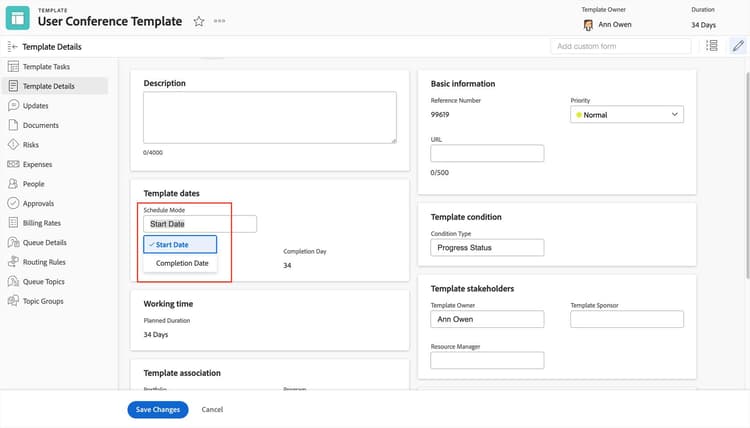
When you adjust the Schedule Mode option, review the task constraints.
Mixing different task constraints on a project can cause unexpected and confusing planned date calculations. For example, when Start Date is selected for the Schedule Mode option, any tasks created in that project are assigned the As Soon As Possible task constraint by default. If you later switch the Schedule Mode option to Completion Date, then any tasks created have the As Late As Possible task constraint by default. Having an unintentional mix of tasks with each of these constraints can result in confusing planned dates in your project timeline.
Check the project team and remove users who won’t be associated with the project.
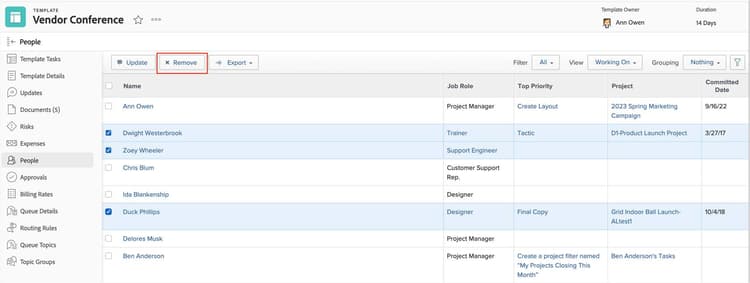
When you create a template from an existing project, it brings over the people who were assigned tasks/issues on the project. And as you’re working with your template, you may remove people who were previously assigned work or change an assignment you made yourself on the template.
All of these users will be listed as part of the project team, in the People section of the project. As a result, they’ll get passed on to all projects created from that template. This could cause confusion for the user because as part of the project team, they receive notifications about activity on the project, see the project in the Projects I’m On list, and gain permissions to the project and its tasks, issues and documents.