Getting started
Before creating project templates, take time to evaluate your needs and do a bit of prep work in Adobe Workfront.
Karen’s organization has an intake process where work requests are submitted through an Adobe Workfront request queue. She already established these queues as part of the system setups she's been working on.
Now she needs to ensure project managers, resource managers, and traffic coordinators have the right tools to create projects in different ways.
Let's take a look at what Karen can do to set up her users for success before they start creating projects.

Get Started with project templates
Karen needs to capture repeatable processes and share project templates with her users in Workfront so they can save time and work more efficiently. For example, one of the marketing teams sends an email to customers on a monthly basis. Instead of re-creating the Workfront project from scratch for each month's email, the team would rather create the projects from a template that captures this repeatable process.
Project templates are the recommended way of creating a new project in Adobe Workfront.
It doesn’t matter what type of project your teams are making—a marketing campaign, new product development, or a team initiative—templates not only speed up project creation, they contribute to consistency across projects by making sure custom forms are attached, milestones are set, and necessary task work is accounted for.
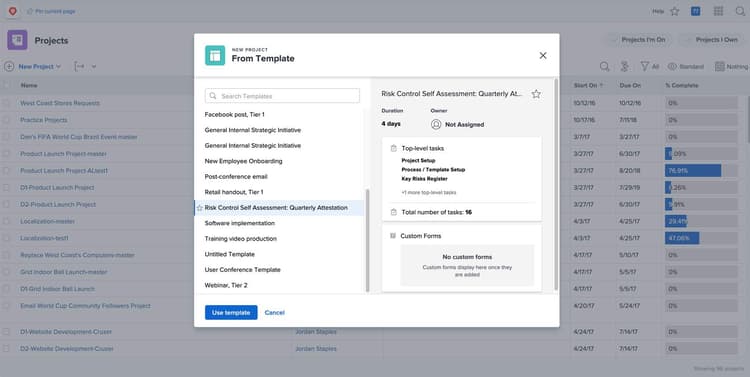
Users creating projects can select from a list of project templates.
When to create templates
Templates generally are created as part of the Workfront system and workflow setups during your Workfront implementation.
Additional templates might be needed as you onboard new teams to Workfront or introduce new workflows, product types, and so on. Updates to existing templates are often needed when processes change.
Inventory your templates
In general, it's good to have a short, carefully curated list of project templates to build in Adobe Workfront. This makes it easier for users to choose the right template when they’re making projects. And it means fewer templates to maintain. Karen starts by talking with her teams about the templates they currently use.
- Gather the project plans, timelines, or schedules that you’re actively using in your current work management system. These should include every step needed to complete the project, the amount of time needed, who completes the work, etc.
- Pare down this list of templates by marking which ones are no longer used, no longer relevant, etc. If the list includes templates your team is no longer using with your current process, there's probably no need to create those templates in Workfront.
- Evaluate each template. Look at each task in your projects—who is it assigned to, does it need an approval, will there be documents attached, is it a project milestone, how long should the work take to complete, etc.?
- Look for similarities between the templates. Is there the opportunity combine some of these templates?
Dedicated storage spot
A good way to create a project template is to use an existing, successful project as a base. You can create projects in Workfront and build the timeline as desired before saving it as a template.
Keep these projects in a dedicated portfolio and/or program, so they're out of the way of your team's daily work.
For example, one of the Adobe Workfront’s group administrators at Karen's organization has a portfolio called Administration, with a program called Project Templates where they keep the projects as they build and verify them with team members before saving them as templates.
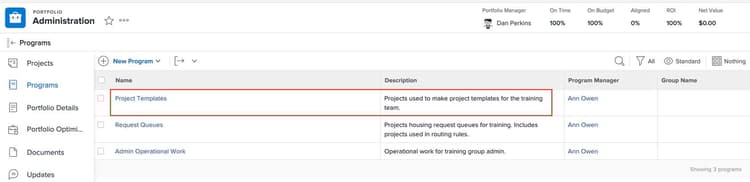
Having a program dedicated to the projects you use for building templates keeps them out of the way of your daily work.
In the next step, you'll learn how to create a project for the base of your project template.