Create a project
Adobe Workfront recommends creating a template by copying an existing, successful project to use as a base. Or create a new project—either with an existing, similar template or from scratch—and build it out as desired.

Start your template by copying an existing project that worked well and using it as a base. If you don't have a project you can copy as a base, create a new project.
Click the tabs to learn how to copy and create projects.
The events marketing team just finished a project that was set up perfectly and wants this to be their new standard template. Not a problem.
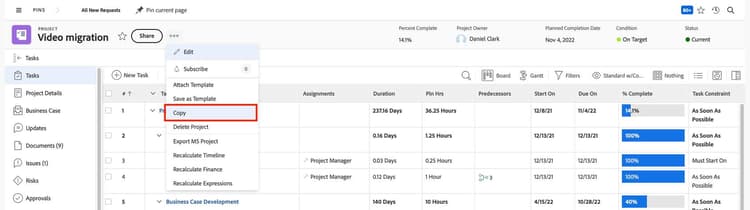
Start by making a copy of the project (so you don’t mess up the original project’s data). Then you can clear any data that doesn't need to be part of the template and make other changes as needed so you can save the project as a template.
- Open the project you want to copy.
- Select Copy from the 3-dot menu.
- Name the project.
- Set the Status to Planning or a similar status, to indicate it's not a live project.
- In the Options section, uncheck the boxes for the types of information you want to delete as you make the copy—assignments, expenses, documents, etc.
- Select Copy.
There may be times when you don't have an existing project you can copy to use as a base for your template. For example, your organization might be building a new product whose creation will be managed using Workfront. Or maybe a marketing team is going to start posting on a new social media platform, so they need a template specific to that.
In that case, you could create a project from scratch — one that's completely blank that you build from the ground up.
- From the Main Menu, select Projects.
- Click New Project, then select New Project from the dropdown menu.
This creates and opens the new project. - Untitled Project in the project header is highlighted in blue, to remind you to give this project a name. After entering the project name, click out of the field to save.
- Click the 3-dot icon next to the project name and select Edit to update the project details.
- Set the Status to Planning or a similar status, to indicate it's not a live project.
- Select the Portfolio and/or Program you made for these projects.
- Save the changes.

In the next step, you'll learn ways to solidify and fill in the details of a project template.