This is the abridged developer documentation (without the release changelog page) for Adobe Commerce Storefront on Edge Delivery Services
# Adobe Commerce Storefront Documentation
> Abridged documentation for Adobe Commerce Storefront (excludes releases/changelog)
> Generated: 2026-05-14T01:45:56.863Z
> Source: https://experienceleague.adobe.com/developer/commerce/storefront
---
# Blocks and the repository
This page shows where your Git repository sits between merchant-authored documents and shopper cart, checkout, or product flows. It also explains how content blocks differ from Commerce blocks and which boilerplate folders hold the wiring. `blocks/` and `scripts/initializers/` are not sample folders. They are the files you edit when a Commerce region on the page breaks or shows the wrong data.
[How a page loads](https://experienceleague.adobe.com/developer/commerce/storefront/get-started/architecture/how-a-page-loads/) shows the timeline from document to API call.
This page focuses on ownership: authors work in documents, EDS converts tables into block `div`s, and your repository provides decorators, initializers, styles, and configurations so Commerce blocks load the correct drop-ins.
## Comparing blocks and drop-in components
Each document table becomes a block `div` that EDS and your JavaScript identify. Your repo connects Commerce blocks to drop-ins through decorators, `scripts/initializers/`, styles, and storefront configuration, then pushes to GitHub to drive Edge Delivery builds.
Authoring references: https://docs.da.live/, [Document Authoring](https://experienceleague.adobe.com/developer/commerce/storefront/merchants/quick-start/document-authoring/) and [Universal Editor](https://experienceleague.adobe.com/developer/commerce/storefront/merchants/quick-start/universal-editor/) Quick Starts, https://www.aem.live/docs/authoring-guide, https://www.aem.live/docs/. For packages and shared vocabulary, see [Drop-ins at a glance](https://experienceleague.adobe.com/developer/commerce/storefront/get-started/architecture/drop-ins-at-a-glance/) and [Boilerplate getting started](https://experienceleague.adobe.com/developer/commerce/storefront/boilerplate/getting-started/).
| | Content blocks | Commerce blocks | Drop-in components |
|---|----------------|-----------------|---------------------|
| Role | Layout and marketing UI (cards, heroes, columns, headers, footers) | Interactive Commerce experiences (cart, checkout, account, PDP, …) | Packaged UI and logic that Commerce blocks load and initialize |
| Where it comes from | Block Collection and custom blocks in `blocks/` | Commerce blocks in `blocks/`, mapped in the boilerplate | npm (Node's package manager. You use it to install drop-in packages — for example, `npm install @dropins/storefront-cart` — in your storefront repository.) packages such as `@dropins/storefront-cart` |
| Authored as document tables | Yes | Yes | No — developers add packages and wire initializers in code |
| Typical tie to Adobe Commerce | None — no Commerce GraphQL for most blocks | Yes — GraphQL, REST, and services through the boilerplate | Direct — Commerce API calls (GraphQL, REST, services) are built into each package |
| Learn more | https://www.aem.live/developer/block-collection | [Key files and folders](#key-files-and-folders) · [Blocks reference](https://experienceleague.adobe.com/developer/commerce/storefront/boilerplate/blocks-reference/) | [Drop-ins introduction](https://experienceleague.adobe.com/developer/commerce/storefront/dropins/all/introduction/) |
### Commerce Storefront SDK
Drop-in components are built on shared Commerce Storefront SDK (The Drop-in SDK used to build custom drop-ins and related integration logic.) patterns (initialization, rendering, slots, and extension hooks) so behavior and structure stay consistent across cart, checkout, product discovery, and the rest of the set.
- [Commerce Storefront SDK](https://experienceleague.adobe.com/developer/commerce/storefront/sdk/) — Reference for APIs, design components, and utilities used across drop-in components
- [Drop-ins introduction](https://experienceleague.adobe.com/developer/commerce/storefront/dropins/all/introduction/) — Full map of B2C and B2B drop-in components and how they install into the boilerplate
### Content blocks and Commerce blocks
Both kinds are document tables EDS turns into HTML. The split is what runs next. Content blocks are layout and marketing (cards, columns, headers, footers from the https://www.aem.live/developer/block-collection). They contain no drop-ins or Commerce GraphQL. Commerce blocks load interactive cart, checkout, account, PDP, and similar flows via initializers and `@dropins/*` calling Commerce GraphQL and related APIs. Prefer plain JavaScript for Commerce blocks. React can make achieving a top Lighthouse score hard. See [Libraries](https://experienceleague.adobe.com/developer/commerce/storefront/troubleshooting/faq/#libraries) and the boilerplate blocks as patterns.
### Key files and folders
The https://github.com/hlxsites/aem-boilerplate-commerce is your project's Git repository. It separates core AEM block delivery from Commerce-specific code (`scripts/commerce.js`, `scripts/initializers/`, and storefront configuration) so both sides stay maintainable independently.
Here is what the top-level layout looks like when you clone the boilerplate.
```
aem-boilerplate-commerce/
├── blocks/
│ ├── commerce-cart/
│ │ ├── commerce-cart.js # block decorator — loads and mounts the Cart drop-in
│ │ └── commerce-cart.css
│ └── commerce-checkout/
│ ├── commerce-checkout.js # block decorator — loads and mounts the Checkout drop-in
│ └── commerce-checkout.css
├── scripts/
│ ├── scripts.js # page orchestration (eager, lazy, delayed phases)
│ ├── commerce.js # Commerce-specific loading and configuration
│ └── initializers/
│ ├── cart.js # sets the GraphQL endpoint and labels for the Cart drop-in
│ └── checkout.js # sets the GraphQL endpoint and labels for the Checkout drop-in
├── styles/
└── config.json # storefront configuration (endpoints, locale, and so on)
```
The table below explains each key file or folder in detail. For the full https://github.com/hlxsites/aem-boilerplate-commerce/tree/main/scripts and `blocks/`:
| File/Folder | Role |
|-------------|------|
| `scripts/scripts.js` | Page load, block decoration, fonts, and orchestration of eager, lazy, and delayed loading phases. Imports from `scripts/aem.js` and `scripts/commerce.js`. Also the extension point for global DOM decorators, third-party plugins (such as experimentation tools), and any code that must run eagerly on page load. |
| `scripts/commerce.js` | Commerce-specific loading, templates, page type detection, Adobe Client Data Layer (ACDL) initialization, and storefront configuration. ACDL is a JavaScript library that captures shopper behavior for analytics — you will see it again when you read about drop-in coordination and analytics. Centralizes all commerce features and keeps them distinct from core AEM logic. |
| `scripts/initializers/` | One file per drop-in. Each initializer (A JavaScript module that configures a drop-in when imported, such as setting endpoints, registering dictionaries, and preparing runtime behavior.) sets the GraphQL endpoint, loads UI string translations, and registers the drop-in for rendering. All of that runs at import time, before any block decorates. See [Using drop-ins](https://experienceleague.adobe.com/developer/commerce/storefront/dropins/all/quick-start/) for the code pattern. |
| `blocks/` | Commerce and content blocks. See [Content blocks and Commerce blocks](#content-blocks-and-commerce-blocks) above and [Getting started](https://experienceleague.adobe.com/developer/commerce/storefront/boilerplate/getting-started/) for the repo layout. |
Customize and connect: [Blocks reference](https://experienceleague.adobe.com/developer/commerce/storefront/boilerplate/blocks-reference/), [Blocks configuration](https://experienceleague.adobe.com/developer/commerce/storefront/boilerplate/configuration/), [Storefront configuration](https://experienceleague.adobe.com/developer/commerce/storefront/setup/configuration/commerce-configuration/).
## What's next
[Drop-ins at a glance](https://experienceleague.adobe.com/developer/commerce/storefront/get-started/architecture/drop-ins-at-a-glance/) explains packages, browser runtime, and npm install.
---
# Commerce services and backends
Shoppers get pages from Edge Delivery Services. Drop-ins call Adobe Commerce for cart, checkout, and account. Optional hosted services accelerate catalog reads.
The diagram shows the full stack. Without that picture, Catalog Service, Live Search, or the Storefront Compatibility package can feel like surprise add-ons. [Backend options](https://experienceleague.adobe.com/developer/commerce/storefront/get-started/backends/) lists them for Commerce PaaS so you can plan installs in the right order.
Start by configuring your Commerce connection in [Commerce configuration](https://experienceleague.adobe.com/developer/commerce/storefront/setup/configuration/commerce-configuration/). Then check [Backend options](https://experienceleague.adobe.com/developer/commerce/storefront/get-started/backends/) to confirm your setup is supported.
## Coming from Luma or a classic Commerce theme?
If you know Luma or another Adobe Commerce theme, focus on one idea: who builds the page the shopper sees. In the classic model, Commerce builds storefront pages with PHP. In this model, Edge Delivery Services sends HTML and JavaScript, and drop-ins call Adobe Commerce APIs from the shopper's browser. You are not replacing the Commerce Admin, catalog, or order tools. You are choosing a different way to assemble the shopper-facing experience.
If you still run Luma while you move content and marketing to Edge Delivery, use [Luma Bridge](https://experienceleague.adobe.com/developer/commerce/storefront/setup/discovery/luma-bridge/). It is a PHP module that shares the shopper's cart and sign-in session between Luma and EDS drop-ins so both storefronts stay in sync during the migration. For diagrams that include Luma Bridge and the Adobe Commerce Optimizer Connector, read [Backend topology](https://experienceleague.adobe.com/developer/commerce/storefront/get-started/backends/#backend-topology). Those topics cover phased migration.
## How the pieces connect
Commerce blocks, drop-ins, the boilerplate, your backend, and shared Commerce Services all work together on the page.
The storefront uses GraphQL (A query language that drop-in components use to request and update data from Adobe Commerce APIs. Catalog Service, Live Search, and the core Commerce API all expose GraphQL endpoints.) for both reads and writes.
Commerce Services include Catalog Service (Adobe's fast, read-only GraphQL API for product data. Drop-ins call it instead of core Commerce GraphQL for product pages, search results, and category listings — up to ten times faster.), Live Search (Adobe's AI-powered search service. It returns results instantly as shoppers type and adjusts rankings and facets based on browsing and click signals in the current session.), Product Recommendations, and core GraphQL on your instance for carts, checkout, accounts, and other flows not covered by the hosted catalog layer.
All three backend options—Commerce PaaS, Adobe Commerce as a Cloud Service, and Adobe Commerce Optimizer—connect to these services. To compare them, see [Backend options](https://experienceleague.adobe.com/developer/commerce/storefront/get-started/backends/).
```mermaid
graph TB
EDS["Edge Delivery Services
Hosting & CDN"]
AEMBlocks["Content blocks
Cards, columns, headers"]
CommerceBlocks["Commerce blocks
Author in DA.live"]
EDS --> AEMBlocks
EDS --> CommerceBlocks
CommerceBlocks --> B2CGroup["B2C Drop-ins
Cart, Checkout, Account, and more"]
CommerceBlocks --> B2BGroup["B2B Drop-ins
Company, Quote, PO, and more"]
B2CGroup --> Boilerplate["Commerce boilerplate
Storefront configuration + API clients"]
B2BGroup --> Boilerplate
Boilerplate --> BackendChoice{Backend}
BackendChoice --> CloudService["Adobe Commerce as a Cloud Service
Fully managed"]
BackendChoice --> Optimizer["Adobe Commerce Optimizer
Fully managed SaaS"]
BackendChoice --> PaaS["Commerce PaaS
Your Adobe Commerce instance"]
subgraph Services["Commerce Services"]
direction TB
CS["Catalog Service"]
LS["Live Search"]
PR["Product Recommendations"]
GraphQL["Core GraphQL"]
end
CloudService -.-> Services
Optimizer -.-> Services
PaaS -.-> Services
style Services fill:#FFF9C4,stroke:#827717,stroke-width:2px
classDef storefront fill:#e8f5e9,stroke:#4caf50
classDef cloudService fill:#f3e5f5,stroke:#9c27b0
classDef optimizer fill:#fff3e0,stroke:#ff9800
classDef paas fill:#fce4ec,stroke:#e91e63
classDef commerceSvcBlock fill:#EDE7F6,stroke:#7E57C2
class EDS,AEMBlocks,CommerceBlocks,Boilerplate storefront
class CloudService cloudService
class Optimizer optimizer
class PaaS paas
class CS,LS,PR,GraphQL commerceSvcBlock
```
> **API Mesh (advanced)** https://developer.adobe.com/graphql-mesh-gateway/ is an option when your project needs to combine multiple backend sources behind a single GraphQL endpoint. Most new storefronts do not need it. You can add it later if the requirement arises.
## Commerce Services and integrations
This section covers the services and packages that connect your storefront to Commerce data, hosted Adobe services, and other Adobe platforms. Most rows below describe calls that go from the storefront into Adobe: drop-in components call hosted services or core GraphQL to get or update Commerce data. Data Connection (An optional Commerce extension that sends storefront and order event data to Adobe Experience Platform for use in personalization, segmentation, and cross-channel campaigns.), later on this page, is different. It sends shopper event data from your storefront out to Adobe Experience Platform.
Not all of these are required for every project. What you need depends on your backend and which drop-ins you use. For a checklist of prerequisites (especially on Commerce PaaS), use [Backend options](https://experienceleague.adobe.com/developer/commerce/storefront/get-started/backends/#prerequisites-by-backend) and [PaaS: required packages and services](https://experienceleague.adobe.com/developer/commerce/storefront/get-started/backends/#paas-required-packages-and-services).
### Services Connector
The Services Connector links your Commerce instance to the hosted catalog and search services in this section: Catalog Service, Live Search, and Product Recommendations. On Commerce PaaS, you configure that link once in the Commerce Admin using production and sandbox API keys from your Commerce license owner. All three services share the same key pair and data space after you save that configuration.
On Adobe Commerce as a Cloud Service and Adobe Commerce Optimizer, Adobe sets up the hosted side of those services for you as part of the managed model in [Backend options](https://experienceleague.adobe.com/developer/commerce/storefront/get-started/backends/). You do not repeat the same manual Commerce Services Connector steps that Commerce PaaS administrators use in the Admin. The Experience League topic in the quick reference table below still explains how API keys and data spaces work if you need the full background for PaaS or for troubleshooting.
### Catalog Service
Catalog Service gives your storefront fast, read-only access to product data through a dedicated GraphQL API. Instead of querying your Commerce application each time a shopper opens a product page or browses a category, drop-in components call this API, which Adobe designed specifically for storefront reads. It is built to return catalog reads faster than routing every read through the core Commerce GraphQL API alone. The Product Details drop-in requires Catalog Service, and the Product Discovery drop-in uses it for search results and category pages.
### Live Search
Live Search replaces the default Commerce catalog search with an AI-powered experience. When a shopper types in the search field, Live Search returns results instantly and adjusts facets and ranking based on what shoppers are browsing and clicking in that session. It powers the Product Discovery drop-in, which gives you customizable search and product listing pages with filtering. For storefronts that do not use the classic PHP theme, Live Search needs storefront events so it can learn what shoppers click and view. You need to turn on event collection before the AI models have data to work with. See [Analytics](https://experienceleague.adobe.com/developer/commerce/storefront/setup/analytics/instrumentation/) for details.
### Product Recommendations
Product Recommendations uses Adobe Sensei, Adobe's AI engine, to show shoppers products they are likely to want. Examples include units like "Customers who bought this also bought" and "Most viewed." You configure and place recommendation units in the Commerce Admin, and they can appear on product pages, the cart page, or anywhere else on your site. A storefront can run without Product Recommendations, but Adobe recommends turning it on when you want AI-driven merchandising blocks on the site.
Without the classic PHP theme, Product Recommendations needs the same storefront event collection as Live Search before models have signal. See [Analytics](https://experienceleague.adobe.com/developer/commerce/storefront/setup/analytics/instrumentation/).
### Core GraphQL
Core GraphQL is the GraphQL API on your Adobe Commerce backend (the address you set in the boilerplate for drop-ins). Cart, checkout, account, orders, and many other reads and writes still go here. Hosted services such as Catalog Service sit beside that API and speed up specific product reads. They do not remove core GraphQL from your architecture.
Adobe Commerce as a Cloud Service can offer one combined GraphQL layer that merges core Commerce fields with the hosted service fields storefronts need. When you run Adobe Commerce yourself, whether on Adobe-managed cloud infrastructure or on your own servers (on-premises), you use the long-standing core and service schemas described in Adobe's web API documentation. For a full overview, see the https://developer.adobe.com/commerce/webapi/graphql/ on developer.adobe.com.
### Data Connection
Data Connection sends shopper behavior and order data from your storefront to the Adobe Experience Platform, where other Adobe tools can use it for personalization and segmentation. For example, Adobe Journey Optimizer (a cross-channel marketing automation tool) can use that data to trigger an abandoned cart email. This service is optional for most storefront builds. You only need it if your project uses Adobe Experience Platform features like real-time audience segmentation or cross-channel personalization. According to the https://experienceleague.adobe.com/en/docs/commerce/data-connection/overview on Experience League, the Data Connection extension applies to Adobe Commerce on cloud infrastructure and on-premises projects. It does not apply to Adobe Commerce as a Cloud Service (the fully managed SaaS product), where integrations with Experience Platform follow a different model.
The drawing below shows only this optional path so it does not compete with the main stack diagram above. Data Connection is a Commerce extension on your Adobe Commerce instance. It receives storefront activity from the shopper session (for example, through the Adobe Client Data Layer) and back office events from the Commerce application, then forwards compatible data to Experience Platform. For installation and configuration, see the https://experienceleague.adobe.com/en/docs/commerce/data-connection/overview on Experience League.
```mermaid
flowchart TB
Storefront["Storefront
Edge Delivery + browser"]
DC["Adobe Commerce
Data Connection extension"]
AEP["Adobe Experience Platform"]
Storefront -->|"Storefront events"| DC
DC -->|"Forwarded data"| AEP
classDef storefront fill:#e8f5e9,stroke:#4caf50
classDef commerce fill:#fff3e0,stroke:#ff9800
classDef platform fill:#e3f2fd,stroke:#2196f3
class Storefront storefront
class DC commerce
class AEP platform
```
### Storefront Compatibility package
The Storefront Compatibility package extends the Commerce GraphQL schema with the reads and writes that cart, checkout, account, and order drop-ins require. Without it on the Commerce deployment that serves those flows, the drop-ins cannot talk to your backend as they expect. On Adobe Commerce as a Cloud Service and on Adobe Commerce Optimizer, Adobe manages this package for you as part of the fully managed model in [Backend options](https://experienceleague.adobe.com/developer/commerce/storefront/get-started/backends/). On Commerce PaaS (your own Adobe Commerce on cloud infrastructure or on-premises instance), you install it manually on that instance before you finish storefront settings in your GitHub project.
## Quick reference
| Service | One-line job | Where to find it |
|---|---|---|
| Services Connector | On Commerce PaaS, connects Catalog Service, Live Search, and Product Recommendations using Admin API keys. On Adobe Commerce as a Cloud Service and Adobe Commerce Optimizer, Adobe sets up the hosted side for you (see [Backend options](https://experienceleague.adobe.com/developer/commerce/storefront/get-started/backends/)). | https://experienceleague.adobe.com/en/docs/commerce-merchant-services/user-guides/integration-services/saas |
| Catalog Service | Fast read-only catalog data for product pages, list pages, search, and navigation; required by the Product Details drop-in. | https://experienceleague.adobe.com/en/docs/commerce/catalog-service/guide-overview |
| Live Search | AI-powered search that powers the Product Discovery drop-in. It needs storefront event collection when you do not use the classic PHP theme. | https://experienceleague.adobe.com/en/docs/commerce/live-search/overview |
| Product Recommendations | Optional (recommended). Adobe Sensei units in the Commerce Admin. It needs storefront event collection when you do not use the classic PHP theme. | https://experienceleague.adobe.com/en/docs/commerce/product-recommendations/getting-started/headless
/merchants/content-customizations/product-recommendations/ |
| Core GraphQL | Required. GraphQL API on your Commerce instance for cart, checkout, account, orders, and other flows; hosted catalog services do not replace it. | https://developer.adobe.com/commerce/webapi/graphql/ |
| Data Connection | Optional. Sends storefront and order event data to Adobe Experience Platform for personalization. Applies to Adobe Commerce on cloud infrastructure or on-premises, not Adobe Commerce as a Cloud Service. | https://experienceleague.adobe.com/en/docs/commerce/data-connection/overview |
| Storefront Compatibility package (A PHP package you install on Commerce PaaS that extends the GraphQL schema so cart, checkout, account, and order drop-ins can communicate with your backend as expected.) | Required on Commerce PaaS (manual install on your Commerce instance). Managed automatically on Adobe Commerce as a Cloud Service and Adobe Commerce Optimizer. | [Install page](https://experienceleague.adobe.com/developer/commerce/storefront/setup/configuration/storefront-compatibility/install/) |
> **Adobe Commerce Services on Experience League** For a complete list of merchandising services for your Adobe Commerce storefront, see the https://experienceleague.adobe.com/en/docs/commerce-merchant-services/user-guides/home on Experience League. The table above links to the services you will use most often with this storefront.
## What's next
[Backend options](https://experienceleague.adobe.com/developer/commerce/storefront/get-started/backends/) explains how to confirm your backend type, required installations, and service connections before configuring your storefront.
---
# Drop-ins at a glance
A drop-in is a packaged piece of UI and logic for one Commerce job, such as cart, checkout, or sign-in. It loads Commerce data through APIs, often GraphQL.
To use a drop-in, you need three things: the npm package, initializer settings in your repo, and a mount point on the page.
For setup steps, see [Using drop-ins](https://experienceleague.adobe.com/developer/commerce/storefront/dropins/all/quick-start/).
For a full package map, see [Drop-ins introduction](https://experienceleague.adobe.com/developer/commerce/storefront/dropins/all/introduction/).
## One drop-in: what you provide and what it does
In this model, your project provides the npm package, initializer configuration, and DOM mount point. The drop-in then renders the UI and calls Commerce APIs from the browser. For the full path from document to mount, see [How a page loads](https://experienceleague.adobe.com/developer/commerce/storefront/get-started/architecture/how-a-page-loads/).
```mermaid
%%{init: {'theme':'base', 'themeVariables': { 'edgeLabelBackground':'#ffffff'}}}%%
flowchart TB
subgraph provides["Your storefront project provides"]
npm["npm dependency
@dropins/storefront-*"]
cfg["Initializer settings
GraphQL endpoint, language labels"]
dom["Mount target
Commerce block region in the DOM"]
end
di["Drop-in component
Packaged UI and logic for one Commerce job (cart, checkout, sign-in, ...)"]
subgraph outcomes["At runtime"]
ui["Shopper-facing UI
Interactive areas for that job"]
api["Commerce traffic
GraphQL and related calls from this browser only"]
end
npm --> di
cfg --> di
dom --> di
di --> ui
di --> api
style di fill:#dbeafe,stroke:#1d4ed8,stroke-width:4px
style provides fill:#f8fafc,stroke:#64748b,stroke-width:1px
style outcomes fill:#fffbeb,stroke:#d97706,stroke-width:1px
style npm fill:#f1f5f9,stroke:#475569,stroke-width:2px
style cfg fill:#f1f5f9,stroke:#475569,stroke-width:2px
style dom fill:#f1f5f9,stroke:#475569,stroke-width:2px
style ui fill:#fff7ed,stroke:#ea580c,stroke-width:2px
style api fill:#fff7ed,stroke:#ea580c,stroke-width:2px
```
## Where drop-ins run
After load, drop-ins run in the browser. EDS delivers HTML, CSS, and JS. Commerce requests go straight from the drop-in to your endpoints, not through EDS in the middle.
> **If data never loads in the cart or checkout** If your Commerce environment is only reachable on a VPN or a strict IP allow list, remember that the shopper's device must be able to reach the same endpoints you configured. A setup that works for your laptop behind VPN may still fail for a shopper on a normal network.
## How you add drop-ins to a project
Install the drop-in via npm (Node's package manager. You use it to install drop-in packages — for example, `npm install @dropins/storefront-cart` — in your storefront repository.) (for example, `@dropins/storefront-cart`). Packages are published on npm. Adobe publishes source for many packages in public repositories under `github.com/adobe-commerce`.
Commerce blocks and `scripts/initializers/` load each drop-in using your configured endpoint and labels.
For setup steps, see [Using drop-ins](https://experienceleague.adobe.com/developer/commerce/storefront/dropins/all/quick-start/).
For a reference implementation, see the https://github.com/hlxsites/aem-boilerplate-commerce.
To go deeper, see [Extending drop-ins](https://experienceleague.adobe.com/developer/commerce/storefront/dropins/all/extending/).
## How much can you customize?
More than you might expect. Each drop-in exposes several customization layers so you can change behavior without editing the package source.
- CSS variables and stylesheet overrides control colors, spacing, typography, and layout.
- Label overrides change UI text (button labels, errors, placeholders) without opening the package code.
- Slots add custom content (for example, a banner or promo message) in named regions of the drop-in layout.
- Extension hooks replace logic for specific actions, such as what runs when a shopper clicks `Add to cart`.
Most projects stop at CSS and labels. Slots and hooks are there when configuration alone is not enough. See [Extending drop-ins](https://experienceleague.adobe.com/developer/commerce/storefront/dropins/all/extending/) for patterns and examples.
## B2C, B2B, and the package list
B2C means business-to-consumer (a typical shopper storefront). B2B means business-to-business (accounts, quotes, purchase orders, and similar flows).
The [Drop-ins introduction](https://experienceleague.adobe.com/developer/commerce/storefront/dropins/all/introduction/) lists B2C and shared packages. If you build B2B experiences, you will use extra packages and pages under [Drop-ins B2B](https://experienceleague.adobe.com/developer/commerce/storefront/dropins-b2b/) (company, quotes, purchase orders, requisition lists, and related topics).
These names show the pattern for consumer-facing drop-ins. Treat the per-drop-in install pages as the source of truth if a name or version changes. B2B installs are covered in [Drop-ins B2B](https://experienceleague.adobe.com/developer/commerce/storefront/dropins-b2b/).
- `@dropins/storefront-account`
- `@dropins/storefront-auth`
- `@dropins/storefront-cart`
- `@dropins/storefront-checkout`
- `@dropins/storefront-order`
- `@dropins/storefront-payment-services`
- `@dropins/storefront-pdp`
- `@dropins/storefront-recommendations`
- `@dropins/storefront-wishlist`
- `@dropins/storefront-personalization`
- `@dropins/storefront-product-discovery`
## What's next
[How drop-ins coordinate on a page](https://experienceleague.adobe.com/developer/commerce/storefront/get-started/architecture/drop-ins-on-a-page/) explains how multiple drop-ins work together using a shared event bus.
---
# How drop-ins coordinate on a page
Multiple drop-ins on one page (for example, Cart and Auth) share a single event bus (A shared in-memory channel that lets drop-in components on the same page publish and subscribe to events without depending directly on each other.) (`@dropins/tools/event-bus.js`). They publish and listen for small messages so each package can react without importing the others directly. Read this page before you rely on [Events](https://experienceleague.adobe.com/developer/commerce/storefront/dropins/all/events/) alone. Otherwise it is easy to mix up in-page bus messages with analytics data or calls to Commerce services.
> **Same tab and document** The bus is an in-memory channel for one loaded HTML document in one tab. Code that imports `@dropins/tools/event-bus.js` in that same JavaScript context can emit and listen together. A full navigation to another URL, a new tab, or a separate cross-origin iframe loads a different context, so those environments do not share the same bus instance unless you build an explicit bridge (not part of the default Commerce boilerplate pattern).
If you wondered how cart and checkout work when they are different pages: the next document does not inherit the previous page's bus. Commerce keeps the cart on the server, and storefront bootstrap code loads the cart again on the new page so events such as `cart/initialized` occur in that new context. The full walk-through, with Commerce boilerplate file links, is in [Multiple storefront routes](https://experienceleague.adobe.com/developer/commerce/storefront/dropins/all/events/) on the [Events](https://experienceleague.adobe.com/developer/commerce/storefront/dropins/all/events/) page. Patterns such as `getCartDataFromCache` are in [Using drop-ins](https://experienceleague.adobe.com/developer/commerce/storefront/dropins/all/quick-start/). API details are in the [Event Bus API reference](https://experienceleague.adobe.com/developer/commerce/storefront/sdk/reference/events/).
Each colored box is a drop-in package on the same page. Solid arrows show events emitted to the bus; dashed arrows show events consumed from the bus. Pink is your custom code alongside those drop-ins.
```mermaid
%%{init: {'theme':'base', 'themeVariables': { 'edgeLabelBackground':'#ffffff'}, 'flowchart': {'nodeSpacing': 72, 'rankSpacing': 96, 'curve': 'basis'}}}%%
flowchart LR
subgraph side [Other emitters]
direction TB
Auth[Auth drop-in]
Order[Order drop-in]
YourCode[Your code]
end
subgraph core [Cart, bus, checkout]
direction LR
Cart[Cart drop-in]
EB[Event Bus]
Checkout[Checkout drop-in]
end
Auth -->|"authenticated"| EB
Order -->|"order/placed, cart/reset"| EB
YourCode -->|"locale, authenticated"| EB
Cart -->|"cart/updated, cart/data"| EB
Checkout -->|"checkout/updated"| EB
EB -.->|"authenticated"| Cart
EB -.->|"order/placed"| Cart
EB -.->|"authenticated"| Checkout
EB -.->|"cart/updated, cart/data"| Checkout
EB -.->|"cart/initialized"| Checkout
linkStyle 0,1,2,3,4 stroke:#3b82f6,stroke-width:2px
linkStyle 5,6,7,8,9 stroke:#6366f1,stroke-width:1.5px,stroke-dasharray:5
style EB fill:#fef3c7,stroke:#f59e0b,stroke-width:3px
style Auth fill:#f3e8ff,stroke:#a855f7,stroke-width:2px
style Cart fill:#dbeafe,stroke:#3b82f6,stroke-width:2px
style Checkout fill:#e0e7ff,stroke:#6366f1,stroke-width:2px
style Order fill:#e0e7ff,stroke:#6366f1,stroke-width:2px
style YourCode fill:#fce7f3,stroke:#ec4899,stroke-width:2px
style side fill:#fafafa,stroke:#cbd5e1,stroke-width:1px,stroke-dasharray:4
style core fill:#f8fafc,stroke:#94a3b8,stroke-width:1px,stroke-dasharray:4
```
- `events.on(name, handler, options)` — subscribe. Returns a subscription handle.
- `events.emit(name, payload)` — publish an event
- `subscription.off()` — unsubscribe (call on the handle returned from `events.on`)
Each drop-in component documents which events it emits and listens to. See the [event bus API reference](https://experienceleague.adobe.com/developer/commerce/storefront/sdk/reference/events/) and the [drop-in events overview](https://experienceleague.adobe.com/developer/commerce/storefront/dropins/all/events/) for details.
> **Events vs. analytics** The event bus handles internal communication between drop-in components on the page. It is separate from behavioral data for Adobe Commerce Services (Live Search, Product Recommendations) sent through the Adobe Client Data Layer (a JavaScript library that captures shopper behavior from the storefront for analytics). See [Analytics](https://experienceleague.adobe.com/developer/commerce/storefront/setup/analytics/instrumentation/).
## What's next
[Commerce services and backends](https://experienceleague.adobe.com/developer/commerce/storefront/get-started/architecture/commerce-services-and-backends/) explains Edge Delivery, the boilerplate, backends, hosted catalog and search services, and prerequisites.
---
# How a page loads
The diagram shows six stages from a merchant-authored document to a Commerce API call in the browser. The steps below follow the same order. Use them to decide whether a preview problem comes from authoring, HTML delivery, your block code, or Commerce endpoints instead of assuming every empty UI is only a GraphQL issue.
```mermaid
graph LR
A["Author
Creates document"]
B["Edge Delivery Services
Publishes page"]
C["Browser
Loads HTML"]
D["Block decorator
initializer (top level) · decorate(block) · mount UI"]
E["Drop-in
Renders UI"]
F["Commerce API
Data"]
A -->|"Document"| B
B -->|"HTML with divs"| C
C -->|"Decorates blocks"| D
D -->|"Renders"| E
E -->|"Fetch"| F
F -->|"Response"| E
style A fill:#E3F2FD,stroke:#2196F3,stroke-width:2px
style B fill:#F3E5F5,stroke:#9C27B0,stroke-width:2px
style C fill:#FFF9C4,stroke:#FBC02D,stroke-width:2px
style D fill:#E8F5E9,stroke:#4CAF50,stroke-width:2px
style E fill:#FFE0B2,stroke:#FF9800,stroke-width:2px
style F fill:#FFCDD2,stroke:#F44336,stroke-width:2px
```
1. The merchant creates a document in DA.live, Google Docs, or SharePoint. In document-based authoring, a table in the document defines a block on the page — for example, a "Commerce Cart" table becomes the cart block. In the Universal Editor, the merchant edits blocks visually on the rendered page and no document tables are involved.
1. Edge Delivery Services converts the document into an HTML page. Each table becomes a `div` with a class name that matches the block, for example, ``. EDS serves this HTML from servers close to the shopper, which is what makes pages load fast.
1. The shopper's browser requests and loads that HTML.
1. The block decorator (The JavaScript module that runs for a block after the page loads. It imports the initializer, then calls provider.render() to mount the drop-in UI into the block region of the page.) runs for each block on the page. A block decorator is the JavaScript file in your repository for that block, for example, `blocks/commerce-cart/commerce-cart.js`. Edge Delivery Services finds each block's `div` in the HTML, loads the matching file from your repository, and runs its default export. That file imports the drop-in's initializer (A JavaScript module that configures a drop-in when imported, such as setting endpoints, registering dictionaries, and preparing runtime behavior.) at the top level of the file, outside `decorate(block)`, so the Commerce API endpoint and translated labels are configured before `decorate(block)` runs. Inside `decorate(block)`, your code mounts the shopper-facing UI, such as `provider.render()` to render the cart block UI.
1. The drop-in component renders the shopper-facing UI — the cart, checkout form, product detail page, or whichever Commerce experience that block delivers.
1. The drop-in sends requests to your Commerce API endpoints and renders the data it gets back. For example, the Cart drop-in calls Commerce GraphQL to load the shopper's cart items and totals. This call goes from the shopper's browser directly to Commerce. Edge Delivery Services is not in the middle of it.
## What's next
[Blocks and the repository](https://experienceleague.adobe.com/developer/commerce/storefront/get-started/architecture/blocks-and-repo/) compares content and Commerce blocks and points at the repo folders that wire them to drop-ins.
---
# Storefront Architecture
These short topics give you a working map of documents, delivery, blocks, drop-ins, events, and Commerce services. You will also see which layer to check first when a block will not render, a drop-in shows no data, or Commerce calls fail.
## How the pieces fit together
Merchants create pages as documents. Edge Delivery Services (Adobe's hosting and delivery infrastructure that turns authored documents into fast HTML pages served from servers close to the shopper. You push code to GitHub; Edge Delivery Services builds and publishes automatically.) turns those documents into HTML. Your Git repository runs JavaScript in the shopper's browser to load the right Commerce UI for each block on the page. Drop-in components (NPM packages that provide core Commerce storefront features such as cart, checkout, product details, and account flows.) inside those blocks call Adobe Commerce APIs to load real product, cart, and account data.
If you are new to this stack, think of it in three layers: an authoring layer (how merchants create pages), a delivery and logic layer (how pages load and run code), and a data layer (where live Commerce information comes from). The diagram below shows all three at once.
```mermaid
%%{init: {'flowchart': {'rankSpacing': 45, 'nodeSpacing': 30}}}%%
flowchart TB
Doc["Document"]
EDS["Edge Delivery Services"]
Doc -->|"published by"| EDS
EDS -->|"HTML blocks"| ContentPath["Content block"]
EDS -->|"HTML blocks"| CommercePath["Commerce block"]
CommercePath -->|"loads"| DropIn["Drop-in component"]
DropIn -->|"calls"| API["Commerce APIs"]
Repo["Commerce boilerplate"]
CommercePath -.->|"connects to"| Repo
Repo -.->|"configures"| DropIn
classDef eds fill:#e8f5e9,stroke:#4caf50
classDef commerce fill:#e3f2fd,stroke:#2196f3
classDef api fill:#fff3e0,stroke:#ff9800
class Doc,EDS,ContentPath eds
class CommercePath,DropIn,Repo commerce
class API api
```
> **How this differs from a classic Commerce storefront** In a classic storefront, Adobe Commerce often builds shopper-facing pages with PHP. On this storefront, Edge Delivery Services delivers the HTML and JavaScript. Drop-in components call Commerce APIs from the shopper's browser when they need live cart, product, or account data. The Commerce Admin, catalog, and order tools stay on the server. You change how the storefront page is assembled, not how Commerce stores data.
## Key concepts
### Edge Delivery Services
Edge Delivery Services (EDS) is Adobe's cloud delivery network for storefront pages. It turns authored documents into HTML and serves those pages from servers close to the shopper, so pages load fast. You do not manage servers or deployments. When you push code to GitHub, EDS builds and publishes automatically.
### Document Authoring and DA.live
Document Authoring is the way merchants create and update storefront pages without writing code. Pages are written as documents in Google Docs, SharePoint, or directly in https://da.live (Document Author). Tables in those documents define the blocks on the page. Site Creator (App in Document Author (DA.live) that creates and initializes a storefront by setting up content, optional code, theme choice, and storefront configuration values.), the tool you use to set up a new storefront, also runs inside DA.live.
### Content blocks
A content block is a named section of a page that displays layout and marketing content, such as heroes, card rows, columns, headers, or footers. Merchants create them as document tables. EDS converts each table into a `div` with a matching class name. Your repository holds the JavaScript and CSS that renders that `div` on the page. Content blocks do not call Adobe Commerce APIs.
### Commerce blocks
A Commerce block is a named page region for interactive Commerce experiences such as cart, checkout, product detail, sign-in, and account. Merchants create Commerce blocks the same way as content blocks, using a table in a document. The difference is what runs in the browser. The block's JavaScript loads a drop-in component and initializes it with your Commerce endpoint and configuration.
### Commerce boilerplate
The Commerce boilerplate is a starter template for your storefront repository. It starts from Adobe's https://github.com/hlxsites/aem-boilerplate-commerce and holds everything your storefront needs to run: block decorators (one JavaScript file per block under `blocks/`), initializer scripts that configure each drop-in (`scripts/initializers/`), styles, and your storefront configuration file. This is the code you own, customize, and push to GitHub.
### Drop-in components
A drop-in component is an npm package (`@dropins/storefront-*`) that ships a ready-made interactive slice of the Commerce UI, such as cart, checkout, sign-in, or product details. In the diagram above, drop-ins sit between Commerce blocks and Adobe Commerce APIs. A Commerce block loads its drop-in first, then that drop-in calls the APIs for live data. You install drop-ins with npm, configure them in `scripts/initializers/`, and extend or style them when the defaults are not enough.
### Adobe Commerce APIs
Adobe Commerce APIs are the endpoints that drop-in components use to read and write live Commerce data like product details, cart contents, orders, account information, and so on. They include GraphQL and REST. Adobe also provides hosted Commerce Services, including Catalog Service, Live Search, and Product Recommendations. These services return catalog data to the storefront faster than the core GraphQL APIs alone.
## Quick reference
| Piece | One-line job | Where to find it |
|---|---|---|
| Document | Where merchants create and edit pages | Google Docs, SharePoint, DA.live, or https://experienceleague.adobe.com/developer/commerce/storefront/merchants/universal-editor/ (a visual editor for rendered pages) |
| Edge Delivery Services | Turns documents into fast HTML pages | Adobe-hosted; see https://www.aem.live/docs/ for how it builds and deploys pages |
| Content block (Edge Delivery Services blocks used for non-commerce page content and layout, such as cards, columns, headers, and footers.) | Displays text and media layout on a page | `blocks//.js` in your repo |
| Commerce block (JavaScript blocks that integrate drop-in components into Edge Delivery Services pages to power storefront commerce experiences.) | Loads a drop-in for interactive Commerce UI | `blocks//.js` in your repo |
| Commerce boilerplate (Pre-configured storefront with the components and services you need to get started.) | Starter code for your storefront GitHub repository that connects blocks to drop-ins | https://github.com/hlxsites/aem-boilerplate-commerce |
| Drop-in component (NPM packages that provide core Commerce storefront features such as cart, checkout, product details, and account flows.) | Ready-made Commerce UI package | `@dropins/storefront-*` on npm |
| Adobe Commerce APIs | Endpoints drop-ins call for live Commerce data | Your Commerce backend — Commerce PaaS, Adobe Commerce as a Cloud Service, or Adobe Commerce Optimizer |
## Go deeper
Read in order the first time through. Each topic builds on the previous one. After you have run the boilerplate once, you can jump ahead for lookup. If you open [Events](https://experienceleague.adobe.com/developer/commerce/storefront/dropins/all/events/) on day one with no context, it can feel out of order; the architecture pages above prepare you for that topic.
- [1. How a page loads](https://experienceleague.adobe.com/developer/commerce/storefront/get-started/architecture/how-a-page-loads/) — The step-by-step timeline from an authored document to a Commerce API call in the browser.
- [2. Blocks and the repository](https://experienceleague.adobe.com/developer/commerce/storefront/get-started/architecture/blocks-and-repo/) — How documents, blocks, your Git repo, and drop-ins connect, plus which boilerplate folders to open first.
- [3. Drop-ins at a glance](https://experienceleague.adobe.com/developer/commerce/storefront/get-started/architecture/drop-ins-at-a-glance/) — What a drop-in package contains, how you install one with npm, and where to go when you need to extend or customize.
- [4. Drop-in coordination](https://experienceleague.adobe.com/developer/commerce/storefront/get-started/architecture/drop-ins-on-a-page/) — How multiple drop-ins on the same page communicate through a shared event bus so cart, checkout, and auth stay in sync.
- [5. Commerce services and backends](https://experienceleague.adobe.com/developer/commerce/storefront/get-started/architecture/commerce-services-and-backends/) — The full system stack: hosted Commerce Services, core GraphQL, and how your backend type affects what you install.
---
# Backend options
The storefront supports three backend types. Each type has its own prerequisites, so follow only the path that matches your project. Choosing the wrong type can lead to misleading signals—GitHub and DA.live may look healthy while previews or drop-ins fail—and may result in installing packages your license does not require.
For authoring storefront pages (Document Authoring, Universal Editor), see [Document Authoring Quick Start](https://experienceleague.adobe.com/developer/commerce/storefront/merchants/quick-start/document-authoring/). This page covers the Commerce backend the storefront connects to.
Drop-in components — B2C (business-to-consumer, meaning typical shopper experiences) and B2B (business-to-business, including company accounts, negotiable quotes, and purchase orders) — require an Adobe Commerce as a Cloud Service or Adobe Commerce Optimizer license. PaaS customers who add an Adobe Commerce Optimizer license are covered, and that license includes drop-in usage. There is no separate “B2B backend” type.
Backends fall into three categories:
- Commerce PaaS — Existing Adobe Commerce on Cloud infrastructure or on-premises deployment without an Adobe Commerce as a Cloud Service or Adobe Commerce Optimizer license
- Adobe Commerce as a Cloud Service — Cloud Service deployment whose license includes Storefront
- Adobe Commerce Optimizer — New Adobe Commerce Optimizer deployment, or an existing PaaS deployment that added Adobe Commerce Optimizer
> **Related documentation** This page covers Commerce backends only. For Adobe Commerce product help (Admin, deployments, merchandising services, integrations), start from https://experienceleague.adobe.com/en/docs/commerce on Experience League.
For pages and blocks on da.live, see https://docs.da.live/ or [Document Authoring Quick Start](https://experienceleague.adobe.com/developer/commerce/storefront/merchants/quick-start/document-authoring/).
## Which backend do you have?
| Feature | Commerce PaaS | Adobe Commerce as a Cloud Service | Adobe Commerce Optimizer |
|---------|---------------|-----------------------------------|--------------------------|
| License includes Storefront | No | Yes | Yes |
| Setup | Manual install required | Fully automated | Fully automated |
| Version | v2.4.7+ (self-managed Commerce) | Commerce managed by Adobe (SaaS) | Optimizer managed by Adobe (SaaS) |
{/* TODO: Update Link href when ACO Connector (PaaS-to-ACO) documentation is published. */}
> **PaaS + Adobe Commerce Optimizer Connector** The Adobe Commerce Optimizer Connector (PaaS-to-Adobe Commerce Optimizer) syncs your PaaS catalog and pricing into Adobe Commerce Optimizer. You install a PHP extension on the PaaS platform and configure the Adobe Commerce Optimizer UI. See the https://experienceleague.adobe.com/en/docs/commerce/optimizer/get-started for connector setup.
## Backend topology
This diagram focuses on the backend layer. It adds two optional pieces you might use during a phased move: Luma Bridge (A PHP module on your Commerce instance that reads session cookies from EDS drop-ins, letting Luma pages share the same shopper cart and sign-in session during a phased migration to Edge Delivery Services.) and the Adobe Commerce Optimizer Connector. Luma is Adobe's classic server-side Commerce storefront theme. If you run a Luma (Adobe Commerce's classic server-side storefront theme, built with PHP. If you run a Luma storefront today, Luma Bridge can help share cart and sign-in sessions with EDS drop-ins while you migrate.) storefront today and are moving to Edge Delivery Services, Luma Bridge is a PHP module on Commerce that enables Luma pages and EDS drop-ins to share the same cart and sign-in session during the transition. For the full stack (drop-ins, boilerplate, and how services connect), see [Commerce services and backends](https://experienceleague.adobe.com/developer/commerce/storefront/get-started/architecture/commerce-services-and-backends/).
```mermaid
graph TB
subgraph Storefronts["Storefronts"]
EDS["Edge Delivery Services
Drop-ins, boilerplate"]
Luma["Luma / PHP
Cart, checkout, account
PaaS only"]
end
subgraph Bridge["Session bridge (optional)"]
LB["Luma Bridge
PHP on Commerce · session only
Same domain"]
end
subgraph Backends["Backends"]
PaaS["Commerce PaaS
Catalog, pricing, orders"]
ACCS["Adobe Commerce as a Cloud Service
Fully managed, license includes Storefront"]
ACO["Adobe Commerce Optimizer
Catalog Service, merchandising"]
end
Connector["ACO Connector
PaaS-to-ACO sync
Catalog, pricing"]
EDS -->|"session cookies"| LB
LB <--> Luma
EDS --> PaaS
EDS --> ACCS
EDS --> ACO
Luma --> PaaS
PaaS -->|"Manual install"| Connector
Connector --> ACO
classDef storefront fill:#e8f5e9,stroke:#4caf50
classDef bridge fill:#fff3e0,stroke:#ff9800
classDef backend fill:#e3f2fd,stroke:#2196f3
classDef connector fill:#f3e5f5,stroke:#9c27b0
class EDS,Luma storefront
class LB bridge
class PaaS,ACCS,ACO backend
class Connector connector
```
## Prerequisites by backend
Open only the tab for your backend and read it end to end. Commerce PaaS includes a manual checklist that the two managed backends do not.
### Commerce Platform-as-a-Service (PaaS)
#### Product license
Adobe Commerce on cloud infrastructure or on-premises. The Magento Open Source edition (Adobe's open-source e-commerce platform, which is a separate product from Adobe Commerce) is not supported. A PaaS license alone does not include drop-in components. To use drop-ins on PaaS, you must also hold an Adobe Commerce Optimizer license (see [Adobe Commerce Optimizer](#adobe-commerce-optimizer)).
#### Version
v2.4.7 or later
#### Required packages and services
Manual installation is required. See [PaaS: required packages and services](#paas-required-packages-and-services) below for step-by-step instructions.
> **Luma Bridge and Adobe Commerce Optimizer** Luma Bridge is a PHP module on Commerce (PaaS). It reads session cookies that EDS drop-ins set, so Luma pages can share cart and sign-in state with EDS. It does not connect directly inside drop-in code. It works with or without Adobe Commerce Optimizer. If you use the Adobe Commerce Optimizer Connector, Luma Bridge can still share sessions while you migrate. See [Luma Bridge](https://experienceleague.adobe.com/developer/commerce/storefront/setup/discovery/luma-bridge/).
### Adobe Commerce as a Cloud Service
#### Product license
Adobe Commerce as a Cloud Service (license includes Storefront)
#### Requirements
Adobe manages all requirements automatically. No manual installation is required.
### Adobe Commerce Optimizer
#### Product license
Adobe Commerce Optimizer (license includes Storefront)
#### Requirements
Adobe manages all requirements in a fully managed SaaS model. No manual installation is required.
> **Adobe Commerce Optimizer + PaaS** If you are on Commerce PaaS with an existing Luma storefront and add Adobe Commerce Optimizer, you can use [Luma Bridge](https://experienceleague.adobe.com/developer/commerce/storefront/setup/discovery/luma-bridge/) to share sessions between EDS and Luma's cart, checkout, and account pages while content and marketing move to Edge Delivery first.
## PaaS: required packages and services
Install and configure the following on Commerce PaaS before you create your storefront. Adobe Commerce as a Cloud Service and Adobe Commerce Optimizer manage these automatically. Skip this section if you are not on Commerce PaaS.
### Minimum checklist before you create a storefront
Before Site Creator (App in Document Author (DA.live) that creates and initializes a storefront by setting up content, optional code, theme choice, and storefront configuration values.), manual configuration, or local preview can rely on Commerce APIs, confirm these items on Commerce PaaS:
1. You are on Adobe Commerce v2.4.7 or later (Magento Open Source is not supported for this storefront path).
1. You installed the Storefront Compatibility package (A PHP package you install on Commerce PaaS that extends the GraphQL schema so cart, checkout, account, and order drop-ins can communicate with your backend as expected.) ([Install page](https://experienceleague.adobe.com/developer/commerce/storefront/setup/configuration/storefront-compatibility/install/)), which fills gaps in the core Commerce GraphQL schema that drop-ins require.
1. You connected the storefront services your project needs (at minimum, plan for Services Connector and Catalog Service, then add Live Search, Product Recommendations, and Data Connection per your rollout). Use the [service documentation table](#storefront-services) below for links.
### Storefront Compatibility package
The Storefront Compatibility package installs on Adobe Commerce with Composer. Your storefront repo still uses npm for JavaScript drop-ins, but these modules run as PHP on the Commerce server. Use [Install the Storefront Compatibility package](https://experienceleague.adobe.com/developer/commerce/storefront/setup/configuration/storefront-compatibility/install/) to pick the branch that matches Adobe Commerce 2.4.7 or 2.4.8, and read [Commerce services](https://experienceleague.adobe.com/developer/commerce/storefront/get-started/architecture/commerce-services-and-backends/#commerce-services) for how Commerce services fit together.
### Storefront services
Catalog Service, Services Connector, Live Search, and Product Recommendations are covered on Experience League and in [Commerce services](https://experienceleague.adobe.com/developer/commerce/storefront/get-started/architecture/commerce-services-and-backends/#commerce-services). Data Connection is optional and separate (Adobe Experience Platform).
Headless storefronts must send the required https://developer.adobe.com/commerce/services/shared-services/storefront-events/ for Live Search and Product Recommendations. Use the Experience League topics in the table for setup and headless data requirements. On Edge Delivery Services, implement storefront events with the Adobe Client Data Layer and /setup/analytics/instrumentation/.
| Service | Documentation |
|---------|---------------|
| Data Connection | https://experienceleague.adobe.com/en/docs/commerce/data-connection/overview |
| Services Connector | https://experienceleague.adobe.com/en/docs/commerce-merchant-services/user-guides/integration-services/saas |
| Catalog Service | https://experienceleague.adobe.com/en/docs/commerce/catalog-service/guide-overview |
| Live Search | https://experienceleague.adobe.com/en/docs/commerce/live-search/overview; https://experienceleague.adobe.com/en/docs/commerce/live-search/workspace#data-collection |
| Product Recommendations | https://experienceleague.adobe.com/en/docs/commerce/product-recommendations/guide-overview; https://experienceleague.adobe.com/en/docs/commerce/product-recommendations/getting-started/headless · /merchants/content-customizations/product-recommendations/ |
> **Multiple stores in one Commerce environment** If you are migrating only one store to Edge Delivery Services in a shared Commerce environment, contact Adobe Commerce Support to ensure that Live Search stays active without disabling Elasticsearch for your other stores.
## Next steps
After confirming your prerequisites, create your storefront and connect it to Commerce.
- [Create a storefront](https://experienceleague.adobe.com/developer/commerce/storefront/get-started/create-storefront/) — Site Creator in DA.live first; manual template and Code Sync when required.
- [Commerce configuration](https://experienceleague.adobe.com/developer/commerce/storefront/setup/configuration/commerce-configuration/) — Endpoints, headers, and config.json for your backend.
---
# Before you start
By the end of this page, you will know what to have ready before you create a storefront, whether you use Site Creator (App in Document Author (DA.live) that creates and initializes a storefront by setting up content, optional code, theme choice, and storefront configuration values.) or the manual GitHub path. If anything here is unfamiliar, follow the link in the table before continuing.
This page assumes you are comfortable with JavaScript, HTML, CSS, and basic npm workflows. You do not need to know Adobe Commerce, PHP, or React to get started.
## What you need
These tools help you build and deploy a storefront on Edge Delivery Services (Adobe's hosting and delivery infrastructure that turns authored documents into fast HTML pages served from servers close to the shopper. You push code to GitHub; Edge Delivery Services builds and publishes automatically.) (EDS). EDS is Adobe's hosting and delivery layer: it turns authored documents into fast HTML pages. You will need Adobe accounts, common developer tools, and access to your Commerce environment.
| What | Why you need it | How to get it |
|------|-----------------|---------------|
| Adobe ID | Document Author (DA.live) and other Adobe experiences in this workflow expect you to sign in with an Adobe ID. | Open https://www.adobe.com/, then use the account menu in the header to sign in or create an Adobe ID. |
| GitHub account | Site Creator creates or links a GitHub repository for your storefront code. | https://github.com/signup (personal or enterprise). |
| Document Author (DA.live) access | Site Creator runs inside DA.live and stores your starter content there. | https://da.live and sign in with the Adobe ID from the first row. For workspace and authoring concepts, see https://docs.da.live/. If your organization uses enterprise access, ask your admin for an invitation. |
| Adobe Commerce backend | Every drop-in component (NPM packages that provide core Commerce storefront features such as cart, checkout, product details, and account flows.) — a ready-made Commerce UI package for cart, checkout, account, or product pages — connects to an Adobe Commerce backend. You need to know which backend type you have before you can configure the storefront. | See [Backend options](https://experienceleague.adobe.com/developer/commerce/storefront/get-started/backends/) to pick Commerce PaaS, Adobe Commerce as a Cloud Service, or Adobe Commerce Optimizer. |
| Commerce Admin access and API values | Site Creator can read from your Commerce APIs when they are reachable. After the repo exists, [Storefront configuration](https://experienceleague.adobe.com/developer/commerce/storefront/setup/configuration/commerce-configuration/) asks for base URLs, GraphQL endpoints (Commerce's query language for reading and writing data), and credentials for a headless storefront (the storefront UI runs in the shopper's browser, not on the Commerce server). The exact fields depend on your backend. | Work with your Commerce administrator or solution partner to gather values before you paste them into tools. [Backend options](https://experienceleague.adobe.com/developer/commerce/storefront/get-started/backends/) lists services and limits per platform. When you have API access and a repository, the https://da.live/app/adobe-commerce/storefront-tools/tools/config-generator/config-generator in DA.live can build a starter storefront configuration from your inputs. Use [Storefront configuration](https://experienceleague.adobe.com/developer/commerce/storefront/setup/configuration/commerce-configuration/) to learn what each field means. |
| Node.js | You need Node.js before you run the Commerce boilerplate locally (`npm install`, `npm start`, and drop-in updates). Adobe lists which Node.js release to install in the Prerequisites section of https://experienceleague.adobe.com/developer/commerce/storefront/get-started/create-storefront/. Adobe updates that Prerequisites line when the recommendation changes. The Commerce boilerplate on GitHub does not declare a Node version in `package.json` (there is no `engines` field), so match whatever Prerequisites shows when you read it. | Open Prerequisites on https://experienceleague.adobe.com/developer/commerce/storefront/get-started/create-storefront/, install the Node.js release listed there from https://nodejs.org/en/download, then run `node -v` to confirm. |
| npm | The Commerce boilerplate on GitHub uses npm (Node's package manager. You use it to install drop-in packages — for example, `npm install @dropins/storefront-cart` — in your storefront repository.) (Node's package manager) for installs and scripts (`npm install`, `npm start`, `npm run postinstall`). npm ships with Node.js. | Run `npm -v` in a terminal after you install Node.js. |
| AEM CLI | The boilerplate `start` script runs `aem up`, so local preview uses the AEM command line client. AEM (Adobe Experience Manager) is the platform underlying Edge Delivery Services. Experience League lists the CLI with Node in the storefront prerequisites for https://experienceleague.adobe.com/developer/commerce/storefront/get-started/create-storefront/. | After Node.js and npm are installed, run `npm install -g @adobe/aem-cli`. See https://www.aem.live/developer/cli-reference. Run `aem --version` to confirm. |
| Git | Cloning and pushing to your repository requires Git. | https://git-scm.com/downloads, or run `git --version` to check if it is already installed. |
## Extra steps for some teams
The table above is the common baseline. The sections below only matter when that situation applies to you. If you are not yet sure which backend type you have, read [Backend options](https://experienceleague.adobe.com/developer/commerce/storefront/get-started/backends/) after the Architecture section — it explains the three types (Commerce PaaS, Adobe Commerce as a Cloud Service, and Adobe Commerce Optimizer) and what each one requires.
If your backend is Adobe Commerce as a Cloud Service or Adobe Commerce Optimizer, you can skip the Commerce PaaS section below. Adobe manages most storefront service requirements for those backends.
### Commerce PaaS backends
If your backend is Commerce PaaS, you can still use Site Creator or the manual GitHub path to create the repository and starter content in Document Author. Those paths are not reserved for other backend types. The difference is your Commerce instance.
On Commerce PaaS, finish the [PaaS: required packages and services](https://experienceleague.adobe.com/developer/commerce/storefront/get-started/backends/#paas-required-packages-and-services) checklist so storefront APIs and drop-ins match what the boilerplate expects. That checklist includes the Storefront Compatibility package, Services Connector, Catalog Service, and any other storefront services your rollout needs (for example, Live Search, Product Recommendations, or Data Connection). [Commerce services and backends](https://experienceleague.adobe.com/developer/commerce/storefront/get-started/architecture/commerce-services-and-backends/) explains what each service does.
Until that Commerce-side work is done, steps that read live data (previewing a product page or running the boilerplate locally) can fail or look incomplete. Install and configure the required pieces on Commerce first, or drop-ins will not work. Adobe Commerce as a Cloud Service and Adobe Commerce Optimizer handle these requirements for you.
Using drop-in components requires a license that covers drop-ins: Adobe Commerce as a Cloud Service, Adobe Commerce Optimizer, or Commerce PaaS with Adobe Commerce Optimizer added. Read [Licensing requirements](https://experienceleague.adobe.com/developer/commerce/storefront/licensing/) for who can use drop-ins and how access works. If your backend type is Commerce PaaS as defined on [Backend options](https://experienceleague.adobe.com/developer/commerce/storefront/get-started/backends/), confirm your situation against both topics before you invest in drop-in work.
### Site Creator, manual GitHub setup, and enterprise policies
Site Creator walks you through the repository and starter content in the browser. If you skip it and start from the https://github.com/hlxsites/aem-boilerplate-commerce on GitHub, install the https://github.com/apps/aem-code-sync on that repository. Code Sync redeploys your storefront when you push to `main` and connects Edge Delivery Services to your repo. Follow [Step-by-step setup](https://experienceleague.adobe.com/developer/commerce/storefront/get-started/create-storefront/#step-by-step) for the full GitHub and Code Sync sequence.
Some organizations block repository creation or GitHub App installs until an administrator approves them. If you use the manual path, plan time for that approval, or use Site Creator when your organization allows it.
### Sidekick browser extension
Sidekick (Browser extension that helps creators edit, preview, and publish content from a content folder, and helps developers open source documents from published pages.) is the browser extension authors use to preview, publish, and open source documents from a storefront page. You do not need it before you create your first site — Site Creator sets up Sidekick project wiring automatically. Authors install the extension from the Chrome Web Store when they are ready to use the toolbar. For setup details and the Edge browser path, see https://www.aem.live/docs/sidekick on AEM Docs. For a walkthrough that fits this page, see the optional Sidekick step in [Create a storefront](https://experienceleague.adobe.com/developer/commerce/storefront/get-started/create-storefront/#optional-use-sidekick-for-content-editing).
## What you do not need right now
The table above lists Node.js, npm, and the AEM CLI because you will need them once you clone the repository and run the boilerplate locally. You do not need them yet. You do not need a code editor, a cloned repository, or a local server to create a storefront. Site Creator and DA.live run entirely in the browser. Install and use those tools when you clone the repository and run the boilerplate on your machine. Follow [Create a storefront](https://experienceleague.adobe.com/developer/commerce/storefront/get-started/create-storefront/) for the full sequence (including the https://www.aem.live/developer/cli-reference for local preview). Then use [Run it locally](https://experienceleague.adobe.com/developer/commerce/storefront/boilerplate/getting-started/) for day-to-day commands after your site exists.
## Documentation hubs
These links open related documentation sites outside this storefront collection. You do not read them end to end before you start. Open them when a step names Edge Delivery, Document Authoring, or the Commerce Admin and you want the official reference next to this page.
- Edge Delivery Services (blocks, CDN, redirects, authoring concepts): https://www.aem.live/docs/.
- Document Authoring (DA.live workspace, tools, admin API): https://docs.da.live/.
- Adobe Commerce merchant documentation (Admin configuration, catalog, B2B, upgrades): https://experienceleague.adobe.com/en/docs/commerce.
- Adobe Commerce developer documentation (APIs, App Builder, extensibility hub): https://developer.adobe.com/commerce/docs/.
## What's next
When every row in the table above is confirmed, you are ready to move on. You should be able to sign in with your Adobe ID, verify your Node.js version, and know which Commerce backend your project uses.
1. [Storefront Architecture](https://experienceleague.adobe.com/developer/commerce/storefront/get-started/architecture/) — learn about pages, blocks, drop-ins, events, and services before you lock backend work or create a site.
1. [Backend options](https://experienceleague.adobe.com/developer/commerce/storefront/get-started/backends/) — confirm backend type and prerequisites.
1. [Create a storefront](https://experienceleague.adobe.com/developer/commerce/storefront/get-started/create-storefront/) — use Site Creator in DA.live to create your repository and starter content.
---
# Browser compatibility
Supported browsers depend on your boilerplate suite. Open `package.json` and find the `@dropins/tools` line, then match it to a row below before you spend time on layout testing. That way you do not report a storefront bug for a browser this suite never supported.
## Which boilerplate suite do I have?
Match `@dropins/tools` in `package.json` to the corresponding suite below.
- March 2026 suite: `@dropins/tools@~1.8.0`
- February 2026 suite: `@dropins/tools@~1.7.0`
- January 2026 suite: `@dropins/tools@~1.6.0`
- October 2025 suite: `@dropins/tools@~1.5.0`
- August 2025 suite: `@dropins/tools@~1.4.0`
- June 2025 suite: `@dropins/tools@1.3.0`
- April 2025 suite: `@dropins/tools@0.42.0`
- December 2024 suite: `@dropins/tools@0.38.0`
## Browser support by suite
### Desktop browsers
| Browser | `@dropins/tools` ~1.5.0 and later (October 2025-March 2026 suites) | `@dropins/tools` ~1.4.0 and earlier (August 2025 suite and older) |
|---------|-------------------------------------------------------------------|---------------------------------------------------------------------|
| Chrome | 105 - 141 | 98 - 136 |
| Edge | 105 - 141 | 98 - 136 |
| Safari | 16 - 18.4 | 16 - 18.4 |
| Firefox | 110 - 143 | 108 - 138 |
| Opera | 92 - 122 | 85 - 118 |
### Mobile browsers
| Platform | Browser | `@dropins/tools` ~1.5.0+ (Oct 2025-Mar 2026) | `@dropins/tools` ~1.4.0 and earlier |
|----------|------------------|---------------------------------------------|-------------------------------------|
| Android | Chrome | 141 | 136 |
| Android | Edge | 141 | 136 |
| Android | Firefox | 143 | 138 |
| Android | Samsung Internet | 28 | 26 |
| Android | UC Browser | Not Supported | Not Supported |
| iOS 16+ | Safari | Default supported version | Default supported version |
| iOS 16+ | Chrome | Default supported version | Default supported version |
## Known issues
For the following browsers, the product listing page loads in a single product column and does not support responsiveness:
- Chrome: 100 - 104
- Firefox: 108 and 109
- Opera: 91 or less
## Test URL
You can test browser compatibility using the Commerce boilerplate test site: https://www.aemshop.net/
## Browser testing recommendations
When you test your storefront, try the following:
- Run checks on the oldest supported version of each major browser you care about.
- Run checks on the newest version of each major browser.
- Test on real phones and tablets as well as desktop.
- Resize the window and confirm layouts still make sense at common widths.
- On product listing pages, confirm multi-column grids render as you expect.
---
# Create a storefront
By the end of this page, you will have a new GitHub repository from the Commerce boilerplate, the Code Sync app on that repo, a storefront configuration for your Commerce backend, starter content in Document Authoring on DA.live, and a local clone.
Use the [Which backend do you have?](#which-backend-do-you-have) table and finish prerequisites before the tasks below. When Commerce data or services are missing, the fix is usually the backend checklist, not a broken repository.
For `npm install`, `npm start`, and local preview, use [Boilerplate getting started](https://experienceleague.adobe.com/developer/commerce/storefront/boilerplate/getting-started/). If accounts and tools are not ready, read [Before you start](https://experienceleague.adobe.com/developer/commerce/storefront/get-started/before-you-start/) first.
You can return later for optional steps such as Sidekick (Browser extension that helps creators edit, preview, and publish content from a content folder, and helps developers open source documents from published pages.) or the Universal Editor.
## Site Creator or this walkthrough
This page walks through repository creation, Code Sync, configuration, content, and local setup in order. When your organization allows it, use https://da.live/app/adobe-commerce/storefront-tools/tools/site-creator/site-creator in https://da.live/ so one flow can create the GitHub repo, add starter content, and fill most storefront configuration. If you cannot use Site Creator, follow GitHub, Code Sync, and the DA.live config generator as separate tasks below.
### Which should you use?
Use Site Creator first when you want the fastest path and your organization allows it.
Stay on this page when you need to see how the pieces connect, or when Site Creator is not an option. Typical cases include the following:
- You are new to the stack and want to see what each step does before you run it in a live project.
- Your organization limits who can create repositories or install GitHub Apps, so you follow an approved process step by step.
- You are fixing a store that is only partly configured, or you must run steps in a fixed order for automation.
- You already have a repository and you use Site Creator only to connect content. You may still run some tasks by hand, and the sections below explain what each part is for.
## Big picture
This tutorial uses Edge Delivery Services (Adobe's hosting and delivery infrastructure that turns authored documents into fast HTML pages served from servers close to the shopper. You push code to GitHub; Edge Delivery Services builds and publishes automatically.) (EDS) to host the storefront, the Commerce boilerplate for code, and Document Authoring (DA.live) for page content. You create a new EDS storefront from the https://github.com/hlxsites/aem-boilerplate-commerce. After you connect your own backend, the same repo holds local preview, demo content, and a path to production.
The diagram caption and the numbered list below describe the same flow, so you can skim either one first.

*Steps to create and configure your starter storefront.*
1. Create the site repository — Generate a storefront repository from the https://github.com/hlxsites/aem-boilerplate-commerce.
1. Add the Code Sync app — The app redeploys your storefront when you push to the `main` branch. It connects Edge Delivery Services to your repository so code and content stay aligned, and it sets where your site's content is registered in the Edge Delivery configuration.
1. Link the repository to Commerce data — Add a storefront `config.json` (or equivalent) in the repo with values for your backend.
1. Add content — In https://da.live/, use the https://da.live/app/adobe-commerce/storefront-tools/tools/site-creator/site-creator app to create or attach a content folder.
1. (Optional) Universal Editor — Edit content in context on the rendered page.
1. (Optional) Sidekick — Preview, publish, and open source documents from the live site.
1. Set up a local environment — Clone the repo, install dependencies, and run the boilerplate on your computer.
1. Secure the storefront — Tighten access to content, the repository, and the site before production or a wide audience.
## Which backend do you have?
| Scenario | Description | Prerequisites |
|----------|-------------|---------------|
| [Commerce PaaS](https://experienceleague.adobe.com/developer/commerce/storefront/get-started/backends/#commerce-platform-as-a-service-paas) | Existing Adobe Commerce on cloud or on-premises without an Adobe Commerce as a Cloud Service or Adobe Commerce Optimizer license (see [Backend options](https://experienceleague.adobe.com/developer/commerce/storefront/get-started/backends/)) | Manual installation: Storefront Compatibility package, Services Connector, Catalog Service, and other storefront services your project needs. See [PaaS: required packages and services](https://experienceleague.adobe.com/developer/commerce/storefront/get-started/backends/#paas-required-packages-and-services). |
| [Adobe Commerce as a Cloud Service](https://experienceleague.adobe.com/developer/commerce/storefront/get-started/backends/#adobe-commerce-as-a-cloud-service) | Fully managed Commerce SaaS. License includes Storefront. | Skip the Commerce PaaS storefront install checklist. Adobe runs the Commerce backend and storefront services for your license. See [Adobe Commerce as a Cloud Service](https://experienceleague.adobe.com/developer/commerce/storefront/get-started/backends/#adobe-commerce-as-a-cloud-service) for details. |
| [Adobe Commerce Optimizer](https://experienceleague.adobe.com/developer/commerce/storefront/get-started/backends/#adobe-commerce-optimizer) | Fully managed Optimizer SaaS for catalog and merchandising. License includes Storefront. | Skip the Commerce PaaS storefront install checklist. Adobe runs the Optimizer services your license includes. See [Adobe Commerce Optimizer](https://experienceleague.adobe.com/developer/commerce/storefront/get-started/backends/#adobe-commerce-optimizer) for details. |
Before you continue, confirm prerequisites on [Backend options](https://experienceleague.adobe.com/developer/commerce/storefront/get-started/backends/) for whichever scenario in the table above matches your Commerce backend.
On Commerce PaaS, finish [PaaS: required packages and services](https://experienceleague.adobe.com/developer/commerce/storefront/get-started/backends/#paas-required-packages-and-services) on the Commerce instance first. On Adobe Commerce as a Cloud Service or Adobe Commerce Optimizer, skip the Commerce PaaS storefront install checklist because your licensed environment already includes the services the storefront expects.
The steps below apply to every backend unless a note says otherwise. Backend-specific detail starts at [Link your repository to Commerce data](#link-your-repository-to-commerce-data).
On Adobe Commerce as a Cloud Service or Adobe Commerce Optimizer, run [Link your repository to Commerce data](#link-your-repository-to-commerce-data) only after [Commerce services and integrations](https://experienceleague.adobe.com/developer/commerce/storefront/get-started/architecture/commerce-services-and-backends/#commerce-services) shows catalog data in sync. If you are unsure, use [Data export validation](https://experienceleague.adobe.com/developer/commerce/storefront/setup/discovery/data-export-validation/) first.
If you already have an Edge Delivery site for this Commerce project, skip creating a brand-new site and use the https://da.live/docs/operations/import for code and content.
## Example site
The CitiSignal demo site was built from the same boilerplate you will set up to develop your own storefront. You can open the full demo site at https://main--citisignal-one--adobedevxsc.aem.live/.
## Manual setup without Site Creator
The [Site Creator or this walkthrough](#site-creator-or-this-walkthrough) section explains when to use this long-form path. The tasks below assume you create the GitHub repository from the https://github.com/hlxsites/aem-boilerplate-commerce, install the https://github.com/apps/aem-code-sync, and use Site Creator for content (including attaching an existing repository), as in [Before you start](https://experienceleague.adobe.com/developer/commerce/storefront/get-started/before-you-start/). If your organization only allows Site Creator for brand-new sites, work with your administrator, then pick up at the Add content task with the repo Site Creator already created.
## Step-by-step
The tasks below follow the same order most teams use: GitHub repository, Code Sync, Commerce data, Document Authoring content, optional tooling, local clone, then security. Run them in order unless a note tells you to wait or skip. Open [Storefront Architecture](https://experienceleague.adobe.com/developer/commerce/storefront/get-started/architecture/) or [Before you start](https://experienceleague.adobe.com/developer/commerce/storefront/get-started/before-you-start/) when a label or step does not make sense.
### 1. Create the site repository
This task requires a GitHub account with access to the organization or account where you want to create the new repository. All three backends use the same boilerplate template.
### Personal GitHub account
Create the repo under your personal account. When you select Owner, choose your username. Install the Code Sync app on the repository in the next step.
### GitHub Enterprise (organization)
Create the repo under your organization. When you select Owner, choose the organization. You may need organization admin approval to install the Code Sync app on a repository. Ensure you have permission to create repositories and install GitHub Apps in the organization.
> **Trouble with organization access?** If you have trouble with your organization access, you can create your repo from a personal account first, then migrate that repo to a https://www.aem.live/docs/repoless Edge Delivery Services site after you learn more about EDS and repoless.

*Create your storefront repo.*
> **Sign in to GitHub first** Sign in to your GitHub account before you open the repository's **Use this template** control. If you are not signed in, that control does not appear.
1. Navigate to https://github.com/hlxsites/aem-boilerplate-commerce.
1. Select the **Use this template** button.
1. Select **Create a new repository** when GitHub shows that option. The repository creation form opens.
1. Complete the form with the following details:
- Repository template: `hlxsites/aem-boilerplate-commerce` (default).
- Include all branches: Do not include all branches (default).
- Owner: Your organization or account (required).
- Repository name: A unique name for your new repo (required). GitHub allows letters, numbers, hyphens, and underscores. For Commerce on Edge Delivery Services, use lowercase letters, numbers, and hyphens only so preview and live URLs match the usual `main--your-repo--your-org` pattern.
- Description: A brief description of your repo (optional).
- Public or Private: We recommend public (default).
1. Select the Create repository button and watch GitHub create your new storefront repo.
1. After a few seconds, you should be redirected to the home page of your new repo.
> **Managed backends** Adobe Commerce as a Cloud Service and Adobe Commerce Optimizer use the same repo creation steps above. The only difference is in the next step when you configure the storefront to point to your managed environment.
### 2. Add the Code Sync app
Install the Code Sync app on your repository (it cannot be installed globally on a user or org). It redeploys your storefront site whenever you push or merge changes to the `main` branch. That behavior is the same for every backend in the table above.

*Add AEM Code Sync to your repository.*
> **Slightly different UIs** A gray background on an organization or account indicates that at least one repository within it
has the Code Sync app installed. In such cases, you are redirected to the Code Sync configuration page for that org or account, where you choose which repositories have the app. There are no differences in the steps, but the UI differs slightly from the one shown in the diagram (Install versus Save buttons), which shows the Code Sync page when installing on a repository for the first time.
### Personal GitHub account
Select your username when choosing where to install. You will see your personal repositories in the selector.
### GitHub Enterprise (organization)
Select your organization. You may need admin approval to install the Code Sync app on repositories. If your organization uses SAML SSO, you may need to authorize the app for SAML SSO access.
1. Navigate to the https://github.com/apps/aem-code-sync.
1. Select the **Configure** button (top right). GitHub opens the page where you choose which repository receives the app.
1. Select the organization or account that owns the repo you just created.
1. In the form, choose **Only select repositories**.
1. Open the **Select repositories** selector and choose your repo from the list.
1. Select **Install** (or **Save**; see the note above) to install Code Sync on your repository.
1. You should see a success screen if the installation completed without errors. Your repo is now connected to the Edge Delivery Services code bus.
1. (_Optional_) If you return to the https://github.com/apps/aem-code-sync/installations/select_target, your repo's organization or account will now be gray with **Configure** added. Select your organization or account again to access the Code Sync configuration page, where you can see which repositories have Code Sync installed and add it to more repositories.
### 3. Link your repository to Commerce data
To connect your Commerce backend to the storefront repository, use the https://da.live/app/adobe-commerce/storefront-tools/tools/config-generator/config-generator. It generates a [storefront configuration](https://experienceleague.adobe.com/developer/commerce/storefront/setup/configuration/commerce-configuration/) file for your site. The file differs by backend type. Follow only the tab for your backend in the config generator and in the reference.
Add or update the storefront configuration for your project:
1. Open the https://da.live/app/adobe-commerce/storefront-tools/tools/config-generator/config-generator.
1. Select your backend type so the tool generates the correct storefront configuration structure.
1. Enter the values for your project. See the [Storefront configuration reference](https://experienceleague.adobe.com/developer/commerce/storefront/setup/configuration/commerce-configuration/) for field descriptions (select the tab for your backend).
1. Save the generated JSON as `config.json` at the repository root. The storefront runtime requests `/config.json` from your site.
1. The template includes `demo-config.json` as a sample, not a committed `config.json`. After your root `config.json` matches your backend, remove `demo-config.json` or leave it unused so one file stays authoritative.
1. Commit and push the new or updated `config.json` to the repo.
### 4. Add content
In this task, you create and initialize the content side of your storefront in the Document Authoring environment. The steps are the same for all backends.
> **Demo Content** If you do not want demo content, you can create a file in https://da.live/ replacing `{org}` and `{site}` with your own. This reserves the org and site for you to add your own content.
1. Open the https://da.live/app/adobe-commerce/storefront-tools/tools/site-creator/site-creator in DA.live.
1. Select **Use existing repository**.
1. Copy the GitHub owner and site values into the input fields.
1. Select **Create site**.
1. Follow the prompts until Site Creator finishes copying starter content into your content folder.
1. If prerequisites were incomplete, you may need to preview or publish the content manually.

*Initialize your storefront content*
### 5. (Optional) Use Universal Editor for content editing
Use this path when authors need in-context editing beyond what Site Creator sets up by default. For workflows and documentation links, see [Using the Universal Editor](https://experienceleague.adobe.com/developer/commerce/storefront/merchants/quick-start/universal-editor/).
### 6. (Optional) Use Sidekick for content editing
> **Sidekick setup** Site Creator wires your project for Sidekick so the toolbar can recognize preview and live URLs. Authors install the browser extension from the Chrome Web Store, or follow Edge steps on https://www.aem.live/docs/sidekick, when they are ready. That page covers install steps, site config, preview, and publish. For prerequisites that line up with this page, see [Before you start](https://experienceleague.adobe.com/developer/commerce/storefront/get-started/before-you-start/#sidekick-browser-extension).
### 7. Set up local environment
Clone the repository to your computer so you can work on the code and run a local preview. On GitHub, open your storefront repository, select the Code button, and copy the clone URL (HTTPS or SSH). In a terminal, run `git clone` with that URL, then `cd` into the folder GitHub created. For example, if the clone URL is `https://github.com/my-org/my-storefront.git`, you would run:
```bash frame="none"
git clone https://github.com/my-org/my-storefront.git
cd my-storefront
```
Use your own organization, repository, and folder names from GitHub. The commands for `npm install`, `npm start`, and opening the preview in a browser all live on [Running locally](https://experienceleague.adobe.com/developer/commerce/storefront/boilerplate/getting-started/#running-locally) in Boilerplate getting started so this page stays shorter. That page also explains what to do if a command fails or port `3000` is already in use.
### 8. (Optional) Secure your storefront
The storefront works at this point, but the site is not protected by default. We recommend securing your content, repository, and site access before you deploy to production or share the site with external users. See [Security and access](https://experienceleague.adobe.com/developer/commerce/storefront/setup/launch/#security-and-access) in the Launch checklist for step-by-step instructions.
> **What you have now** You have a Commerce storefront project on GitHub, starter content in Document Authoring, and a local clone of the repository. Next, use [Boilerplate getting started](https://experienceleague.adobe.com/developer/commerce/storefront/boilerplate/getting-started/) to run and explore the code, then customize the boilerplate and drop-in components (NPM packages that provide core Commerce storefront features such as cart, checkout, product details, and account flows.) to match your project.
## What's next
- [Boilerplate getting started](https://experienceleague.adobe.com/developer/commerce/storefront/boilerplate/getting-started/) — Install paths, `npm` scripts, and a typical local loop after your repository exists.
- [Boilerplate configuration](https://experienceleague.adobe.com/developer/commerce/storefront/boilerplate/configuration/) — Storefront configuration, `headers.xlsx`, and paths for preview versus production.
- [Introduction to drop-ins](https://experienceleague.adobe.com/developer/commerce/storefront/dropins/all/introduction/) and [Using drop-ins](https://experienceleague.adobe.com/developer/commerce/storefront/dropins/all/quick-start/) — Initializer flow, slots, and styling when you are ready to change Commerce UI.
- [Launch checklist](https://experienceleague.adobe.com/developer/commerce/storefront/setup/launch/) — Security, performance, and go-live items when you move past learning.
---
# Storefront developer guide
## What is Adobe Commerce Storefront?
Adobe Commerce Storefront helps you build a fast online store on Adobe Commerce without treating speed and brand fit as opposites: you can pursue strong web performance scores while you shape layout and shopping flows for your brand.
Pages are served by Edge Delivery Services (Adobe's hosting and delivery infrastructure that turns authored documents into fast HTML pages served from servers close to the shopper. You push code to GitHub; Edge Delivery Services builds and publishes automatically.) (EDS), Adobe's global delivery network that turns merchant-authored documents into HTML near shoppers around the world. Merchants keep editing in a document-style workflow while you own the storefront code, so content changes and code changes stay out of each other's way.
Your job as a developer is to connect Commerce data to the page. You start from the Commerce boilerplate, a Git repository that already contains a working storefront. Then you add drop-in components (NPM packages that provide core Commerce storefront features such as cart, checkout, product details, and account flows.) for the Commerce experiences you need, such as cart, checkout, product details, search, and accounts. Drop-ins call Adobe Commerce GraphQL (A query language that drop-in components use to request and update data from Adobe Commerce APIs. Catalog Service, Live Search, and the core Commerce API all expose GraphQL endpoints.) APIs from the shopper's browser, so cart and catalog data stay current without you building that UI on the Commerce server. You customize how drop-ins look and behave instead of writing every Commerce screen from scratch.
Many developers have a working storefront preview in less than a day.
> **About drop-in licensing** Drop-in components are included with an Adobe Commerce as a Cloud Service or Adobe Commerce Optimizer license. Commerce PaaS by itself does not license drop-ins unless your organization adds Adobe Commerce Optimizer. Read [Backend options](https://experienceleague.adobe.com/developer/commerce/storefront/get-started/backends/) to match your backend type to prerequisites, and [Licensing requirements](https://experienceleague.adobe.com/developer/commerce/storefront/licensing/) for who can use drop-ins.
## New here? Start here.
You can start with [Create a storefront](https://experienceleague.adobe.com/developer/commerce/storefront/get-started/create-storefront/) if your team already has accounts and a chosen backend. If not, most early problems come from missing Commerce access, the wrong backend checklist, or storefront services that drop-ins need. The numbered path below closes that gap.
1. [Before you start](https://experienceleague.adobe.com/developer/commerce/storefront/get-started/before-you-start/) — Gather your tools, accounts, and Commerce access before you open Site Creator.
1. [Storefront Architecture](https://experienceleague.adobe.com/developer/commerce/storefront/get-started/architecture/) — Five short topics: how pages load, what blocks and drop-ins are, how drop-ins coordinate, and how Commerce services connect. Build your mental model before you build code.
1. [Backend options](https://experienceleague.adobe.com/developer/commerce/storefront/get-started/backends/) — Identify your Commerce backend (Commerce PaaS, Adobe Commerce as a Cloud Service, or Adobe Commerce Optimizer) and confirm what you need before you create a site.
1. [Create a storefront](https://experienceleague.adobe.com/developer/commerce/storefront/get-started/create-storefront/) — Provision your repo and preview URL with Site Creator in DA.live. This is where your first working preview comes from.
1. [Boilerplate getting started](https://experienceleague.adobe.com/developer/commerce/storefront/boilerplate/getting-started/) — Run the Commerce boilerplate on your machine after which you will have a locally running storefront with Commerce blocks already connected.
1. [Boilerplate configuration](https://experienceleague.adobe.com/developer/commerce/storefront/boilerplate/configuration/) — `config.json`, headers, and paths that match your production environment.
1. [Introduction to drop-ins](https://experienceleague.adobe.com/developer/commerce/storefront/dropins/all/introduction/) and [Using drop-ins](https://experienceleague.adobe.com/developer/commerce/storefront/dropins/all/quick-start/) — What drop-in components are, the initializer import pattern, slots, styling, and labels. Read these before you customize any Commerce UI.
1. [Storefront configuration](https://experienceleague.adobe.com/developer/commerce/storefront/setup/configuration/commerce-configuration/) — Connect the storefront to Commerce endpoints and services.
1. [Get to know SEO](https://experienceleague.adobe.com/developer/commerce/storefront/setup/seo/) — Connect Edge Delivery SEO and GEO guidance with Commerce storefront indexing, metadata, and launch checks.
1. [Launch checklist](https://experienceleague.adobe.com/developer/commerce/storefront/setup/launch/) — Steps to finish before you treat the site as production-ready.
If you already know your task, use the sidebar for the full catalog (Commerce Boilerplate, Working with Drop-Ins, Storefront configuration, Go live, Playgrounds, and reference groups). When preview or local builds misbehave, read [Storefront Architecture](https://experienceleague.adobe.com/developer/commerce/storefront/get-started/architecture/) first so you split issues into authoring, Edge Delivery, or Commerce instead of searching only under `blocks/`.
## Reference and recipes
When you need APIs, props, slots, events, or version notes for Adobe's shipped drop-ins, open the matching drop-in under B2C Drop-Ins or B2B Drop-Ins in the sidebar.
Most storefront projects extend those shipped drop-ins (styling, slots, labels, and behavior). That work lives in [Working with Drop-Ins](https://experienceleague.adobe.com/developer/commerce/storefront/dropins/all/introduction/) and each drop-in's reference pages. The Drop-ins SDK section is for a smaller set of cases: developers who author new drop-in packages or integrate with the mounting and lifecycle framework—not typical customization of Adobe's packages.
The Recipes (How-Tos) section provides step-by-step pages for common tasks such as federated search, Luma Bridge, cart, checkout, and user account flows.
---
# Performance best practices
If your storefront feels slow or your mobile scores look low, start here.
You'll walk through `delayed.js`, CSS load order, and `head.html` next to https://www.aem.live/developer/keeping-it-100, the Edge Delivery guide many teams keep open while they tune loading. After you change how things load, run [Lighthouse audits](#run-lighthouse-audits) for a fresh readout. Before launch, review [Performance and monitoring](https://experienceleague.adobe.com/developer/commerce/storefront/setup/launch/#performance-and-monitoring) on the launch checklist.
When you already have the project from [Create a storefront](https://experienceleague.adobe.com/developer/commerce/storefront/get-started/create-storefront/), leave the repo open in your editor so you can open files such as `scripts/delayed.js` and `styles/styles.css` when this page points to them.
The Commerce boilerplate uses the same Edge Delivery Services (Adobe's hosting and delivery infrastructure that turns authored documents into fast HTML pages served from servers close to the shopper. You push code to GitHub; Edge Delivery Services builds and publishes automatically.) pattern as other Edge storefronts: eager, lazy, and delayed loading, fonts, and LCP (Largest Contentful Paint, how fast the main content shows).
- [Start with Keeping it 100 on AEM.live](https://www.aem.live/developer/keeping-it-100) — The canonical Keeping it 100 page covers eager, lazy, and delayed loading, Largest Contentful Paint (LCP), fonts, and mistakes such as overusing preload and early hints. Read it before you edit head.html or split CSS.
## Run Lighthouse audits
PageSpeed Insights runs Lighthouse on Google's hardware instead of on your computer, so you can compare one test run to the next more fairly than if you only tested locally. It reports Web Vitals, Google's standard scores for how fast and stable the page feels. The fix list follows Google's performance guidance. When you change load order or assets, compare those suggestions with https://www.aem.live/developer/keeping-it-100 so resource hints, fonts, and load phases still match what Edge Delivery Services expects.
- [PageSpeed Insights](https://pagespeed.web.dev/) — Enter your storefront production URL (typically *.aem.live) for accurate results. That hostname sits on CDNs close to your customers, on the edge.
### Step-by-step
The following steps run a PageSpeed Insights audit on a URL you choose.
1. Go to the https://pagespeed.web.dev/.
1. Paste your storefront URL into the PageSpeed Insights input field.
1. If you use the default `main` branch pattern on Edge Delivery, typical preview and production hosts look like this (replace `{repo}` and `{owner}` with your GitHub repository name and owner):
- Preview: `https://main--{repo}--{owner}.aem.page/`
- Production: `https://main--{repo}--{owner}.aem.live/`
1. Click the **Analyze** button to run the audit.
1. You'll see full Web Vitals reports for mobile and desktop. Scores are often high on tuned Edge Delivery storefronts, but they vary with page content, third-party scripts, and test conditions, so treat the report as a snapshot, not a guarantee of 100 on every run.
## Performance in the Commerce boilerplate
### Delayed phase
https://www.aem.live/developer/keeping-it-100 describes a delayed phase for third-party tags, marketing tooling, extended analytics, consent, chat, and similar scripts. Load them through `delayed.js` so they do not compete with LCP or the rest of the experience.
In the Commerce boilerplate, implement that path in https://github.com/hlxsites/aem-boilerplate-commerce/blob/main/scripts/delayed.js. Keep it off the eager path. For Adobe Experience Platform and related patterns, see [Adobe Experience Platform analytics](https://experienceleague.adobe.com/developer/commerce/storefront/setup/analytics/adobe-experience-platform/).
### Eager vs lazy styles
Keeping it 100 treats styles in two phases so LCP stays predictable.
#### Eager phase
The eager phase covers the markup, CSS, and JavaScript that must load first so the main content can appear quickly and your LCP score can settle. Stay within the network and payload limits the Keeping it 100 page describes.
> **Preload and early hints** Too many preload tags, early hints, and preconnect entries can steal bandwidth from what the visitor needs first and hurt mobile LCP. Keeping it 100 explains how to stay inside safe limits instead of adding every hint you can think of.
#### Lazy phase
The lazy phase is for styles (and related assets) that can load after the main content and LCP finish so they do not slow the first screen.
In the Commerce boilerplate, eager, site-wide tokens and styles usually start in https://github.com/hlxsites/aem-boilerplate-commerce/blob/main/styles/styles.css. For deferred styles (for example, `lazy-styles.css`), use the folder-and-import patterns in [Branding and styles](https://experienceleague.adobe.com/developer/commerce/storefront/dropins/all/branding/) instead of merging them into the eager file.
After your split matches that guidance, align `head.html` and load order with Keeping it 100 so you are not maintaining a second rule set. Keeping it 100 also explains why preloading every web font often backfires. Keep the boilerplate font fallbacks unless you have a clear measurement that says to change them.
> **Related storefront docs** For tips on catalog pages (images, APIs, loading order), see the [FAQ](https://experienceleague.adobe.com/developer/commerce/storefront/troubleshooting/faq/#how-can-i-improve-the-performance-of-my-catalog-pages).
---
# AI agent skills
AI agent skills give your coding agent deep, domain-specific knowledge about Adobe Commerce storefront development. When you install the **AEM Boilerplate Commerce** skill set, your agent understands the boilerplate's architecture, drop-in component patterns, block conventions, and best practices — so you spend less time explaining context and more time building.
## What the skills provide
The AEM Boilerplate Commerce skill set installs six specialized skills into your coding agent. Each skill covers a focused area of storefront development.
| Skill | What it helps you do |
|-------|----------------------|
| **Project manager** | Breaks down tasks, guides phased delivery, and keeps development on track before any code is written |
| **Researcher** | Looks up drop-in component APIs, slot names, event payloads, and TypeScript definitions before implementing |
| **Block developer** | Builds and customizes Edge Delivery Services blocks using correct DOM patterns and CSS scoping |
| **Drop-in developer** | Customizes drop-in components using containers, slots, events, and API functions |
| **Content modeler** | Designs block table structures that are easy for content authors to work with |
| **Tester** | Verifies implementations in a real browser and checks Core Web Vitals and accessibility |
The skills work together. For every new task, your agent starts with the project manager skill to scope the work, consults the researcher skill before implementing, and delegates to the appropriate developer skill based on what needs to be built.
## Prerequisites
Before installing the skills, make sure you have the following:
- **Node.js 22 or later** — The Adobe I/O CLI requires Node 22+. Use https://formulae.brew.sh/formula/nvm to manage multiple Node versions.
- **An AEM Boilerplate Commerce project** — The skills are designed for projects based on the https://github.com/hlxsites/aem-boilerplate-commerce. If you have not created a boilerplate storefront, see [Getting started](https://experienceleague.adobe.com/developer/commerce/storefront/boilerplate/getting-started/) to create one.
- **Adobe I/O CLI** — Install or update with npm:
```bash
npm install -g @adobe/aio-cli
```
See the https://developer.adobe.com/app-builder/docs/guides/runtime_guides/tools/cli-install for more details.
> **Authentication** You can log in with `aio auth login`. Without authentication, the MCP server will not work.
- **Adobe I/O Commerce plugin** — Install the Commerce plugin for the aio CLI:
```bash
aio plugins:install https://github.com/adobe-commerce/aio-cli-plugin-commerce
```
See the https://github.com/adobe-commerce/aio-cli-plugin-commerce for additional details.
> **Authentication and entitlements** You do not need to log in via the Adobe I/O CLI (IMS), or have any specific org or entitlement, to install the skills. The MCP server that the setup configures — and that the researcher skill uses for documentation search — can use IMS when available. If that service is not available to your agent, the researcher skill falls back to web search instead.
## Install the skills
Run the following command from the root of your boilerplate project:
```bash
aio commerce extensibility tools-setup
```
The command walks you through a series of two prompts:
1. **Select a starter kit** — A starter kit is a starting project template. Choose **AEM Boilerplate Commerce** to tell the installer which skill set and conventions to copy into your project (other starter kits may be added in the future).
1. **Select your coding agent** — Choose your agent from the list of supported agents. This determines where the skill files are installed so your agent can find them (for example, Cursor uses `.cursor/skills/`).
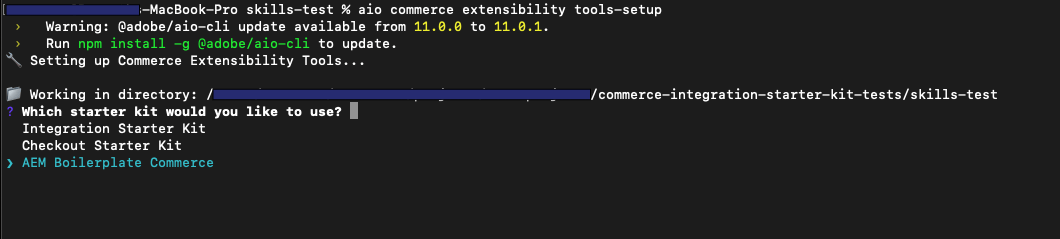
The command installs the `@adobe-commerce/commerce-extensibility-tools` package as a dev dependency, copies the skill files into your agent's skills directory, and configures MCP (Model Context Protocol) so your agent can access Commerce documentation search tools.
> **Non-interactive install** To install without prompts — for example, in a CI pipeline — pass all flags directly:
```bash
aio commerce extensibility tools-setup \
--starter-kit aem-boilerplate-commerce \
--agent Cursor \
--package-manager npm
```
### Supported agents
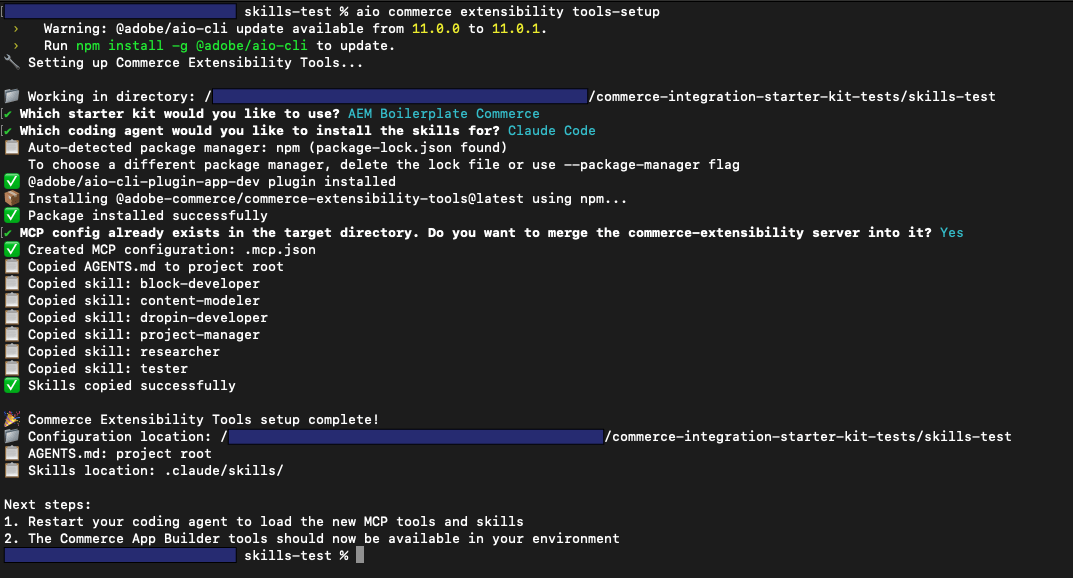
After the install completes, restart your coding agent so it picks up the new skills and MCP configuration.
Different agents and IDEs expose skills in different ways, so there is no single way to confirm that the skills are installed correctly. Check your agent's or IDE's documentation for how to verify that it has loaded your project's skills. For example, in Cursor you can open the configuration or settings area to see the list of skills it has detected; other agents use different UIs or indicators.
| Agent | Skills location |
|-------|-----------------|
| Cursor | `.cursor/skills/` |
| Claude Code | `.claude/skills/` |
| GitHub Copilot | `.github/skills/` |
| Windsurf | `.windsurf/skills/` |
| Gemini CLI | `.gemini/skills/` |
| OpenAI Codex | `.agents/skills/` |
| Cline | `.cline/skills/` |
| Kilo Code | `.kilocode/skills/` |
| Antigravity | `.agent/skills/` |
| Other | `./skills/` (project root) |
## How to use the skills
Once installed, the skills are available to your agent automatically. You don't need to reference them by name in every prompt. Here is how the agent uses them:
- **Start every new task by describing what you want to build.** The project manager skill activates first to assess complexity and confirm the plan with you before any code is written.
- **For drop-in customizations**, the agent uses the researcher skill to look up the correct slot names, event payloads, and API functions from the actual source before writing code — not from assumptions.
- **For block development**, the agent follows boilerplate conventions: DOM manipulation with `document.createElement()`, CSS selectors scoped to the block name, and checking `/blocks` for existing solutions before creating new ones.
- **For content structure**, the agent uses the content modeler skill to design block tables that work for both developers and content authors.
- **After implementation**, the agent uses the tester skill to verify the result in a real browser, not just by reviewing code.
**Example prompt** — You can trigger the planning workflow and developer skills with a single, detailed request. For example:
> Use the planning workflow to add a button to the product pages that allows the user to quickly share the product on social media platforms like Facebook and Twitter. The button should be displayed below the title section on the product detail page.
> **Browser testing** The tester skill requires a running local development server. Use `aem up` to start your local server before asking your agent to verify an implementation.
## What gets installed
After running the setup command, your project contains:
| File or directory | Purpose |
|-------------------|---------|
| `AGENTS.md` (project root) | Top-level instructions your agent reads at the start of every session |
| `/` | Skill files with domain-specific rules for each development area |
| MCP config file | Connects your agent to the `commerce-extensibility:search-commerce-docs` tool for live documentation search |
The MCP tool gives your agent access to Adobe Commerce and App Builder documentation directly from within your coding session, which is what the researcher skill uses as its primary information source.
## Related resources
| Resource | Description |
|----------|-------------|
| [Boilerplate getting started](https://experienceleague.adobe.com/developer/commerce/storefront/boilerplate/getting-started/) | Create and run your storefront locally |
| [Drop-in components](https://experienceleague.adobe.com/developer/commerce/storefront/dropins/all/introduction/) | Drop-in component API reference |
| [Blocks reference](https://experienceleague.adobe.com/developer/commerce/storefront/boilerplate/blocks-reference/) | Reference for all available Commerce blocks |
| https://github.com/adobe-commerce/aio-cli-plugin-commerce | Source and full documentation for the Commerce CLI plugin |
---
# Blocks reference
This reference provides technical details for all Commerce blocks included in the boilerplate. Each block integrates one or more drop-in components to provide complete Commerce functionality.
## Quick reference by functionality
The Merchant topic column links to merchant-facing documentation when you need the block title authors use in documents. The Block column links to the GitHub source folder.
{/* Block column: GitHub source. Merchant topic: internal merchant docs when a topic exists. */}
| Block | Merchant topic | Primary Drop-ins | Key Features |
|-------|----------------|------------------|--------------|
| Shopping Experience | | | |
| https://github.com/hlxsites/aem-boilerplate-commerce/tree/main/blocks/product-list-page | [Product List Page](https://experienceleague.adobe.com/developer/commerce/storefront/merchants/blocks/product-list-page/) | storefront-product-discovery, tools, storefront-wishlist, storefront-requisition-list, storefront-cart | Search, filtering, sorting, pagination, wishlist integration |
| https://github.com/hlxsites/aem-boilerplate-commerce/tree/main/blocks/product-details | [Product Details](https://experienceleague.adobe.com/developer/commerce/storefront/merchants/blocks/product-details/) | tools, storefront-pdp, storefront-wishlist, storefront-requisition-list | Product options, pricing, add to cart, wishlist toggle |
| https://github.com/hlxsites/aem-boilerplate-commerce/tree/main/blocks/product-recommendations | [Product Recommendations](https://experienceleague.adobe.com/developer/commerce/storefront/merchants/content-customizations/product-recommendations/) | tools, storefront-cart, storefront-recommendations, storefront-wishlist | AI-powered recommendations, multiple page types |
| https://github.com/hlxsites/aem-boilerplate-commerce/tree/main/blocks/commerce-cart | [Commerce Cart](https://experienceleague.adobe.com/developer/commerce/storefront/merchants/blocks/commerce-cart/) | tools, storefront-cart, storefront-wishlist, storefront-quote-management | Item management, coupon codes, gift options, move to wishlist |
| https://github.com/hlxsites/aem-boilerplate-commerce/tree/main/blocks/commerce-mini-cart | [Commerce Mini Cart](https://experienceleague.adobe.com/developer/commerce/storefront/merchants/blocks/commerce-mini-cart/) | storefront-cart, tools | Dropdown cart summary, quick view, checkout navigation |
| https://github.com/hlxsites/aem-boilerplate-commerce/tree/main/blocks/commerce-checkout | [Commerce Checkout](https://experienceleague.adobe.com/developer/commerce/storefront/merchants/blocks/commerce-checkout/) | tools, storefront-order, storefront-checkout | Complete checkout flow, shipping, payment, order review |
| Customer Account | | | |
| https://github.com/hlxsites/aem-boilerplate-commerce/tree/main/blocks/commerce-login | [Commerce Login](https://experienceleague.adobe.com/developer/commerce/storefront/merchants/blocks/commerce-login/) | storefront-auth | Email/password authentication, redirect handling |
| https://github.com/hlxsites/aem-boilerplate-commerce/tree/main/blocks/commerce-create-account | [Commerce Create Account](https://experienceleague.adobe.com/developer/commerce/storefront/merchants/blocks/commerce-create-account/) | storefront-auth | Registration form, validation, account creation |
| https://github.com/hlxsites/aem-boilerplate-commerce/tree/main/blocks/commerce-confirm-account | [Commerce Confirm Account](https://experienceleague.adobe.com/developer/commerce/storefront/merchants/blocks/commerce-confirm-account/) | storefront-auth, tools | Email confirmation landing, account activation |
| https://github.com/hlxsites/aem-boilerplate-commerce/tree/main/blocks/commerce-forgot-password | [Commerce Forgot Password](https://experienceleague.adobe.com/developer/commerce/storefront/merchants/blocks/commerce-forgot-password/) | storefront-auth, tools | Password reset request, email trigger |
| https://github.com/hlxsites/aem-boilerplate-commerce/tree/main/blocks/commerce-create-password | [Commerce Create Password](https://experienceleague.adobe.com/developer/commerce/storefront/merchants/blocks/commerce-create-password/) | storefront-auth, tools | Password reset form, token validation |
| https://github.com/hlxsites/aem-boilerplate-commerce/tree/main/blocks/commerce-account-header | [Commerce Account Header](https://experienceleague.adobe.com/developer/commerce/storefront/merchants/blocks/commerce-account-header/) | tools | Customer name display, logout functionality |
| https://github.com/hlxsites/aem-boilerplate-commerce/tree/main/blocks/commerce-account-sidebar | [Commerce Account Sidebar](https://experienceleague.adobe.com/developer/commerce/storefront/merchants/blocks/commerce-account-sidebar/) | tools, storefront-account | Account navigation menu, active state management |
| https://github.com/hlxsites/aem-boilerplate-commerce/tree/main/blocks/commerce-addresses | [Commerce Addresses](https://experienceleague.adobe.com/developer/commerce/storefront/merchants/blocks/commerce-addresses/) | storefront-account | Address CRUD operations, default address management |
| https://github.com/hlxsites/aem-boilerplate-commerce/tree/main/blocks/commerce-customer-information | [Commerce Customer Information](https://experienceleague.adobe.com/developer/commerce/storefront/merchants/blocks/commerce-customer-information/) | storefront-account | Profile editing, email/name updates |
| https://github.com/hlxsites/aem-boilerplate-commerce/tree/main/blocks/commerce-customer-details | [Commerce Customer Details](https://experienceleague.adobe.com/developer/commerce/storefront/merchants/blocks/commerce-customer-details/) | storefront-order | Customer info display in order context |
| Order Management | | | |
| https://github.com/hlxsites/aem-boilerplate-commerce/tree/main/blocks/commerce-orders-list | [Commerce Orders List](https://experienceleague.adobe.com/developer/commerce/storefront/merchants/blocks/commerce-orders-list/) | storefront-account, tools | Order history, status display, order details navigation |
| https://github.com/hlxsites/aem-boilerplate-commerce/tree/main/blocks/commerce-search-order | [Commerce Search Order](https://experienceleague.adobe.com/developer/commerce/storefront/merchants/blocks/commerce-search-order/) | storefront-auth, storefront-order, tools | Guest order lookup, email and order number validation |
| https://github.com/hlxsites/aem-boilerplate-commerce/tree/main/blocks/commerce-order-header | [Commerce Order Header](https://experienceleague.adobe.com/developer/commerce/storefront/merchants/blocks/commerce-order-header/) | tools | Order number, date, status badge |
| https://github.com/hlxsites/aem-boilerplate-commerce/tree/main/blocks/commerce-order-status | [Commerce Order Status](https://experienceleague.adobe.com/developer/commerce/storefront/merchants/blocks/commerce-order-status/) | storefront-order | Detailed status, tracking info, delivery estimates |
| https://github.com/hlxsites/aem-boilerplate-commerce/tree/main/blocks/commerce-order-product-list | [Commerce Order Product List](https://experienceleague.adobe.com/developer/commerce/storefront/merchants/blocks/commerce-order-product-list/) | storefront-order, storefront-cart, tools | Line items, reorder functionality, product images |
| https://github.com/hlxsites/aem-boilerplate-commerce/tree/main/blocks/commerce-order-cost-summary | [Commerce Order Cost Summary](https://experienceleague.adobe.com/developer/commerce/storefront/merchants/blocks/commerce-order-cost-summary/) | storefront-order | Subtotal, taxes, shipping, discounts, grand total |
| https://github.com/hlxsites/aem-boilerplate-commerce/tree/main/blocks/commerce-shipping-status | [Commerce Shipping Status](https://experienceleague.adobe.com/developer/commerce/storefront/merchants/blocks/commerce-shipping-status/) | storefront-order, tools | Shipment tracking, carrier info, delivery status |
| Returns & Exchanges | | | |
| https://github.com/hlxsites/aem-boilerplate-commerce/tree/main/blocks/commerce-returns-list | [Commerce Returns List](https://experienceleague.adobe.com/developer/commerce/storefront/merchants/blocks/commerce-returns-list/) | storefront-order, tools | Return history, status tracking, return details navigation |
| https://github.com/hlxsites/aem-boilerplate-commerce/tree/main/blocks/commerce-create-return | [Commerce Create Return](https://experienceleague.adobe.com/developer/commerce/storefront/merchants/blocks/commerce-create-return/) | storefront-order, tools | Return request form, item selection, reason codes |
| https://github.com/hlxsites/aem-boilerplate-commerce/tree/main/blocks/commerce-order-returns | [Commerce Order Returns](https://experienceleague.adobe.com/developer/commerce/storefront/merchants/blocks/commerce-order-returns/) | tools, storefront-order | Return details for specific order |
| https://github.com/hlxsites/aem-boilerplate-commerce/tree/main/blocks/commerce-return-header | [Commerce Return Header](https://experienceleague.adobe.com/developer/commerce/storefront/merchants/blocks/commerce-return-header/) | tools | Return number, date, status display |
| Gift Options | | | |
| https://github.com/hlxsites/aem-boilerplate-commerce/tree/main/blocks/commerce-gift-options | [Commerce Gift Options](https://experienceleague.adobe.com/developer/commerce/storefront/merchants/blocks/commerce-gift-options/) | storefront-cart | Gift messages, gift wrapping, gift receipt options |
| Wishlist | | | |
| https://github.com/hlxsites/aem-boilerplate-commerce/tree/main/blocks/commerce-wishlist | [Commerce Wishlist](https://experienceleague.adobe.com/developer/commerce/storefront/merchants/blocks/commerce-wishlist/) | storefront-cart, storefront-pdp, storefront-wishlist, storefront-auth, tools | Saved items, move to cart, item management |
## Integration patterns
### Block decoration flow
Every Commerce block follows this initialization pattern:
1. **Server-side rendering**: Edge Delivery Services transforms the document table into HTML
2. **Client-side decoration**: The block's JavaScript decorator runs via `decorateBlock()`
3. **Drop-in initialization**: Drop-in containers are initialized with configuration and providers
4. **Rendering**: Drop-in components render into the block's DOM
5. **Event handling**: Event listeners connect to the global event bus
### Common integration patterns
#### Simple drop-in rendering
Blocks like Login and Forgot Password simply render a single drop-in container:
```javascript
export default async function decorate(block) {
const { render } = await import('@dropins/storefront-auth/containers/SignIn.js');
await render(SignInContainer, {})({});
}
```
#### Multi-drop-in coordination
Complex blocks like Cart and Checkout coordinate multiple drop-ins:
```javascript
// Cart block uses cart + wishlist drop-ins
```
#### Configuration from block tables
Blocks read configuration from document authoring tables:
```javascript
const config = readBlockConfig(block);
const hideHeading = config['hide-heading'] === 'true';
```
#### Event bus integration
Blocks listen to events from drop-ins and other blocks:
```javascript
events.on('cart/updated', () => {
// React to cart changes
});
```
## Implementation details
### Drop-in dependencies
All drop-ins are loaded via import maps defined in `head.html`:
```json
{
"imports": {
"@dropins/storefront-cart/": "/scripts/__dropins__/storefront-cart/",
"@dropins/storefront-checkout/": "/scripts/__dropins__/storefront-checkout/"
}
}
```
### Provider initialization
Drop-ins require providers to be initialized in `scripts/initializers/`:
- **GraphQL provider**: Configures Commerce backend endpoint and headers
- **Authentication provider**: Manages customer sessions and tokens
- **Event provider**: Sets up the global event bus
See [Configuration](https://experienceleague.adobe.com/developer/commerce/storefront/boilerplate/configuration/) for provider setup details.
### Styling
Each block includes:
1. **Base styles**: Block-specific CSS in `blocks/*/block-name.css`
2. **Drop-in tokens**: Design tokens in `scripts/initializers/dropin-name.js`
3. **Global tokens**: Shared tokens in `scripts/initializers/`
## Blocks by page type
### Essential implementations
Every storefront requires these pages:
- **Homepage**: Product Recommendations, Product List Page
- **Product Page (PDP)**: Product Details, Product Recommendations
- **Cart Page**: Cart, Product Recommendations
- **Checkout Page**: Checkout
- **Account Dashboard**: Account Header, Account Sidebar
### Common additions
Enhance your storefront with:
- **Wishlist Page**: Wishlist
- **Order Tracking**: Search Order, Order Status, Orders List
- **Returns Portal**: Create Return, Returns List, Order Returns
- **Account Management**: Addresses, Customer Information
## Performance considerations
For storefront-wide guidance see [Performance best practices](https://experienceleague.adobe.com/developer/commerce/storefront/get-started/performance/).
### Lazy loading
Commerce blocks are lazy-loaded automatically:
1. Blocks below the fold are loaded when scrolled into view
2. Drop-in containers are code-split and loaded on demand
3. Heavy dependencies (like checkout) are loaded only when needed
### Critical rendering path
For optimal performance:
1. Keep Mini Cart in header (loads early)
2. Defer non-critical blocks below the fold
3. Use Product Recommendations sparingly (loads ML models)
## Development workflow
### Local testing
1. Start the AEM CLI: `aem up`.
2. Modify block JavaScript in `blocks/commerce-*/`.
3. Observe changes hot-reload automatically.
4. Test with demo backend or configure your own in `config.json` (copy from https://main--aem-boilerplate-commerce--hlxsites.aem.live/config.json or use the https://da.live/app/adobe-commerce/storefront-tools/tools/config-generator/config-generator).
### Adding new blocks
To create a custom Commerce block:
1. Create a new directory: `blocks/my-custom-block/`
2. Add decorator: `my-custom-block.js`
3. Add styles: `my-custom-block.css`
4. Import and render drop-in containers
5. Initialize required providers
See https://www.aem.live/docs/exploring-blocks for block creation basics.
## Related resources
- [Boilerplate overview](https://experienceleague.adobe.com/developer/commerce/storefront/boilerplate/) - Complete technical reference
- [Configuration page](https://experienceleague.adobe.com/developer/commerce/storefront/boilerplate/configuration/) - Setup and provider configuration
- [Drop-in documentation](https://experienceleague.adobe.com/developer/commerce/storefront/dropins/all/introduction/) - Drop-in technical details
- [Merchant block reference](https://experienceleague.adobe.com/developer/commerce/storefront/merchants/blocks/) - Business user perspective
- https://github.com/hlxsites/aem-boilerplate-commerce/tree/main/blocks
## Need help?
- **Block not rendering?** Verify drop-in providers are initialized in `scripts/initializers/`
- **GraphQL errors?** Check Commerce backend configuration in your `config.json` file
- **Styling issues?** Review design token configuration in drop-in initializers
- **Event not firing?** Ensure event bus is initialized and event names match documentation
---
# Configuration
The AEM Commerce boilerplate requires configuration to connect to your Adobe Commerce instance and customize the storefront behavior.
## Configuration overview
The boilerplate uses multiple configuration files depending on your deployment stage:
- **Local development** - Copy of the demo configuration for Commerce backend connection
- **Production deployment** - Configuration Service with template files for site setup
- **Drop-in initialization** - Initializer files in `scripts/initializers/`
## Endpoints by backend
Which endpoints you set depends on your Commerce backend:
- **Adobe Commerce as a Cloud Service** — Set only **`commerce-endpoint`** to the GraphQL endpoint URL for that service.
- **Adobe Commerce Optimizer** — Set **`commerce-endpoint`** to the Adobe Commerce Optimizer GraphQL URL for the catalog, and set **`commerce-core-endpoint`** to your Commerce core endpoint URL (for example, Commerce PaaS or another Adobe Commerce host you manage).
For full details and examples, see [Storefront configuration](https://experienceleague.adobe.com/developer/commerce/storefront/setup/configuration/commerce-configuration/).
## Demo Configuration (Local Development)
For local development, you can use the demo configuration for the boilerplate as a starting point. The live demo configuration is available at https://main--aem-boilerplate-commerce--hlxsites.aem.live/config.json and connects to the sample Commerce backend for the boilerplate:
```json
{
"public": {
"default": {
"commerce-core-endpoint": "https://www.aemshop.net/graphql",
"commerce-endpoint": "https://www.aemshop.net/cs-graphql",
"commerce-assets-enabled": false,
"headers": {
"all": {
"Store": "default"
},
"cs": {
"Magento-Store-Code": "main_website_store",
"Magento-Store-View-Code": "default",
"Magento-Website-Code": "base",
"x-api-key": "4dfa19c9fe6f4cccade55cc5b3da94f7",
"Magento-Environment-Id": "f38a0de0-764b-41fa-bd2c-5bc2f3c7b39a"
}
},
"analytics": {
"base-currency-code": "USD",
"environment": "Testing",
"environment-id": "f38a0de0-764b-41fa-bd2c-5bc2f3c7b39a",
"store-code": "main_website_store",
"store-id": 1,
"store-name": "Main Website Store",
"store-url": "https://www.aemshop.net",
"store-view-code": "default",
"store-view-id": 1,
"store-view-name": "Default Store View",
"website-code": "base",
"website-id": 1,
"website-name": "Main Website"
},
"plugins": {
"picker": {
"rootCategory": "YOUR_ROOT_CATEGORY_ID"
}
}
}
}
}
```
### Local vs Production Configuration
#### For local development
- Save a copy of the demo configuration (from https://main--aem-boilerplate-commerce--hlxsites.aem.live/config.json) as `config.json` in your project root.
- The AEM CLI will automatically serve `config.json` at runtime.
- Alternatively, use the https://da.live/app/adobe-commerce/storefront-tools/tools/config-generator/config-generator to generate a configuration with your backend values (may contain placeholders to fill in).
- Update the values to connect to your own Commerce backend as needed.
#### For production deployment
- **Configuration Service (Recommended)** - Use the Configuration Service, which stores configuration at `https://admin.hlx.page/config/{ORG}/sites/{SITE}/public.json`. This approach allows configuration updates without code deployments and is the preferred method for all production sites. See the https://www.aem.live/docs/config-service-setup for details.
:::caution
Do **not** commit `config.json` to the `main` branch if you are using the Configuration Service. A `config.json` present on a code branch takes precedence over the Configuration Service, which means your production config service values will be silently ignored. Reserve `config.json` for local development and branch-based testing only.
:::
#### If `config.json` is already on `main`
If you previously committed `config.json` to your `main` branch, you must complete these steps before the Configuration Service takes effect. Edge Delivery serves a `config.json` file from the repository before it falls back to the Configuration Service, so copying settings into the service alone is not enough until the repository file is gone.
1. Copy all values from the `public` section of your repository `config.json`. That object is what you publish as `public.json` in the Configuration Service.
1. POST that JSON to `https://admin.hlx.page/config/{ORG}/sites/{SITE}/public.json` using the Configuration Service API. Authenticate the request and set the body as described in the https://www.aem.live/docs/config-service-setup and the https://www.aem.live/docs/admin.html.
1. Delete `config.json` from the repository and merge that change into `main`. After the file no longer exists on `main`, the CDN can resolve configuration from the Configuration Service instead of the repository copy.
1. When you verify in a browser, clear session storage for your site in Developer Tools (Application → Session storage), then reload. The storefront caches configuration in session storage, so clearing it avoids stale values after you switch sources. For caching behavior and timing, see [Storefront configuration](https://experienceleague.adobe.com/developer/commerce/storefront/setup/configuration/commerce-configuration/).
- **Repository-based config (local dev and branch testing only)** - A `config.json` file in your repository root is useful for local development and testing on feature branches. Edge Delivery Services will serve this file at `/config.json` and it will override the Configuration Service. Do not use this approach for production — remove or exclude `config.json` from your `main` branch.
## Production Configuration Templates
The boilerplate includes template configuration files with placeholders for your site setup:
### default-site.json
Comprehensive site configuration template for production deployment:
```json
{
"version": 1,
"code": {
"owner": "{ORG}",
"repo": "{REPO}",
"source": {
"type": "github",
"url": "https://github.com/{ORG}/{REPO}"
}
},
"content": {
"source": {
"url": "{CONTENT_SOURCE}",
"type": "onedrive"
}
},
"folders": {
"/products/": "/products/default"
},
"cdn": {
"live": {
"host": "main--{SITE}--{ORG}.aem.live"
},
"preview": {
"host": "main--{SITE}--{ORG}.aem.page"
}
},
"headers": {},
"public": {
"default": {
"commerce-core-endpoint": "{ENDPOINT}",
"commerce-endpoint": "{CATALOG_ENDPOINT}",
"headers": {
"all": {
"Store": "default"
},
"cs": {
"Magento-Store-Code": "{STORE_CODE}",
"Magento-Store-View-Code": "{STORE_VIEW_CODE}",
"Magento-Website-Code": "{WEBSITE_CODE}",
"x-api-key": "{COMMERCE_API_KEY}",
"Magento-Environment-Id": "{COMMERCE_ENVIRONMENT_ID}"
}
},
"analytics": {
"aep-ims-org-id": "{IMS_ORG_ID}",
"aep-datastream-id": "{DATASTREAM_ID}",
"base-currency-code": "USD",
"environment": "Production",
"store-id": "{STORE_ID}",
"store-name": "Main Website Store",
"store-url": "{DOMAIN}",
"store-view-id": "{STORE_VIEW_ID}",
"store-view-name": "Default Store View",
"website-id": "{WEBSITE_ID}",
"website-name": "Main Website"
},
"plugins": {
"picker": {
"rootCategory": "{YOUR_ROOT_CATEGORY_ID}"
}
}
}
},
"robots": {
"txt": "User-agent: *\nAllow: /\nDisallow: /drafts/\nDisallow: /enrichment/\nDisallow: /tools/\nDisallow: /plugins/experimentation/\n\nSitemap: https://{DOMAIN}/sitemap-index.xml"
},
"access": {
"admin": {
"role": {
"config_admin": ["{ADMIN_USER_EMAIL}"]
},
"requireAuth": "auto"
}
}
}
```
Replace the `{PLACEHOLDER}` values with your actual configuration.
### default-query.yaml
Content indexing configuration for generating sitemap and enrichment data:
```yaml
version: 1
indices:
sitemap:
target: /sitemap.json
exclude:
- 'drafts/**'
- 'enrichment/**'
- 'fragments/**'
- 'products/**'
properties:
title:
select: head > meta[property="og:title"]
value: |
attribute(el, 'content')
image:
select: head > meta[property="og:image"]
value: |
attribute(el, 'content')
description:
select: head > meta[name="description"]
value: |
attribute(el, 'content')
template:
select: head > meta[name="template"]
value: |
attribute(el, 'content')
robots:
select: head > meta[name="robots"]
value: |
attribute(el, 'content')
lastModified:
select: none
value: parseTimestamp(headers["last-modified"], "ddd, DD MMM YYYY hh:mm:ss GMT")
enrichment:
target: /enrichment/enrichment.json
include:
- '**/enrichment/**'
properties:
title:
select: head > meta[property="og:title"]
value: |
attribute(el, 'content')
products:
select: head > meta[name="enrichment-products"]
values: |
match(attribute(el, 'content'), '([^,]+)')
categories:
select: head > meta[name="enrichment-categories"]
values: |
match(attribute(el, 'content'), '([^,]+)')
positions:
select: head > meta[name="enrichment-positions"]
values: |
match(attribute(el, 'content'), '([^,]+)')
```
### default-sitemap.yaml
Sitemap generation configuration:
```yaml
sitemaps:
default:
source: /sitemap.json
destination: /sitemap-content.xml
lastmod: YYYY-MM-DD
```
The sitemap reads from the generated `sitemap.json` (created by `default-query.yaml`) and outputs an XML sitemap.
## Drop-in Initializers
Configure individual drop-ins in `scripts/initializers/`:
### Example: cart.js
```javascript
await initializeDropin(async () => {
// Set Fetch GraphQL (Core)
setEndpoint(CORE_FETCH_GRAPHQL);
// Fetch placeholders
const labels = await fetchPlaceholders('placeholders/cart.json');
const langDefinitions = {
default: {
...labels,
},
};
// Initialize cart
return initializers.mountImmediately(initialize, { langDefinitions });
})();
```
## Environment-Specific Configuration
> Use different configuration values for different environments:
- **Local**: `config.json` in your project root (copy from https://main--aem-boilerplate-commerce--hlxsites.aem.live/config.json or generate with the https://da.live/app/adobe-commerce/storefront-tools/tools/config-generator/config-generator).
- **Preview**: Configure in AEM.page branch settings.
- **Production**: Configure in AEM.live production settings.
## Related Documentation
- [Boilerplate overview](https://experienceleague.adobe.com/developer/commerce/storefront/boilerplate/) - Complete reference
- [Storefront configuration page](https://experienceleague.adobe.com/developer/commerce/storefront/setup/configuration/commerce-configuration/) - Detailed setup instructions
- [CORS setup](https://experienceleague.adobe.com/developer/commerce/storefront/setup/configuration/cors-setup/) - Security configuration
- [Multistore setup](https://experienceleague.adobe.com/developer/commerce/storefront/setup/configuration/multistore-setup/) - Multiple stores/languages
---
# Blocks customization
All Commerce blocks in the boilerplate work out of the box, but you can customize them to match your business requirements. This page covers the main customization approaches.
## Ways to customize
### CSS styling
Modify block styles by editing the CSS file in the block directory:
```css
/* blocks/commerce-cart/commerce-cart.css */
.commerce-cart {
padding: var(--spacing-large) 0;
position: relative;
}
.cart__wrapper {
display: flex;
flex-direction: column;
gap: var(--grid-4-gutters);
}
```
#### Design tokens
Use CSS variables from your theme for consistent styling:
```css
/* Common design tokens */
var(--spacing-small) /* 16px */
var(--spacing-medium) /* 24px */
var(--spacing-large) /* 64px */
var(--color-brand-500) /* #454545 - Brand color */
var(--color-neutral-100) /* #fafafa - Light background */
var(--type-body-1-default-font) /* 16px/24px - Body text */
```
### JavaScript behavior
Modify block logic by editing the JavaScript file in the block directory:
```javascript
// blocks/commerce-cart/commerce-cart.js
export default async function decorate(block) {
// Read configuration from document authoring
const config = readBlockConfig(block);
// Your custom logic here
const maxItems = parseInt(config['max-items'], 10) || 10;
// Create container element
const $list = document.createElement('div');
$list.className = 'cart__list';
block.appendChild($list);
// Render drop-in container to the list element
await provider.render(CartSummaryList, {
maxItems,
enableRemoveItem: true,
})($list);
}
```
### Drop-in customization
Use drop-in slots and events for advanced customization.
#### Slots
Inject custom content into drop-in containers by passing slot functions in the configuration:
```javascript
// Inside the decorate function for your block
// Create container element
const $list = document.createElement('div');
$list.className = 'cart__list';
block.appendChild($list);
// Render cart with custom slot
await provider.render(CartSummaryList, {
slots: {
Footer: (ctx) => {
// Add custom content to cart item footer
const customElement = document.createElement('div');
customElement.className = 'custom-promotion';
customElement.textContent = 'Free shipping over $50!';
ctx.appendChild(customElement);
},
},
})($list);
```
#### Events
Listen to and respond to drop-in events using the event bus:
```javascript
// Inside the decorate function for your block or at the module level
events.on('cart/data', (cartData) => {
console.log('Cart updated:', cartData);
// Example: Show notification when cart has items
if (cartData.totalQuantity > 0) {
console.log(`You have ${cartData.totalQuantity} items in your cart`);
}
});
```
## Creating DOM elements
The boilerplate uses two approaches for creating DOM elements. **The key distinction: use `createContextualFragment` for multiple elements, `createElement()` for single elements.**
### Template literals with `createContextualFragment`
Use this approach when creating **two or more elements** or **complex nested structures**.
```javascript
// Best for: Complex layout structures with multiple nested elements
const fragment = document.createRange().createContextualFragment(`
`);
const $list = fragment.querySelector('.cart__list');
block.appendChild(fragment);
```
#### When to use
- Creating **two or more elements** at once.
- Setting up initial block structure with nested elements.
- HTML hierarchy visualization improves code readability.
#### Why this approach
- More efficient than multiple `createElement()` calls.
- Clear visual representation of HTML structure.
- Easier to maintain complex layouts.
#### Boilerplate examples
- https://github.com/hlxsites/aem-boilerplate-commerce/blob/main/blocks/commerce-cart/commerce-cart.js#L62-L75
- https://github.com/hlxsites/aem-boilerplate-commerce/blob/main/blocks/product-details/product-details.js#L86-L110
### `document.createElement()`
Use this approach when creating **a single element**. This is cleaner and more explicit than template literals for one element.
```javascript
// Best for: Single elements created dynamically
// Inside a drop-in slot function
const $wishlistToggle = document.createElement('div');
$wishlistToggle.classList.add('cart__action--wishlist-toggle');
wishlistRender.render(WishlistToggle, {
product: ctx.item,
size: 'medium',
})($wishlistToggle);
ctx.appendChild($wishlistToggle);
```
#### When to use
- Creating **a single element** (most common case).
- Adding elements inside drop-in slots.
- Building elements in event handlers or callbacks.
- Creating elements conditionally.
#### Why this approach
- More explicit and type-safe than template literals.
- Cleaner for single elements (no unnecessary parsing).
- Easier to set properties programmatically.
#### Boilerplate examples
- https://github.com/hlxsites/aem-boilerplate-commerce/blob/main/blocks/commerce-cart/commerce-cart.js#L221-L232 - Creating wishlist container
- https://github.com/hlxsites/aem-boilerplate-commerce/blob/main/blocks/commerce-cart/commerce-cart.js#L206-L217 - Creating edit link container
## Common customization patterns
### Adding block configuration
Enable merchants to configure blocks through document authoring by reading configuration values:
```javascript
export default async function decorate(block) {
const {
'custom-option': customOption = 'default',
'max-items': maxItems = '10',
'enable-feature': enableFeature = 'false',
} = readBlockConfig(block);
// Use configuration values
if (enableFeature === 'true') {
// Enable the feature
}
}
```
Merchants can then configure the block in their documents:
| Commerce Cart |
|---------------|
| custom-option | premium |
| max-items | 5 |
| enable-feature | true |
### Customizing empty states
Customize what users see when a block has no content:
```javascript
// Inside the decorate function for your block
const $emptyCart = document.querySelector('.cart__empty-cart');
// Create custom empty state
const emptyState = document.createElement('div');
emptyState.className = 'cart__empty-message';
emptyState.innerHTML = `
### Your cart is empty
Start shopping to add items to your cart.
[Browse Products](/products)
`;
$emptyCart.appendChild(emptyState);
```
### Adding custom analytics
Track custom events for analytics:
```javascript
// Add to your block file or scripts/analytics.js
events.on('cart/data', (cartData) => {
// Custom analytics tracking
if (window.dataLayer) {
window.dataLayer.push({
event: 'cart_updated',
cart_total: cartData.totalQuantity,
cart_value: cartData.total.includingTax.value,
currency: cartData.total.includingTax.currency,
});
}
});
```
### Using multiple drop-ins
Combine multiple drop-ins for complex functionality:
```javascript
export default async function decorate(block) {
// Create container element
const $list = document.createElement('div');
$list.className = 'cart__list';
block.appendChild($list);
// Render cart with wishlist integration
await provider.render(CartSummaryList, {
slots: {
Footer: (ctx) => {
// Add wishlist toggle to each cart item
const wishlistContainer = document.createElement('div');
wishlistContainer.className = 'cart__action--wishlist-toggle';
wishlistRender.render(WishlistToggle, {
product: ctx.item,
size: 'medium',
})(wishlistContainer);
ctx.appendChild(wishlistContainer);
},
},
})($list);
}
```
## Block-specific configuration
Some blocks accept configuration options that change their behavior. These are defined in the block README and can be set through document authoring.
### Commerce Cart
| Option | Type | Default | Description |
|--------|------|---------|-------------|
| `hide-heading` | string | `false` | Controls whether the cart heading is hidden |
| `max-items` | string | — | Maximum number of items to display in cart |
| `hide-attributes` | string | `''` | Comma-separated list of product attributes to hide |
| `enable-item-quantity-update` | string | `false` | Enables quantity update controls for cart items |
| `enable-item-remove` | string | `true` | Enables remove item functionality |
| `enable-estimate-shipping` | string | `false` | Enables shipping estimation functionality |
| `start-shopping-url` | string | `''` | URL for "Start Shopping" button when cart is empty |
| `checkout-url` | string | `''` | URL for checkout button |
| `enable-updating-product` | string | `false` | Enables product editing via mini-PDP modal |
| `undo-remove-item` | string | `false` | Enables undo functionality when removing items |
### Commerce Checkout
The Checkout block uses events for customization rather than configuration options.
#### Example: Add custom validation before checkout
```javascript
// Add to the decorate function for your checkout block
events.on('checkout/values', (values) => {
// Custom validation logic
if (values.email && !values.email.includes('@')) {
console.error('Invalid email format');
}
// Log when payment method is selected
if (values.selectedPaymentMethod) {
console.log('Payment method:', values.selectedPaymentMethod.code);
}
});
```
### Simple blocks
Many blocks (Login, Create Account, Forgot Password, and other account management blocks) are thin wrappers around drop-ins with no document-based configuration options. These blocks do not use `readBlockConfig()` and cannot be configured through document authoring. Customize these blocks by modifying their JavaScript to change drop-in options, or by using CSS and drop-in slots.
## Real-world examples
### Add promotional banner to cart
```javascript
// blocks/commerce-cart/commerce-cart.js
export default async function decorate(block) {
// Read block configuration
const {
'hide-heading': hideHeading = 'false',
'max-items': maxItems,
'enable-item-quantity-update': enableUpdateItemQuantity = 'false',
'enable-item-remove': enableRemoveItem = 'true',
} = readBlockConfig(block);
// Create cart layout with promotional banner
const fragment = document.createRange().createContextualFragment(`
🎉 Free shipping on orders over $50!
`);
const $list = fragment.querySelector('.cart__list');
// Clear block and append new layout
block.innerHTML = '';
block.appendChild(fragment);
// Helper to create product links
const createProductLink = (product) => getProductLink(product.url.urlKey, product.topLevelSku);
// Render cart with full configuration
await provider.render(CartSummaryList, {
hideHeading: hideHeading === 'true',
routeProduct: createProductLink,
maxItems: parseInt(maxItems, 10) || undefined,
enableUpdateItemQuantity: enableUpdateItemQuantity === 'true',
enableRemoveItem: enableRemoveItem === 'true',
})($list);
}
```
```css
/* blocks/commerce-cart/commerce-cart.css */
.cart__promo-banner {
background: var(--color-positive-200);
padding: var(--spacing-medium);
text-align: center;
border-radius: 4px;
margin-bottom: var(--spacing-medium);
}
```
### Custom checkout success tracking
```javascript
// Add to blocks/commerce-checkout/commerce-checkout.js
// Place this event listener in your decorate function
// Listen for order placement
events.on('order/placed', (orderData) => {
// Send purchase event to Google Analytics
if (window.dataLayer) {
window.dataLayer.push({
event: 'purchase',
transaction_id: orderData.number,
value: orderData.grandTotal.value,
currency: orderData.grandTotal.currency,
items: orderData.items.map(item => ({
item_id: item.productSku,
item_name: item.productName,
quantity: item.quantityOrdered,
price: item.price.value,
})),
});
}
// Update page title
document.title = 'Order Confirmation';
});
```
### Customize product gallery images
```javascript
// blocks/product-details/product-details.js
// Imports (these should already exist at the top of the file)
// Inside your decorate function
export default async function decorate(block) {
// Create container element
const $gallery = document.createElement('div');
$gallery.className = 'product-details__gallery';
block.appendChild($gallery);
// Define custom image slot with AEM Assets
const gallerySlots = {
CarouselMainImage: (ctx) => {
// Customize main carousel images
tryRenderAemAssetsImage(ctx, {
alias: ctx.data.sku,
imageProps: ctx.defaultImageProps,
params: {
width: ctx.defaultImageProps.width,
height: ctx.defaultImageProps.height,
},
});
},
};
// Render gallery with custom slots
await pdpRendered.render(ProductGallery, {
controls: 'thumbnailsColumn',
arrows: true,
imageParams: {
width: 960,
height: 1191,
},
slots: gallerySlots,
})($gallery);
}
```
## Next steps
1. Browse the https://github.com/hlxsites/aem-boilerplate-commerce/tree/main/blocks to see implementation patterns.
1. Review the [drop-in documentation](https://experienceleague.adobe.com/developer/commerce/storefront/dropins/all/quick-start/) for slots, events, and API functions.
1. Check individual https://github.com/hlxsites/aem-boilerplate-commerce/tree/main/blocks for configuration options and behavior details.
1. Test customizations locally before deploying to production.
> Start with CSS customization for visual changes, then move to JavaScript behavior modification only when necessary. This keeps your customizations maintainable and easier to upgrade when new boilerplate versions are released.
---
# Getting started
This page helps you run, examine, and customize a storefront that already uses the Commerce boilerplate (Pre-configured storefront with the components and services you need to get started.). By the end, you'll know where the main files live and which files are safest to customize.
> **Boilerplate overview** For conceptual information about what the boilerplate is and why to use it, see the [Boilerplate overview](https://experienceleague.adobe.com/developer/commerce/storefront/boilerplate/).
## Key terms
The boilerplate uses Drop-in components (NPM packages that provide core Commerce storefront features such as cart, checkout, product details, and account flows.) for shopping features such as cart, checkout, product details, and requisition lists when you serve business buyers. It connects those features to document-authored pages with Commerce blocks (JavaScript blocks that integrate drop-in components into Edge Delivery Services pages to power storefront commerce experiences.). For general content and layout, it uses Content blocks (Edge Delivery Services blocks used for non-commerce page content and layout, such as cards, columns, headers, and footers.) such as cards, columns, headers, and footers.
For more information about standard Edge Delivery blocks, see the Adobe Experience Manager https://www.aem.live/developer/block-collection.
## Running locally
If you still need to create the GitHub repository, connect Commerce, and initialize Document Author content, follow [Create a storefront](https://experienceleague.adobe.com/developer/commerce/storefront/get-started/create-storefront/) first.
Run the storefront locally so you can preview changes before you push them. If you already ran `git clone` while following [Create a storefront](https://experienceleague.adobe.com/developer/commerce/storefront/get-started/create-storefront/), start with the `npm install` step below. The create-a-storefront topic links here for `npm install` and `npm start` so those instructions stay in one place.
1. Install the project dependencies.
```bash
npm install
```
1. Start the local development server.
```bash
npm start
```
1. Open `http://localhost:3000` in your browser.
Your storefront appears in the browser at `http://localhost:3000`.
> If `npm install` fails, confirm that Node.js and npm are installed on your machine. If `npm start` fails, check whether another local server is already using port `3000`.
**Optional: **install the `aem` command globally with `npm install -g @adobe/aem-cli` if you want to run the CLI from any directory. The boilerplate already lists `@adobe/aem-cli` as a dev dependency, so after `npm install` the `npm start` script can run without a global install.
### Key runtime packages
After `npm install`, `package.json` resolves many dependencies. You do not need to memorize them on day one. Use this table when you trace dependencies or debug install issues.
| Package | Purpose |
|---------|---------|
| https://www.npmjs.com/package/@dropins/tools | Shared utilities for all drop-ins (GraphQL client, event bus, initializers, UI components) |
| https://github.com/adobe/adobe-client-data-layer | Standardized data layer for event collection and analytics |
| https://www.npmjs.com/package/@adobe/magento-storefront-event-collector | Collects Commerce-specific user interaction events |
| https://www.npmjs.com/package/@adobe/magento-storefront-events-sdk | SDK for sending events to Adobe Commerce for Live Search and Product Recommendations |
## Exploring the code
The tree below shows the main folders plus important files at the repository root. The table links each folder to GitHub so you can open the matching source tree.
```text
aem-boilerplate-commerce/
├── blocks/ # Commerce blocks, content blocks, and standard AEM blocks
├── scripts/
│ ├── scripts.js # page load orchestration (eager, lazy, delayed)
│ ├── commerce.js # Commerce loading, templates, storefront configuration
│ └── initializers/ # one initializer file per drop-in (endpoints, labels, and related settings)
├── styles/ # global CSS, tokens, fonts, deferred styles
├── tools/ # dev helpers (for example, PDP metadata tooling)
├── config.json # storefront endpoints, locale, and related settings
└── package.json # dependencies, scripts, and drop-in install hooks
```
| Directory | Purpose |
|-----------|---------|
| https://github.com/hlxsites/aem-boilerplate-commerce/tree/main/blocks/ | Contains Commerce blocks, content blocks, and standard AEM blocks such as header, footer, and cards. |
| https://github.com/hlxsites/aem-boilerplate-commerce/tree/main/scripts/ | Contains drop-in initializers, Commerce utilities, and the Edge Delivery Services runtime. |
| https://github.com/hlxsites/aem-boilerplate-commerce/tree/main/styles/ | Contains global styles, design tokens, fonts, and deferred styles for performance. |
| https://github.com/hlxsites/aem-boilerplate-commerce/tree/main/tools/ | Contains development tools such as the product detail page (PDP) metadata tool. |
## Understanding the flow
To understand how documents become rendered commerce experiences at runtime, see [How a page loads](https://experienceleague.adobe.com/developer/commerce/storefront/get-started/architecture/how-a-page-loads/) in [Storefront architecture](https://experienceleague.adobe.com/developer/commerce/storefront/get-started/architecture/). This overview helps you decide where to customize and where to leave boilerplate files unchanged.
## Customizing your storefront
- Brand styling: edit `styles/styles.css` for design tokens.
- Block behavior: modify block decorators in `blocks/`.
- Commerce configuration: update initializers in `scripts/initializers/`.
- Commerce blocks: use only the blocks your storefront needs.
### Customization strategy
Most files in the boilerplate can be modified. The guidance below helps keep your storefront project easy to maintain as the original boilerplate repository evolves.
### Files to keep unchanged
- `scripts/aem.js`: The core AEM runtime. This file comes from the original https://github.com/adobe/aem-boilerplate. Local edits can conflict with future boilerplate updates.
- `package.json` lifecycle scripts (`postinstall`, `postupdate`, `install:dropins`): These scripts run during `npm install` to install and configure drop-ins. Changing them can break drop-in installation.
The table below lists the usual layers you change for branding, blocks, Commerce wiring, page scripts, and build-time queries. Order follows a common path: global styles and blocks first, then initializer and script layers, then `build.mjs` for query shaping.
| Layer | Strategy |
|-------|----------|
| `styles/` | Change colors, fonts, spacing, and layout here. Tokens in `styles/styles.css` apply across the whole site. |
| `blocks/` | Edit block appearance and behavior. Keep block folder names unchanged because authors reference them by name in documents. |
| `scripts/initializers/` | Configure the API endpoint and UI labels for each drop-in. Each drop-in has one initializer file, such as `cart.js` or `checkout.js`. If you remove a drop-in, also remove its initializer file and all imports of it in the codebase. See [Using drop-ins](https://experienceleague.adobe.com/developer/commerce/storefront/dropins/all/quick-start/). |
| `scripts/commerce.js` | Edit this file to add Commerce-specific logic such as consent handling (`getConsent`) or custom page type detection. It reads your [storefront configuration](https://experienceleague.adobe.com/developer/commerce/storefront/setup/configuration/commerce-configuration/) and sets up Commerce API connections on every page. |
| `scripts/scripts.js` | Add automatically generated blocks to `buildAutoBlocks` (the boilerplate uses this for the hero block). Load third-party scripts, tag managers, or analytics tools in `scripts/delayed.js`. That file runs 3 seconds after page load so these scripts do not affect the initial page render. |
| `build.mjs` | Edit this file to customize what data drop-ins fetch from Commerce. For example, you can add a custom product field to the PDP query or skip query fragments your project doesn't need. Use the existing entries as patterns. Changes take effect after running `npm install`. |
### When to customize
When you customize blocks or initializers, put project-specific code in new files when possible. For example, you can add slot customizations to a new `blocks/commerce-cart/slots.js` file and import it at the top of `commerce-cart.js`. Your customizations stay in a file you own. When a boilerplate update arrives, your changes to the original file stay small.
## Deploying your storefront
Edge Delivery Services creates preview and production URLs when you push changes:
- Preview: `https://----.aem.page`
- Production: `https://----.aem.live`
You do not run a separate deployment build command for Edge Delivery. The Edge Delivery pipeline handles page delivery and optimization after you push.
## Keeping your storefront current
Track boilerplate changes in the https://github.com/hlxsites/aem-boilerplate-commerce/issues?q=label%3Achangelog+is%3Aclosed and [Release notes](https://experienceleague.adobe.com/developer/commerce/storefront/releases/). For guidance on upgrading drop-in components, applying updates, and handling breaking changes, see the [Updates](https://experienceleague.adobe.com/developer/commerce/storefront/boilerplate/updates/) page.
## Related resources
| Resource | Description |
|----------|-------------|
| [Boilerplate reference](https://experienceleague.adobe.com/developer/commerce/storefront/boilerplate/) | Technical documentation for blocks, configuration options, and file structure. |
| [Drop-in components](https://experienceleague.adobe.com/developer/commerce/storefront/dropins/all/introduction/) | API reference for each drop-in component. |
| [Commerce blocks page](https://experienceleague.adobe.com/developer/commerce/storefront/merchants/blocks/) | Business user page for using blocks. |
---
# Overview
This overview describes the Commerce boilerplate repository and how it fits Edge Delivery Services and drop-ins. Start with the definition below, then follow First steps when you are ready to clone, run locally, or dig into architecture.
## What is the Commerce boilerplate?
The Commerce boilerplate is Adobe's supported starter/reference codebase for storefronts on Edge Delivery Services (Adobe's hosting and delivery infrastructure that turns authored documents into fast HTML pages served from servers close to the shopper. You push code to GitHub; Edge Delivery Services builds and publishes automatically.) (EDS). You clone it from GitHub, connect your Commerce backend, and customize blocks, scripts, and styles in that repository instead of tying together every Commerce integration yourself.
The boilerplate repository lives at https://github.com/hlxsites/aem-boilerplate-commerce. EDS hosts and publishes your site from that repo. The boilerplate also bundles Drop-in components (NPM packages that provide core Commerce storefront features such as cart, checkout, product details, and account flows.) for cart, checkout, product listings, and related Commerce flows so you theme and configure shipped UI rather than building those screens from scratch.
> **One supported boilerplate** https://github.com/hlxsites/aem-boilerplate-commerce is the only Adobe-supported Commerce starter/reference storefront. Demo storefronts (for example Citisignal) are forks for events or showcases. They often lag behind this repository and are not a safe starting point for your own project.
## First steps
1. If you still need a site, follow [Create a storefront](https://experienceleague.adobe.com/developer/commerce/storefront/get-started/create-storefront/). When you already have a repo, open [Boilerplate getting started](https://experienceleague.adobe.com/developer/commerce/storefront/boilerplate/getting-started/) to run `npm install` and `npm start`, and explore `blocks/`, `scripts/`, and `styles/`.
1. Read [Storefront Architecture](https://experienceleague.adobe.com/developer/commerce/storefront/get-started/architecture/) when you need the full picture of how authoring, blocks, drop-ins, and Commerce APIs connect.
## Other topics in this section
Use these when you already have a project open on disk:
- [Configuration](https://experienceleague.adobe.com/developer/commerce/storefront/boilerplate/configuration/) — Commerce backend endpoints, headers, and storefront settings.
- [Blocks reference](https://experienceleague.adobe.com/developer/commerce/storefront/boilerplate/blocks-reference/) and [Blocks customization](https://experienceleague.adobe.com/developer/commerce/storefront/boilerplate/customizing-blocks/) — Block behavior and layout.
- [Universal Editor](https://experienceleague.adobe.com/developer/commerce/storefront/boilerplate/universal-editor/) — Optional authoring path alongside Document Authoring.
- [Boilerplate updates](https://experienceleague.adobe.com/developer/commerce/storefront/boilerplate/updates/) — Staying current (npm drop-ins first; suite tags are tested snapshots, not fork upgrade targets).
- [AI agent skills](https://experienceleague.adobe.com/developer/commerce/storefront/boilerplate/ai-agent-skills/) — Optional skills for coding agents.
## Related areas outside this section
- [Commerce configuration](https://experienceleague.adobe.com/developer/commerce/storefront/setup/configuration/commerce-configuration/) — Wire the storefront to your Commerce backend after the boilerplate runs.
- [Commerce blocks (merchants)](https://experienceleague.adobe.com/developer/commerce/storefront/merchants/blocks/) — How merchants work with blocks in authoring tools.
- [Drop-ins introduction](https://experienceleague.adobe.com/developer/commerce/storefront/dropins/all/introduction/) — Technical reference for each drop-in.
## Packages and block wiring
When you trace `npm` dependencies or debug install issues, open [Getting started](https://experienceleague.adobe.com/developer/commerce/storefront/boilerplate/getting-started/) for the key runtime packages the boilerplate adds. When you need each Commerce block’s drop-ins, GitHub source folder, and merchant-facing topic in one place, open [Blocks reference](https://experienceleague.adobe.com/developer/commerce/storefront/boilerplate/blocks-reference/).
---
# Universal Editor for developers
The Adobe Commerce boilerplate supports the Universal Editor (UE) for content and Commerce blocks. For setup, instrumentation syntax, and custom block workflow, see the DA.live documentation below.
## Commerce boilerplate structure
Commerce differs from the standard DA.live approach (centralized `ue/models/blocks/` in https://github.com/aemsites/da-block-collection): **UE instrumentation JSON files live next to each block** at `blocks/{block-name}/_{block-name}.json`. A pre-commit hook composes these into the root-level `component-*.json` files the UE consumes.
```text
aem-boilerplate-commerce/
├── component-definition.json ← generated (UE consumes)
├── component-filters.json ← generated (UE consumes)
├── component-models.json ← generated (UE consumes)
├── models/
│ └── _section.json ← add new blocks to component list
└── blocks/
├── accordion/
│ └── _accordion.json ← UE instrumentation
├── hero/
│ └── _hero.json
├── product-recommendations/
│ └── _product-recommendations.json
├── commerce-cart/
│ └── _commerce-cart.json
└── ... ← and other blocks with _*.json
```
:::tip
While you are developing, open a page in the Universal Editor. Blocks without instrumentation appear as **(no definition)** in the content tree, which is a quick visual signal that a definition file is needed.
:::
## Documentation
- https://docs.da.live/developers/guides/setup-universal-editor — **First-time setup:** `editor.path` config, requirements, and behavior
- https://docs.da.live/developers/reference/universal-editor — full instrumentation reference
- https://github.com/hlxsites/aem-boilerplate-commerce/blob/main/models/_section.json#L130-L168 — add new blocks to this component list
- [Using the Universal Editor](https://experienceleague.adobe.com/developer/commerce/storefront/merchants/quick-start/universal-editor/) — for content authors; workflow and authoring docs
---
# Boilerplate updates
Upgrade your Adobe Commerce Storefront to get the latest features, security updates, and performance improvements from the Commerce Boilerplate.
> **Two distinct update paths** You can keep your storefront current in two ways:
- **Updating drop-in npm packages** (`@dropins/*`, `@adobe/*`) — This is the primary update path for every Commerce boilerplate storefront. Drop-in packages follow semantic versioning: minor and patch releases stay non-breaking by contract. Run `npm outdated` to see available updates, or enable the `update-dropins.yml` GitHub Actions workflow included in the boilerplate to receive automatic weekly pull requests when newer stable versions are available.
- **Merging the upstream Commerce boilerplate into your repository** — This path is optional and advanced. Most teams start from a new GitHub repository generated from the Commerce boilerplate template, then clone that repository locally. You are under no obligation to pull upstream boilerplate changes into your project. Merging upstream can bring in new integration patterns or bug fixes, but expect manual conflict resolution and a careful review of your customizations. Reserve this path when a specific upstream improvement is worth the effort.
Suite releases are tagged snapshots that validate a specific combination of drop-in versions and boilerplate code. They work best as starting points for new implementations, not as recurring upgrade targets for existing storefronts.
## Overview
When you initially scaffold your Commerce storefront from the Commerce Boilerplate, you create a snapshot of the boilerplate at that point in time. As Adobe continues to improve the boilerplate with new features, bug fixes, and performance optimizations, your existing project won't automatically receive these updates.
This page shows you how to upgrade your storefront while preserving your customizations.
## Understanding the upgrade landscape
Upgrading is ongoing, not a one-time task. Regular, small updates are generally safer and easier to manage than infrequent, large upgrades.
### What gets updated
Most of your storefront's critical Commerce logic is now delivered through npm packages, making upgrades significantly easier and more reliable. Upgrades typically involve these main areas:
**Drop-in components (NPM packages that provide core Commerce storefront features such as cart, checkout, product details, and account flows.):** npm packages containing the core Commerce functionality, including the following:
- `@dropins/storefront-account`
- `@dropins/storefront-auth`
- `@dropins/storefront-cart`
- `@dropins/storefront-checkout`
- `@dropins/storefront-order`
- `@dropins/storefront-payment-services`
- `@dropins/storefront-pdp`
- `@dropins/storefront-personalization`
- `@dropins/storefront-product-discovery`
- `@dropins/storefront-recommendations`
- `@dropins/storefront-wishlist`
- `@dropins/tools`
If your project serves business buyers, install and upgrade these business-to-business (B2B) packages too:
- `@dropins/storefront-company-management`
- `@dropins/storefront-company-switcher`
- `@dropins/storefront-purchase-order`
- `@dropins/storefront-quote-management`
- `@dropins/storefront-quick-order`
- `@dropins/storefront-requisition-list`
The `*` in `npm list @dropins/storefront-*` and `npm update @dropins/storefront-*` is a wildcard: npm matches every installed package whose name starts with `@dropins/storefront-`, including these B2B packages when they are in your project. For what each drop-in does and how to connect it in your storefront, see [B2B drop-ins overview](https://experienceleague.adobe.com/developer/commerce/storefront/dropins-b2b/).
On Adobe Commerce as a Cloud Service or Adobe Commerce Optimizer, Adobe manages Storefront Compatibility packages on Commerce for you, so upgrades on this page are mainly npm packages and boilerplate changes—not a separate compatibility install checklist.
> **Commerce PaaS or on-premises** If you deploy Adobe Commerce on cloud infrastructure or on-premises—Commerce PaaS—and your team installs or upgrades Storefront Compatibility packages on Commerce, align those backend upgrades with storefront work. For B2B GraphQL on Commerce PaaS, see [Storefront Compatibility B2B Package](https://experienceleague.adobe.com/developer/commerce/storefront/setup/configuration/storefront-compatibility-b2b/).
**Boilerplate integration layer (Storefront-level files that connect drop-ins to your site, including block implementations and initialization scripts.):** storefront-level files that integrate drop-ins
| File | Purpose | Update Frequency | Typical Changes |
|------|---------|------------------|-----------------|
| `blocks/*` | Block integration folders | Frequent | Drop-in integration JS and CSS. Rare updates to non-drop-in block examples (cards, accordion, and so on) sourced from other boilerplates |
| `scripts/aem.js` | Core AEM functionality | Very Rare | Core platform improvements |
| `scripts/commerce.js` | Commerce-specific integration and utilities | Rare | Integration improvements, new utility functions |
| `scripts/initializers/*` | Drop-in initialization scripts | Moderate | New drop-in integrations, configuration updates |
| `scripts/scripts.js` | Page loading, block decoration, and global site functionality | Very Rare | Performance optimizations, new global features |
### Why upgrades are now easier
The Commerce Boilerplate team moved most of the complex Commerce logic into npm-distributed drop-in packages, providing key advantages:
- **Most logic is packaged**: Core Commerce functionality, business rules, and complex state management are delivered through npm packages
- **Simplified storefront code**: Your project primarily contains integration code, styling, and configuration
- **Standard npm upgrades**: Most updates can be applied using standard `npm install` commands
- **Reduced conflicts**: Fewer files in your project means fewer merge conflicts when updating
- **Consistent behavior**: All storefronts benefit from the same tested, optimized Commerce logic
## Upgrade strategies
### npm package updates
> **Recommended for most cases** Most Commerce logic lives in npm packages, so this approach handles upgrades with minimal risk.
1. Update drop-in components
Most of your Commerce functionality improvements come through these package updates:
Check your current versions:
```bash
npm list @dropins/storefront-*
```
Update individual components:
```bash
npm install @dropins/storefront-cart@latest
npm install @dropins/storefront-checkout@latest
# Repeat for other components as needed
```
Or update all drop-in components at once:
```bash
npm update @dropins/storefront-*
```
1. Test your storefront
Since most logic changes are packaged, testing focuses on integration points:
Start your local development environment:
```bash
npm start
```
Test all Commerce functionality:
- Product detail pages
- Shopping cart operations
- Checkout flow
- User account features
- Search and navigation
- B2B flows you ship (for example, company profiles and roles, negotiable quotes, purchase orders, requisition lists, quick order, or company switching), when those packages are in your project
Review the release notes for any integration changes that may affect your implementation.
> **For Major Version Updates** When upgrading drop-in packages across major versions (for example, from 1.x to 2.x), perform more thorough testing as these updates may include breaking changes (Updates that require code or configuration changes in your project before everything works correctly again.). Pay particular attention to:
- Any custom integrations you've built around the drop-in components
- API interfaces you're using
- Configuration settings that may have changed
- Custom styling or event handlers you've added
Test edge cases and error scenarios in addition to the standard user flows.
To help automate this testing process, consider implementing end-to-end testing in your project using tools like Cypress. These tools can simulate real user interactions across your Commerce flows, automatically catching regressions that manual testing might miss. Focus your automated tests on critical user journeys like product browsing, cart management, and checkout completion.
### Selective boilerplate updates
When you need integration layer improvements or new features that require changes to your storefront's integration code, use selective updates (A workflow where you review upstream changes and merge only the files or commits that are relevant to your project.) to merge changes from the upstream (The original source repository your project forks from, used as the canonical source when reviewing and pulling updates.) boilerplate repository.
1. **Set up upstream remote**
Add the boilerplate repository as an upstream remote:
```bash
git remote add upstream https://github.com/hlxsites/aem-boilerplate-commerce.git
git fetch upstream
```
1. **Review available updates**
Compare your current branch with the latest boilerplate to understand what changes are available.
For detailed instructions on reviewing upstream changes, see https://docs.github.com/en/pull-requests/collaborating-with-pull-requests/working-with-forks/syncing-a-fork and https://docs.github.com/en/pull-requests/committing-changes-to-your-project/viewing-and-comparing-commits/comparing-commits.
A storefront repo created from the Commerce boilerplate template is not a GitHub fork of the boilerplate, but you can still add an `upstream` remote and merge or cherry-pick using the same Git operations.
Focus your review on key files like `scripts/commerce.js` and the `scripts/initializers/` directory where most Commerce-specific updates occur.
1. **Identify changes to include**
Focus on these integration layer improvements:
**Commerce Integration Layer (`scripts/commerce.js`)**
- Enhanced drop-in initialization patterns
- New configuration utilities
- Performance optimizations
- Bug fixes in integration logic
**Initializers (`scripts/initializers/`)**
- Updated drop-in initialization patterns
- New feature integrations
- Improved error handling
**Block Integration Updates (`blocks/` directory)**
- Enhanced drop-in integration patterns
- Accessibility improvements
- Bug fixes in block-level integration
> Each Commerce block now includes a README file that describes the block's purpose and functionality. These README files are particularly helpful when diffing changes, as they provide a summary of what has changed in the block before you examine the code.
If you use B2B Commerce blocks and patterns from the Commerce Boilerplate, compare your branch with the upstream repository's `b2b` branch as well as `main`. The `b2b` branch holds B2B-oriented block and integration updates. Adopt the same selective merge or cherry-pick approach so you do not overwrite your customizations.
1. **Apply selected changes**
Create a branch for your upgrade work to isolate changes and test before merging to main. Use a descriptive name indicating the upgrade with a timeframe or version (for example, `upgrade-august-2025` or `upgrade-cart-v2.1.0`).
Once you're on your upgrade branch, you have several options for applying changes from the upstream boilerplate:
- **Selectively merge** individual files or directories that have updates you want to incorporate. This approach works well when you want to adopt specific improvements without bringing in changes that might conflict with your customizations.
- **Cherry-pick** specific commits from the upstream repository if you want to apply only particular features or fixes. This gives you granular control over what changes to include and helps avoid introducing unwanted modifications.
For each change you apply, commit it with a clear message describing what upstream improvement you're incorporating. This creates a clean history that makes it easy to understand what was updated and why, which will be valuable for future upgrades and troubleshooting.
1. **Resolve integration points and test**
- Resolve any conflicts in integration code, preserving your customizations
- Test thoroughly in your development environment
- Run your test suite if available
- Deploy to a staging environment for comprehensive testing
## Special considerations for early-adopter projects
If you scaffolded your project before mid-2025, you may have encountered a major architectural change: Commerce logic moved from `scripts.js` to `scripts/commerce.js`. This shift affects your update scope but uses the same methods above.
### Understanding the architectural change
The major refactoring (PR #567) reorganized the boilerplate architecture with two significant improvements:
1. Separation of AEM and Commerce logic:
- `scripts/scripts.js` - Core AEM functionality, aligned with the upstream AEM Boilerplate
- `scripts/commerce.js` - Commerce-specific integration and utility logic
1. Core Commerce logic migration to npm packages:
- Complex Commerce functionality moved to `@dropins/tools` and other drop-in packages
- Functions previously embedded in your integration code are now abstracted to reusable, versioned, and upgradable libraries
- The Commerce Boilerplate is now focused on pure integration code that you own
**Before the refactoring:** In early versions of the Commerce Boilerplate, all logic lived in `scripts/scripts.js` where Commerce business logic was mixed with integration code. Core Commerce functions were embedded directly in your project files, making it difficult to upgrade Commerce functionality without encountering code conflicts during merges.
**After the refactoring:** The architecture now separates concerns more effectively. Core Commerce logic lives in npm packages that are easily upgradable, while the boilerplate contains minimal integration code that results in fewer merge conflicts. This creates clear boundaries between platform logic and your customizations, allowing future updates to focus on integration patterns rather than business logic.
This architectural shift means that complex Commerce operations, utility functions, and business rules that you may have seen in your early boilerplate files are now delivered through npm packages, making them upgradable without touching your project code.
### Adapting your update approach
If you have an early-adopter project, your updates will need a broader scope to account for architectural changes.
When reviewing updates, pay attention to the main scripts file (`scripts/scripts.js`) and
the Commerce integration layer (`scripts/commerce.js`). Both have changed significantly. Be sure to preserve your custom business logic while adopting the improved structural foundation
that the upstream changes provide.
The migration process requires more careful consideration than typical updates since you're not just incorporating new features, but potentially restructuring how your existing customizations integrate with the boilerplate's core functionality.
During Step 4 (apply selective changes), you may need to migrate your customizations:
**Custom functions in the "old" `scripts/scripts.js`**
- Commerce-related customizations should move to `scripts/commerce.js`
- General AEM functionality should remain in `scripts/scripts.js`
- Many custom functions may now be available as utilities in `@dropins/tools`
**Block import updates**
- Update imports from `../../scripts/scripts.js` to `../../scripts/commerce.js` for Commerce utilities
- Verify that custom utilities are still available or replace with package utilities
**Integration pattern updates**
- Review if custom functions can be replaced with utilities from `@dropins/tools` package
- Update integrations to use new patterns for Commerce-specific functionality
During Step 5 (testing), pay special attention to:
- Custom blocks that import Commerce utilities
- Third-party integrations that depend on Commerce functions
- Custom analytics implementations that hook into Commerce events
- Any custom business logic that was mixed with platform code
### Benefits of architectural alignment
While early-adopter projects require more comprehensive selective updates, aligning with the new architecture provides significant long-term benefits:
- **Future updates simplified**: Once aligned, future updates will be much easier due to reduced code surface area
- **Better separation of concerns**: Clear boundaries between platform logic and your customizations
- **Reduced merge conflicts**: Commerce functionality updates through npm packages instead of file merges
- **Access to latest features**: Full compatibility with new drop-in components and features
- **Enhanced PDP flexibility**: Container-based PDP architecture provides unprecedented customization control
## Product details page architectural evolution
### Previous architecture (slot-based customization)
Early versions of `@dropins/storefront-pdp` used a single `ProductDetails` container with predefined slots. You could customize by:
- Creating custom slot implementations for different sections of the page
- Working within the constraints of the single-container structure
- Limited ability to rearrange or completely replace sections of the PDP
- Complex styling workarounds to achieve desired layouts
### New architecture (container-based composition)
The latest version breaks down the PDP into independent containers you can compose, style, and replace:
- **ProductHeader** - Product title, SKU, and basic information
- **ProductPrice** - Pricing display and special price handling
- **ProductGallery** - Image carousel with flexible configuration
- **ProductOptions** - Product variants and configuration
- **ProductQuantity** - Quantity selector
- **ProductDescription** - Product descriptions and content
- **ProductAttributes** - Product specifications and metadata
For detailed information about the container-based architecture and implementation patterns, see the [Product Details Drop-in Documentation](https://experienceleague.adobe.com/developer/commerce/storefront/dropins/product-details/). You can also reference the current product-details block implementation in the Commerce Boilerplate for practical examples of the container-based approach.
### Migration benefits for PDP blocks
- **Complete layout control**: Arrange containers in any order within your block structure
- **Individual container replacement**: Replace entire sections (like gallery or pricing) with custom implementations
- **Simplified styling**: Style containers independently without complex CSS overrides
- **Enhanced functionality**: Each container can be configured independently with specific features
- **Eliminated slot workarounds**: UI customizations that required appending, prepending, or replacing slot content can now be handled directly in the layout structure or by completely replacing containers
- **Direct data access**: Product data previously available through slot context is now accessible via the event bus (`pdp/data` and `pdp/values`)
- **Future-proof architecture**: New PDP features delivered as new containers rather than slot modifications
### PDP block migration process
When updating your PDP block from slot-based to container-based:
1. Update dependencies
```javascript
// Old: Single container with slots
import { ProductDetails } from '@dropins/storefront-pdp/containers/ProductDetails.js';
// New: Multiple independent containers
import ProductHeader from '@dropins/storefront-pdp/containers/ProductHeader.js';
import ProductPrice from '@dropins/storefront-pdp/containers/ProductPrice.js';
import ProductGallery from '@dropins/storefront-pdp/containers/ProductGallery.js';
// ... other containers
```
1. Replace slot implementations
You can often remove custom slot implementations entirely. The new containers provide better configuration.
1. Update block structure
Replace the single container render with multiple container renders:
```javascript
// Old: Single render with slot configuration
await productRenderer.render(ProductDetails, {
slots: {
Title: (ctx) => Title(ctx, block),
Options: (ctx) => Options(ctx, block),
// ... other slots
}
})(block);
// New: Multiple container renders
await pdpRendered.render(ProductHeader, {})($header);
await pdpRendered.render(ProductPrice, {})($price);
await pdpRendered.render(ProductGallery, { controls: 'thumbnailsColumn' })($gallery);
// ... other containers
```
1. Layout restructuring
Create HTML structure that positions containers where you need them:
```html
```
1. Styling migration
- Remove complex CSS overrides targeting internal slot structures
- Style containers directly with cleaner, more maintainable CSS
- Review any potential class name changes between architectures
- Handle breakpoints and responsive layout at the block level, as this is now the block's responsibility
## Tracking updates
### Monitor boilerplate changes
Stay informed about boilerplate updates:
- **GitHub watch**: Watch the https://github.com/hlxsites/aem-boilerplate-commerce for releases and important changes
- **Changelog tracking**: Follow issues tagged with the changelog label
- **Release notes**: Review drop-in component release notes at the [Release Information](https://experienceleague.adobe.com/developer/commerce/storefront/releases/) page
### Version management best practices
**Document your customizations**
- Document all customizations
- Write clear commit messages
- Tag storefront releases
**Establish update cadence**
- Review updates monthly or quarterly
- Schedule major upgrades for low-traffic periods
- Test in staging
## Troubleshooting common issues
### Post-install scripts (Scripts that run automatically after package installation to copy and prepare required Commerce integration files.) failures
If post-install fails:
- Check Node.js and npm version compatibility
- Clear the npm cache: `npm cache clean --force`
- Remove and reinstall: `rm -rf node_modules package-lock.json && npm install`
- Check file permissions
### Merge conflicts
When merging updates:
- **Understand the context**: Review both versions
- **Preserve functionality**: Keep your customizations working
- **Test thoroughly**: Conflicts signal significant changes
- **Be selective**: Only merge valuable updates; avoid bringing in features you won't use
### Breaking changes
When drop-in updates introduce breaking changes:
- **Review migration pages in release notes**: Check package release notes for migration instructions
- **Update integrations**: Modify custom code that depends on changed APIs
- **Test edge cases**: Breaking changes often affect less common use cases
- **Plan rollback**: Have a rollback plan ready before applying breaking changes
## Best practices
### Development workflow
**Branch strategy**
- Create upgrade branches with descriptive names (for example, `upgrade-cart-v2.1.0`)
- Merge upgrades through pull requests with thorough reviews
**Testing approach**
- Cover custom functionality with tests
- Automate testing where possible
- Test across devices and browsers
- Use real product data
**Deployment process**
- Use staging environments that mirror production
- Deploy during low-traffic periods
- Monitor key metrics post-deployment
- Have rollback procedures ready
### Long-term maintenance
**Stay current**
- Update regularly, don't let them pile up
- Apply security patches promptly
- Plan major upgrades ahead well in advance
**Customize thoughtfully**
- Minimize modifications to core boilerplate files
- Use configuration and theming approaches when possible
- Document the business justification for customizations
## Resources
- [Storefront Developer Tutorial](https://experienceleague.adobe.com/developer/commerce/storefront/get-started/create-storefront/): Comprehensive storefront setup page
- [Storefront Architecture](https://experienceleague.adobe.com/developer/commerce/storefront/get-started/architecture/): Understanding the technical foundation
- [Drop-in Components Documentation](https://experienceleague.adobe.com/developer/commerce/storefront/dropins/all/introduction/): Detailed component reference pages
- [B2B drop-ins overview](https://experienceleague.adobe.com/developer/commerce/storefront/dropins-b2b/): B2B packages, containers, and initialization
- https://www.aem.live/docs/: Core platform documentation
- https://github.com/hlxsites/aem-boilerplate-commerce: Source code and latest updates
- [Release Notes](https://experienceleague.adobe.com/developer/commerce/storefront/releases/): Track major changes and updates
- https://github.com/hlxsites/aem-boilerplate-commerce/releases: GitHub releases and version history
---
# AcceptInvitation Container
Processes company invitation acceptance from email links and displays the result to the user.
Version: 1.2.0
## Configuration
The `AcceptInvitation` container provides the following configuration options:
| Parameter | Type | Req? | Description |
|---|---|---|---|
| `routeMyAccount` | `function` | No | Returns the URL for the customer account page. Used for the 'Go to My Account' button after successful invitation acceptance. |
| `routeLogin` | `function` | No | Returns the URL for the login page. Used when the user is not authenticated and needs to sign in. |
| `isAuthenticated` | `boolean` | No | Indicates the current authentication status. When true, the container renders the acceptance flow; when false, it prompts the user to log in first. |
| `labels` | `object` | No | Optional labels for overriding the default text. Supports keys: `title`, `loadingText`, `successTitle`, `successMessage`, `errorTitle`, `myAccountButton`, `loginButton`. |
## Slots
This container does not expose any customizable slots.
## Usage
The following example demonstrates how to use the `AcceptInvitation` container:
```js
await provider.render(AcceptInvitation, {
routeMyAccount: () => `/customer/account`,
routeLogin: () => `/customer/login`,
isAuthenticated
})(block);
```
---
# CompanyCredit Container
Displays company credit information including credit limit, outstanding balance, and available credit for B2B customers.
Version: 1.2.0
## Configuration
The `CompanyCredit` container provides the following configuration options:
| Parameter | Type | Req? | Description |
|---|---|---|---|
| `creditHistoryParams` | `GetCompanyCreditHistoryParams` | No | Provides optional parameters for filtering and paginating credit history data. Use to control date ranges, page size, or apply custom filters when displaying company credit transactions. |
| `showCreditHistory` | `boolean` | No | Controls whether to display the credit history section. Set to false to hide historical transactions and show only current credit information, useful for simplified views or when history is displayed elsewhere. |
| `initialData` | `object` | No | Preloaded data for the model before backend data is fetched. Use for testing, SSR, or improving initial load. |
## Slots
This container does not expose any customizable slots.
## Usage
The following example demonstrates how to use the `CompanyCredit` container:
```js
await provider.render(CompanyCredit, {
showCreditHistory: shouldShowHistory,
creditHistoryParams: shouldShowHistory ? { pageSize: 10, currentPage: 1, } : undefined
})(block);
```
---
# CompanyProfile Container
Manages company profile information including legal name, VAT/Tax ID, contact details, and `payment/shipping` configurations.
Version: 1.2.0
## Configuration
The `CompanyProfile` container provides the following configuration options:
| Parameter | Type | Req? | Description |
|---|---|---|---|
| `className` | `string` | No | Adds custom CSS classes to the container element. Use to override default styles, integrate with existing design systems, or apply conditional styling based on application state. |
| `initialData` | `object` | No | Preloaded data for the model before backend data is fetched. Use for testing, SSR, or improving initial load. |
## Slots
This container exposes the following slots for customization:
| Slot | Type | Required | Description |
|------|------|----------|-------------|
| `CompanyData` | `SlotProps` | No | Customize company profile information display. |
## Usage
The following example demonstrates how to use the `CompanyProfile` container:
```js
await provider.render(CompanyProfile, {
className: "Example Name",
initialData: {},
slots: {
// Add custom slot implementations here
}
})(block);
```
---
# CompanyRegistration Container
Provides a company registration form for new B2B customers to create a company account.
Version: 1.2.0
## Configuration
The `CompanyRegistration` container provides the following configuration options:
| Parameter | Type | Req? | Description |
|---|---|---|---|
| `isAuthenticated` | `boolean` | No | Indicates authentication status. Use to conditionally show registration or redirect to account. |
| `onRedirectLogin` | `function` | No | Callback to redirect to login. Use for custom login routing. |
| `onRedirectAccount` | `function` | No | Callback to redirect to account after registration. Use for custom navigation. |
| `onSuccess` | `function` | No | Callback function triggered on successful completion. Use to implement custom success handling, navigation, or notifications. |
| `onError` | `function` | No | Callback function triggered when an error occurs. Use to implement custom error handling, logging, or user notifications. |
| `className` | `string` | No | Adds custom CSS classes to the container element. Use to override default styles, integrate with existing design systems, or apply conditional styling based on application state. |
| `initialData` | `object` | No | Preloaded data for the model before backend data is fetched. Use for testing, SSR, or improving initial load. |
## Slots
This container does not expose any customizable slots.
## Usage
The following example demonstrates how to use the `CompanyRegistration` container:
```js
await provider.render(CompanyRegistration, {
isAuthenticated: true,
onRedirectLogin: (redirectLogin) => console.log('RedirectLogin', redirectLogin),
onRedirectAccount: (redirectAccount) => console.log('RedirectAccount', redirectAccount),
})(block);
```
---
# CompanyStructure Container
Displays and manages the company organizational hierarchy with teams and user assignments.
Version: 1.2.0
## Configuration
The `CompanyStructure` container provides the following configuration options:
| Parameter | Type | Req? | Description |
|---|---|---|---|
| `className` | `string` | No | Adds custom CSS classes to the container element. Use to override default styles, integrate with existing design systems, or apply conditional styling based on application state. |
| `withHeader` | `boolean` | No | Controls whether to render the container header section. Set to false when embedding the container within a layout that already provides its own header to avoid duplicate navigation elements. |
| `isAuthenticated` | `boolean` | No | Indicates authentication status. Use to conditionally render content or trigger login. |
| `onRedirectLogin` | `function` | No | Callback to redirect to login. Use for custom login routing. |
| `onRedirectAccount` | `function` | No | Callback to redirect to account. Use for custom navigation. |
| `initialData` | `object` | No | Preloaded data for the model before backend data is fetched. Use for testing, SSR, or improving initial load. |
## Slots
This container exposes the following slots for customization:
| Slot | Type | Required | Description |
|------|------|----------|-------------|
| `StructureData` | `SlotProps` | No | Customize company structure hierarchy display. |
## Usage
The following example demonstrates how to use the `CompanyStructure` container:
```js
await provider.render(CompanyStructure, {
className: "Example Name",
withHeader: true,
isAuthenticated: true,
slots: {
// Add custom slot implementations here
}
})(block);
```
---
# CompanyUsers Container
Manages company users including adding, editing, removing users, and controlling user status (Active/Inactive).
Version: 1.2.0
## Configuration
The `CompanyUsers` container provides the following configuration options:
| Parameter | Type | Req? | Description |
|---|---|---|---|
| No configurations | - | - | - |
## Slots
This container does not expose any customizable slots.
## Usage
The following example demonstrates how to use the `CompanyUsers` container:
```js
await provider.render(CompanyUsers, {})(block);
```
---
# CustomerCompanyInfo Container
Displays basic company information for the currently authenticated customer.
Version: 1.2.0
## Configuration
The `CustomerCompanyInfo` container provides the following configuration options:
| Parameter | Type | Req? | Description |
|---|---|---|---|
| `className` | `string` | No | Adds custom CSS classes to the container element. Use to override default styles, integrate with existing design systems, or apply conditional styling based on application state. |
| `initialData` | `object` | No | Preloaded data for the model before backend data is fetched. Use for testing, SSR, or improving initial load. |
## Slots
This container does not expose any customizable slots.
## Usage
The following example demonstrates how to use the `CustomerCompanyInfo` container:
```js
await provider.render(CustomerCompanyInfo, {
className: "Example Name",
initialData: {},
})(block);
```
---
# Company Management Containers
The **Company Management** drop-in provides pre-built container components for integrating into your storefront.
Version: 1.2.0
## What are Containers?
Containers are pre-built UI components that combine functionality, state management, and presentation. They provide a complete solution for specific features and can be customized through props, slots, and CSS.
## Available Containers
| Container | Description |
| --------- | ----------- |
| [AcceptInvitation](https://experienceleague.adobe.com/developer/commerce/storefront/dropins-b2b/company-management/containers/accept-invitation/) | Processes company invitation acceptance from email links and displays the result to the user. |
| [CompanyCredit](https://experienceleague.adobe.com/developer/commerce/storefront/dropins-b2b/company-management/containers/company-credit/) | Displays company credit information including credit limit, outstanding balance, and available credit for B2B customers. |
| [CompanyProfile](https://experienceleague.adobe.com/developer/commerce/storefront/dropins-b2b/company-management/containers/company-profile/) | Manages company profile information including legal name, VAT/Tax ID, contact details, and `p`ayment/shippin`g` configurations. |
| [CompanyRegistration](https://experienceleague.adobe.com/developer/commerce/storefront/dropins-b2b/company-management/containers/company-registration/) | Provides a company registration form for new B2B customers to create a company account. |
| [CompanyStructure](https://experienceleague.adobe.com/developer/commerce/storefront/dropins-b2b/company-management/containers/company-structure/) | Displays and manages the company organizational hierarchy with teams and user assignments. |
| [CompanyUsers](https://experienceleague.adobe.com/developer/commerce/storefront/dropins-b2b/company-management/containers/company-users/) | Manages company users including adding, editing, removing users, and controlling user status (Active/Inactive). |
| [CustomerCompanyInfo](https://experienceleague.adobe.com/developer/commerce/storefront/dropins-b2b/company-management/containers/customer-company-info/) | Displays basic company information for the currently authenticated customer. |
| [RolesAndPermissions](https://experienceleague.adobe.com/developer/commerce/storefront/dropins-b2b/company-management/containers/roles-and-permissions/) | Manages company roles and permission assignments for role-based access control. |
> Each container is designed to work independently but can be composed together to create comprehensive user experiences.
---
# RolesAndPermissions Container
Manages company roles and permission assignments for role-based access control.
Version: 1.2.0
## Configuration
The `RolesAndPermissions` container provides the following configuration options:
| Parameter | Type | Req? | Description |
|---|---|---|---|
| `className` | `string` | No | Adds custom CSS classes to the container element. Use to override default styles, integrate with existing design systems, or apply conditional styling based on application state. |
| `withHeader` | `boolean` | No | Controls whether to render the container header section. Set to false when embedding the container within a layout that already provides its own header to avoid duplicate navigation elements. |
| `initialData` | `object` | No | Preloaded data for the model before backend data is fetched. Use for testing, SSR, or improving initial load. |
## Slots
This container does not expose any customizable slots.
## Usage
The following example demonstrates how to use the `RolesAndPermissions` container:
```js
await provider.render(RolesAndPermissions, {
className: "Example Name",
withHeader: true,
initialData: {},
})(block);
```
---
# Company Management Dictionary
The **Company Management dictionary** contains all user-facing text, labels, and messages displayed by this drop-in. Customize the dictionary to:
- **Localize** the drop-in for different languages and regions
- **Customize** labels and messages to match your brand voice
- **Override** default text without modifying source code for the drop-in
Dictionaries use the **i18n (internationalization)** pattern, where each text string is identified by a unique key path.
Version: 1.2.0
## How to customize
Override dictionary values during drop-in initialization. The drop-in deep-merges your custom values with the defaults.
```javascript
await initialize({
langDefinitions: {
en_US: {
"Company": {
"shared": {
"fields": {
"companyName": "Custom value",
"companyEmail": "Custom value"
}
}
}
}
}
});
```
You only need to include the keys you want to change. For multi-language support and advanced patterns, see the [Dictionary customization guide](https://experienceleague.adobe.com/developer/commerce/storefront/dropins/all/dictionaries/).
## Default keys and values
Below are the default English (`en_US`) strings provided by the **Company Management** drop-in:
```json title="en_US.json"
{
"Company": {
"shared": {
"fields": {
"companyName": "Company Name",
"companyEmail": "Company Email",
"email": "Email",
"legalName": "Legal Name",
"vatTaxId": "VAT/Tax ID",
"resellerId": "Reseller ID",
"accountInformation": "Account Information",
"legalAddress": "Legal Address",
"streetAddress": "Street Address",
"city": "City",
"country": "Country",
"stateProvince": "State/Province",
"zipPostalCode": "ZIP/Postal Code",
"phoneNumber": "Phone Number",
"status": "Status",
"region": "Region",
"postalCode": "Postal Code",
"jobTitle": "Job Title",
"workPhoneNumber": "Work Phone Number",
"userRole": "User Role",
"title": "New Company",
"companyInformation": "Company Information",
"street": "Street Address",
"streetLine2": "Street Address Line 2",
"postcode": "ZIP/Postal Code",
"telephone": "Phone Number",
"companyAdmin": "Company Administrator",
"adminJobTitle": "Job Title",
"adminWorkTelephone": "Work Phone Number",
"adminEmail": "Email",
"adminFirstname": "First Name",
"adminLastname": "Last Name",
"adminGender": "Gender",
"address": "Address",
"submit": "Register Company",
"submitting": "Registering...",
"required": "Required",
"createCompanyError": "Failed to create company. Please try again.",
"unexpectedError": "An unexpected error occurred. Please try again."
},
"buttons": {
"edit": "Edit",
"cancel": "Cancel",
"save": "Save Changes",
"saving": "Saving...",
"close": "Close",
"confirm": "Confirm"
},
"validation": {
"required": "This field is required",
"invalidEmail": "Please enter a valid email address",
"companyNameRequired": "Company name is required",
"emailRequired": "Email is required",
"emailNotAvailable": "This email is already used by another company",
"phoneInvalid": "Please enter a valid phone number",
"postalCodeInvalid": "Please enter a valid postal code",
"companyNameLengthError": "Company name must not exceed 40 characters",
"legalNameLengthError": "Legal name must not exceed 80 characters",
"vatTaxIdLengthError": "VAT/Tax ID must not exceed 40 characters",
"resellerIdLengthError": "Reseller ID must not exceed 40 characters",
"roleNameRequired": "This is a required field.",
"roleNameExists": "User role with this name already exists. Enter a different name to save this role."
},
"messages": {
"loading": "Loading...",
"noData": "No data available",
"error": "An error occurred",
"success": "Operation completed successfully"
},
"loading": "Loading...",
"ariaLabels": {
"editButton": "Edit company profile",
"cancelButton": "Cancel editing",
"saveButton": "Save company profile changes",
"closeButton": "Close dialog"
}
},
"CompanyProfile": {
"containerTitle": "Company Profile",
"editCompanyProfile": {
"containerTitle": "Edit Company Profile",
"companySuccess": "Company profile updated successfully",
"companyError": "Failed to update company profile",
"buttonSecondary": "Cancel",
"buttonPrimary": "Save Changes"
},
"companyProfileCard": {
"noDataMessage": "Company profile not available. Please contact your administrator.",
"contacts": "Contacts",
"companyAdministrator": "Company Administrator",
"salesRepresentative": "Sales Representative",
"paymentInformation": "Payment Information",
"availablePaymentMethods": "Available Payment Methods",
"shippingInformation": "Shipping Information",
"availableShippingMethods": "Available Shipping Methods",
"noPaymentMethods": "This company has no payment methods. Please contact store administrator.",
"noShippingMethods": "This company has no shipping methods. Please contact store administrator.",
"companyDetails": "Company Details",
"addressInformation": "Address Information"
},
"messages": {
"loadError": "Failed to load company profile",
"updateError": "Failed to update company profile",
"loadingProfile": "Loading company profile...",
"savingProfile": "Saving company profile...",
"noDataToUpdate": "No data to update"
}
},
"CompanyStructure": {
"containerTitle": "Company Structure",
"shared": {
"buttons": {
"addUser": "Add User",
"addTeam": "Add Team",
"editSelected": "Edit",
"remove": "Remove",
"ok": "OK",
"cancel": "Cancel",
"close": "Close",
"save": "Save",
"deleting": "Deleting…",
"removing": "Removing…",
"expandAll": "Expand All",
"collapseAll": "Collapse All"
},
"titles": {
"addUser": "Add User",
"editUser": "Edit User",
"addTeam": "Add Team",
"editTeam": "Edit Team"
},
"fields": {
"jobTitle": "Job Title",
"userRole": "User Role",
"firstName": "First Name",
"lastName": "Last Name",
"email": "Email",
"workPhoneNumber": "Work Phone Number",
"status": "Status",
"teamTitle": "Team Title",
"description": "Description"
},
"options": {
"selectRole": "Select role…",
"active": "Active",
"inactive": "Inactive",
"companyAdministrator": "Company Administrator",
"delete": "Delete",
"expand": "Expand",
"collapse": "Collapse"
},
"ariaLabels": {
"addUser": "Add user",
"addTeam": "Add team",
"editSelected": "Edit selected",
"removeSelected": "Remove selected",
"showDescription": "Show description",
"companyStructureActions": "Company structure actions",
"expandAllNodes": "Expand all nodes",
"collapseAllNodes": "Collapse all nodes"
},
"messages": {
"processing": "Processing…",
"teamDescription": "Team description"
},
"validation": {
"firstNameRequired": "First name is required",
"lastNameRequired": "Last name is required",
"emailRequired": "Email is required",
"emailInvalid": "Enter a valid email",
"jobTitleRequired": "Job title is required",
"workPhoneRequired": "Work phone number is required",
"selectRole": "Select a role",
"teamTitleRequired": "Team title is required",
"firstNameMaxLength": "First name must not exceed 255 characters",
"lastNameMaxLength": "Last name must not exceed 255 characters",
"emailMaxLength": "Email must not exceed 254 characters",
"jobTitleMaxLength": "Job title must not exceed 255 characters",
"telephoneMaxLength": "Phone number must not exceed 20 characters",
"teamNameMaxLength": "Team title must not exceed 39 characters",
"teamDescriptionMaxLength": "Team description must not exceed 1000 characters",
"firstNameInvalidChars": "First name contains invalid characters. Only letters, numbers, spaces, and ,-._'`& are allowed",
"lastNameInvalidChars": "Last name contains invalid characters. Only letters, numbers, spaces, and ,-._'`& are allowed",
"telephoneInvalidChars": "Phone number contains invalid characters. Only 0-9, +, -, (, ), and spaces are allowed"
}
},
"messages": {
"loadError": "Failed to load company structure",
"updateError": "Failed to update company structure",
"noStructureData": "No structure data.",
"cannotDeleteUser": "Cannot Delete User",
"cannotDeleteTeam": "Cannot Delete This Team",
"removeUserConfirm": "Remove this user from Company structure?",
"deleteTeamConfirm": "Delete this team?",
"removeItemsConfirm": "Remove {count} item(s)?",
"removeUserMessage": "Removing a user changes the account status to Inactive. The user's content is still available to the Company administrator, but the user cannot log in.",
"cannotDeleteUserMessage": "This user has active users or teams assigned to it and cannot be deleted. Please unassign the users or teams first.",
"cannotDeleteTeamMessage": "This team has active users or teams assigned to it and cannot be deleted. Please unassign the users or teams first.",
"removeItemsMessage": "This action will remove the selected items from the company structure.",
"deleteTeamMessage": "This action cannot be undone. Are you sure you want to delete this team?",
"failedToMoveItem": "Failed to move item",
"createUserError": "Failed to create user. You may not have permission to perform this action.",
"createTeamError": "Failed to create team. You may not have permission to perform this action.",
"saveUserError": "An error occurred while saving the user.",
"saveTeamError": "An error occurred while saving the team.",
"createUserSuccess": "The customer was successfully created.",
"updateUserSuccess": "The customer was successfully updated.",
"createTeamSuccess": "The team was successfully created.",
"updateTeamSuccess": "The team was successfully updated.",
"removeUserSuccess": "User was successfully removed from company structure.",
"deleteTeamSuccess": "Team was successfully deleted.",
"removeMultipleSuccess": "{count} item(s) were successfully removed.",
"moveUserSuccess": "User was successfully moved.",
"moveTeamSuccess": "Team was successfully moved.",
"loadRolesError": "Failed to load roles",
"fetchPermissionsError": "Failed to fetch permissions"
}
},
"CompanyUsers": {
"filters": {
"showAll": "Show All Users",
"showActive": "Show Active Users",
"showInactive": "Show Inactive Users"
},
"columns": {
"id": "ID",
"name": "Name",
"email": "Email",
"role": "Role",
"team": "Team",
"status": "Status",
"actions": "Actions"
},
"status": {
"active": "Active",
"inactive": "Inactive"
},
"emptyTeam": "-",
"pagination": {
"itemsRange": "Items {start}-{end} of {total}",
"itemsPerPage": "Items per page:",
"show": "Show",
"perPage": "per page",
"previous": "Previous",
"next": "Next",
"pageInfo": "Page {current} of {total}"
},
"emptyActions": "",
"noUsersFound": "No users found.",
"actions": {
"manage": "Manage",
"edit": "Edit",
"addNewUser": "Add New User"
},
"ariaLabels": {
"loadingUsers": "Loading company users",
"usersTable": "Company users table",
"filterOptions": "User filter options",
"paginationNav": "Pagination navigation",
"pageNavigation": "Page navigation",
"pageSizeSelector": "Items per page selector",
"previousPageFull": "Go to previous page, current page {current}",
"nextPageFull": "Go to next page, current page {current}",
"currentPage": "Current page {current} of {total}",
"showingUsers": "Showing {count} users",
"dataLoaded": "Loaded {count} users",
"dataError": "Failed to load users.",
"manageUser": "Manage user {name}",
"editUser": "Edit user {name}"
},
"managementModal": {
"title": "Manage user",
"setActiveText": "Reactivate the user's account by selecting \"Set as Active\".",
"setInactiveText": "Temporarily lock the user's account by selecting \"Set as Inactive\".",
"deleteText": "Permanently delete the user's account and all associated content by selecting \"Delete\". This action cannot be reverted.",
"setActiveButton": "Set as Active",
"setInactiveButton": "Set as Inactive",
"settingActiveButton": "Setting Active...",
"settingInactiveButton": "Setting Inactive...",
"deleteButton": "Delete",
"deletingButton": "Deleting...",
"cancelButton": "Cancel",
"setActiveErrorGeneric": "An unexpected error occurred while setting user as active.",
"setActiveErrorSpecific": "Failed to set user as active.",
"setInactiveErrorGeneric": "An unexpected error occurred while setting user as inactive.",
"setInactiveErrorSpecific": "Failed to set user as inactive.",
"deleteErrorGeneric": "An unexpected error occurred.",
"deleteErrorSpecific": "Failed to delete user.",
"setActiveSuccess": "User was successfully activated.",
"setInactiveSuccess": "User was successfully deactivated.",
"deleteSuccess": "User was successfully deleted.",
"ariaLabels": {
"closeModal": "Close modal",
"modalDescription": "User management options including setting as inactive or deleting the user account"
}
}
},
"CompanyRegistration": {
"success": {
"pendingApproval": "Thank you! We're reviewing your request and will contact you soon.",
"companyDetails": "Company Information"
}
},
"CustomerCompanyInfo": {
"individualUserMessage": "You don't have a company account yet.",
"createAccountCta": "Create a Company Account"
},
"CompanyCredit": {
"title": "Company Credit",
"creditAvailable": "Available Credit",
"creditLimit": "Credit Limit",
"outstandingBalance": "Outstanding Balance",
"messages": {
"loadError": "Failed to load company credit"
},
"emptyState": {
"title": "No Credit Information",
"message": "There is no credit information to display."
}
},
"CompanyCreditHistory": {
"title": "Credit History",
"columns": {
"date": "Date",
"operation": "Operation",
"amount": "Amount",
"outstandingBalance": "Outstanding Balance",
"availableCredit": "Available Credit",
"creditLimit": "Credit Limit",
"customReference": "Custom Reference #",
"updatedBy": "Updated By"
},
"pagination": {
"itemsRange": "Items {start}-{end} of {total}",
"show": "Show"
},
"emptyState": {
"title": "No Credit History",
"message": "There is no credit history to display."
},
"ariaLabels": {
"dataLoaded": "Loaded {count} credit history entries",
"dataError": "Failed to load credit history entries. Please try again.",
"historyTable": "Credit history table",
"paginationNav": "Pagination navigation",
"pageSizeSelector": "Items per page selector",
"showingHistory": "Showing {count} credit history entries"
}
},
"EditRoleAndPermission": {
"createTitle": "Add New Role",
"editTitle": "Edit Role",
"roleInformation": "Role Information",
"roleName": "Role Name",
"rolePermissions": "Role Permissions",
"permissionsDescription": "Granting permissions does not affect which features are available for your company account. The merchant must enable features to make them available for your account.",
"expandAll": "Expand All",
"collapseAll": "Collapse All",
"saveRole": "Save Role"
},
"FormText": {
"requiredFieldError": "This is a required field.",
"numericError": "Only numeric values are allowed.",
"alphaNumWithSpacesError": "Only alphanumeric characters and spaces are allowed.",
"alphaNumericError": "Only alphanumeric characters are allowed.",
"alphaError": "Only alphabetic characters are allowed.",
"emailError": "Please enter a valid email address.",
"phoneError": "Please enter a valid phone number.",
"postalCodeError": "Please enter a valid postal code.",
"lengthTextError": "Text length must be between {min} and {max} characters.",
"urlError": "Please enter a valid URL",
"nameError": "Please enter a valid name",
"selectCountry": "Please select a country",
"selectRegion": "Please select a region, state or province",
"selectCountryFirst": "Please select a country first",
"companyNameLengthError": "Company name must be between {min} and {max} characters.",
"loading": "Loading...",
"submitting": "Registering your company..."
},
"AcceptInvitation": {
"title": "Accept Company Invitation",
"loadingText": "Processing your invitation...",
"successMessage": "You have successfully accepted the invitation to the company.",
"myAccountButton": "My Account",
"loginButton": "Go to Login",
"invalidLinkError": "Invalid invitation link. Please check the URL and try again.",
"companyDisabledError": "Company functionality is not enabled. Please contact the store administrator.",
"expiredLinkError": "This invitation link has expired or is no longer valid.",
"genericError": "An error occurred while processing your invitation. Please try again."
},
"RolesAndPermissions": {
"containerTitle": "Company Roles & Permissions",
"noAccess": {
"title": "Access Restricted",
"message": "You do not have permission to view roles and permissions. Please contact your company administrator."
},
"error": {
"title": "Error Loading Roles",
"message": "An error occurred while loading roles and permissions. Please try again."
},
"deleteModal": {
"title": "Delete This Role?",
"message": "This action cannot be undone. Are you sure you want to delete this role?",
"confirm": "Delete",
"cancel": "Cancel"
},
"cannotDeleteModal": {
"title": "Cannot Delete Role",
"message": "This role cannot be deleted because users are assigned to it. Reassign the users to another role to continue.",
"ok": "OK"
},
"alerts": {
"createSuccess": "Role \"{roleName}\" created successfully!",
"createError": "Failed to create role. Please try again.",
"createErrorPermissions": "Failed to create role. Please check your permissions and try again.",
"updateSuccess": "Role \"{roleName}\" updated successfully!",
"updateError": "Failed to update role. Please try again.",
"updateErrorPermissions": "Failed to update role. Please check your permissions and try again.",
"deleteError": "Failed to delete role. Please try again."
}
},
"RoleAndPermissionTable": {
"addNewRole": "Add New Role",
"columnId": "ID",
"columnRole": "Role",
"columnUsers": "Users",
"columnActions": "Actions",
"editButton": "Edit",
"duplicateButton": "Duplicate",
"deleteButton": "Delete",
"viewOnlyLabel": "View Only",
"systemRoleLabel": "System Role",
"itemCount": "Item(s)",
"itemsRange": "Items {start}-{end} of {total}",
"show": "Show",
"perPage": "per page",
"deleteRole": {
"success": "You have deleted role \"{roleName}\"."
}
},
"Table": {
"sortedAscending": "Sorted ascending by {label}",
"sortedDescending": "Sorted descending by {label}",
"sortBy": "Sort by {label}"
}
}
}
```
---
# Company Management Events and Data
The **Company Management** drop-in uses the [event bus](https://experienceleague.adobe.com/developer/commerce/storefront/sdk/reference/events/) to emit and listen to events for communication between drop-ins and external integrations.
Version: 1.2.0
## Events reference
{/* EVENTS_TABLE_START */}
| Event | Direction | Description |
|-------|-----------|-------------|
| [company/updated](#companyupdated-emits) | Emits | Emitted when the component state is updated. |
| [companyStructure/updated](#companystructureupdated-emits) | Emits | Emitted when the component state is updated. |
| [error](#error-emits) | Emits | Emitted when a network error occurs during any API call. |
| [companyContext/changed](#companycontextchanged-listens) | Listens | Fired by Company Context (`companyContext`) when a change occurs. |
{/* EVENTS_TABLE_END */}
## Event details
The following sections provide detailed information about each event, including its direction, event payload, and usage examples.
### `company/updated` (emits)
Emitted when company information is updated. This event fires after successful company profile updates, legal address changes, contact information modifications, or sales representative information updates.
#### Event payload
```typescript
{
data?: {
id?: string;
companyName?: string;
email?: string;
telephone?: string;
};
message?: string;
error?: Error;
}
```
#### When triggered
- After successful company profile update
- After updating company legal address
- After updating company contact information
- After updating sales representative information
#### Example 1: Basic company update handler
```js
// Listen for company updates
events.on('company/updated', (payload) => {
console.log('Company updated:', payload.data);
// Update UI or trigger other actions
refreshCompanyDisplay();
});
```
#### Example 2: Update with notification and error handling
```js
async function updateCompanyProfile(updates) {
try {
// Show loading state
showLoadingIndicator('Updating company profile...');
// Update the company
await updateCompany(updates);
// Listen for successful update
events.once('company/updated', (payload) => {
hideLoadingIndicator();
showSuccessNotification('Company profile updated successfully');
// Update the displayed company information
document.querySelector('.company-name').textContent = payload.data.companyName;
document.querySelector('.company-email').textContent = payload.data.email;
// Track the update in analytics
trackEvent('company_profile_updated', {
companyId: payload.data.id,
fieldsUpdated: Object.keys(updates)
});
});
} catch (error) {
hideLoadingIndicator();
showErrorNotification('Failed to update company profile: ' + error.message);
console.error('Company update error:', error);
}
}
// Usage
updateCompanyProfile({
companyName: 'Acme Corporation',
email: 'info@acme.com',
telephone: '+1-555-0123'
});
```
#### Example 3: Real-time multi-component sync
```js
// Central company data manager
class CompanyDataManager {
constructor() {
this.subscribers = [];
// Listen for company updates
events.on('company/updated', this.handleCompanyUpdate.bind(this));
}
handleCompanyUpdate(payload) {
const companyData = payload.data;
// Update all subscribed components
this.subscribers.forEach(callback => {
try {
callback(companyData);
} catch (error) {
console.error('Error updating subscriber:', error);
}
});
// Update local storage for offline support
localStorage.setItem('companyData', JSON.stringify(companyData));
// Sync with external CRM
this.syncWithCRM(companyData);
}
subscribe(callback) {
this.subscribers.push(callback);
}
async syncWithCRM(companyData) {
try {
await fetch('/api/crm/update-company', {
method: 'POST',
headers: { 'Content-Type': 'application/json' },
body: JSON.stringify(companyData)
});
} catch (error) {
console.error('CRM sync failed:', error);
}
}
}
// Initialize manager
const companyManager = new CompanyDataManager();
// Subscribe components
companyManager.subscribe((data) => {
// Update header component
document.querySelector('.header-company-name').textContent = data.companyName;
});
companyManager.subscribe((data) => {
// Update sidebar widget
updateCompanySidebarWidget(data);
});
```
#### Usage scenarios
- Refresh company profile display after edits.
- Trigger analytics tracking for profile changes.
- Update related UI components (headers, sidebars, widgets).
- Sync company data with external systems (CRM, ERP).
- Show success notifications to users.
- Update cached data and local storage.
- Refresh company-dependent permissions.
- Update breadcrumbs and navigation with company name.
---
### `error` (emits)
Emitted when a network error occurs during any Company Management API call. Does not fire for intentional user cancellations (`AbortError`).
#### Event payload
```typescript
{
source: 'company';
type: 'network';
error: Error;
}
```
#### When triggered
- When any API mutation or query fails due to a network error.
- Does **not** fire when the request is deliberately aborted.
#### Example
```js
events.on('error', ({ source, type, error }) => {
if (source === 'company') {
console.error('Company Management network error:', error.message);
}
});
```
---
### `companyContext/changed` (listens)
Fired by Company Context (`companyContext`) when a change occurs.
#### Event payload
```typescript
string | null | undefined
```
#### Example
```js
events.on('companyContext/changed', (payload) => {
console.log('companyContext/changed event received:', payload);
// Add your custom logic here
});
```
### `companyStructure/updated` (emits)
Emitted when the company organizational structure changes. This event fires after creating or updating teams, deleting teams, creating or updating users, moving users between teams, or changing team hierarchy.
#### Event payload
```typescript
{
message?: string;
action?: 'move' | 'remove' | 'add';
nodeId?: string;
newParentId?: string;
nodeIds?: string[];
nodes?: unknown[];
error?: unknown;
}
```
#### When triggered
- After creating a new team
- After updating team information
- After deleting a team
- After creating a new user
- After updating user details
- After moving users between teams
- After changing team hierarchy
#### Example 1: Interactive structure tree with live updates
```js
class CompanyStructureTree {
constructor(containerElement) {
this.container = containerElement;
this.structureData = null;
// Listen for structure updates
events.on('companyStructure/updated', this.handleUpdate.bind(this));
// Initial load
this.loadStructure();
}
async loadStructure() {
try {
this.showLoading();
this.structureData = await getCompanyStructure();
this.render();
} catch (error) {
this.showError('Failed to load company structure');
console.error(error);
}
}
async handleUpdate(payload) {
console.log('Structure updated:', payload.data);
// Highlight the updated section
const updatedNodeId = payload.data.updatedNodeId;
if (updatedNodeId) {
this.highlightNode(updatedNodeId);
}
// Reload the full structure
await this.loadStructure();
// Show success message
this.showNotification('Organization structure updated', 'success');
// Refresh permissions for all users in the tree
await this.refreshPermissions();
}
highlightNode(nodeId) {
const nodeElement = this.container.querySelector(`[data-node-id="${nodeId}"]`);
if (nodeElement) {
nodeElement.classList.add('highlight-update');
setTimeout(() => nodeElement.classList.remove('highlight-update'), 2000);
}
}
render() {
// Render the structure tree
this.container.innerHTML = this.buildTreeHTML(this.structureData);
this.attachEventListeners();
}
buildTreeHTML(structure) {
// Build hierarchical HTML for the structure
return `...`;
}
async refreshPermissions() {
// Refresh permissions after structure change
events.emit('permissions/refresh-needed');
}
showLoading() {
this.container.innerHTML = 'Loading structure...';
}
showError(message) {
this.container.innerHTML = `${message}`;
}
showNotification(message, type) {
// Show toast notification
const notification = document.createElement('div');
notification.className = `notification notification-${type}`;
notification.textContent = message;
document.body.appendChild(notification);
setTimeout(() => notification.remove(), 3000);
}
attachEventListeners() {
// Add drag-and-drop, expand/collapse, etc.
}
}
// Initialize the tree
const tree = new CompanyStructureTree(document.querySelector('#company-structure'));
```
#### Example 2: Team-based notification system
```js
// Track structure changes and notify affected users
events.on('companyStructure/updated', async (payload) => {
const { data } = payload;
// Determine what changed
const changeType = determineChangeType(data);
switch (changeType) {
case 'team-created':
notifyTeamCreation(data.newTeam);
break;
case 'team-deleted':
notifyTeamDeletion(data.deletedTeam);
break;
case 'user-moved':
notifyUserReassignment(data.user, data.oldTeam, data.newTeam);
break;
case 'hierarchy-changed':
notifyHierarchyChange(data.affectedTeams);
break;
}
// Update all team-based UI components
updateTeamSelectors();
updateUserFilters();
refreshTeamDashboards();
// Log for audit trail
logStructureChange({
timestamp: new Date(),
changeType,
userId: getCurrentUserId(),
details: data
});
});
function determineChangeType(data) {
// Logic to determine what type of change occurred
if (data.newTeam) return 'team-created';
if (data.deletedTeam) return 'team-deleted';
if (data.userMoved) return 'user-moved';
return 'hierarchy-changed';
}
async function notifyUserReassignment(user, oldTeam, newTeam) {
const message = `${user.name} has been moved from ${oldTeam.name} to ${newTeam.name}`;
// Notify team managers
await sendNotification([oldTeam.managerId, newTeam.managerId], message);
// Notify the user
await sendNotification([user.id], `You have been assigned to ${newTeam.name}`);
// Update UI
showToast(message, 'info');
}
function logStructureChange(logEntry) {
// Send to audit log
fetch('/api/audit/log', {
method: 'POST',
headers: { 'Content-Type': 'application/json' },
body: JSON.stringify(logEntry)
});
}
```
#### Usage scenarios
- Refresh the company structure tree display in real-time.
- Update user access controls based on new hierarchy.
- Trigger notifications to affected team members.
- Log organizational changes for audit and compliance.
- Update cached structure data and local storage.
- Refresh team-based dropdowns and filters.
- Update permission matrices after reassignments.
- Highlight changes in the structure visualization.
- Trigger workflow updates (approval chains, and so on).
- Sync organizational structure with external HR systems.
---
## Listening to events
All Company Management events are emitted through the centralized event bus. Subscribe to events using the `events.on()` method:
```js
// Single event listener
events.on('company/updated', (payload) => {
// Handle company update
});
// Multiple event listeners
events.on('company/updated', handleCompanyUpdate);
events.on('companyStructure/updated', handleStructureUpdate);
// Remove listeners when no longer needed
events.off('company/updated', handleCompanyUpdate);
```
> Event listeners remain active until explicitly removed with `events.off()`. Clean up listeners when components unmount to prevent memory leaks.
## Related documentation
- [Functions](https://experienceleague.adobe.com/developer/commerce/storefront/dropins-b2b/company-management/functions/) - API functions that emit these events
- [Containers](https://experienceleague.adobe.com/developer/commerce/storefront/dropins-b2b/company-management/containers/) - UI components that respond to events
- [Event bus documentation](https://experienceleague.adobe.com/developer/commerce/storefront/dropins/all/events/) - Learn more about the event system
{/* This documentation is manually curated based on: https://github.com/adobe-commerce/storefront-company-management */}
---
# Company Management Functions
The Company Management drop-in provides **26 API functions** for managing company structures, users, roles, permissions, and credit, enabling complete B2B company administration workflows.
Version: 1.2.0
| Function | Description |
| --- | --- |
| [`acceptCompanyInvitation`](#acceptcompanyinvitation) | Accepts a company invitation using the invitation code and user details from an email link. |
| [`allowCompanyRegistration`](#allowcompanyregistration) | Returns whether the backend allows company self-registration per store configuration. |
| [`buildPermissionTree`](#buildpermissiontree) | Filters a complete ACL resource tree down to only the resources matching the provided permission IDs. |
| [`checkCompanyCreditEnabled`](#checkcompanycreditenabled) | Checks whether the Company Credit functionality ("Payment on Account") is enabled for the logged-in customer's company. |
| [`companyEnabled`](#companyenabled) | Returns whether the Company feature is enabled in store configuration. |
| [`createCompany`](#createcompany) | Registers a new B2B company with complete business information including company details, legal address, and administrator account. |
| [`createCompanyRole`](#createcompanyrole) | Creates a new company role with specified permissions and assigns it to users. |
| [`createCompanyTeam`](#createcompanyteam) | Creates a new company team under an optional target structure node. |
| [`createCompanyUser`](#createcompanyuser) | Creates a new company user and optionally places them under a target structure node. |
| [`deleteCompanyRole`](#deletecompanyrole) | Deletes a company role by ID and unassigns users from the deleted role. |
| [`deleteCompanyTeam`](#deletecompanyteam) | Deletes a company team by entity ID. |
| [`deleteCompanyUser`](#deletecompanyuser) | Unassigns the user from the company (the user is not removed from the Company Structure tree). |
| [`fetchUserPermissions`](#fetchuserpermissions) | Retrieves the current user's role permissions and returns both the flattened permission IDs and the raw role response. |
| [`flattenPermissionIds`](#flattenpermissionids) | Flattens a nested ACL resource tree into a flat array of permission ID strings. |
| [`getCompany`](#getcompany) | Retrieves complete information about the current company including name, structure, settings, and metadata. |
| [`getCompanyAclResources`](#getcompanyaclresources) | Retrieves the available ACL (Access Control List) resources for company role permissions. |
| [`getCompanyCredit`](#getcompanycredit) | Retrieves the company's credit information including available credit, credit limit, outstanding balance, and currency. |
| [`getCompanyCreditHistory`](#getcompanycredithistory) | Retrieves the company's credit transaction history with pagination support. |
| [`getCompanyRole`](#getcompanyrole) | Retrieves details for a single company role including permissions and assigned users. |
| [`getCompanyRoles`](#getcompanyroles) | Retrieves all company roles with their permissions and user assignments. |
| [`getCompanyStructure`](#getcompanystructure) | Retrieves the hierarchical organization structure of the company including all teams, divisions, and reporting relationships. |
| [`getCompanyTeam`](#getcompanyteam) | Fetches details for a single company team by entity ID. |
| [`getCompanyUser`](#getcompanyuser) | Fetches details for a single company user by entity ID. |
| [`getCompanyUsers`](#getcompanyusers) | Fetches the list of company users with their roles and team information, supporting pagination and status filtering. |
| [`getCountries`](#getcountries) | Retrieves available countries and regions for address forms. |
| [`getCustomerCompany`](#getcustomercompany) | Fetches simplified customer company information for display on the customer account information page. |
| [`getStoreConfig`](#getstoreconfig) | Retrieves store configuration settings relevant to company management. |
| `initialize` | Initializes the Company drop-in with optional language definitions and data model metadata. |
| [`isCompanyAdmin`](#iscompanyadmin) | Checks if the current authenticated customer is a company administrator in any company. |
| [`isCompanyRoleNameAvailable`](#iscompanyrolenameavailable) | Checks if a role name is available for use in the company. |
| [`isCompanyUser`](#iscompanyuser) | Checks if the current authenticated customer belongs to any company. |
| [`isCompanyUserEmailAvailable`](#iscompanyuseremailavailable) | Checks if an email address is available for a new company user. |
| [`updateCompany`](#updatecompany) | Updates company profile information with permission-aware field filtering based on user's edit permissions. |
| [`updateCompanyRole`](#updatecompanyrole) | Updates an existing company role's name, permissions, or assigned users. |
| [`updateCompanyStructure`](#updatecompanystructure) | Moves a structure node under a new parent in the company structure tree. |
| [`updateCompanyTeam`](#updatecompanyteam) | Updates a company team's name and/or description. |
| [`updateCompanyUser`](#updatecompanyuser) | Updates company user fields such as name, email, telephone, role, and status. |
| [`updateCompanyUserStatus`](#updatecompanyuserstatus) | Updates a company user's status between Active and Inactive with automatic base64 encoding. |
| [`validateCompanyEmail`](#validatecompanyemail) | Validates if a company email is available. |
## acceptCompanyInvitation
Accepts a company invitation using the invitation code and user details from an email link.
```ts
const acceptCompanyInvitation = async (
input: AcceptCompanyInvitationInput
): Promise
```
| Parameter | Type | Req? | Description |
|---|---|---|---|
| `input` | `AcceptCompanyInvitationInput` | Yes | Input parameters for the operation. |
### Events
Does not emit any drop-in events.
### Returns
Returns `void`.
## allowCompanyRegistration
Returns whether the backend allows company self-registration per store configuration.
```ts
const allowCompanyRegistration = async (): Promise
```
### Events
Does not emit any drop-in events.
### Returns
Returns `boolean`.
## checkCompanyCreditEnabled
Checks whether the Company Credit functionality ("Payment on Account") is enabled for the logged-in customer's company.
```ts
const checkCompanyCreditEnabled = async (): Promise
```
### Events
Does not emit any drop-in events.
### Returns
Returns [`CheckCompanyCreditEnabledResponse`](#checkcompanycreditenabledresponse).
## companyEnabled
Returns whether the Company feature is enabled in store configuration.
```ts
const companyEnabled = async (): Promise
```
### Events
Does not emit any drop-in events.
### Returns
Returns `boolean`.
## createCompany
Registers a new B2B company with complete business information.
This function handles the entire company registration workflow including:
- Company details validation (name, email, legal name, tax IDs)
- Legal address validation with `country/region` support
- Company administrator account creation
- Email uniqueness validation
```ts
const createCompany = async (
formData: any
): Promise<{ success: boolean; company?: CompanyRegistrationModel; errors?: string[] }>
```
| Parameter | Type | Req? | Description |
|---|---|---|---|
| `formData` | `any` | Yes | Company registration form data containing company info, legal address, and admin details. Includes: `company_name`, `company_email`, `legal_name`, `vat_tax_id`, `reseller_id`, `legal_address` (with street, city, region, postcode, country_id, telephone), and `company_admin` (with email, firstname, lastname, job_title, telephone, gender, custom_attributes). |
### Events
Does not emit any drop-in events.
### Returns
```ts
{ success: boolean; company?: CompanyRegistrationModel; errors?: string[] }
```
See [`CompanyRegistrationModel`](#companyregistrationmodel).
## createCompanyRole
Creates a new company role with specified name and permissions.
The role name must be unique within the company. Use `isCompanyRoleNameAvailable` to validate name uniqueness before calling this function.
**Permissions Required:**
- `Magento_Company::roles_edit` - User must have role management permission
```ts
const createCompanyRole = async (
input: CompanyRoleCreateInputModel
): Promise
```
| Parameter | Type | Req? | Description |
|---|---|---|---|
| `input` | `CompanyRoleCreateInputModel` | Yes | Role creation data including name and permission IDs. |
### Events
Does not emit any drop-in events.
### Returns
Returns [`CompanyRoleModel`](#companyrolemodel).
## createCompanyTeam
Creates a new company team under an optional target structure node.
```ts
const createCompanyTeam = async (
input: CreateCompanyTeamInput
): Promise
```
| Parameter | Type | Req? | Description |
|---|---|---|---|
| `input` | `CreateCompanyTeamInput` | Yes | Input parameters for the operation. |
### Events
Does not emit any drop-in events.
### Returns
Returns `void`.
## createCompanyUser
Creates a new company user and optionally places them under a target structure node.
```ts
const createCompanyUser = async (
input: CreateCompanyUserInput
): Promise
```
| Parameter | Type | Req? | Description |
|---|---|---|---|
| `input` | `CreateCompanyUserInput` | Yes | Input parameters for the operation. |
### Events
Does not emit any drop-in events.
### Returns
Returns `void`.
## deleteCompanyRole
Permanently deletes a company role.
> Restrictions:
- Cannot delete roles with assigned users. You must reassign users first
- Cannot delete default system roles, such as "Default User"
- This operation cannot be undone
- Role configuration and permission settings are permanently lost
**Permissions Required:**
- `Magento_Company::roles_edit` - User must have role management permission
```ts
const deleteCompanyRole = async (
variables: DeleteCompanyRoleVariables
): Promise
```
| Parameter | Type | Req? | Description |
|---|---|---|---|
| `variables` | `DeleteCompanyRoleVariables` | Yes | Delete operation parameters containing the role ID. |
### Events
Does not emit any drop-in events.
### Returns
Returns `boolean`.
## deleteCompanyTeam
Deletes a company team by entity ID.
```ts
const deleteCompanyTeam = async (
id: string
): Promise
```
| Parameter | Type | Req? | Description |
|---|---|---|---|
| `id` | `string` | Yes | The unique identifier for the company team (structure node) to delete. This removes the team and may reassign team members depending on your company's configuration. |
### Events
Does not emit any drop-in events.
### Returns
Returns `void`.
## deleteCompanyUser
> This function **unassigns the user from the company** and should **NOT** be used for removing users from the Company Structure tree.
```ts
const deleteCompanyUser = async (
params: DeleteCompanyUserParams
): Promise
```
| Parameter | Type | Req? | Description |
|---|---|---|---|
| `params` | `DeleteCompanyUserParams` | Yes | An object of type `DeleteCompanyUserParams` containing the user ID to delete and any additional parameters required for user deletion. |
### Events
Does not emit any drop-in events.
### Returns
Returns [`DeleteCompanyUserResponse`](#deletecompanyuserresponse).
## fetchUserPermissions
Retrieves the current user's role permissions and returns both the flattened permission IDs and the raw role response. This function is used internally by other API functions to determine what data the user can access.
```ts
const fetchUserPermissions = async (): Promise
```
### Events
Does not emit any drop-in events.
### Returns
Returns `void`.
## getCompany
Retrieves complete information about the current company including name, structure, settings, and metadata. Returns the full company profile for the authenticated user's company context.
```ts
const getCompany = async (): Promise
```
### Events
Does not emit any drop-in events.
### Returns
Returns `void`.
## getCompanyAclResources
Retrieves the available ACL (Access Control List) resources for company role permissions.
```ts
const getCompanyAclResources = async (): Promise
```
### Events
Does not emit any drop-in events.
### Returns
Returns an array of [`CompanyAclResourceModel`](#companyaclresourcemodel) objects.
## getCompanyCredit
Retrieves the company's credit information including available credit, credit limit, outstanding balance, and currency. This is used to display company credit status and validate purchase limits.
```ts
const getCompanyCredit = async (): Promise
```
### Events
Does not emit any drop-in events.
### Returns
Returns [`CompanyCreditInfo`](#companycreditinfo) or `null`.
## getCompanyCreditHistory
Retrieves the company's credit transaction history with pagination support.
```ts
const getCompanyCreditHistory = async (
params: GetCompanyCreditHistoryParams = {}
): Promise
```
| Parameter | Type | Req? | Description |
|---|---|---|---|
| `params` | `GetCompanyCreditHistoryParams` | No | An optional object of type `GetCompanyCreditHistoryParams` containing pagination parameters (currentPage, pageSize) and optional filters. Omit to retrieve history with default pagination. |
### Events
Does not emit any drop-in events.
### Returns
Returns [`CompanyCreditHistory`](#companycredithistory) or `null`.
## getCompanyRole
Retrieves complete details for a specific company role by ID.
Returns role name, assigned user count, and the complete permission tree structure with this role's granted permissions. Used when editing an existing role or viewing role details.
**Permissions Required:**
- `Magento_Company::roles_view` (minimum) - To view role details
- `Magento_Company::roles_edit` - To modify the role (additional permission)
```ts
const getCompanyRole = async (
variables: GetCompanyRoleVariables
): Promise
```
| Parameter | Type | Req? | Description |
|---|---|---|---|
| `variables` | `GetCompanyRoleVariables` | Yes | Query parameters containing the role ID. |
### Events
Does not emit any drop-in events.
### Returns
Returns [`CompanyRoleModel`](#companyrolemodel).
## getCompanyRoles
Retrieves a paginated list of all company roles with basic information.
Returns roles with their names, assigned user counts, and IDs. Supports server-side pagination and filtering by role name.
**Permissions Required:**
- `Magento_Company::roles_view` - User must have permission to view company roles
```ts
const getCompanyRoles = async (
variables: GetCompanyRolesVariables = {}
): Promise
```
| Parameter | Type | Req? | Description |
|---|---|---|---|
| `variables` | `GetCompanyRolesVariables` | No | Optional query parameters for pagination and filtering. |
### Events
Does not emit any drop-in events.
### Returns
Returns [`CompanyRolesResponseModel`](#companyrolesresponsemodel).
## getCompanyStructure
Retrieves the hierarchical organization structure of the company including all teams, divisions, and reporting relationships. Returns the complete company tree structure.
```ts
const getCompanyStructure = async (): Promise
```
### Events
Does not emit any drop-in events.
### Returns
Returns `void`.
## getCompanyTeam
Fetches details for a single company team by entity ID.
```ts
const getCompanyTeam = async (
id: string
): Promise
```
| Parameter | Type | Req? | Description |
|---|---|---|---|
| `id` | `string` | Yes | The unique identifier for the company team to retrieve. Returns detailed information about the team including its name, members, and position in the company hierarchy. |
### Events
Does not emit any drop-in events.
### Returns
Returns `void`.
## getCompanyUser
Fetches details for a single company user by entity ID.
```ts
const getCompanyUser = async (
id: string
): Promise
```
| Parameter | Type | Req? | Description |
|---|---|---|---|
| `id` | `string` | Yes | The unique identifier for the company user to retrieve. Returns complete user profile including role, team assignment, and permissions. |
### Events
Does not emit any drop-in events.
### Returns
Returns `void`.
## getCompanyUsers
Fetches the list of company users with their roles and team information, supporting pagination and status filtering.
```ts
const getCompanyUsers = async (
params: CompanyUsersParams = {}
): Promise
```
| Parameter | Type | Req? | Description |
|---|---|---|---|
| `params` | `CompanyUsersParams` | No | An optional object of type `CompanyUsersParams` containing pagination and filter criteria (currentPage, pageSize, filter). Omit to retrieve all users with default pagination. |
### Events
Does not emit any drop-in events.
### Returns
Returns [`CompanyUsersResponse`](#companyusersresponse).
## getCountries
Retrieves available countries and regions for address forms.
```ts
const getCountries = async (): Promise<{
availableCountries: Country[] | [];
countriesWithRequiredRegion: string[];
optionalZipCountries: string[];
}>
```
### Events
Does not emit any drop-in events.
### Returns
```ts
Promise<{
availableCountries: Country[] | [];
countriesWithRequiredRegion: string[];
optionalZipCountries: string[];
}>
```
See [`Country`](#country).
## getCustomerCompany
Fetches simplified customer company information for display on the customer account information page. This is a lightweight API that only returns essential company details without requiring full company management permissions.
```ts
const getCustomerCompany = async (): Promise
```
### Events
Does not emit any drop-in events.
### Returns
Returns `void`.
## getStoreConfig
Retrieves store configuration settings relevant to company management.
```ts
const getStoreConfig = async (): Promise
```
### Events
Does not emit any drop-in events.
### Returns
Returns [`StoreConfigModel`](#storeconfigmodel).
## isCompanyAdmin
Checks if the current authenticated customer is a company administrator in any company.
```ts
const isCompanyAdmin = async (): Promise
```
### Events
Does not emit any drop-in events.
### Returns
Returns `boolean`.
## isCompanyRoleNameAvailable
Validates whether a role name is available for use (not already taken).
Used for real-time validation during role creation and editing to prevent duplicate role names within a company. Role names are case-sensitive.
> Role names must be unique within a company. Different companies can have roles with the same name.
```ts
const isCompanyRoleNameAvailable = async (
variables: IsCompanyRoleNameAvailableVariables
): Promise
```
| Parameter | Type | Req? | Description |
|---|---|---|---|
| `variables` | `IsCompanyRoleNameAvailableVariables` | Yes | Validation parameters containing the role name to check. |
### Events
Does not emit any drop-in events.
### Returns
Returns `boolean`.
## isCompanyUser
Checks if the current authenticated customer belongs to any company.
```ts
const isCompanyUser = async (): Promise
```
### Events
Does not emit any drop-in events.
### Returns
Returns `boolean`.
## isCompanyUserEmailAvailable
Checks if an email address is available for a new company user.
```ts
const isCompanyUserEmailAvailable = async (
email: string
): Promise
```
| Parameter | Type | Req? | Description |
|---|---|---|---|
| `email` | `string` | Yes | The email address. |
### Events
Does not emit any drop-in events.
### Returns
Returns `void`.
## updateCompany
Updates company profile information with permission-aware field filtering.
This function dynamically builds the `GraphQL` mutation based on user permissions:
- Only requests fields the user can view in the response
- Only sends fields the user can edit in the mutation
**Permissions Required:**
- `Magento_Company::edit_account` - To update name, email, legal name, VAT/Tax ID, Reseller ID
- `Magento_Company::edit_address` - To update legal address fields
> The drop-in UI gates which fields are editable. If neither permission is granted, the submit button is disabled and this function should not be called.
```ts
const updateCompany = async (
input: UpdateCompanyDto
): Promise
```
| Parameter | Type | Req? | Description |
|---|---|---|---|
| `input` | `UpdateCompanyDto` | Yes | Partial company data to update (only changed fields). Can include: `name`, `email`, `legalName`, `vatTaxId`, `resellerId`, and `legalAddress` (with street, city, region, countryCode, postcode, telephone). |
### Events
Does not emit any drop-in events.
### Returns
Returns `CompanyModel`.
## updateCompanyRole
Updates an existing company role's name `and/or` permissions.
The role name must be unique within the company (excluding the current role). Use `isCompanyRoleNameAvailable` to validate name uniqueness if changing the name.
**Permissions Required:**
- `Magento_Company::roles_edit` - User must have role management permission
```ts
const updateCompanyRole = async (
input: CompanyRoleUpdateInputModel
): Promise
```
| Parameter | Type | Req? | Description |
|---|---|---|---|
| `input` | `CompanyRoleUpdateInputModel` | Yes | Role update data including ID, new name, and/or new permission IDs. |
### Events
Does not emit any drop-in events.
### Returns
Returns [`CompanyRoleModel`](#companyrolemodel).
## updateCompanyStructure
Moves a structure node under a new parent in the company structure tree.
```ts
const updateCompanyStructure = async (
input: UpdateCompanyStructureInput
): Promise
```
| Parameter | Type | Req? | Description |
|---|---|---|---|
| `input` | `UpdateCompanyStructureInput` | Yes | Input parameters for the operation. |
### Events
Does not emit any drop-in events.
### Returns
Returns `void`.
## updateCompanyTeam
Updates a company team's name and description.
```ts
const updateCompanyTeam = async (
input: UpdateCompanyTeamInput
): Promise
```
| Parameter | Type | Req? | Description |
|---|---|---|---|
| `input` | `UpdateCompanyTeamInput` | Yes | Input parameters for the operation. |
### Events
Does not emit any drop-in events.
### Returns
Returns `void`.
## updateCompanyUser
Updates company user fields such as name, email, telephone, role, and status.
```ts
const updateCompanyUser = async (
input: UpdateCompanyUserInput
): Promise
```
| Parameter | Type | Req? | Description |
|---|---|---|---|
| `input` | `UpdateCompanyUserInput` | Yes | Input parameters for the operation. |
### Events
Does not emit any drop-in events.
### Returns
Returns `void`.
## updateCompanyUserStatus
Updates a company user's status between Active and Inactive with automatic base64 encoding.
```ts
const updateCompanyUserStatus = async (
params: UpdateCompanyUserStatusParams
): Promise
```
| Parameter | Type | Req? | Description |
|---|---|---|---|
| `params` | `UpdateCompanyUserStatusParams` | Yes | An object of type `UpdateCompanyUserStatusParams` containing the user ID and the new status value (active, inactive). Used to enable or disable user access to company resources. |
### Events
Does not emit any drop-in events.
### Returns
Returns [`UpdateCompanyUserStatusResponse`](#updatecompanyuserstatusresponse).
## validateCompanyEmail
Validates if a company email is available.
```ts
const validateCompanyEmail = async (
email: string
): Promise
```
| Parameter | Type | Req? | Description |
|---|---|---|---|
| `email` | `string` | Yes | The email address. |
### Events
Does not emit any drop-in events.
### Returns
Returns [`ValidateCompanyEmailResponse`](#validatecompanyemailresponse).
## Utility Functions
The following utility functions are exported from the public API and support working with company ACL (Access Control List) data.
## buildPermissionTree
The `buildPermissionTree` function filters a complete ACL resource tree down to only the nodes that match a given set of permission IDs. Nodes without matching descendants are excluded. Used when displaying or saving role permissions.
```ts
const buildPermissionTree = (
allResources: CompanyAclResourceModel[],
selectedIds: string[]
): CompanyAclResourceModel[]
```
| Parameter | Type | Req? | Description |
|---|---|---|---|
| `allResources` | `CompanyAclResourceModel[]` | Yes | The full, unfiltered tree of ACL resources as returned by `getCompanyAclResources`. |
| `selectedIds` | `string[]` | Yes | An array of permission ID strings to keep. Nodes whose ID is in this array, or that have a descendant in this array, are included in the result. |
### Events
Does not emit any drop-in events.
### Returns
Returns a filtered `CompanyAclResourceModel[]` containing only nodes that match the provided permission IDs (or have matching descendants).
## flattenPermissionIds
The `flattenPermissionIds` function traverses a nested ACL resource tree and returns a flat array of all permission ID strings. Useful for initializing checkboxes, validating permission sets, or building the `selectedIds` input for `buildPermissionTree`.
```ts
const flattenPermissionIds = (
resources: CompanyAclResourceModel[]
): string[]
```
| Parameter | Type | Req? | Description |
|---|---|---|---|
| `resources` | `CompanyAclResourceModel[]` | Yes | The nested ACL resource tree to flatten. |
### Events
Does not emit any drop-in events.
### Returns
Returns a `string[]` containing every permission ID found in the tree (including nested children).
## Data Models
The following data models are used by functions in this drop-in.
### CheckCompanyCreditEnabledResponse
The `CheckCompanyCreditEnabledResponse` object is returned by the following functions: [`checkCompanyCreditEnabled`](#checkcompanycreditenabled).
```ts
interface CheckCompanyCreditEnabledResponse {
creditEnabled: boolean;
error?: string;
}
```
### CompanyAclResourceModel
The `CompanyAclResourceModel` object is returned by the following functions: [`getCompanyAclResources`](#getcompanyaclresources).
```ts
interface CompanyAclResourceModel {
id: string;
text: string;
sortOrder: number;
children?: CompanyAclResourceModel[];
}
```
### CompanyCreditHistory
The `CompanyCreditHistory` object is returned by the following functions: [`getCompanyCreditHistory`](#getcompanycredithistory).
```ts
interface CompanyCreditHistory {
items: CompanyCreditHistoryItem[];
pageInfo: CompanyCreditHistoryPageInfo;
totalCount: number;
}
```
### CompanyCreditInfo
The `CompanyCreditInfo` object is returned by the following functions: [`getCompanyCredit`](#getcompanycredit).
```ts
interface CompanyCreditInfo {
credit: {
available_credit: {
currency: string;
value: number;
};
credit_limit: {
currency: string;
value: number;
};
outstanding_balance: {
currency: string;
value: number;
};
};
}
```
### CompanyRegistrationModel
The `CompanyRegistrationModel` object is returned by the following functions: [`createCompany`](#createcompany).
```ts
interface CompanyRegistrationModel {
id: string;
name: string;
email: string;
legalName?: string;
vatTaxId?: string;
resellerId?: string;
legalAddress: {
street: string[];
city: string;
region: {
regionCode: string;
region?: string;
regionId?: number;
};
postcode: string;
countryCode: string;
telephone?: string;
};
companyAdmin: {
id: string;
firstname: string;
lastname: string;
email: string;
jobTitle?: string;
telephone?: string;
};
}
```
### CompanyRoleModel
The `CompanyRoleModel` object is returned by the following functions: [`createCompanyRole`](#createcompanyrole), [`getCompanyRole`](#getcompanyrole), [`updateCompanyRole`](#updatecompanyrole).
```ts
interface CompanyRoleModel {
id: string;
name: string;
usersCount: number;
permissions: CompanyAclResourceModel[];
}
```
### CompanyRolesResponseModel
The `CompanyRolesResponseModel` object is returned by the following functions: [`getCompanyRoles`](#getcompanyroles).
```ts
interface CompanyRolesResponseModel {
items: CompanyRoleModel[];
totalCount: number;
pageInfo: PageInfoModel;
}
```
### CompanyUsersResponse
The `CompanyUsersResponse` object is returned by the following functions: [`getCompanyUsers`](#getcompanyusers).
```ts
interface CompanyUsersResponse {
users: CompanyUser[];
pageInfo: CompanyUsersPageInfo;
totalCount?: number;
}
```
### Country
The `Country` object is returned by the following functions: [`getCountries`](#getcountries).
```ts
type Country = {
value: string;
text: string;
availableRegions?: {
id: number;
code: string;
name: string;
}[];
};
```
### DeleteCompanyUserResponse
The `DeleteCompanyUserResponse` object is returned by the following functions: [`deleteCompanyUser`](#deletecompanyuser).
```ts
interface DeleteCompanyUserResponse {
success: boolean;
}
```
### StoreConfigModel
The `StoreConfigModel` object is returned by the following functions: [`getStoreConfig`](#getstoreconfig).
```ts
interface StoreConfigModel {
defaultCountry: string;
storeCode: string;
}
```
### UpdateCompanyUserStatusResponse
The `UpdateCompanyUserStatusResponse` object is returned by the following functions: [`updateCompanyUserStatus`](#updatecompanyuserstatus).
```ts
interface UpdateCompanyUserStatusResponse {
success: boolean;
user?: {
id: string;
status: CompanyUserStatus;
};
}
```
### ValidateCompanyEmailResponse
The `ValidateCompanyEmailResponse` object is returned by the following functions: [`validateCompanyEmail`](#validatecompanyemail).
```ts
interface ValidateCompanyEmailResponse {
isValid: boolean;
error?: string;
}
```
{/* This documentation is auto-generated from the drop-in source repository: REPO_URL */}
---
# Company Management overview
The Company Management drop-in enables company profile management and role-based permissions for Adobe Commerce storefronts. It also supports legal address management and company contact information.
## Supported Commerce features
The following table provides an overview of the Adobe Commerce features that the Company Management drop-in supports:
| Feature | Status |
| ------- | ------ |
| Company profile management | Supported |
| Role-based permissions | Supported |
| Legal address management | Supported |
| Company contact information | Supported |
| Payment methods configuration | Supported |
| Shipping methods configuration | Supported |
| Multi-language support | Supported |
| Custom regions for international addresses | Supported |
| Email validation | Supported |
| GraphQL API integration | Supported |
| Company hierarchy management | Supported |
| Advanced user role management | Supported |
---
# Company Management initialization
The **Company Management initializer** configures the drop-in for managing company accounts, organizational structures, user roles, and permissions. Use initialization to customize how company data is displayed and enable internationalization for multi-language B2B storefronts.
Version: 1.2.0
## Basic initialization
Initialize the drop-in with default settings:
```javascript title="scripts/initializers/company-management.js"
await initializers.mountImmediately(initialize, {});
```
> **Standard options** You can customize text and labels using the standard `langDefinitions` option. See other drop-in initialization pages for examples.
---
# Company Management Quick Start
Get started with the Company Management drop-in to enable self-service company administration in your B2B storefront.
Version: 1.2.0
## Quick example
The Company Management drop-in is included in the https://github.com/hlxsites/aem-boilerplate-commerce. This example shows the basic pattern:
```js
// 1. Import initializer (handles all setup)
// 2. Import the container you need
// 3. Import the provider
// 4. Render in your block
export default async function decorate(block) {
await provider.render(AcceptInvitation, {
// Configuration options - see Containers page
})(block);
}
```
**New to drop-ins?** See the [Using drop-ins](https://experienceleague.adobe.com/developer/commerce/storefront/dropins/all/quick-start/) guide for complete step-by-step instructions.
## Quick reference
**Import paths:**
- Initializer: `import '../../scripts/initializers/company-management.js'`
- Containers: `import ContainerName from '@dropins/storefront-company-management/containers/ContainerName.js'`
- Provider: `import { render } from '@dropins/storefront-company-management/render.js'`
**Package:** `@dropins/storefront-company-management`
**Version:** 1.2.0 (verify compatibility with your Commerce instance)
**Example container:** `AcceptInvitation`
## Learn more
- [Containers](https://experienceleague.adobe.com/developer/commerce/storefront/dropins-b2b/company-management/containers/) - Available UI components and configuration options
- [Initialization](https://experienceleague.adobe.com/developer/commerce/storefront/dropins-b2b/company-management/initialization/) - Customize initializer settings and data models
- [Functions](https://experienceleague.adobe.com/developer/commerce/storefront/dropins-b2b/company-management/functions/) - Control drop-in behavior programmatically
- [Events](https://experienceleague.adobe.com/developer/commerce/storefront/dropins-b2b/company-management/events/) - Listen to and respond to drop-in state changes
- [Slots](https://experienceleague.adobe.com/developer/commerce/storefront/dropins-b2b/company-management/slots/) - Extend containers with custom content
---
# Company Management Slots
The Company Management drop-in exposes slots for customizing specific UI sections. Use slots to replace or extend container components. For default properties available to all slots, see [Extending drop-in components](https://experienceleague.adobe.com/developer/commerce/storefront/dropins/all/extending/).
Version: 1.2.0
| Container | Slots |
|-----------|-------|
| [`CompanyProfile`](#companyprofile-slots) | `CompanyData` |
| [`CompanyStructure`](#companystructure-slots) | `StructureData` |
## CompanyProfile slots
The slots for the `CompanyProfile` container allow you to customize its appearance and behavior.
```typescript
interface CompanyProfileProps {
slots?: {
CompanyData?: SlotProps;
};
}
```
### CompanyData slot
The `CompanyData` slot allows you to customize the company data section of the `CompanyProfile` container.
#### Example
```js
await provider.render(CompanyProfile, {
slots: {
CompanyData: (ctx) => {
// Your custom implementation
const element = document.createElement('div');
element.innerText = 'Custom CompanyData';
ctx.appendChild(element);
}
}
})(block);
```
## CompanyStructure slots
The slots for the `CompanyStructure` container allow you to customize its appearance and behavior.
```typescript
interface CompanyStructureProps {
slots?: {
StructureData?: SlotProps;
};
}
```
### StructureData slot
The `StructureData` slot allows you to customize the structure data section of the `CompanyStructure` container.
#### Example
```js
await provider.render(CompanyStructure, {
slots: {
StructureData: (ctx) => {
// Your custom implementation
const element = document.createElement('div');
element.innerText = 'Custom StructureData';
ctx.appendChild(element);
}
}
})(block);
```
---
# Company Management styles
Customize the Company Management drop-in using CSS classes and design tokens. This page covers the Company Management-specific container classes and customization examples. For comprehensive information about design tokens, responsive breakpoints, and styling best practices, see [Styling Drop-In Components](https://experienceleague.adobe.com/developer/commerce/storefront/dropins/all/styling/).
Version: 1.2.0
## Customization example
Add this to the CSS file of the specific https://github.com/hlxsites/aem-boilerplate-commerce/blob/main/blocks/ where you're using the Company Management drop-in.
For a complete list of available design tokens (colors, spacing, typography, and more), see the [Design tokens reference](https://experienceleague.adobe.com/developer/commerce/storefront/dropins/all/styling/#design-tokens-reference).
```css title="styles/styles.css" del={2-2} ins={3-3}
.company-registration-success {
max-width: 600px;
max-width: 900px;
}
```
## Container classes
The Company Management drop-in uses BEM-style class naming. Use the browser DevTools to inspect elements and find specific class names.
```css
/* AcceptInvitationForm */
.company-accept-invitation-loading {}
.company-accept-invitation-wrapper {}
.company-accept-invitation-wrapper__buttons {}
.company-accept-invitation-wrapper__submit {}
/* CompanyCreditDisplay */
.company-management-company-credit-display {}
.company-management-company-credit-empty {}
.company-management-company-credit-grid {}
.company-management-company-credit-negative {}
/* CompanyCreditHistoryDisplay */
.company-management-company-credit-history-display {}
.company-management-company-credit-history-table {}
.company-management-credit-history-empty {}
.company-management-credit-history-price {}
.dropin-picker__button {}
.dropin-picker__option {}
.item-count {}
.page-size-loading {}
.page-size-picker {}
.pagination-controls {}
.pagination-label {}
.sr-only {}
.table-footer {}
.table-footer-center {}
.table-footer-left {}
.table-footer-right {}
/* CompanyLoaders */
.company-company-loaders--card-loader {}
.company-company-loaders--picker-loader {}
.company-credit-skeleton-loader {}
/* CompanyProfileCard */
.account-company-profile-card {}
.account-company-profile-card-short {}
.account-company-profile-card__actions {}
.account-company-profile-card__content {}
.account-company-profile-card__no-data {}
.account-company-profile-card__wrapper {}
.company-contact {}
.company-contacts {}
.company-legal-address {}
.company-payment-methods {}
.company-profile__title {}
.dropin-card__content {}
/* CompanyRegistrationForm */
.company-form-section {}
.company-form-section__title {}
.company-form-wrapper {}
.company-form-wrapper__buttons {}
.company-form-wrapper__errors {}
.company-form-wrapper__notification {}
.company-form-wrapper__submit {}
.error-message {}
/* Form */
.company-form {}
.company-form--submitting {}
.company-form-container {}
.company-form-loader {}
.company-form-loader__text {}
.company-form__submitting-overlay {}
.company-form__submitting-text {}
.company-registration-form__inputs {}
.company-registration-form__section {}
/* CompanyRegistrationSuccess */
.company-registration-success {}
.company-registration-success__details {}
.company-registration-success__details-title {}
.company-registration-success__grid {}
.company-registration-success__header {}
.company-registration-success__item {}
.company-registration-success__label {}
.company-registration-success__pending {}
.company-registration-success__section-header {}
.company-registration-success__subtitle {}
.company-registration-success__title {}
.company-registration-success__value {}
/* CompanyStructureCard */
.acm-structure-chevron {}
.acm-structure-count {}
.acm-structure-description {}
.acm-structure-description-button {}
.acm-structure-expander {}
.acm-structure-expander--placeholder {}
.acm-structure-expander-button {}
.acm-structure-expander-wrapper {}
.acm-structure-handle {}
.acm-structure-icon {}
.acm-structure-info {}
.acm-structure-label {}
.acm-structure-message-card {}
.acm-structure-modal {}
.acm-structure-modal-actions {}
.acm-structure-modal-content {}
.acm-structure-modal-title {}
.acm-structure-modal__actions {}
.acm-structure-modal__backdrop {}
.acm-structure-modal__body {}
.acm-structure-modal__title {}
.acm-structure-panel {}
.acm-structure-panel__title {}
.acm-structure-row {}
.acm-structure-toolbar {}
.acm-structure-toolbar-card {}
.acm-structure-toolbar-card--spaced {}
.acm-structure-tree-card {}
.acm-structure-tree-content {}
.acm-structure-tree-overlay {}
.acm-structure-working {}
.acm-tree {}
.acm-tree-root {}
.acm-tree__group {}
.acm-tree__item {}
.css {}
.is-expanded {}
.is-root {}
.is-team {}
.is-user {}
.is-working {}
.req {}
.secondary {}
.svg {}
/* CompanyStructureEmpty */
.company-management-company-structure-card {}
.company-management-company-structure-card__alert {}
.company-management-company-structure-card__cta {}
.dropin-button {}
/* CompanyTeamForm */
.company-team-form__card {}
.company-team-form__content {}
.company-team-form__overlay {}
.dropin-field {}
.dropin-field__label {}
.is-working {}
/* CompanyUserForm */
.company-user-form__card {}
.company-user-form__content {}
.company-user-form__overlay {}
.dropin-field {}
.dropin-field__label {}
.is-working {}
/* CompanyUsersManagementModal */
.company-management-company-users-management-modal {}
.company-management-company-users-management-modal-overlay {}
.company-management-company-users-management-modal__actions {}
.company-management-company-users-management-modal__alert {}
.company-management-company-users-management-modal__button-cancel {}
.company-management-company-users-management-modal__button-delete {}
.company-management-company-users-management-modal__button-primary {}
.company-management-company-users-management-modal__close {}
.company-management-company-users-management-modal__content {}
.company-management-company-users-management-modal__header {}
.company-management-company-users-management-modal__text {}
.company-management-company-users-management-modal__title {}
/* CustomerCompanyInfoCard */
.customer-company-info-card {}
.customer-company-info-card__content {}
.dropin-card__content {}
/* DeleteRoleModal */
.delete-role-modal {}
.delete-role-modal__actions {}
.delete-role-modal__cancel-btn {}
.delete-role-modal__confirm-btn {}
.delete-role-modal__content {}
.delete-role-modal__ok-btn {}
/* EditCompanyProfile */
.account-edit-company-profile {}
.account-edit-company-profile-form {}
.account-edit-company-profile-form__field {}
.account-edit-company-profile-form__section {}
.account-edit-company-profile-form__section-title {}
.account-edit-company-profile__actions {}
.account-edit-company-profile__loading-overlay {}
.account-edit-company-profile__loading-text {}
.account-edit-company-profile__notification {}
.account-edit-company-profile__title {}
.dropin-card__content {}
/* EditRoleAndPermission */
.acm-tree__group {}
.acm-tree__item {}
.dropin-field__label {}
.edit-role-and-permission {}
.edit-role-and-permission-form {}
.edit-role-and-permission__actions {}
.edit-role-and-permission__loading-overlay {}
.edit-role-and-permission__loading-text {}
.edit-role-and-permission__notification {}
.edit-role-and-permission__permissions-description {}
.edit-role-and-permission__section {}
.edit-role-and-permission__section-title {}
.edit-role-and-permission__title {}
.edit-role-and-permission__tree-container {}
.edit-role-and-permission__tree-controls {}
.edit-role-and-permission__tree-expander {}
.edit-role-and-permission__tree-label {}
.edit-role-and-permission__tree-loading {}
.edit-role-and-permission__tree-node {}
.edit-role-and-permission__tree-spacer {}
.edit-role-and-permission__validation-spinner {}
/* RoleAndPermissionTable */
.add-role-section {}
.company-management-role-and-permission-table {}
.dropin-header-container__divider {}
.dropin-picker__button {}
.dropin-picker__option {}
.dropin-table__body__cell {}
.dropin-table__body__row {}
.dropin-table__header {}
.dropin-table__header__cell {}
.dropin-table__header__row {}
.dropin-table__table {}
.item-count {}
.no-actions {}
.page-actions {}
.page-content {}
.page-footer {}
.page-header {}
.page-size-loading {}
.page-size-picker {}
.pagination-controls {}
.pagination-label {}
.pagination-section {}
.role-action-button {}
.role-action-wrapper {}
.role-actions {}
.role-actions-container {}
.roles-actions {}
.roles-and-permissions-card {}
.roles-and-permissions-page {}
.roles-table-container {}
.table-footer {}
.table-footer-center {}
.table-footer-left {}
.table-footer-right {}
/* Tree */
.acm-structure-label {}
.acm-structure-row {}
.acm-tree {}
.acm-tree-root {}
.acm-tree__group {}
.acm-tree__item {}
.acm-tree__label {}
.acm-tree__row {}
/* CompanyStructure */
.account-company-structure {}
.company-structure__title {}
/* CompanyUsers */
.addUserButtonContainer {}
.companyUsersTable {}
.companyUsersTable__empty {}
.edit-user-button {}
.filterButtons {}
.loadingContainer {}
.manage-user-button {}
.pageSizeSelector {}
.paginationButtons {}
.paginationContainer {}
.sr-only {}
.user-actions {}
```
For the source CSS files, see the https://github.com/adobe-commerce/storefront-company-management/tree/main/src.
---
# CompanySwitcher Container
Allows users to switch between multiple companies they have access to using a dropdown selector.
Version: 1.1.1
## Configuration
The `CompanySwitcher` container provides the following configuration options:
| Parameter | Type | Req? | Description |
|---|---|---|---|
| `ariaLabel` | `string` | No | Sets a custom aria-label for the company picker dropdown. Use to improve accessibility by providing descriptive text for screen readers, especially when the picker is embedded in contexts where the default label may not be clear. |
| `onCompanyChange` | `function` | No | Callback when the user selects a different company. Use to refresh page data, update application state, or trigger navigation when the company context changes. |
| `initialData` | `object` | No | Preloaded data for the model before backend data is fetched. Use for testing, SSR, or improving initial load. |
## Slots
This container does not expose any customizable slots.
## Usage
The following example demonstrates how to use the `CompanySwitcher` container:
```js
await provider.render(CompanySwitcher, {
onCompanyChange: () => { const redirect = Object.entries(redirections).find(([pattern]) => { const [pathname, search] = pattern.split('?'); return window.location.pathname.includes(pathname) && (!search || window.location.search.includes(search)); }); if (redirect) { const [, redirectUrl] = redirect; window.location.href = redirectUrl; } else { window.location.reload(); } }
})(block);
```
---
# Company Switcher Containers
The **Company Switcher** drop-in provides pre-built container components for integrating into your storefront.
Version: 1.1.1
## What are Containers?
Containers are pre-built UI components that combine functionality, state management, and presentation. They provide a complete solution for specific features and can be customized through props, slots, and CSS.
## Available Containers
| Container | Description |
| --------- | ----------- |
| [CompanySwitcher](https://experienceleague.adobe.com/developer/commerce/storefront/dropins-b2b/company-switcher/containers/company-switcher/) | Allows users to switch between multiple companies they have access to using a dropdown selector. |
> Each container is designed to work independently but can be composed together to create comprehensive user experiences.
---
# Company Switcher Dictionary
The **Company Switcher dictionary** contains all user-facing text, labels, and messages displayed by this drop-in. Customize the dictionary to:
- **Localize** the drop-in for different languages and regions
- **Customize** labels and messages to match your brand voice
- **Override** default text without modifying source code for the drop-in
Dictionaries use the **i18n (internationalization)** pattern, where each text string is identified by a unique key path.
Version: 1.1.1
## How to customize
Override dictionary values during drop-in initialization. The drop-in deep-merges your custom values with the defaults.
```javascript
await initialize({
langDefinitions: {
en_US: {
"Company Switcher": {
"Component": {
"heading": "My Custom Heading",
"buttonText": "Click Me"
}
}
}
}
});
```
You only need to include the keys you want to change. For multi-language support and advanced patterns, see the [Dictionary customization guide](https://experienceleague.adobe.com/developer/commerce/storefront/dropins/all/dictionaries/).
## Default keys and values
Below are the default English (`en_US`) strings provided by the **Company Switcher** drop-in:
```json title="en_US.json"
{
"": {}
}
```
---
# Company Switcher Events and Data
The **Company Switcher** drop-in uses the [event bus](https://experienceleague.adobe.com/developer/commerce/storefront/sdk/reference/events/) to emit and listen to events for communication between drop-ins and external integrations.
Version: 1.1.1
## Events reference
{/* EVENTS_TABLE_START */}
| Event | Direction | Description |
|-------|-----------|-------------|
| [checkout/initialized](#checkoutinitialized-listens) | Listens | Fired by Checkout (`checkout`) when the component completes initialization. |
| [checkout/updated](#checkoutupdated-listens) | Listens | Fired by Checkout (`checkout`) when the component state is updated. |
| [company/updated](#companyupdated-listens) | Listens | Fired by Company (`company`) when the component state is updated. |
| [companyContext/changed](#companycontextchanged-emits-and-listens) | Emits and listens | Emitted when a change occurs. |
{/* EVENTS_TABLE_END */}
## Event details
The following sections provide detailed information about each event, including its direction, event payload, and usage examples.
### `checkout/initialized` (listens)
Fired by Checkout (`checkout`) when the component completes initialization.
#### Event payload
#### Example
```js
events.on('checkout/initialized', (payload) => {
console.log('checkout/initialized event received:', payload);
// Add your custom logic here
});
```
### `checkout/updated` (listens)
Fired by Checkout (`checkout`) when the component state is updated.
#### Event payload
#### Example
```js
events.on('checkout/updated', (payload) => {
console.log('checkout/updated event received:', payload);
// Add your custom logic here
});
```
### `company/updated` (listens)
Fired by Company (`company`) when the component state is updated.
#### Event payload
```typescript
{
company: {
id: string;
name: string;
email: string;
legalAddress: {
street: string[];
city: string;
region: {
region: string;
regionCode: string;
regionId: number;
}
countryCode: string;
postcode: string;
telephone: string;
}
companyAdmin: {
id: string;
firstname: string;
lastname: string;
email: string;
}
salesRepresentative: {
firstname: string;
lastname: string;
email: string;
}
availablePaymentMethods: Array<{
code: string;
title: string;
}>;
availableShippingMethods: Array<{
code: string;
title: string;
}>;
canEditAccount: boolean;
canEditAddress: boolean;
permissionsFlags: {
canViewAccount: boolean;
canEditAccount: boolean;
canViewAddress: boolean;
canEditAddress: boolean;
canViewContacts: boolean;
canViewPaymentInformation: boolean;
canViewShippingInformation: boolean;
}
customerRole: {
id: string;
name: string;
permissions: any[];
}
customerStatus: string;
}
}
```
#### Example
```js
events.on('company/updated', (payload) => {
console.log('company/updated event received:', payload);
// Add your custom logic here
});
```
### `companyContext/changed` (emits and listens)
Emitted when a change occurs.
#### Event payload
```typescript
string | null
```
#### Example
```js
events.on('companyContext/changed', (payload) => {
console.log('companyContext/changed event received:', payload);
// Add your custom logic here
});
```
---
# Company Switcher Functions
The Company Switcher drop-in provides API functions for managing company context and headers in multi-company B2B scenarios.
Version: 1.1.1
| Function | Description |
| --- | --- |
| [`getCompanyHeaderManager`](#getcompanyheadermanager) | Returns the singleton `CompanyHeaderManager` instance that manages company-specific headers for all configured `GraphQL` modules. |
| [`getCustomerCompanyInfo`](#getcustomercompanyinfo) | Retrieves the customer's current company context information including the active company ID, company name, and list of available companies for the user. |
| [`getGroupHeaderManager`](#getgroupheadermanager) | Returns the singleton `GroupHeaderManager` instance that manages customer group headers for all configured `GraphQL` modules. |
| [`updateCustomerGroup`](#updatecustomergroup) | Updates the customer group context for the current shopper. |
## getCompanyHeaderManager
Returns the singleton CompanyHeaderManager instance that manages company-specific headers for all configured GraphQL modules. Use the returned manager to set, remove, or check company headers.
```typescript
function getCompanyHeaderManager(): any
```
> After calling `manager.setCompanyHeaders()`, all subsequent GraphQL requests will operate in the context of the specified company. Ensure you refresh all company-dependent data after switching companies.
> Passing `null` to `setCompanyHeaders()` removes the company context headers from all GraphQL requests. This is useful when logging out or switching to a non-company user context.
> The `CompanyHeaderManager` is a singleton. Calling `getCompanyHeaderManager()` multiple times returns the same instance, ensuring consistent header management across your application.
### Usage scenarios
- Switch between companies for multi-company users.
- Set company context after user selection.
- Initialize company context on page load.
- Change active company from a dropdown selector.
- Restore company context from session storage.
- Remove company context by passing `null`.
- Check the current company header state.
- Configure custom header keys dynamically.
### Events
The manager's `setCompanyHeaders()` method emits the [`companyContext/changed`](https://experienceleague.adobe.com/developer/commerce/storefront/dropins-b2b/company-switcher/events/#companycontextchanged-emits-and-listens) event after successfully setting or removing the company headers.
### Returns
Returns a `CompanyHeaderManager` instance with the following methods:
```typescript
{
setCompanyHeaders(companyId: string | null): void;
removeCompanyHeaders(): void;
isCompanyHeaderSet(): boolean;
setHeaderKey(headerKey: string): void;
setFetchGraphQlModules(modules: FetchGraphQL[]): void;
}
```
### Example
```js
// Get the manager instance
const manager = getCompanyHeaderManager();
// Switch to a specific company
manager.setCompanyHeaders('company-123');
// Remove company headers (switch to no-company context)
manager.setCompanyHeaders(null);
// Check if headers are set
if (manager.isCompanyHeaderSet()) {
console.log('Company context is active');
}
// Listen for context changes
events.on('companyContext/changed', (companyId) => {
if (companyId) {
console.log('Switched to company:', companyId);
} else {
console.log('Company context removed');
}
// Refresh all company-dependent data
refreshCompanyData();
});
```
## getCustomerCompanyInfo
Retrieves the customer's current company context information including the active company ID, company name, and list of available companies for the user.
```typescript
function getCustomerCompanyInfo(): Promise
```
### Usage scenarios
- Determine which company is currently active.
- Load company-specific data on page load.
- Check if user has company access.
- Display current company information.
- Conditional rendering based on company context.
- Populate company dropdown selector with available companies.
### Events
Does not emit any drop-in events.
### Returns
Returns a Promise that resolves to a `CustomerCompanyInfo` object containing:
```typescript
{
currentCompany: {
companyId: string;
companyName: string;
};
customerCompanies: Array<{
value: string; // Company ID
text: string; // Company name
}>;
}
```
### Example
```js
// Get current company context
const info = await getCustomerCompanyInfo();
console.log('Active company:', info.currentCompany.companyName);
console.log('Company ID:', info.currentCompany.companyId);
console.log('Available companies:', info.customerCompanies.length);
// Use context to load company-specific data
if (info.currentCompany.companyId) {
loadCompanyData(info.currentCompany.companyId);
}
```
## getGroupHeaderManager
Returns the singleton GroupHeaderManager instance that manages customer group headers for all configured GraphQL modules. Use the returned manager to set, remove, or check group headers for proper pricing and catalog visibility.
```typescript
function getGroupHeaderManager(): any
```
> Customer group changes typically happen automatically based on the company context. You usually only need to call `manager.setGroupHeaders()` directly in advanced scenarios like admin impersonation or testing.
> The `GroupHeaderManager` is a singleton. Calling `getGroupHeaderManager()` multiple times returns the same instance, ensuring consistent header management across your application.
### Usage scenarios
- Set the customer group context for proper pricing.
- Apply group-specific catalog rules.
- Initialize the group context on login.
- Switch groups for testing or admin purposes.
- Coordinate with company context changes.
- Check current group header state.
- Configure custom header keys dynamically.
### Events
Does not emit any drop-in events.
### Returns
Returns a `GroupHeaderManager` instance with the following methods:
```typescript
{
setGroupHeaders(groupId: string | null): void;
removeGroupHeaders(): void;
isGroupHeaderSet(): boolean;
setHeaderKey(headerKey: string): void;
setFetchGraphQlModules(modules: FetchGraphQL[]): void;
}
```
### Example
```js
// Get the manager instance
const manager = getGroupHeaderManager();
// Set customer group for pricing
manager.setGroupHeaders('wholesale-group-id');
// Subsequent requests will use this group context
// Prices and catalog visibility will reflect group settings
await loadProducts(); // Products will show group-specific prices
// Remove group headers
manager.setGroupHeaders(null);
// Check if headers are set
if (manager.isGroupHeaderSet()) {
console.log('Group context is active');
}
```
## updateCustomerGroup
The `updateCustomerGroup` function updates the customer group context for the current shopper (for example, after company or role changes).
```ts
const updateCustomerGroup = async (): Promise
```
### Events
Does not emit any drop-in events.
### Returns
Returns `string | null`.
## Data models
The following data models are used by functions in this drop-in.
### CustomerCompanyInfo
The `CustomerCompanyInfo` object is returned by the following functions: [`getCustomerCompanyInfo`](#getcustomercompanyinfo).
```ts
interface CustomerCompanyInfo {
currentCompany: Company;
customerCompanies: CompanyOption[];
customerGroupId: string;
}
```
## Integration with company context
The Company Switcher functions work together to manage the complete company and group context:
```js
// Get manager instances
const companyManager = getCompanyHeaderManager();
const groupManager = getGroupHeaderManager();
// Complete company switch workflow
async function switchCompany(companyId, groupId) {
// 1. Set the company headers
companyManager.setCompanyHeaders(companyId);
// 2. Set the group headers
if (groupId) {
groupManager.setGroupHeaders(groupId);
}
// 3. Verify the context
const info = await getCustomerCompanyInfo();
console.log('Switched to:', info.currentCompany.companyName);
// 4. Refresh all company-dependent data
await Promise.all([
refreshPurchaseOrders(),
refreshQuotes(),
refreshRequisitionLists(),
refreshCompanyUsers()
]);
}
```
{/* This documentation is auto-generated from the drop-in source repository: REPO_URL */}
---
# Company Switcher overview
The Company Switcher drop-in enables multi-company user access and company context switching for Adobe Commerce storefronts. It also supports company context retrieval and automatic GraphQL header management.
## Supported Commerce features
The following table provides an overview of the Adobe Commerce features that the Company Switcher drop-in supports:
| Feature | Status |
| ------- | ------ |
| Multi-company user access | Supported |
| Company context switching | Supported |
| Company context retrieval | Supported |
| Automatic GraphQL header management | Supported |
| Customer group header management | Supported |
| Real-time context change events | Supported |
| Data isolation across companies | Supported |
| Permission-based access control | Supported |
| Session persistence | Supported |
| GraphQL API integration | Supported |
---
# Company Switcher initialization
The **Company Switcher initializer** configures the drop-in for managing multi-company contexts in B2B storefronts. Use initialization to customize company context management, header injection, session persistence, and GraphQL module integration.
Version: 1.1.1
## Configuration options
The following table describes the configuration options available for the **Company Switcher** initializer:
| Parameter | Type | Req? | Description |
|---|---|---|---|
| `langDefinitions` | [`LangDefinitions`](#langdefinitions) | No | Language definitions for internationalization (i18n). Override dictionary keys for localization or branding. |
| `companyHeader` | `string` | No | HTTP header name for company identification. Defaults to `X-Adobe-Company`. |
| `customerGroupHeader` | `string` | No | HTTP header name for customer group identification. Defaults to `Magento-Customer-Group`. |
| `companySessionStorageKey` | `string` | No | Session storage key for persisting company context. Defaults to `DROPIN__COMPANYSWITCHER__COMPANY__CONTEXT`. |
| `groupSessionStorageKey` | `string` | No | Session storage key for persisting group context. Defaults to `DROPIN__COMPANYSWITCHER__GROUP__CONTEXT`. |
| `fetchGraphQlModules` | `FetchGraphQL[]` | No | `GraphQL` modules that will have company headers applied. Defaults to `\[\]`. |
| `groupGraphQlModules` | `FetchGraphQL[]` | No | `GraphQL` modules that will have group headers applied. Defaults to `\[\]`. |
## Default configuration
The initializer runs with these defaults when no configuration is provided:
```javascript title="scripts/initializers/company-switcher.js"
// All configuration options are optional
await initializers.mountImmediately(initialize, {
langDefinitions: {}, // Uses built-in English strings
models: {}, // Uses default data models
// Drop-in-specific defaults:
// companyHeader: undefined // See configuration options below
// customerGroupHeader: undefined // See configuration options below
// companySessionStorageKey: undefined // See configuration options below
// groupSessionStorageKey: undefined // See configuration options below
// fetchGraphQlModules: undefined // See configuration options below
// groupGraphQlModules: undefined // See configuration options below
});
```
## Language definitions
Override dictionary keys for localization or branding. The `langDefinitions` object maps locale keys to custom strings that override default text for the drop-in.
```javascript title="scripts/initializers/company-switcher.js"
const customStrings = {
'AddToCart': 'Add to Bag',
'Checkout': 'Complete Purchase',
'Price': 'Cost',
};
const langDefinitions = {
default: customStrings,
};
await initializers.mountImmediately(initialize, { langDefinitions });
```
> For complete dictionary customization including all available keys and multi-language support, see the [Company Switcher Dictionary](https://experienceleague.adobe.com/developer/commerce/storefront/dropins-b2b/company-switcher/dictionary/) page.
## Customizing data models
Extend or transform data models by providing custom transformer functions. Use the `models` option to add custom fields or modify existing data structures returned from the backend.
### Available models
The following models can be customized through the `models` configuration option:
> No customizable models are available for this drop-in.
The following example shows how to customize the `CustomModel` model for the **Company Switcher** drop-in:
```javascript title="scripts/initializers/company-switcher.js"
const models = {
CustomModel: {
transformer: (data) => ({
// Add custom fields from backend data
customField: data?.custom_field,
promotionBadge: data?.promotion?.label,
// Transform existing fields
displayPrice: data?.price?.value ? `${data.price.value}` : 'N/A',
}),
},
};
await initializers.mountImmediately(initialize, { models });
```
## Drop-in configuration
The **Company Switcher initializer** configures the drop-in for managing multi-company contexts in B2B storefronts. Use initialization to customize company context management, header injection, session persistence, and GraphQL module integration.
```javascript title="scripts/initializers/company-switcher.js"
await initializers.mountImmediately(initialize, {
langDefinitions: {},
companyHeader: 'X-Custom-Header',
customerGroupHeader: 'X-Custom-Header',
companySessionStorageKey: 'customKey',
groupSessionStorageKey: 'customKey',
fetchGraphQlModules: [],
groupGraphQlModules: [],
});
```
> Refer to the [Configuration options](#configuration-options) table for detailed descriptions of each option.
## Configuration types
The following TypeScript definitions show the structure of each configuration object:
### langDefinitions
Maps locale identifiers to dictionaries of key-value pairs. The `default` locale is used as the fallback when no specific locale matches. Each dictionary key corresponds to a text string used in the drop-in UI.
```typescript
langDefinitions?: {
[locale: string]: {
[key: string]: string;
};
};
```
---
# Company Switcher Quick Start
Get started with the Company Switcher drop-in to enable multi-company context switching for B2B users.
Version: 1.1.1
## Quick example
The Company Switcher drop-in is included in the https://github.com/hlxsites/aem-boilerplate-commerce. This example shows the basic pattern:
```js
// 1. Import initializer (handles all setup)
// 2. Import the container you need
// 3. Import the provider
// 4. Render in your block
export default async function decorate(block) {
await provider.render(CompanySwitcher, {
// Configuration options - see Containers page
})(block);
}
```
**New to drop-ins?** See the [Using drop-ins](https://experienceleague.adobe.com/developer/commerce/storefront/dropins/all/quick-start/) guide for complete step-by-step instructions.
## Quick reference
**Import paths:**
- Initializer: `import '../../scripts/initializers/company-switcher.js'`
- Containers: `import ContainerName from '@dropins/storefront-company-switcher/containers/ContainerName.js'`
- Provider: `import { render } from '@dropins/storefront-company-switcher/render.js'`
**Package:** `@dropins/storefront-company-switcher`
**Version:** 1.1.1 (verify compatibility with your Commerce instance)
**Example container:** `CompanySwitcher`
## Learn more
- [Containers](https://experienceleague.adobe.com/developer/commerce/storefront/dropins-b2b/company-switcher/containers/) - Available UI components and configuration options
- [Initialization](https://experienceleague.adobe.com/developer/commerce/storefront/dropins-b2b/company-switcher/initialization/) - Customize initializer settings and data models
- [Functions](https://experienceleague.adobe.com/developer/commerce/storefront/dropins-b2b/company-switcher/functions/) - Control drop-in behavior programmatically
- [Events](https://experienceleague.adobe.com/developer/commerce/storefront/dropins-b2b/company-switcher/events/) - Listen to and respond to drop-in state changes
- [Slots](https://experienceleague.adobe.com/developer/commerce/storefront/dropins-b2b/company-switcher/slots/) - Extend containers with custom content
---
# Company Switcher Slots
The Company Switcher drop-in does not expose any slots for customization.
## Why no slots?
This drop-in provides functionality through API methods and configuration options rather than UI customization points. Slots may be added in future versions as the feature set for the drop-in expands.
Version: 1.1.1
---
# Company Switcher styles
Customize the Company Switcher drop-in using CSS classes and design tokens. This page covers the Company Switcher-specific container classes and customization examples. For comprehensive information about design tokens, responsive breakpoints, and styling best practices, see [Styling Drop-In Components](https://experienceleague.adobe.com/developer/commerce/storefront/dropins/all/styling/).
Version: 1.1.1
## Customization example
Add this to the CSS file of the specific https://github.com/hlxsites/aem-boilerplate-commerce/blob/main/blocks/ where you're using the Company Switcher drop-in.
For a complete list of available design tokens (colors, spacing, typography, and more), see the [Design tokens reference](https://experienceleague.adobe.com/developer/commerce/storefront/dropins/all/styling/#design-tokens-reference).
```css title="styles/styles.css"
/* Target Company Switcher containers */
.company-switcher-container {
/* Use the browser DevTools to find the specific classes you need */
}
```
## Container classes
The Company Switcher drop-in uses BEM-style class naming. Use the browser DevTools to inspect elements and find specific class names.
---
# B2B drop-ins overview
B2B drop-ins are pre-built, customizable UI components that provide complete B2B commerce functionality for your storefront. Each drop-in handles a specific aspect of the business-to-business shopping experience, from company management to purchase order workflows.
## Available B2B drop-ins
| Drop-in | Description |
| ------- | ----------- |
| [Company Management](https://experienceleague.adobe.com/developer/commerce/storefront/dropins-b2b/company-management/) | Enables company profile management and role-based permissions for Adobe Commerce storefronts. |
| [Company Switcher](https://experienceleague.adobe.com/developer/commerce/storefront/dropins-b2b/company-switcher/) | Provides a UI component for users to switch between multiple companies they are associated with. |
| [Purchase Order](https://experienceleague.adobe.com/developer/commerce/storefront/dropins-b2b/purchase-order/) | Manages purchase order workflows, approval rules, and purchase order history for B2B transactions. |
| [Quote Management](https://experienceleague.adobe.com/developer/commerce/storefront/dropins-b2b/quote-management/) | Enables negotiable quotes for B2B customers with quote request, negotiation, and approval workflows. |
| [Quick Order](https://experienceleague.adobe.com/developer/commerce/storefront/dropins-b2b/quick-order/) | Bulk ordering by SKU, search, and CSV upload; Quick Order page and Grid Ordering for configurable products on PDP. |
| [Requisition List](https://experienceleague.adobe.com/developer/commerce/storefront/dropins-b2b/requisition-list/) | Provides tools for creating and managing requisition lists for repeat purchases and bulk ordering. |
---
# ApprovalRuleDetails Container
Displays detailed information for a specific purchase order approval rule including conditions and approvers.
Version: 1.1.1
## Configuration
The `ApprovalRuleDetails` container provides the following configuration options:
| Parameter | Type | Req? | Description |
|---|---|---|---|
| `withHeader` | `boolean` | No | When true, displays the header section. Set to false when embedding the container within a layout that provides its own header. |
| `withWrapper` | `boolean` | No | When true, wraps the container in a styled wrapper. Set to false for custom styling or when the container is embedded within another styled component. |
| `className` | `string` | No | Additional CSS classes to apply to the container for custom styling. |
| `approvalRuleID` | `string` | No | The unique identifier for the approval rule to display or manage. Required to fetch the correct data from the backend. |
| `routeApprovalRulesList` | `function` | Yes | Function to generate the URL for navigating to the approval rules list. Use this to implement custom routing logic or add query parameters. |
## Slots
This container does not expose any customizable slots.
## Usage
The following example demonstrates how to use the `ApprovalRuleDetails` container:
```js
await provider.render(ApprovalRuleDetails, {
routeApprovalRulesList: routeApprovalRulesList,
withHeader: true,
withWrapper: true,
})(block);
```
---
# ApprovalRuleForm Container
Provides a form for creating or editing purchase order approval rules with validation and submission handling.
Version: 1.1.1
## Configuration
The `ApprovalRuleForm` container provides the following configuration options:
| Parameter | Type | Req? | Description |
|---|---|---|---|
| `withHeader` | `boolean` | No | When true, displays the header section. Set to false when embedding the container within a layout that provides its own header. |
| `withWrapper` | `boolean` | No | When true, wraps the container in a styled wrapper. Set to false for custom styling or when the container is embedded within another styled component. |
| `className` | `string` | No | Additional CSS classes to apply to the container for custom styling. |
| `approvalRuleID` | `string` | No | The unique identifier for the approval rule to display or manage. Required to fetch the correct data from the backend. |
| `routeApprovalRulesList` | `function` | Yes | Function to generate the URL for navigating to the approval rules list. Use this to implement custom routing logic or add query parameters. |
| `onSubmit` | `function` | No | Callback triggered when form is submitted. Use for custom success handling or navigation. |
| `onChange` | `function` | No | Callback triggered when form values change. Use for real-time validation or tracking. |
## Slots
This container does not expose any customizable slots.
## Usage
The following example demonstrates how to use the `ApprovalRuleForm` container:
```js
await provider.render(ApprovalRuleForm, {
routeApprovalRulesList: routeApprovalRulesList,
withHeader: true,
withWrapper: true,
})(block);
```
---
# ApprovalRulesList Container
Displays a list of purchase order approval rules with options to create, edit, and view rule details.
Version: 1.1.1
## Configuration
The `ApprovalRulesList` container provides the following configuration options:
| Parameter | Type | Req? | Description |
|---|---|---|---|
| `initialPageSize` | `PageSizeListProps[]` | No | The initial number of items to display per page in the approval rules table. Use this to control default pagination based on screen size or user preferences. |
| `routeCreateApprovalRule` | `function` | No | Function to generate the URL for creating a new approval rule. Use this to implement custom routing or add context parameters for rule creation. |
| `routeEditApprovalRule` | `function` | No | Function to generate the URL for editing an approval rule. Receives the rule ID. Use this to implement custom routing or add context parameters. |
| `routeApprovalRuleDetails` | `function` | No | Function to generate the URL for viewing approval rule details. Receives the rule ID. Use this to implement custom routing or add context parameters. |
| `setColumns` | `function` | No | Function to customize the table columns displayed. Receives default columns and returns modified columns. Use this to show/hide columns, reorder them, or add custom column definitions based on user roles or preferences. |
| `setRowsData` | `function` | No | Function to transform or filter the row data before display. Receives default rows and returns modified rows. Use this to add custom data processing, formatting, or filtering logic. |
| `className` | `string` | No | Additional CSS classes to apply to the container for custom styling. |
| `withHeader` | `boolean` | No | When true, displays the header section. Set to false when embedding the container within a layout that provides its own header. |
| `withWrapper` | `boolean` | No | When true, wraps the container in a styled wrapper. Set to false for custom styling or when the container is embedded within another styled component. |
| `skeletonRowCount` | `number` | No | Number of skeleton rows to display while loading data. Use this to provide visual feedback during data fetching and improve perceived performance. |
## Slots
This container does not expose any customizable slots.
## Usage
The following example demonstrates how to use the `ApprovalRulesList` container:
```js
await provider.render(ApprovalRulesList, {
initialPageSize: [],
routeCreateApprovalRule: routeCreateApprovalRule,
routeEditApprovalRule: routeEditApprovalRule,
})(block);
```
---
# CompanyPurchaseOrders Container
Displays all purchase orders for the entire company with filtering, sorting, and pagination capabilities.
Version: 1.1.1
## Configuration
The `CompanyPurchaseOrders` container provides the following configuration options:
| Parameter | Type | Req? | Description |
|---|---|---|---|
| `initialPageSize` | `PageSizeListProps[]` | Yes | The initial number of items to display per page in the approval rules table. Use this to control default pagination based on screen size or user preferences. |
| `routePurchaseOrderDetails` | `function` | No | Function to generate the URL for navigating to the purchase order details. Use this to implement custom routing logic or add query parameters. |
| `setColumns` | `function` | No | Function to customize the table columns displayed. Receives default columns and returns modified columns. Use this to show/hide columns, reorder them, or add custom column definitions based on user roles or preferences. |
| `setRowsData` | `function` | No | Function to transform or filter the row data before display. Receives default rows and returns modified rows. Use this to add custom data processing, formatting, or filtering logic. |
| `className` | `string` | No | Additional CSS classes to apply to the container for custom styling. |
| `withHeader` | `boolean` | No | When true, displays the header section. Set to false when embedding the container within a layout that provides its own header. |
| `withWrapper` | `boolean` | No | When true, wraps the container in a styled wrapper. Set to false for custom styling or when the container is embedded within another styled component. |
| `skeletonRowCount` | `number` | No | Number of skeleton rows to display while loading data. Use this to provide visual feedback during data fetching and improve perceived performance. |
## Slots
This container does not expose any customizable slots.
## Usage
The following example demonstrates how to use the `CompanyPurchaseOrders` container:
```js
await provider.render(CompanyPurchaseOrders, {
initialPageSize: [],
routePurchaseOrderDetails: routePurchaseOrderDetails,
setColumns: setColumns,
})(block);
```
---
# CustomerPurchaseOrders Container
Displays purchase orders created by the currently authenticated customer with management controls.
Version: 1.1.1
## Configuration
The `CustomerPurchaseOrders` container provides the following configuration options:
| Parameter | Type | Req? | Description |
|---|---|---|---|
| `initialPageSize` | `PageSizeListProps[]` | Yes | The initial number of items to display per page in the approval rules table. Use this to control default pagination based on screen size or user preferences. |
| `routePurchaseOrderDetails` | `function` | No | Function to generate the URL for navigating to the purchase order details. Use this to implement custom routing logic or add query parameters. |
| `setColumns` | `function` | No | Function to customize the table columns displayed. Receives default columns and returns modified columns. Use this to show/hide columns, reorder them, or add custom column definitions based on user roles or preferences. |
| `setRowsData` | `function` | No | Function to transform or filter the row data before display. Receives default rows and returns modified rows. Use this to add custom data processing, formatting, or filtering logic. |
| `className` | `string` | No | Additional CSS classes to apply to the container for custom styling. |
| `withHeader` | `boolean` | No | When true, displays the header section. Set to false when embedding the container within a layout that provides its own header. |
| `withWrapper` | `boolean` | No | When true, wraps the container in a styled wrapper. Set to false for custom styling or when the container is embedded within another styled component. |
| `skeletonRowCount` | `number` | No | Number of skeleton rows to display while loading data. Use this to provide visual feedback during data fetching and improve perceived performance. |
## Slots
This container does not expose any customizable slots.
## Usage
The following example demonstrates how to use the `CustomerPurchaseOrders` container:
```js
await provider.render(CustomerPurchaseOrders, {
initialPageSize: [],
routePurchaseOrderDetails: routePurchaseOrderDetails,
setColumns: setColumns,
})(block);
```
---
# Purchase Order Containers
The **Purchase Order** drop-in provides pre-built container components for integrating into your storefront.
Version: 1.1.1
## What are Containers?
Containers are pre-built UI components that combine functionality, state management, and presentation. They provide a complete solution for specific features and can be customized through props, slots, and CSS.
## Available Containers
| Container | Description |
| --------- | ----------- |
| [ApprovalRuleDetails](https://experienceleague.adobe.com/developer/commerce/storefront/dropins-b2b/purchase-order/containers/approval-rule-details/) | Displays detailed information for a specific purchase order approval rule including conditions and approvers. |
| [ApprovalRuleForm](https://experienceleague.adobe.com/developer/commerce/storefront/dropins-b2b/purchase-order/containers/approval-rule-form/) | Provides a form for creating or editing purchase order approval rules with validation and submission handling. |
| [ApprovalRulesList](https://experienceleague.adobe.com/developer/commerce/storefront/dropins-b2b/purchase-order/containers/approval-rules-list/) | Displays a list of purchase order approval rules with options to create, edit, and view rule details. |
| [CompanyPurchaseOrders](https://experienceleague.adobe.com/developer/commerce/storefront/dropins-b2b/purchase-order/containers/company-purchase-orders/) | Displays all purchase orders for the entire company with filtering, sorting, and pagination capabilities. |
| [CustomerPurchaseOrders](https://experienceleague.adobe.com/developer/commerce/storefront/dropins-b2b/purchase-order/containers/customer-purchase-orders/) | Displays purchase orders created by the currently authenticated customer with management controls. |
| [PurchaseOrderApprovalFlow](https://experienceleague.adobe.com/developer/commerce/storefront/dropins-b2b/purchase-order/containers/purchase-order-approval-flow/) | Manages the approval workflow for a purchase order including approval actions and status updates. |
| [PurchaseOrderCommentForm](https://experienceleague.adobe.com/developer/commerce/storefront/dropins-b2b/purchase-order/containers/purchase-order-comment-form/) | Provides a form for adding comments to a purchase order with validation and submission handling. |
| [PurchaseOrderCommentsList](https://experienceleague.adobe.com/developer/commerce/storefront/dropins-b2b/purchase-order/containers/purchase-order-comments-list/) | Displays the list of comments associated with a purchase order in chronological order. |
| [PurchaseOrderConfirmation](https://experienceleague.adobe.com/developer/commerce/storefront/dropins-b2b/purchase-order/containers/purchase-order-confirmation/) | Displays confirmation details after a purchase order is successfully created or approved. |
| [PurchaseOrderHistoryLog](https://experienceleague.adobe.com/developer/commerce/storefront/dropins-b2b/purchase-order/containers/purchase-order-history-log/) | Displays the chronological history of actions and status changes for a purchase order. |
| [PurchaseOrderStatus](https://experienceleague.adobe.com/developer/commerce/storefront/dropins-b2b/purchase-order/containers/purchase-order-status/) | Displays the current status and detailed information for a specific purchase order. |
| [RequireApprovalPurchaseOrders](https://experienceleague.adobe.com/developer/commerce/storefront/dropins-b2b/purchase-order/containers/require-approval-purchase-orders/) | Displays purchase orders that require approval from the currently authenticated user. |
> Each container is designed to work independently but can be composed together to create comprehensive user experiences.
---
# PurchaseOrderApprovalFlow Container
Manages the approval workflow for a purchase order including approval actions and status updates.
Version: 1.1.1
## Configuration
The `PurchaseOrderApprovalFlow` container provides the following configuration options:
| Parameter | Type | Req? | Description |
|---|---|---|---|
| `className` | `string` | No | Additional CSS classes to apply to the container for custom styling. |
| `withHeader` | `boolean` | No | When true, displays the header section. Set to false when embedding the container within a layout that provides its own header. |
| `withWrapper` | `boolean` | No | When true, wraps the container in a styled wrapper. Set to false for custom styling or when the container is embedded within another styled component. |
## Slots
This container does not expose any customizable slots.
## Usage
The following example demonstrates how to use the `PurchaseOrderApprovalFlow` container:
```js
await provider.render(PurchaseOrderApprovalFlow, {
className: "Example Name",
withHeader: true,
withWrapper: true,
})(block);
```
---
# PurchaseOrderCommentForm Container
Provides a form for adding comments to a purchase order with validation and submission handling.
Version: 1.1.1
## Configuration
The `PurchaseOrderCommentForm` container provides the following configuration options:
| Parameter | Type | Req? | Description |
|---|---|---|---|
| `withHeader` | `boolean` | No | When true, displays the header section. Set to false when embedding the container within a layout that provides its own header. |
| `withWrapper` | `boolean` | No | When true, wraps the container in a styled wrapper. Set to false for custom styling or when the container is embedded within another styled component. |
| `className` | `string` | No | Additional CSS classes to apply to the container for custom styling. |
## Slots
This container does not expose any customizable slots.
## Usage
The following example demonstrates how to use the `PurchaseOrderCommentForm` container:
```js
await provider.render(PurchaseOrderCommentForm, {
withHeader: true,
withWrapper: true,
className: "Example Name",
})(block);
```
---
# PurchaseOrderCommentsList Container
Displays the list of comments associated with a purchase order in chronological order.
Version: 1.1.1
## Configuration
The `PurchaseOrderCommentsList` container provides the following configuration options:
| Parameter | Type | Req? | Description |
|---|---|---|---|
| `withHeader` | `boolean` | No | When true, displays the header section. Set to false when embedding the container within a layout that provides its own header. |
| `withWrapper` | `boolean` | No | When true, wraps the container in a styled wrapper. Set to false for custom styling or when the container is embedded within another styled component. |
| `visibleRecordsLimit` | `number` | No | Maximum number of comments to display initially. Additional comments can be revealed with a 'Show More' action. Use this to prevent overwhelming users with long comment threads. |
| `className` | `string` | No | Additional CSS classes to apply to the container for custom styling. |
## Slots
This container does not expose any customizable slots.
## Usage
The following example demonstrates how to use the `PurchaseOrderCommentsList` container:
```js
await provider.render(PurchaseOrderCommentsList, {
withHeader: true,
withWrapper: true,
visibleRecordsLimit: 0,
})(block);
```
---
# PurchaseOrderConfirmation Container
Displays confirmation details after a purchase order is successfully created or approved.
Version: 1.1.1
## Configuration
The `PurchaseOrderConfirmation` container provides the following configuration options:
| Parameter | Type | Req? | Description |
|---|---|---|---|
| `purchaseOrderNumber` | `string \| number` | Yes | |
| `routePurchaseOrderDetails` | `function` | Yes | Function to generate the URL for navigating to the purchase order details. Use this to implement custom routing logic or add query parameters. |
## Slots
This container does not expose any customizable slots.
## Usage
The following example demonstrates how to use the `PurchaseOrderConfirmation` container:
```js
await provider.render(PurchaseOrderConfirmation, {
purchaseOrderNumber: "example",
routePurchaseOrderDetails: routePurchaseOrderDetails,
})(block);
```
---
# PurchaseOrderHistoryLog Container
Displays the chronological history of actions and status changes for a purchase order.
Version: 1.1.1
## Configuration
The `PurchaseOrderHistoryLog` container provides the following configuration options:
| Parameter | Type | Req? | Description |
|---|---|---|---|
| `visibleRecordsLimit` | `number` | No | Maximum number of history entries to display initially. Additional entries can be revealed with a 'Show More' action. Use this to prevent overwhelming users with long audit trails. |
| `withHeader` | `boolean` | No | When true, displays the header section. Set to false when embedding the container within a layout that provides its own header. |
| `withWrapper` | `boolean` | No | When true, wraps the container in a styled wrapper. Set to false for custom styling or when the container is embedded within another styled component. |
| `className` | `string` | No | Additional CSS classes to apply to the container for custom styling. |
## Slots
This container does not expose any customizable slots.
## Usage
The following example demonstrates how to use the `PurchaseOrderHistoryLog` container:
```js
await provider.render(PurchaseOrderHistoryLog, {
visibleRecordsLimit: 0,
withHeader: true,
withWrapper: true,
})(block);
```
---
# PurchaseOrderStatus Container
Displays the current status and detailed information for a specific purchase order.
Version: 1.1.1
## Configuration
The `PurchaseOrderStatus` container provides the following configuration options:
| Parameter | Type | Req? | Description |
|---|---|---|---|
| `className` | `string` | No | Additional CSS classes to apply to the container for custom styling. |
| `withHeader` | `boolean` | No | When true, displays the header section. Set to false when embedding the container within a layout that provides its own header. |
| `withWrapper` | `boolean` | No | When true, wraps the container in a styled wrapper. Set to false for custom styling or when the container is embedded within another styled component. |
## Slots
This container exposes the following slots for customization:
| Slot | Type | Required | Description |
|------|------|----------|-------------|
| `PurchaseOrderActions` | `SlotProps` | Yes | Customize action buttons for purchase order operations (approve, reject, cancel, place order). |
## Usage
The following example demonstrates how to use the `PurchaseOrderStatus` container:
```js
await provider.render(PurchaseOrderStatus, {
className: "Example Name",
withHeader: true,
withWrapper: true,
slots: {
// Add custom slot implementations here
}
})(block);
```
---
# RequireApprovalPurchaseOrders Container
Displays purchase orders that require approval from the currently authenticated user.
Version: 1.1.1
## Configuration
The `RequireApprovalPurchaseOrders` container provides the following configuration options:
| Parameter | Type | Req? | Description |
|---|---|---|---|
| `initialPageSize` | `PageSizeListProps[]` | Yes | The initial number of items to display per page in the approval rules table. Use this to control default pagination based on screen size or user preferences. |
| `routePurchaseOrderDetails` | `function` | No | Function to generate the URL for navigating to the purchase order details. Use this to implement custom routing logic or add query parameters. |
| `setColumns` | `function` | No | Function to customize the table columns displayed. Receives default columns and returns modified columns. Use this to show/hide columns, reorder them, or add custom column definitions based on user roles or preferences. |
| `setRowsData` | `function` | No | Function to transform or filter the row data before display. Receives default rows and returns modified rows. Use this to add custom data processing, formatting, or filtering logic. |
| `className` | `string` | No | Additional CSS classes to apply to the container for custom styling. |
| `withHeader` | `boolean` | No | When true, displays the header section. Set to false when embedding the container within a layout that provides its own header. |
| `withWrapper` | `boolean` | No | When true, wraps the container in a styled wrapper. Set to false for custom styling or when the container is embedded within another styled component. |
| `skeletonRowCount` | `number` | No | Number of skeleton rows to display while loading data. Use this to provide visual feedback during data fetching and improve perceived performance. |
## Slots
This container does not expose any customizable slots.
## Usage
The following example demonstrates how to use the `RequireApprovalPurchaseOrders` container:
```js
await provider.render(RequireApprovalPurchaseOrders, {
initialPageSize: [],
routePurchaseOrderDetails: routePurchaseOrderDetails,
setColumns: setColumns,
})(block);
```
---
# Purchase Order Dictionary
The **Purchase Order dictionary** contains all user-facing text, labels, and messages displayed by this drop-in. Customize the dictionary to:
- **Localize** the drop-in for different languages and regions
- **Customize** labels and messages to match your brand voice
- **Override** default text without modifying source code for the drop-in
Dictionaries use the **i18n (internationalization)** pattern, where each text string is identified by a unique key path.
Version: 1.1.1
## How to customize
Override dictionary values during drop-in initialization. The drop-in deep-merges your custom values with the defaults.
```javascript
await initialize({
langDefinitions: {
en_US: {
"PurchaseOrders": {
"customerPurchaseOrders": {
"containerTitle": "My Custom Title",
"noPurchaseOrders": "No items found"
}
}
}
}
});
```
You only need to include the keys you want to change. For multi-language support and advanced patterns, see the [Dictionary customization guide](https://experienceleague.adobe.com/developer/commerce/storefront/dropins/all/dictionaries/).
## Default keys and values
Below are the default English (`en_US`) strings provided by the **Purchase Order** drop-in:
```json title="en_US.json"
{
"PurchaseOrders": {
"customerPurchaseOrders": {
"containerTitle": "My purchase orders",
"noPurchaseOrders": "No purchase orders found."
},
"companyPurchaseOrders": {
"containerTitle": "Company purchase orders",
"noPurchaseOrders": "No company purchase orders found."
},
"requireApprovalPurchaseOrders": {
"containerTitle": "Requires my approval",
"noPurchaseOrders": "No purchase orders requiring my approval found."
},
"approvalRulesList": {
"containerTitle": "Approval rules",
"emptyTitle": "No approval rules found",
"ariaLabel": {
"editRule": "Edit approval rule {{ruleName}}",
"deleteRule": "Delete approval rule {{ruleName}}",
"viewRule": "View approval rule {{ruleName}}"
},
"buttons": {
"newRule": "Add New Rule"
}
},
"alertMessages": {
"header": {
"approve": "Approve Purchase Orders",
"reject": "Reject Purchase Orders",
"error": "Error"
},
"description": {
"approve": "The selected purchase orders were approved successfully.",
"reject": "The selected purchase orders were rejected successfully.",
"error": "An error occurred while processing your request."
}
},
"purchaseOrdersTable": {
"noPurchaseOrders": {
"default": "No purchase orders found."
},
"pagination": {
"status": "Items {{from}}-{{to}} of {{total}}",
"pageSizeLabel": {
"start": "Show"
}
},
"loading": "Loading purchase orders...",
"actionView": "View",
"actionEdit": "Edit",
"actionDelete": "Delete",
"rulesStatus": {
"enabled": "Enabled",
"disabled": "Disabled"
},
"ruleTypes": {
"grand_total": "Grand Total",
"number_of_skus": "Number of SKUs",
"any_item": "Any Item",
"all_items": "All Items"
},
"buttons": {
"expandedHidden": "Hide",
"expandedShow": "Show"
},
"appliesToAll": "All",
"statusOrder": {
"order_placed": "Order placed",
"order_failed": "Order failed",
"pending": "Pending",
"approved": "Approved",
"rejected": "Rejected",
"canceled": "Canceled",
"order_in_progress": "Order in progress",
"approval_required": "Approval required",
"approved_pending_payment": "Approved pending Payment"
},
"expandedRowLabels": {
"orderNumber": "Order Number:",
"createdDate": "Created Date:",
"updatedDate": "Updated Date:",
"total": "Total:",
"ruleType": "Rule Type:",
"appliesTo": "Applies To:",
"approver": "Approver:"
},
"tableColumns": {
"poNumber": "PO #",
"orderNumber": "Order #",
"createdDate": "Created",
"updatedDate": "Updated",
"createdBy": "Created By",
"status": "Status",
"total": "Total",
"action": "Action",
"ruleName": "Rule Name",
"selectAllAriaLabel": "Select all not approved purchase orders"
}
},
"purchaseOrderConfirmation": {
"title": "Your Purchase Order has been submitted for approval.",
"messagePrefix": "Your Purchase Order request number is",
"messageSuffix": "A copy of this Purchase Order will be emailed to you shortly."
},
"purchaseOrderStatus": {
"headerText": "Status",
"emptyText": "No actions available for this purchase order.",
"status": {
"pending": {
"title": "Pending approval",
"message": "Purchase order is awaiting approval."
},
"approval_required": {
"title": "Approval required",
"message": "Purchase order requires approval before it can be processed."
},
"approved": {
"title": "Order approved",
"message": "Purchase order has been approved."
},
"order_in_progress": {
"title": "Processing in progress",
"message": "Purchase order is currently being processed."
},
"order_placed": {
"title": "Order placed",
"message": "Order has been placed successfully."
},
"order_failed": {
"title": "Order failed",
"message": "Order placing has failed."
},
"rejected": {
"title": "Order rejected",
"message": "Purchase order has been rejected."
},
"canceled": {
"title": "Order canceled",
"message": "Purchase order has been canceled."
},
"approved_pending_payment": {
"title": "Order approved - pending payment",
"message": "Purchase order has been approved and is awaiting payment."
}
},
"alertMessages": {
"success": {
"approval": "The purchase order was approved successfully.",
"reject": "The purchase order was rejected successfully.",
"cancel": "The purchase order was canceled successfully.",
"placeOrder": "The sales order was placed successfully."
},
"errors": {
"approval": "An error occurred while approving the purchase order. Please try again.",
"reject": "An error occurred while rejecting the purchase order. Please try again.",
"cancel": "An error occurred while canceling the purchase order. Please try again.",
"placeOrder": "An error occurred while placing the sales order. Please try again."
}
},
"buttons": {
"approve": "Approve",
"reject": "Reject",
"cancel": "Cancel",
"placeOrder": "Place Order"
}
},
"approvalRuleForm": {
"headerText": "Purchase order approval rule",
"titleAppliesTo": "Applies To",
"titleRuleType": "Rule Type",
"titleRequiresApprovalRole": "Requires Approval From",
"fields": {
"enabled": "Rule Enabled",
"disabled": "Rule Disabled",
"inputRuleName": {
"floatingLabel": "Rule Name",
"placeholder": "Rule Name"
},
"textAreaDescription": {
"label": "Rule Description"
},
"appliesTo": {
"allUsers": "All Users",
"specificRoles": "Specific Roles"
},
"ruleTypeOptions": {
"grandTotal": "Grand Total",
"shippingInclTax": "Shipping Cost",
"numberOfSkus": "Number of SKUs"
},
"conditionOperators": {
"moreThan": "is more than",
"lessThan": "is less than",
"moreThanOrEqualTo": "is more than or equal to",
"lessThanOrEqualTo": "is less than or equal to"
},
"inputQuantity": {
"floatingLabel": "Enter Amount",
"placeholder": "Enter Amount"
},
"inputAmount": {
"floatingLabel": "Enter Amount",
"placeholder": "Enter Amount"
},
"buttons": {
"cancel": "Cancel",
"save": "Save"
}
},
"errorsMessages": {
"required": "This field is required.",
"quantity": "Quantity must be greater than 0.",
"amount": "Amount must be greater than 0.",
"approvers": "Please select at least one approver."
}
},
"approvalRuleDetails": {
"containerTitle": "Approval rule details",
"buttons": {
"back": "Back to Rules List"
},
"fields": {
"ruleName": "Rule Name:",
"status": "Status:",
"description": "Description:",
"appliesTo": "Applies To:",
"requiresApprovalFrom": "Requires Approval From:",
"ruleType": "Rule Type:",
"amount": {
"label": " amount "
},
"statusView": {
"enabled": "Enabled",
"disabled": "Disabled"
},
"condition": {
"attribute": {
"grand_total": "Grand Total",
"shipping_incl_tax": "Shipping Cost",
"number_of_skus": "Number of SKUs"
},
"operator": {
"more_than": "Is more than",
"less_than": "Is less than",
"more_than_or_equal_to": "Is more than or equal to",
"less_than_or_equal_to": "Is less than or equal to"
}
}
}
},
"historyLog": {
"headerText": "Purchase order history log",
"statusTitle": "Status Changes",
"emptyText": "No history log available.",
"status": {
"cancel": "Cancelled on {{date}}",
"reject": "Rejected on {{date}}",
"place_order_fail": "Failed to place order on {{date}}",
"apply_rules": "Rule applied on {{date}}",
"place_order": "Order placed on {{date}}",
"auto_approve": "Auto approved on {{date}}",
"approve": "Approved on {{date}}",
"submit": "Submitted for approval on {{date}}"
},
"buttons": {
"viewMore": "View More",
"viewLess": "View Less"
},
"ariaLabel": {
"showMore": "Show more history items",
"showLess": "Show fewer history items"
}
},
"comments": {
"view": {
"headerText": "Purchase order comments",
"emptyText": "No comments available.",
"buttons": {
"viewMore": "View More",
"viewLess": "View Less"
},
"ariaLabel": {
"showMore": "Show more comments",
"showLess": "Show fewer comments"
}
},
"add": {
"headerText": "Add purchase order comment",
"placeholder": "Add your comment",
"submit": "Add Comment",
"errorMessage": "Something went wrong while adding your comment. Please try again."
}
},
"approvalFlow": {
"headerText": "Purchase order approval flow",
"emptyText": "No approval flow is available for this purchase order.",
"ariaLabels": {
"icons": {
"approved": "Status approved",
"rejected": "Status rejected",
"pending": "Status pending approval"
}
}
}
}
}
```
---
# Purchase Order Data & Events
The **Purchase Order** drop-in uses the [event bus](https://experienceleague.adobe.com/developer/commerce/storefront/sdk/reference/events/) to emit and listen to events for communication between drop-ins and external integrations.
Version: 1.1.1
## Events reference
{/* EVENTS_TABLE_START */}
| Event | Direction | Description |
|-------|-----------|-------------|
| [order/data](#orderdata-emits) | Emits | Emitted when data is available or changes. |
| [purchase-order/error](#purchase-ordererror-emits) | Emits | Emitted when an error occurs. |
| [purchase-order/placed](#purchase-orderplaced-emits) | Emits | Emitted when an order is placed. |
| [auth/permissions](#authpermissions-listens) | Listens | Fired by Auth (`auth`) when permissions are updated. |
| [purchase-order/data](#purchase-orderdata-emits-and-listens) | Emits and listens | Emitted when data is available or changes. |
| [purchase-order/refresh](#purchase-orderrefresh-emits-and-listens) | Emits and listens | Emitted and consumed for internal and external communication. |
{/* EVENTS_TABLE_END */}
## Event details
The following sections provide detailed information about each event, including its direction, event payload, and usage examples.
### `auth/permissions` (listens)
Fired by Auth (`auth`) when permissions are updated.
#### Event payload
```typescript
{
admin?: boolean;
[key: string]: boolean | undefined;
}
```
#### Example
```js
events.on('auth/permissions', (payload) => {
console.log('auth/permissions event received:', payload);
// Add your custom logic here
});
```
### `order/data` (emits)
Emitted when data is available or changes.
#### Event payload
```typescript
PurchaseOrderModel['quote']
```
See [`PurchaseOrderModel`](#purchaseordermodel) for full type definition.
#### When triggered
- When the Purchase Order Details page loads with a poRef parameter
- After purchase-order/refresh event (emitted together with purchase-order/data)
#### Example: Display purchase order details
```js
events.on('order/data', (payload) => {
console.log('Purchase order data for Order containers:', payload.data);
// Initialize Order Drop-In containers with PO data
displayPurchaseOrderDetailsInOrderContainers(payload.data);
// Extract purchase order information
const { number, status, items } = payload.data;
});
```
#### Usage scenarios
- Initialize Order Drop-In containers with purchase order data.
- Display purchase order details on the PO Details page.
- Sync PO data after refresh events.
- Update UI when PO data loads.
---
### `purchase-order/data` (emits and listens)
Triggered when data is available or changes.
#### Event payload
```typescript
PurchaseOrderModel
```
See [`PurchaseOrderModel`](#purchaseordermodel) for full type definition.
#### When triggered
- After loading a purchase order
- After approving a purchase order
- After rejecting a purchase order
- After canceling a purchase order
- After adding comments to a purchase order
- After updating purchase order status
#### Example: Example
```js
events.on('purchase-order/data', (payload) => {
const po = payload.data;
console.log('Purchase order updated:', po.number, po.status);
// Update the UI to reflect current status
updatePurchaseOrderStatus(po.status);
// Show approval flow if needed
if (po.requiresApproval) {
displayApprovalFlow(po.approvalFlow);
}
});
```
#### Usage scenarios
- Refresh the purchase order details view.
- Update purchase order lists.
- Display the approval flow progress.
- Show status-specific actions.
- Update cached purchase order data.
---
### `purchase-order/error` (emits)
Emitted when an error occurs.
#### Event payload
#### Example
```js
events.on('purchase-order/error', (payload) => {
console.log('purchase-order/error event received:', payload);
// Add your custom logic here
});
```
### `purchase-order/placed` (emits)
Emitted when a purchase order is placed (submitted).
#### Event payload
```typescript
PurchaseOrderModel
```
See [`PurchaseOrderModel`](#purchaseordermodel) for full type definition.
#### When triggered
- After successfully calling `placePurchaseOrder()`
- After converting a cart to a purchase order
#### Example 1: Basic purchase order placement
```js
events.on('purchase-order/placed', (payload) => {
const { number: purchaseOrderNumber, status } = payload.data;
const requiresApproval = status !== "APPROVED";
console.log(`Purchase order ${purchaseOrderNumber} placed with status: ${status}`);
// Show appropriate confirmation message
if (requiresApproval) {
showMessage('Purchase order submitted for approval');
redirectToApprovalStatus(purchaseOrderNumber);
} else {
showMessage('Purchase order placed successfully');
redirectToOrderConfirmation(purchaseOrderNumber);
}
// Track analytics
trackPurchaseOrderPlacement(purchaseOrderNumber, requiresApproval);
});
```
#### Example 2: Complete checkout workflow with notifications
```js
async function completePurchaseOrderCheckout(cartId) {
try {
// Show checkout processing
showCheckoutModal('Processing your purchase order...');
// Place the purchase order
await placePurchaseOrder(cartId);
// Listen for successful placement
events.once('purchase-order/placed', async (payload) => {
const { number: purchaseOrderNumber, status } = payload.data;
const requiresApproval = status !== "APPROVED";
// Close processing modal
hideCheckoutModal();
// Clear cart UI
clearCartDisplay();
// Show success modal with details
if (requiresApproval) {
showSuccessModal({
title: 'Purchase Order Submitted',
message: `Your purchase order #${purchaseOrderNumber} has been submitted for approval.`,
details: [
`Status: Pending Approval`,
`You will be notified when it's reviewed.`,
`Track your order in the Purchase Orders section.`
],
primaryAction: {
label: 'View Purchase Order',
onClick: () => window.location.href = `/purchase-orders/${purchaseOrderNumber}`
},
secondaryAction: {
label: 'Continue Shopping',
onClick: () => window.location.href = '/products'
}
});
// Send notification email
await sendNotification({
type: 'purchase-order-submitted',
purchaseOrderNumber,
approvers: payload.data.approvers
});
} else {
showSuccessModal({
title: 'Order Placed Successfully',
message: `Your purchase order #${purchaseOrderNumber} has been placed.`,
details: [
`Status: ${status}`,
`You will receive a confirmation email shortly.`
],
primaryAction: {
label: 'View Order',
onClick: () => window.location.href = `/orders/${purchaseOrderNumber}`
}
});
}
// Track conversion
trackConversion({
type: 'purchase-order',
orderNumber: purchaseOrderNumber,
requiresApproval,
value: payload.data.total,
currency: payload.data.currency
});
// Update user's PO history count
incrementPurchaseOrderCount();
});
} catch (error) {
hideCheckoutModal();
showErrorModal({
title: 'Failed to Place Purchase Order',
message: error.message || 'An error occurred while processing your order.',
action: {
label: 'Try Again',
onClick: () => completePurchaseOrderCheckout(cartId)
}
});
console.error('Purchase order placement error:', error);
}
}
```
#### Example 3: Multi-approval workflow dashboard
```js
// Dashboard for tracking all purchase orders
class PurchaseOrderDashboard {
constructor() {
this.pendingOrders = [];
this.completedOrders = [];
// Listen for new purchase orders
events.on('purchase-order/placed', this.handleNewOrder.bind(this));
events.on('purchase-order/data', this.handleOrderUpdate.bind(this));
this.init();
}
async init() {
await this.loadExistingOrders();
this.render();
}
handleNewOrder(payload) {
const { number: purchaseOrderNumber, status } = payload.data;
const requiresApproval = status !== "APPROVED";
const order = {
number: purchaseOrderNumber,
status: status,
requiresApproval,
placedAt: new Date(),
...payload.data
};
if (requiresApproval) {
this.pendingOrders.unshift(order);
// Show real-time notification
this.showNotificationBanner({
type: 'info',
message: `New PO #${purchaseOrderNumber} awaiting approval`,
action: () => this.viewOrder(purchaseOrderNumber)
});
// Play notification sound
this.playNotificationSound();
// Update pending count badge
this.updatePendingBadge(this.pendingOrders.length);
} else {
this.completedOrders.unshift(order);
}
// Refresh dashboard display
this.render();
}
handleOrderUpdate(payload) {
const updatedOrder = payload.data;
// Remove from pending if approved/rejected
if (['approved', 'rejected', 'canceled'].includes(updatedOrder.status)) {
this.pendingOrders = this.pendingOrders.filter(
o => o.number !== updatedOrder.number
);
this.completedOrders.unshift(updatedOrder);
this.updatePendingBadge(this.pendingOrders.length);
}
this.render();
}
render() {
document.querySelector('#pending-orders').innerHTML =
this.renderOrderList(this.pendingOrders, 'pending');
document.querySelector('#completed-orders').innerHTML =
this.renderOrderList(this.completedOrders, 'completed');
}
renderOrderList(orders, type) {
if (orders.length === 0) {
return `No ${type} purchase orders`;
}
return orders.map(order => `
#${order.number}${order.status}Total: ${order.total}Date: ${formatDate(order.placedAt)}
`).join('');
}
showNotificationBanner(options) {
// Show slide-in notification
const banner = document.createElement('div');
banner.className = `notification-banner notification-${options.type}`;
banner.innerHTML = `
${options.message}
`;
if (options.action) {
banner.onclick = options.action;
}
document.body.appendChild(banner);
setTimeout(() => banner.remove(), 5000);
}
playNotificationSound() {
const audio = new Audio('/sounds/notification.mp3');
audio.play().catch(() => {});
}
updatePendingBadge(count) {
const badge = document.querySelector('.pending-count-badge');
if (badge) {
badge.textContent = count;
badge.style.display = count > 0 ? 'block' : 'none';
}
}
viewOrder(orderNumber) {
window.location.href = `/purchase-orders/${orderNumber}`;
}
async loadExistingOrders() {
// Load existing orders from API
const { pendingOrders, completedOrders } = await fetchPurchaseOrders();
this.pendingOrders = pendingOrders;
this.completedOrders = completedOrders;
}
}
// Initialize dashboard
const dashboard = new PurchaseOrderDashboard();
```
#### Usage scenarios
- Display success confirmation with order details.
- Redirect to the success page (approval or direct order).
- Clear shopping cart after successful placement.
- Send email notifications to approvers.
- Track analytics and conversion events.
- Update purchase order history and counts.
- Show real-time notifications for new orders.
- Update dashboard widgets and badges.
- Trigger approval workflow notifications.
- Log purchase order creation for audit.
- Update budget tracking systems.
- Sync with ERP/accounting systems.
---
### `purchase-order/refresh` (emits and listens)
Emitted and consumed for internal and external communication.
#### Event payload
```typescript
Boolean
```
#### When triggered
- After approval rule changes
- After permission updates
- On user request (manual refresh)
- After significant state changes
#### Example: Example
```js
// Emit refresh event
events.emit('purchase-order/refresh', {
purchaseOrderId: 'PO123456'
});
// Listen for refresh requests
events.on('purchase-order/refresh', async (payload) => {
if (payload.data.purchaseOrderId) {
// Refresh specific purchase order
await refreshPurchaseOrder(payload.data.purchaseOrderId);
} else {
// Refresh all purchase orders
await refreshAllPurchaseOrders();
}
});
```
#### Usage scenarios
- Force reload after external updates.
- Implement pull-to-refresh functionality.
- Sync data after background changes.
- Refresh after approval rule modifications.
---
## Listening to events
All Purchase Order events are emitted through the centralized event bus. Subscribe to events using the `events.on()` method:
```js
// Listen to purchase order lifecycle events
events.on('purchase-order/placed', handlePurchaseOrderPlaced);
events.on('purchase-order/data', handlePurchaseOrderData);
events.on('purchase-order/refresh', handleRefreshRequest);
// Remove listeners when done
events.off('purchase-order/placed', handlePurchaseOrderPlaced);
```
> Event listeners remain active until explicitly removed with `events.off()`. Clean up listeners when components unmount to prevent memory leaks.
> Purchase order events integrate with the standard Order drop-in events. A purchase order that completes the approval process will emit both `purchase-order/data` and `order/data` events.
## Related documentation
- [Functions](https://experienceleague.adobe.com/developer/commerce/storefront/dropins-b2b/purchase-order/functions/) - API functions that emit these events
- [Containers](https://experienceleague.adobe.com/developer/commerce/storefront/dropins-b2b/purchase-order/containers/) - UI components that respond to events
- [Event bus documentation](https://experienceleague.adobe.com/developer/commerce/storefront/dropins/all/events/) - Learn more about the event system
{/* This documentation is manually curated based on: https://github.com/adobe-commerce/storefront-purchase-order */}
## Data Models
The following data models are used in event payloads for this drop-in.
### PurchaseOrderModel
Used in: [`order/data`](#orderdata-emits), [`purchase-order/data`](#purchase-orderdata-emits-and-listens), [`purchase-order/placed`](#purchase-orderplaced-emits).
```ts
interface PurchaseOrderModel {
typename: string;
uid: string;
number: string;
status: string;
availableActions: string[];
approvalFlow:
| {
ruleName: string;
events: Array<{
message: string;
name: string;
role: string;
status: string;
updatedAt: string;
}>;
}[]
| [];
comments?: Array<{
uid: string;
createdAt: string;
author: {
firstname: string;
lastname: string;
email: string;
};
text: string;
}>;
createdAt: string;
updatedAt: string;
createdBy: {
firstname: string;
lastname: string;
email: string;
};
historyLog?: Array<{
activity: string;
createdAt: string;
message: string;
uid: string;
}>;
quote: QuoteProps | null;
order: {
orderNumber: string;
id: string;
};
}
```
---
# Purchase Order Functions
The Purchase Order drop-in provides functions for managing the complete purchase order workflow, including adding items to cart, approving, rejecting, canceling, and tracking purchase order status.
Version: 1.1.1
| Function | Description |
| --- | --- |
| [`addPurchaseOrderComment`](#addpurchaseordercomment) | Adds a comment to a purchase order. |
| [`addPurchaseOrderItemsToCart`](#addpurchaseorderitemstocart) | Adds purchase order items to a cart. |
| [`approvePurchaseOrders`](#approvepurchaseorders) | Approves one or more purchase orders. |
| [`cancelPurchaseOrders`](#cancelpurchaseorders) | Cancels one or more purchase orders. |
| [`createPurchaseOrderApprovalRule`](#createpurchaseorderapprovalrule) | Creates a new purchase order approval rule. |
| [`currencyInfo`](#currencyinfo) | Fetches currency information including the base currency code and available currency codes from the GraphQL API. |
| [`deletePurchaseOrderApprovalRule`](#deletepurchaseorderapprovalrule) | Deletes one or more purchase order approval rules. |
| [`getPurchaseOrder`](#getpurchaseorder) | Gets a single purchase order by UID. |
| [`getPurchaseOrderApprovalRule`](#getpurchaseorderapprovalrule) | Retrieves a specific purchase order approval rule by its unique identifier. |
| [`getPurchaseOrderApprovalRuleMetadata`](#getpurchaseorderapprovalrulemetadata) | Gets the current user's purchase order approval rule metadata. |
| [`getPurchaseOrderApprovalRules`](#getpurchaseorderapprovalrules) | Gets the current user's purchase order approval rules with pagination support. |
| [`getPurchaseOrders`](#getpurchaseorders) | Gets a list of purchase orders with optional filtering and pagination. |
| [`placeOrderForPurchaseOrder`](#placeorderforpurchaseorder) | Places an order from an approved purchase order. |
| [`placePurchaseOrder`](#placepurchaseorder) | Places a purchase order from a cart. |
| [`rejectPurchaseOrders`](#rejectpurchaseorders) | Rejects one or more purchase orders. |
| [`updatePurchaseOrderApprovalRule`](#updatepurchaseorderapprovalrule) | Updates an existing purchase order approval rule. |
| [`validatePurchaseOrders`](#validatepurchaseorders) | Validates one or more purchase orders. |
## addPurchaseOrderComment
Adds a comment to a purchase order.
```ts
const addPurchaseOrderComment = async (
uid: string,
comment: string
): Promise
```
| Parameter | Type | Req? | Description |
|---|---|---|---|
| `uid` | `string` | Yes | The unique identifier for the purchase order to which the comment will be added. |
| `comment` | `string` | Yes | The text content of the comment to add to the purchase order. Use this to provide context, approval notes, or communication between team members reviewing the purchase order. |
### Events
Does not emit any drop-in events.
### Returns
Returns [`PurchaseOrderCommentModel`](#purchaseordercommentmodel).
## addPurchaseOrderItemsToCart
Adds purchase order items to a cart.
```ts
const addPurchaseOrderItemsToCart = async (
purchaseOrderUid: string,
cartId: string,
replaceExistingCartItems: boolean = false
): Promise
```
| Parameter | Type | Req? | Description |
|---|---|---|---|
| `purchaseOrderUid` | `string` | Yes | The unique identifier for the purchase order containing the items to add to the cart. |
| `cartId` | `string` | Yes | The unique identifier for the shopping cart. This ID is used to track and persist cart data across sessions. |
| `replaceExistingCartItems` | `boolean` | No | A boolean flag controlling cart merge behavior. When `true`, replaces all existing cart items with the purchase order items. When `false` (default), appends the purchase order items to existing cart contents. |
### Events
Does not emit any drop-in events.
### Returns
Returns [`CartModel`](#cartmodel).
## approvePurchaseOrders
Approves one or more purchase orders.
```ts
const approvePurchaseOrders = async (
uids: string | string[]
): Promise<{
errors: { message: string; type: string }[];
purchaseOrders: PurchaseOrderModel[];
}>
```
| Parameter | Type | Req? | Description |
|---|---|---|---|
| `uids` | `string \| string[]` | Yes | One or more purchase order unique identifiers to approve. Can be a single UID string or an array of UIDs for batch approval operations. |
### Events
Does not emit any drop-in events.
### Returns
```ts
Promise<{
errors: { message: string; type: string }[];
purchaseOrders: PurchaseOrderModel[];
}>
```
See [`PurchaseOrderModel`](#purchaseordermodel).
## cancelPurchaseOrders
Cancels one or more purchase orders.
```ts
const cancelPurchaseOrders = async (
uids: string | string[]
): Promise<{
errors: { message: string; type: string }[];
purchaseOrders: PurchaseOrderModel[];
}>
```
| Parameter | Type | Req? | Description |
|---|---|---|---|
| `uids` | `string \| string[]` | Yes | One or more purchase order unique identifiers to cancel. Can be a single UID string or an array of UIDs for batch cancellation operations. |
### Events
Does not emit any drop-in events.
### Returns
```ts
Promise<{
errors: { message: string; type: string }[];
purchaseOrders: PurchaseOrderModel[];
}>
```
See [`PurchaseOrderModel`](#purchaseordermodel).
## createPurchaseOrderApprovalRule
Creates a new purchase order approval rule.
```ts
const createPurchaseOrderApprovalRule = async (
input: any
): Promise
```
| Parameter | Type | Req? | Description |
|---|---|---|---|
| `input` | `any` | Yes | Input parameters for the operation. |
### Events
Does not emit any drop-in events.
### Returns
Returns [`PurchaseOrderApprovalRuleModel`](#purchaseorderapprovalrulemodel).
## currencyInfo
The `currencyInfo` function fetches currency information, including the base currency code and available currency codes, from the `GraphQL` API.
```ts
const currencyInfo = async (): Promise<{
baseCurrencyCode: string;
availableCurrencyCodes: { text: string; value: string }[];
}>
```
### Events
Does not emit any drop-in events.
### Returns
```ts
Promise<{
baseCurrencyCode: string;
availableCurrencyCodes: { text: string; value: string }[];
}>
```
## deletePurchaseOrderApprovalRule
Deletes one or more purchase order approval rules.
```ts
const deletePurchaseOrderApprovalRule = async (
uids: string | string[]
): Promise<{
deletePurchaseOrderApprovalRule: {
errors: { message?: string; type?: string }[];
};
}>
```
| Parameter | Type | Req? | Description |
|---|---|---|---|
| `uids` | `string \| string[]` | Yes | One or more approval rule unique identifiers to delete. Can be a single UID string or an array of UIDs for batch deletion. This permanently removes the approval rules from the purchase order workflow. |
### Events
Does not emit any drop-in events.
### Returns
```ts
Promise<{
deletePurchaseOrderApprovalRule: {
errors: { message?: string; type?: string }[];
};
}>
```
## getPurchaseOrder
Gets a single purchase order by UID.
```ts
const getPurchaseOrder = async (
uid: string
): Promise<{
purchaseOrder: PurchaseOrderModel;
}>
```
| Parameter | Type | Req? | Description |
|---|---|---|---|
| `uid` | `string` | Yes | The unique identifier for the purchase order to retrieve. Returns complete purchase order details including items, status, history, comments, and approval information. |
### Events
Does not emit any drop-in events.
### Returns
```ts
Promise<{
purchaseOrder: PurchaseOrderModel;
}>
```
See [`PurchaseOrderModel`](#purchaseordermodel).
## getPurchaseOrderApprovalRule
Retrieves a specific purchase order approval rule by its unique identifier. This function fetches detailed information about an approval rule including its configuration, applicable roles, approval conditions, and approvers.
```ts
const getPurchaseOrderApprovalRule = async (
id: string
): Promise
```
| Parameter | Type | Req? | Description |
|---|---|---|---|
| `id` | `string` | Yes | See function signature above |
### Events
Does not emit any drop-in events.
### Returns
Returns [`PurchaseOrderApprovalRuleModel`](#purchaseorderapprovalrulemodel).
## getPurchaseOrderApprovalRuleMetadata
Gets the current user's purchase order approval rule metadata.
```ts
const getPurchaseOrderApprovalRuleMetadata = async (): Promise
```
### Events
Does not emit any drop-in events.
### Returns
Returns [`PurchaseOrderApprovalRuleMetadataModel`](#purchaseorderapprovalrulemetadatamodel).
## getPurchaseOrderApprovalRules
Gets the current user's purchase order approval rules with pagination support.
```ts
const getPurchaseOrderApprovalRules = async (
currentPage: number = DEFAULT_PAGE_INFO.currentPage,
pageSize: number = DEFAULT_PAGE_INFO.pageSize
): Promise<{
totalCount: number;
pageInfo: {
currentPage: number;
pageSize: number;
totalPages: number;
};
items: PurchaseOrderApprovalRuleModel[];
}>
```
| Parameter | Type | Req? | Description |
|---|---|---|---|
| `currentPage` | `number` | No | The page number for pagination (1-indexed). Used to navigate through multiple pages of approval rules. |
| `pageSize` | `number` | No | The number of approval rules to return per page. Controls how many rules appear on each page of results. |
### Events
Does not emit any drop-in events.
### Returns
```ts
Promise<{
totalCount: number;
pageInfo: {
currentPage: number;
pageSize: number;
totalPages: number;
};
items: PurchaseOrderApprovalRuleModel[];
}>
```
See [`PurchaseOrderApprovalRuleModel`](#purchaseorderapprovalrulemodel).
## getPurchaseOrders
Gets a list of purchase orders with optional filtering and pagination.
```ts
const getPurchaseOrders = async (
filter?: any,
pageSize: number = 20,
currentPage: number = 1
): Promise<{
totalCount: number;
pageInfo: {
currentPage: number;
pageSize: number;
totalPages: number;
};
purchaseOrderItems: PurchaseOrderModel[];
}>
```
| Parameter | Type | Req? | Description |
|---|---|---|---|
| `filter` | `any` | No | See function signature above |
| `pageSize` | `number` | No | The number of purchase orders to return per page. Controls how many orders appear on each page of results. |
| `currentPage` | `number` | No | The page number for pagination (1-indexed). Used to navigate through multiple pages of purchase orders. |
### Events
Does not emit any drop-in events.
### Returns
```ts
Promise<{
totalCount: number;
pageInfo: {
currentPage: number;
pageSize: number;
totalPages: number;
};
purchaseOrderItems: PurchaseOrderModel[];
}>
```
See [`PurchaseOrderModel`](#purchaseordermodel).
## placeOrderForPurchaseOrder
Places an order from an approved purchase order.
```ts
const placeOrderForPurchaseOrder = async (
purchaseOrderUid: string
): Promise
```
| Parameter | Type | Req? | Description |
|---|---|---|---|
| `purchaseOrderUid` | `string` | Yes | See function signature above |
### Events
Does not emit any drop-in events.
### Returns
Returns [`CustomerOrderModel`](#customerordermodel).
## placePurchaseOrder
Places a purchase order from a cart.
```ts
const placePurchaseOrder = async (
cartId: string
): Promise<{ purchaseOrder: PurchaseOrderModel }>
```
| Parameter | Type | Req? | Description |
|---|---|---|---|
| `cartId` | `string` | Yes | The unique identifier for the shopping cart. This ID is used to track and persist cart data across sessions. |
### Events
Emits the [`purchase-order/placed`](https://experienceleague.adobe.com/developer/commerce/storefront/dropins-b2b/purchase-order/events/#purchase-orderplaced-emits) event.
### Returns
Returns `{ purchaseOrder: PurchaseOrderModel }`. See [`PurchaseOrderModel`](#purchaseordermodel).
## rejectPurchaseOrders
Rejects one or more purchase orders.
```ts
const rejectPurchaseOrders = async (
uids: string | string[]
): Promise<{
errors: { message: string; type: string }[];
purchaseOrders: PurchaseOrderModel[];
}>
```
| Parameter | Type | Req? | Description |
|---|---|---|---|
| `uids` | `string \| string[]` | Yes | One or more purchase order unique identifiers to reject. Can be a single UID string or an array of UIDs for batch rejection operations. |
### Events
Does not emit any drop-in events.
### Returns
```ts
Promise<{
errors: { message: string; type: string }[];
purchaseOrders: PurchaseOrderModel[];
}>
```
See [`PurchaseOrderModel`](#purchaseordermodel).
## updatePurchaseOrderApprovalRule
Updates an existing purchase order approval rule.
```ts
const updatePurchaseOrderApprovalRule = async (
input: any
): Promise
```
| Parameter | Type | Req? | Description |
|---|---|---|---|
| `input` | `any` | Yes | Input parameters for the operation. |
### Events
Does not emit any drop-in events.
### Returns
Returns [`PurchaseOrderApprovalRuleModel`](#purchaseorderapprovalrulemodel).
## validatePurchaseOrders
Validates one or more purchase orders.
```ts
const validatePurchaseOrders = async (
uids: string | string[]
): Promise<{
errors: { message: string; type: string }[];
purchaseOrders: PurchaseOrderModel[];
}>
```
| Parameter | Type | Req? | Description |
|---|---|---|---|
| `uids` | `string \| string[]` | Yes | One or more purchase order unique identifiers to validate. Checks whether the purchase orders exist, are in a valid state, and can be processed for the requested operation. |
### Events
Does not emit any drop-in events.
### Returns
```ts
Promise<{
errors: { message: string; type: string }[];
purchaseOrders: PurchaseOrderModel[];
}>
```
See [`PurchaseOrderModel`](#purchaseordermodel).
## Data Models
The following data models are used by functions in this drop-in.
### CartModel
The `CartModel` object is returned by the following functions: [`addPurchaseOrderItemsToCart`](#addpurchaseorderitemstocart).
```ts
interface CartModel {
cart: {
id: string;
items: {
uid: string;
quantity: number;
product: {
uid: string;
name: string;
sku: string;
};
}[];
pagination?: {
currentPage: number;
pageSize: number;
totalPages: number;
totalCount: number;
};
};
userErrors: Array<{
message: string;
}>;
}
```
### CustomerOrderModel
The `CustomerOrderModel` object is returned by the following functions: [`placeOrderForPurchaseOrder`](#placeorderforpurchaseorder).
```ts
interface CustomerOrderModel {
appliedCoupons: Coupon[];
appliedGiftCards: GiftCard[];
availableActions: string[];
billingAddress: CustomerAddress;
carrier: string;
comments: string[];
creditMemos: any[];
customerInfo: CustomerInfo;
email: string;
giftMessage: string;
giftReceiptIncluded: boolean;
giftWrapping: any;
id: string;
invoices: any[];
isVirtual: boolean;
items: OrderItem[];
itemsEligibleForReturn: any[];
number: string;
orderDate: string;
orderStatusChangeDate: string;
paymentMethods: PaymentMethod[];
printedCardIncluded: boolean;
returns: any;
shipments: Shipment[];
shippingAddress: CustomerAddress;
shippingMethod: string;
status: string;
token: string;
total: OrderTotal;
}
```
### PurchaseOrderApprovalRuleMetadataModel
The `PurchaseOrderApprovalRuleMetadataModel` object is returned by the following functions: [`getPurchaseOrderApprovalRuleMetadata`](#getpurchaseorderapprovalrulemetadata).
```ts
interface PurchaseOrderApprovalRuleMetadataModel {
availableAppliesTo: CompanyRole[];
availableRequiresApprovalFrom: CompanyRole[];
}
```
### PurchaseOrderApprovalRuleModel
The `PurchaseOrderApprovalRuleModel` object is returned by the following functions: [`createPurchaseOrderApprovalRule`](#createpurchaseorderapprovalrule), [`getPurchaseOrderApprovalRule`](#getpurchaseorderapprovalrule), [`getPurchaseOrderApprovalRules`](#getpurchaseorderapprovalrules), [`updatePurchaseOrderApprovalRule`](#updatepurchaseorderapprovalrule).
```ts
interface PurchaseOrderApprovalRuleModel {
createdAt: string;
createdBy: string;
description: string;
updatedAt: string;
name: string;
status: string;
uid: string;
appliesToRoles: {
id: string;
name: string;
usersCount: number;
permissions: Array<{
id: string;
sortOrder: number;
text: string;
}>;
}[];
condition: {
attribute: string;
operator: string;
quantity: number;
amount: {
currency: string;
value: number;
};
};
approverRoles: {
id: string;
name: string;
usersCount: number;
permissions: Array<{
id: string;
sortOrder: number;
text: string;
}>;
}[];
}
```
### PurchaseOrderCommentModel
The `PurchaseOrderCommentModel` object is returned by the following functions: [`addPurchaseOrderComment`](#addpurchaseordercomment).
```ts
interface PurchaseOrderCommentModel {
createdAt: string;
text: string;
uid: string;
author: {
allowRemoteShoppingAssistance: boolean;
confirmationStatus: string;
createdAt: string;
dateOfBirth: string;
email: string;
firstname: string;
gender: number;
jobTitle: string;
lastname: string;
middlename: string;
prefix: string;
status: string;
structureId: string;
suffix: string;
telephone: string;
};
}
```
### PurchaseOrderModel
The `PurchaseOrderModel` object is returned by the following functions: [`approvePurchaseOrders`](#approvepurchaseorders), [`cancelPurchaseOrders`](#cancelpurchaseorders), [`getPurchaseOrder`](#getpurchaseorder), [`getPurchaseOrders`](#getpurchaseorders), [`placePurchaseOrder`](#placepurchaseorder), [`rejectPurchaseOrders`](#rejectpurchaseorders), [`validatePurchaseOrders`](#validatepurchaseorders).
```ts
interface PurchaseOrderModel {
typename: string;
uid: string;
number: string;
status: string;
availableActions: string[];
approvalFlow:
| {
ruleName: string;
events: Array<{
message: string;
name: string;
role: string;
status: string;
updatedAt: string;
}>;
}[]
| [];
comments?: Array<{
uid: string;
createdAt: string;
author: {
firstname: string;
lastname: string;
email: string;
};
text: string;
}>;
createdAt: string;
updatedAt: string;
createdBy: {
firstname: string;
lastname: string;
email: string;
};
historyLog?: Array<{
activity: string;
createdAt: string;
message: string;
uid: string;
}>;
quote: QuoteProps | null;
order: {
orderNumber: string;
id: string;
};
}
```
{/* This documentation is auto-generated from the drop-in source repository: REPO_URL */}
---
# Purchase Order overview
The Purchase Order drop-in enables purchase order creation and purchase order approval rules for Adobe Commerce storefronts. It also supports approval workflows, comments, and history.
## Supported Commerce features
The following table provides an overview of the Adobe Commerce features that the Purchase Order drop-in supports:
| Feature | Status |
| ------- | ------ |
| Purchase order creation | Supported |
| Purchase order approval rules | Supported |
| Purchase order approval workflows | Supported |
| Purchase order comments and history | Supported |
| Purchase order list views | Supported |
| Purchase order details view | Supported |
| Conditional checkout logic | Supported |
| Company and subordinate views | Supported |
| Bulk approve/reject actions | Supported |
| Convert purchase order to order | Supported |
| ACL permission-based access control | Supported |
| GraphQL API integration | Supported |
## Key events
The Purchase Order drop-in exposes the following key events through the boilerplate:
### purchase-order/data
Emitted by the purchase order initializer.
Requires passing a `poRef` (Purchase Order UID) to the initializer.
The event contains the full purchase order payload used by the purchase order details container.
After loading and transforming the purchase order data, it also emits an `order/data` event, which is required to initialize the following Order drop-in containers (used on the purchase order details page):
- **CustomerDetails**
- **OrderCostSummary**
- **OrderProductList**
### purchase-order/refresh
Should be emitted when all purchase order containers need to refresh their data (for example, when the company context changes).
## Section topics
The topics in this section will help you understand how to customize and use the Purchase Order drop-in effectively within your storefront.
### Quick Start
Provides quick reference information and a getting started guide for the Purchase Order drop-in. This topic covers package details, import paths, and basic usage examples to help you integrate Purchase Order functionality into your site.
### Initialization
Explains how to initialize the Purchase Order drop-in with configuration options including language definitions for internationalization, custom data models for type transformations, and the `poRef` parameter for loading specific purchase order details. The initializer emits key events (`purchase-order/data` and `order/data`) that are used by containers to display purchase order information.
### Containers
Describes the 12 UI containers including: approval rule management (`ApprovalRuleDetails`, `ApprovalRuleForm`, `ApprovalRulesList`), purchase order lists (`CompanyPurchaseOrders`, `CustomerPurchaseOrders`, `RequireApprovalPurchaseOrders`), and purchase order details components (`PurchaseOrderStatus`, `PurchaseOrderApprovalFlow`, `PurchaseOrderCommentForm`, `PurchaseOrderCommentsList`, `PurchaseOrderHistoryLog`, `PurchaseOrderConfirmation`). Each container is optimized for specific user roles and workflows based on ACL permissions.
### Functions
Documents the 17 API functions for managing purchase orders including creating and placing purchase orders, managing approval rules (create, update, delete, retrieve), performing purchase order actions (approve, reject, cancel, validate), adding comments, converting purchase orders to orders, and retrieving purchase order data with filtering and pagination support.
### Events
Explains the events emitted during the purchase order lifecycle: `purchase-order/data` (emitted by the initializer with the full purchase order payload), `purchase-order/refresh` (triggers a data refresh across all containers), and `purchase-order/placed` (emitted when a new purchase order is created from a cart). The `purchase-order/data` event also triggers an `order/data` event to initialize Order drop-in containers on the details page.
### Slots
Describes the customization slots available for extending UI functionality, including the `PurchaseOrderActions` slot in the `PurchaseOrderStatus` container for customizing action buttons (approve, reject, cancel, place order) or adding additional custom actions with business logic.
### Dictionary
Explains the 251 internationalization keys for translating purchase order UI text including approval rule labels, purchase order status messages, form field labels, action button text, validation errors, and empty state messages. Supports full localization for multi-language B2B storefronts.
### Styles
Describes how to customize the appearance of purchase order containers including approval rule forms and lists, purchase order tables, status badges, action buttons, comment forms, history logs, and approval flow displays using CSS variables and design tokens. Covers styling for all 12 container components with detailed CSS class references.
---
# Purchase Order initialization
The **Purchase Order initializer** configures the drop-in for managing purchase order workflows, approval rules, and order tracking. Use initialization to set the purchase order reference, customize data models, and enable internationalization for multi-language B2B storefronts.
Version: 1.1.1
## Configuration options
The following table describes the configuration options available for the **Purchase Order** initializer:
| Parameter | Type | Req? | Description |
|---|---|---|---|
| `langDefinitions` | [`LangDefinitions`](#langdefinitions) | No | Language definitions for internationalization (i18n). Override dictionary keys for localization or branding. |
| `poRef` | `string` | No | Purchase order reference identifier used to load and display a specific purchase order. Pass this to initialize the drop-in with purchase order details on page load. |
## Default configuration
The initializer runs with these defaults when no configuration is provided:
```javascript title="scripts/initializers/purchase-order.js"
// All configuration options are optional
await initializers.mountImmediately(initialize, {
langDefinitions: {}, // Uses built-in English strings
models: {}, // Uses default data models
// Drop-in-specific defaults:
// poRef: undefined // See configuration options below
});
```
## Language definitions
Override dictionary keys for localization or branding. The `langDefinitions` object maps locale keys to custom strings that override default text for the drop-in.
```javascript title="scripts/initializers/purchase-order.js"
const customStrings = {
'AddToCart': 'Add to Bag',
'Checkout': 'Complete Purchase',
'Price': 'Cost',
};
const langDefinitions = {
default: customStrings,
};
await initializers.mountImmediately(initialize, { langDefinitions });
```
> For complete dictionary customization including all available keys and multi-language support, see the [Purchase Order Dictionary](https://experienceleague.adobe.com/developer/commerce/storefront/dropins-b2b/purchase-order/dictionary/) page.
## Customizing data models
Extend or transform data models by providing custom transformer functions. Use the `models` option to add custom fields or modify existing data structures returned from the backend.
### Available models
The following models can be customized through the `models` configuration option:
| Model | Description |
|---|---|
| [`PurchaseOrderModel`](#purchaseordermodel) | Transforms purchase order data from `GraphQL` including order details, approval status, items, totals, and history. Use this to add custom fields or modify existing purchase order data structures. |
The following example shows how to customize the `PurchaseOrderModel` model for the **Purchase Order** drop-in:
```javascript title="scripts/initializers/purchase-order.js"
const models = {
PurchaseOrderModel: {
transformer: (data) => ({
// Add approval status badge text
approvalStatusDisplay: data?.status === 'PENDING' ? 'Awaiting Approval' :
data?.status === 'APPROVED' ? 'Approved - Ready to Order' :
data?.status,
// Add formatted approval flow summary
approvalSummary: data?.approvalFlow?.map(rule =>
`${rule.ruleName}: ${rule.events?.length || 0} events`
).join(', '),
// Add created by full name
createdByName: data?.createdBy ?
`${data.createdBy.firstname} ${data.createdBy.lastname}` : null,
}),
},
};
await initializers.mountImmediately(initialize, { models });
```
## Drop-in configuration
The **Purchase Order initializer** configures the drop-in for managing purchase order workflows, approval rules, and order tracking. Use initialization to set the purchase order reference, customize data models, and enable internationalization for multi-language B2B storefronts.
```javascript title="scripts/initializers/purchase-order.js"
await initializers.mountImmediately(initialize, {
langDefinitions: {},
poRef: 'abc123',
});
```
> Refer to the [Configuration options](#configuration-options) table for detailed descriptions of each option.
## Configuration types
The following TypeScript definitions show the structure of each configuration object:
### langDefinitions
Maps locale identifiers to dictionaries of key-value pairs. The `default` locale is used as the fallback when no specific locale matches. Each dictionary key corresponds to a text string used in the drop-in UI.
```typescript
langDefinitions?: {
[locale: string]: {
[key: string]: string;
};
};
```
## Model definitions
The following TypeScript definitions show the structure of each customizable model:
### PurchaseOrderModel
```typescript
interface PurchaseOrderModel {
typename: string;
uid: string;
number: string;
status: string;
availableActions: string[];
approvalFlow:
| {
ruleName: string;
events: Array<{
message: string;
name: string;
role: string;
status: string;
updatedAt: string;
}>;
}[]
| [];
comments?: Array<{
uid: string;
createdAt: string;
author: {
firstname: string;
lastname: string;
email: string;
};
text: string;
}>;
createdAt: string;
updatedAt: string;
createdBy: {
firstname: string;
lastname: string;
email: string;
};
historyLog?: Array<{
activity: string;
createdAt: string;
message: string;
uid: string;
}>;
quote: QuoteProps | null;
order: {
orderNumber: string;
id: string;
};
}
```
---
# Purchase Order Quick Start
Get started with the Purchase Order drop-in to enable purchase order approval workflows in your B2B storefront.
Version: 1.1.1
## Quick example
The Purchase Order drop-in is included in the https://github.com/hlxsites/aem-boilerplate-commerce. This example shows the basic pattern:
```js
// 1. Import initializer (handles all setup)
// 2. Import the container you need
// 3. Import the provider
// 4. Render in your block
export default async function decorate(block) {
await provider.render(ApprovalRuleDetails, {
// Configuration options - see Containers page
})(block);
}
```
**New to drop-ins?** See the [Using drop-ins](https://experienceleague.adobe.com/developer/commerce/storefront/dropins/all/quick-start/) guide for complete step-by-step instructions.
## Quick reference
**Import paths:**
- Initializer: `import '../../scripts/initializers/purchase-order.js'`
- Containers: `import ContainerName from '@dropins/storefront-purchase-order/containers/ContainerName.js'`
- Provider: `import { render } from '@dropins/storefront-purchase-order/render.js'`
**Package:** `@dropins/storefront-purchase-order`
**Version:** 1.1.1 (verify compatibility with your Commerce instance)
**Example container:** `ApprovalRuleDetails`
## Learn more
- [Containers](https://experienceleague.adobe.com/developer/commerce/storefront/dropins-b2b/purchase-order/containers/) - Available UI components and configuration options
- [Initialization](https://experienceleague.adobe.com/developer/commerce/storefront/dropins-b2b/purchase-order/initialization/) - Customize initializer settings and data models
- [Functions](https://experienceleague.adobe.com/developer/commerce/storefront/dropins-b2b/purchase-order/functions/) - Control drop-in behavior programmatically
- [Events](https://experienceleague.adobe.com/developer/commerce/storefront/dropins-b2b/purchase-order/events/) - Listen to and respond to drop-in state changes
- [Slots](https://experienceleague.adobe.com/developer/commerce/storefront/dropins-b2b/purchase-order/slots/) - Extend containers with custom content
---
# Purchase Order Slots
The Purchase Order drop-in exposes slots for customizing specific UI sections. Use slots to replace or extend container components. For default properties available to all slots, see [Extending drop-in components](https://experienceleague.adobe.com/developer/commerce/storefront/dropins/all/extending/).
Version: 1.1.1
| Container | Slots |
|-----------|-------|
| [`PurchaseOrderStatus`](#purchaseorderstatus-slots) | `PurchaseOrderActions` |
## PurchaseOrderStatus slots
The slots for the `PurchaseOrderStatus` container allow you to customize its appearance and behavior.
```typescript
interface PurchaseOrderStatusProps {
slots?: {
PurchaseOrderActions: SlotProps;
};
}
```
### PurchaseOrderActions slot
Customizes the action buttons displayed in the `PurchaseOrderStatus` container. Use this slot to override default action buttons (Approve, Reject, Cancel, Place Order) or add custom actions with custom business logic.
#### Context properties
The slot receives the following context properties:
- **`loading`** - Loading flag indicating whether purchase order data is being initialized.
- **`availableActions`** - List of available purchase order actions returned by the backend. Actions are filtered based on the current purchase order status and user permissions.
- **`handleApprove`** - Callback function to approve the purchase order. Triggers the approve purchase order GraphQL mutation.
- **`handleReject`** - Callback function to reject the purchase order. Triggers the reject purchase order GraphQL mutation.
- **`handleCancel`** - Callback function to cancel the purchase order. Triggers the cancel purchase order GraphQL mutation.
- **`handlePlaceOrder`** - Callback function to place an order for the purchase order. Triggers the place order GraphQL mutation.
#### Usage scenarios
- Override default action buttons with custom styling or layout
- Add additional custom actions beyond the standard approve/reject/cancel/place order
- Conditionally render actions based on custom business rules
- Integrate third-party approval workflows or external systems
#### Example
```js
await provider.render(PurchaseOrderStatus, {
slots: {
PurchaseOrderActions: (ctx) => {
// Your custom implementation
const element = document.createElement('div');
element.innerText = 'Custom PurchaseOrderActions';
ctx.appendChild(element);
}
}
})(block);
```
---
# Purchase Order styles
Customize the Purchase Order drop-in using CSS classes and design tokens. This page covers the Purchase Order-specific container classes and customization examples. For comprehensive information about design tokens, responsive breakpoints, and styling best practices, see [Styling Drop-In Components](https://experienceleague.adobe.com/developer/commerce/storefront/dropins/all/styling/).
Version: 1.1.1
## Customization example
Add this to the CSS file of the specific https://github.com/hlxsites/aem-boilerplate-commerce/blob/main/blocks/ where you're using the Purchase Order drop-in.
For a complete list of available design tokens (colors, spacing, typography, and more), see the [Design tokens reference](https://experienceleague.adobe.com/developer/commerce/storefront/dropins/all/styling/#design-tokens-reference).
```css title="styles/styles.css" del={2-2} ins={3-3}
.purchase-orders-confirmation-content__title {
color: var(--color-neutral-800);
color: var(--color-brand-800);
}
```
## Container classes
The Purchase Order drop-in uses BEM-style class naming. Use the browser DevTools to inspect elements and find specific class names.
```css
/* ApprovalRuleDetailsContent */
.approval-rule-details__button {}
.b2b-purchase-order-approval-rule-details-content {}
.b2b-purchase-order-approval-rule-details-content__item {}
.b2b-purchase-order-approval-rule-details-content__label {}
.b2b-purchase-order-approval-rule-details-content__value {}
/* ApprovalRuleForm */
.approval-rule-form-loader__buttons {}
.approval-rule-form-loader__section {}
.b2b-purchase-order-approval-rule-form {}
.b2b-purchase-order-approval-rule-form__applies-to {}
.b2b-purchase-order-approval-rule-form__approval-role {}
.b2b-purchase-order-approval-rule-form__buttons {}
.b2b-purchase-order-approval-rule-form__rule-condition {}
.b2b-purchase-order-approval-rule-form__rule-condition-container {}
.b2b-purchase-order-approval-rule-form__rule-condition-container--error {}
.b2b-purchase-order-approval-rule-form__rule-type {}
.dropin-checkbox {}
.dropin-in-line-alert {}
.dropin-multi-select {}
.dropin-skeleton {}
.error-message {}
/* FormLoader */
.approval-rule-form-loader__buttons {}
.approval-rule-form-loader__section {}
.b2b-purchase-order-form-loader {}
.dropin-skeleton {}
/* PurchaseOrderApprovalFlowContent */
.b2b-purchase-order-approval-flow-content__description {}
.b2b-purchase-order-approval-flow-content__divider {}
.b2b-purchase-order-approval-flow-content__icon--approved {}
.b2b-purchase-order-approval-flow-content__icon--pending {}
.b2b-purchase-order-approval-flow-content__icon--rejected {}
.b2b-purchase-order-approval-flow-content__item {}
.b2b-purchase-order-approval-flow-content__list {}
.b2b-purchase-order-approval-flow-content__title {}
/* PurchaseOrderCommentFormContent */
.b2b-purchase-order-comment-form-content {}
.dropin-textarea {}
.dropin-textarea__label--floating {}
/* PurchaseOrderCommentsListContent */
.b2b-purchase-order-comment-list-content__actions {}
.b2b-purchase-order-comment-list-content__description {}
.b2b-purchase-order-comment-list-content__divider {}
.b2b-purchase-order-comment-list-content__item {}
.b2b-purchase-order-comment-list-content__list {}
.b2b-purchase-order-comment-list-content__title {}
/* PurchaseOrderConfirmationContent */
.purchase-orders-confirmation-content__link {}
.purchase-orders-confirmation-content__message {}
.purchase-orders-confirmation-content__title {}
/* PurchaseOrderHistoryLogContent */
.b2b-purchase-order-history-log-content__actions {}
.b2b-purchase-order-history-log-content__description {}
.b2b-purchase-order-history-log-content__divider {}
.b2b-purchase-order-history-log-content__item {}
.b2b-purchase-order-history-log-content__list {}
.b2b-purchase-order-history-log-content__title {}
/* PurchaseOrderStatusContent */
.b2b-purchase-order-status-content__actions {}
.b2b-purchase-order-status-content__message {}
.dropin-in-line-alert__description {}
.purchase-order-status {}
/* PurchaseOrdersHeader */
.dropin-divider {}
.purchase-orders-header {}
.purchase-orders-header--with-divider {}
/* PurchaseOrdersTable */
.b2b-purchase-order-purchase-orders-table {}
.b2b-purchase-order-purchase-orders-table--empty-state {}
.b2b-purchase-order-purchase-orders-table__row-details {}
.b2b-purchase-order-purchase-orders-table__row-details-action-inner-wrapper {}
.b2b-purchase-order-purchase-orders-table__row-details-content {}
.b2b-purchase-order-purchase-orders-table__status {}
.b2b-purchase-order-purchase-orders-table__status--negative {}
.b2b-purchase-order-purchase-orders-table__status--positive {}
.b2b-purchase-order-purchase-orders-table__status--waiting {}
.dropin-action-button {}
.dropin-card__content {}
.dropin-table__body {}
.dropin-table__body__cell {}
.dropin-table__header__row {}
.purchase-orders-table__empty-state {}
.purchase-orders-table__header {}
.purchase-orders-table__item--skeleton {}
.purchase-orders-table__pagination {}
.purchase-orders-table__pagination--loading {}
.purchase-orders-table__pagination-counter {}
.purchase-orders-table__pagination-page-size {}
.purchase-orders-table__pagination-wrapper {}
/* PurchaseOrdersTableActions */
.b2b-purchase-order-purchase-orders-table-actions {}
.b2b-purchase-order-purchase-orders-table-actions__buttons {}
```
For the source CSS files, see the https://github.com/adobe-commerce/storefront-purchase-order/tree/main/src.
---
# Quick Order Containers
The Quick Order B2B drop-in provides four container components: three for the Quick Order page (bulk ordering by SKU, search, or CSV) and one for Grid Ordering on the product detail page (PDP).
## What are Containers?
Containers are pre-built UI components that combine functionality, state management, and presentation. They communicate exclusively via the event bus (for example, `quick-order/add-items`, `quick-order/loading`). SKUs added in `QuickOrderCsvUpload`, `QuickOrderMultipleSku`, or via the search within `QuickOrderItems` appear in the `QuickOrderItems` list.
Because communication is event-driven, each container remains independent. Any container can be replaced with a custom implementation that follows the defined event contracts and payload structure. All Quick Order containers support extensibility through [Slots](https://experienceleague.adobe.com/developer/commerce/storefront/dropins-b2b/quick-order/slots/).
## Available Containers
| Container | Description |
| --------- | ----------- |
| [QuickOrderCsvUpload](https://experienceleague.adobe.com/developer/commerce/storefront/dropins-b2b/quick-order/containers/quick-order-csv-upload/) | CSV file upload with required "SKU" and "QTY" columns (max 200 rows). Validates file, parses data, and emits `quick-order/add-items`. Provides sample CSV download. |
| [QuickOrderItems](https://experienceleague.adobe.com/developer/commerce/storefront/dropins-b2b/quick-order/containers/quick-order-items/) | Product list with search, quantity editing, product options for configurables, validation, and "Add All to Cart". Listens to `quick-order/add-items` and coordinates with the other two containers. |
| [QuickOrderMultipleSku](https://experienceleague.adobe.com/developer/commerce/storefront/dropins-b2b/quick-order/containers/quick-order-multiple-sku/) | Text area for entering multiple SKUs (comma, space, or newline separated). Parses and deduplicates SKUs, then emits `quick-order/add-items` to add them to the list. |
| [QuickOrderVariantsGrid](https://experienceleague.adobe.com/developer/commerce/storefront/dropins-b2b/quick-order/containers/quick-order-variants-grid/) | Grid interface on the product detail page for configurable products. Displays variants with quantity inputs and bulk add-to-cart. Used when Grid Ordering is enabled. |
## Quick Order
The Quick Order page combines [QuickOrderCsvUpload](https://experienceleague.adobe.com/developer/commerce/storefront/dropins-b2b/quick-order/containers/quick-order-csv-upload/), [QuickOrderItems](https://experienceleague.adobe.com/developer/commerce/storefront/dropins-b2b/quick-order/containers/quick-order-items/), and [QuickOrderMultipleSku](https://experienceleague.adobe.com/developer/commerce/storefront/dropins-b2b/quick-order/containers/quick-order-multiple-sku/) for bulk ordering by SKU, search, or CSV upload. Render all three containers together so they communicate via the event bus.
## Grid Ordering (PDP)
The Grid Ordering feature introduces a new B2B purchasing experience designed specifically for configurable products. Buyers view all product variants within a single grid interface and specify quantities for multiple variants at once before adding them to the cart. This feature is exclusive to Adobe Storefront and provides an efficient workflow for purchasing multiple variant combinations without navigating through individual product pages.
The `QuickOrderVariantsGrid` container runs on the Product Details Page (PDP) when Grid Ordering is enabled for configurable products, and the Product Details block integrates it. See the [QuickOrderVariantsGrid container](https://experienceleague.adobe.com/developer/commerce/storefront/dropins-b2b/quick-order/containers/quick-order-variants-grid/) for configuration and the [Product Details drop-in](https://experienceleague.adobe.com/developer/commerce/storefront/dropins/product-details/) for block setup.
---
# QuickOrderCsvUpload Container
The **QuickOrderCsvUpload** container provides CSV file upload for bulk quick order in the drop-in. It is useful for repeat orders or bulk purchases where manual SKU entry would be inefficient. The file must include `SKU` and `QTY` columns (max 200 rows).
The container manages the full workflow: file selection, validation, and error handling. It verifies the uploaded file structure, validates required fields, and provides clear feedback when issues are detected. On success, it parses the content and emits `quick-order/add-items`. **QuickOrderItems** fetches product data and updates the list. When Quick Order is disabled, the container displays an overlay indicating that functionality is unavailable.
*QuickOrderCsvUpload container with file upload and sample CSV download*
## Configuration
| Parameter | Type | Req? | Description |
|---|---|---|---|
| `className` | `string` | No | CSS class applied to the container root (for example, `quick-order-csv-upload`). |
| `routeSampleCSV` | `() => string` | No | Returns the URL or path for the sample CSV download (for example, `/path/to/sample.csv`). If not provided, the container generates a default sample CSV (`SKU,QTY` followed by `SKU123,1`, `SKU456,2`, `SKU789,3`) and triggers a browser download. |
| `onFileUpload` | `(values: SubmitSkuValue) => void` | No | Optional callback when a valid file is parsed; otherwise the container emits `quick-order/add-items`. |
## CSV requirements
- **Format:** CSV with header row.
- **Required columns:** "SKU" and "QTY".
- **Max rows:** 200 (excluding header).
- **QTY:** Must be a positive integer per row.
- **SKU:** Required for each row; invalid or empty rows produce validation errors.
## Validation errors
The container displays specific messages for: invalid file type, empty file, missing or extra columns, max rows exceeded, invalid quantity, SKU required, no valid data rows, and parse/read failures. See [Quick Order Dictionary](https://experienceleague.adobe.com/developer/commerce/storefront/dropins-b2b/quick-order/dictionary/) for `CsvFileInput.uploadCSVErrors` keys and [Dictionary customization](https://experienceleague.adobe.com/developer/commerce/storefront/dropins/all/dictionaries/).
## Behavior
1. User selects a CSV file.
2. Container validates format and content.
3. On success: emits `quick-order/add-items` with parsed `SubmitSkuValue` (or calls `onFileUpload` if provided).
4. QuickOrderItems receives the event and fetches product data, updating the list.
5. User can download a sample CSV via "Download sample". When `routeSampleCSV` is provided, the container uses that URL; otherwise it generates a default sample and triggers a browser download.
## Usage
Basic integration with a custom CSS class:
```js
quickOrderProvider.render(QuickOrderCsvUpload, {
className: 'quick-order-csv-upload',
})(quickOrderCsvUploadContainer);
```
With `onFileUpload` callback (custom processing before adding to Quick Order):
```js
quickOrderProvider.render(QuickOrderCsvUpload, {
className: 'quick-order-csv-upload',
onFileUpload: (parsedData) => {
console.log('CSV file uploaded:', parsedData);
// Custom processing before adding to Quick Order
// If you omit this, the container emits quick-order/add-items automatically
},
})(quickOrderCsvUploadContainer);
```
With custom sample CSV URL:
```js
quickOrderProvider.render(QuickOrderCsvUpload, {
className: 'quick-order-csv-upload',
routeSampleCSV: () => '/quick-order/sample-csv',
})(quickOrderCsvUploadContainer);
```
## Events
- **Emits:** `quick-order/add-items` (with parsed SKU/quantity array from valid CSV), `quick-order/loading` (during validation/processing).
## Admin panel
No container-specific settings. Enable Quick Order in Adobe Commerce: **Stores** > **Settings** > **Configuration** > **General** > **B2B Features** > **Enable Quick Order**.
---
# QuickOrderItems Container
The **QuickOrderItems** container is the central component for managing and reviewing products in the drop-in workflow. It displays items added via CSV upload, multiple SKU entry, and product search. Each item shows name, SKU, price, and quantity. Users can update quantities, remove items, and configure options for configurable products. An integrated search input allows adding products through autocomplete without leaving the page.
The container surfaces validation issues through contextual notifications and highlights problematic items with clickable SKU references that scroll to the relevant product. It handles full-success and partial-success add-to-cart scenarios, informing users which products were added and which require attention. Loading states are managed at global and item levels. When Quick Order is disabled, the container displays an overlay while preserving the underlying content.
*QuickOrderItems container with product list and search*
## Configuration
| Parameter | Type | Req? | Description |
|---|---|---|---|
| `className` | `string` | No | CSS class applied to the container root. |
| `getProductsData` | `(items: OrderItemInput[]) => Promise` | Yes | Fetches product data for the given SKUs/items. `OrderItemInput`: `{ sku: string; variantSku?: string; quantity?: number; replaceItemSku?: string }`. Typically from PDP drop-in `getProductsData`. Required for resolving products when items are added. |
| `productsSearch` | `(params: { phrase: string; filter: Array<{ attribute: string; in: string[] }> }) => Promise<{ items: OrderItem[] }>` | No | Search API for product search by SKU or name. Typically from Product Discovery drop-in `search`. If not provided, search functionality is disabled in the UI. |
| `searchFilter` | `Array<{ attribute: string; eq?: string; in?: string[] }>` | No | Filters applied to product search. Default: `[{ attribute: 'visibility', in: ['Search', 'Catalog, Search'] }]`. The Commerce boilerplate uses both `eq` (for categoryPath) and `in` (for visibility); the drop-in type definition may list only `in`. |
| `handleAddToCart` | `(items: any[], clearItems: () => void) => void \| string \| Promise` | No | Custom handler when "Add All to Cart" is clicked. Receives the cart items array and a `clearItems` function to reset the list after successful addition. If omitted, the drop-in emits `quick-order/add-to-cart`. Return an error message string to show a notification and emit `quick-order/add-to-cart-error`. Invoke `clearItems()` after successful addition to reset the Quick Order list. |
| `slots` | `object` | No | Slots for ProductPrice, ProductOptions, AddAllToCartButton, QuickOrderItemSearch, QuickOrderSearchAutocompleteItem. See [Slots](https://experienceleague.adobe.com/developer/commerce/storefront/dropins-b2b/quick-order/slots/). |
> The TypeScript type for `searchFilter` in the drop-in may show only `{ attribute: string; in: string[] }`. The Commerce boilerplate passes both `eq` and `in`. Use the shape that your search API expects.
> The `ProductOptions` slot is required to support configurable products. Without it, validation will show "Configuration required" for configurable items. Use the PDP drop-in `ProductOptions` container as the baseline implementation.
## Slots
This container exposes slots for price display, product options (configurables), the add-to-cart button, and search UI. See [Quick Order Slots](https://experienceleague.adobe.com/developer/commerce/storefront/dropins-b2b/quick-order/slots/#quickorderitems-slots) and [Extending drop-ins](https://experienceleague.adobe.com/developer/commerce/storefront/dropins/all/extending/).
## Usage
This container requires `getProductsData` and `productsSearch` (typically from the PDP and Product Discovery drop-ins). If `handleAddToCart` is omitted, the container emits `quick-order/add-to-cart` for external handlers.
Example with PDP and Cart integration:
```js
quickOrderProvider.render(QuickOrderItems, {
getProductsData: pdpApi.getProductsData,
productsSearch: searchApi.search,
searchFilter: [
{ attribute: 'categoryPath', eq: '' },
{ attribute: 'visibility', in: ['Search', 'Catalog, Search'] },
],
className: 'quick-order-items',
handleAddToCart: async (values) => {
if (!values.length) return;
try {
await cartApi.addProductsToCart(values);
window.location.href = rootLink('/cart');
} catch (error) {
return error.message || 'Failed to add products to cart.';
}
},
slots: {
ProductPrice: (ctx) => {
const priceContainer = document.createElement('div');
priceContainer.className = 'product-price-slot';
pdpProvider.render(ProductPrice, { scope: ctx.scope, initialData: ctx.item })(priceContainer);
ctx.replaceWith(priceContainer);
},
ProductOptions: (ctx) => {
const optionsContainer = document.createElement('div');
optionsContainer.className = 'product-options-slot';
pdpProvider.render(ProductOptions, { scope: ctx.scope })(optionsContainer);
ctx.replaceWith(optionsContainer);
},
},
})(quickOrderItemsContainer);
```
## Events
- **Listens:** `quick-order/add-items` (adds/merges items and fetches product data), `quick-order/loading` (updates loading state), `cart/product/added` (from Cart drop-in; shows success notification).
- **Emits:** `quick-order/add-items` (from integrated search when user adds via autocomplete), `quick-order/loading`, `quick-order/add-to-cart` (when no custom handler), `quick-order/add-to-cart-error`.
## Notifications
The container shows notifications for: validation errors (missing options, not found, out of stock), backend add-to-cart errors, partial success (number of items added and number of failed SKUs), and full success (item count).
## Admin panel
No container-specific settings. Enable Quick Order in Adobe Commerce: **Stores** > **Settings** > **Configuration** > **General** > **B2B Features** > **Enable Quick Order**.
---
# QuickOrderMultipleSku Container
The **QuickOrderMultipleSku** container provides a text area for entering multiple SKUs in the drop-in. Users can paste or type SKU lists in space-separated, comma-separated, or line-separated format—convenient for B2B buyers who have SKUs from catalogs, previous orders, spreadsheets, or external procurement systems.
The container parses the input, removes duplicates, and aggregates quantities when the same SKU appears multiple times. Input processing is debounced (300ms) for good performance with large SKU lists. After entry, users click "Add to List" to add SKUs to the Quick Order list. When Quick Order is disabled, the container displays an overlay indicating that functionality is unavailable.
*QuickOrderMultipleSku container with SKU text area*
## Configuration
| Parameter | Type | Req? | Description |
|---|---|---|---|
| `className` | `string` | No | CSS class applied to the container root (for example, `quick-order-multiple-sku`). |
| `onChange` | `(payload: SubmitSkuValue) => void` | No | Callback invoked when the SKU list in the textarea changes (debounced 300ms). Receives parsed and deduplicated SKUs with quantities: `Array<{ sku: string; quantity: number }>`. Use for analytics, validation, or mirroring to external state. |
| `slots` | `object` | No | Slot for `AddToListButton`. Context: `{ handleAddToList: (values?: SubmitSkuValue) => void; loading: boolean; textAreaValue: string }`. Use this to replace the default "Add to List" button with custom UI. If not customized, the default button emits `quick-order/add-items` with parsed SKUs when clicked. |
## Behavior
1. User enters SKUs in the text area (comma, space, or newline separated).
2. User clicks "Add to List".
3. Container parses input, deduplicates SKUs and sums quantities for duplicates.
4. Container emits `quick-order/add-items` with payload `SubmitSkuValue` (array of `{ sku, quantity }`).
5. QuickOrderItems receives the event, fetches product data via `getProductsData`, and updates the list.
6. Text area can be cleared on successful submission (implementation-dependent).
## Usage
Basic integration:
```js
quickOrderProvider.render(QuickOrderMultipleSku, {
className: 'quick-order-multiple-sku',
})(quickOrderMultipleSkuContainer);
```
With `onChange` callback:
```js
quickOrderProvider.render(QuickOrderMultipleSku, {
className: 'quick-order-multiple-sku',
onChange: (payload) => {
console.log('Parsed TextArea content', payload);
// Output: [{ sku: 'SKU123', quantity: 2 }, { sku: 'SKU456', quantity: 1 }]
},
})(quickOrderMultipleSkuContainer);
```
With custom `AddToListButton` slot:
```js
quickOrderProvider.render(QuickOrderMultipleSku, {
className: 'quick-order-multiple-sku',
slots: {
AddToListButton: (ctx) => {
const { handleAddToList, loading, textAreaValue } = ctx;
const button = document.createElement('button');
button.className = 'add-to-list-button';
button.textContent = 'Custom add to list';
button.addEventListener('click', () => handleAddToList(textAreaValue));
ctx.replaceWith(button);
},
},
})(quickOrderMultipleSkuContainer);
```
## Events
- **Emits:** `quick-order/add-items` (with parsed SKU/quantity array), `quick-order/loading` (during processing).
## Admin panel
No container-specific settings. Enable Quick Order in Adobe Commerce: **Stores** > **Settings** > **Configuration** > **General** > **B2B Features** > **Enable Quick Order**.
## Dictionary
Labels such as "Add Products by SKU", "Use commas or paragraphs to separate SKUs.", "Enter SKUs here...", and "Add to List" come from the Quick Order dictionary. See [Quick Order Dictionary](https://experienceleague.adobe.com/developer/commerce/storefront/dropins-b2b/quick-order/dictionary/) and [Dictionary customization](https://experienceleague.adobe.com/developer/commerce/storefront/dropins/all/dictionaries/).
---
# QuickOrderVariantsGrid Container
The **QuickOrderVariantsGrid** container provides a grid-based interface for ordering product variants. It is designed for configurable products on the product detail page (PDP) where B2B customers need to select quantities across multiple variants (sizes, colors, and other attributes) within a single view.
The grid displays all available variants in a structured table with attributes, pricing, and availability. Users enter quantities for multiple variants, review subtotals, and add them to the cart in bulk. The container integrates with the Product Details block when Grid Ordering is enabled.
> The component returns null (unmounts) when variants are empty and loading is complete. It listens for `quick-order/grid-ordering-variants` and `quick-order/grid-ordering-reset-selected-variants`; it emits `quick-order/grid-ordering-selected-variants`. See [Grid Ordering events](https://experienceleague.adobe.com/developer/commerce/storefront/dropins-b2b/quick-order/events/#grid-ordering-events).
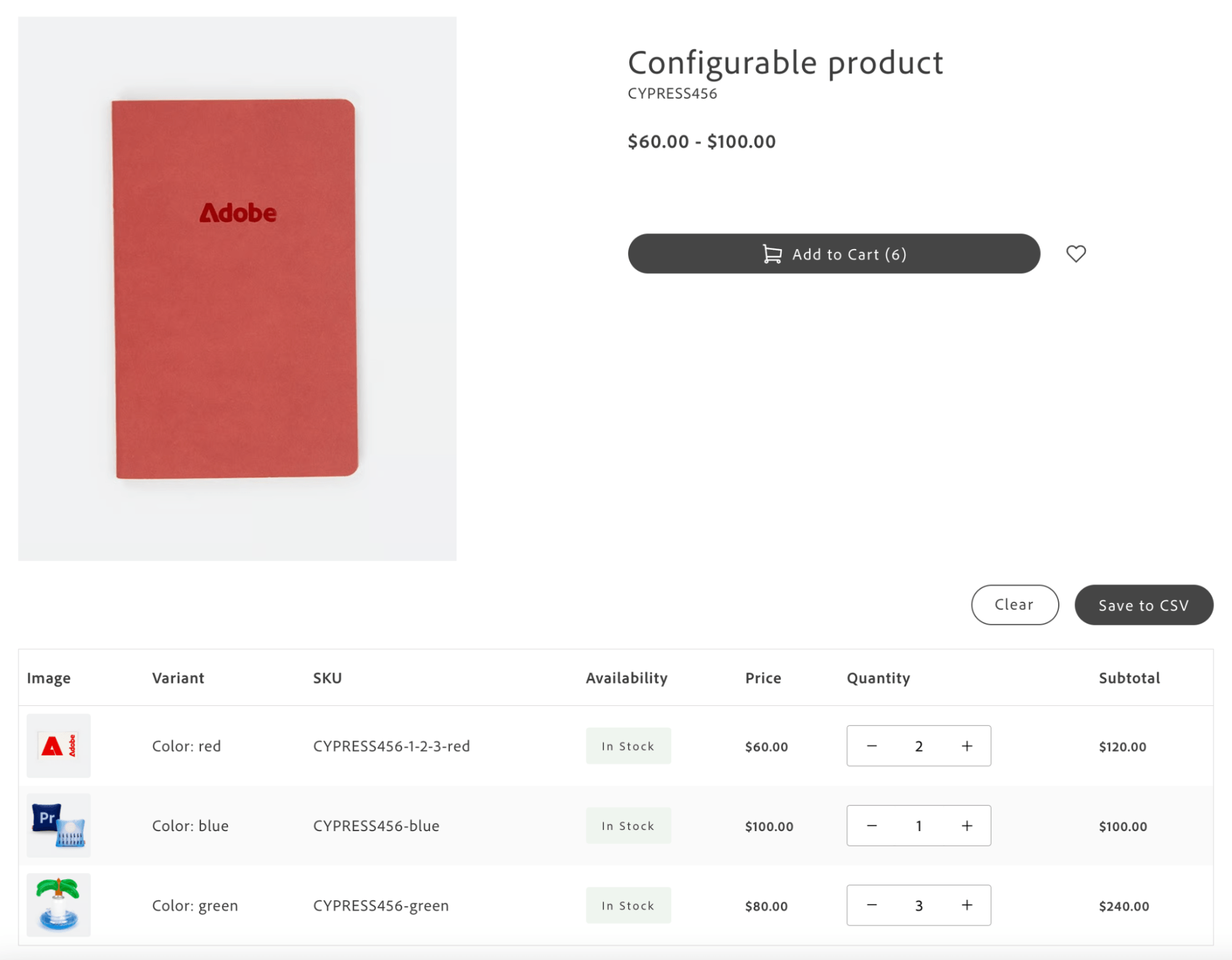
*QuickOrderVariantsGrid container on product detail page*
## Configuration
| Parameter | Type | Req? | Description |
|---|---|---|---|
| `className` | `string` | No | CSS class applied to the container root. |
| `initialVariants` | `ProductVariant[]` | No | Initial array of product variants to display. When provided, automatically emits `quick-order/grid-ordering-variants`. If not provided, the component listens for the event from external sources. |
| `onVariantsLoaded` | `(variants: VariantWithQuantity[]) => void` | No | Callback invoked when variants are successfully loaded and initialized (all quantities start at 0). |
| `onSelectedVariantsChange` | `(data: VariantTableData[]) => void` | No | Debounced callback invoked when user changes quantities. Receives only variants with quantity > 0. `VariantTableData`: `{ sku: string; name: string; inStock: boolean; attributes: Record; price: number; quantity: number; subtotal: number; image: string }`. |
| `debounceMs` | `number` | No | Debounce delay in milliseconds for `onSelectedVariantsChange` and event emissions. Default: `300`. |
| `initialLoading` | `boolean` | No | Initial loading state before variants are loaded. Default: `true`. |
| `visibleVariantsLimit` | `number` | No | Number of variant rows displayed initially before showing the **"Show All"** option. Default: `10`. Set to a very high number (for example, `1000`) to display all variants without collapsing the list. |
| `columns` | `Array<{ key: string; label: string; sortBy?: 'asc' \| 'desc' \| true }>` | No | Custom column configuration. Default: `[{ key: 'image', label: 'Image' }, { key: 'sku', label: 'SKU' }, { key: 'availability', label: 'Availability' }, { key: 'price', label: 'Price' }, { key: 'quantity', label: 'Quantity' }, { key: 'subtotal', label: 'Subtotal' }]`. When using custom columns, provide corresponding slot implementations for custom column keys. |
| `slots` | `object` | No | Slots for Actions, ImageCell, SKUCell, AvailabilityCell, PriceCell, QuantityCell, SubtotalCell, and custom column keys. See [Slots](https://experienceleague.adobe.com/developer/commerce/storefront/dropins-b2b/quick-order/slots/). |
## Architecture
Grid Ordering replaces standard PDP interactions such as quantity selection and configurable product option selection. Because Grid Ordering allows selecting multiple variants at once, the standard PDP add-to-cart flow (single product with selected options) no longer applies. The grid provides a bulk-selection interface. The container handles variant selection and UI; the PDP integration layer (Product Details block) processes selections and executes the bulk add-to-cart operation.
## Usage
The Product Details block integrates QuickOrderVariantsGrid when Grid Ordering is enabled for configurable products. The example below shows the pattern; the block provides `readBlockConfig`, `product`, and `gridOrderingContainer`:
```js
// Identify whether this feature is enabled based on the block config
const { 'grid-ordering-enabled': gridOrderingEnabledString = 'false' } = readBlockConfig(block);
const gridOrderingEnabled = gridOrderingEnabledString === 'true';
// Based on product data, identify whether the feature should be enabled for a specific product
// The Grid Ordering B2B feature (Quick Order drop-in) is enabled only for configurable products
const isGridOrderingView = gridOrderingEnabled && product?.productType === 'complex' && !product?.isBundle;
let gridOrderingSelectedVariants = [];
// Conditionally render Grid Ordering container
isGridOrderingView
? quickOrderProvider.render(QuickOrderVariantsGrid, {
className: 'quick-order-variants-grid',
columns: [
{ key: 'image', label: 'Image' },
{ key: 'variantOptionAttributes', label: 'Variant' },
{ key: 'sku', label: 'SKU' },
{ key: 'availability', label: 'Availability' },
{ key: 'price', label: 'Price' },
{ key: 'quantity', label: 'Quantity' },
{ key: 'subtotal', label: 'Subtotal' },
],
slots: {
VariantOptionAttributesCell: (ctx) => {
const { variant } = ctx;
const { variantOptionAttributes } = variant.product;
const cellWrapper = document.createElement('div');
variantOptionAttributes.forEach((attr) => {
const attributeWrapper = document.createElement('div');
attributeWrapper.classList.add('product-details__variants-grid-attribute');
const label = document.createElement('strong');
label.textContent = `${attr.label}:`;
const value = document.createElement('span');
value.textContent = attr.value;
attributeWrapper.appendChild(label);
attributeWrapper.appendChild(value);
cellWrapper.appendChild(attributeWrapper);
});
ctx.appendChild(cellWrapper);
},
},
})($gridOrderingContainer)
: null;
```
## Slots
| Slot | Context | Description |
|-----|---------|-------------|
| `Actions` | `{ onClear: () => void; onSaveToCsv: () => void; onCollectData: () => VariantTableData[]; isDisabled: boolean; variantsCount: number }` | Replace the entire action bar (Clear, Save to CSV, Collect Data buttons). |
| `ImageCell` | `{ variant: ProductVariant; quantity: number; onQuantityChange: (sku, qty) => void }` | Customize image cell rendering for each variant row. |
| `SKUCell` | `{ variant: ProductVariant; quantity: number; onQuantityChange: (sku, qty) => void }` | Customize SKU cell rendering. |
| `AvailabilityCell` | `{ variant: ProductVariant; quantity: number; onQuantityChange: (sku, qty) => void }` | Customize availability/stock status cell. |
| `PriceCell` | `{ variant: ProductVariant; quantity: number; onQuantityChange: (sku, qty) => void }` | Customize price display. |
| `QuantityCell` | `{ variant: ProductVariant; quantity: number; onQuantityChange: (sku, qty) => void }` | Replace the quantity input/incrementer with custom controls. |
| `SubtotalCell` | `{ variant: ProductVariant; quantity: number; onQuantityChange: (sku, qty) => void }` | Customize subtotal calculation and display. |
| `[CustomColumnKey]Cell` | `{ variant: ProductVariant; quantity: number; onQuantityChange: (sku, qty) => void }` | Custom rendering for any custom column defined in `columns`. The slot name should match the column `key` value with the `Cell` suffix. |
## Events
- **Listens:** `quick-order/grid-ordering-variants` (variant data from PDP integration), `quick-order/grid-ordering-reset-selected-variants` (resets all quantities when emitted by integration layer, for example, after successful add-to-cart).
- **Emits:** `quick-order/grid-ordering-variants` (when `initialVariants` is provided), `quick-order/grid-ordering-selected-variants` (when selection changes; debounced).
## Admin panel
No container-specific settings. Grid Ordering is enabled via the Product Details block configuration. See the https://github.com/hlxsites/aem-boilerplate-commerce/blob/b2b/blocks/product-details/product-details.js for setup.
---
# Quick Order Dictionary
The **Quick Order dictionary** holds all user-facing text, labels, and messages in the drop-in. Customize it to localize the drop-in, match your brand voice, or override default text without changing the drop-in source. Each string uses a unique key path under `QuickOrder` (i18n pattern).
## How to customize
Override dictionary values during drop-in initialization. The drop-in deep-merges your values with the defaults. Include only the keys you want to change.
```javascript
await initializers.mountImmediately(initialize, {
langDefinitions: {
default: {
QuickOrder: {
QuickOrderItem: {
addAllToCart: 'Add All to Cart',
emptyList: 'No products in the list',
},
CsvFileInput: {
title: 'Add from File',
downloadSample: 'Download sample',
},
},
},
},
});
```
For multi-language support and advanced patterns, see [Dictionary customization](https://experienceleague.adobe.com/developer/commerce/storefront/dropins/all/dictionaries/).
## Default keys and values
Override via `langDefinitions` in the initializer or via placeholders (for example, `placeholders/quick-order.json` in the boilerplate).
### QuickOrder.Search
| Key | Default (example) |
|-----|--------------------|
| `placeholder` | "Search by SKU..." |
| `ariaLabel` | "Search for products by SKU" |
| `emptyState` | "No results found" |
| `resultsAvailable` | "results available" |
| `resultAvailable` | "result available" |
| `srInstructions` | "Use arrow keys or Tab to navigate, Enter or Space to select, Escape to close." |
### QuickOrder.SkuListInput
| Key | Default (example) |
|-----|--------------------|
| `title` | "Add Products by SKU" |
| `helperText` | "Use commas or paragraphs to separate SKUs." |
| `textArea.label` | "Enter Multiple SKUs" |
| `textArea.placeholder` | "Enter SKUs here..." |
| `button` | "Add to List" |
### QuickOrder.CsvFileInput
| Key | Default (example) |
|-----|--------------------|
| `title` | "Add from File" |
| `helperText` | "File must be in .csv format and include \"SKU\" and \"QTY\" columns" |
| `downloadSample` | "Download sample" |
| `inputLabel` | "Choose File" |
| `selectedFile` | "Selected file" |
| `uploadCSVErrors.invalidFile` | "Invalid CSV file" |
| `uploadCSVErrors.emptyFile` | "File is empty" |
| `uploadCSVErrors.missingColumns` | "Must contain \"SKU\" and \"QTY\" columns" |
| `uploadCSVErrors.extraColumns` | "Must contain only \"SKU\" and \"QTY\" columns" |
| `uploadCSVErrors.maxRowsExceeded` | File exceeds maximum of `{maxRows}` rows |
| `uploadCSVErrors.skuRequired` | Row `{rowNumber}`: SKU is required |
| `uploadCSVErrors.invalidQuantity` | Row `{rowNumber}`: QTY must be a positive integer |
| `uploadCSVErrors.noValidData` | "File contains no valid data rows" |
| `uploadCSVErrors.onlyCSV` | "Only CSV files are allowed" |
| `uploadCSVErrors.failedToRead` | "Failed to read file" |
| `uploadCSVErrors.failedToParse` | "Failed to parse CSV file" |
### QuickOrder.QuickOrderItem
| Key | Default (example) |
|-----|--------------------|
| `title` | "Enter SKU or search by Product Name" |
| `quantity` | "Quantity: " |
| `price` | "Price: " |
| `sku` | "SKU" |
| `remove` / `removeItem` | "Remove" / "Remove item" |
| `showOptions` / `hideOptions` | "Show additional options" / "Hide additional options" |
| `additionalOptions` / `noAdditionalOptions` | "Additional options" / "No additional options available" |
| `emptyList` | "No products in the list" |
| `loading` | "Loading..." |
| `productNotFound` | "Product not found" |
| `productNotFoundDescription` | The product with SKU `{sku}` could not be found |
| `configurableProductError` | "Configuration required" |
| `configurableProductErrorDescription` | "Use ProductOptions Slot in QuickOrderItems container to enable configurable product options." |
| `configurableOptionsWarning` / `configurableOptionsWarningDescription` | "Product configuration required" / "Please select all required product options before adding to cart" |
| `productOptions` | "Product Options" |
| `outOfStock` | "Out of Stock" |
| `addAllToCart` | "Add to Cart" |
| `disabledMessage` | "Quick Order feature disabled" |
| `notification.validationError` | "Product(s) require your attention" |
| `notification.backendError` | "An error occurred while adding products to the cart" |
| `notification.success` | `{count}` product(s) successfully added to the cart |
| `notification.partialSuccess` | `{count}` of `{total}` products were added to the cart. Some products could not be added |
| `notification.unexpectedError` | "An unexpected error has occurred" |
### QuickOrder.VariantsGrid (Grid Ordering on PDP)
| Key | Default (example) |
|-----|--------------------|
| `imageColumn` | "Image" |
| `attributesColumn` | "Attributes" |
| `skuColumn` | "SKU" |
| `availabilityColumn` | "Availability" |
| `priceColumn` | "Price" |
| `minOrderColumn` | "Min Order / Pack Size" |
| `quantityColumn` | "Quantity" |
| `subtotalColumn` | "Subtotal" |
| `clearButton` | "Clear" |
| `saveToCsvButton` | "Save to CSV" |
| `collectDataButton` | "Collect Data" |
| `inStock` / `outOfStock` | "In Stock" / "Out of Stock" |
| `tableCaption` | "Product Variants Grid" |
| `quantityLabel` | "Quantity for" |
| `showAll` / `showLess` | "Show All Items" / "Show Less" |
---
# Quick Order Data & Events
The **Quick Order** drop-in uses the [event bus](https://experienceleague.adobe.com/developer/commerce/storefront/sdk/reference/events/) to coordinate containers (**QuickOrderCsvUpload**, **QuickOrderItems**, **QuickOrderMultipleSku**) and to integrate with the Cart drop-in. Events coordinate adding items, loading states, and add-to-cart success or error handling.
## Events reference
| Event | Direction | Description |
|-------|-----------|-------------|
| [`quick-order/add-items`](#quick-orderadd-items-emits-and-listens) | Emits and listens | Items added via CSV upload, multiple SKU entry, or Quick Order search within QuickOrderItems. Payload: `SubmitSkuValue` (array of `{ sku, quantity }`). Triggers product fetch and list update in QuickOrderItems. |
| [`quick-order/loading`](#quick-orderloading-emits-and-listens) | Emits and listens | Loading state changed. Payload: `boolean`. Disables inputs and shows loading indicators while processing. |
| [`quick-order/add-to-cart`](#quick-orderadd-to-cart-emits) | Emits | Request to add items to cart when no custom `handleAddToCart` is used. Payload: array of cart item values. Default cart handler processes items. |
| [`quick-order/add-to-cart-error`](#quick-orderadd-to-cart-error-emits) | Emits | Add-to-cart operation failed. Payload: `{ message: string }`. Shows error notification. |
| [`b2b-quick-order/error`](#b2b-quick-ordererror-emits) | Emits | Emitted when a network error occurs during any Quick Order API call. |
| [`quick-order/grid-ordering-variants`](#quick-ordergrid-ordering-variants-emits-and-listens) | Emits and listens | Provides variant data to `QuickOrderVariantsGrid`. Emitted externally or when `initialVariants` is set. |
| [`quick-order/grid-ordering-selected-variants`](#quick-ordergrid-ordering-selected-variants-emits) | Emits | Notifies when selected variants or quantities change in the `QuickOrderVariantsGrid`. Debounced. |
| [`quick-order/grid-ordering-reset-selected-variants`](#quick-ordergrid-ordering-reset-selected-variants-listens) | Listens | Resets the current grid selection (clears all quantities). |
| [`cart/product/added`](#cartproductadded-listens) | Listens | Products added to cart successfully. Payload: `any[]`. Quick Order shows success notification. |
> The drop-in also emits `quick-order/add-to-cart-success` (payload: `void`) internally when the add-to-cart operation completes. For integration, listen to `cart/product/added` from the Cart drop-in instead.
## Event details
### `quick-order/add-items` (emits and listens)
QuickOrderCsvUpload and QuickOrderMultipleSku emit this when the user adds items via CSV or the SKU text area. QuickOrderItems also emits it when the user adds a product via the integrated search (autocomplete). QuickOrderItems listens, fetches product data, and updates the list.
#### Event payload
```typescript
type SubmitSkuValue = Array<{ sku: string; quantity: number }>;
```
#### When triggered
- After CSV file is validated and parsed (QuickOrderCsvUpload)
- After user clicks "Add to List" in QuickOrderMultipleSku with parsed SKUs
- When user selects a product from the search autocomplete in QuickOrderItems
#### Example
```js
events.on('quick-order/add-items', (payload) => {
console.log('Items to add:', payload); // SubmitSkuValue
});
```
### `quick-order/loading` (emits and listens)
Containers emit this when a loading state starts or ends (for example, while fetching products or adding to cart).
#### Event payload
```typescript
boolean
```
#### Example
```js
events.on('quick-order/loading', (isLoading) => {
console.log('Quick Order loading:', isLoading);
});
```
### `quick-order/add-to-cart` (emits)
QuickOrderItems emits this when the user clicks "Add All to Cart" and no custom `handleAddToCart` is provided. A default handler may listen and call the Cart API.
#### Event payload
```typescript
any[] // Cart item values (sku, quantity, options, and so on)
```
### `quick-order/add-to-cart-error` (emits)
QuickOrderItems emits this when add-to-cart fails (backend error or custom handler returns an error message string).
#### Event payload
```typescript
{ message: string }
```
#### Example
```js
events.on('quick-order/add-to-cart-error', ({ message }) => {
console.error('Add to cart failed:', message);
});
```
### `cart/product/added` (listens)
The Cart drop-in emits this when products are added to the cart. Quick Order listens and shows a success notification.
#### Event payload
```typescript
any[]
```
### `b2b-quick-order/error` (emits)
Emitted when a network error occurs during any Quick Order API call. Does not fire for intentional user cancellations (`AbortError`).
#### Event payload
```typescript
{
source: 'auth';
type: 'network';
error: Error;
}
```
#### Example
```js
events.on('b2b-quick-order/error', ({ source, type, error }) => {
console.error('Quick Order network error:', error.message);
});
```
### `quick-order/grid-ordering-variants` (emits and listens)
Provides variant data to `QuickOrderVariantsGrid`. Emitted externally by the integration layer (for example, the Product Details block) after fetching product variants. Also emitted by `QuickOrderVariantsGrid` itself when `initialVariants` is provided as a prop. Not required if `initialVariants` is passed directly.
#### Event payload
```typescript
ProductVariant[] // Array of product variants
```
#### Example
```js
// Emit after fetching variants from the PDP
events.emit('quick-order/grid-ordering-variants', productVariants);
```
### `quick-order/grid-ordering-selected-variants` (emits)
Emitted by `QuickOrderVariantsGrid` when the user changes quantities for any variant. Payload contains only variants with `quantity > 0`. Emissions are debounced. Captured by the PDP integration layer to execute bulk add-to-cart.
#### Event payload
```typescript
Array<{
sku: string;
name: string;
inStock: boolean;
attributes: Record;
price: number;
quantity: number;
subtotal: number;
image: string;
}>
```
#### Example
```js
events.on('quick-order/grid-ordering-selected-variants', (selectedVariants) => {
console.log('Selected variants:', selectedVariants);
// selectedVariants contains only variants with quantity > 0
});
```
### `quick-order/grid-ordering-reset-selected-variants` (listens)
Listens for this event to reset all quantities in the `QuickOrderVariantsGrid` to zero. Typically emitted by the integration layer after a successful add-to-cart operation.
#### Event payload
```typescript
void
```
#### Example
```js
// Reset the grid after successful add-to-cart
events.emit('quick-order/grid-ordering-reset-selected-variants');
```
## PDP integration events (internal)
QuickOrderItems emits PDP-scoped events to enable reuse of PDP containers (for example, ProductPrice, ProductOptions) within the Quick Order interface:
| Event | Payload | Description |
|-------|---------|--------------|
| `{scope}/pdp/data` | `OrderItem` | Scoped event for product data updates per item. |
| `{scope}/pdp/values` | option values | Captures selected product options for configurable products. |
These events are used internally by the slot system and typically do not require custom handling.
## Grid Ordering events
The QuickOrderVariantsGrid container (Grid Ordering on PDP) uses these events:
| Event | Direction | Description |
|-------|-----------|-------------|
| `quick-order/grid-ordering-variants` | Emitted externally (integration layer) | Provides variant data to QuickOrderVariantsGrid. Payload: array of product variants. Typically emitted after variants are fetched on the PDP. Not required if `initialVariants` prop is used. |
| `quick-order/grid-ordering-selected-variants` | Emitted by QuickOrderVariantsGrid | Notifies when selected variants or quantities change. Payload: array of selected variants (quantity > 0) with enriched data (sku, attributes, price, quantity, subtotal). Captured by PDP integration for bulk add-to-cart. Emissions are debounced. |
| `quick-order/grid-ordering-reset-selected-variants` | Emitted externally | Resets current grid selection (clears all quantities). Typically used after successful add-to-cart. |
## Listening to events
All Quick Order events use the centralized event bus:
```js
events.on('quick-order/add-items', handleAddItems);
events.on('quick-order/loading', handleLoading);
events.on('quick-order/add-to-cart-error', handleAddToCartError);
events.on('cart/product/added', handleCartProductAdded);
// Clean up when needed
events.off('quick-order/add-items', handleAddItems);
```
> When using a custom `handleAddToCart` in QuickOrderItems, you control redirects and error messages; the drop-in still emits `quick-order/add-to-cart-error` when your handler returns an error message string.
---
# Quick Order Functions
The Quick Order drop-in exposes API functions for store configuration. Use them to determine whether Quick Order is enabled. Containers use this to show or hide the disabled overlay.
## Functions reference
| Function | Description |
| --- | --- |
| [`getStoreConfig`](#getstoreconfig) | Returns store configuration including the Quick Order feature flag (`quickOrderActive`). |
## getStoreConfig
Fetches store configuration via GraphQL and returns `quickorder_active` (mapped to `quickOrderActive`). The drop-in uses it to show a disabled overlay when Quick Order is off in Adobe Commerce Admin.
```ts
const getStoreConfig = async (): Promise<{
storeConfig: {
quickOrderActive: boolean;
};
}>
```
### Returns
- `storeConfig.quickOrderActive` — `true` when Quick Order is enabled in store config.
### Example
```js
const { storeConfig } = await getStoreConfig();
if (storeConfig.quickOrderActive) {
console.log('Quick Order is enabled');
} else {
console.log('Quick Order is disabled');
}
```
> The initializer sets the GraphQL endpoint via `setEndpoint()` and loads store config during initialization. Containers read the feature state from the drop-in context. Call `getStoreConfig` in your block only when building custom logic around the feature flag.
## API dependencies
Quick Order does not implement or duplicate APIs for product data, search, or add-to-cart. Instead, it relies on external APIs provided by the PDP, Cart, and Product Discovery drop-ins (for example, `getProductsData`, `productsSearch`, Cart add-to-cart). This approach avoids code duplication, maintains consistency with existing logic, and preserves extensibility. You can pass custom API methods in the same way when needed. See the [QuickOrderItems](https://experienceleague.adobe.com/developer/commerce/storefront/dropins-b2b/quick-order/containers/quick-order-items/) container for required and optional parameters.
---
# Quick Order overview
The **Quick Order** B2B drop-in introduces two purchasing workflows for Adobe Storefront, designed for B2B buyers who need to place orders quickly and efficiently.
The drop-in delivers two core features:
1. **Quick Order** — A fast product ordering interface that provides functional parity with the Adobe Commerce Quick Order experience. Customers add products to an order list using SKU search, CSV upload, or multiple SKU input.
2. **Grid Ordering** — A new B2B ordering experience exclusive to Adobe Storefront. Buyers add multiple configurable product variants to the cart from a single grid interface.
The drop-in consists of four containers: **QuickOrderCsvUpload**, **QuickOrderItems**, and **QuickOrderMultipleSku** for the Quick Order page, and **QuickOrderVariantsGrid** for Grid Ordering on the PDP. The Quick Order workflow suits buyers who need to add known products quickly without navigating catalog pages.
Containers communicate via the [event bus](https://experienceleague.adobe.com/developer/commerce/storefront/sdk/reference/events/), ensuring loose coupling and flexible extensibility. Any container can be replaced with a custom implementation that follows the defined event contracts. By default, Quick Order does not enforce additional permissions or access restrictions beyond your storefront's existing authentication.
The Quick Order page is implemented in the https://github.com/hlxsites/aem-boilerplate-commerce/blob/b2b/blocks/commerce-b2b-quick-order/commerce-b2b-quick-order.js. Grid Ordering is integrated into the https://github.com/hlxsites/aem-boilerplate-commerce/blob/b2b/blocks/product-details/product-details.js.
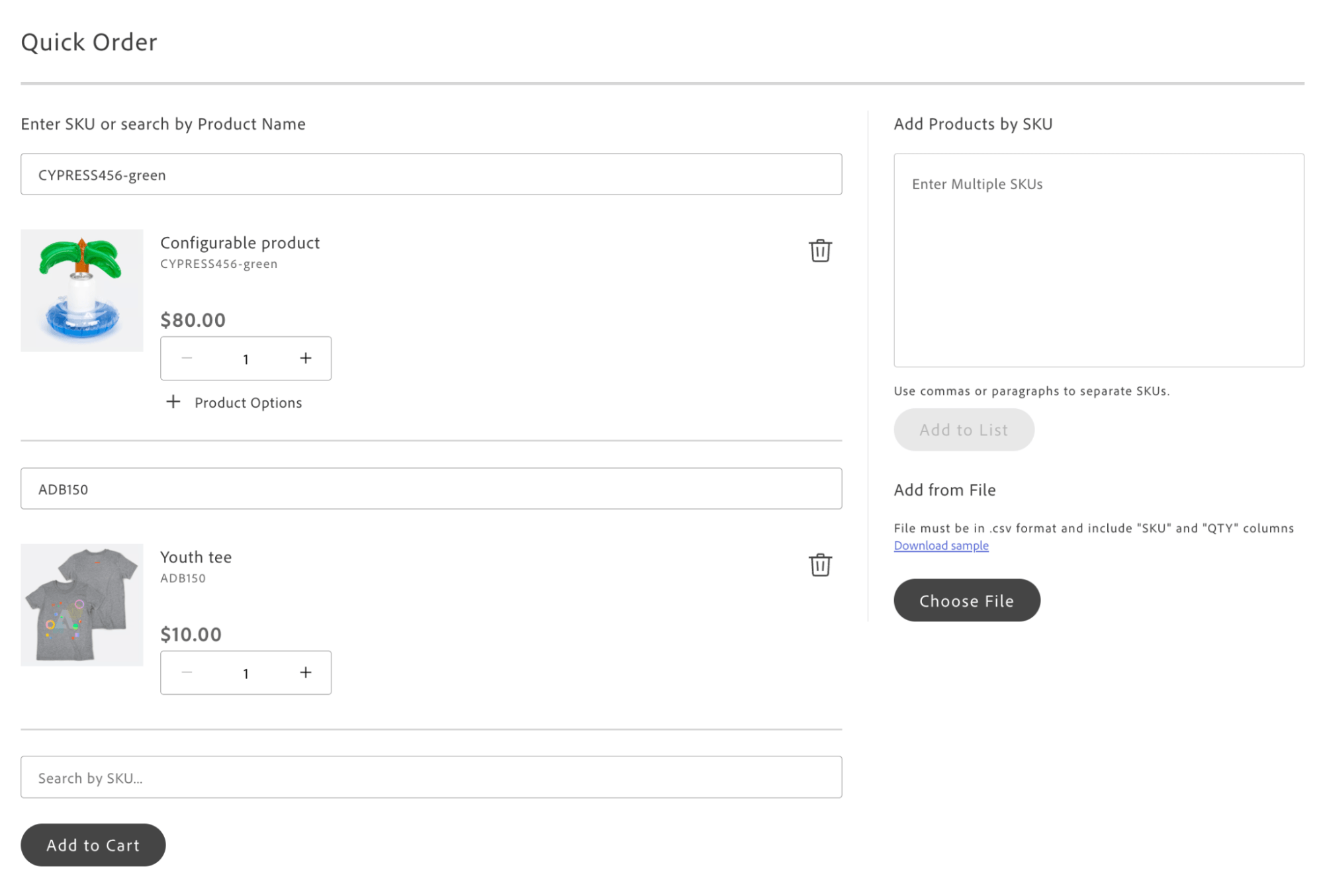
*Quick Order page layout with product list, SKU entry, and CSV upload*
## Supported Commerce features
The following table provides an overview of the Adobe Commerce features that the Quick Order drop-in supports:
| Feature | Status |
| ------- | ------ |
| Quick Order page (bulk add by SKU/search) | Supported |
| Multiple SKU text entry | Supported |
| CSV file upload (SKU, QTY) | Supported |
| Product search by SKU and name | Supported |
| Configurable product options in Quick Order | Supported |
| Bulk add to cart with validation | Supported |
| Grid Ordering on PDP (configurable variants) | Supported |
| Quick Order feature toggle (`quickOrderActive`) | Supported |
| Event-driven container coordination | Supported |
| Internationalization (i18n) support | Supported |
| Integration with Cart and PDP drop-ins | Supported |
## Section topics
- **[Quick Start](https://experienceleague.adobe.com/developer/commerce/storefront/dropins-b2b/quick-order/quick-start/)** — Package details, import paths, and block example. New to drop-ins? See [Using drop-ins](https://experienceleague.adobe.com/developer/commerce/storefront/dropins/all/quick-start/).
- **[Initialization](https://experienceleague.adobe.com/developer/commerce/storefront/dropins-b2b/quick-order/initialization/)** — Configure the initializer with language definitions and store config (`quickOrderActive`).
- **[Containers](https://experienceleague.adobe.com/developer/commerce/storefront/dropins-b2b/quick-order/containers/)** — **QuickOrderCsvUpload**, **QuickOrderItems**, **QuickOrderMultipleSku** (Quick Order page); **QuickOrderVariantsGrid** (Grid Ordering on PDP). Covers container configuration and how the containers work together.
- **[Functions](https://experienceleague.adobe.com/developer/commerce/storefront/dropins-b2b/quick-order/functions/)** — API functions (for example, `getStoreConfig`) for store configuration.
- **[Events](https://experienceleague.adobe.com/developer/commerce/storefront/dropins-b2b/quick-order/events/)** — Event bus usage: `quick-order/add-items`, `quick-order/loading`, `quick-order/add-to-cart`, `quick-order/add-to-cart-error`, `cart/product/added`. See [Event bus reference](https://experienceleague.adobe.com/developer/commerce/storefront/sdk/reference/events/).
- **[Slots](https://experienceleague.adobe.com/developer/commerce/storefront/dropins-b2b/quick-order/slots/)** — Customize `ProductPrice`, `ProductOptions`, `AddAllToCartButton`, and search slots. See [Extending drop-ins](https://experienceleague.adobe.com/developer/commerce/storefront/dropins/all/extending/).
- **[Dictionary](https://experienceleague.adobe.com/developer/commerce/storefront/dropins-b2b/quick-order/dictionary/)** — i18n keys for labels and messages. See [Dictionary customization](https://experienceleague.adobe.com/developer/commerce/storefront/dropins/all/dictionaries/).
- **[Styles](https://experienceleague.adobe.com/developer/commerce/storefront/dropins-b2b/quick-order/styles/)** — CSS classes for the block and containers. See [Styling](https://experienceleague.adobe.com/developer/commerce/storefront/dropins/all/styling/).
---
# Quick Order initialization
The **Quick Order initializer** configures the Quick Order B2B drop-in for bulk ordering: it sets the GraphQL endpoint (Core Service), loads placeholders from `placeholders/quick-order.json`, and passes language definitions. The drop-in reads the store configuration (`quickOrderActive`) to enable or disable the feature.
## Configuration options
| Parameter | Type | Req? | Description |
|---|---|---|---|
| `langDefinitions` | [`LangDefinitions`](#langdefinitions) | No | Language definitions for internationalization (i18n). Override dictionary keys for localization or branding. |
| `quickOrderActive` | `boolean` | No | Override for the Quick Order feature flag. When `false`, containers show a disabled overlay. By default the drop-in reads this from store config (`storeConfig.quickorder_active`). |
## Default configuration
Defaults when no configuration is provided:
```javascript title="scripts/initializers/quick-order.js"
await initializeDropin(async () => {
setEndpoint(CORE_FETCH_GRAPHQL);
const labels = await fetchPlaceholders('placeholders/quick-order.json');
const langDefinitions = {
default: { ...labels },
};
return initializers.mountImmediately(initialize, { langDefinitions });
})();
```
> The boilerplate uses `initializeDropin` to coordinate initialization order. The `labels` from `placeholders/quick-order.json` are spread into `langDefinitions.default`. The drop-in deep-merges these with its built-in defaults.
## Language definitions
Override dictionary keys for localization or branding. The `langDefinitions` object maps locale keys to custom strings that override default text for the drop-in.
```javascript title="scripts/initializers/quick-order.js"
const langDefinitions = {
default: {
QuickOrder: {
QuickOrderItem: {
addAllToCart: 'Add All to Cart',
emptyList: 'No products in the list',
// ... other keys — see Dictionary page
},
},
},
};
return initializers.mountImmediately(initialize, { langDefinitions });
```
> For the full list of keys and multi-language support, see the [Quick Order Dictionary](https://experienceleague.adobe.com/developer/commerce/storefront/dropins-b2b/quick-order/dictionary/). For patterns and placeholders, see [Dictionary customization](https://experienceleague.adobe.com/developer/commerce/storefront/dropins/all/dictionaries/).
## Store configuration
The drop-in reads store config from Adobe Commerce:
| Config key | Description |
| ---------- | ----------- |
| `quickorder_active` | When `false`, Quick Order is disabled; all containers show a disabled overlay. |
Enable Quick Order in Adobe Commerce Admin: **Stores** > **Settings** > **Configuration** > **General** > **B2B Features** > **Enable Quick Order**. Apply the configuration to both `.page` and `.live` when using this drop-in.
## Configuration types
### LangDefinitions
Maps locale identifiers to dictionaries of key-value pairs. The `default` locale is used as the fallback when no specific locale matches.
```typescript
langDefinitions?: {
[locale: string]: {
[key: string]: string | Record;
};
};
```
---
# Quick Order Quick Start
Enable bulk ordering by SKU, search, and CSV upload in your B2B storefront with the Quick Order drop-in for Adobe Storefront. This drop-in provides fast product ordering and Grid Ordering for configurable products.
## Block DOM skeleton
The block creates the container divs, then runs `provider.render` into them. Use these class names when building your block or matching the boilerplate:
- `.quick-order-title` — Page title (optional; boilerplate uses Header component).
- `.quick-order-main-container` — Wrapper for the two-column layout.
- `.quick-order-items-container` — Target for QuickOrderItems.
- `.quick-order-right-side` — Wrapper for the right column.
- `.quick-order-multiple-sku-container` — Target for QuickOrderMultipleSku.
- `.quick-order-csv-upload-container` — Target for QuickOrderCsvUpload.
## Quick example
The https://github.com/hlxsites/aem-boilerplate-commerce/blob/b2b/blocks/commerce-b2b-quick-order/commerce-b2b-quick-order.js in the Commerce boilerplate uses this pattern for the Quick Order page with all three containers:
```js
// 1. Import initializers (Quick Order + dependencies: cart, PDP, search)
// 2. Import containers, provider, APIs, and commerce helpers
// 3. Render in your block (for example, commerce-b2b-quick-order)
export default async function decorate(block) {
const itemsContainer = block.querySelector('.quick-order-items-container');
const multipleSkuContainer = block.querySelector('.quick-order-multiple-sku-container');
const csvUploadContainer = block.querySelector('.quick-order-csv-upload-container');
quickOrderProvider.render(QuickOrderItems, {
getProductsData: pdpApi.getProductsData,
productsSearch: searchApi.search,
searchFilter: [
{ attribute: 'categoryPath', eq: '' },
{ attribute: 'visibility', in: ['Search', 'Catalog, Search'] },
],
handleAddToCart: async (values) => {
if (!values.length) return;
try {
await cartApi.addProductsToCart(values);
window.location.href = rootLink('/cart');
} catch (error) {
return error.message || 'Failed to add products to cart.';
}
},
slots: { ProductPrice: (ctx) => { /* ... */ }, ProductOptions: (ctx) => { /* ... */ } },
})(itemsContainer);
quickOrderProvider.render(QuickOrderMultipleSku, { className: 'quick-order-multiple-sku' })(multipleSkuContainer);
quickOrderProvider.render(QuickOrderCsvUpload, { className: 'quick-order-csv-upload' })(csvUploadContainer);
}
```
**New to drop-ins?** See [Using drop-ins](https://experienceleague.adobe.com/developer/commerce/storefront/dropins/all/quick-start/) for step-by-step instructions.
## Quick reference
**Import paths:**
- Initializer: `import '../../scripts/initializers/quick-order.js'`
- Containers: `import ContainerName from '@dropins/storefront-quick-order/containers/ContainerName.js'`
- Provider: `import { render } from '@dropins/storefront-quick-order/render.js'`
**Package:** `@dropins/storefront-quick-order`
**Example containers:** `QuickOrderCsvUpload`, `QuickOrderItems`, `QuickOrderMultipleSku`
## Learn more
- [Containers](https://experienceleague.adobe.com/developer/commerce/storefront/dropins-b2b/quick-order/containers/) — Available UI components and configuration options
- [Initialization](https://experienceleague.adobe.com/developer/commerce/storefront/dropins-b2b/quick-order/initialization/) — Configure initializer and language definitions
- [Events](https://experienceleague.adobe.com/developer/commerce/storefront/dropins-b2b/quick-order/events/) — Event-driven coordination between containers
- [Slots](https://experienceleague.adobe.com/developer/commerce/storefront/dropins-b2b/quick-order/slots/) — Extend containers with custom content
- [Dictionary](https://experienceleague.adobe.com/developer/commerce/storefront/dropins-b2b/quick-order/dictionary/) — i18n keys and customization
- [Styles](https://experienceleague.adobe.com/developer/commerce/storefront/dropins-b2b/quick-order/styles/) — CSS classes and styling
---
# Quick Order Slots
The Quick Order B2B drop-in exposes slots for specific UI sections, primarily on **QuickOrderItems**. Use slots to replace or extend the product price, product options (configurables), add-to-cart button, and search UI. See [Extending drop-in components](https://experienceleague.adobe.com/developer/commerce/storefront/dropins/all/extending/) for slot behavior.
| Container | Slots |
|-----------|-------|
| [QuickOrderItems](#quickorderitems-slots) | `ProductPrice`, `ProductOptions`, `AddAllToCartButton`, `QuickOrderItemSearch`, `QuickOrderSearchAutocompleteItem` |
| [QuickOrderMultipleSku](https://experienceleague.adobe.com/developer/commerce/storefront/dropins-b2b/quick-order/containers/quick-order-multiple-sku/) | `AddToListButton` (optional) |
| [QuickOrderVariantsGrid](https://experienceleague.adobe.com/developer/commerce/storefront/dropins-b2b/quick-order/containers/quick-order-variants-grid/#slots) | `Actions`, `ImageCell`, `SKUCell`, `AvailabilityCell`, `PriceCell`, `QuantityCell`, `SubtotalCell`, `VariantOptionAttributesCell`, custom column keys |
## QuickOrderItems slots
The `QuickOrderItems` slots let you replace the default product price, configurable product options, "Add All to Cart" button, and search/autocomplete UI.
```typescript
interface QuickOrderItemsProps {
slots?: {
ProductPrice?: SlotProps;
ProductOptions?: SlotProps;
AddAllToCartButton?: SlotProps;
QuickOrderItemSearch?: SlotProps;
QuickOrderSearchAutocompleteItem?: SlotProps;
};
}
```
### ProductPrice slot
Context: `{ item: OrderItem; scope: string }`. Use this slot to render price with the PDP drop-in `ProductPrice` container (or a custom component) for correct tier pricing and currency. The boilerplate passes `scope` and `initialData: ctx.item` to the PDP container.
### ProductOptions slot
Context: `{ item: OrderItem; scope: string }`. Use this slot to render configurable product options (for example, size, color) with the PDP drop-in `ProductOptions` container. Required for configurables in the Quick Order list so users can select options before adding to cart.
### AddAllToCartButton slot
Context: `{ handleAddToCart: () => void; clearItems: () => void; loading: boolean; isDisabledButton: boolean }`. Replace the default "Add All to Cart" button with custom UI or behavior. Call `handleAddToCart()` to trigger add-to-cart. Call `clearItems()` after success to reset the list.
### QuickOrderItemSearch slot
Context: `{ item: OrderItem; scope: string; handleSearchChange: (e: Event) => void; searchResults: OrderItem[]; searchValue: string; shouldShowResults: boolean; handleItemClick: (item: OrderItem) => void }`. Customize the search input and results area for adding or replacing an item via search.
### QuickOrderSearchAutocompleteItem slot
Context: `{ item: OrderItem; index: number; activeIndex: number; createItemClickHandler: (item: OrderItem) => () => void }`. Customize how each search result option renders in the autocomplete list.
## Example: ProductPrice and ProductOptions
The Commerce boilerplate wires PDP containers into Quick Order so each list item shows price and options correctly:
```js
quickOrderProvider.render(QuickOrderItems, {
getProductsData: pdpApi.getProductsData,
productsSearch: searchApi.search,
handleAddToCart: async (values) => { /* ... */ },
slots: {
ProductPrice: (ctx) => {
const priceContainer = document.createElement('div');
priceContainer.className = 'product-price-slot';
pdpProvider.render(ProductPrice, { scope: ctx.scope, initialData: ctx.item })(priceContainer);
ctx.replaceWith(priceContainer);
},
ProductOptions: (ctx) => {
const optionsContainer = document.createElement('div');
optionsContainer.className = 'product-options-slot';
pdpProvider.render(ProductOptions, { scope: ctx.scope })(optionsContainer);
ctx.replaceWith(optionsContainer);
},
},
})(quickOrderItemsContainer);
```
> For configurable products, providing the `ProductOptions` slot is required so users can select options before adding to cart; otherwise validation will show "Configuration required" for those items.
## QuickOrderMultipleSku slots
The `QuickOrderMultipleSku` container exposes one slot for customizing the "Add to List" button.
```typescript
interface QuickOrderMultipleSkuProps {
slots?: {
AddToListButton?: SlotProps<{
handleAddToList: (values?: SubmitSkuValue) => void;
loading: boolean;
textAreaValue: string;
}>;
};
}
```
### AddToListButton slot
Context: `{ handleAddToList: (values?: SubmitSkuValue) => void; loading: boolean; textAreaValue: string }`. Use this to replace the default "Add to List" button with custom UI. Call `handleAddToList()` to trigger the add-items flow.
#### Example
```js
quickOrderProvider.render(QuickOrderMultipleSku, {
slots: {
AddToListButton: (ctx) => {
const { handleAddToList, loading, textAreaValue } = ctx;
const button = document.createElement('button');
button.textContent = loading ? 'Adding...' : 'Custom Add to List';
button.disabled = loading;
button.addEventListener('click', () => handleAddToList());
ctx.replaceWith(button);
},
},
})(quickOrderMultipleSkuContainer);
```
## QuickOrderVariantsGrid slots
The `QuickOrderVariantsGrid` container exposes slots for customizing each cell type in the variants grid, as well as the action bar.
```typescript
interface QuickOrderVariantsGridProps {
slots?: {
Actions?: SlotProps<{ onClear: () => void; onSaveToCsv: () => void; onCollectData: () => VariantTableData[]; isDisabled: boolean; variantsCount: number }>;
ImageCell?: SlotProps<{ variant: ProductVariant; quantity: number; onQuantityChange: (sku: string, qty: number) => void }>;
SKUCell?: SlotProps<{ variant: ProductVariant; quantity: number; onQuantityChange: (sku: string, qty: number) => void }>;
AvailabilityCell?: SlotProps<{ variant: ProductVariant; quantity: number; onQuantityChange: (sku: string, qty: number) => void }>;
PriceCell?: SlotProps<{ variant: ProductVariant; quantity: number; onQuantityChange: (sku: string, qty: number) => void }>;
QuantityCell?: SlotProps<{ variant: ProductVariant; quantity: number; onQuantityChange: (sku: string, qty: number) => void }>;
SubtotalCell?: SlotProps<{ variant: ProductVariant; quantity: number; onQuantityChange: (sku: string, qty: number) => void }>;
[customColumnKey: string]: SlotProps<{ variant: ProductVariant; quantity: number; onQuantityChange: (sku: string, qty: number) => void }> | undefined;
};
}
```
### Actions slot
Context: `{ onClear, onSaveToCsv, onCollectData, isDisabled, variantsCount }`. Replace the entire action bar (Clear, Save to CSV, and Collect Data buttons) with custom UI.
### ImageCell slot
Context: `{ variant, quantity, onQuantityChange }`. Customize image cell rendering for each variant row.
### SKUCell slot
Context: `{ variant, quantity, onQuantityChange }`. Customize the SKU cell rendering.
### AvailabilityCell slot
Context: `{ variant, quantity, onQuantityChange }`. Customize availability/stock status display.
### PriceCell slot
Context: `{ variant, quantity, onQuantityChange }`. Customize price display for each variant.
### QuantityCell slot
Context: `{ variant, quantity, onQuantityChange }`. Replace the quantity input with custom controls. Call `onQuantityChange(sku, qty)` to update state.
### SubtotalCell slot
Context: `{ variant, quantity, onQuantityChange }`. Customize subtotal calculation and display.
### Custom column slots
For any column defined in the `columns` prop with a custom `key`, provide a slot named `{key}Cell`. Context is the same as other cell slots.
#### Example: Custom VariantOptionAttributesCell
```js
quickOrderProvider.render(QuickOrderVariantsGrid, {
columns: [{ key: 'variantOptionAttributes', label: 'Variant' }],
slots: {
VariantOptionAttributesCell: (ctx) => {
const { variant } = ctx;
const { variantOptionAttributes } = variant.product;
const cellWrapper = document.createElement('div');
variantOptionAttributes.forEach((attr) => {
const item = document.createElement('div');
item.textContent = `${attr.label}: ${attr.value}`;
cellWrapper.appendChild(item);
});
ctx.appendChild(cellWrapper);
},
},
})(gridOrderingContainer);
```
---
# Quick Order styles
This page lists CSS classes for the Quick Order block layout and Grid Ordering (PDP) visibility. The Commerce boilerplate uses these classes. For design tokens and styling, see [Styling Drop-In Components](https://experienceleague.adobe.com/developer/commerce/storefront/dropins/all/styling/).
## Quick Order block (commerce-b2b-quick-order)
Add or override these classes in the block CSS (for example, `blocks/commerce-b2b-quick-order/commerce-b2b-quick-order.css`). Source: https://github.com/hlxsites/aem-boilerplate-commerce/blob/b2b/blocks/commerce-b2b-quick-order/commerce-b2b-quick-order.css.
```css
.commerce-b2b-quick-order {
padding: var(--spacing-large) 0;
}
.quick-order-main-container {
display: flex;
flex-direction: column;
gap: var(--spacing-medium);
width: 100%;
}
.quick-order-items-container {
width: 100%;
}
.quick-order-right-side {
display: flex;
flex-direction: column;
gap: var(--spacing-medium);
width: 100%;
}
.quick-order-multiple-sku-container,
.quick-order-csv-upload-container {
width: 100%;
}
@media (min-width: 800px) {
.quick-order-main-container {
flex-direction: row;
align-items: flex-start;
gap: var(--spacing-medium);
}
.quick-order-items-container {
flex: 2;
min-width: 0;
}
.quick-order-right-side {
flex: 1;
min-width: 0;
border-left: 1px solid var(--color-neutral-400);
padding-left: var(--spacing-medium);
}
}
```
- **`.commerce-b2b-quick-order`** — Wrapper for the Quick Order block; vertical padding.
- **`.quick-order-main-container`** — Flex container: column on small screens, row on wider (800px+).
- **`.quick-order-items-container`** — Holds the QuickOrderItems container; takes 2/3 width on desktop.
- **`.quick-order-right-side`** — Holds QuickOrderMultipleSku and QuickOrderCsvUpload; 1/3 width on desktop with left border and padding.
- **`.quick-order-multiple-sku-container`**, **`.quick-order-csv-upload-container`** — Wrappers for the two right-side containers.
## Grid Ordering (product details)
When Grid Ordering is enabled for configurable products, the Product Details block uses these classes to show or hide the variants grid. Source: https://github.com/hlxsites/aem-boilerplate-commerce/blob/b2b/blocks/product-details/product-details.css.
```css
.product-details__variants-grid-attribute strong {
font-weight: var(--type-body-1-strong-font);
margin-right: var(--spacing-xxsmall);
}
.product-details__grid-ordering--enabled {
display: block;
}
.product-details__grid-ordering--disabled {
display: none;
}
```
- **`.product-details__grid-ordering--enabled`** — Shown when Grid Ordering is on; contains the QuickOrderVariantsGrid.
- **`.product-details__grid-ordering--disabled`** — Hidden when Grid Ordering is off.
## Drop-in component classes
The Quick Order drop-in uses additional BEM-style and data attributes for items list, search, CSV input, and notifications. Use browser DevTools to inspect elements; many are prefixed with `b2b-quick-order-` or `dropin-` from the drop-in package. For the source CSS, see the https://github.com/adobe-commerce/storefront-quick-order (when available).
---
# Quote Management Containers
The **Quote Management** drop-in provides pre-built container components for integrating into your storefront.
Version: 1.1.2
## What are Containers?
Containers are pre-built UI components that combine functionality, state management, and presentation. They provide a complete solution for specific features and can be customized through props, slots, and CSS.
## Available Containers
| Container | Description |
| --------- | ----------- |
| [ItemsQuoted](https://experienceleague.adobe.com/developer/commerce/storefront/dropins-b2b/quote-management/containers/items-quoted/) | Displays a summary of items that have been quoted, providing a quick overview of quoted products. |
| [ItemsQuotedTemplate](https://experienceleague.adobe.com/developer/commerce/storefront/dropins-b2b/quote-management/containers/items-quoted-template/) | Displays items stored in a quote template for reuse in future quote requests. |
| [ManageNegotiableQuote](https://experienceleague.adobe.com/developer/commerce/storefront/dropins-b2b/quote-management/containers/manage-negotiable-quote/) | Provides comprehensive quote management capabilities for existing quotes. |
| [ManageNegotiableQuoteTemplate](https://experienceleague.adobe.com/developer/commerce/storefront/dropins-b2b/quote-management/containers/manage-negotiable-quote-template/) | Provides the interface for managing quote templates with template-specific actions and details. |
| [OrderSummary](https://experienceleague.adobe.com/developer/commerce/storefront/dropins-b2b/quote-management/containers/order-summary/) | Displays a comprehensive pricing breakdown for quotes including subtotal calculations, applied discounts, tax information, and grand total. |
| [OrderSummaryLine](https://experienceleague.adobe.com/developer/commerce/storefront/dropins-b2b/quote-management/containers/order-summary-line/) | Renders individual line items within the order summary such as subtotal, shipping, or tax rows. |
| [QuoteCommentsList](https://experienceleague.adobe.com/developer/commerce/storefront/dropins-b2b/quote-management/containers/quote-comments-list/) | Displays all comments and communications between buyer and seller for a negotiable quote. |
| [QuoteHistoryLog](https://experienceleague.adobe.com/developer/commerce/storefront/dropins-b2b/quote-management/containers/quote-history-log/) | Shows the complete history of actions, status changes, and updates for a quote throughout its lifecycle. |
| [QuoteSummaryList](https://experienceleague.adobe.com/developer/commerce/storefront/dropins-b2b/quote-management/containers/quote-summary-list/) | Displays quote metadata including quote ID, status, dates, buyer information, and shipping details. |
| [QuoteTemplateCommentsList](https://experienceleague.adobe.com/developer/commerce/storefront/dropins-b2b/quote-management/containers/quote-template-comments-list/) | Displays all comments associated with a quote template. |
| [QuoteTemplateHistoryLog](https://experienceleague.adobe.com/developer/commerce/storefront/dropins-b2b/quote-management/containers/quote-template-history-log/) | Shows the complete history of changes and updates for a quote template. |
| [QuoteTemplatesListTable](https://experienceleague.adobe.com/developer/commerce/storefront/dropins-b2b/quote-management/containers/quote-templates-list-table/) | Displays all quote templates in a paginated table with search, filter, and action capabilities. |
| [QuotesListTable](https://experienceleague.adobe.com/developer/commerce/storefront/dropins-b2b/quote-management/containers/quotes-list-table/) | Displays a list of quotes with pagination capabilities, status indicators, page size selection, and item range display. |
| [RequestNegotiableQuoteForm](https://experienceleague.adobe.com/developer/commerce/storefront/dropins-b2b/quote-management/containers/request-negotiable-quote-form/) | Enables customers to request new negotiable quotes from their cart contents. |
| [ShippingAddressDisplay](https://experienceleague.adobe.com/developer/commerce/storefront/dropins-b2b/quote-management/containers/shipping-address-display/) | Shows the selected shipping address for a quote or a warning if there is no shipping address set. |
> Each container is designed to work independently but can be composed together to create comprehensive user experiences.
---
# ItemsQuoted Container
The `ItemsQuoted` container displays a summary of items that have been quoted, providing a quick overview of quoted products. It shows product information and pricing, quantity and discount details, subtotal calculations, and action buttons for quote management.
The component includes responsive design for mobile and desktop viewing.
Version: 1.1.2
## Configuration
The `ItemsQuoted` container provides the following configuration options:
| Parameter | Type | Req? | Description |
|---|---|---|---|
| `quoteData` | `NegotiableQuoteModel` | No | Quote data object. Auto-populated from drop-in state when omitted. |
| `onItemCheckboxChange` | `function` | No | Callback when item checkbox is toggled. Use for tracking selections or custom validation. |
| `onItemDropdownChange` | `function` | No | Callback when item action dropdown changes. Use for custom action handling or analytics. |
| `onUpdate` | `function` | No | Callback on form submission (`quantity/note` updates). Use for custom validation or tracking. |
| `onRemoveItemsRef` | `function` | No | Provides access to internal item removal handler. Use for custom removal workflows. |
| `onRemoveModalStateChange` | `function` | No | Callback when remove confirmation modal `opens/closes`. Use for tracking or custom modal logic. |
| `initialData` | `object` | No | Preloaded data for the model before backend data is fetched. Use for testing, SSR, or improving initial load. |
## Slots
This container exposes the following slots for customization:
| Slot | Type | Required | Description |
|------|------|----------|-------------|
| `ProductListTable` | `function` | No | Customizes the quoted items table. Use to replace or wrap the default table UI while keeping the built-in handlers for item selection, dropdown actions, quantity changes, and submission. |
| `QuotePricesSummary` | `SlotProps` | No | Customizes the pricing summary for quoted items. Use to change how totals and price breakdowns are displayed. |
## Usage
The following example demonstrates how to use the `ItemsQuoted` container:
```js
await provider.render(ItemsQuoted, {
onItemCheckboxChange: (itemCheckbox) => console.log('ItemCheckboxChange', itemCheckbox),
onItemDropdownChange: (itemDropdown) => console.log('ItemDropdownChange', itemDropdown),
slots: {
// Add custom slot implementations here
}
})(block);
```
---
# ItemsQuotedTemplate Container
The `ItemsQuotedTemplate` container displays items stored in a quote template for reuse in future quote requests.
Version: 1.1.2
## Configuration
The `ItemsQuotedTemplate` container provides the following configuration options:
| Parameter | Type | Req? | Description |
|---|---|---|---|
| `templateData` | `NegotiableQuoteTemplateModel` | No | Template data object. Auto-populated from drop-in state when omitted. |
| `initialData` | `object` | No | Preloaded data for the model before backend data is fetched. Use for testing, SSR, or improving initial load. |
## Slots
This container exposes the following slots for customization:
| Slot | Type | Required | Description |
|------|------|----------|-------------|
| `ProductListTable` | `function` | No | Customizes the quote template items table. Use to replace or wrap the default table UI while keeping the built-in handlers for dropdown actions, quantity changes, and submission. |
| `QuotePricesSummary` | `SlotProps` | No | Customizes the pricing summary for quote template items. Use to change how totals and price breakdowns are displayed. |
## Usage
The following example demonstrates how to use the `ItemsQuotedTemplate` container:
```js
// Omit templateData to use drop-in state. When passing from parent:
const templateData = props.templateData;
await provider.render(ItemsQuotedTemplate, {
templateData,
})(block);
```
---
# ManageNegotiableQuote Container
The `ManageNegotiableQuote` container provides comprehensive quote management capabilities for existing quotes. It displays quote details (creation date, sales rep, expiration), manages quote status and updates, shows the product list with pricing and quantity controls, provides quote actions (print, copy, delete, send for review), displays shipping information, and includes a quote comments section.
All actions respect permission-based access control.
Version: 1.1.2
## Configuration
The `ManageNegotiableQuote` container provides the following configuration options:
| Parameter | Type | Req? | Description |
|---|---|---|---|
| `onActionsDropdownChange` | `function` | No | Callback when the actions dropdown selection changes. Use for custom action handling, analytics, or to intercept actions before they execute. |
| `onActionsButtonClick` | `function` | No | Callback when an action button is clicked. Use for custom action handling, analytics, or to add additional behavior when users trigger quote actions. |
| `onSendForReview` | `function` | No | Callback when the quote is sent for review. Use to implement custom notifications, trigger follow-up workflows, or integrate with external systems. |
| `maxFiles` | `number` | No | Sets the maximum number of files that can be attached when sending a quote for review. Enforces company policies on attachment limits and prevents excessive file uploads that could impact performance or storage. |
| `maxFileSize` | `number` | No | Sets the maximum file size in bytes for attachments. Controls the upper limit for individual file uploads. Use to prevent large file uploads that could impact performance, storage, or network bandwidth. |
| `acceptedFileTypes` | `string[]` | No | Specifies an array of MIME types allowed for file attachments (for example, `\['application/pdf', 'image/jpeg', 'image/png'\]`). Use to restrict uploads to specific document types required by your quote approval process. |
| `onDuplicateQuote` | `function` | No | Callback when the quote is duplicated. Use to implement custom notifications, navigate to the new quote, or sync with external systems. |
| `initialData` | `object` | No | Preloaded data for the model before backend data is fetched. Use for testing, SSR, or improving initial load. |
## Slots
This container exposes the following slots for customization:
| Slot | Type | Required | Description |
|------|------|----------|-------------|
| `QuoteName` | `SlotProps` | No | Customize the quote name display and rename functionality. Use to add custom icons, styling, or additional metadata next to the quote name. |
| `QuoteStatus` | `SlotProps` | No | Customize how the quote status is displayed. Use to add custom status badges, colors, or additional status information. |
| `Banner` | `SlotProps` | No | Customize the alert banner shown for specific quote states (submitted, pending, expired). Use to provide custom messaging or styling for different quote statuses. |
| `DuplicateQuoteWarningBanner` | `SlotProps` | No | Customizes the warning banner shown after duplicating a quote when the new quote contains out-of-stock items. Use to change the messaging, styling, or dismissal behavior. |
| `Details` | `SlotProps` | No | Customize the quote metadata display (created date, sales rep, expiration). Use to add additional fields, reorder information, or apply custom formatting. |
| `ActionBar` | `SlotProps` | No | Customize the action buttons and dropdown menu for quote operations. Use to add custom actions, reorder existing actions, or integrate with external systems. |
| `QuoteContent` | `SlotProps` | No | Customize the entire tabbed content area containing items, comments, and history. Use to add new tabs, reorder tabs, or completely replace the tabbed interface. |
| `ItemsQuotedTab` | `SlotProps` | No | Customize the Items Quoted tab content. Use to add additional product information, custom filtering, or integrate with inventory systems. |
| `CommentsTab` | `SlotProps` | No | Customize the Comments tab displaying quote discussions. Use to add custom comment filters, sorting, or rich text formatting. |
| `HistoryLogTab` | `SlotProps` | No | Customize the History Log tab showing quote activity. Use to add custom filtering, grouping by action type, or export functionality. |
| `ShippingInformationTitle` | `SlotProps` | No | Customize the shipping section heading. Use to add icons, tooltips, or additional contextual information about shipping requirements. |
| `ShippingInformation` | `function` | No | Customize the shipping address display and selection. Use to integrate with third-party shipping services, add address validation, or provide custom address formatting. |
| `QuoteCommentsTitle` | `SlotProps` | No | Customize the quote comments section heading. Use to add help text, character limits, or formatting guidelines. |
| `QuoteComments` | `SlotProps` | No | Customize the comment input field. Use to add rich text editing, @mentions, file attachments inline, or comment templates. |
| `AttachFilesField` | `function` | No | Customize the file attachment input control. Use to integrate with document management systems, add drag-and-drop functionality, or provide custom file previews. |
| `AttachedFilesList` | `function` | No | Customize how attached files are displayed. Use to add file previews, virus scanning status, or integration with external document viewers. |
| `Footer` | `function` | No | Customize the Send for Review button and footer actions. Use to add additional submission options, validation steps, or approval workflow controls. |
## Usage
The following example demonstrates how to use the `ManageNegotiableQuote` container:
```js
await provider.render(ManageNegotiableQuote, {
acceptedFileTypes: ACCEPTED_FILE_TYPES,
onActionsButtonClick: (action) => { switch (action) { case 'print': window.print(); break; default: break; } },
slots: { Footer: async (ctx) => { ctx.appendChild(checkoutButtonContainer); // Get the current user email currentUserEmail = await getCurrentUserEmail(); // Checkout button is enabled if the quote can be checked out // and the current user email is the same as the quote email const enabled = ctx.quoteData?.canCheckout && currentUserEmail === ctx.quoteData?.email; // Initial render renderCheckoutButton(ctx, enabled); // Re-render on state changes ctx.onChange((next) => { // Checkout button is enabled if the quote can be checked out // and the current user email is the same as the quote email const nextEnabled = next.quoteData?.canCheckout && currentUserEmail === next.quoteData?.email; renderCheckoutButton(next, nextEnabled); }); }, ShippingInformation: (ctx) => { // Append the address error container to the shipping information container ctx.appendChild(addressErrorContainer); const shippingInformation = document.createElement('div'); shippingInformation.classList.add('negotiable-quote__select-shipping-information'); ctx.appendChild(shippingInformation); const progressSpinner = document.createElement('div'); progressSpinner.classList.add('negotiable-quote__progress-spinner-container'); progressSpinner.setAttribute('hidden', true); ctx.appendChild(progressSpinner); UI.render(ProgressSpinner, { className: 'negotiable-quote__progress-spinner', size: 'large', })(progressSpinner); ctx.onChange((next) => { // Remove existing content from the shipping information container shippingInformation.innerHTML = ''; const { quoteData } = next; if (!quoteData) return; if (!quoteData.canSendForReview) return; if (quoteData.canSendForReview) { accountRenderer.render(Addresses, { minifiedView: false, withActionsInMinifiedView: false, selectable: true, className: 'negotiable-quote__shipping-information-addresses', selectShipping: true, defaultSelectAddressId: 0, onAddressData: (params) => { const { data, isDataValid: isValid } = params; const addressUid = data?.uid; if (!isValid) return; if (!addressUid) return; progressSpinner.removeAttribute('hidden'); shippingInformation.setAttribute('hidden', true); setShippingAddress({ quoteUid: quoteId, addressId: addressUid, }).finally(() => { progressSpinner.setAttribute('hidden', true); shippingInformation.removeAttribute('hidden'); }); }, onSubmit: (event, formValid) => { if (!formValid) return; const formValues = getFormValues(event.target); const [regionCode, regionId] = formValues.region?.split(', ') || []; const regionIdNumber = parseInt(regionId, 10); // iterate through the object entries and combine the values of keys that have // a prefix of 'street' into an array const streetInputValues = Object.entries(formValues) .filter(([key]) => key.startsWith('street')) .map(([_, value]) => value); const createCustomerAddressInput = { city: formValues.city, company: formValues.company, countryCode: formValues.countryCode, defaultBilling: !!formValues.defaultBilling || false, defaultShipping: !!formValues.defaultShipping || false, fax: formValues.fax, firstname: formValues.firstName, lastname: formValues.lastName, middlename: formValues.middlename, postcode: formValues.postcode, prefix: formValues.prefix, region: regionCode ? { regionCode, regionId: regionIdNumber, } : undefined, street: streetInputValues, suffix: formValues.suffix, telephone: formValues.telephone, vatId: formValues.vatId, }; progressSpinner.removeAttribute('hidden'); shippingInformation.setAttribute('hidden', true); createCustomerAddress(createCustomerAddressInput) .then((result) => { const addressUid = typeof result === 'string' ? result : result?.uid; if (!addressUid) { throw new Error('Address uid not returned from createCustomerAddress.'); } return setShippingAddress({ quoteUid: quoteId, addressId: addressUid, }); }) .catch((error) => { addressErrorContainer.removeAttribute('hidden'); UI.render(InLineAlert, { type: 'error', description: `${error}`, })(addressErrorContainer); }) .finally(() => { progressSpinner.setAttribute('hidden', true); shippingInformation.removeAttribute('hidden'); }); }, })(shippingInformation); } }); }, }
})(block);
```
---
# ManageNegotiableQuoteTemplate Container
The `ManageNegotiableQuoteTemplate` container provides the interface for managing quote templates with template-specific actions and details.
Version: 1.1.2
## Configuration
The `ManageNegotiableQuoteTemplate` container provides the following configuration options:
| Parameter | Type | Req? | Description |
|---|---|---|---|
| `onActionsButtonClick` | `function` | No | Callback when an action button is clicked. Use for custom action handling, analytics, or to add additional behavior when users trigger template actions. |
| `onSendForReview` | `function` | No | Callback when the quote template is sent for review. Use to implement custom notifications, trigger follow-up workflows, or integrate with external systems. |
| `maxFiles` | `number` | No | Sets the maximum number of files that can be attached when sending a quote template for review. Use to enforce attachment limits and prevent excessive uploads. |
| `maxFileSize` | `number` | No | Sets the maximum file size in bytes for quote template attachments. Use to prevent large uploads and provide consistent UX for file validation. |
| `acceptedFileTypes` | `string[]` | No | Specifies an array of MIME types allowed for quote template attachments (for example `\['application/pdf', 'image/jpeg', 'image/png'\]`). Use to restrict uploads to supported document types. |
| `initialData` | `object` | No | Preloaded data for the model before backend data is fetched. Use for testing, SSR, or improving initial load. |
## Slots
This container exposes the following slots for customization:
| Slot | Type | Required | Description |
|------|------|----------|-------------|
| `TemplateName` | `SlotProps` | No | Customizes the template name area, including the rename affordance. Use to change how the template name is displayed or to add additional metadata next to it. |
| `TemplateStatus` | `SlotProps` | No | Customizes how the template status is displayed. Use to change the status label, badge styling, or status-specific messaging. |
| `Banner` | `SlotProps` | No | Customizes the alert banner area for template state changes and actions. Use to add custom messaging for template lifecycle events (for example, updated, in review, accepted). |
| `Details` | `SlotProps` | No | Customizes the template details section. Use to add or reorder template metadata and apply custom formatting. |
| `ActionBar` | `SlotProps` | No | Customizes the action bar for quote template operations. Use to add custom actions, reorder controls, or integrate with external workflows. |
| `ReferenceDocuments` | `function` | No | Customizes the reference documents section. Use to replace the default list UI or to customize add, edit, and remove behavior. |
| `ItemsTable` | `SlotProps` | No | Customizes the template items section container. Use to wrap or replace the default items table layout. |
| `ItemsQuotedTab` | `SlotProps` | No | Customizes the Items Quoted tab for template items. Use to add additional item details, custom actions, or supplemental content. |
| `CommentsTab` | `SlotProps` | No | Customizes the Comments tab for quote template discussions. Use to change how comments are displayed or to add validation and formatting. |
| `HistoryLogTab` | `SlotProps` | No | Customizes the History Log tab for template activity. Use to filter, group, or extend the activity feed. |
| `CommentsTitle` | `SlotProps` | No | Customizes the comments section heading for a quote template. Use to add help text or additional context for commenters. |
| `Comments` | `SlotProps` | No | Customizes the comments section content for a quote template. Use to replace the default comments UI or to integrate with an external commenting system. |
| `AttachFilesField` | `function` | No | Customizes the file attachment input for a quote template. Use to add drag-and-drop UX, validation messaging, or integrations with document storage. |
| `AttachedFilesList` | `function` | No | Customizes how attached files are displayed for a quote template. Use to add previews, custom removal UX, or external viewers. |
| `HistoryLogTitle` | `SlotProps` | No | Customizes the history log section heading for a quote template. Use to add contextual help or status indicators. |
| `HistoryLog` | `SlotProps` | No | Customizes the history log content for a quote template. Use to change formatting, sorting, or grouping of history entries. |
| `Footer` | `function` | No | Customizes the footer actions for quote template management. Use to change submit and accept controls, add validation steps, or show custom status messaging. |
| `ShippingInformationTitle` | `SlotProps` | No | Customizes the shipping information section heading for a quote template. Use to add icons, tooltips, or additional context. |
| `ShippingInformation` | `function` | No | Customizes the shipping information section for a quote template. Use to replace the default display or integrate with custom shipping workflows. |
## Usage
The following example demonstrates how to use the `ManageNegotiableQuoteTemplate` container:
```js
await provider.render(ManageNegotiableQuoteTemplate, {
acceptedFileTypes: ACCEPTED_FILE_TYPES,
slots: { ShippingInformation: (ctx) => { // Append the address error container to the shipping information container ctx.appendChild(addressErrorContainer); const shippingInformation = document.createElement('div'); shippingInformation.classList.add('negotiable-quote-template__select-shipping-information'); ctx.appendChild(shippingInformation); const progressSpinner = document.createElement('div'); progressSpinner.classList.add('negotiable-quote-template__progress-spinner-container'); progressSpinner.setAttribute('hidden', true); ctx.appendChild(progressSpinner); UI.render(ProgressSpinner, { className: 'negotiable-quote-template__progress-spinner', size: 'large', })(progressSpinner); ctx.onChange((next) => { // Remove existing content from the shipping information container shippingInformation.innerHTML = ''; const { templateData } = next; if (!templateData) return; if (!templateData.canSendForReview) return; if (templateData.canSendForReview) { accountRenderer.render(Addresses, { minifiedView: false, withActionsInMinifiedView: false, selectable: true, className: 'negotiable-quote-template__shipping-information-addresses', selectShipping: true, defaultSelectAddressId: 0, showShippingCheckBox: false, showBillingCheckBox: false, onAddressData: (params) => { const { data, isDataValid: isValid } = params; const addressUid = data?.uid; if (!isValid) return; if (!addressUid) return; progressSpinner.removeAttribute('hidden'); shippingInformation.setAttribute('hidden', true); addQuoteTemplateShippingAddress({ templateId: quoteTemplateId, shippingAddress: { customerAddressUid: addressUid, }, }).finally(() => { progressSpinner.setAttribute('hidden', true); shippingInformation.removeAttribute('hidden'); }); }, onSubmit: (event, formValid) => { if (!formValid) return; const formValues = getFormValues(event.target); const [regionCode, _regionId] = formValues.region?.split(', ') || []; // iterate through the object entries and combine the values of keys that have // a prefix of 'street' into an array const streetInputValues = Object.entries(formValues) .filter(([key]) => key.startsWith('street')) .map(([_, value]) => value); const addressInput = { firstname: formValues.firstName, lastname: formValues.lastName, company: formValues.company, street: streetInputValues, city: formValues.city, region: regionCode, postcode: formValues.postcode, countryCode: formValues.countryCode, telephone: formValues.telephone, }; // These values are not part of the standard address input const additionalAddressInput = { vat_id: formValues.vatId, }; progressSpinner.removeAttribute('hidden'); shippingInformation.setAttribute('hidden', true); addQuoteTemplateShippingAddress({ templateId: quoteTemplateId, shippingAddress: { address: { ...addressInput, additionalInput: additionalAddressInput, }, customerNotes: formValues.customerNotes, }, }) .catch((error) => { addressErrorContainer.removeAttribute('hidden'); UI.render(InLineAlert, { type: 'error', description: `${error}`, })(addressErrorContainer); }) .finally(() => { progressSpinner.setAttribute('hidden', true); shippingInformation.removeAttribute('hidden'); }); }, })(shippingInformation); } }); }, }
})(block);
```
---
# OrderSummary Container
The `OrderSummary` container displays a comprehensive pricing breakdown for quotes including subtotal calculations, applied discounts, tax information, and grand total. This component provides transparency in quote pricing.
Version: 1.1.2
## Configuration
The `OrderSummary` container provides the following configuration options:
| Parameter | Type | Req? | Description |
|---|---|---|---|
| `showTotalSaved` | `boolean` | No | S`hows/hides` total savings amount. |
| `updateLineItems` | `function` | No | Callback to transform line items before display. Use for custom line item logic. |
| `initialData` | `object` | No | Preloaded data for the model before backend data is fetched. Use for testing, SSR, or improving initial load. |
## Slots
This container does not expose any customizable slots.
## Usage
The following example demonstrates how to use the `OrderSummary` container:
```js
await provider.render(OrderSummary, {
showTotalSaved: true,
updateLineItems: () => {},
initialData: {},
})(block);
```
---
# OrderSummaryLine Container
The `OrderSummaryLine` container renders individual line items within the order summary such as subtotal, shipping, or tax rows.
Version: 1.1.2
## Configuration
The `OrderSummaryLine` container provides the following configuration options:
| Parameter | Type | Req? | Description |
|---|---|---|---|
| `label` | `VNode \| string` | Yes | Yes \| Label text or component for the line item. |
| `price` | `VNode>` | Yes | Price component for the line item. |
| `classSuffixes` | `Array` | No | Provides an array of CSS class suffixes for styling variants. Use to apply different visual styles to order summary line items based on their type or context. |
| `labelClassSuffix` | `string` | No | CSS class suffix specifically for the label. |
| `testId` | `string` | No | Test ID for automated testing. |
| `children` | `any` | No | Child elements to render within the container |
| `initialData` | `object` | No | Preloaded data for the model before backend data is fetched. Use for testing, SSR, or improving initial load. |
## Slots
This container does not expose any customizable slots.
## Usage
The following example demonstrates how to use the `OrderSummaryLine` container:
```js
// In updateLineItems or a slot - lineItem from quote prices/order summary data
const label = lineItem.label ?? 'Subtotal';
const price = document.createElement('span');
price.textContent = lineItem.formattedValue ?? String(lineItem.value ?? 0);
await provider.render(OrderSummaryLine, {
label,
price,
classSuffixes: [lineItem.key]
})(block);
```
---
# QuoteCommentsList Container
The `QuoteCommentsList` container displays all comments and communications between buyer and seller for a negotiable quote.
Version: 1.1.2
## Configuration
The `QuoteCommentsList` container provides the following configuration options:
| Parameter | Type | Req? | Description |
|---|---|---|---|
| `quoteData` | `NegotiableQuoteModel` | No | Quote data object. Auto-populated from drop-in state when omitted. |
| `initialData` | `object` | No | Preloaded data for the model before backend data is fetched. Use for testing, SSR, or improving initial load. |
## Slots
This container does not expose any customizable slots.
## Usage
The following example demonstrates how to use the `QuoteCommentsList` container:
```js
// Omit quoteData to use drop-in state. When passing from parent:
const quoteData = props.quoteData;
await provider.render(QuoteCommentsList, {
quoteData,
})(block);
```
---
# QuoteHistoryLog Container
The `QuoteHistoryLog` container shows the complete history of actions, status changes, and updates for a quote throughout its lifecycle.
Version: 1.1.2
## Configuration
The `QuoteHistoryLog` container provides the following configuration options:
| Parameter | Type | Req? | Description |
|---|---|---|---|
| `quoteData` | `NegotiableQuoteModel` | No | Quote data object. Auto-populated from drop-in state when omitted. |
| `initialData` | `object` | No | Preloaded data for the model before backend data is fetched. Use for testing, SSR, or improving initial load. |
## Slots
This container does not expose any customizable slots.
## Usage
The following example demonstrates how to use the `QuoteHistoryLog` container:
```js
// Omit quoteData to use drop-in state. When passing from parent:
const quoteData = props.quoteData;
await provider.render(QuoteHistoryLog, {
quoteData,
})(block);
```
---
# QuoteSummaryList Container
The `QuoteSummaryList` container displays quote metadata including quote ID, status, dates, buyer information, and shipping details.
Version: 1.1.2
## Configuration
The `QuoteSummaryList` container provides the following configuration options:
| Parameter | Type | Req? | Description |
|---|---|---|---|
| `hideHeading` | `boolean` | No | Hides the list heading when true. |
| `hideFooter` | `boolean` | No | Hides item footers when true. |
| `routeProduct` | `function` | No | Generates product detail URLs. Receives item data as a parameter and returns a URL string. Use to create links to product pages, add query parameters, or integrate with your application's product routing system. |
| `showMaxItems` | `boolean` | No | Shows maximum item count indicator when true. |
| `attributesToHide` | `SwitchableAttributes[]` | No | Specifies an array of product attributes to hide from display. Use to customize which product attributes are visible in the quote summary, reducing visual clutter or focusing on specific attribute types. |
| `accordion` | `boolean` | No | Enables accordion-style collapsible items when true. |
| `variant` | `'primary' \| 'secondary'` | No | Visual variant (primary or secondary). |
| `showDiscount` | `boolean` | No | Shows discount information when true. |
| `showSavings` | `boolean` | No | Shows savings amount when true. |
| `initialData` | `object` | No | Preloaded data for the model before backend data is fetched. Use for testing, SSR, or improving initial load. |
## Slots
This container exposes the following slots for customization:
| Slot | Type | Required | Description |
|------|------|----------|-------------|
| `Heading` | `SlotProps` | No | Customize the heading displaying the item count. Receives the total quantity and quote ID. Use to add custom branding, icons, or additional quote metadata in the header. |
| `Footer` | `SlotProps` | No | Customize the footer section below individual quote items. Receives the item data. Use to add custom actions like add to cart, remove, or item-specific notes for each line item. |
| `Thumbnail` | `SlotProps` | No | Customize the product image display for each item. Receives the item and default image props. Use to add image overlays, badges for discounted items, or custom image loading behavior. |
| `ProductAttributes` | `SlotProps` | No | Customize how product attributes (size, color) are displayed for each item. Receives the item data. Use to add custom formatting, grouping, or additional attribute information. |
| `QuoteSummaryFooter` | `SlotProps` | No | Customize the View More button and footer actions for the entire quote list. Receives the display state. Use to add additional actions like export to PDF or email quote. |
| `QuoteItem` | `SlotProps` | No | Customize the entire quote item row. Receives comprehensive item data and formatting functions. Use for complete control over item rendering, such as custom layouts for mobile versus desktop. |
| `ItemTitle` | `SlotProps` | No | Customize the product title display for each item. Receives the item data. Use to add product badges, custom linking, or additional product information inline with the title. |
| `ItemPrice` | `SlotProps` | No | Customize the unit price display for each item. Receives the item data. Use to add price comparison, original pricing with strikethrough, or custom currency formatting. |
| `ItemTotal` | `SlotProps` | No | Customize the line total display for each item. Receives the item data. Use to add savings calculations, tax breakdowns, or custom total formatting with discounts highlighted. |
| `ItemSku` | `SlotProps` | No | Customize the SKU display for each item. Receives the item data. Use to add copy-to-clipboard functionality, links to product pages, or custom SKU formatting. |
## Usage
The following example demonstrates how to use the `QuoteSummaryList` container:
```js
await provider.render(QuoteSummaryList, {
hideHeading: true,
hideFooter: true,
variant: 'secondary',
routeProduct: (item) => `/product/${item.url?.urlKey ?? item.sku}`,
slots: {
// Add custom slot implementations here
}
})(block);
```
---
# QuoteTemplateCommentsList Container
The `QuoteTemplateCommentsList` container displays all comments associated with a quote template.
Version: 1.1.2
## Configuration
The `QuoteTemplateCommentsList` container provides the following configuration options:
| Parameter | Type | Req? | Description |
|---|---|---|---|
| `templateData` | `NegotiableQuoteTemplateModel` | No | Template data object. Auto-populated from drop-in state when omitted. |
| `initialData` | `object` | No | Preloaded data for the model before backend data is fetched. Use for testing, SSR, or improving initial load. |
## Slots
This container does not expose any customizable slots.
## Usage
The following example demonstrates how to use the `QuoteTemplateCommentsList` container:
```js
// Omit templateData to use drop-in state. When passing from parent:
const templateData = props.templateData;
await provider.render(QuoteTemplateCommentsList, {
templateData,
})(block);
```
---
# QuoteTemplateHistoryLog Container
The `QuoteTemplateHistoryLog` container shows the complete history of changes and updates for a quote template.
Version: 1.1.2
## Configuration
The `QuoteTemplateHistoryLog` container provides the following configuration options:
| Parameter | Type | Req? | Description |
|---|---|---|---|
| `templateData` | `NegotiableQuoteTemplateModel` | No | Template data object. Auto-populated from drop-in state when omitted. |
| `initialData` | `object` | No | Preloaded data for the model before backend data is fetched. Use for testing, SSR, or improving initial load. |
## Slots
This container does not expose any customizable slots.
## Usage
The following example demonstrates how to use the `QuoteTemplateHistoryLog` container:
```js
// Omit templateData to use drop-in state. When passing from parent:
const templateData = props.templateData;
await provider.render(QuoteTemplateHistoryLog, {
templateData,
})(block);
```
---
# QuoteTemplatesListTable Container
The `QuoteTemplatesListTable` container displays all quote templates in a paginated table with search, filter, and action capabilities.
Version: 1.1.2
## Configuration
The `QuoteTemplatesListTable` container provides the following configuration options:
| Parameter | Type | Req? | Description |
|---|---|---|---|
| `pageSize` | `number` | No | Sets the number of items displayed per page for pagination. Controls how many quote template items appear in each page view. Use to optimize display for different screen sizes or match user preferences. |
| `showItemRange` | `boolean` | No | Shows item range indicator when true. |
| `showPageSizePicker` | `boolean` | No | Shows page size selector when true. |
| `showPagination` | `boolean` | No | Shows pagination controls when true. |
| `onViewQuoteTemplate` | `function` | No | Callback when viewing a template. Receives template ID, name, and status. |
| `onGenerateQuoteFromTemplate` | `function` | No | Callback when generating quote from template. Receives template and quote IDs. |
| `onPageSizeChange` | `function` | No | Callback when page size changes. |
| `onPageChange` | `function` | No | Callback when page changes. |
| `initialData` | `object` | No | Preloaded data for the model before backend data is fetched. Use for testing, SSR, or improving initial load. |
## Slots
This container exposes the following slots for customization:
| Slot | Type | Required | Description |
|------|------|----------|-------------|
| `Name` | `SlotProps` | No | Customize template name cell. |
| `State` | `SlotProps` | No | Customize state cell (active/inactive). |
| `Status` | `SlotProps` | No | Customize status cell. |
| `ValidUntil` | `SlotProps` | No | Customize valid until date cell. |
| `MinQuoteTotal` | `SlotProps` | No | Customize minimum quote total cell. |
| `OrdersPlaced` | `SlotProps` | No | Customize orders placed count cell. |
| `LastOrdered` | `SlotProps` | No | Customize last ordered date cell. |
| `Actions` | `function` | No | Customize actions cell (view, generate quote buttons). |
| `EmptyTemplates` | `SlotProps` | No | Customize empty state message when no templates exist. |
| `ItemRange` | `SlotProps` | No | Customize item range display (for example '1-10 of 50'). |
| `PageSizePicker` | `function` | No | Customize page size selector. |
| `Pagination` | `function` | No | Customize pagination controls. |
## Usage
The following example demonstrates how to use the `QuoteTemplatesListTable` container:
```js
await provider.render(QuoteTemplatesListTable, {
// Append quote template id to the url to navigate to render the details view onViewQuoteTemplate: (id) => { window.location.href = `${window.location.pathname}?quoteTemplateId=${id}`; },
pageSize: 10,
showItemRange: true,
showPageSizePicker: true,
showPagination: true
})(block);
```
---
# QuotesListTable Container
The `QuotesListTable` container displays a list of quotes with pagination capabilities. It includes quote list display with status indicators, pagination controls, page size selection, item range display, and responsive table design.
Version: 1.1.2
## Configuration
The `QuotesListTable` container provides the following configuration options:
| Parameter | Type | Req? | Description |
|---|---|---|---|
| `pageSize` | `number` | No | Sets the number of items displayed per page for pagination. Controls how many quote items appear in each page view. Use to optimize display for different screen sizes or match user preferences. |
| `showItemRange` | `boolean` | No | Shows item range indicator when true. |
| `showPageSizePicker` | `boolean` | No | Shows page size selector when true. |
| `showPagination` | `boolean` | No | Shows pagination controls when true. |
| `onViewQuote` | `function` | No | Callback when viewing a quote. Receives quote ID, name, and status. |
| `onPageSizeChange` | `function` | No | Callback when page size changes. |
| `onPageChange` | `function` | No | Callback when page changes. |
| `initialData` | `object` | No | Preloaded data for the model before backend data is fetched. Use for testing, SSR, or improving initial load. |
## Slots
This container exposes the following slots for customization:
| Slot | Type | Required | Description |
|------|------|----------|-------------|
| `QuoteName` | `SlotProps` | No | Customize quote name cell. |
| `Created` | `SlotProps` | No | Customize created date cell. |
| `CreatedBy` | `SlotProps` | No | Customize created by (buyer name) cell. |
| `Status` | `SlotProps` | No | Customize status cell. |
| `LastUpdated` | `SlotProps` | No | Customize last updated date cell. |
| `QuoteTemplate` | `SlotProps` | No | Customize quote template reference cell. |
| `QuoteTotal` | `SlotProps` | No | Customize quote total amount cell. |
| `Actions` | `function` | No | Customize actions cell (view button). |
| `EmptyQuotes` | `SlotProps` | No | Customize empty state message when no quotes exist. |
| `ItemRange` | `SlotProps` | No | Customize item range display (for example '1-10 of 50'). |
| `PageSizePicker` | `function` | No | Customize page size selector. |
| `Pagination` | `function` | No | Customize pagination controls. |
## Usage
The following example demonstrates how to use the `QuotesListTable` container:
```js
await provider.render(QuotesListTable, {
onViewQuote: (id, _quoteName, _status) => { // Append quote id to the url to navigate to render the manage quote view window.location.href = `${window.location.pathname}?quoteid=${id}`; },
showItemRange: true,
showPageSizePicker: true,
showPagination: true
})(block);
```
---
# RequestNegotiableQuoteForm Container
The `RequestNegotiableQuoteForm` container enables customers to request new negotiable quotes from their cart contents. This component handles quote name and comment input, draft saving functionality, form validation and error handling, and `success/error` messaging.
It includes support for file attachments and integrates with cart contents.
Version: 1.1.2
## Configuration
The `RequestNegotiableQuoteForm` container provides the following configuration options:
| Parameter | Type | Req? | Description |
|---|---|---|---|
| `cartId` | `string` | Yes | Specifies the cart ID to create the quote from. Required to identify which shopping cart contains the items to be quoted. |
| `maxFiles` | `number` | No | Sets the maximum number of files that can be attached when sending a quote for review. Enforces company policies on attachment limits and prevents excessive file uploads that could impact performance or storage. |
| `maxFileSize` | `number` | No | Sets the maximum file size in bytes for attachments. Controls the upper limit for individual file uploads. Use to prevent large file uploads that could impact performance, storage, or network bandwidth. |
| `acceptedFileTypes` | `string[]` | No | Specifies an array of allowed MIME types for file attachments. Use to restrict uploads to specific document types required by your quote approval process (for example, `\['application/pdf', 'image/jpeg', 'image/png'\]`). |
| `initialData` | `object` | No | Preloaded data for the model before backend data is fetched. Use for testing, SSR, or improving initial load. |
## Slots
This container exposes the following slots for customization:
| Slot | Type | Required | Description |
|------|------|----------|-------------|
| `ErrorBanner` | `SlotProps` | No | Customize the error message display when quote submission fails. Receives the error message. Use to add custom error tracking, retry mechanisms, or support contact information. |
| `SuccessBanner` | `SlotProps` | No | Customize the success message display after quote submission. Receives the success message. Use to add next steps, links to the quote details page, or custom celebration animations. |
| `Title` | `SlotProps` | No | Customize the form heading. Receives the title text. Use to add custom branding, help icons, or contextual information about the quote process. |
| `CommentField` | `function` | No | Customize the comment input field. Receives form state and error handlers. Use to add character counters, rich text editing, comment templates, or AI-assisted comment generation. |
| `QuoteNameField` | `function` | No | Customize the quote name input field. Receives form state and error handlers. Use to add auto-naming logic based on cart contents, validation rules, or naming conventions specific to your organization. |
| `AttachFileField` | `function` | No | Customize the file attachment input control. Receives upload handler and form state. Use to add drag-and-drop functionality, file previews, or integration with document management systems. |
| `AttachedFilesList` | `function` | No | Customize how attached files are displayed. Receives the file list and removal handler. Use to add file previews, virus scanning status, download links, or file metadata display. |
| `RequestButton` | `function` | No | Customize the primary submit button for requesting a quote. Receives the submission handler and form state. Use to add confirmation dialogs, custom loading states, or multi-step submission workflows. |
| `SaveDraftButton` | `function` | No | Customize the draft save button for saving incomplete quote requests. Receives the save handler and form state. Use to add auto-save functionality, draft naming conventions, or draft management interfaces. |
## Usage
The following example demonstrates how to use the `RequestNegotiableQuoteForm` container:
```js
await provider.render(RequestNegotiableQuoteForm, {
cartId,
acceptedFileTypes: ACCEPTED_FILE_TYPES
})(block);
```
---
# ShippingAddressDisplay Container
The `ShippingAddressDisplay` container shows the selected shipping address for a quote or a warning if there is no shipping address set.
Version: 1.1.2
## Configuration
The `ShippingAddressDisplay` container provides the following configuration options:
| Parameter | Type | Req? | Description |
|---|---|---|---|
| `shippingAddress` | `ShippingAddress` | No | Provides the shipping address object to display for the quote. Contains address details such as street, city, region, postal code, and country. Required to render the address information in the container. |
| `loading` | `boolean` | No | Controls the loading state of the container. Shows a loading indicator when set to `true` while address data is being fetched or processed. Use to provide visual feedback during async operations. |
| `initialData` | `object` | No | Preloaded data for the model before backend data is fetched. Use for testing, SSR, or improving initial load. |
## Slots
This container does not expose any customizable slots.
## Usage
The following example demonstrates how to use the `ShippingAddressDisplay` container:
```js
// Omit shippingAddress to use drop-in state. When passing from parent:
const address = props.quoteData?.shipping_address;
await provider.render(ShippingAddressDisplay, {
shippingAddress: address,
loading: false,
})(block);
```
---
# Quote Management Dictionary
The **Quote Management dictionary** contains all user-facing text, labels, and messages displayed by this drop-in. Customize the dictionary to:
- **Localize** the drop-in for different languages and regions
- **Customize** labels and messages to match your brand voice
- **Override** default text without modifying source code for the drop-in
Dictionaries use the **i18n (internationalization)** pattern, where each text string is identified by a unique key path.
Version: 1.1.2
## How to customize
The Quote Management drop-in dictionary comes from the default `en_US` dictionary shipped in the Quote Management repo (`src/i18n/en_US.json`).
In the current Quote Management implementation, the `langDefinitions` value passed into `initialize.init()` is stored in config but is not applied to the UI provider that renders the containers. If you need to override dictionary values without forking the drop-in, provide your own `UIProvider` and `Render` wrapper with a full `langDefinitions` object.
```javascript
// Copy the defaults from the JSON block on this page, then change the keys you need.
const langDefinitions = {
default: {
ConfirmationModal: {
cancel: 'Custom value',
confirm: 'Confirm',
},
// ... include the rest of the default dictionary ...
},
};
const provider = new Render();
await provider.render(ItemsQuoted, {
// container props
})(block);
```
To avoid missing strings, start from the defaults on this page and change only the keys you need. For multi-language support and advanced patterns, see the [Dictionary customization guide](https://experienceleague.adobe.com/developer/commerce/storefront/dropins/all/dictionaries/).
## Default keys and values
Below are the default English (`en_US`) strings provided by the **Quote Management** drop-in:
```json title="en_US.json"
{
"ConfirmationModal": {
"cancel": "Cancel",
"confirm": "Confirm"
},
"NegotiableQuote": {
"Request": {
"title": "Request a Quote",
"comment": "Comment",
"commentError": "Please add your comment",
"quoteName": "Quote name",
"quoteNameError": "Please add a quote name",
"attachmentsError": "Error uploading attachments",
"maxFilesExceeded": "Maximum {maxFiles} file(s) allowed",
"maxFileSizeExceeded": "File size exceeds maximum limit of {maxSize}",
"invalidFileType": "File type not accepted",
"removeFile": "Remove file",
"uploading": "Uploading...",
"uploadSuccess": "Upload complete",
"uploadError": "Upload failed",
"requestCta": "Request a Quote",
"saveDraftCta": "Save as draft",
"error": {
"header": "Error",
"unauthenticated": "Please sign in to request a quote.",
"unauthorized": "You are not authorized to request a quote.",
"missingCart": "Could not find a valid cart."
},
"success": {
"header": "Success",
"submitted": "Quote request submitted successfully!",
"draftSaved": "Quote saved as draft successfully!"
}
},
"Manage": {
"createdLabel": "Created:",
"salesRepLabel": "Sales Rep:",
"expiresLabel": "Expires:",
"actionsLabel": "Actions",
"actions": {
"remove": "Remove"
},
"attachFile": "Attach File",
"attachFiles": "Attach Files",
"fileUploadError": "Failed to upload file. Please try again.",
"maxFilesExceeded": "Maximum {maxFiles} file(s) allowed",
"maxFileSizeExceeded": "File size exceeds maximum limit of {maxSize}",
"invalidFileType": "File type not accepted",
"removeFile": "Remove file",
"uploading": "Uploading...",
"uploadSuccess": "Upload complete",
"uploadError": "Upload failed",
"bannerTitle": "Alert",
"bannerStatusMessages": {
"submitted": "This quote is currently locked for editing. It will become available once released by the Merchant.",
"pending": "This quote is currently locked for editing. It will become available once released by the Merchant.",
"expired": "Your quote has expired and the product prices have been updated as per the latest prices in your catalog. You can either re-submit the quote to seller for further negotiation or go to checkout."
},
"actionButtons": {
"close": "Close quote",
"delete": "Delete quote",
"print": "Print quote",
"createTemplate": "Create quote template",
"createCopy": "Create copy",
"sendForReview": "Send for review"
},
"confirmationModal": {
"cancel": "Cancel",
"delete": {
"title": "Delete Quote",
"message": "Are you sure you want to delete this quote?",
"confirm": "Delete",
"errorHeading": "Error",
"errorFallback": "Failed to delete quote",
"successHeading": "Success",
"successDescription": "Quote has been successfully deleted"
},
"duplicate": {
"title": "Duplicate Quote",
"message": "Are you sure you want to create a copy of this quote?",
"confirm": "Create Copy",
"errorHeading": "Error",
"errorFallback": "Failed to duplicate quote",
"successHeading": "Success",
"successDescription": "Quote has been successfully duplicated. You will be redirected to the new quote shortly.",
"outOfStockWarningHeading": "Alert",
"outOfStockWarningMessage": "Some items were skipped during duplication due to errors."
},
"close": {
"message": "Are you sure you want to close this quote?",
"confirm": "Close",
"confirmLoading": "Closing...",
"successHeading": "Success",
"successDescription": "Quote has been successfully closed"
},
"createTemplate": {
"message": "Are you sure you want to create a quote template from this quote?",
"confirm": "Create Template",
"confirmLoading": "Creating...",
"successHeading": "Success",
"successDescription": "Quote template has been successfully created",
"errorHeading": "Error",
"errorFallback": "Failed to create quote template"
},
"noItemsSelected": {
"title": "Please Select Quote Items",
"message": "Please select at least one quote item to proceed.",
"confirm": "Ok"
}
},
"shippingInformation": {
"title": "Shipping Information"
},
"shippingAddress": {
"noAddress": "No shipping address has been set for this quote.",
"noAddressHeading": "No Shipping Address",
"noAddressDescription": "Please select or enter a shipping address."
},
"quoteComments": {
"title": "Quote Comments",
"placeholder": "Add your comment",
"emptyState": "No comments yet",
"by": "by",
"attachments": "Attachments:"
},
"productListTable": {
"headers": {
"productName": "Product name",
"sku": "SKU",
"price": "Price",
"quantity": "Quantity",
"discount": "Discount",
"subtotal": "Subtotal",
"actions": "Actions"
},
"submitButton": "Update",
"actions": {
"editNoteToSeller": "Edit note to seller",
"remove": "Remove"
},
"notes": {
"header": "NOTES",
"leftANote": "left a note:",
"buyer": "Buyer",
"seller": "Seller"
},
"outOfStock": "Out of Stock",
"outOfStockMessage": "This item is currently out of stock."
},
"rename": {
"title": "Rename Quote",
"quoteNameLabel": "Quote name",
"reasonLabel": "Reason for change",
"renameButton": "Rename",
"cancelButton": "Cancel",
"errorHeading": "Error",
"quoteNameRequired": "Quote name is required",
"errorDefault": "Failed to rename quote. Please try again.",
"successHeading": "Success",
"successMessage": "Quote renamed successfully!"
},
"lineItemNote": {
"title": "Leave a note to seller",
"productLabel": "Name & SKU",
"skuLabel": "SKU",
"priceLabel": "Price",
"stockLabel": "Stock",
"quantityLabel": "Qty",
"discountLabel": "Discount",
"subtotalLabel": "Subtotal",
"noteLabel": "Note to seller",
"notePlaceholder": "Can I get a discount on this?",
"noteHelper": "The seller will see the note when you send the quote back.",
"confirmButton": "Confirm",
"cancelButton": "Cancel",
"noteError": "Please enter a note",
"quantityError": "Quantity must be greater than 0"
},
"tabbedContent": {
"itemsQuoted": "Items quoted",
"comments": "Comments",
"historyLog": "History log"
},
"quotePricesSummary": {
"subtotal": {
"excludingTax": "Quote Subtotal (excluding tax)"
},
"appliedTaxes": "Applied Taxes",
"grandTotal": {
"includingTax": "Quote Grand Total (including tax)"
}
},
"updateQuantitiesModal": {
"title": "Change Quote Items",
"description": "Making changes to any quote item changes the terms of the quote. After you update the quote, return it to the seller for review and approval.",
"cancelButton": "Cancel",
"updateButton": "Apply Changes",
"successHeading": "Success",
"successMessage": "Quote quantities have been successfully updated.",
"errorHeading": "Error",
"errorMessage": "Failed to update quote quantities. Please try again."
},
"removeItemsModal": {
"title": "Change Quote Items",
"description": "Making changes to any quote item changes the terms of the quote. After you update the quote, return it to the seller for review and approval.",
"cancelButton": "Cancel",
"confirmButton": "Remove",
"confirmButtonRemoving": "Removing...",
"successHeading": "Success",
"successMessage": "Quote items have been successfully removed.",
"errorHeading": "Error",
"errorMessage": "Failed to remove quote items. Please try again."
}
},
"PriceSummary": {
"taxToBeDetermined": "TBD",
"orderSummary": "Order Summary",
"giftOptionsTax": {
"printedCard": {
"title": "Printed card",
"inclTax": "Including taxes",
"exclTax": "excluding taxes"
},
"itemGiftWrapping": {
"title": "Item gift wrapping",
"inclTax": "Including taxes",
"exclTax": "excluding taxes"
},
"orderGiftWrapping": {
"title": "Order gift wrapping",
"inclTax": "Including taxes",
"exclTax": "excluding taxes"
}
},
"subTotal": {
"label": "Subtotal",
"withTaxes": "Including taxes",
"withoutTaxes": "excluding taxes"
},
"shipping": {
"label": "Shipping",
"withTaxes": "Including taxes",
"withoutTaxes": "excluding taxes"
},
"taxes": {
"total": "Tax Total",
"totalOnly": "Tax",
"breakdown": "Taxes",
"showBreakdown": "Show Tax Breakdown",
"hideBreakdown": "Hide Tax Breakdown"
},
"total": {
"free": "Free",
"label": "Total",
"withoutTax": "Total excluding taxes",
"saved": "Total saved"
}
},
"QuoteSummaryList": {
"discountedPrice": "Discounted Price",
"discountPercentage": "{discount}% off",
"editQuote": "Edit",
"file": "{count} file",
"files": "{count} files",
"heading": "Negotiable Quote ({count})",
"listOfQuoteItems": "List of Quote Items",
"regularPrice": "Regular Price",
"savingsAmount": "Savings",
"viewMore": "View more"
}
},
"NegotiableQuoteTemplate": {
"Manage": {
"createdLabel": "Created:",
"salesRepLabel": "Sales Rep:",
"expiresLabel": "Expires:",
"templateIdLabel": "Template ID:",
"referenceDocuments": {
"title": "Reference Documents",
"add": "Add",
"edit": "Edit",
"remove": "Remove",
"noReferenceDocuments": "No reference documents",
"form": {
"title": "Document Information",
"documentNameLabel": "Document name",
"documentIdentifierLabel": "Document identifier",
"referenceUrlLabel": "Reference URL",
"addButton": "Add to Quote Template",
"updateButton": "Update Document",
"cancelButton": "Cancel",
"documentNameRequired": "Document name is required",
"documentIdentifierRequired": "Document identifier is required",
"referenceUrlRequired": "Reference URL is required",
"invalidUrl": "Please enter a valid URL",
"errorHeading": "Error",
"duplicateUidError": "A document with this identifier already exists in the template. Please use a different identifier."
}
},
"shippingInformation": {
"title": "Shipping Information"
},
"comments": {
"title": "Comments"
},
"historyLog": {
"title": "History Log"
},
"tabs": {
"itemsQuoted": "Items Quoted",
"comments": "Comments",
"historyLog": "History Log"
},
"templateComments": {
"title": "Template Comments",
"placeholder": "Add your comment"
},
"actionsLabel": "Actions",
"actionButtons": {
"sendForReview": "Send for review",
"delete": "Delete template",
"cancel": "Cancel template",
"accept": "Accept",
"generateQuote": "Generate quote"
},
"removeItemsModal": {
"title": "Change Quote Template Items",
"description": "Making changes to any quote template item changes the terms of the template. After you update the template, return it to the seller for review and approval.",
"cancelButton": "Cancel",
"confirmButton": "Remove",
"confirmButtonRemoving": "Removing...",
"successHeading": "Success",
"successMessage": "Quote template items have been successfully removed.",
"errorHeading": "Error",
"errorMessage": "Failed to remove quote template items. Please try again."
},
"updateQuantitiesModal": {
"title": "Change Quote Template Items",
"description": "Making changes to any quote template item changes the terms of the template. After you update the template, return it to the seller for review and approval.",
"cancelButton": "Cancel",
"updateButton": "Apply Changes",
"successHeading": "Success",
"successMessage": "Quote template quantities have been successfully updated.",
"errorHeading": "Error",
"errorMessage": "Failed to update quote template quantities. Please try again."
},
"confirmationModal": {
"cancel": "Cancel",
"delete": {
"title": "Delete Quote Template",
"message": "Are you sure you want to delete this quote template?",
"confirm": "Delete",
"errorHeading": "Error",
"errorFallback": "Failed to delete quote template",
"successHeading": "Success",
"successDescription": "Quote template has been successfully deleted"
},
"cancelTemplate": {
"title": "Cancel Quote Template",
"message": "Are you sure you want to cancel this quote template?",
"confirm": "Cancel Template",
"errorHeading": "Error",
"errorFallback": "Failed to cancel quote template",
"successHeading": "Success",
"successDescription": "Quote template has been successfully cancelled"
},
"accept": {
"title": "Accept Quote Template",
"message": "Are you sure you want to accept this quote template?",
"confirm": "Accept",
"confirmLoading": "Accepting...",
"successHeading": "Quote Template Accepted",
"successDescription": "Quote template has been successfully accepted.",
"errorHeading": "Error",
"errorFallback": "Failed to accept quote template. Please try again."
},
"generateQuote": {
"message": "Are you sure you want to generate a quote from this template?",
"confirm": "Generate Quote",
"confirmLoading": "Generating...",
"successHeading": "Quote Generated",
"successDescription": "Quote has been successfully generated from the template.",
"errorHeading": "Error",
"errorFallback": "Failed to generate quote from template. Please try again."
}
},
"quotePricesSummary": {
"subtotal": {
"excludingTax": "Quote Template Subtotal (excluding tax)"
},
"appliedTaxes": "Applied Taxes",
"grandTotal": {
"includingTax": "Quote Template Grand Total (including tax)"
}
},
"lineItemNoteModal": {
"errorHeading": "Error"
},
"rename": {
"title": "Rename Quote Template",
"templateNameLabel": "Template name",
"reasonLabel": "Reason for change",
"renameButton": "Rename",
"cancelButton": "Cancel",
"errorHeading": "Error",
"templateNameRequired": "Template name is required",
"errorDefault": "Failed to rename quote template. Please try again.",
"successHeading": "Success",
"successMessage": "Quote template renamed successfully!"
},
"unsavedChangesWarningHeading": "Unsaved Changes",
"unsavedChangesWarningMessage": "The quote template must be submitted for review to save the changes.",
"shippingAddressWarningHeading": "No Shipping Address",
"shippingAddressWarningMessage": "No shipping address has been set for this quote template."
}
},
"historyLog": {
"changeTypes": {
"created": "Quote Created",
"updated": "Quote Updated",
"statusChanged": "Status Changed",
"commentAdded": "Comment Added",
"expirationChanged": "Expiration Changed"
},
"noteTypes": {
"buyerNoteAdded": "Buyer Note Added",
"sellerNoteAdded": "Seller Note Added"
},
"authorLabels": {
"buyer": "(Buyer)",
"seller": "(Seller)"
},
"changeDetails": {
"comment": "Comment: \"{comment}\"",
"statusChangedFromTo": "Status changed from {oldStatus} to {newStatus}",
"statusSetTo": "Status set to {newStatus}",
"expirationChangedFromTo": "Expiration changed from {oldExpiration} to {newExpiration}",
"expirationSetTo": "Expiration set to {newExpiration}",
"totalChangedFromTo": "Total changed from {oldTotal} to {newTotal}",
"customChange": "{title}: changed from \"{oldValue}\" to \"{newValue}\"",
"productsRemovedFromCatalog": "Products removed from catalog: {products}",
"productsRemovedFromQuote": "Products removed from quote: {products}",
"noDetailsAvailable": "No details available"
},
"emptyState": "No history available for this quote."
},
"QuoteManagement": {
"QuotesListTable": {
"quoteName": "Quote Name",
"created": "Created",
"createdBy": "Created By",
"status": "Status",
"lastUpdated": "Last Updated",
"quoteTemplate": "Quote Template",
"quoteTotal": "Quote Total",
"actions": "Action"
},
"QuoteTemplatesListTable": {
"name": "Template Name",
"state": "State",
"status": "Status",
"validUntil": "Valid Until",
"minQuoteTotal": "Min. Quote Total (Negotiated)",
"ordersPlaced": "Orders Placed",
"lastOrdered": "Last Ordered",
"actions": "Action",
"view": "View"
}
}
}
```
---
# Quote Management Data & Events
The **Quote Management** drop-in uses the [event bus](https://experienceleague.adobe.com/developer/commerce/storefront/sdk/reference/events/) to emit and listen to events for communication between drop-ins and external integrations.
Version: 1.1.2
## Events reference
{/* EVENTS_TABLE_START */}
| Event | Direction | Description |
|-------|-----------|-------------|
| [quote-management/file-upload-error](#quote-managementfile-upload-error-emits) | Emits | Emitted when a specific condition or state change occurs. |
| [quote-management/line-item-note-set](#quote-managementline-item-note-set-emits) | Emits | Emitted when a specific condition or state change occurs. |
| [quote-management/negotiable-quote-delete-error](#quote-managementnegotiable-quote-delete-error-emits) | Emits | Emitted when a specific condition or state change occurs. |
| [quote-management/negotiable-quote-deleted](#quote-managementnegotiable-quote-deleted-emits) | Emits | Emitted when a specific condition or state change occurs. |
| [quote-management/negotiable-quote-requested](#quote-managementnegotiable-quote-requested-emits) | Emits | Emitted when a specific condition or state change occurs. |
| [quote-management/quote-data/error](#quote-managementquote-dataerror-emits) | Emits | Emitted when an error occurs. |
| [quote-management/quote-data/initialized](#quote-managementquote-datainitialized-emits) | Emits | Emitted when the component completes initialization. |
| [quote-management/quote-template-data/error](#quote-managementquote-template-dataerror-emits) | Emits | Emitted when an error occurs. |
| [quote-management/quote-template-deleted](#quote-managementquote-template-deleted-emits) | Emits | Emitted when a specific condition or state change occurs. |
| [quote-management/quote-template-generated](#quote-managementquote-template-generated-emits) | Emits | Emitted when a specific condition or state change occurs. |
| [quote-management/quote-templates-data](#quote-managementquote-templates-data-emits) | Emits | Emitted when a specific condition or state change occurs. |
| [auth/permissions](#authpermissions-listens) | Listens | Fired by Auth (`auth`) when permissions are updated. |
| [checkout/updated](#checkoutupdated-listens) | Listens | Fired by Checkout (`checkout`) when the component state is updated. |
| [quote-management/initialized](#quote-managementinitialized-emits-and-listens) | Emits and listens | Emitted when the component completes initialization. |
| [quote-management/negotiable-quote-close-error](#quote-managementnegotiable-quote-close-error-emits-and-listens) | Emits and listens | Emitted and consumed for internal and external communication. |
| [quote-management/negotiable-quote-closed](#quote-managementnegotiable-quote-closed-emits-and-listens) | Emits and listens | Emitted and consumed for internal and external communication. |
| [quote-management/permissions](#quote-managementpermissions-emits-and-listens) | Emits and listens | Emitted when permissions are updated. |
| [quote-management/quantities-updated](#quote-managementquantities-updated-emits-and-listens) | Emits and listens | Emitted and consumed for internal and external communication. |
| [quote-management/quote-data](#quote-managementquote-data-emits-and-listens) | Emits and listens | Emitted and consumed for internal and external communication. |
| [quote-management/quote-duplicated](#quote-managementquote-duplicated-emits-and-listens) | Emits and listens | Emitted and consumed for internal and external communication. |
| [quote-management/quote-items-removed](#quote-managementquote-items-removed-emits-and-listens) | Emits and listens | Emitted and consumed for internal and external communication. |
| [quote-management/quote-renamed](#quote-managementquote-renamed-emits-and-listens) | Emits and listens | Emitted and consumed for internal and external communication. |
| [quote-management/quote-sent-for-review](#quote-managementquote-sent-for-review-emits-and-listens) | Emits and listens | Emitted and consumed for internal and external communication. |
| [quote-management/quote-template-data](#quote-managementquote-template-data-emits-and-listens) | Emits and listens | Emitted and consumed for internal and external communication. |
| [quote-management/shipping-address-set](#quote-managementshipping-address-set-emits-and-listens) | Emits and listens | Emitted and consumed for internal and external communication. |
{/* EVENTS_TABLE_END */}
## Event details
The following sections provide detailed information about each event, including its direction, event payload, and usage examples.
### `auth/permissions` (listens)
Fired by Auth (`auth`) when Adobe Commerce permissions are updated.
#### Event payload
```typescript
AuthPermissionsPayload
```
#### Example
```js
events.on('auth/permissions', (payload) => {
console.log('auth/permissions event received:', payload);
// Add your custom logic here
});
```
### `checkout/updated` (listens)
Fired by Checkout (`checkout`) when the component state is updated. Quote Management uses it to reload quote data when the checkout type is `quote`.
#### Event payload
#### Example
```js
events.on('checkout/updated', (payload) => {
console.log('checkout/updated event received:', payload);
// Add your custom logic here
});
```
### `quote-management/file-upload-error` (emits)
Emitted when `uploadFile()` fails to upload or finalize a file attachment.
#### Event payload
```typescript
{
error: string;
fileName?: string;
}
```
#### Example
```js
events.on('quote-management/file-upload-error', (payload) => {
console.log('quote-management/file-upload-error event received:', payload);
// Add your custom logic here
});
```
### `quote-management/initialized` (emits and listens)
Emitted when the Quote Management initializer finishes loading store configuration.
#### Event payload
```typescript
{
config: StoreConfigModel;
}
```
See [`StoreConfigModel`](#storeconfigmodel) for full type definition.
#### Example
```js
events.on('quote-management/initialized', (payload) => {
console.log('quote-management/initialized event received:', payload);
// Add your custom logic here
});
```
### `quote-management/line-item-note-set` (emits)
Emitted after `setLineItemNote()` updates a line item note for a negotiable quote.
#### Event payload
```typescript
{
quote: NegotiableQuoteModel;
input: {
quoteUid: string;
itemUid: string;
note: string;
quantity?: number;
}
}
```
See [`NegotiableQuoteModel`](#negotiablequotemodel) for full type definition.
#### Example
```js
events.on('quote-management/line-item-note-set', (payload) => {
console.log('quote-management/line-item-note-set event received:', payload);
// Add your custom logic here
});
```
### `quote-management/negotiable-quote-close-error` (emits and listens)
Emitted when `closeNegotiableQuote()` fails to close one or more negotiable quotes.
#### Event payload
```typescript
{
error: Error;
attemptedQuoteUids: string[];
}
```
#### Example
```js
events.on('quote-management/negotiable-quote-close-error', (payload) => {
console.log('quote-management/negotiable-quote-close-error event received:', payload);
// Add your custom logic here
});
```
### `quote-management/negotiable-quote-closed` (emits and listens)
Emitted after `closeNegotiableQuote()` closes one or more negotiable quotes.
#### Event payload
```typescript
{
closedQuoteUids: string[];
resultStatus: string;
}
```
#### Example
```js
events.on('quote-management/negotiable-quote-closed', (payload) => {
console.log('quote-management/negotiable-quote-closed event received:', payload);
// Add your custom logic here
});
```
### `quote-management/negotiable-quote-delete-error` (emits)
Emitted when `deleteQuote()` fails to delete one or more negotiable quotes.
#### Event payload
```typescript
{
error: Error;
attemptedQuoteUids: string[];
}
```
#### Example
```js
events.on('quote-management/negotiable-quote-delete-error', (payload) => {
console.log('quote-management/negotiable-quote-delete-error event received:', payload);
// Add your custom logic here
});
```
### `quote-management/negotiable-quote-deleted` (emits)
Emitted after `deleteQuote()` deletes one or more negotiable quotes.
#### Event payload
```typescript
{
deletedQuoteUids: string[];
resultStatus: string;
}
```
#### Example
```js
events.on('quote-management/negotiable-quote-deleted', (payload) => {
console.log('quote-management/negotiable-quote-deleted event received:', payload);
// Add your custom logic here
});
```
### `quote-management/negotiable-quote-requested` (emits)
Emitted after `requestNegotiableQuote()` creates a negotiable quote from a cart.
#### Event payload
```typescript
{
quote: NegotiableQuoteModel | null;
input: {
cartId: string;
quoteName: string;
comment?: string;
attachments?: { key: string }[];
isDraft?: boolean;
}
}
```
See [`NegotiableQuoteModel`](#negotiablequotemodel) for full type definition.
#### Example
```js
events.on('quote-management/negotiable-quote-requested', (payload) => {
console.log('quote-management/negotiable-quote-requested event received:', payload);
// Add your custom logic here
});
```
### `quote-management/permissions` (emits and listens)
Emitted when the permissions state for Quote Management changes (for example, after `a`uth/permission`s` is processed or on logout).
#### Event payload
```typescript
typeof state.permissions
```
#### Example
```js
events.on('quote-management/permissions', (payload) => {
console.log('quote-management/permissions event received:', payload);
// Add your custom logic here
});
```
### `quote-management/quantities-updated` (emits and listens)
Emitted after `updateQuantities()` updates item quantities in a negotiable quote.
#### Event payload
```typescript
{
quote: NegotiableQuoteModel;
input: {
quoteUid: string;
items: Array<{ quoteItemUid: string; quantity: number }>;
}
}
```
See [`NegotiableQuoteModel`](#negotiablequotemodel) for full type definition.
#### Example
```js
events.on('quote-management/quantities-updated', (payload) => {
console.log('quote-management/quantities-updated event received:', payload);
// Add your custom logic here
});
```
### `quote-management/quote-data` (emits and listens)
Emitted when negotiable quote data is loaded or updated.
#### Event payload
```typescript
{
quote: NegotiableQuoteModel;
permissions: typeof state.permissions;
}
```
See [`NegotiableQuoteModel`](#negotiablequotemodel) for full type definition.
#### Example
```js
events.on('quote-management/quote-data', (payload) => {
console.log('quote-management/quote-data event received:', payload);
// Add your custom logic here
});
```
### `quote-management/quote-data/error` (emits)
Emitted when Quote Management fails to load negotiable quote data during initialization.
#### Event payload
```typescript
{
error: Error;
}
```
#### Example
```js
events.on('quote-management/quote-data/error', (payload) => {
console.log('quote-management/quote-data/error event received:', payload);
// Add your custom logic here
});
```
### `quote-management/quote-data/initialized` (emits)
Emitted the first time Quote Management successfully loads negotiable quote data during initialization.
#### Event payload
```typescript
{
quote: NegotiableQuoteModel;
permissions: typeof state.permissions;
}
```
See [`NegotiableQuoteModel`](#negotiablequotemodel) for full type definition.
#### Example
```js
events.on('quote-management/quote-data/initialized', (payload) => {
console.log('quote-management/quote-data/initialized event received:', payload);
// Add your custom logic here
});
```
### `quote-management/quote-duplicated` (emits and listens)
Emitted after `duplicateQuote()` creates a copy of a negotiable quote.
#### Event payload
```typescript
{
quote: NegotiableQuoteModel;
input: {
quoteUid: string;
duplicatedQuoteUid: string;
}
hasOutOfStockItems?: boolean;
}
```
See [`NegotiableQuoteModel`](#negotiablequotemodel) for full type definition.
#### Example
```js
events.on('quote-management/quote-duplicated', (payload) => {
console.log('quote-management/quote-duplicated event received:', payload);
// Add your custom logic here
});
```
### `quote-management/quote-items-removed` (emits and listens)
Emitted after `removeNegotiableQuoteItems()` removes one or more items from a negotiable quote.
#### Event payload
```typescript
{
quote: NegotiableQuoteModel;
removedItemUids: string[];
input: RemoveNegotiableQuoteItemsInput;
}
```
See [`NegotiableQuoteModel`](#negotiablequotemodel) for full type definition.
#### Example
```js
events.on('quote-management/quote-items-removed', (payload) => {
console.log('quote-management/quote-items-removed event received:', payload);
// Add your custom logic here
});
```
### `quote-management/quote-renamed` (emits and listens)
Emitted after `renameNegotiableQuote()` updates the name (and optional comment) of a negotiable quote.
#### Event payload
```typescript
{
quote: NegotiableQuoteModel;
input: {
quoteUid: string;
quoteName: string;
quoteComment?: string;
}
}
```
See [`NegotiableQuoteModel`](#negotiablequotemodel) for full type definition.
#### Example
```js
events.on('quote-management/quote-renamed', (payload) => {
console.log('quote-management/quote-renamed event received:', payload);
// Add your custom logic here
});
```
### `quote-management/quote-sent-for-review` (emits and listens)
Emitted after `sendForReview()` submits a negotiable quote for merchant review.
#### Event payload
```typescript
{
quote: NegotiableQuoteModel;
input: {
quoteUid: string;
comment?: string;
attachments?: { key: string }[];
}
}
```
See [`NegotiableQuoteModel`](#negotiablequotemodel) for full type definition.
#### Example
```js
events.on('quote-management/quote-sent-for-review', (payload) => {
console.log('quote-management/quote-sent-for-review event received:', payload);
// Add your custom logic here
});
```
### `quote-management/quote-template-data` (emits and listens)
Emitted when quote template data is loaded or updated.
#### Event payload
```typescript
{
quoteTemplate: NegotiableQuoteTemplateModel;
permissions: typeof state.permissions;
}
```
See [`NegotiableQuoteTemplateModel`](#negotiablequotetemplatemodel) for full type definition.
#### Example
```js
events.on('quote-management/quote-template-data', (payload) => {
console.log('quote-management/quote-template-data event received:', payload);
// Add your custom logic here
});
```
### `quote-management/quote-template-data/error` (emits)
Emitted when Quote Management fails to load quote template data during initialization.
#### Event payload
```typescript
{
error: Error;
}
```
#### Example
```js
events.on('quote-management/quote-template-data/error', (payload) => {
console.log('quote-management/quote-template-data/error event received:', payload);
// Add your custom logic here
});
```
### `quote-management/quote-template-deleted` (emits)
Emitted after `deleteQuoteTemplate()` deletes a quote template.
#### Event payload
```typescript
{
templateId: string;
}
```
#### Example
```js
events.on('quote-management/quote-template-deleted', (payload) => {
console.log('quote-management/quote-template-deleted event received:', payload);
// Add your custom logic here
});
```
### `quote-management/quote-template-generated` (emits)
Emitted after `generateQuoteFromTemplate()` creates a new negotiable quote from a template.
#### Event payload
```typescript
{
quoteId: string;
}
```
#### Example
```js
events.on('quote-management/quote-template-generated', (payload) => {
console.log('quote-management/quote-template-generated event received:', payload);
// Add your custom logic here
});
```
### `quote-management/quote-templates-data` (emits)
Emitted after `getQuoteTemplates()` loads the quote templates list.
#### Event payload
```typescript
{
quoteTemplates: NegotiableQuoteTemplatesListModel;
permissions: typeof state.permissions;
}
```
See [`NegotiableQuoteTemplatesListModel`](#negotiablequotetemplateslistmodel) for full type definition.
#### Example
```js
events.on('quote-management/quote-templates-data', (payload) => {
console.log('quote-management/quote-templates-data event received:', payload);
// Add your custom logic here
});
```
### `quote-management/shipping-address-set` (emits and listens)
Emitted after `setShippingAddress()` updates the shipping address for a negotiable quote.
#### Event payload
```typescript
{
quote: NegotiableQuoteModel;
input: {
quoteUid: string;
addressId?: number;
addressData?: AddressInput;
}
}
```
See [`NegotiableQuoteModel`](#negotiablequotemodel) for full type definition.
#### Example
```js
events.on('quote-management/shipping-address-set', (payload) => {
console.log('quote-management/shipping-address-set event received:', payload);
// Add your custom logic here
});
```
## Data Models
The following data models are used in event payloads for this drop-in.
### NegotiableQuoteModel
Used in: [`quote-management/line-item-note-set`](#quote-managementline-item-note-set-emits), [`quote-management/negotiable-quote-requested`](#quote-managementnegotiable-quote-requested-emits), [`quote-management/quantities-updated`](#quote-managementquantities-updated-emits-and-listens), [`quote-management/quote-data`](#quote-managementquote-data-emits-and-listens), [`quote-management/quote-data/initialized`](#quote-managementquote-datainitialized-emits), [`quote-management/quote-duplicated`](#quote-managementquote-duplicated-emits-and-listens), [`quote-management/quote-items-removed`](#quote-managementquote-items-removed-emits-and-listens), [`quote-management/quote-renamed`](#quote-managementquote-renamed-emits-and-listens), [`quote-management/quote-sent-for-review`](#quote-managementquote-sent-for-review-emits-and-listens), [`quote-management/shipping-address-set`](#quote-managementshipping-address-set-emits-and-listens).
```ts
interface NegotiableQuoteModel {
uid: string;
name: string;
createdAt: string;
salesRepName: string;
expirationDate: string;
updatedAt: string;
status: NegotiableQuoteStatus;
isVirtual: boolean;
buyer: {
firstname: string;
lastname: string;
};
email?: string;
templateName?: string;
totalQuantity: number;
comments?: {
uid: string;
createdAt: string;
author: {
firstname: string;
lastname: string;
};
text: string;
attachments?: {
name: string;
url: string;
}[];
}[];
history?: NegotiableQuoteHistoryEntry[];
prices: {
appliedDiscounts?: Discount[];
appliedTaxes?: Tax[];
discount?: Currency;
grandTotal?: Currency;
grandTotalExcludingTax?: Currency;
shippingExcludingTax?: Currency;
shippingIncludingTax?: Currency;
subtotalExcludingTax?: Currency;
subtotalIncludingTax?: Currency;
subtotalWithDiscountExcludingTax?: Currency;
totalTax?: Currency;
};
items: CartItemModel[];
shippingAddresses?: ShippingAddress[];
canCheckout: boolean;
canSendForReview: boolean;
lockedForEditing?: boolean;
canDelete: boolean;
canClose: boolean;
canUpdateQuote: boolean;
readOnly: boolean;
}
```
### NegotiableQuoteTemplateModel
Used in: [`quote-management/quote-template-data`](#quote-managementquote-template-data-emits-and-listens).
```ts
interface NegotiableQuoteTemplateModel {
id: string;
uid: string;
name: string;
createdAt: string;
updatedAt: string;
expirationDate?: string;
status: NegotiableQuoteTemplateStatus;
salesRepName: string;
buyer: {
firstname: string;
lastname: string;
};
comments?: QuoteTemplateComment[];
history?: NegotiableQuoteHistoryEntry[];
prices: {
subtotalExcludingTax?: Currency;
subtotalIncludingTax?: Currency;
subtotalWithDiscountExcludingTax?: Currency;
grandTotal?: Currency;
appliedTaxes?: {
amount: Currency;
label: string;
}[];
};
items: CartItemModel[];
shippingAddresses?: ShippingAddress[];
referenceDocuments?: {
uid: string;
name: string;
identifier?: string;
url: string;
}[];
// Template-specific fields
quantityThresholds?: {
min?: number;
max?: number;
};
canAccept: boolean;
canDelete: boolean;
canReopen: boolean;
canCancel: boolean;
canSendForReview: boolean;
canGenerateQuoteFromTemplate: boolean;
canEditTemplateItems: boolean;
}
```
### NegotiableQuoteTemplatesListModel
Used in: [`quote-management/quote-templates-data`](#quote-managementquote-templates-data-emits).
```ts
interface NegotiableQuoteTemplatesListModel {
items: NegotiableQuoteTemplateListEntry[];
pageInfo: {
currentPage: number;
pageSize: number;
totalPages: number;
};
totalCount: number;
paginationInfo?: PaginationInfo;
sortFields?: {
default: string;
options: Array<{
label: string;
value: string;
}>;
};
}
```
### StoreConfigModel
Used in: [`quote-management/initialized`](#quote-managementinitialized-emits-and-listens).
```ts
interface StoreConfigModel {
quoteSummaryDisplayTotal: number;
quoteSummaryMaxItems: number;
quoteDisplaySettings: {
zeroTax: boolean;
subtotal: QuoteDisplayAmount;
price: QuoteDisplayAmount;
shipping: QuoteDisplayAmount;
fullSummary: boolean;
grandTotal: boolean;
};
useConfigurableParentThumbnail: boolean;
quoteMinimumAmount: number | null;
quoteMinimumAmountMessage: string | null;
}
```
---
# Quote Management Functions
The Quote Management drop-in provides API functions for managing negotiable quotes and quote templates, including creating quote requests, working with quote templates, managing items and quantities, and handling attachments.
Version: 1.1.2
| Function | Description |
| --- | --- |
| [`acceptQuoteTemplate`](#acceptquotetemplate) | Accepts a negotiable quote template. |
| [`addQuoteTemplateLineItemNote`](#addquotetemplatelineitemnote) | Adds a buyer's note to a specific item in a negotiable quote template. |
| [`addQuoteTemplateShippingAddress`](#addquotetemplateshippingaddress) | Assigns a shipping address to a negotiable quote template. |
| [`cancelQuoteTemplate`](#cancelquotetemplate) | Cancels a negotiable quote template. |
| [`closeNegotiableQuote`](#closenegotiablequote) | Closes one or more negotiable quotes and emits success or error events with operation results. |
| [`createQuoteTemplate`](#createquotetemplate) | Creates a new negotiable quote template from an existing quote. |
| [`deleteQuote`](#deletequote) | Deletes one or more negotiable quotes. |
| [`deleteQuoteTemplate`](#deletequotetemplate) | Permanently deletes a negotiable quote template. |
| [`duplicateQuote`](#duplicatequote) | Creates a copy of a negotiable quote and emits an event with the duplicated quote data. |
| [`generateQuoteFromTemplate`](#generatequotefromtemplate) | Generates a negotiable quote from an accepted quote template. |
| [`getQuoteData`](#getquotedata) | Retrieves negotiable quote details by ID and emits an event with the latest quote data. |
| [`getQuoteTemplateData`](#getquotetemplatedata) | Fetches negotiable quote template data by template ID. |
| [`getQuoteTemplates`](#getquotetemplates) | Retrieves the list of negotiable quote templates for the authenticated customer and emits an event with the template list. |
| [`getStoreConfig`](#getstoreconfig) | Retrieves store configuration used by Quote Management. |
| [`negotiableQuotes`](#negotiablequotes) | Retrieves the list of negotiable quotes for the authenticated customer. |
| [`openQuoteTemplate`](#openquotetemplate) | Opens an existing negotiable quote template. |
| [`removeNegotiableQuoteItems`](#removenegotiablequoteitems) | Removes one or more items from a negotiable quote and emits an event with the updated quote data. |
| [`removeQuoteTemplateItems`](#removequotetemplateitems) | Removes one or more products from an existing negotiable quote template. |
| [`renameNegotiableQuote`](#renamenegotiablequote) | Renames a negotiable quote. |
| [`requestNegotiableQuote`](#requestnegotiablequote) | Creates a new negotiable quote request from the current cart. |
| [`sendForReview`](#sendforreview) | Submits a negotiable quote for review by the seller. |
| [`sendQuoteTemplateForReview`](#sendquotetemplateforreview) | Submits a negotiable quote template for review by the seller. |
| [`setQuoteTemplateExpirationDate`](#setquotetemplateexpirationdate) | Sets the expiration date for a negotiable quote template. |
| [`setLineItemNote`](#setlineitemnote) | Sets a note for a specific negotiable quote line item and emits events with the updated quote data. |
| [`setShippingAddress`](#setshippingaddress) | Sets or updates the shipping address for a negotiable quote. |
| [`updateQuantities`](#updatequantities) | Updates the quantities of items in a negotiable quote. |
| [`updateQuoteTemplateItemQuantities`](#updatequotetemplateitemquantities) | Changes the quantity of one or more items in an existing negotiable quote template. |
| [`uploadFile`](#uploadfile) | Uploads a file attachment and returns a key for associating the file with a quote or quote template. |
## acceptQuoteTemplate
Accepts a negotiable quote template. This action finalizes the acceptance of a quote template from the buyer's side, returns the updated template data on success, and emits an event for successful acceptance.
```ts
const acceptQuoteTemplate = async (
params: AcceptQuoteTemplateParams
): Promise
```
| Parameter | Type | Req? | Description |
|---|---|---|---|
| `params` | `AcceptQuoteTemplateParams` | Yes | An object of type \`AcceptQuoteTemplateParams\` containing the template UID and acceptance details. See the type definition for available fields. |
### Events
Emits the [`quote-management/quote-template-data`](https://experienceleague.adobe.com/developer/commerce/storefront/dropins-b2b/quote-management/events/#quote-managementquote-template-data-emits-and-listens) event.
### Returns
Returns [`NegotiableQuoteModel`](#negotiablequotemodel).
## addQuoteTemplateLineItemNote
Adds a buyer's note to a specific item in a negotiable quote template. This allows buyers to provide additional information or special instructions for individual line items.
```ts
const addQuoteTemplateLineItemNote = async (
params: AddQuoteTemplateLineItemNoteParams
): Promise
```
| Parameter | Type | Req? | Description |
|---|---|---|---|
| `params` | `AddQuoteTemplateLineItemNoteParams` | Yes | An object of type \`AddQuoteTemplateLineItemNoteParams\` containing the template UID, item UID, and note text to add to a specific line item. |
### Events
Emits the [`quote-management/quote-template-data`](https://experienceleague.adobe.com/developer/commerce/storefront/dropins-b2b/quote-management/events/#quote-managementquote-template-data-emits-and-listens) event.
### Returns
Returns `void`.
## addQuoteTemplateShippingAddress
Assigns a shipping address to a negotiable quote template. This can be either a previously-defined customer address (by ID) or a new address provided with full details.
```ts
const addQuoteTemplateShippingAddress = async (
params: AddQuoteTemplateShippingAddressParams
): Promise
```
| Parameter | Type | Req? | Description |
|---|---|---|---|
| `params` | `AddQuoteTemplateShippingAddressParams` | Yes | An object of type \`AddQuoteTemplateShippingAddressParams\` containing the template UID and shipping address details (street, city, region, postal code, country). |
### Events
Emits the [`quote-management/quote-template-data`](https://experienceleague.adobe.com/developer/commerce/storefront/dropins-b2b/quote-management/events/#quote-managementquote-template-data-emits-and-listens) event.
### Returns
Returns `void`.
## cancelQuoteTemplate
Cancels a negotiable quote template. This action allows buyers to cancel a quote template they no longer need, with an optional comment to provide the reason for cancellation. Returns the updated template data on success and emits an event for successful cancellation.
```ts
const cancelQuoteTemplate = async (
params: CancelQuoteTemplateParams
): Promise
```
| Parameter | Type | Req? | Description |
|---|---|---|---|
| `params` | `CancelQuoteTemplateParams` | Yes | An object of type \`CancelQuoteTemplateParams\` containing the template UID to cancel. This moves the quote template to canceled status. |
### Events
Emits the [`quote-management/quote-template-data`](https://experienceleague.adobe.com/developer/commerce/storefront/dropins-b2b/quote-management/events/#quote-managementquote-template-data-emits-and-listens) event.
### Returns
Returns `void`.
## closeNegotiableQuote
Closes one or more negotiable quotes and emits success or error events with operation results.
```ts
const closeNegotiableQuote = async (
input: CloseNegotiableQuoteInput
): Promise
```
| Parameter | Type | Req? | Description |
|---|---|---|---|
| `input` | [`CloseNegotiableQuoteInput`](#closenegotiablequoteinput) | Yes | An object containing an array of quote UIDs to close. Required field: `quoteUids` (array of strings, must not be empty). |
### Events
Emits the following events: [`quote-management/negotiable-quote-close-error`](https://experienceleague.adobe.com/developer/commerce/storefront/dropins-b2b/quote-management/events/#quote-managementnegotiable-quote-close-error-emits-and-listens), [`quote-management/negotiable-quote-closed`](https://experienceleague.adobe.com/developer/commerce/storefront/dropins-b2b/quote-management/events/#quote-managementnegotiable-quote-closed-emits-and-listens).
### Returns
Returns `CloseNegotiableQuoteResult`.
## createQuoteTemplate
Creates a new negotiable quote template from an existing quote. Returns the newly created template data on success and emits an event with the template data and user permissions.
```ts
const createQuoteTemplate = async (
quoteId: string
): Promise
```
| Parameter | Type | Req? | Description |
|---|---|---|---|
| `quoteId` | `string` | Yes | The unique identifier for the negotiable quote to convert into a reusable template. Creates a template that can be used to generate similar quotes in the future. |
### Events
Emits the [`quote-management/quote-template-data`](https://experienceleague.adobe.com/developer/commerce/storefront/dropins-b2b/quote-management/events/#quote-managementquote-template-data-emits-and-listens) event.
### Returns
Returns [`NegotiableQuoteTemplateModel`](#negotiablequotetemplatemodel) or `null`.
## deleteQuote
Deletes one or more negotiable quotes. Deleted quotes become invisible from both the Admin and storefront. On success, it emits an event with the deleted quote UIDs.
```ts
const deleteQuote = async (
quoteUids: string[] | string
): Promise
```
| Parameter | Type | Req? | Description |
|---|---|---|---|
| `quoteUids` | `string[] \| string` | Yes | One or more negotiable quote unique identifiers to delete. Can be a single UID string or an array of UIDs for batch deletion. This permanently removes the quotes. |
### Events
Emits the following events: [`quote-management/negotiable-quote-delete-error`](https://experienceleague.adobe.com/developer/commerce/storefront/dropins-b2b/quote-management/events/#quote-managementnegotiable-quote-delete-error-emits), [`quote-management/negotiable-quote-deleted`](https://experienceleague.adobe.com/developer/commerce/storefront/dropins-b2b/quote-management/events/#quote-managementnegotiable-quote-deleted-emits).
### Returns
Returns `DeleteQuoteOutput`.
## deleteQuoteTemplate
Permanently deletes a negotiable quote template. This action removes the template from the system, returns a success result, and emits an event for successful deletion. This operation is irreversible.
```ts
const deleteQuoteTemplate = async (
params: DeleteQuoteTemplateParams
): Promise
```
| Parameter | Type | Req? | Description |
|---|---|---|---|
| `params` | `DeleteQuoteTemplateParams` | Yes | An object of type \`DeleteQuoteTemplateParams\` containing the template UID to delete. This permanently removes the quote template. |
### Events
Emits the [`quote-management/quote-template-deleted`](https://experienceleague.adobe.com/developer/commerce/storefront/dropins-b2b/quote-management/events/#quote-managementquote-template-deleted-emits) event.
### Returns
Returns `void`.
## duplicateQuote
Creates a copy of a negotiable quote and emits an event with the duplicated quote data.
### Signature
```typescript
function duplicateQuote(input: DuplicateQuoteInput): Promise
```
### Parameters
| Parameter | Type | Required | Description |
|---|---|---|---|
| `input` | [`DuplicateQuoteInput`](#duplicatequoteinput) | Yes | An object containing the original quote UID, duplicated quote UID, and optional out-of-stock flag. Required fields: `quoteUid` (string), `duplicatedQuoteUid` (string). Optional field: `hasOutOfStockItems` (boolean). |
### Returns
Returns `Promise`.
### Events
Emits the [`quote-management/quote-duplicated`](https://experienceleague.adobe.com/developer/commerce/storefront/dropins-b2b/quote-management/events/#quote-managementquote-duplicated-emits-and-listens) event.
---
## generateQuoteFromTemplate
Generates a negotiable quote from an accepted quote template. This creates a new quote based on the template's configuration and items.
```ts
const generateQuoteFromTemplate = async (
params: GenerateQuoteFromTemplateParams
): Promise
```
| Parameter | Type | Req? | Description |
|---|---|---|---|
| `params` | `GenerateQuoteFromTemplateParams` | Yes | An object of type \`GenerateQuoteFromTemplateParams\` containing the template UID and any customization parameters. Creates a new negotiable quote based on the template structure. |
### Events
Emits the [`quote-management/quote-template-generated`](https://experienceleague.adobe.com/developer/commerce/storefront/dropins-b2b/quote-management/events/#quote-managementquote-template-generated-emits) event.
### Returns
Returns `void`.
## getQuoteData
Retrieves negotiable quote details by ID and emits an event with the latest quote data.
```ts
const getQuoteData = async (
quoteId: string
): Promise
```
| Parameter | Type | Req? | Description |
|---|---|---|---|
| `quoteId` | `string` | Yes | The unique identifier for the negotiable quote to retrieve. Returns complete quote details including items, prices, history, comments, and negotiation status. |
### Events
Emits the [`quote-management/quote-data`](https://experienceleague.adobe.com/developer/commerce/storefront/dropins-b2b/quote-management/events/#quote-managementquote-data-emits-and-listens) event.
### Returns
Returns `void`.
## getQuoteTemplateData
Fetches negotiable quote template data by template ID. Returns the transformed template data on success and emits an event with the template data and user permissions.
```ts
const getQuoteTemplateData = async (
templateId: string
): Promise
```
| Parameter | Type | Req? | Description |
|---|---|---|---|
| `templateId` | `string` | Yes | The unique identifier for the quote template to retrieve. Returns template details including structure, items, and configuration settings. |
### Events
Emits the [`quote-management/quote-template-data`](https://experienceleague.adobe.com/developer/commerce/storefront/dropins-b2b/quote-management/events/#quote-managementquote-template-data-emits-and-listens) event.
### Returns
Returns [`NegotiableQuoteTemplateModel`](#negotiablequotetemplatemodel) or `null`.
## getQuoteTemplates
Retrieves the list of negotiable quote templates for the authenticated customer and emits an event with the template list.
```ts
const getQuoteTemplates = async (
params: GetQuoteTemplatesParams = {}
): Promise
```
| Parameter | Type | Req? | Description |
|---|---|---|---|
| `params` | `GetQuoteTemplatesParams` | No | An optional object of type \`GetQuoteTemplatesParams\` containing pagination and filter criteria (currentPage, pageSize, filter). Omit to retrieve all templates with default pagination. |
### Events
Emits the [`quote-management/quote-templates-data`](https://experienceleague.adobe.com/developer/commerce/storefront/dropins-b2b/quote-management/events/#quote-managementquote-templates-data-emits) event.
### Returns
Returns [`NegotiableQuoteTemplatesListModel`](#negotiablequotetemplateslistmodel).
## getStoreConfig
Retrieves store configuration used by Quote Management.
```ts
const getStoreConfig = async (): Promise
```
### Events
Does not emit any drop-in events.
### Returns
Returns [`StoreConfigModel`](#storeconfigmodel).
## negotiableQuotes
Retrieves the list of negotiable quotes for the authenticated customer.
```ts
const negotiableQuotes = async (
params: NegotiableQuotesParams = {}
): Promise
```
| Parameter | Type | Req? | Description |
|---|---|---|---|
| `params` | `NegotiableQuotesParams` | No | An optional object of type \`NegotiableQuotesParams\` containing pagination and filter criteria (currentPage, pageSize, filter). Omit to retrieve all negotiable quotes with default pagination. |
### Events
Does not emit any drop-in events.
### Returns
Returns [`NegotiableQuotesListModel`](#negotiablequoteslistmodel).
## openQuoteTemplate
Opens an existing negotiable quote template. This action allows buyers to reopen a quote template for viewing or editing, returns the updated template data on success, and emits an event with the template data.
```ts
const openQuoteTemplate = async (
params: OpenQuoteTemplateParams
): Promise
```
| Parameter | Type | Req? | Description |
|---|---|---|---|
| `params` | `OpenQuoteTemplateParams` | Yes | An object of type \`OpenQuoteTemplateParams\` containing the template UID to open or activate. This makes the template available for generating quotes. |
### Events
Emits the [`quote-management/quote-template-data`](https://experienceleague.adobe.com/developer/commerce/storefront/dropins-b2b/quote-management/events/#quote-managementquote-template-data-emits-and-listens) event.
### Returns
Returns `void`.
## removeNegotiableQuoteItems
Removes one or more items from a negotiable quote and emits an event with the updated quote data.
```ts
const removeNegotiableQuoteItems = async (
input: RemoveNegotiableQuoteItemsInput
): Promise
```
| Parameter | Type | Req? | Description |
|---|---|---|---|
| `input` | [`RemoveNegotiableQuoteItemsInput`](#removenegotiablequoteitemsinput) | Yes | An object containing the quote UID and an array of item UIDs to remove. Required fields: `quoteUid` (string), `quoteItemUids` (array of strings, must not be empty). |
### Events
Emits the [`quote-management/quote-items-removed`](https://experienceleague.adobe.com/developer/commerce/storefront/dropins-b2b/quote-management/events/#quote-managementquote-items-removed-emits-and-listens) event.
### Returns
Returns [`NegotiableQuoteModel`](#negotiablequotemodel) or `null`.
## removeQuoteTemplateItems
Removes one or more products from an existing negotiable quote template. This allows you to delete items from a template by providing their unique identifiers.
```ts
const removeQuoteTemplateItems = async (
params: RemoveQuoteTemplateItemsParams
): Promise
```
| Parameter | Type | Req? | Description |
|---|---|---|---|
| `params` | `RemoveQuoteTemplateItemsParams` | Yes | An object of type \`RemoveQuoteTemplateItemsParams\` containing the template UID and an array of item UIDs to remove from the template. |
### Events
Emits the [`quote-management/quote-template-data`](https://experienceleague.adobe.com/developer/commerce/storefront/dropins-b2b/quote-management/events/#quote-managementquote-template-data-emits-and-listens) event.
### Returns
Returns `void`.
## renameNegotiableQuote
Renames a negotiable quote. It supports renaming quotes with or without a comment explaining the reason for the rename, returns the updated quote data on success, and emits an event for successful renames.
```ts
const renameNegotiableQuote = async (
input: RenameNegotiableQuoteInput
): Promise
```
| Parameter | Type | Req? | Description |
|---|---|---|---|
| `input` | [`RenameNegotiableQuoteInput`](#renamenegotiablequoteinput) | Yes | An object containing the quote UID, new quote name, and optional comment. Required fields: `quoteUid` (string), `quoteName` (string). Optional field: `quoteComment` (string). |
### Events
Emits the [`quote-management/quote-renamed`](https://experienceleague.adobe.com/developer/commerce/storefront/dropins-b2b/quote-management/events/#quote-managementquote-renamed-emits-and-listens) event.
### Returns
Returns [`NegotiableQuoteModel`](#negotiablequotemodel) or `null`.
## requestNegotiableQuote
Creates a new negotiable quote request from the current cart. This initiates the quote negotiation workflow, converting cart items into a quote that can be reviewed and negotiated by the seller.
```ts
const requestNegotiableQuote = async (
input: RequestNegotiableQuoteInput
): Promise
```
| Parameter | Type | Req? | Description |
|---|---|---|---|
| `input` | [`RequestNegotiableQuoteInput`](#requestnegotiablequoteinput) | Yes | An object containing the cart ID, quote name, comment, optional draft flag, and optional file attachments. Required fields: `cartId` (string), `quoteName` (string), `comment` (string). Optional fields: `isDraft` (boolean), `attachments` (array of objects with `key` property). |
### Events
Emits the [`quote-management/negotiable-quote-requested`](https://experienceleague.adobe.com/developer/commerce/storefront/dropins-b2b/quote-management/events/#quote-managementnegotiable-quote-requested-emits) event.
### Returns
Returns [`NegotiableQuoteModel`](#negotiablequotemodel) or `null`.
## sendForReview
Submits a negotiable quote for review by the seller. It supports submitting quotes with or without a comment, returns the updated quote data on success, and emits an event for successful submissions.
```ts
const sendForReview = async (
input: SendForReviewInput
): Promise
```
| Parameter | Type | Req? | Description |
|---|---|---|---|
| `input` | [`SendForReviewInput`](#sendforreviewinput) | Yes | An object containing the quote UID and optional comment and attachments. Required field: `quoteUid` (string). Optional fields: `comment` (string), `attachments` (array of objects with `key` property). |
### Events
Emits the [`quote-management/quote-sent-for-review`](https://experienceleague.adobe.com/developer/commerce/storefront/dropins-b2b/quote-management/events/#quote-managementquote-sent-for-review-emits-and-listens) event.
### Returns
Returns [`NegotiableQuoteModel`](#negotiablequotemodel) or `null`.
## sendQuoteTemplateForReview
Submits a negotiable quote template for review by the seller. It supports submitting templates with optional name, comment, and reference document links, returns the updated template data on success, and emits an event for successful submissions.
```ts
const sendQuoteTemplateForReview = async (
params: SendQuoteTemplateForReviewParams
): Promise
```
| Parameter | Type | Req? | Description |
|---|---|---|---|
| `params` | `SendQuoteTemplateForReviewParams` | Yes | An object of type \`SendQuoteTemplateForReviewParams\` containing the template UID and optional review notes. Submits the template for review by the seller or approver. |
### Events
Emits the [`quote-management/quote-template-data`](https://experienceleague.adobe.com/developer/commerce/storefront/dropins-b2b/quote-management/events/#quote-managementquote-template-data-emits-and-listens) event.
### Returns
Returns `void`.
## setQuoteTemplateExpirationDate
Sets the expiration date for a negotiable quote template. The function calls the https://developer.adobe.com/commerce/webapi/graphql/schema/b2b/negotiable-quote/mutations/set-quote-template-expiration-date/ mutation.
```ts
const setQuoteTemplateExpirationDate = async (
params: SetQuoteTemplateExpirationDateParams
): Promise
```
| Parameter | Type | Req? | Description |
|---|---|---|---|
| `params` | [`SetQuoteTemplateExpirationDateParams`](#setquotetemplateexpirationdateparams) | Yes | An object containing the `templateId` (string) of the quote template and the `expirationDate` (string) to set. |
### Events
Does not emit any drop-in events.
### Returns
Returns [`NegotiableQuoteTemplateModel`](#negotiablequotetemplatemodel) or `null`.
## setLineItemNote
Sets a note for a specific negotiable quote line item and emits events with the updated quote data.
```ts
const setLineItemNote = async (
input: SetLineItemNoteInput
): Promise
```
| Parameter | Type | Req? | Description |
|---|---|---|---|
| `input` | [`SetLineItemNoteInput`](#setlineitemnoteinput) | Yes | An object containing the quote UID, item UID, note text, and optional quantity. Required fields: `quoteUid` (string), `itemUid` (string), `note` (string). Optional field: `quantity` (number). |
### Events
Emits the following events: [`quote-management/line-item-note-set`](https://experienceleague.adobe.com/developer/commerce/storefront/dropins-b2b/quote-management/events/#quote-managementline-item-note-set-emits), [`quote-management/quote-data`](https://experienceleague.adobe.com/developer/commerce/storefront/dropins-b2b/quote-management/events/#quote-managementquote-data-emits-and-listens).
### Returns
Returns [`NegotiableQuoteModel`](#negotiablequotemodel) or `null`.
## setShippingAddress
Sets or updates the shipping address for a negotiable quote. It supports setting the address using either a saved customer address ID or by providing new address data. Returns the updated quote data on success and emits an event for successful updates.
```ts
const setShippingAddress = async (
input: SetShippingAddressInput
): Promise
```
| Parameter | Type | Req? | Description |
|---|---|---|---|
| `input` | [`SetShippingAddressInput`](#setshippingaddressinput) | Yes | An object containing the quote UID and either a saved address ID or new address data. Required field: `quoteUid` (string). Provide either `addressId` (number) for a saved address OR `addressData` (object) for a new address. Cannot provide both. |
### Examples
```ts
additionalInput: {
vat_id: 'GB123456789',
custom_attribute: 'value',
delivery_instructions: 'Leave at door'
}
```
### Events
Emits the [`quote-management/shipping-address-set`](https://experienceleague.adobe.com/developer/commerce/storefront/dropins-b2b/quote-management/events/#quote-managementshipping-address-set-emits-and-listens) event.
### Returns
Returns [`NegotiableQuoteModel`](#negotiablequotemodel) or `null`.
## updateQuantities
Updates the quantities of items in a negotiable quote. It validates input, transforms the request to `GraphQL` format, returns the updated quote data on success, and emits an event for successful updates.
```ts
const updateQuantities = async (
input: UpdateQuantitiesInput
): Promise
```
| Parameter | Type | Req? | Description |
|---|---|---|---|
| `input` | [`UpdateQuantitiesInput`](#updatequantitiesinput) | Yes | An object containing the quote UID and an array of items with their new quantities. Required fields: `quoteUid` (string), `items` (array of objects, each with `quoteItemUid` (string) and `quantity` (number, must be positive integer)). |
### Events
Emits the [`quote-management/quantities-updated`](https://experienceleague.adobe.com/developer/commerce/storefront/dropins-b2b/quote-management/events/#quote-managementquantities-updated-emits-and-listens) event.
### Returns
Returns [`NegotiableQuoteModel`](#negotiablequotemodel) or `null`.
## updateQuoteTemplateItemQuantities
Changes the quantity of one or more items in an existing negotiable quote template. This allows updating item quantities, including optional `min/max` quantity constraints when the template uses `min/max` quantity settings.
```ts
const updateQuoteTemplateItemQuantities = async (
params: UpdateQuoteTemplateItemQuantitiesParams
): Promise
```
| Parameter | Type | Req? | Description |
|---|---|---|---|
| `params` | `UpdateQuoteTemplateItemQuantitiesParams` | Yes | An object of type \`UpdateQuoteTemplateItemQuantitiesParams\` containing the template UID and an array of item quantity updates (item UID and new quantity for each item). |
### Events
Emits the [`quote-management/quote-template-data`](https://experienceleague.adobe.com/developer/commerce/storefront/dropins-b2b/quote-management/events/#quote-managementquote-template-data-emits-and-listens) event.
### Returns
Returns `void`.
## uploadFile
Uploads a file attachment and returns a key for associating the file with a quote or quote template.
```ts
const uploadFile = async (
file: File
): Promise<{ key: string }>
```
| Parameter | Type | Req? | Description |
|---|---|---|---|
| `file` | `File` | Yes | The File object to upload and attach to a quote. Supports specification documents, purchase orders, or any supporting files that provide context for quote requests. |
### Events
Emits the [`quote-management/file-upload-error`](https://experienceleague.adobe.com/developer/commerce/storefront/dropins-b2b/quote-management/events/#quote-managementfile-upload-error-emits) event.
### Returns
Returns `{ key: string }`.
## Type Definitions
The following input types are used by functions in this drop-in.
### CloseNegotiableQuoteInput
The `CloseNegotiableQuoteInput` type is used by [`closeNegotiableQuote`](#closenegotiablequote).
```ts
interface CloseNegotiableQuoteInput {
/** Array of quote UIDs to close (must not be empty) */
quoteUids: string[];
}
```
### DuplicateQuoteInput
The `DuplicateQuoteInput` type is used by [`duplicateQuote`](#duplicatequote).
```ts
interface DuplicateQuoteInput {
/** The unique identifier of the original quote to duplicate */
quoteUid: string;
/** The unique identifier of the duplicated quote */
duplicatedQuoteUid: string;
/** Optional flag indicating if the duplicated quote has out-of-stock items */
hasOutOfStockItems?: boolean;
}
```
### RemoveNegotiableQuoteItemsInput
The `RemoveNegotiableQuoteItemsInput` type is used by [`removeNegotiableQuoteItems`](#removenegotiablequoteitems).
```ts
interface RemoveNegotiableQuoteItemsInput {
/** The unique identifier of the negotiable quote */
quoteUid: string;
/** Array of quote item UIDs to remove (must not be empty) */
quoteItemUids: string[];
}
```
### RenameNegotiableQuoteInput
The `RenameNegotiableQuoteInput` type is used by [`renameNegotiableQuote`](#renamenegotiablequote).
```ts
interface RenameNegotiableQuoteInput {
/** The unique identifier of the negotiable quote */
quoteUid: string;
/** The new name for the quote */
quoteName: string;
/** Optional comment explaining the reason for the rename */
quoteComment?: string;
}
```
### RequestNegotiableQuoteInput
The `RequestNegotiableQuoteInput` type is used by [`requestNegotiableQuote`](#requestnegotiablequote).
```ts
interface RequestNegotiableQuoteInput {
/** The unique identifier of the cart to create the quote from */
cartId: string;
/** The name for the negotiable quote */
quoteName: string;
/** The comment or message to include with the quote request */
comment: string;
/** Whether to save as a draft (optional) */
isDraft?: boolean;
/** Array of file attachment keys (optional) */
attachments?: { key: string }[];
}
```
### SendForReviewInput
The `SendForReviewInput` type is used by [`sendForReview`](#sendforreview).
```ts
interface SendForReviewInput {
/** The unique identifier of the negotiable quote */
quoteUid: string;
/** Optional comment to include with the submission */
comment?: string;
/** Optional array of file attachment keys */
attachments?: { key: string }[];
}
```
### SetQuoteTemplateExpirationDateParams
The `SetQuoteTemplateExpirationDateParams` type is used by [`setQuoteTemplateExpirationDate`](#setquotetemplateexpirationdate).
```ts
interface SetQuoteTemplateExpirationDateParams {
templateId: string;
expirationDate: string;
}
```
### SetLineItemNoteInput
The `SetLineItemNoteInput` type is used by [`setLineItemNote`](#setlineitemnote).
```ts
interface SetLineItemNoteInput {
/** The unique identifier of the negotiable quote */
quoteUid: string;
/** The unique identifier of the quote line item */
itemUid: string;
/** The note text to set for the line item */
note: string;
/** Optional quantity for the line item */
quantity?: number;
}
```
### SetShippingAddressInput
The `SetShippingAddressInput` type is used by [`setShippingAddress`](#setshippingaddress).
```ts
interface SetShippingAddressInput {
/** The unique identifier of the negotiable quote */
quoteUid: string;
/** The ID of a saved customer address (use this OR addressData, not both) */
addressId?: number;
/** New address data (use this OR addressId, not both) */
addressData?: AddressInput;
}
interface AddressInput {
/** City name */
city: string;
/** Optional company name */
company?: string;
/** Two-letter country code (e.g., 'US') */
countryCode: string;
/** First name */
firstname: string;
/** Last name */
lastname: string;
/** Postal/ZIP code */
postcode: string;
/** Optional state/province name */
region?: string;
/** Optional state/province ID */
regionId?: number;
/** Whether to save this address to the customer's address book */
saveInAddressBook?: boolean;
/** Street address lines (array) */
street: string[];
/** Phone number */
telephone: string;
/** Additional custom fields for the address */
additionalInput?: Record;
}
```
### UpdateQuantitiesInput
The `UpdateQuantitiesInput` type is used by [`updateQuantities`](#updatequantities).
```ts
interface UpdateQuantitiesInput {
/** The unique identifier of the negotiable quote */
quoteUid: string;
/** Array of items with their new quantities */
items: QuantityItem[];
}
interface QuantityItem {
/** The unique ID of the quote item */
quoteItemUid: string;
/** The new quantity for the item (must be greater than 0 and an integer) */
quantity: number;
}
```
## Data Models
The following data models are used by functions in this drop-in.
### NegotiableQuoteModel
The `NegotiableQuoteModel` object is returned by the following functions: [`duplicateQuote`](#duplicatequote), [`removeNegotiableQuoteItems`](#removenegotiablequoteitems), [`renameNegotiableQuote`](#renamenegotiablequote), [`requestNegotiableQuote`](#requestnegotiablequote), [`sendForReview`](#sendforreview), [`setLineItemNote`](#setlineitemnote), [`setShippingAddress`](#setshippingaddress), [`updateQuantities`](#updatequantities).
```ts
interface NegotiableQuoteModel {
uid: string;
name: string;
createdAt: string;
salesRepName: string;
expirationDate: string;
updatedAt: string;
status: NegotiableQuoteStatus;
isVirtual: boolean;
buyer: {
firstname: string;
lastname: string;
};
email?: string;
templateName?: string;
totalQuantity: number;
comments?: {
uid: string;
createdAt: string;
author: {
firstname: string;
lastname: string;
};
text: string;
attachments?: {
name: string;
url: string;
}[];
}[];
history?: NegotiableQuoteHistoryEntry[];
prices: {
appliedDiscounts?: Discount[];
appliedTaxes?: Tax[];
discount?: Currency;
grandTotal?: Currency;
grandTotalExcludingTax?: Currency;
shippingExcludingTax?: Currency;
shippingIncludingTax?: Currency;
subtotalExcludingTax?: Currency;
subtotalIncludingTax?: Currency;
subtotalWithDiscountExcludingTax?: Currency;
totalTax?: Currency;
};
items: CartItemModel[];
shippingAddresses?: ShippingAddress[];
canCheckout: boolean;
canSendForReview: boolean;
lockedForEditing?: boolean;
canDelete: boolean;
canClose: boolean;
canUpdateQuote: boolean;
readOnly: boolean;
}
```
### NegotiableQuoteTemplateModel
The `NegotiableQuoteTemplateModel` object is returned by the following functions: [`createQuoteTemplate`](#createquotetemplate), [`getQuoteTemplateData`](#getquotetemplatedata), [`setQuoteTemplateExpirationDate`](#setquotetemplateexpirationdate).
```ts
interface NegotiableQuoteTemplateModel {
id: string;
uid: string;
name: string;
createdAt: string;
updatedAt: string;
expirationDate?: string;
status: NegotiableQuoteTemplateStatus;
salesRepName: string;
buyer: {
firstname: string;
lastname: string;
};
comments?: QuoteTemplateComment[];
history?: NegotiableQuoteHistoryEntry[];
prices: {
subtotalExcludingTax?: Currency;
subtotalIncludingTax?: Currency;
subtotalWithDiscountExcludingTax?: Currency;
grandTotal?: Currency;
appliedTaxes?: {
amount: Currency;
label: string;
}[];
};
items: CartItemModel[];
shippingAddresses?: ShippingAddress[];
referenceDocuments?: {
uid: string;
name: string;
identifier?: string;
url: string;
}[];
// Template-specific fields
quantityThresholds?: {
min?: number;
max?: number;
};
canAccept: boolean;
canDelete: boolean;
canReopen: boolean;
canCancel: boolean;
canSendForReview: boolean;
canGenerateQuoteFromTemplate: boolean;
canEditTemplateItems: boolean;
}
```
### NegotiableQuoteTemplatesListModel
The `NegotiableQuoteTemplatesListModel` object is returned by the following functions: [`getQuoteTemplates`](#getquotetemplates).
```ts
interface NegotiableQuoteTemplatesListModel {
items: NegotiableQuoteTemplateListEntry[];
pageInfo: {
currentPage: number;
pageSize: number;
totalPages: number;
};
totalCount: number;
paginationInfo?: PaginationInfo;
sortFields?: {
default: string;
options: Array<{
label: string;
value: string;
}>;
};
}
```
### NegotiableQuotesListModel
The `NegotiableQuotesListModel` object is returned by the following functions: [`negotiableQuotes`](#negotiablequotes).
```ts
interface NegotiableQuotesListModel {
items: NegotiableQuoteListEntry[];
pageInfo: {
currentPage: number;
pageSize: number;
totalPages: number;
};
totalCount: number;
paginationInfo?: PaginationInfo;
sortFields?: {
default: string;
options: Array<{
label: string;
value: string;
}>;
};
}
```
### StoreConfigModel
The `StoreConfigModel` object is returned by the following functions: [`getStoreConfig`](#getstoreconfig).
```ts
interface StoreConfigModel {
quoteSummaryDisplayTotal: number;
quoteSummaryMaxItems: number;
quoteDisplaySettings: {
zeroTax: boolean;
subtotal: QuoteDisplayAmount;
price: QuoteDisplayAmount;
shipping: QuoteDisplayAmount;
fullSummary: boolean;
grandTotal: boolean;
};
useConfigurableParentThumbnail: boolean;
quoteMinimumAmount: number | null;
quoteMinimumAmountMessage: string | null;
}
```
{/* This documentation is auto-generated from the drop-in source repository: REPO_URL */}
---
# Quote Management overview
The Quote Management drop-in enables negotiable quote requests, quote lifecycle management, and tracking for Adobe Commerce storefronts. It also supports quote status updates, comments, and attachments.
## Supported Commerce features
The following table provides an overview of the Adobe Commerce features that the Quote Management drop-in supports:
| Feature | Status |
| ------- | ------ |
| Request negotiable quotes | Supported |
| Quote management and tracking | Supported |
| Quote status updates | Supported |
| Quote comments and attachments | Supported |
| Quote pricing summary | Supported |
| Product list management | Supported |
| Quote actions (print, copy, delete) | Supported |
| Draft quote saving | Supported |
| Quote expiration handling | Supported |
| Customer authentication integration | Supported |
| Permission-based access control | Supported |
| Event-driven architecture | Supported |
| Internationalization (i18n) support | Supported |
| Responsive design | Supported |
| Quote templates for repeat ordering | Supported |
| Quote duplication | Supported |
| Convert quotes to orders | Supported |
## Section topics
The topics in this section will help you understand how to customize and use the Quote Management drop-in effectively within your B2B storefront.
### Quick Start
Provides quick reference information and a getting started guide for the Quote Management drop-in. This topic covers package details, import paths, and basic usage examples to help you integrate Quote Management functionality into your site.
### Initialization
Describes how to configure the Quote Management drop-in initializer with language definitions, permissions, and custom models. This customization allows you to align the drop-in with your B2B workflow requirements and brand standards.
### Containers
Describes the structural elements of the Quote Management drop-in, focusing on how each container manages and displays content. Includes configuration options and customization settings to optimize the B2B user experience.
### Functions
Describes the API functions available in the Quote Management drop-in. These functions allow developers to retrieve quote data, request new quotes, and manage quote lifecycle operations programmatically.
### Events
Explains the event-driven architecture of the Quote Management drop-in, including available events and how to listen for them to integrate with other storefront components.
### Slots
Describes the customizable content areas within Quote Management containers that can be replaced with custom components to tailor the user experience.
### Dictionary
Provides the complete list of internationalization (i18n) keys used in the Quote Management drop-in for translating text content into different languages.
### Styles
Describes how to customize the appearance of the Quote Management drop-in using CSS. Provides guidelines and examples for applying styles to various components within the drop-in to maintain brand consistency.
---
# Quote Management initialization
The **Quote Management initializer** configures the drop-in for managing negotiable quotes, quote templates, and quote workflows. Use initialization to set quote identifiers, customize data models, and enable internationalization for multi-language B2B storefronts.
Version: 1.1.2
## Configuration options
The following table describes the configuration options available for the **Quote Management** initializer:
| Parameter | Type | Req? | Description |
|---|---|---|---|
| `langDefinitions` | [`LangDefinitions`](#langdefinitions) | No | Language definitions for internationalization (i18n). Override dictionary keys for localization or branding. |
| `quoteId` | `string` | No | Quote identifier used to load and display a specific negotiable quote. Pass this to initialize the drop-in with quote details on page load. |
| `quoteTemplateId` | `string` | No | Quote template identifier used to load and display a specific quote template. Pass this to initialize the drop-in with template details on page load. |
## Default configuration
The initializer runs with these defaults when no configuration is provided:
```javascript title="scripts/initializers/quote-management.js"
// All configuration options are optional
await initializers.mountImmediately(initialize, {
langDefinitions: {}, // Uses built-in English strings
models: {}, // Uses default data models
// Drop-in-specific defaults:
// quoteId: undefined // See configuration options below
// quoteTemplateId: undefined // See configuration options below
});
```
## Language definitions
Override dictionary keys for localization or branding. The `langDefinitions` object maps locale keys to custom strings that override default text for the drop-in.
```javascript title="scripts/initializers/quote-management.js"
const customStrings = {
'AddToCart': 'Add to Bag',
'Checkout': 'Complete Purchase',
'Price': 'Cost',
};
const langDefinitions = {
default: customStrings,
};
await initializers.mountImmediately(initialize, { langDefinitions });
```
> For complete dictionary customization including all available keys and multi-language support, see the [Quote Management Dictionary](https://experienceleague.adobe.com/developer/commerce/storefront/dropins-b2b/quote-management/dictionary/) page.
## Customizing data models
Extend or transform data models by providing custom transformer functions. Use the `models` option to add custom fields or modify existing data structures returned from the backend.
### Available models
The following models can be customized through the `models` configuration option:
| Model | Description |
|---|---|
| [`NegotiableQuoteModel`](#negotiablequotemodel) | Transforms negotiable quote data from `GraphQL` including quote details, status, items, totals, comments, and history. Use this to add custom fields or modify existing quote data structures. |
The following example shows how to customize the `NegotiableQuoteModel` model for the **Quote Management** drop-in:
```javascript title="scripts/initializers/quote-management.js"
const models = {
NegotiableQuoteModel: {
transformer: (data) => ({
// Add urgency badge for expiring quotes (within 7 days)
isExpiringSoon: data?.expirationDate &&
new Date(data.expirationDate) - Date.now() < 7 * 24 * 60 * 60 * 1000,
// Custom status display for better UX
statusDisplay: data?.status === 'SUBMITTED' ? 'Pending Review' : data?.status,
// Add formatted expiration date
expirationFormatted: data?.expirationDate ?
new Date(data.expirationDate).toLocaleDateString() : null,
}),
},
};
await initializers.mountImmediately(initialize, { models });
```
## Drop-in configuration
The **Quote Management initializer** configures the drop-in for managing negotiable quotes, quote templates, and quote workflows. Use initialization to set quote identifiers, customize data models, and enable internationalization for multi-language B2B storefronts.
```javascript title="scripts/initializers/quote-management.js"
await initializers.mountImmediately(initialize, {
langDefinitions: {},
quoteId: 'abc123',
quoteTemplateId: 'abc123',
});
```
> Refer to the [Configuration options](#configuration-options) table for detailed descriptions of each option.
## Configuration types
The following TypeScript definitions show the structure of each configuration object:
### langDefinitions
Maps locale identifiers to dictionaries of key-value pairs. The `default` locale is used as the fallback when no specific locale matches. Each dictionary key corresponds to a text string used in the drop-in UI.
```typescript
langDefinitions?: {
[locale: string]: {
[key: string]: string;
};
};
```
## Model definitions
The following TypeScript definitions show the structure of each customizable model:
### NegotiableQuoteModel
```typescript
interface NegotiableQuoteModel {
uid: string;
name: string;
createdAt: string;
salesRepName: string;
expirationDate: string;
updatedAt: string;
status: NegotiableQuoteStatus;
isVirtual: boolean;
buyer: {
firstname: string;
lastname: string;
};
email?: string;
templateName?: string;
totalQuantity: number;
comments?: {
uid: string;
createdAt: string;
author: {
firstname: string;
lastname: string;
};
text: string;
attachments?: {
name: string;
url: string;
}[];
}[];
history?: NegotiableQuoteHistoryEntry[];
prices: {
appliedDiscounts?: Discount[];
appliedTaxes?: Tax[];
discount?: Currency;
grandTotal?: Currency;
grandTotalExcludingTax?: Currency;
shippingExcludingTax?: Currency;
shippingIncludingTax?: Currency;
subtotalExcludingTax?: Currency;
subtotalIncludingTax?: Currency;
subtotalWithDiscountExcludingTax?: Currency;
totalTax?: Currency;
};
items: CartItemModel[];
shippingAddresses?: ShippingAddress[];
canCheckout: boolean;
canSendForReview: boolean;
lockedForEditing?: boolean;
canDelete: boolean;
canClose: boolean;
canUpdateQuote: boolean;
readOnly: boolean;
}
```
---
# Quote Management Quick Start
Get started with the Quote Management drop-in to enable B2B quote negotiation and management in your storefront.
Version: 1.1.2
## Quick example
The Quote Management drop-in is included in the https://github.com/hlxsites/aem-boilerplate-commerce. This example shows the basic pattern:
```js
// 1. Import initializer (handles all setup)
// 2. Import the container you need
// 3. Import the provider
// 4. Render in your block
export default async function decorate(block) {
await provider.render(ItemsQuoted, {
// Configuration options - see Containers page
})(block);
}
```
**New to drop-ins?** See the [Using drop-ins](https://experienceleague.adobe.com/developer/commerce/storefront/dropins/all/quick-start/) guide for complete step-by-step instructions.
## Quick reference
**Import paths:**
- Initializer: `import '../../scripts/initializers/quote-management.js'`
- Containers: `import ContainerName from '@dropins/storefront-quote-management/containers/ContainerName.js'`
- Provider: `import { render } from '@dropins/storefront-quote-management/render.js'`
**Package:** `@dropins/storefront-quote-management`
**Version:** 1.1.2 (verify compatibility with your Commerce instance)
**Example container:** `ItemsQuoted`
## Learn more
- [Containers](https://experienceleague.adobe.com/developer/commerce/storefront/dropins-b2b/quote-management/containers/) - Available UI components and configuration options
- [Initialization](https://experienceleague.adobe.com/developer/commerce/storefront/dropins-b2b/quote-management/initialization/) - Customize initializer settings and data models
- [Functions](https://experienceleague.adobe.com/developer/commerce/storefront/dropins-b2b/quote-management/functions/) - Control drop-in behavior programmatically
- [Events](https://experienceleague.adobe.com/developer/commerce/storefront/dropins-b2b/quote-management/events/) - Listen to and respond to drop-in state changes
- [Slots](https://experienceleague.adobe.com/developer/commerce/storefront/dropins-b2b/quote-management/slots/) - Extend containers with custom content
---
# Quote Management Slots
The Quote Management drop-in exposes slots for customizing specific UI sections. Use slots to replace or extend container components. For default properties available to all slots, see [Extending drop-in components](https://experienceleague.adobe.com/developer/commerce/storefront/dropins/all/extending/).
Version: 1.1.2
| Container | Slots |
|-----------|-------|
| [`ItemsQuoted`](#itemsquoted-slots) | `ProductListTable`, `QuotePricesSummary` |
| [`ItemsQuotedTemplate`](#itemsquotedtemplate-slots) | `ProductListTable`, `QuotePricesSummary` |
| [`ManageNegotiableQuote`](#managenegotiablequote-slots) | `QuoteName`, `QuoteStatus`, `Banner`, `DuplicateQuoteWarningBanner`, `Details`, `ActionBar`, `QuoteContent`, `ItemsQuotedTab`, `CommentsTab`, `HistoryLogTab`, `ShippingInformationTitle`, `ShippingInformation`, `QuoteCommentsTitle`, `QuoteComments`, `AttachFilesField`, `AttachedFilesList`, `Footer` |
| [`ManageNegotiableQuoteTemplate`](#managenegotiablequotetemplate-slots) | `TemplateName`, `TemplateStatus`, `Banner`, `Details`, `ActionBar`, `ReferenceDocuments`, `ItemsTable`, `ItemsQuotedTab`, `CommentsTab`, `HistoryLogTab`, `CommentsTitle`, `Comments`, `AttachFilesField`, `AttachedFilesList`, `HistoryLogTitle`, `HistoryLog`, `Footer`, `ShippingInformationTitle`, `ShippingInformation` |
| [`QuoteSummaryList`](#quotesummarylist-slots) | `Heading`, `Footer`, `Thumbnail`, `ProductAttributes`, `QuoteSummaryFooter`, `QuoteItem`, `ItemTitle`, `ItemPrice`, `ItemTotal`, `ItemSku` |
| [`QuoteTemplatesListTable`](#quotetemplateslisttable-slots) | `Name`, `State`, `Status`, `ValidUntil`, `MinQuoteTotal`, `OrdersPlaced`, `LastOrdered`, `Actions`, `EmptyTemplates`, `ItemRange`, `PageSizePicker`, `Pagination` |
| [`QuotesListTable`](#quoteslisttable-slots) | `QuoteName`, `Created`, `CreatedBy`, `Status`, `LastUpdated`, `QuoteTemplate`, `QuoteTotal`, `Actions`, `EmptyQuotes`, `ItemRange`, `PageSizePicker`, `Pagination` |
| [`RequestNegotiableQuoteForm`](#requestnegotiablequoteform-slots) | `ErrorBanner`, `SuccessBanner`, `Title`, `CommentField`, `QuoteNameField`, `AttachFileField`, `AttachedFilesList`, `RequestButton`, `SaveDraftButton` |
## ItemsQuoted slots
The slots for the `ItemsQuoted` container allow you to customize its appearance and behavior.
```typescript
interface ItemsQuotedProps {
slots?: {
ProductListTable?: SlotProps<{
items: NegotiableQuoteModel['items'];
canEdit: boolean;
readOnly?: boolean;
onItemCheckboxChange?: (
item: CartItemModel,
isSelected: boolean
) => void;
onItemDropdownChange?: (
item: CartItemModel,
action: string
) => void;
onQuantityChange?: (
item: CartItemModel,
newQuantity: number
) => void;
onUpdate?: (e: SubmitEvent) => void;
dropdownSelections?: Record;
}>;
QuotePricesSummary?: SlotProps<{
items: NegotiableQuoteModel['items'];
prices: NegotiableQuoteModel['prices'];
}>;
};
}
```
### QuotePricesSummary slot
The `QuotePricesSummary` slot allows you to customize the quote prices summary section of the `ItemsQuoted` container.
#### Example
```js
await provider.render(ItemsQuoted, {
slots: {
QuotePricesSummary: (ctx) => {
// Your custom implementation
const element = document.createElement('div');
element.innerText = 'Custom QuotePricesSummary';
ctx.appendChild(element);
}
}
})(block);
```
## ItemsQuotedTemplate slots
The slots for the `ItemsQuotedTemplate` container allow you to customize its appearance and behavior.
```typescript
interface ItemsQuotedTemplateProps {
slots?: {
ProductListTable?: SlotProps<{
items: NegotiableQuoteTemplateModel['items'];
canEdit: boolean;
dropdownSelections: Record;
handleItemDropdownChange: (item: CartItemModel, action: string) => void;
handleQuantityChange: (item: CartItemModel, newQuantity: number) => void;
handleUpdate: (e: SubmitEvent) => void;
onItemDropdownChange?: (item: any, action: string) => void;
}>;
QuotePricesSummary?: SlotProps<{
items: NegotiableQuoteTemplateModel['items'];
prices: NegotiableQuoteTemplateModel['prices'];
}>;
};
}
```
### ProductListTable slot
The `ProductListTable` slot allows you to customize the product list table section of the `ItemsQuotedTemplate` container.
#### Example
```js
await provider.render(ItemsQuotedTemplate, {
slots: {
ProductListTable: (ctx) => {
// Your custom implementation
const element = document.createElement('div');
element.innerText = 'Custom ProductListTable';
ctx.appendChild(element);
}
}
})(block);
```
### QuotePricesSummary slot
The `QuotePricesSummary` slot allows you to customize the quote prices summary section of the `ItemsQuotedTemplate` container.
#### Example
```js
await provider.render(ItemsQuotedTemplate, {
slots: {
QuotePricesSummary: (ctx) => {
// Your custom implementation
const element = document.createElement('div');
element.innerText = 'Custom QuotePricesSummary';
ctx.appendChild(element);
}
}
})(block);
```
## ManageNegotiableQuote slots
The slots for the `ManageNegotiableQuote` container allow you to customize its appearance and behavior.
```typescript
interface ManageNegotiableQuoteProps {
slots?: {
QuoteName?: SlotProps<{
quoteName?: string;
quoteData?: NegotiableQuoteModel;
}>;
QuoteStatus?: SlotProps<{
quoteStatus?: string;
quoteData?: NegotiableQuoteModel;
}>;
Banner?: SlotProps<{
quoteData?: NegotiableQuoteModel;
}>;
DuplicateQuoteWarningBanner?: SlotProps<{
outOfStockWarning?: boolean;
}>;
Details?: SlotProps<{
quoteData?: NegotiableQuoteModel;
}>;
ActionBar?: SlotProps<{
quoteData?: NegotiableQuoteModel;
actionsBarDropdownValue?: string;
}>;
QuoteContent?: SlotProps<{
quoteData?: NegotiableQuoteModel;
}>;
ItemsQuotedTab?: SlotProps<{
quoteData?: NegotiableQuoteModel;
}>;
CommentsTab?: SlotProps<{
quoteData?: NegotiableQuoteModel;
}>;
HistoryLogTab?: SlotProps<{
quoteData?: NegotiableQuoteModel;
}>;
ShippingInformationTitle?: SlotProps<{
quoteData?: NegotiableQuoteModel;
}>;
ShippingInformation?: SlotProps<{
quoteData?: NegotiableQuoteModel;
loading?: boolean;
setLoading?: (loading: boolean) => void;
}>;
QuoteCommentsTitle?: SlotProps<{
quoteData?: NegotiableQuoteModel;
}>;
QuoteComments?: SlotProps<{
quoteData?: NegotiableQuoteModel;
}>;
AttachFilesField?: SlotProps<{
onFileChange: (files: File[]) => void;
attachedFiles: AttachedFile[];
fileUploadError: string | undefined;
disabled?: boolean;
}>;
AttachedFilesList?: SlotProps<{
files: AttachedFile[];
onRemove: (key: string) => void;
disabled?: boolean;
}>;
Footer?: SlotProps<{
quoteData?: NegotiableQuoteModel;
comment?: string;
isSubmitting?: boolean;
attachments?: AttachedFile[];
handleSendForReview: () => void;
}>;
};
}
```
### QuoteName slot
The `QuoteName` slot allows you to customize the quote name section of the `ManageNegotiableQuote` container.
#### Example
```js
await provider.render(ManageNegotiableQuote, {
slots: {
QuoteName: (ctx) => {
// Your custom implementation
const element = document.createElement('div');
element.innerText = 'Custom QuoteName';
ctx.appendChild(element);
}
}
})(block);
```
### QuoteStatus slot
The `QuoteStatus` slot allows you to customize the quote status section of the `ManageNegotiableQuote` container.
#### Example
```js
await provider.render(ManageNegotiableQuote, {
slots: {
QuoteStatus: (ctx) => {
// Your custom implementation
const element = document.createElement('div');
element.innerText = 'Custom QuoteStatus';
ctx.appendChild(element);
}
}
})(block);
```
### Banner slot
The Banner slot allows you to customize the banner section of the `ManageNegotiableQuote` container.
#### Example
```js
await provider.render(ManageNegotiableQuote, {
slots: {
Banner: (ctx) => {
// Your custom implementation
const element = document.createElement('div');
element.innerText = 'Custom Banner';
ctx.appendChild(element);
}
}
})(block);
```
### DuplicateQuoteWarningBanner slot
The `DuplicateQuoteWarningBanner` slot allows you to customize the duplicate quote warning banner section of the `ManageNegotiableQuote` container.
#### Example
```js
await provider.render(ManageNegotiableQuote, {
slots: {
DuplicateQuoteWarningBanner: (ctx) => {
// Your custom implementation
const element = document.createElement('div');
element.innerText = 'Custom DuplicateQuoteWarningBanner';
ctx.appendChild(element);
}
}
})(block);
```
### Details slot
The Details slot allows you to customize the details section of the `ManageNegotiableQuote` container.
#### Example
```js
await provider.render(ManageNegotiableQuote, {
slots: {
Details: (ctx) => {
// Your custom implementation
const element = document.createElement('div');
element.innerText = 'Custom Details';
ctx.appendChild(element);
}
}
})(block);
```
### ActionBar slot
The `ActionBar` slot allows you to customize the action bar section of the `ManageNegotiableQuote` container.
#### Example
```js
await provider.render(ManageNegotiableQuote, {
slots: {
ActionBar: (ctx) => {
// Your custom implementation
const element = document.createElement('div');
element.innerText = 'Custom ActionBar';
ctx.appendChild(element);
}
}
})(block);
```
### QuoteContent slot
The `QuoteContent` slot allows you to customize the quote content section of the `ManageNegotiableQuote` container.
#### Example
```js
await provider.render(ManageNegotiableQuote, {
slots: {
QuoteContent: (ctx) => {
// Your custom implementation
const element = document.createElement('div');
element.innerText = 'Custom QuoteContent';
ctx.appendChild(element);
}
}
})(block);
```
### ItemsQuotedTab slot
The `ItemsQuotedTab` slot allows you to customize the items quoted tab section of the `ManageNegotiableQuote` container.
#### Example
```js
await provider.render(ManageNegotiableQuote, {
slots: {
ItemsQuotedTab: (ctx) => {
// Your custom implementation
const element = document.createElement('div');
element.innerText = 'Custom ItemsQuotedTab';
ctx.appendChild(element);
}
}
})(block);
```
### CommentsTab slot
The `CommentsTab` slot allows you to customize the comments tab section of the `ManageNegotiableQuote` container.
#### Example
```js
await provider.render(ManageNegotiableQuote, {
slots: {
CommentsTab: (ctx) => {
// Your custom implementation
const element = document.createElement('div');
element.innerText = 'Custom CommentsTab';
ctx.appendChild(element);
}
}
})(block);
```
### HistoryLogTab slot
The `HistoryLogTab` slot allows you to customize the history log tab section of the `ManageNegotiableQuote` container.
#### Example
```js
await provider.render(ManageNegotiableQuote, {
slots: {
HistoryLogTab: (ctx) => {
// Your custom implementation
const element = document.createElement('div');
element.innerText = 'Custom HistoryLogTab';
ctx.appendChild(element);
}
}
})(block);
```
### ShippingInformationTitle slot
The `ShippingInformationTitle` slot allows you to customize the shipping information title section of the `ManageNegotiableQuote` container.
#### Example
```js
await provider.render(ManageNegotiableQuote, {
slots: {
ShippingInformationTitle: (ctx) => {
// Your custom implementation
const element = document.createElement('div');
element.innerText = 'Custom ShippingInformationTitle';
ctx.appendChild(element);
}
}
})(block);
```
### QuoteCommentsTitle slot
The `QuoteCommentsTitle` slot allows you to customize the quote comments title section of the `ManageNegotiableQuote` container.
#### Example
```js
await provider.render(ManageNegotiableQuote, {
slots: {
QuoteCommentsTitle: (ctx) => {
// Your custom implementation
const element = document.createElement('div');
element.innerText = 'Custom QuoteCommentsTitle';
ctx.appendChild(element);
}
}
})(block);
```
### QuoteComments slot
The `QuoteComments` slot allows you to customize the quote comments section of the `ManageNegotiableQuote` container.
#### Example
```js
await provider.render(ManageNegotiableQuote, {
slots: {
QuoteComments: (ctx) => {
// Your custom implementation
const element = document.createElement('div');
element.innerText = 'Custom QuoteComments';
ctx.appendChild(element);
}
}
})(block);
```
## ManageNegotiableQuoteTemplate slots
The slots for the `ManageNegotiableQuoteTemplate` container allow you to customize its appearance and behavior.
```typescript
interface ManageNegotiableQuoteTemplateProps {
slots?: {
TemplateName?: SlotProps<{
templateName?: string;
templateData?: NegotiableQuoteTemplateModel;
templateDisplayName?: string;
isRenameDisabled?: boolean;
}>;
TemplateStatus?: SlotProps<{
templateStatus?: string;
templateData?: NegotiableQuoteTemplateModel;
}>;
Banner?: SlotProps<{
templateData?: NegotiableQuoteTemplateModel;
}>;
Details?: SlotProps<{
templateData?: NegotiableQuoteTemplateModel;
}>;
ActionBar?: SlotProps<{
templateData?: NegotiableQuoteTemplateModel;
}>;
ReferenceDocuments?: SlotProps<{
templateData?: NegotiableQuoteTemplateModel;
referenceDocuments?: ReferenceDocument[];
isEditable?: boolean;
onAddDocument?: () => void;
onEditDocument?: (document: ReferenceDocument) => void;
onRemoveDocument?: (document: ReferenceDocument) => void;
referenceDocumentsTitle?: string;
}>;
ItemsTable?: SlotProps<{
templateData?: NegotiableQuoteTemplateModel;
}>;
ItemsQuotedTab?: SlotProps<{
templateData?: NegotiableQuoteTemplateModel;
}>;
CommentsTab?: SlotProps<{
templateData?: NegotiableQuoteTemplateModel;
}>;
HistoryLogTab?: SlotProps<{
templateData?: NegotiableQuoteTemplateModel;
}>;
CommentsTitle?: SlotProps<{
templateData?: NegotiableQuoteTemplateModel;
}>;
Comments?: SlotProps<{
templateData?: NegotiableQuoteTemplateModel;
}>;
AttachFilesField?: SlotProps<{
templateData?: NegotiableQuoteTemplateModel;
onFileChange: (files: File[]) => void;
attachedFiles: AttachedFile[];
fileUploadError: string | undefined;
disabled: boolean;
}>;
AttachedFilesList?: SlotProps<{
templateData?: NegotiableQuoteTemplateModel;
files: AttachedFile[];
onRemove: (key: string) => void;
disabled: boolean;
}>;
HistoryLogTitle?: SlotProps<{
templateData?: NegotiableQuoteTemplateModel;
}>;
HistoryLog?: SlotProps<{
templateData?: NegotiableQuoteTemplateModel;
}>;
Footer?: SlotProps<{
templateData?: NegotiableQuoteTemplateModel;
comment?: string;
isSubmitting?: boolean;
attachedFiles?: AttachedFile[];
referenceDocuments?: ReferenceDocument[];
hasUnsavedChanges?: boolean;
handleSendForReview: () => void;
showAcceptButton?: boolean;
renameTemplateName?: string;
renameReason?: string;
}>;
ShippingInformationTitle?: SlotProps<{
templateData?: NegotiableQuoteTemplateModel;
}>;
ShippingInformation?: SlotProps<{
templateData?: NegotiableQuoteTemplateModel;
loading?: boolean;
setLoading?: (loading: boolean) => void;
}>;
};
}
```
### TemplateName slot
The `TemplateName` slot allows you to customize the template name section of the `ManageNegotiableQuoteTemplate` container.
#### Example
```js
await provider.render(ManageNegotiableQuoteTemplate, {
slots: {
TemplateName: (ctx) => {
// Your custom implementation
const element = document.createElement('div');
element.innerText = 'Custom TemplateName';
ctx.appendChild(element);
}
}
})(block);
```
### TemplateStatus slot
The `TemplateStatus` slot allows you to customize the template status section of the `ManageNegotiableQuoteTemplate` container.
#### Example
```js
await provider.render(ManageNegotiableQuoteTemplate, {
slots: {
TemplateStatus: (ctx) => {
// Your custom implementation
const element = document.createElement('div');
element.innerText = 'Custom TemplateStatus';
ctx.appendChild(element);
}
}
})(block);
```
### Banner slot
The Banner slot allows you to customize the banner section of the `ManageNegotiableQuoteTemplate` container.
#### Example
```js
await provider.render(ManageNegotiableQuoteTemplate, {
slots: {
Banner: (ctx) => {
// Your custom implementation
const element = document.createElement('div');
element.innerText = 'Custom Banner';
ctx.appendChild(element);
}
}
})(block);
```
### Details slot
The Details slot allows you to customize the details section of the `ManageNegotiableQuoteTemplate` container.
#### Example
```js
await provider.render(ManageNegotiableQuoteTemplate, {
slots: {
Details: (ctx) => {
// Your custom implementation
const element = document.createElement('div');
element.innerText = 'Custom Details';
ctx.appendChild(element);
}
}
})(block);
```
### ActionBar slot
The `ActionBar` slot allows you to customize the action bar section of the `ManageNegotiableQuoteTemplate` container.
#### Example
```js
await provider.render(ManageNegotiableQuoteTemplate, {
slots: {
ActionBar: (ctx) => {
// Your custom implementation
const element = document.createElement('div');
element.innerText = 'Custom ActionBar';
ctx.appendChild(element);
}
}
})(block);
```
### ItemsTable slot
The `ItemsTable` slot allows you to customize the items table section of the `ManageNegotiableQuoteTemplate` container.
#### Example
```js
await provider.render(ManageNegotiableQuoteTemplate, {
slots: {
ItemsTable: (ctx) => {
// Your custom implementation
const element = document.createElement('div');
element.innerText = 'Custom ItemsTable';
ctx.appendChild(element);
}
}
})(block);
```
### ItemsQuotedTab slot
The `ItemsQuotedTab` slot allows you to customize the items quoted tab section of the `ManageNegotiableQuoteTemplate` container.
#### Example
```js
await provider.render(ManageNegotiableQuoteTemplate, {
slots: {
ItemsQuotedTab: (ctx) => {
// Your custom implementation
const element = document.createElement('div');
element.innerText = 'Custom ItemsQuotedTab';
ctx.appendChild(element);
}
}
})(block);
```
### CommentsTab slot
The `CommentsTab` slot allows you to customize the comments tab section of the `ManageNegotiableQuoteTemplate` container.
#### Example
```js
await provider.render(ManageNegotiableQuoteTemplate, {
slots: {
CommentsTab: (ctx) => {
// Your custom implementation
const element = document.createElement('div');
element.innerText = 'Custom CommentsTab';
ctx.appendChild(element);
}
}
})(block);
```
### HistoryLogTab slot
The `HistoryLogTab` slot allows you to customize the history log tab section of the `ManageNegotiableQuoteTemplate` container.
#### Example
```js
await provider.render(ManageNegotiableQuoteTemplate, {
slots: {
HistoryLogTab: (ctx) => {
// Your custom implementation
const element = document.createElement('div');
element.innerText = 'Custom HistoryLogTab';
ctx.appendChild(element);
}
}
})(block);
```
### CommentsTitle slot
The `CommentsTitle` slot allows you to customize the comments title section of the `ManageNegotiableQuoteTemplate` container.
#### Example
```js
await provider.render(ManageNegotiableQuoteTemplate, {
slots: {
CommentsTitle: (ctx) => {
// Your custom implementation
const element = document.createElement('div');
element.innerText = 'Custom CommentsTitle';
ctx.appendChild(element);
}
}
})(block);
```
### Comments slot
The Comments slot allows you to customize the comments section of the `ManageNegotiableQuoteTemplate` container.
#### Example
```js
await provider.render(ManageNegotiableQuoteTemplate, {
slots: {
Comments: (ctx) => {
// Your custom implementation
const element = document.createElement('div');
element.innerText = 'Custom Comments';
ctx.appendChild(element);
}
}
})(block);
```
### HistoryLogTitle slot
The `HistoryLogTitle` slot allows you to customize the history log title section of the `ManageNegotiableQuoteTemplate` container.
#### Example
```js
await provider.render(ManageNegotiableQuoteTemplate, {
slots: {
HistoryLogTitle: (ctx) => {
// Your custom implementation
const element = document.createElement('div');
element.innerText = 'Custom HistoryLogTitle';
ctx.appendChild(element);
}
}
})(block);
```
### HistoryLog slot
The `HistoryLog` slot allows you to customize the history log section of the `ManageNegotiableQuoteTemplate` container.
#### Example
```js
await provider.render(ManageNegotiableQuoteTemplate, {
slots: {
HistoryLog: (ctx) => {
// Your custom implementation
const element = document.createElement('div');
element.innerText = 'Custom HistoryLog';
ctx.appendChild(element);
}
}
})(block);
```
### ShippingInformationTitle slot
The `ShippingInformationTitle` slot allows you to customize the shipping information title section of the `ManageNegotiableQuoteTemplate` container.
#### Example
```js
await provider.render(ManageNegotiableQuoteTemplate, {
slots: {
ShippingInformationTitle: (ctx) => {
// Your custom implementation
const element = document.createElement('div');
element.innerText = 'Custom ShippingInformationTitle';
ctx.appendChild(element);
}
}
})(block);
```
## QuoteSummaryList slots
The slots for the `QuoteSummaryList` container allow you to customize its appearance and behavior.
```typescript
interface QuoteSummaryListProps {
slots?: {
Heading?: SlotProps<{ count: number; quoteId: string }>;
Footer?: SlotProps<{ item: NegotiableQuoteItemModel }>;
Thumbnail?: SlotProps<{
item: NegotiableQuoteItemModel;
defaultImageProps: ImageProps;
}>;
ProductAttributes?: SlotProps<{ item: NegotiableQuoteItemModel }>;
QuoteSummaryFooter?: SlotProps<{
displayMaxItems: boolean;
}>;
QuoteItem?: SlotProps;
ItemTitle?: SlotProps<{ item: NegotiableQuoteItemModel }>;
ItemPrice?: SlotProps<{ item: NegotiableQuoteItemModel }>;
ItemTotal?: SlotProps<{ item: NegotiableQuoteItemModel }>;
ItemSku?: SlotProps<{ item: NegotiableQuoteItemModel }>;
};
}
```
### Heading slot
The Heading slot allows you to customize the heading section of the `QuoteSummaryList` container.
#### Example
```js
await provider.render(QuoteSummaryList, {
slots: {
Heading: (ctx) => {
// Your custom implementation
const element = document.createElement('div');
element.innerText = 'Custom Heading';
ctx.appendChild(element);
}
}
})(block);
```
### Footer slot
The Footer slot allows you to customize the footer section of the `QuoteSummaryList` container.
#### Example
```js
await provider.render(QuoteSummaryList, {
slots: {
Footer: (ctx) => {
// Your custom implementation
const element = document.createElement('div');
element.innerText = 'Custom Footer';
ctx.appendChild(element);
}
}
})(block);
```
### Thumbnail slot
The Thumbnail slot allows you to customize the thumbnail section of the `QuoteSummaryList` container.
#### Example
```js
await provider.render(QuoteSummaryList, {
slots: {
Thumbnail: (ctx) => {
// Your custom implementation
const element = document.createElement('div');
element.innerText = 'Custom Thumbnail';
ctx.appendChild(element);
}
}
})(block);
```
### ProductAttributes slot
The `ProductAttributes` slot allows you to customize the product attributes section of the `QuoteSummaryList` container.
#### Example
```js
await provider.render(QuoteSummaryList, {
slots: {
ProductAttributes: (ctx) => {
// Your custom implementation
const element = document.createElement('div');
element.innerText = 'Custom ProductAttributes';
ctx.appendChild(element);
}
}
})(block);
```
### QuoteSummaryFooter slot
The `QuoteSummaryFooter` slot allows you to customize the quote summary footer section of the `QuoteSummaryList` container.
#### Example
```js
await provider.render(QuoteSummaryList, {
slots: {
QuoteSummaryFooter: (ctx) => {
// Your custom implementation
const element = document.createElement('div');
element.innerText = 'Custom QuoteSummaryFooter';
ctx.appendChild(element);
}
}
})(block);
```
### QuoteItem slot
The `QuoteItem` slot allows you to customize the quote item section of the `QuoteSummaryList` container.
#### Example
```js
await provider.render(QuoteSummaryList, {
slots: {
QuoteItem: (ctx) => {
// Your custom implementation
const element = document.createElement('div');
element.innerText = 'Custom QuoteItem';
ctx.appendChild(element);
}
}
})(block);
```
### ItemTitle slot
The `ItemTitle` slot allows you to customize the item title section of the `QuoteSummaryList` container.
#### Example
```js
await provider.render(QuoteSummaryList, {
slots: {
ItemTitle: (ctx) => {
// Your custom implementation
const element = document.createElement('div');
element.innerText = 'Custom ItemTitle';
ctx.appendChild(element);
}
}
})(block);
```
### ItemPrice slot
The `ItemPrice` slot allows you to customize the item price section of the `QuoteSummaryList` container.
#### Example
```js
await provider.render(QuoteSummaryList, {
slots: {
ItemPrice: (ctx) => {
// Your custom implementation
const element = document.createElement('div');
element.innerText = 'Custom ItemPrice';
ctx.appendChild(element);
}
}
})(block);
```
### ItemTotal slot
The `ItemTotal` slot allows you to customize the item total section of the `QuoteSummaryList` container.
#### Example
```js
await provider.render(QuoteSummaryList, {
slots: {
ItemTotal: (ctx) => {
// Your custom implementation
const element = document.createElement('div');
element.innerText = 'Custom ItemTotal';
ctx.appendChild(element);
}
}
})(block);
```
### ItemSku slot
The `ItemSku` slot allows you to customize the item sku section of the `QuoteSummaryList` container.
#### Example
```js
await provider.render(QuoteSummaryList, {
slots: {
ItemSku: (ctx) => {
// Your custom implementation
const element = document.createElement('div');
element.innerText = 'Custom ItemSku';
ctx.appendChild(element);
}
}
})(block);
```
## QuoteTemplatesListTable slots
The slots for the `QuoteTemplatesListTable` container allow you to customize its appearance and behavior.
```typescript
interface QuoteTemplatesListTableProps {
slots?: {
Name?: SlotProps<{ template: NegotiableQuoteTemplateListEntry }>;
State?: SlotProps<{ template: NegotiableQuoteTemplateListEntry }>;
Status?: SlotProps<{ template: NegotiableQuoteTemplateListEntry }>;
ValidUntil?: SlotProps<{ template: NegotiableQuoteTemplateListEntry }>;
MinQuoteTotal?: SlotProps<{ template: NegotiableQuoteTemplateListEntry }>;
OrdersPlaced?: SlotProps<{ template: NegotiableQuoteTemplateListEntry }>;
LastOrdered?: SlotProps<{ template: NegotiableQuoteTemplateListEntry }>;
Actions?: SlotProps<{
template: NegotiableQuoteTemplateListEntry;
onViewQuoteTemplate?: (id: string, name: string, status: string) => void;
onGenerateQuoteFromTemplate?: (id: string, name: string) => void;
}>;
EmptyTemplates?: SlotProps;
ItemRange?: SlotProps<{
startItem: number;
endItem: number;
totalCount: number;
currentPage: number;
pageSize: number;
}>;
PageSizePicker?: SlotProps<{
pageSize: number;
pageSizeOptions: number[];
onPageSizeChange?: (pageSize: number) => void;
}>;
Pagination?: SlotProps<{
currentPage: number;
totalPages: number;
onChange?: (page: number) => void;
}>;
};
}
```
### Name slot
The Name slot allows you to customize the name section of the `QuoteTemplatesListTable` container.
#### Example
```js
await provider.render(QuoteTemplatesListTable, {
slots: {
Name: (ctx) => {
// Your custom implementation
const element = document.createElement('div');
element.innerText = 'Custom Name';
ctx.appendChild(element);
}
}
})(block);
```
### State slot
The State slot allows you to customize the state section of the `QuoteTemplatesListTable` container.
#### Example
```js
await provider.render(QuoteTemplatesListTable, {
slots: {
State: (ctx) => {
// Your custom implementation
const element = document.createElement('div');
element.innerText = 'Custom State';
ctx.appendChild(element);
}
}
})(block);
```
### Status slot
The Status slot allows you to customize the status section of the `QuoteTemplatesListTable` container.
#### Example
```js
await provider.render(QuoteTemplatesListTable, {
slots: {
Status: (ctx) => {
// Your custom implementation
const element = document.createElement('div');
element.innerText = 'Custom Status';
ctx.appendChild(element);
}
}
})(block);
```
### ValidUntil slot
The `ValidUntil` slot allows you to customize the valid until section of the `QuoteTemplatesListTable` container.
#### Example
```js
await provider.render(QuoteTemplatesListTable, {
slots: {
ValidUntil: (ctx) => {
// Your custom implementation
const element = document.createElement('div');
element.innerText = 'Custom ValidUntil';
ctx.appendChild(element);
}
}
})(block);
```
### MinQuoteTotal slot
The `MinQuoteTotal` slot allows you to customize the min quote total section of the `QuoteTemplatesListTable` container.
#### Example
```js
await provider.render(QuoteTemplatesListTable, {
slots: {
MinQuoteTotal: (ctx) => {
// Your custom implementation
const element = document.createElement('div');
element.innerText = 'Custom MinQuoteTotal';
ctx.appendChild(element);
}
}
})(block);
```
### OrdersPlaced slot
The `OrdersPlaced` slot allows you to customize the orders placed section of the `QuoteTemplatesListTable` container.
#### Example
```js
await provider.render(QuoteTemplatesListTable, {
slots: {
OrdersPlaced: (ctx) => {
// Your custom implementation
const element = document.createElement('div');
element.innerText = 'Custom OrdersPlaced';
ctx.appendChild(element);
}
}
})(block);
```
### LastOrdered slot
The `LastOrdered` slot allows you to customize the last ordered section of the `QuoteTemplatesListTable` container.
#### Example
```js
await provider.render(QuoteTemplatesListTable, {
slots: {
LastOrdered: (ctx) => {
// Your custom implementation
const element = document.createElement('div');
element.innerText = 'Custom LastOrdered';
ctx.appendChild(element);
}
}
})(block);
```
### EmptyTemplates slot
The `EmptyTemplates` slot allows you to customize the empty templates section of the `QuoteTemplatesListTable` container.
#### Example
```js
await provider.render(QuoteTemplatesListTable, {
slots: {
EmptyTemplates: (ctx) => {
// Your custom implementation
const element = document.createElement('div');
element.innerText = 'Custom EmptyTemplates';
ctx.appendChild(element);
}
}
})(block);
```
### ItemRange slot
The `ItemRange` slot allows you to customize the item range section of the `QuoteTemplatesListTable` container.
#### Example
```js
await provider.render(QuoteTemplatesListTable, {
slots: {
ItemRange: (ctx) => {
// Your custom implementation
const element = document.createElement('div');
element.innerText = 'Custom ItemRange';
ctx.appendChild(element);
}
}
})(block);
```
## QuotesListTable slots
The slots for the `QuotesListTable` container allow you to customize its appearance and behavior.
```typescript
interface QuotesListTableProps {
slots?: {
QuoteName?: SlotProps<{ quote: NegotiableQuoteListEntry }>;
Created?: SlotProps<{ quote: NegotiableQuoteListEntry }>;
CreatedBy?: SlotProps<{ quote: NegotiableQuoteListEntry }>;
Status?: SlotProps<{ quote: NegotiableQuoteListEntry }>;
LastUpdated?: SlotProps<{ quote: NegotiableQuoteListEntry }>;
QuoteTemplate?: SlotProps<{ quote: NegotiableQuoteListEntry }>;
QuoteTotal?: SlotProps<{ quote: NegotiableQuoteListEntry }>;
Actions?: SlotProps<{
quote: NegotiableQuoteListEntry;
onViewQuote?: (id: string, name: string, status: string) => void;
}>;
EmptyQuotes?: SlotProps;
ItemRange?: SlotProps<{
startItem: number;
endItem: number;
totalCount: number;
currentPage: number;
pageSize: number;
}>;
PageSizePicker?: SlotProps<{
pageSize: number;
pageSizeOptions: number[];
onPageSizeChange?: (pageSize: number) => void;
}>;
Pagination?: SlotProps<{
currentPage: number;
totalPages: number;
onChange?: (page: number) => void;
}>;
};
}
```
### QuoteName slot
The `QuoteName` slot allows you to customize the quote name section of the `QuotesListTable` container.
#### Example
```js
await provider.render(QuotesListTable, {
slots: {
QuoteName: (ctx) => {
// Your custom implementation
const element = document.createElement('div');
element.innerText = 'Custom QuoteName';
ctx.appendChild(element);
}
}
})(block);
```
### Created slot
The Created slot allows you to customize the created section of the `QuotesListTable` container.
#### Example
```js
await provider.render(QuotesListTable, {
slots: {
Created: (ctx) => {
// Your custom implementation
const element = document.createElement('div');
element.innerText = 'Custom Created';
ctx.appendChild(element);
}
}
})(block);
```
### CreatedBy slot
The `CreatedBy` slot allows you to customize the created by section of the `QuotesListTable` container.
#### Example
```js
await provider.render(QuotesListTable, {
slots: {
CreatedBy: (ctx) => {
// Your custom implementation
const element = document.createElement('div');
element.innerText = 'Custom CreatedBy';
ctx.appendChild(element);
}
}
})(block);
```
### Status slot
The Status slot allows you to customize the status section of the `QuotesListTable` container.
#### Example
```js
await provider.render(QuotesListTable, {
slots: {
Status: (ctx) => {
// Your custom implementation
const element = document.createElement('div');
element.innerText = 'Custom Status';
ctx.appendChild(element);
}
}
})(block);
```
### LastUpdated slot
The `LastUpdated` slot allows you to customize the last updated section of the `QuotesListTable` container.
#### Example
```js
await provider.render(QuotesListTable, {
slots: {
LastUpdated: (ctx) => {
// Your custom implementation
const element = document.createElement('div');
element.innerText = 'Custom LastUpdated';
ctx.appendChild(element);
}
}
})(block);
```
### QuoteTemplate slot
The `QuoteTemplate` slot allows you to customize the quote template section of the `QuotesListTable` container.
#### Example
```js
await provider.render(QuotesListTable, {
slots: {
QuoteTemplate: (ctx) => {
// Your custom implementation
const element = document.createElement('div');
element.innerText = 'Custom QuoteTemplate';
ctx.appendChild(element);
}
}
})(block);
```
### QuoteTotal slot
The `QuoteTotal` slot allows you to customize the quote total section of the `QuotesListTable` container.
#### Example
```js
await provider.render(QuotesListTable, {
slots: {
QuoteTotal: (ctx) => {
// Your custom implementation
const element = document.createElement('div');
element.innerText = 'Custom QuoteTotal';
ctx.appendChild(element);
}
}
})(block);
```
### EmptyQuotes slot
The `EmptyQuotes` slot allows you to customize the empty quotes section of the `QuotesListTable` container.
#### Example
```js
await provider.render(QuotesListTable, {
slots: {
EmptyQuotes: (ctx) => {
// Your custom implementation
const element = document.createElement('div');
element.innerText = 'Custom EmptyQuotes';
ctx.appendChild(element);
}
}
})(block);
```
### ItemRange slot
The `ItemRange` slot allows you to customize the item range section of the `QuotesListTable` container.
#### Example
```js
await provider.render(QuotesListTable, {
slots: {
ItemRange: (ctx) => {
// Your custom implementation
const element = document.createElement('div');
element.innerText = 'Custom ItemRange';
ctx.appendChild(element);
}
}
})(block);
```
## RequestNegotiableQuoteForm slots
The slots for the `RequestNegotiableQuoteForm` container allow you to customize its appearance and behavior.
```typescript
interface RequestNegotiableQuoteFormProps {
slots?: {
ErrorBanner?: SlotProps<{
message: string,
}>;
SuccessBanner?: SlotProps<{
message: string,
}>;
Title?: SlotProps<{
text: string,
}>;
CommentField?: SlotProps<{
formErrors: Record;
isFormDisabled: boolean;
setFormErrors: (errors: Record) => void;
}>;
QuoteNameField?: SlotProps<{
formErrors: Record;
isFormDisabled: boolean;
setFormErrors: (errors: Record) => void;
}>;
AttachFileField?: SlotProps<{
onChange: (files: File[]) => void, formErrors: Record,
isFormDisabled: boolean,
attachedFiles: AttachedFile[]
}>;
AttachedFilesList?: SlotProps<{
files: AttachedFile[];
onRemove: (key: string) => void;
disabled?: boolean;
}>;
RequestButton?: SlotProps<{
requestNegotiableQuote: typeof requestNegotiableQuote;
formErrors: Record;
isFormDisabled: boolean;
setIsFormDisabled: (isFormDisabled: boolean) => void;
}>;
SaveDraftButton?: SlotProps<{
requestNegotiableQuote: typeof requestNegotiableQuote;
formErrors: Record;
isFormDisabled: boolean;
setIsFormDisabled: (isFormDisabled: boolean) => void;
}>;
};
}
```
### ErrorBanner slot
The `ErrorBanner` slot allows you to customize the error banner section of the `RequestNegotiableQuoteForm` container.
#### Example
```js
await provider.render(RequestNegotiableQuoteForm, {
slots: {
ErrorBanner: (ctx) => {
// Your custom implementation
const element = document.createElement('div');
element.innerText = 'Custom ErrorBanner';
ctx.appendChild(element);
}
}
})(block);
```
### SuccessBanner slot
The `SuccessBanner` slot allows you to customize the success banner section of the `RequestNegotiableQuoteForm` container.
#### Example
```js
await provider.render(RequestNegotiableQuoteForm, {
slots: {
SuccessBanner: (ctx) => {
// Your custom implementation
const element = document.createElement('div');
element.innerText = 'Custom SuccessBanner';
ctx.appendChild(element);
}
}
})(block);
```
### Title slot
The Title slot allows you to customize the title section of the `RequestNegotiableQuoteForm` container.
#### Example
```js
await provider.render(RequestNegotiableQuoteForm, {
slots: {
Title: (ctx) => {
// Your custom implementation
const element = document.createElement('div');
element.innerText = 'Custom Title';
ctx.appendChild(element);
}
}
})(block);
```
### CommentField slot
The `CommentField` slot allows you to customize the comment field section of the `RequestNegotiableQuoteForm` container.
#### Example
```js
await provider.render(RequestNegotiableQuoteForm, {
slots: {
CommentField: (ctx) => {
// Your custom implementation
const element = document.createElement('div');
element.innerText = 'Custom CommentField';
ctx.appendChild(element);
}
}
})(block);
```
### QuoteNameField slot
The `QuoteNameField` slot allows you to customize the quote name field section of the `RequestNegotiableQuoteForm` container.
#### Example
```js
await provider.render(RequestNegotiableQuoteForm, {
slots: {
QuoteNameField: (ctx) => {
// Your custom implementation
const element = document.createElement('div');
element.innerText = 'Custom QuoteNameField';
ctx.appendChild(element);
}
}
})(block);
```
### RequestButton slot
The `RequestButton` slot allows you to customize the request button section of the `RequestNegotiableQuoteForm` container.
#### Example
```js
await provider.render(RequestNegotiableQuoteForm, {
slots: {
RequestButton: (ctx) => {
// Your custom implementation
const element = document.createElement('div');
element.innerText = 'Custom RequestButton';
ctx.appendChild(element);
}
}
})(block);
```
### SaveDraftButton slot
The `SaveDraftButton` slot allows you to customize the save draft button section of the `RequestNegotiableQuoteForm` container.
#### Example
```js
await provider.render(RequestNegotiableQuoteForm, {
slots: {
SaveDraftButton: (ctx) => {
// Your custom implementation
const element = document.createElement('div');
element.innerText = 'Custom SaveDraftButton';
ctx.appendChild(element);
}
}
})(block);
```
---
# Quote Management styles
Customize the Quote Management drop-in using CSS classes and design tokens. This page covers the Quote Management-specific container classes and customization examples. For comprehensive information about design tokens, responsive breakpoints, and styling best practices, see [Styling Drop-In Components](https://experienceleague.adobe.com/developer/commerce/storefront/dropins/all/styling/).
Version: 1.1.2
## Customization example
Add this to the CSS file of the specific https://github.com/hlxsites/aem-boilerplate-commerce/blob/main/blocks/ where you're using the Quote Management drop-in.
For a complete list of available design tokens (colors, spacing, typography, and more), see the [Design tokens reference](https://experienceleague.adobe.com/developer/commerce/storefront/dropins/all/styling/#design-tokens-reference).
```css title="styles/styles.css" del={2-3} ins={4-5}
.attached-files-list {
gap: var(--spacing-small, 8px);
margin: var(--spacing-medium, 16px) 0;
gap: var(--spacing-medium, 8px);
margin: var(--spacing-large, 16px) 0;
}
```
## Container classes
The Quote Management drop-in uses BEM-style class naming. Use the browser DevTools to inspect elements and find specific class names.
```css
/* ActionsBar */
.quote-management-actions-bar {}
.quote-management-actions-bar__button {}
.quote-management-actions-bar__buttons {}
.quote-management-actions-bar__container {}
.quote-management-actions-bar__dropdown {}
/* AttachedFilesList */
.attached-files-list {}
.attached-files-list__error-icon {}
.attached-files-list__item {}
.attached-files-list__item--error {}
.attached-files-list__item--success {}
.attached-files-list__item--uploading {}
.attached-files-list__item-error {}
.attached-files-list__item-icon {}
.attached-files-list__item-info {}
.attached-files-list__item-main {}
.attached-files-list__item-name {}
.attached-files-list__item-size {}
.attached-files-list__remove-button {}
.attached-files-list__spinner {}
.attached-files-list__success-icon {}
/* ConfirmationModal */
.confirmation-modal__actions {}
.confirmation-modal__banner {}
.confirmation-modal__content {}
.confirmation-modal__message {}
.confirmation-modal__title {}
.dropin-in-line-alert {}
.dropin-modal {}
.dropin-modal__body {}
.dropin-modal__body--medium {}
.dropin-modal__content {}
.dropin-modal__header {}
/* ItemsQuoted */
.quote-management-items-quoted {}
/* LineItemNoteModal */
.dropin-in-line-alert {}
.dropin-modal__close-button {}
.dropin-modal__header-title-content {}
.quote-management-line-item-note-modal {}
.quote-management-line-item-note-modal__actions {}
.quote-management-line-item-note-modal__cancel-button {}
.quote-management-line-item-note-modal__confirm-button {}
.quote-management-line-item-note-modal__content {}
.quote-management-line-item-note-modal__details {}
.quote-management-line-item-note-modal__details-table {}
.quote-management-line-item-note-modal__discount {}
.quote-management-line-item-note-modal__error-banner {}
.quote-management-line-item-note-modal__error-text {}
.quote-management-line-item-note-modal__form-field {}
.quote-management-line-item-note-modal__helper-text {}
.quote-management-line-item-note-modal__product-info {}
.quote-management-line-item-note-modal__product-name {}
.quote-management-line-item-note-modal__product-sku {}
.quote-management-line-item-note-modal__quantity-input {}
.quote-management-line-item-note-modal__stock {}
.quote-management-line-item-note-modal__success-banner {}
.quote-management-line-item-note-modal__table-error {}
/* ManageNegotiableQuote */
.quote-management-manage-negotiable-quote {}
.quote-management-manage-negotiable-quote__action-bar {}
.quote-management-manage-negotiable-quote__attach-files {}
.quote-management-manage-negotiable-quote__banner {}
.quote-management-manage-negotiable-quote__detail {}
.quote-management-manage-negotiable-quote__detail-content {}
.quote-management-manage-negotiable-quote__detail-title {}
.quote-management-manage-negotiable-quote__details {}
.quote-management-manage-negotiable-quote__footer {}
.quote-management-manage-negotiable-quote__header {}
.quote-management-manage-negotiable-quote__item-actions {}
.quote-management-manage-negotiable-quote__quote-actions {}
.quote-management-manage-negotiable-quote__quote-comments-container {}
.quote-management-manage-negotiable-quote__quote-comments-title {}
.quote-management-manage-negotiable-quote__quote-name {}
.quote-management-manage-negotiable-quote__quote-name-title {}
.quote-management-manage-negotiable-quote__quote-name-wrapper {}
.quote-management-manage-negotiable-quote__quote-status {}
.quote-management-manage-negotiable-quote__rename-button {}
.quote-management-manage-negotiable-quote__shipping-information-container {}
.quote-management-manage-negotiable-quote__shipping-information-title {}
/* ManageNegotiableQuoteTemplate */
.quote-management-manage-negotiable-quote-template {}
.quote-management-manage-negotiable-quote-template__attach-files {}
.quote-management-manage-negotiable-quote-template__banner {}
.quote-management-manage-negotiable-quote-template__comments-container {}
.quote-management-manage-negotiable-quote-template__comments-title {}
.quote-management-manage-negotiable-quote-template__detail {}
.quote-management-manage-negotiable-quote-template__detail-content {}
.quote-management-manage-negotiable-quote-template__detail-title {}
.quote-management-manage-negotiable-quote-template__details {}
.quote-management-manage-negotiable-quote-template__file-error {}
.quote-management-manage-negotiable-quote-template__footer {}
.quote-management-manage-negotiable-quote-template__header {}
.quote-management-manage-negotiable-quote-template__history-log-container {}
.quote-management-manage-negotiable-quote-template__history-log-title {}
.quote-management-manage-negotiable-quote-template__items-table {}
.quote-management-manage-negotiable-quote-template__reference-documents {}
.quote-management-manage-negotiable-quote-template__reference-documents-container {}
.quote-management-manage-negotiable-quote-template__reference-documents-title {}
.quote-management-manage-negotiable-quote-template__rename-button {}
.quote-management-manage-negotiable-quote-template__shipping-information-container {}
.quote-management-manage-negotiable-quote-template__shipping-information-title {}
.quote-management-manage-negotiable-quote-template__template-name-title {}
.quote-management-manage-negotiable-quote-template__template-name-wrapper {}
.quote-management-manage-negotiable-quote-template__template-status {}
/* OrderSummary */
.dropin-accordion-section__content-container {}
.dropin-divider {}
.quote-order-summary {}
.quote-order-summary__caption {}
.quote-order-summary__content {}
.quote-order-summary__discount {}
.quote-order-summary__divider-primary {}
.quote-order-summary__divider-secondary {}
.quote-order-summary__entry {}
.quote-order-summary__heading {}
.quote-order-summary__label {}
.quote-order-summary__price {}
.quote-order-summary__primary {}
.quote-order-summary__secondary {}
.quote-order-summary__shipping--edit {}
.quote-order-summary__shipping--hide {}
.quote-order-summary__shipping--state {}
.quote-order-summary__shipping--zip {}
.quote-order-summary__shippingLink {}
.quote-order-summary__spinner {}
.quote-order-summary__taxEntry {}
.quote-order-summary__taxes {}
.quote-order-summary__total {}
/* OrderSummaryLine */
.quote-order-summary__label {}
.quote-order-summary__label--bold {}
.quote-order-summary__label--muted {}
.quote-order-summary__price {}
.quote-order-summary__price--bold {}
.quote-order-summary__price--muted {}
/* ProductListTable */
.quote-management-product-list-table-container {}
.quote-management-product-list-table-container__submit-container {}
.quote-management-product-list-table__bundle-option {}
.quote-management-product-list-table__bundle-option-label {}
.quote-management-product-list-table__bundle-option-value {}
.quote-management-product-list-table__bundle-option-value-original-price {}
.quote-management-product-list-table__bundle-option-values {}
.quote-management-product-list-table__checkbox {}
.quote-management-product-list-table__configurable-option {}
.quote-management-product-list-table__configurable-option-label {}
.quote-management-product-list-table__configurable-option-value {}
.quote-management-product-list-table__discount-container {}
.quote-management-product-list-table__note-content {}
.quote-management-product-list-table__note-edit-icon {}
.quote-management-product-list-table__note-item {}
.quote-management-product-list-table__note-meta {}
.quote-management-product-list-table__note-text {}
.quote-management-product-list-table__notes-container {}
.quote-management-product-list-table__notes-header {}
.quote-management-product-list-table__notes-list {}
.quote-management-product-list-table__notes-row-wrapper {}
.quote-management-product-list-table__product-name {}
.quote-management-product-list-table__product-name-container {}
.quote-management-product-list-table__quantity {}
.quote-management-product-list-table__quantity-input {}
.quote-management-product-list-table__sku {}
/* QuoteCommentsList */
.quote-management-quote-comments-list {}
.quote-management-quote-comments-list__attachment-link {}
.quote-management-quote-comments-list__attachments {}
.quote-management-quote-comments-list__attachments-label {}
.quote-management-quote-comments-list__author {}
.quote-management-quote-comments-list__by {}
.quote-management-quote-comments-list__date {}
.quote-management-quote-comments-list__empty-state {}
.quote-management-quote-comments-list__header {}
.quote-management-quote-comments-list__item {}
.quote-management-quote-comments-list__text {}
/* QuoteHistoryLog */
.quote-management-quote-history-log {}
.quote-management-quote-history-log__empty {}
.quote-management-quote-history-log__entries {}
.quote-management-quote-history-log__entry {}
.quote-management-quote-history-log__entry-author {}
.quote-management-quote-history-log__entry-change {}
.quote-management-quote-history-log__entry-changes {}
.quote-management-quote-history-log__entry-date {}
.quote-management-quote-history-log__entry-header {}
.quote-management-quote-history-log__entry-meta {}
.quote-management-quote-history-log__entry-type {}
/* QuotePricesSummary */
.quote-management-quote-prices-summary {}
.quote-management-quote-prices-summary__accordion {}
.quote-management-quote-prices-summary__entry {}
.quote-management-quote-prices-summary__label {}
.quote-management-quote-prices-summary__label--strong {}
.quote-management-quote-prices-summary__value {}
/* QuoteSummaryList */
.dropin-cart-item__quantity {}
.quote-management-quote-summary-list {}
.quote-management-quote-summary-list-accordion {}
.quote-management-quote-summary-list-accordion__section {}
.quote-management-quote-summary-list-footer__action {}
.quote-management-quote-summary-list__background--secondary {}
.quote-management-quote-summary-list__content {}
.quote-management-quote-summary-list__heading {}
.quote-management-quote-summary-list__heading--full-width {}
.quote-management-quote-summary-list__heading-divider {}
.quote-management-quote-summary-list__out-of-stock-message {}
/* QuoteTemplatesListTable */
.quote-management-quote-templates-list-table {}
.quote-management-quote-templates-list-table__actions-cell {}
.quote-management-quote-templates-list-table__table {}
.quote-templates-list-table__empty-state {}
.quote-templates-list-table__footer {}
.quote-templates-list-table__item-range {}
.quote-templates-list-table__page-size-picker {}
.quote-templates-list-table__pagination {}
/* QuotesListTable */
.dropin-picker {}
.dropin-picker__select {}
.quote-management-quotes-list-table {}
.quotes-list-table__empty-state {}
.quotes-list-table__footer {}
.quotes-list-table__item-range {}
.quotes-list-table__page-size-picker {}
.quotes-list-table__pagination {}
/* ReferenceDocumentFormModal */
.dropin-in-line-alert {}
.dropin-modal__close-button {}
.quote-management-reference-document-form-modal {}
.quote-management-reference-document-form-modal__actions {}
.quote-management-reference-document-form-modal__cancel-button {}
.quote-management-reference-document-form-modal__content {}
.quote-management-reference-document-form-modal__error-banner {}
.quote-management-reference-document-form-modal__error-text {}
.quote-management-reference-document-form-modal__save-button {}
.quote-management-reference-document-form-modal__success-banner {}
/* ReferenceDocumentsList */
.quote-management-reference-documents-list {}
.quote-management-reference-documents-list__add-button {}
.quote-management-reference-documents-list__content {}
.quote-management-reference-documents-list__document {}
.quote-management-reference-documents-list__document-actions {}
.quote-management-reference-documents-list__document-link {}
.quote-management-reference-documents-list__edit-button {}
.quote-management-reference-documents-list__empty {}
.quote-management-reference-documents-list__header {}
.quote-management-reference-documents-list__info-icon {}
.quote-management-reference-documents-list__remove-button {}
.quote-management-reference-documents-list__separator {}
.quote-management-reference-documents-list__title {}
/* RenameQuoteModal */
.dropin-in-line-alert {}
.dropin-modal__close-button {}
.dropin-modal__header-title-content {}
.quote-management-rename-quote-modal {}
.quote-management-rename-quote-modal__actions {}
.quote-management-rename-quote-modal__cancel-button {}
.quote-management-rename-quote-modal__content {}
.quote-management-rename-quote-modal__error-banner {}
.quote-management-rename-quote-modal__error-text {}
.quote-management-rename-quote-modal__save-button {}
.quote-management-rename-quote-modal__success-banner {}
/* RequestNegotiableQuoteForm */
.request-negotiable-quote-form {}
.request-negotiable-quote-form__actions {}
.request-negotiable-quote-form__attach-file-field {}
.request-negotiable-quote-form__error-banner {}
.request-negotiable-quote-form__title {}
/* ShippingAddressDisplay */
.quote-management-shipping-address-display {}
.quote-management-shipping-address-display--empty {}
.quote-management-shipping-address-display__field {}
.quote-management-shipping-address-display__name {}
.quote-management-shipping-address-display__no-address {}
/* TabbedContent */
.quote-management-tabbed-content {}
.quote-management-tabbed-content__active-tab-content {}
.quote-management-tabbed-content__tab {}
.quote-management-tabbed-content__tab--active {}
.quote-management-tabbed-content__tabs {}
```
For the source CSS files, see the https://github.com/adobe-commerce/storefront-quote-management/tree/main/src.
---
# Requisition List Containers
The **Requisition List** drop-in provides pre-built container components for integrating into your storefront.
Version: 1.2.0
## What are Containers?
Containers are pre-built UI components that combine functionality, state management, and presentation. They provide a complete solution for specific features and can be customized through props, slots, and CSS.
## Available Containers
| Container | Description |
| --------- | ----------- |
| [RequisitionListForm](https://experienceleague.adobe.com/developer/commerce/storefront/dropins-b2b/requisition-list/containers/requisition-list-form/) | Provides a form for creating or editing the requisition list's name and description. |
| [RequisitionListGrid](https://experienceleague.adobe.com/developer/commerce/storefront/dropins-b2b/requisition-list/containers/requisition-list-grid/) | Displays requisition lists in a grid layout with filtering, sorting, and selection capabilities. |
| [RequisitionListHeader](https://experienceleague.adobe.com/developer/commerce/storefront/dropins-b2b/requisition-list/containers/requisition-list-header/) | Displays header information for a requisition list including name, description, and action buttons. |
| [RequisitionListSelector](https://experienceleague.adobe.com/developer/commerce/storefront/dropins-b2b/requisition-list/containers/requisition-list-selector/) | Provides a selector interface for choosing a requisition list when adding products from the catalog. |
| [RequisitionListView](https://experienceleague.adobe.com/developer/commerce/storefront/dropins-b2b/requisition-list/containers/requisition-list-view/) | Displays the contents of a specific requisition list including items, quantities, and management actions. |
> Each container is designed to work independently but can be composed together to create comprehensive user experiences.
---
# RequisitionListForm Container
Provides a form for creating or editing requisition list details including name and description.
Version: 1.2.0
## Configuration
The `RequisitionListForm` container provides the following configuration options:
| Parameter | Type | Req? | Description |
|---|---|---|---|
| `mode` | `RequisitionListFormMode` | Yes | Sets the form mode to determine whether to create a new requisition list or update an existing one. Use `create` for new lists and `update` when modifying existing lists. Controls form behavior and validation rules. |
| `requisitionListUid` | `string` | No | Specifies the unique identifier for the requisition list being updated. Required when mode is `update` to load and modify the existing list data from the backend. |
| `defaultValues` | `RequisitionListFormValues` | No | Pre-populates form values for the requisition list. Use to prepopulate the form when creating from a template, duplicating an existing list, or restoring previously entered data. |
| `onSuccess` | `function` | No | Callback function to handle successful form completion. Use to implement custom success handling, navigation, or notifications. |
| `onError` | `function` | No | Callback function to handle errors when form submission fails. Use to implement custom error handling, logging, or user notifications. |
| `onCancel` | `function` | Yes | Callback function to handle form cancellation when users cancel the form. Use to implement navigation back to the list view or close modal dialogs. |
| `initialData` | `object` | No | Preloaded data for the model before backend data is fetched. Use for testing, SSR, or improving initial load. |
## Slots
This container does not expose any customizable slots.
## Usage
The following example demonstrates how to use the `RequisitionListForm` container:
```js
await provider.render(RequisitionListForm, {
mode: undefined, // Optional - omit to use drop-in state
onCancel: (cancel) => console.log('Cancel', cancel),
requisitionListUid: "abc-123", // Get from URL params or context
})(block);
```
---
# RequisitionListGrid Container
Displays requisition lists in a grid layout with filtering, sorting, and selection capabilities.
Version: 1.2.0
## Configuration
The `RequisitionListGrid` container provides the following configuration options:
| Parameter | Type | Req? | Description |
|---|---|---|---|
| `routeRequisitionListDetails` | `function` | No | Generates the URL for navigating to the requisition list details page. Returns a URL string or performs navigation. Use to implement custom routing logic, add query parameters when users click on a list, or integrate with your application's routing system. |
| `fallbackRoute` | `string` | No | Fallback URL to redirect when requisition lists are not enabled. Defaults to '/`customer/account`' |
| `initialData` | `object` | No | Preloaded data for the model before backend data is fetched. Use for testing, SSR, or improving initial load. |
## Slots
This container exposes the following slots for customization:
| Slot | Type | Required | Description |
|------|------|----------|-------------|
| `Header` | `SlotProps` | No | Customize grid header section. |
## Usage
The following example demonstrates how to use the `RequisitionListGrid` container:
```js
await provider.render(RequisitionListGrid, {
routeRequisitionListDetails: (uid) => `/customer/requisition-lists/${uid}`,
slots: {
// Add custom slot implementations here
}
})(block);
```
---
# RequisitionListHeader Container
Displays header information for a requisition list including name, description, and action buttons.
Version: 1.2.0
## Configuration
The `RequisitionListHeader` container provides the following configuration options:
| Parameter | Type | Req? | Description |
|---|---|---|---|
| `requisitionList` | `RequisitionList` | Yes | Provides the requisition list data object containing name, description, and metadata. Required to display the list information in the header. Contains all list details needed for rendering the header section. |
| `routeRequisitionListGrid` | `function` | No | Generates the URL for navigating back to the requisition list grid view. Returns a URL string or performs navigation. Use to implement breadcrumb navigation, back buttons, or integrate with your application's routing system. |
| `onUpdate` | `function` | No | Callback function to handle requisition list updates when the name or description changes. Use to refresh the parent component or show success notifications. |
| `onAlert` | `function` | No | Callback function to handle alert notifications when alerts are displayed. |
| `enrichConfigurableProducts` | `function` | No | Enriches the configurable products contained in requisition list items. Takes an array of items and returns the same array with configured product data attached. |
| `initialData` | `object` | No | Preloaded data for the model before backend data is fetched. Use for testing, SSR, or improving initial load. |
## Slots
This container does not expose any customizable slots.
## Usage
The following example demonstrates how to use the `RequisitionListHeader` container:
```js
await provider.render(RequisitionListHeader, {
requisitionList: undefined, // Auto-populated from drop-in state, or provide explicitly
routeRequisitionListGrid: () => '/customer/requisition-lists',
onUpdate: (update) => console.log('Update', update),
})(block);
```
---
# RequisitionListSelector Container
Provides a selector interface for choosing a requisition list when adding products from the catalog.
Version: 1.2.0
## Configuration
The `RequisitionListSelector` container provides the following configuration options:
| Parameter | Type | Req? | Description |
|---|---|---|---|
| `canCreate` | `boolean` | No | Controls whether users can create new requisition lists from the selector dropdown. The default value is `true` if you don't set this parameter to `false`, which restricts users from adding products to the existing lists. The `false` setting is useful when list creation should happen through a separate flow or requires additional permissions. |
| `sku` | `string` | Yes | Specifies the product SKU to add to the selected requisition list. Required to identify the exact product variant being added. Must match a valid product SKU in your catalog. |
| `selectedOptions` | `string[]` | No | Provides an array of selected product option IDs for configurable products. Captures variant selections such as size, color, or other configurable attributes. Required for configurable products to identify the specific variant being added. |
| `quantity` | `number` | No | Sets the quantity of the product to add to the requisition list. Defaults to 1 if not specified. Use to allow bulk additions or pre-populate quantities from previous orders or saved preferences. |
| `matchBySKU` | `boolean` | No | Controls how the active state is determined: If set to `true`, it only checks the product SKU. If set to `false`, it checks both the SKU and the selected configurable option UIDs. By default, it uses SKU-only matching (true). Use `false` on product detail pages (PDP) for configurable products so the button is only active when the exact variant (same SKU and selected options) is in the requisition list. Use `true` on product listing pages (PLP), where specific variants can't be selected. |
| `beforeAddProdToReqList` | `function` | No | Callback function to handle validation before the Add to Requisition List dropdown opens when the button is clicked. Use to validate if the product can be added directly (for example, check if a configurable product needs options selected) and redirect to the product detail page if needed. If the callback throws an error or rejects, the dropdown will not open, enabling patterns like redirecting complex products to their detail pages. |
| `initialData` | `object` | No | Preloaded data for the model before backend data is fetched. Use for testing, SSR, or improving initial load. |
## Slots
This container does not expose any customizable slots.
## Usage
The following example demonstrates how to use the `RequisitionListSelector` container:
```js
await provider.render(RequisitionListSelector, {
sku: product.sku,
quantity: pdpApi.getProductConfigurationValues()?.quantity || 1,
selectedOptions: currentOptions,
beforeAddProdToReqList: async () => { // Check if all required product options are selected const needsOptionSelection = !validateRequiredOptions(product, currentOptions); if (needsOptionSelection) { // Show inline alert if (inlineAlert) { inlineAlert.remove(); } inlineAlert = await UI.render(InLineAlert, { heading: labels.Global?.SelectProductOptionsBeforeRequisition || 'Please select product options', description: labels.Global?.SelectProductOptionsBeforeRequisitionDescription || 'Please select all required product options before adding to a requisition list.', icon: h(Icon, { source: 'Warning' }), type: 'warning', variant: 'secondary', 'aria-live': 'assertive', role: 'alert', onDismiss: () => { if (inlineAlert) { inlineAlert.remove(); inlineAlert = null; } }, })($alert); // Scroll the alert into view setTimeout(() => { $alert.scrollIntoView({ behavior: 'smooth', block: 'center', }); }, 100); // Throw error to prevent modal from opening throw new Error('Product options must be selected'); } }
})(block);
```
---
# RequisitionListView Container
Displays the contents of a specific requisition list, including items, quantities, and management actions. Provides functionality to view products, update quantities, delete items, add items to cart, and manage the requisition list itself.
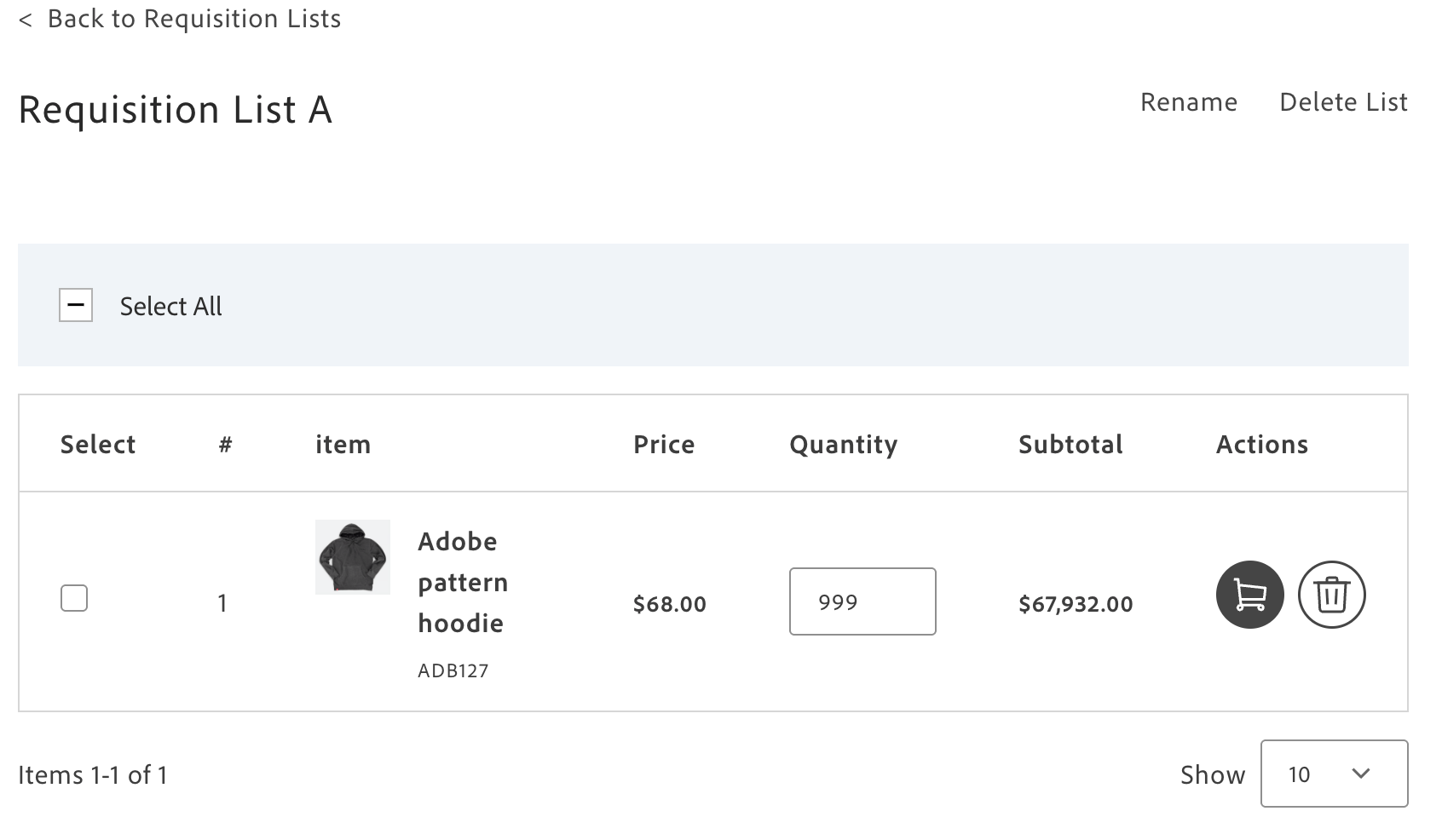
*RequisitionListView container*
Version: 1.2.0
## Configuration
The `RequisitionListView` container provides the following configuration options:
| Parameter | Type | Req? | Description |
|---|---|---|---|
| `requisitionListUid` | `string` | Yes | Specifies the UID of the requisition list to display. Must be a base64-encoded string. If an invalid UID is provided, renders the `NotFound` state. Fetches the requisition list data internally using this identifier. |
| `skipProductLoading` | `boolean` | No | Controls whether to skip automatic product data fetching on component mount. Set to true in test environments to prevent API calls or when product data is loaded externally. |
| `pageSize` | `number` | No | Sets the number of items displayed per page for pagination. Controls how many requisition list items appear in each page view. Defaults to DEFAULT_PAGE_SIZE if not specified. |
| `selectedItems` | `Set` | Yes | Provides a Set of selected item UIDs for batch operations. Tracks which items are selected for actions like adding to cart or deleting. Required to enable multi-select functionality. |
| `routeRequisitionListGrid` | `function` | No | Generates the URL for navigating back to the requisition list grid view. Use to implement breadcrumb navigation, back buttons, or custom routing logic that preserves query parameters or application state. |
| `fallbackRoute` | `string` | No | Sets the fallback URL to redirect when requisition lists are not enabled or unavailable. Defaults to '/`customer/account`'. Use to provide graceful degradation when B2B features are disabled. |
| `getProductData` | `function` | Yes | Fetches products by SKU from the catalog service. Takes an array of SKUs and returns an array of products with all their data. |
| `enrichConfigurableProducts` | `function` | Yes | Enriches the configurable products contained in requisition list items. Takes an array of items and returns the same array with configured product data attached. |
| `initialData` | `object` | No | Preloaded data for the model before backend data is fetched. Use for testing, SSR, or improving initial load. |
## Slots
This container does not expose any customizable slots.
## Usage
The following example demonstrates how to use the `RequisitionListView` container:
```js
await provider.render(RequisitionListView, {
requisitionListUid,
routeRequisitionListGrid: () => `/customer/requisition-lists`
})(block);
```
{/* This documentation is auto-generated from: https://github.com/adobe-commerce/storefront-requisition-list */}
---
# Requisition List Dictionary
The **Requisition List dictionary** contains all user-facing text, labels, and messages displayed by this drop-in. Customize the dictionary to:
- **Localize** the drop-in for different languages and regions
- **Customize** labels and messages to match your brand voice
- **Override** default text without modifying source code for the drop-in
Dictionaries use the **i18n (internationalization)** pattern, where each text string is identified by a unique key path.
Version: 1.2.0
## How to customize
Override dictionary values during drop-in initialization. The drop-in deep-merges your custom values with the defaults.
```javascript
await initialize({
langDefinitions: {
en_US: {
"RequisitionList": {
"containerTitle": {
"0": "Custom value",
"1": "Custom value"
}
}
}
}
});
```
You only need to include the keys you want to change. For multi-language support and advanced patterns, see the [Dictionary customization guide](https://experienceleague.adobe.com/developer/commerce/storefront/dropins/all/dictionaries/).
## Default keys and values
Below are the default English (`en_US`) strings provided by the **Requisition List** drop-in:
```json title="en_US.json"
{
"RequisitionList": {
"containerTitle": "Requisition Lists",
"RequisitionListWrapper": {
"name": "Name & Description",
"itemsCount": "Items",
"lastUpdated": "Latest activity",
"actions": "Actions",
"loginMsg": "Please login",
"deleteRequisitionListTitle": "Are you sure you want to delete this Requisition List?",
"deleteRequisitionListMessage": "Requisition List will be permanently deleted. This action can not be undone.",
"confirmAction": "Confirm",
"cancelAction": "Cancel",
"emptyList": "No Requisition Lists found"
},
"AddNewReqList": {
"addNewReqListBtn": "Add new Requisition List"
},
"RequisitionListItem": {
"actionUpdate": "Update",
"actionDelete": "Delete"
},
"RequisitionListForm": {
"actionCancel": "Cancel",
"actionSave": "Save",
"requiredField": "This is a required field.",
"nameMinLength": "Name must be at least {min} characters long.",
"nameInvalidCharacters": "Name contains invalid characters. Only letters, numbers, spaces, and basic punctuation are allowed.",
"floatingLabel": "Requisition List Name *",
"placeholder": "Requisition List Name",
"label": "Description",
"updateTitle": "Update Requisition List",
"createTitle": "Create Requisition List",
"addToRequisitionList": "Add to Requisition List"
},
"RequisitionListSelector": {
"addToNewRequisitionList": "Add to New Requisition List",
"addToSelected": "Add to Selected List"
},
"RequisitionListAlert": {
"errorCreate": "Error creating requisition list.",
"successCreate": "Requisition list created successfully.",
"errorAddToCart": "Error adding item to cart.",
"successAddToCart": "Item(s) added to cart successfully.",
"errorUpdateQuantity": "Error updating quantity.",
"successUpdateQuantity": "Item quantity updated successfully.",
"errorUpdate": "Error updating requisition list.",
"successUpdate": "Requisition list updated successfully.",
"errorDeleteItem": "Error deleting item.",
"successDeleteItem": "Item(s) deleted successfully.",
"errorDeleteReqList": "Error deleting requisition list.",
"successDeleteReqList": "Requisition list deleted successfully.",
"errorMove": "Error moving item(s) to cart.",
"successMove": "Item(s) successfully moved to cart.",
"partialMoveSuccess": "{successCount} product(s) successfully added and {failedCount} product(s) couldn't be added to your shopping cart.",
"errorAddToRequisitionList": "Error adding item(s) to requisition list.",
"successAddToRequisitionList": "Item(s) successfully added to requisition list."
},
"RequisitionListView": {
"actionDelete": "Delete",
"statusDeleting": "Deleting...",
"actionDeleteSelected": "Delete Selected",
"actionDeleteSelectedItems": "Delete selected items",
"actionSelect": "Select",
"actionSelectAll": "Select All",
"actionSelectNone": "Select None",
"actionAddToCart": "Add to Cart",
"statusAddingToCart": "Adding...",
"actionAddSelectedToCart": "Add Selected to Cart",
"statusBulkAddingToCart": "Adding to Cart...",
"actionUpdateQuantity": "Update",
"statusUpdatingQuantity": "Updating...",
"errorUpdateQuantity": "Error updating quantity",
"successUpdateQuantity": "Item quantity updated successfully.",
"actionBackToRequisitionListsOverview": "Back to requisition lists overview",
"actionBackToRequisitionLists": "Back to Requisition Lists",
"actionRename": "Rename",
"actionDeleteList": "Delete List",
"deleteListTitle": "Delete Requisition List?",
"deleteListMessage": "Are you sure you want to delete this requisition list? This action cannot be undone.",
"deleteItemsTitle": "Delete Item(s)?",
"deleteItemsMessage": "Are you sure you want to delete the selected item(s) from this requisition list? This action cannot be undone.",
"confirmAction": "Delete",
"cancelAction": "Cancel",
"emptyRequisitionList": " Requisition List is empty",
"productListTable": {
"headers": {
"productName": "Product name",
"sku": "SKU",
"price": "Price",
"quantity": "Quantity",
"subtotal": "Subtotal",
"actions": "Actions"
},
"itemQuantity": "Item quantity",
"outOfStock": "Out of stock",
"onlyXLeftInStock": "Only {count} left in stock"
},
"errorLoadPage": "Failed to load page",
"errorLoadingProducts": "Failed to load product data",
"notFoundTitle": "Requisition List Not Found",
"notFoundMessage": "The requisition list you are looking for does not exist or you do not have access to it.",
"notFoundActionLabel": "Back to Requisition Lists"
},
"RequisitionListsNotEnabled": {
"title": "Requisition Lists Not Available",
"message": "Requisition Lists are not available. Please contact your administrator for more information.",
"actionLabel": "Go to My Account"
},
"PageSizePicker": {
"show": "Show",
"itemsPerPage": "Items per page"
},
"PaginationItemsCounter": {
"itemsCounter": "Items {from}-{to} of {total}"
}
}
}
```
---
# Requisition List Events and Data
The **Requisition List** drop-in uses the [event bus](https://experienceleague.adobe.com/developer/commerce/storefront/sdk/reference/events/) to emit and listen to events for communication between drop-ins and external integrations.
Version: 1.2.0
## Events reference
{/* EVENTS_TABLE_START */}
| Event | Direction | Description |
|-------|-----------|-------------|
| [requisitionList/alert](#requisitionlistalert-emits-and-listens) | Emits and listens | Emitted when an alert or notification is triggered. |
| [requisitionList/data](#requisitionlistdata-emits-and-listens) | Emits and listens | Emitted when data is available or changes. |
| [requisitionList/initialized](#requisitionlistinitialized-emits-and-listens) | Emits and listens | Emitted when the component completes initialization. |
| [requisitionLists/data](#requisitionlistsdata-emits-and-listens) | Emits and listens | Emitted when data is available or changes. |
{/* EVENTS_TABLE_END */}
## Event details
The following sections provide detailed information about each event, including its direction, event payload, and usage examples.
### `requisitionList/alert` (emits and listens)
Emitted when the drop-in shows an alert or notification related to requisition list actions.
#### Event payload
```typescript
RequisitionListActionPayload
```
See [`RequisitionListActionPayload`](#requisitionlistactionpayload) for full type definition.
#### Example
```js
events.on('requisitionList/alert', (payload) => {
console.log('requisitionList/alert event received:', payload);
// Add your custom logic here
});
```
### `requisitionList/data` (emits and listens)
Triggered when data is available or changes. It emits and listens for updates to a single requisition list.
#### Event payload
```typescript
RequisitionList | null
```
See [`RequisitionList`](#requisitionlist) for full type definition.
#### Example
```js
events.on('requisitionList/data', (payload) => {
console.log('requisitionList/data event received:', payload);
// Add your custom logic here
});
```
### `requisitionList/initialized` (emits and listens)
Triggered when the component completes initialization.
#### Event payload
#### Example
```js
events.on('requisitionList/initialized', (payload) => {
console.log('requisitionList/initialized event received:', payload);
// Add your custom logic here
});
```
### `requisitionLists/data` (emits and listens)
Triggered when data is available or changes. It emits and listens for updates to the collection of requisition lists.
#### Event payload
```typescript
RequisitionList[] | null
```
See [`RequisitionList`](#requisitionlist) for full type definition.
#### Example
```js
events.on('requisitionLists/data', (payload) => {
console.log('requisitionLists/data event received:', payload);
// Add your custom logic here
});
```
## Data Models
The following data models are used in event payloads for this drop-in.
### RequisitionList
Used in: [`requisitionList/data`](#requisitionlistdata-emits-and-listens), [`requisitionLists/data`](#requisitionlistsdata-emits-and-listens).
```ts
interface RequisitionList {
uid: string;
name: string;
description: string;
updated_at: string;
items_count: number;
items: Item[];
page_info?: PageInfo;
}
```
### RequisitionListActionPayload
Used in: [`requisitionList/alert`](#requisitionlistalert-emits-and-listens).
```ts
interface RequisitionListActionPayload {
action: 'add' | 'delete' | 'update' | 'move';
type: 'success' | 'error';
context: 'product' | 'requisitionList';
skus?: string[]; // for product-related actions
message?: string[]; // for uncontrolled/custom messages
}
```
---
# Requisition List Functions
The Requisition List drop-in provides **12 API functions** for managing requisition lists and their items, including creating lists, adding/removing products, and managing list metadata.
Version: 1.3.0
| Function | Description |
| --- | --- |
| [`addProductsToRequisitionList`](#addproductstorequisitionlist) | Adds products to a requisition list. |
| [`addRequisitionListItemsToCart`](#addrequisitionlistitemstocart) | Adds the chosen items from a requisition list to the logged-in user's cart. |
| [`copyItemsBetweenRequisitionLists`](#copyitemsbetweenrequisitionlists) | Copies items from one requisition list to another for a logged-in user. |
| [`createRequisitionList`](#createrequisitionlist) | Creates a new requisition list with the name and description provided for the logged-in user. |
| [`deleteRequisitionList`](#deleterequisitionlist) | Deletes a requisition list identified by UID. |
| [`deleteRequisitionListItems`](#deleterequisitionlistitems) | Deletes items from a requisition list. |
| [`getRequisitionList`](#getrequisitionlist) | Returns information about the requested requisition list for the logged-in user. |
| [`getRequisitionLists`](#getrequisitionlists) | Returns the requisition lists for the logged-in user. |
| [`getStoreConfig`](#getstoreconfig) | Returns details about the store configuration. |
| [`moveItemsBetweenRequisitionLists`](#moveitemsbetweenrequisitionlists) | Moves items from one requisition list to another for a logged-in user. |
| [`updateRequisitionList`](#updaterequisitionlist) | Updates an existing requisition list with the name and description provided for the logged-in user. |
| [`updateRequisitionListItems`](#updaterequisitionlistitems) | Updates the items of an existing requisition list with the quantity and options provided for the logged-in user. |
## addProductsToRequisitionList
Adds products to a requisition list.
```ts
const addProductsToRequisitionList = async (
requisitionListUid: string,
requisitionListItems: Array
): Promise
```
| Parameter | Type | Req? | Description |
|---|---|---|---|
| `requisitionListUid` | `string` | Yes | The unique identifier for the requisition list to which products will be added. |
| `requisitionListItems` | `Array` | Yes | An array of product objects to add to the requisition list. Each object includes the product SKU, quantity, and optional configuration like parent SKU for configurable products, selected options (color, size), and entered options (custom text fields). |
### Events
Emits the `requisitionList/data` event.
### Returns
Returns [`RequisitionList`](#requisitionlist) or `null`.
## addRequisitionListItemsToCart
Adds the chosen items from a requisition list to the logged-in user's cart.
```ts
const addRequisitionListItemsToCart = async (
requisitionListUid: string,
requisitionListItemUids: Array
): Promise | null>
```
| Parameter | Type | Req? | Description |
|---|---|---|---|
| `requisitionListUid` | `string` | Yes | The unique identifier for the requisition list containing the items to add to the cart. |
| `requisitionListItemUids` | `Array` | Yes | An array of requisition list item UIDs to add to the cart. These are the unique identifiers for specific items within the list, not product SKUs. |
### Events
Does not emit any drop-in events.
### Returns
Returns `Array | null`.
## createRequisitionList
Creates a new requisition list with the name and description provided for the logged-in user.
```ts
const createRequisitionList = async (
name: string,
description?: string
): Promise
```
| Parameter | Type | Req? | Description |
|---|---|---|---|
| `name` | `string` | Yes | The display name for the new requisition list. This helps users identify and organize their lists (for example, `Office Supplies Q1`, `Weekly Inventory Restock`). |
| `description` | `string` | No | An optional text description providing additional context about the requisition list's purpose or contents (for example, `Monthly recurring orders for maintenance supplies`). |
### Events
Emits the `requisitionList/data` event.
### Returns
Returns [`RequisitionList`](#requisitionlist) or `null`.
## deleteRequisitionList
Deletes a requisition list identified by uid.
```ts
const deleteRequisitionList = async (
requisitionListUid: string
): Promise<{
items: RequisitionList[];
page_info: any;
status: any;
} | null>
```
| Parameter | Type | Req? | Description |
|---|---|---|---|
| `requisitionListUid` | `string` | Yes | The unique identifier for the requisition list to delete. This operation is permanent and removes the list and all its items. |
### Events
Emits the `requisitionLists/data` event.
### Returns
```ts
Promise<{
items: RequisitionList[];
page_info: any;
status: any;
} | null>
```
See [`RequisitionList`](#requisitionlist).
## deleteRequisitionListItems
Deletes items from a requisition list.
```ts
const deleteRequisitionListItems = async (
requisitionListUid: string,
items: Array,
pageSize: number,
currentPage: number,
enrichConfigurableProducts?: (items: Item[]) => Promise
): Promise
```
| Parameter | Type | Req? | Description |
|---|---|---|---|
| `requisitionListUid` | `string` | Yes | The unique identifier for the requisition list from which items will be removed. |
| `items` | `Array` | Yes | An array of requisition list item UIDs to remove. These are the unique identifiers returned in the list's items array, not product SKUs. |
| `pageSize` | `number` | Yes | The number of items to return per page in the updated requisition list response. |
| `currentPage` | `number` | Yes | The page number for pagination (1-indexed). Used to retrieve a specific page of items after deletion. |
| `enrichConfigurableProducts` | `items: Item[]` | No | See function signature above |
### Events
Emits the `requisitionList/data` event.
### Returns
Returns [`RequisitionList`](#requisitionlist) or `null`.
## getRequisitionList
Returns information about the requested requisition list for the logged-in user.
```ts
const getRequisitionList = async (
requisitionListID: string,
currentPage?: number,
pageSize?: number,
enrichConfigurableProducts?: (items: Item[]) => Promise
): Promise
```
| Parameter | Type | Req? | Description |
|---|---|---|---|
| `requisitionListID` | `string` | Yes | The unique identifier for the requisition list to retrieve. Returns the list metadata and all items. |
| `currentPage` | `number` | No | The page number for pagination (1-indexed). Defaults to page 1 if not specified. |
| `pageSize` | `number` | No | The number of items to return per page. Controls pagination of the requisition list items. |
| `enrichConfigurableProducts` | `items: Item[]` | No | See function signature above |
### Events
Emits the `requisitionList/data` event.
### Returns
Returns [`RequisitionList`](#requisitionlist) or `null`.
## getRequisitionLists
Returns the requisition lists for the logged-in user.
```ts
const getRequisitionLists = async (
currentPage?: number,
pageSize?: number,
listItemsPageSize?: number
): Promise
```
| Parameter | Type | Req? | Description |
|---|---|---|---|
| `currentPage` | `number` | No | The page number for pagination (1-indexed). Used to navigate through multiple pages of requisition lists. |
| `pageSize` | `number` | No | The number of requisition lists to return per page. Controls how many lists appear on each page. |
| `listItemsPageSize` | `number` | No | Sets how many items are loaded per list in each GraphQL request. The default is `100`. If a list has more than 100 items, additional requests are automatically made so users (like on a PDP “already on list” view) can see all items. |
### Events
Emits the `requisitionLists/data` event.
### Returns
Returns an array of [`RequisitionList`](#requisitionlist) objects or `null`.
## getStoreConfig
Returns details about the store configuration.
```ts
const getStoreConfig = async (): Promise
```
### Events
Does not emit any drop-in events.
### Returns
Returns `void`.
## updateRequisitionList
Updates an existing requisition list with the name and description provided for the logged-in user.
```ts
const updateRequisitionList = async (
requisitionListUid: string,
name: string,
description?: string,
pageSize?: number,
currentPage?: number,
enrichConfigurableProducts?: (items: Item[]) => Promise
): Promise
```
| Parameter | Type | Req? | Description |
|---|---|---|---|
| `requisitionListUid` | `string` | Yes | The unique identifier for the requisition list to update. |
| `name` | `string` | Yes | The new display name for the requisition list. Updates the list's title. |
| `description` | `string` | No | The new text description for the requisition list. Updates the list's purpose or context information. |
| `pageSize` | `number` | No | The number of items to return per page in the updated requisition list response. |
| `currentPage` | `number` | No | The page number for pagination (1-indexed) in the updated requisition list response. |
| `enrichConfigurableProducts` | `items: Item[]` | No | See function signature above |
### Events
Emits the `requisitionList/data` event.
### Returns
Returns [`RequisitionList`](#requisitionlist) or `null`.
## updateRequisitionListItems
Updates the items of an existing requisition list with the quantity and options provided for the logged-in user.
```ts
const updateRequisitionListItems = async (
requisitionListUid: string,
requisitionListItems: Array,
pageSize: number,
currentPage: number,
enrichConfigurableProducts?: (items: Item[]) => Promise
): Promise
```
| Parameter | Type | Req? | Description |
|---|---|---|---|
| `requisitionListUid` | `string` | Yes | The unique identifier for the requisition list containing the items to update. |
| `requisitionListItems` | `Array` | Yes | An array of requisition list items to update. Each object includes the item UID and the fields to modify (such as quantity, selected options, or entered options). |
| `pageSize` | `number` | Yes | The number of items to return per page in the updated requisition list response. |
| `currentPage` | `number` | Yes | The page number for pagination (1-indexed) in the updated requisition list response. |
| `enrichConfigurableProducts` | `items: Item[]` | No | See function signature above |
### Events
Emits the `requisitionList/data` event.
### Returns
Returns [`RequisitionList`](#requisitionlist) or `null`.
## moveItemsBetweenRequisitionLists
Moves items from one requisition list to another for a logged-in user.
```ts
const moveItemsBetweenRequisitionLists = async (
sourceRequisitionListUid: string,
destinationRequisitionListUid: string,
requisitionListItemUids: string[],
pageSize: number,
currentPage: number
): Promise
```
| Parameter | Type | Req? | Description |
|---|---|---|---|
| `sourceRequisitionListUid` | `string` | Yes | The unique identifier for the requisition list from which items will be moved. |
| `destinationRequisitionListUid` | `string` | Yes | The unique identifier for the requisition list to which items will be moved. |
| `requisitionListItemUids` | `string[]` | Yes | An array of requisition list item UIDs to move. These are the unique identifiers for specific items within the source list. |
| `pageSize` | `number` | Yes | The number of items to return per page in the updated requisition list responses. |
| `currentPage` | `number` | Yes | The page number for pagination (1-indexed) in the updated requisition list responses. |
### Events
Emits the `requisitionList/data` event for the source list after items are moved.
### Returns
Returns an object with the following structure, or `null` if the operation fails:
```ts
interface MoveItemsResult {
sourceList: RequisitionList | null;
destinationList: RequisitionList | null;
}
```
- `sourceList`: The updated source requisition list after items have been moved, or `null` if not available.
- `destinationList`: The updated destination requisition list after items have been added, or `null` if not available.
## copyItemsBetweenRequisitionLists
Copies items from one requisition list to another for a logged-in user.
```ts
const copyItemsBetweenRequisitionLists = async (
sourceRequisitionListUid: string,
destinationRequisitionListUid: string,
requisitionListItemUids: string[]
): Promise
```
| Parameter | Type | Req? | Description |
|---|---|---|---|
| `sourceRequisitionListUid` | `string` | Yes | The unique identifier for the requisition list from which items will be copied. |
| `destinationRequisitionListUid` | `string` | Yes | The unique identifier for the requisition list to which items will be copied. |
| `requisitionListItemUids` | `string[]` | Yes | An array of requisition list item UIDs to copy. These are the unique identifiers for specific items within the source list. |
### Events
Does not emit any drop-in events.
### Returns
Returns an object with the following structure, or `null` if the operation fails:
```ts
interface CopyItemsResult {
destinationList: RequisitionList | null;
}
```
- `destinationList`: The updated destination requisition list after items have been copied, or `null` if not available.
## Data Models
The following data models are used by functions in this drop-in.
### RequisitionList
The `RequisitionList` object is returned by the following functions: [`addProductsToRequisitionList`](#addproductstorequisitionlist), [`createRequisitionList`](#createrequisitionlist), [`deleteRequisitionList`](#deleterequisitionlist), [`deleteRequisitionListItems`](#deleterequisitionlistitems), [`getRequisitionList`](#getrequisitionlist), [`getRequisitionLists`](#getrequisitionlists), [`updateRequisitionList`](#updaterequisitionlist), [`updateRequisitionListItems`](#updaterequisitionlistitems), [`moveItemsBetweenRequisitionLists`](#moveitemsbetweenrequisitionlists), [`copyItemsBetweenRequisitionLists`](#copyitemsbetweenrequisitionlists).
```ts
interface RequisitionList {
uid: string;
name: string;
description: string;
updated_at: string;
items_count: number;
items: Item[];
page_info?: PageInfo;
}
```
{/* This documentation is auto-generated from the drop-in source repository: REPO_URL */}
---
# Requisition List overview
The Requisition List drop-in lets B2B customers manage requisition lists on Adobe Commerce storefronts. It supports multiple lists per account. Company users can add products to a list from product detail pages and product list pages.
## Supported Commerce features
The following table provides an overview of the Adobe Commerce features that the Requisition List drop-in supports:
| Feature | Status |
| ------- | ------ |
| Create and manage requisition lists | Supported |
| Multiple requisition lists per account | Supported |
| Add products from product pages | Supported |
| Add products from list pages | Supported |
| Requisition list item management | Supported |
| Update item quantities | Supported |
| Delete items and lists | Supported |
| Add list items to cart | Supported |
| Move items between lists | Supported |
| Copy items between lists | Supported |
| Batch item operations | Supported |
| Requisition list grid view | Supported |
| Customer authentication required | Supported |
| GraphQL API integration | Supported |
---
# Requisition List initialization
The **Requisition List initializer** configures the drop-in for managing saved product lists and recurring orders. Use initialization to customize how requisition list data is displayed and enable internationalization for multi-language B2B storefronts.
Version: 1.2.0
## Configuration options
The following table describes the configuration options available for the **Requisition List** initializer:
| Parameter | Type | Req? | Description |
|---|---|---|---|
| `langDefinitions` | [`LangDefinitions`](#langdefinitions) | No | Language definitions for internationalization (i18n). Override dictionary keys for localization or branding. |
## Default configuration
The initializer runs with these defaults when no configuration is provided:
```javascript title="scripts/initializers/requisition-list.js"
// All configuration options are optional
await initializers.mountImmediately(initialize, {
langDefinitions: {}, // Uses built-in English strings
models: {}, // Uses default data models
});
```
## Language definitions
Override dictionary keys for localization or branding. The `langDefinitions` object maps locale keys to custom strings that override default text for the drop-in.
```javascript title="scripts/initializers/requisition-list.js"
const customStrings = {
'AddToCart': 'Add to Bag',
'Checkout': 'Complete Purchase',
'Price': 'Cost',
};
const langDefinitions = {
default: customStrings,
};
await initializers.mountImmediately(initialize, { langDefinitions });
```
> For complete dictionary customization including all available keys and multi-language support, see the [Requisition List Dictionary](https://experienceleague.adobe.com/developer/commerce/storefront/dropins-b2b/requisition-list/dictionary/) page.
## Customizing data models
Extend or transform data models by providing custom transformer functions. Use the `models` option to add custom fields or modify existing data structures returned from the backend.
### Available models
The following models can be customized through the `models` configuration option:
| Model | Description |
|---|---|
| [`RequisitionListModel`](#requisitionlistmodel) | Transforms requisition list data from `GraphQL` including list details, items, quantities, and metadata. Use this to add custom fields or modify existing requisition list data structures. |
| [`RequisitionListItemModel`](#requisitionlistitemmodel) | Transforms requisition list item data including product details, quantities, and custom options. Use this to add custom fields or modify item data structures. |
The following example shows how to customize the `RequisitionListModel` model for the **Requisition List** drop-in:
```javascript title="scripts/initializers/requisition-list.js"
const models = {
RequisitionListModel: {
transformer: (data) => ({
// Add formatted last updated date
lastUpdatedDisplay: data?.updated_at ?
new Date(data.updated_at).toLocaleDateString() : null,
// Add total items summary
itemsSummary: `${data?.items_count || 0} items`,
// Add list description preview (first 50 chars)
descriptionPreview: data?.description ?
data.description.substring(0, 50) + '...' : null,
}),
},
};
await initializers.mountImmediately(initialize, { models });
```
## Configuration types
The following TypeScript definitions show the structure of each configuration object:
### langDefinitions
Maps locale identifiers to dictionaries of key-value pairs. The `default` locale is used as the fallback when no specific locale matches. Each dictionary key corresponds to a text string used in the drop-in UI.
```typescript
langDefinitions?: {
[locale: string]: {
[key: string]: string;
};
};
```
## Model definitions
The following TypeScript definitions show the structure of each customizable model:
### RequisitionListModel
```typescript
export interface RequisitionList {
uid: string;
name: string;
description: string;
updated_at: string;
items_count: number;
items: Item[];
page_info?: PageInfo;
}
export interface PageInfo {
page_size: number;
current_page: number;
total_pages: number;
}
```
### RequisitionListItemModel
```typescript
export interface Item {
uid: string;
sku: string;
product: Product;
quantity: number;
customizable_options?: {
uid: string;
is_required: boolean;
label: string;
sort_order: number;
type: string;
values: {
uid: string;
label: string;
price: { type: string; units: string; value: number };
value: string;
}[];
}[];
bundle_options?: {
uid: string;
label: string;
type: string;
values: {
uid: string;
label: string;
original_price: { value: number; currency: string };
priceV2: { value: number; currency: string };
quantity: number;
}[];
}[];
configurable_options?: {
option_uid: string;
option_label: string;
value_uid: string;
value_label: string;
}[];
links?: {
uid: string;
price?: number;
sample_url?: string;
sort_order?: number;
title?: string;
}[];
samples?: {
url?: string;
sort_order?: number;
title?: string;
}[];
gift_card_options?: {
amount?: { value?: number; currency?: string; };
custom_giftcard_amount?: { value?: number; currency?: string; };
message?: string;
recipient_email?: string;
recipient_name?: string;
sender_name?: string;
sender_email?: string;
};
}
export interface Product {
sku: string;
parent_sku: string;
name: string;
shortDescription: string;
metaDescription: string;
metaKeyword: string;
metaTitle: string;
description: string;
addToCartAllowed: boolean;
url: string;
urlKey: string;
externalId: string;
images: {
url: string;
label: string;
roles: string[];
}[];
}
```
---
# Requisition List Quick Start
Get started with the Requisition List drop-in to enable reusable product lists for repeat B2B ordering.
Version: 1.2.0
## Quick example
The Requisition List drop-in is included in the https://github.com/hlxsites/aem-boilerplate-commerce. This example shows the basic pattern:
```js
// 1. Import initializer (handles all setup)
// 2. Import the container you need
// 3. Import the provider
// 4. Render in your block
export default async function decorate(block) {
await provider.render(RequisitionListForm, {
// Configuration options - see Containers page
})(block);
}
```
**New to drop-ins?** See the [Using drop-ins](https://experienceleague.adobe.com/developer/commerce/storefront/dropins/all/quick-start/) guide for complete step-by-step instructions.
## Quick reference
**Import paths:**
- Initializer: `import '../../scripts/initializers/requisition-list.js'`
- Containers: `import ContainerName from '@dropins/storefront-requisition-list/containers/ContainerName.js'`
- Provider: `import { render } from '@dropins/storefront-requisition-list/render.js'`
**Package:** `@dropins/storefront-requisition-list`
**Version:** 1.2.0 (verify compatibility with your Commerce instance)
**Example container:** `RequisitionListForm`
## Learn more
- [Containers](https://experienceleague.adobe.com/developer/commerce/storefront/dropins-b2b/requisition-list/containers/) - Available UI components and configuration options
- [Initialization](https://experienceleague.adobe.com/developer/commerce/storefront/dropins-b2b/requisition-list/initialization/) - Customize initializer settings and data models
- [Functions](https://experienceleague.adobe.com/developer/commerce/storefront/dropins-b2b/requisition-list/functions/) - Control drop-in behavior programmatically
- [Events](https://experienceleague.adobe.com/developer/commerce/storefront/dropins-b2b/requisition-list/events/) - Listen to and respond to drop-in state changes
- [Slots](https://experienceleague.adobe.com/developer/commerce/storefront/dropins-b2b/requisition-list/slots/) - Extend containers with custom content
---
# Requisition List Slots
The Requisition List drop-in exposes slots for customizing specific UI sections. Use slots to replace or extend container components. For default properties available to all slots, see [Extending drop-in components](https://experienceleague.adobe.com/developer/commerce/storefront/dropins/all/extending/).
Version: 1.2.0
| Container | Slots |
|-----------|-------|
| [`RequisitionListGrid`](#requisitionlistgrid-slots) | `Header` |
## RequisitionListGrid slots
The slots for the `RequisitionListGrid` container allow you to customize its appearance and behavior.
```typescript
interface RequisitionListGridProps {
slots?: {
Header?: SlotProps;
};
}
```
### Header slot
The Header slot allows you to customize the header section of the `RequisitionListGrid` container.
#### Example
```js
await provider.render(RequisitionListGrid, {
slots: {
Header: (ctx) => {
// Your custom implementation
const element = document.createElement('div');
element.innerText = 'Custom Header';
ctx.appendChild(element);
}
}
})(block);
```
---
# Requisition List styles
Customize the Requisition List drop-in using CSS classes and design tokens. This page covers the Requisition List-specific container classes and customization examples. For comprehensive information about design tokens, responsive breakpoints, and styling best practices, see [Styling Drop-In Components](https://experienceleague.adobe.com/developer/commerce/storefront/dropins/all/styling/).
Version: 1.2.0
## Customization example
Add this to the CSS file of the specific https://github.com/hlxsites/aem-boilerplate-commerce/blob/main/blocks/ where you're using the Requisition List drop-in.
For a complete list of available design tokens (colors, spacing, typography, and more), see the [Design tokens reference](https://experienceleague.adobe.com/developer/commerce/storefront/dropins/all/styling/#design-tokens-reference).
```css title="styles/styles.css" del={2-2} ins={3-3}
.requisition-list-view__batch-actions {
--batch-actions-background: #f0f4f8;
--batch-actions-background: var(--color-brand-800);
}
```
## Container classes
The Requisition List drop-in uses BEM-style class naming. Use the browser DevTools to inspect elements and find specific class names.
```css
/* BatchActions */
.requisition-list-view__batch-actions {}
.requisition-list-view__batch-actions-buttons {}
.requisition-list-view__batch-actions-count-badge {}
.requisition-list-view__batch-actions-delete-icon {}
.requisition-list-view__batch-actions-left {}
.requisition-list-view__batch-actions-select-label {}
.requisition-list-view__batch-actions-select-toggle {}
.requisition-list-view__batch-actions-select-toggle--active {}
.requisition-list-view__bulk-actions {}
/* EmptyList */
.empty-list {}
/* NotFound */
.not-found {}
/* PageSizePicker */
.page-size-picker {}
.page-size-picker__label {}
.page-size-picker__select {}
/* PaginationItemsCounter */
.pagination-items-counter {}
/* ProductListTable */
.requisition-list-view-product-list-table-container {}
.requisition-list-view-product-list-table-container__submit-container {}
.requisition-list-view-product-list-table__checkbox {}
.requisition-list-view-product-list-table__discount-container {}
.requisition-list-view-product-list-table__index-container {}
.requisition-list-view-product-list-table__item-container {}
.requisition-list-view-product-list-table__item-details {}
.requisition-list-view-product-list-table__low-stock {}
.requisition-list-view-product-list-table__out-of-stock {}
.requisition-list-view-product-list-table__product-configurable-name {}
.requisition-list-view-product-list-table__product-name {}
.requisition-list-view-product-list-table__quantity {}
.requisition-list-view-product-list-table__sku {}
.requisition-list-view-product-list-table__thumbnail {}
/* RequisitionListActions */
.requisition-list-actions {}
.requisition-list-actions--selectable {}
.requisition-list-actions__title {}
/* RequisitionListForm */
.requisition-list-form {}
.requisition-list-form__actions {}
.requisition-list-form__form {}
.requisition-list-form__notification {}
.requisition-list-form__title {}
.requisition-list-form_progress-spinner {}
/* RequisitionListGridWrapper */
.dropin-button--tertiary {}
.requisition-list-empty-list {}
.requisition-list-grid-wrapper__actions {}
.requisition-list-grid-wrapper__add-new {}
.requisition-list-grid-wrapper__content {}
.requisition-list-grid-wrapper__list-header {}
.requisition-list-grid-wrapper__name__description {}
.requisition-list-grid-wrapper__name__title {}
.requisition-list-grid-wrapper__pagination {}
.requisition-list-grid-wrapper__pagination-picker {}
.requisition-list__alert-wrapper {}
/* RequisitionListHeader */
.requisition-list-header {}
.requisition-list-header__action-link {}
.requisition-list-header__actions {}
.requisition-list-header__back {}
.requisition-list-header__back-arrow {}
.requisition-list-header__back-link {}
.requisition-list-header__description {}
.requisition-list-header__main {}
.requisition-list-header__title {}
.requisition-list-header__title-section {}
/* RequisitionListModal */
.dropin-modal {}
.dropin-modal__body--full {}
.dropin-modal__body--medium {}
.dropin-modal__content {}
.dropin-modal__header-title {}
.dropin-modal__header-title-content {}
.requisition-list-modal {}
.requisition-list-modal--overlay {}
.requisition-list-modal__buttons {}
.requisition-list-modal__spinner {}
/* RequisitionListPicker */
.dropin-card--secondary {}
.dropin-card__content {}
.requisition-list-picker__form {}
.requisition-list-picker__actions {}
.requisition-list-picker__available-lists {}
/* RequisitionListSelector */
.requisition-list-actions {}
.requisition-list-modal {}
/* RequisitionListView */
.requisition-list-view__container {}
.requisition-list-view__loading {}
.requisition-list-view__pagination {}
.requisition-list-view__pagination-picker {}
```
For the source CSS files, see the https://github.com/adobe-commerce/storefront-requisition-list/tree/main/src.
---
# Event Bus
---
# Branding Drop-In Components
Branding with design tokens (CSS custom properties that define reusable design values such as color, type scale, spacing, shape, and layout.) is the quickest way to customize your storefront.
## Big picture
The following diagram shows a small branding change. When we override the default value of a single shape token, we override the default border-radius of the `Button` in the storefront's library components (Foundational UI pieces such as buttons and inputs that are composed into larger drop-in experiences.), which changes the look and feel of drop-in components that use it.
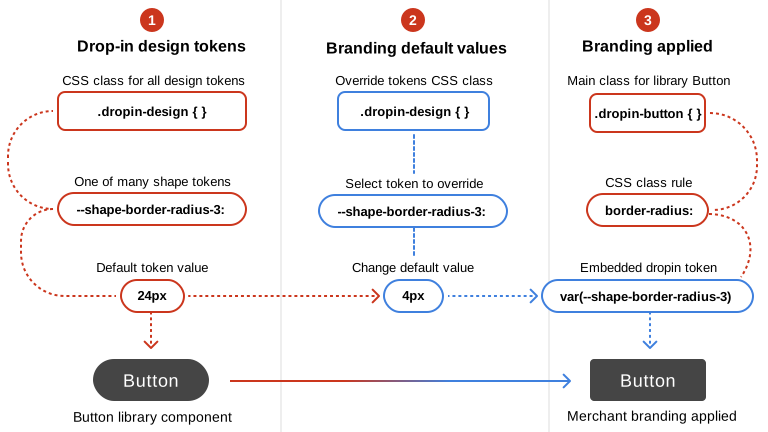
*How to override the drop-in design tokens.*
These token values come from the Adobe Commerce design system (The set of design tokens, base components, and conventions used to style Commerce storefront drop-ins.) and are picked up automatically by drop-in UI components.
## Examples
This example shows six design tokens with new values for three color and three shape tokens from the boilerplate's `styles/styles.css` file.
## Step-by-step
The following steps show how to override default token values to match your brand (Your storefront’s visual identity, including colors, typography, spacing, and shape choices.) colors, typography, spacing, shapes, and layouts (grids).
:::tip
**Tip:** Work on one category at a time.
For example, start with **typography**, then move on to **spacing**, **shapes**, **grids**, and finally **colors** (because they are typically the hardest to map to design tokens). Using this process ensures each brand category is completed and reviewed before moving on to the next.
:::
### 1. Open the `styles/styles.css` file.
From the root of your project, open the `styles/styles.css` file.
- scripts/
- **styles/** _CSS files for drop-in component design tokens, fonts, deferred styles_
- fonts.css _-- Default font styles_
- lazy-styles.css _-- Global styles loaded after LCP_
- **styles.css** _-- Global design tokens and CSS classes for site_
- tools/
### 2. Override typography tokens.
We suggest starting with typography overrides. Mapping a brand's typography to the available design tokens is typically straightforward. For example, https://www.nasa.gov/nasa-brand-center/brand-guidelines/#Typography specifies three font families:
- **Inter** for large display and heading text
- **Public Sans** for interfaces and body text
- **DM Mono** for numbers and small labels
:::tip
**Tip:** Download the fonts. For better performance, we recommend downloading your brand fonts and adding them to the `fonts/` directory. Then, update the `styles/fonts.css` file to import them for use in the design tokens. Use the default Roboto font as an example for adding your brand's fonts.
:::
After installing the fonts, you can map them to the storefront design tokens. The following example shows how you might override the default typography design tokens to match NASA's brand guidelines.
```css
:root,
.dropin-design {
--type-body-font-family: 'Public Sans', sans-serif;
--type-display-font-family: 'Inter', sans-serif;
--type-details-font-family: 'DM Mono', monospace;
--type-display-1-font: normal normal 300 60px/72px var(--type-display-font-family); /* Hero title */
--type-display-1-letter-spacing: 0.04em;
--type-display-2-font: normal normal 300 48px/56px var(--type-display-font-family); /* Banner title */
--type-display-2-letter-spacing: 0.04em;
--type-display-3-font: normal normal 300 34px/40px var(--type-display-font-family); /* Desktop & tablet section title */
--type-display-3-letter-spacing: 0.04em;
--type-headline-1-font: normal normal 400 24px/32px var(--type-display-font-family); /* Desktop & tablet page title */
--type-headline-1-letter-spacing: 0.04em;
--type-headline-2-default-font: normal normal 300 20px/24px var(--type-display-font-family); /* Rail title */
--type-headline-2-default-letter-spacing: 0.04em;
--type-headline-2-strong-font: normal normal 400 20px/24px var(--type-display-font-family); /* Mobile page and section title */
--type-headline-2-strong-letter-spacing: 0.04em;
--type-body-1-default-font: normal normal 300 16px/24px var(--type-body-font-family); /* Normal text paragraph */
--type-body-1-default-letter-spacing: 0.04em;
--type-body-1-strong-font: normal normal 400 16px/24px var(--type-body-font-family);
--type-body-1-strong-letter-spacing: 0.04em;
--type-body-1-emphasized-font: normal normal 700 16px/24px var(--type-body-font-family);
--type-body-1-emphasized-letter-spacing: 0.04em;
--type-body-2-default-font: normal normal 300 14px/20px var(--type-body-font-family);
--type-body-2-default-letter-spacing: 0.04em;
--type-body-2-strong-font: normal normal 400 14px/20px var(--type-body-font-family);
--type-body-2-strong-letter-spacing: 0.04em;
--type-body-2-emphasized-font: normal normal 700 14px/20px var(--type-body-font-family);
--type-body-2-emphasized-letter-spacing: 0.04em;
--type-button-1-font: normal normal 400 20px/26px var(--type-body-font-family); /* Primary button text */
--type-button-1-letter-spacing: 0.08em;
--type-button-2-font: normal normal 400 16px/24px var(--type-body-font-family); /* Small buttons */
--type-button-2-letter-spacing: 0.08em;
--type-details-caption-1-font: normal normal 400 12px/16px var(--type-details-font-family);
--type-details-caption-1-letter-spacing: 0.08em;
--type-details-caption-2-font: normal normal 300 12px/16px var(--type-details-font-family);
--type-details-caption-2-letter-spacing: 0.08em;
--type-details-overline-font: normal normal 700 12px/20px var(--type-details-font-family);
--type-details-overline-letter-spacing: 0.16em;
}
```
### 3. Continue with spacing, shapes, layouts, and colors.
Use the same process for overriding the spacing, shapes, grids, and color token values. Apply deeper styling (Visual customization of drop-ins through CSS overrides, token changes, and layout adjustments.) changes only after you have mapped the core tokens. With a company's brand guidelines, you can start discovering how to map brand categories to the design-token values you need to override. But it's not always straightforward. Mapping brand colors to the color token options can be challenging. This is when you will need to work closely with the design team to make decisions about which design tokens to override and how to map your brand colors to the available options.
## Summary
The process of branding drop-in components is typically fast and easy. Focus on one brand category at a time and work with your designers to solve the less obvious brand-to-token overrides.
---
# Commerce blocks and drop-ins
## Related documentation
- [Commerce Blocks Configuration](https://experienceleague.adobe.com/developer/commerce/storefront/merchants/blocks/) - Learn how to configure Commerce blocks using Document Authoring
- [Drop-in components](https://experienceleague.adobe.com/developer/commerce/storefront/dropins/all/introduction/) - Overview of all available drop-in components
The Adobe Commerce boilerplate includes 30 Commerce blocks that wrap drop-in components to provide ready-to-use e-commerce functionality. These blocks integrate drop-ins with Edge Delivery Services, making it easy to add commerce features to your storefront without writing custom code.
## Drop-ins used in Commerce blocks
The following table shows which drop-in components are used by each Commerce block:
| Drop-in | Commerce blocks |
|---------|---------------------------|
| **storefront-account** | Account Sidebar, Addresses, Customer Information, Orders List |
| **storefront-auth** | Confirm Account, Create Account, Create Password, Forgot Password, Login, Search Order, Wishlist |
| **storefront-cart** | Cart, Gift Options, Mini Cart, Order Product List |
| **storefront-checkout** | Checkout |
| **storefront-order** | Create Return, Customer Details, Order Comments, Order Cost Summary, Order Product List, Order Returns, Order Status, Returns List, Search Order, Shipping Status |
| **storefront-payment-services** | Checkout |
| **storefront-pdp** | Product Details |
| **storefront-product-discovery** | Product List Page |
| **storefront-recommendations** | Product Recommendations |
| **storefront-wishlist** | Cart, Wishlist, Product Details, Product List Page, Product Recommendations |
> The `@dropins/tools` package is a utility library required by all drop-in components, providing shared functionality like `fetch-graphql`, `event-bus`, and `initializer` utilities. It is not a drop-in component itself, but rather a dependency used by Commerce blocks that integrate drop-ins.
---
# Common events reference
Drop-ins use common events for cross-component communication, authentication management, localization, and error handling. These events provide a standard way for your storefront to communicate with drop-ins and coordinate behavior across the application.
> For conceptual information about the event system, see the [Events guide](https://experienceleague.adobe.com/developer/commerce/storefront/dropins/all/events/). For drop-in-specific events, refer to each drop-in's individual Events page.
## Events overview
| Event | Category | Used By | Description |
|-------|----------|---------|-------------|
| [authenticated](#authenticated) | Authentication | Most B2C & B2B drop-ins | Authentication state changes |
| [error](#error) | Error Handling | Most drop-ins | Error notifications |
| [locale](#locale) | Localization | All drop-ins | Language/locale changes |
---
## authenticated
Category: Authentication
Direction: Emitted by external source, Listened to by drop-ins
Used By: Cart, Checkout, Order, User Account, User Auth, Wishlist, and most B2B drop-ins
Fires when the user's authentication state changes (login, logout, token refresh, session expiration). Drop-ins listen to this event to update their internal state and UI based on the current authentication status.
### When to emit
Emit this event from your storefront when:
- An authentication token is refreshed
- The authentication state is restored (e.g., page refresh with active session)
- A session expires
- A user logs out
- A user successfully logs in
### Data payload
```typescript
boolean
```
The payload is a simple boolean value:
- `true` = User is authenticated
- `false` = User is not authenticated or has logged out
### Usage examples
**Emit when authentication changes:**
```javascript
// User logged in
events.emit('authenticated', true);
// User logged out
events.emit('authenticated', false);
```
**Listen for authentication changes:**
```javascript
const authListener = events.on('authenticated', (isAuthenticated) => {
if (isAuthenticated) {
console.log('User authenticated');
// Update UI, load user-specific data, etc.
} else {
console.log('User logged out');
// Clear user data, redirect to login, etc.
}
});
// Later, when you want to stop listening
authListener.off();
```
---
## error
Category: Error Handling
Direction: Emitted by drop-ins, Listened to by external code
Used By: Most drop-ins for error reporting
Fires when a drop-in encounters an error (API failure, validation error, network timeout). Your storefront should listen to this event to display error messages, log errors, or trigger error recovery logic.
### When emitted
Drop-ins emit this event when:
- API requests fail
- Critical operations fail
- Network errors occur
- Unexpected errors occur
- Validation fails
### Data payload
```typescript
{
message: string;
code?: string;
details?: any;
source?: string;
}
```
### Usage examples
**Listen for errors from drop-ins:**
```javascript
const errorListener = events.on('error', (error) => {
console.error('Drop-in error:', error.message);
// Display error to user
showErrorNotification(error.message);
// Log to error tracking service
if (window.Sentry) {
Sentry.captureException(error);
}
// Handle specific error codes
if (error.code === 'AUTH_EXPIRED') {
redirectToLogin();
}
});
// Later, when you want to stop listening
errorListener.off();
```
**Emit errors from custom code:**
```javascript
try {
// Your custom logic
await customOperation();
} catch (err) {
events.emit('error', {
message: 'Custom operation failed',
code: 'CUSTOM_ERROR',
details: err,
source: 'MyCustomComponent'
});
}
```
---
## locale
Category: Localization
Direction: Emitted by external source, Listened to by drop-ins
Used By: All drop-ins with internationalization support
Fires when the application's language or locale changes. Drop-ins listen to this event to update their text content, date formatting, currency display, and other locale-specific elements.
### When to emit
Emit this event from your storefront when:
- A user selects a different language
- The application detects and applies a locale based on user preferences
- The locale is programmatically changed
### Data payload
```typescript
string
```
The locale string should follow standard locale format (e.g., `en-US`, `fr-FR`, `de-DE`).
### Usage examples
**Emit when locale changes:**
```javascript
// User selects a new language
events.emit('locale', 'fr-FR');
// Or based on browser detection
const userLocale = navigator.language || 'en-US';
events.emit('locale', userLocale);
```
**Listen for locale changes:**
```javascript
const localeListener = events.on('locale', (newLocale) => {
console.log('Locale changed to:', newLocale);
// Update UI text, reload translations, etc.
updateTranslations(newLocale);
});
// Later, when you want to stop listening
localeListener.off();
```
---
# Creating Drop-In Components
This topic describes how to use the `drop-template` repository to create drop-in components for Adobe Commerce Storefronts.
## What are drop-in component templates?
Drop-in templates are GitHub Templates that allow you to quickly create drop-in components with the same structure, branches, files, and best practices built in. The `dropin-template` repository provides the starting point for creating new drop-ins quickly and consistently.
For more information on GitHub Templates, you can refer to the following resource: https://docs.github.com/en/repositories/creating-and-managing-repositories/creating-a-repository-from-a-template.
## How to use the Adobe Commerce drop-in template
:::note
Supported Node versions are: Maintenance (v20) and Active (v22).
:::
To create a new drop-in component using the Adobe Commerce drop-in template, follow these steps:
1. **Navigate to the Template Repository**: Go to https://github.com/adobe-commerce/dropin-template.
1. **Create a New Repository**: Click on the **Use this template** button to create a new repository based on the template. This will generate a new repository with the same directory structure and files as the template.
1. **Clone Your New Repository**: You can now clone the newly created repository to your local machine using `git clone`.
1. **Getting Started**: Follow the instructions below to install the dependencies, generate a configuration file, update your Mesh endpoint, generate your source files, and launch your development environment.
**Troubleshooting:**
- If you don't see the **Use this template** button, make sure you are logged into GitHub.
- If you get a "Permission denied" error, check your SSH keys or use HTTPS.
## Getting started
### 1. Install dependencies
Before you begin, make sure you have all the necessary dependencies installed. Run the following command to install all required packages:
```bash
npm install
```
**Troubleshooting:**
If you see errors about missing Node.js, install it from [nodejs.org](https://nodejs.org/).
### 2. Generate new config
Before you can start developing, you need to generate the `.elsie.js` config file. The Elsie CLI uses this file to generate new components, containers, and API functions in specified directories within your project.
To create a new configuration file, run the following command. Replace `` with the name of your new drop-in.
```bash
npx elsie generate config --name
```
After generating the `.elsie.js` config, open it and take a look. Below is an annotated version describing the main properties:
```javascript
module.exports = {
name: 'Login', // The name of your frontend. This name can be changed at any time.
api: {
root: './src/api', // Directory where the CLI will add all your generated API functions.
importAliasRoot: '@/login/api',
},
components: [
{
id: 'Components',
root: './src/components', // Directory where the CLI will add all your generated components.
importAliasRoot: '@/login/components',
cssPrefix: 'elsie',
default: true,
},
],
containers: {
root: './src/containers', // Directory where the CLI will add all your generated containers.
importAliasRoot: '@/login/containers',
},
};
```
**Troubleshooting:**
If `npx` is not found, ensure Node.js and npm are installed.
:::tip[More Info]
For more details on _Elsie CLI_ commands and their usage, visit this documentation page: https://experienceleague.adobe.com/developer/commerce/storefront/sdk/get-started/cli/.
:::
### 3. Explore the project structure
Understand where to find and place your code.
- .storybook/ *-- Best-practice Storybook configurations right out of the box*
- examples/
- html-host/ *-- Preconfigured HTML UI for testing your drop-in components*
- example.css
- favicon.ico
- index.html
- styles.css
- src/
- api/ *-- By default, the Elsie CLI adds your API functions here*
- data/ *-- Contains data models and type definitions*
- docs/ *-- Provides an MDX template to document your frontend*
- i18n/ *-- Internationalization setup with starter en_US.json file*
- render/ *-- Contains rendering utilities and provider functions*
- types/ *-- TypeScript type definitions and interfaces*
- tests/ *-- Unit tests and testing utilities*
- elsie.js *-- Configuration file for creating components, containers and functions*
- .env.sample *-- Preconfigured settings for a development-only mesh endpoint*
- .eslintrc.js *-- Preconfigured linting*
- .gitignore
- .jest.config.js *-- Preconfigured unit testing*
- LICENSE *-- Adobe Drop-in Template License*
- package.json *-- Preconfigured dependencies*
- prettier.config.js *-- Preconfigured formatting*
- README.md *-- Quick instructional overview of frontend development tasks*
- storybook-stories.js *-- Additional storybook settings*
- tsconfig.js *-- Preconfigured for TypeScript*
### 4. Update mesh/backend endpoint (for development only)
For development purposes, you will need to rename your `.env.sample` file to `.env` and update the new `.env` file with the correct mesh/backend endpoint. This file is used to store environment-specific configurations.
```sh
ENDPOINT="your-endpoint"
```
**Troubleshooting:**
If you see network errors when running the dev server, check your endpoint URL.
### 5. Start the development server
```bash
npm run dev
```
Congratulations! You just launched your frontend development environment. It's a preconfigured HTML page (`examples > html-host > index.html`) that loads your frontend components for testing during development:

*Frontend development environment*
Now you're ready to start building a composable frontend. Stop the server with `Ctrl + C` and let's get started.
### 6. Generate a new UI component
UI components in this codebase are primarily responsible for rendering the UI, handling presentation, and managing styling. To generate a new UI component, use the following command. Replace `` with the name of your component.
```bash
npx elsie generate component --pathname
```
**Make sure to use Pascal casing for the component name.**
For a login form, you might choose:
```bash
npx elsie generate component --pathname LoginForm
```
Let's take a quick look at the files that are generated for you:
```console
~/composable-login [main] » npx elsie generate component --pathname LoginForm
🆕 src/components/LoginForm/LoginForm.css created
🆕 src/components/LoginForm/LoginForm.stories.tsx created
🆕 src/components/LoginForm/LoginForm.test.tsx created
🆕 src/components/LoginForm/LoginForm.tsx created
🆕 src/components/LoginForm/index.ts created
🆕 src/components/index.ts created
~/composable-login [main] »
```
These files were not only generated with the appropriate names, but they are completely preconfigured to work together as a unit. For example, the `LoginForm` component was automatically imported into `src/components/index.ts` to let you start referencing the component throughout your project.
And if you run `npm run dev` again, you'll see your new component in the Storybook UI, configured with an example and best practices to help you get started with Storybook.
### 7. Generate a new frontend container
Containers handle business logic, state management, API calls, and data fetching using the components. They do not contain CSS or styling logic.
To create a new frontend container, use this command. Replace `` with the desired name of your frontend container.
**Make sure to use Pascal casing for the container name.**
```bash
npx elsie generate container --pathname
```
For a login form, you might choose:
```bash
npx elsie generate container --pathname LoginContainer
```
### 8. Generate a new API function
The API layer provides core functionalities like fetching, handling events, and GraphQL operations. This API is primarily consumed by a container.
If you need to add a new API function, run the following command. Replace `` with the desired name for your API function.
**Make sure to use camel casing for the API name.**
```bash
npx elsie generate api --pathname
```
For a login form, you might want to add `login` and `logout` functions as follows:
```bash
npx elsie generate api --pathname login
```
```bash
npx elsie generate api --pathname logout
```
**Location:**
Generated files will be placed in `src/components/`, `src/containers/`, and `src/api/` respectively
## Adding a shared component to your project
After creating your drop-in component, let's add a shared component from the Storefront SDK. These components are designed to be reusable and customizable, making it easier to build consistent and high-quality user interfaces. Follow the steps below to add a shared component to your drop-in component project.
### 1. Install the `@adobe-commerce/elsie` package
Run the following command to install the Storefront SDK package:
```bash
npm install @adobe-commerce/elsie
```
### 2. Use a shared component from the SDK
In your generated UI component, import a shared component from the Storefront SDK package and render it. For example, you can add the `Button` component as follows:
```javascript
import { Button } from '@adobe-commerce/elsie';
function MyUiComponent() {
return (
);
}
```
## Development and testing
These development tools help you preview components during your development process and ensure that your code is properly tested.
### I. Run unit tests
The commands to generate a component, container or an API, also create a `.test.tsx` file in their respective directories. These files are useful for unit testing.
To ensure your code is working as expected, you should run these unit tests to catch any issues early in the development process:
```bash
npm run test
```
This project is set up to use the Jest testing framework. Here are some useful resources:
- https://jestjs.io/docs/getting-started
- https://testing-library.com/docs/preact-testing-library/intro
### II. Build production bundles
Once you're ready to prepare your app for production, run the following command to build the production bundles:
```bash
npm run build
```
A dist/ directory with production-ready assets will be created.
### III. Storybook
Storybook is a tool used for developing and testing UI components in isolation. Once a container/component is created using one of the commands above, a `.stories.tsx` file is also created in the same directory as the component/container to preview the component/container.
Use `npm run storybook` to spin up the Storybook environment at `http://localhost:6006/`.
https://storybook.js.org/docs is the official Storybook documentation.
### IV. Sandbox environment
The Sandbox is an HTML file with minimal application setup to deploy your drop-in. It is useful for testing and integration between different pieces of your project.
To render your container in the sandbox, update the `examples/html-host/index.html` file.
Use `npm run serve` to spin up the Sandbox environment at `http://127.0.0.1:3000`.
## Understanding the drop-in sandbox environment
The following steps help you preview your drop-in in the Sandbox environment (`examples/html-host/index.html`).
### 1. Import map configuration
```html
```
This tells the browser:
- **Adobe Commerce tools**: `@dropins/tools/` (served from `https://cdn.jsdelivr.net/npm/@dropins/tools/`)
- **Your drop-in code**: `my-pkg/` (served from `http://localhost:3002/`)
> **Tip:** Replace `my-pkg/` with your drop-in's npm name, for example, `@dropins/cart/`.
> Add and edit other imports for your drop-in as needed.
### 2. Core imports
```javascript
// Import API functions to use with action buttons
// Replace `my-pkg` with `@dropins/YourDropin`
// or more specifically:
```
```javascript
// The event bus is a core communication tool for all drop-ins.
// They subscribe and publish to events to talk to each other without direct coupling.
```
*For Mesh-based Drop-ins (for example, Cart):*
```javascript
// GraphQL Client - For data fetching
// Initialize GraphQL Client (Mesh)
// Replace with your actual endpoint
mesh.setEndpoint('your-endpoint');
```
*For Direct API-based drop-ins (for example, Recommendations):*
```javascript
// Configure API
// Replace with your actual endpoint
pkg.setEndpoint('your-endpoint');
```
*Initializers*
The initializer is a lifecycle management system that handles the setup, configuration, and coordination of components in the application.
```javascript
```
### 3. Drop-in container setup
Uncomment and modify these lines to set up your container.
```javascript
// import { render as provider } from 'my-pkg/render.js';
// import from 'my-pkg/containers/.js';
```
For example:
```javascript
```
### Sandbox structure
The sandbox environment is divided into three main sections:
#### 1. Action Controls (Top)
Controls for triggering functionality:
```html
```
Example usage:
```javascript
const $action_1 = document.getElementById('action-1');
$action_1.addEventListener('click', () => {
console.log("action-1 has been clicked");
myFunction(); // or pkg.myFunction();
});
```
#### 2. Data/debug display (Middle)
Real-time data and response visualization:
```html
⏳ Loading...
```
Example usage:
```javascript
// Display event data
const $data = document.getElementById('data');
events.on('', (data) => {
$data.innerText = JSON.stringify(data, null, 2);
});
// Update loading state
$data.innerText = '⏳ Loading...';
```
#### 3. Container display (Bottom)
Where your drop-in components are rendered:
```html
Frontend Containers
```
Example usage:
```javascript
const $my_container = document.getElementById('my-container');
provider.render(Container, {
// Your container props
})($my_container);
```
:::tip[More Info]
For more details on the usage of _event bus_, _initializers_, and _render_, visit this documentation page: https://experienceleague.adobe.com/developer/commerce/storefront/sdk/reference/.
:::
### Styling the sandbox
The Sandbox environment is styled using two stylesheets:
- `style.css` which is the base styling file that handles root-level styles and variables as well as global element styles.
- `example.css` which is specifically for styling sandbox UI components.
## Best practices and accessibility
- Use meaningful names for components and API functions.
- Write tests for every component and function.
- Keep components small and focused.
- Document your code and update the MDX docs in `src/docs/`.
- Use Storybook to visually test components.
- Commit early and often; use branches for new features.
- Use clear, simple language in UI and documentation.
- Ensure all components are keyboard accessible.
- Add ARIA labels where appropriate.
- Test with screen readers.
**Common pitfalls:**
- Forgetting to create and update `.env` with the correct endpoint.
- Not running `npm install` after cloning.
- Skipping tests before building for production.
## Summary and next steps
You've learned how to:
- Set up a drop-in component project
- Generate and configure components, API functions, and containers
- Run and test your frontend locally
- Build for production
**Next Steps:**
- Explore advanced component patterns
- Integrate with real backend APIs
- Contribute to the [drop-in template repo](https://github.com/adobe-commerce/dropin-template)
---
# Dictionary Customization Guide
Every drop-in includes a **dictionary** with all user-facing text. Customize it to localize for different languages, match your brand voice, or override default text. The drop-in **deep-merges** your custom values with defaults—you only specify what you want to change.
> **Which guide do I need?** - **Using the boilerplate?** → See [Labels](https://experienceleague.adobe.com/developer/commerce/storefront/dropins/all/labeling/) for the placeholder system
- **Want conceptual understanding?** → You're in the right place (deep-merge behavior, multi-language patterns, advanced use cases)
- **Need specific drop-in keys?** → See individual dictionary pages: [Cart](https://experienceleague.adobe.com/developer/commerce/storefront/dropins/cart/dictionary/), [Checkout](https://experienceleague.adobe.com/developer/commerce/storefront/dropins/checkout/dictionary/), [Product Details](https://experienceleague.adobe.com/developer/commerce/storefront/dropins/product-details/dictionary/), etc.
## Quick start
1. **Find the dictionary keys:** Check your drop-in's dictionary page ([Cart](https://experienceleague.adobe.com/developer/commerce/storefront/dropins/cart/dictionary/), [Checkout](https://experienceleague.adobe.com/developer/commerce/storefront/dropins/checkout/dictionary/), and so on).
2. **Create your overrides:**
```javascript title="src/config/custom-dictionary.js"
export const customDictionary = {
Cart: {
MiniCart: {
heading: "Shopping Basket ({count})", // Only override what you want
cartLink: "View Basket"
}
}
};
```
3. **Pass it to `initialize()`:**
```javascript title="scripts/initializers/cart.js"
import { initializers } from '@dropins/tools/initializer.js';
import { initialize } from '@dropins/storefront-cart/api.js';
import { customDictionary } from '../config/custom-dictionary.js';
const langDefinitions = {
default: {
...customDictionary,
},
};
await initializers.mountImmediately(initialize, { langDefinitions });
```
> **Partial overrides only:** You don't need the entire dictionary. The drop-in deep-merges your values with the defaults, so specify only what you're changing.
## How deep merge works
Understanding the merge behavior is critical:
**✅ Override specific keys, keep all the defaults:**
```javascript
// Your dictionary:
{ Cart: { MiniCart: { heading: "My Cart" } } }
// Result (merged with defaults):
{
Cart: {
MiniCart: {
heading: "My Cart", // ← Your value
cartLink: "View Cart", // ← Default kept
checkoutLink: "Checkout" // ← Default kept
}
}
}
```
**✅ Nested objects merge recursively:**
```javascript
{
Cart: {
PriceSummary: {
promoCode: {
errors: {
invalid: "That code didn't work" // Only this changes
// All other errors stay default
}
}
}
}
}
```
## Multi-language support
Create dictionaries for each locale and load them dynamically:
### Setup
```javascript title="scripts/config/dictionaries/cart-en.js"
export const cartEN = {
Cart: { MiniCart: { heading: "Cart ({count})" } }
};
```
```javascript title="scripts/config/dictionaries/cart-fr.js"
export const cartFR = {
Cart: { MiniCart: { heading: "Panier ({count})" } }
};
```
### Load by locale
```javascript title="scripts/initializers/cart.js"
const userLocale = navigator.language.replace('-', '_');
const translations = { en_US: cartEN, fr_FR: cartFR };
const selectedLang = translations[userLocale] || cartEN;
const langDefinitions = {
default: {
...selectedLang,
},
};
await initializers.mountImmediately(initialize, { langDefinitions });
```
:::note
**Dynamic language switching**: To switch languages after initialization, you'll need to re-initialize the drop-in with the new `langDefinitions`. Store your translations and re-run the initialization code with the selected language.
:::
> Test the text length in all languages—longer translations may affect the UI layout.
## Advanced patterns
### Organize by drop-in
```
src/config/dictionaries/
cart.js
checkout.js
user-auth.js
```
```javascript title="scripts/initializers/cart.js"
const langDefinitions = {
default: {
...cartDictionary,
},
};
await initializers.mountImmediately(initialize, { langDefinitions });
```
### Use JSON
```json title="scripts/config/dictionaries/en_US.json"
{
"Cart": {
"MiniCart": {
"heading": "Cart ({count})"
}
}
}
```
```javascript title="scripts/initializers/cart.js"
const langDefinitions = {
default: {
...enUS,
},
};
await initializers.mountImmediately(initialize, { langDefinitions });
```
### Load from CMS
```javascript title="scripts/initializers/cart.js"
const translations = await fetch('/api/translations/cart/en_US')
.then(res => res.json());
const langDefinitions = {
default: {
...translations,
},
};
await initializers.mountImmediately(initialize, { langDefinitions });
```
---
## Best practices
1. **Keep placeholders** - Values with `{count}`, `{price}`, and so on, must keep these placeholders for dynamic data injection
2. **Use version control** - Track all custom dictionaries in Git
3. **Start small** - Override a few keys, test them, then iterate
4. **Document the changes** - Add comments explaining why certain values were customized
5. **Test the text length** - Longer translations can break the UI layouts
6. **Check for updates** - New drop-in versions may add dictionary keys
## Troubleshooting
**Custom values not appearing:**
- Verify that `langDefinitions` is passed to `initialize()`
- Check that the locale key matches exactly (`en_US` not `en-US`)
- Ensure that the dictionary structure matches the defaults
- Check the console for initialization errors
**Missing dynamic values (counts, prices):**
```javascript
// ❌ Bad
heading: "Shopping Cart"
// ✅ Good - keep {count} placeholder
heading: "Shopping Cart ({count})"
```
**Language not switching:**
Some components need to re-render after `setLang()`. Try refreshing the page or re-initializing the drop-in.
---
**Related:** [Initialization](https://experienceleague.adobe.com/developer/commerce/storefront/dropins/cart/initialization/) • [Labels](https://experienceleague.adobe.com/developer/commerce/storefront/dropins/all/labeling/) • [Branding](https://experienceleague.adobe.com/developer/commerce/storefront/dropins/all/branding/)
---
# Events
Drop-in components implement an event-driven architecture that uses the `@dropins/tools/event-bus.js` module to facilitate communication between components. This event system enables drop-ins to respond to application state changes, maintain loose coupling between components, and keep their state synchronized across your storefront.
> **Looking for the API reference?** For detailed API documentation including methods like `events.on()`, `events.emit()`, and advanced features like scoping, see the [Event Bus API Reference](https://experienceleague.adobe.com/developer/commerce/storefront/sdk/reference/events/).
## Event system architecture
The system uses a publish-subscribe pattern where components can:
1. **Subscribe** to specific events using `events.on()`
2. **Emit** events using `events.emit()`
3. **Unsubscribe** using `subscription.off()`
This pattern allows drop-ins to communicate without having direct dependencies on each other, making your storefront more modular and maintainable.
### Multiple storefront routes
> The bus coordinates drop-ins on the same loaded document. It does not send events from one full page navigation to the next. When the shopper moves from a cart route to a checkout route, the checkout document loads a new bus instance; cart continuity comes from Commerce (server-side cart) and from your storefront wiring that rehydrates the cart on the new page. The Commerce boilerplate persists the cart id when `cart/data` fires (`persistCartDataInSession` in the https://github.com/hlxsites/aem-boilerplate-commerce/blob/main/scripts/initializers/index.js) and imports the https://github.com/hlxsites/aem-boilerplate-commerce/blob/main/scripts/initializers/cart.js on startup. The checkout block listens on that new page's bus; see https://github.com/hlxsites/aem-boilerplate-commerce/blob/main/blocks/commerce-checkout/commerce-checkout.js for `cart/initialized` and related handlers. For a shorter introduction, read [How drop-ins coordinate on a page](https://experienceleague.adobe.com/developer/commerce/storefront/get-started/architecture/drop-ins-on-a-page/). For synchronous reads from code, see [Using drop-ins](https://experienceleague.adobe.com/developer/commerce/storefront/dropins/all/quick-start/) (`getCartDataFromCache`).
```mermaid
%%{init: {'theme':'base', 'themeVariables': { 'edgeLabelBackground':'#ffffff'}}}%%
graph LR
Cart(Cart Drop-in)
Checkout(Checkout Drop-in)
Auth(User Auth Drop-in)
EventBus(Event Bus)
Custom(Custom Code)
Cart -->|emits cart/updated| EventBus
EventBus -->|cart/updated| Checkout
Auth -->|emits authenticated| EventBus
EventBus -->|authenticated| Cart
EventBus -->|authenticated| Checkout
Custom -->|emits locale| EventBus
EventBus -->|locale| Cart
style EventBus fill:#fef3c7,stroke:#f59e0b,stroke-width:3px
style Cart fill:#dbeafe,stroke:#3b82f6,stroke-width:2px
style Checkout fill:#e0e7ff,stroke:#6366f1,stroke-width:2px
style Auth fill:#f3e8ff,stroke:#a855f7,stroke-width:2px
style Custom fill:#fce7f3,stroke:#ec4899,stroke-width:2px
```
Emits Only)
DropinB(Drop-in B
Listens Only)
DropinC(Drop-in C
Emits and Listens)
EventBus(Event Bus)
External1(Other
Components)
External2(Other
Components)
DropinA -->|emits| EventBus
EventBus -.->|listens| External1
External2 -->|emits| EventBus
EventBus -.->|listens| DropinB
DropinC -->|
emits| EventBus
EventBus -.->|listens| DropinC
linkStyle 0 stroke-width:2px
linkStyle 1 stroke-width:1.5px
linkStyle 2 stroke-width:2px
linkStyle 3 stroke-width:1.5px
linkStyle 4 stroke-width:2px
linkStyle 5 stroke-width:1.5px
style DropinA fill:#dbeafe,stroke:#3b82f6,stroke-width:2px
style DropinB fill:#e0e7ff,stroke:#6366f1,stroke-width:2px
style DropinC fill:#f3e8ff,stroke:#a855f7,stroke-width:2px
style EventBus fill:#fef3c7,stroke:#f59e0b,stroke-width:3px
style External1 fill:#f1f5f9,stroke:#64748b,stroke-width:1.5px
style External2 fill:#f1f5f9,stroke:#64748b,stroke-width:1.5px
`} caption="Three types of event flow: emits only (blue), listens only (indigo), and bidirectional (purple).">
> Each drop-in's event documentation clearly indicates which events it emits and which it listens to. This helps you understand the data flow in your storefront.
## Event subscription
Components subscribe to events to listen for and respond to the changes elsewhere in the application.
### Subscription syntax
To subscribe to an event, provide:
1. The **event name** (as a string)
2. An **event handler** callback function that receives the payload
3. Optional **configuration** parameters
```javascript
const subscription = events.on('event-name', handler, options);
```
### Subscription options
Event subscriptions support an optional configuration parameter:
- **`eager: true`**: The handler executes immediately if the event has been emitted previously
- **`eager: false`** (default): The handler only responds to future emissions of the event
See [Best Practices](#best-practices) for detailed guidance on using eager mode effectively.
### Example: Subscribing to an event
Listen to an initialization event:
```javascript
// Subscribe to the event
const subscription = events.on('cart/initialized', (data) => {
console.log('Cart initialized with data:', data);
// Handle the cart data
updateUI(data);
});
// Later, unsubscribe when no longer needed
subscription.off();
```
## Event emission
Components emit events to share information with other components, drop-ins, or external systems.
### Emission syntax
To emit an event, provide:
1. The **event name** (as a string)
2. The **payload** containing the data to share
```javascript
events.emit('event-name', payload);
```
### Example: Emitting an event
Emit an event when state changes:
```javascript
function updateCartQuantity(itemId, quantity) {
// Update the cart
const updatedCart = performCartUpdate(itemId, quantity);
// Notify other components about the change
events.emit('cart/updated', updatedCart);
}
```
---
## Common events reference
These three events are shared across multiple drop-ins. Your storefront code emits `authenticated` and `locale`; drop-ins emit `error` for your code to handle.
| Event | Category | Used By | Description |
|-------|----------|---------|-------------|
| [authenticated](#authenticated) | Authentication | Most B2C & B2B drop-ins | Authentication state changes |
| [error](#error) | Error Handling | Most drop-ins | Error notifications |
| [locale](#locale) | Localization | All drop-ins | Language/locale changes |
### authenticated
Category: Authentication
Direction: Emitted by an external source, listened to by drop-ins
Used By: Cart, Checkout, Order, User Account, User Auth, Wishlist, and most B2B drop-ins
Fires when the user's authentication state changes (login, logout, token refresh, session expiration). Drop-ins listen to this event to update their internal state and UI.
#### When to emit
Emit this event from your storefront when:
- An authentication token is refreshed
- The authentication state is restored (for example, page refresh with active session)
- A session expires
- A user logs out
- A user successfully logs in
#### Data payload
```typescript
boolean
```
`true` = user is authenticated. `false` = user is not authenticated or has logged out.
#### Usage examples
```javascript
// User logged in
events.emit('authenticated', true);
// User logged out
events.emit('authenticated', false);
```
```javascript
const authListener = events.on('authenticated', (isAuthenticated) => {
if (isAuthenticated) {
// Update UI, load user-specific data, etc.
} else {
// Clear user data, redirect to login, etc.
}
});
// Stop listening when no longer needed
authListener.off();
```
---
### error
Category: Error Handling
Direction: Emitted by drop-ins, external code listens
Used By: Most drop-ins for error reporting
Fires when a drop-in encounters an error (API failure, validation error, network timeout). Listen to this event to display error messages, log errors, or trigger error recovery logic.
#### When emitted
Drop-ins emit this event when:
- API requests fail
- Critical operations fail
- Network errors occur
- Validation fails
#### Data payload
```typescript
{
message: string;
code?: string;
details?: any;
source?: string;
}
```
#### Usage examples
```javascript
const errorListener = events.on('error', (error) => {
console.error('Drop-in error:', error.message);
showErrorNotification(error.message);
if (error.code === 'AUTH_EXPIRED') {
redirectToLogin();
}
});
errorListener.off();
```
---
### locale
Category: Localization
Direction: Emitted by external source, listened to by drop-ins
Used By: All drop-ins with internationalization support
Fires when the application's language or locale changes. Drop-ins listen to update their text content, date formatting, currency display, and other locale-specific elements.
#### When to emit
Emit this event from your storefront when:
- A user selects a different language
- The application detects and applies a locale based on user preferences
- The locale is programmatically changed
#### Data payload
```typescript
string
```
The locale string should follow standard format (for example, `en-US`, `fr-FR`, `de-DE`).
#### Usage examples
```javascript
// User selects a new language
events.emit('locale', 'fr-FR');
// Or based on browser detection
const userLocale = navigator.language || 'en-US';
events.emit('locale', userLocale);
```
```javascript
const localeListener = events.on('locale', (newLocale) => {
updateTranslations(newLocale);
});
localeListener.off();
```
---
## Best practices
### Use type-safe event names
Import event types when available to ensure you're using the correct event names:
```typescript
// TypeScript will validate the event name
events.on('cart/initialized', (data) => {
// ...
});
```
### Use eager mode wisely
Set `eager: true` when you need the current state immediately:
```javascript
// Good: Getting initial state on component mount
events.on('cart/data', (data) => {
initializeComponent(data);
}, { eager: true });
// Good: Only responding to future changes
events.on('cart/updated', (data) => {
updateComponent(data);
}, { eager: false });
```
### Keep handlers focused
Event handlers should be small and focused on a single responsibility:
```javascript
// Good: Focused handler
events.on('cart/updated', (cart) => {
updateCartBadge(cart.itemCount);
});
// Avoid: Handler doing too much
events.on('cart/updated', (cart) => {
updateCartBadge(cart.itemCount);
updateMiniCart(cart);
recalculateTotals(cart);
logAnalytics(cart);
// Too many responsibilities
});
```
### Use state management helpers
Use `events.lastPayload('')` to retrieve the most recent state without waiting for the next event:
```javascript
// Get current authentication state
const isAuthenticated = events.lastPayload('authenticated');
if (isAuthenticated) {
console.log('User is authenticated');
}
// Get current locale
const currentLocale = events.lastPayload('locale');
console.log('Current locale:', currentLocale);
```
### Handle errors gracefully
Always include error listeners in production applications to gracefully handle failures and provide helpful feedback to users.
---
## Event sources: External vs. Internal
Events can originate from different sources in your storefront:
**External events** are fired by:
- Your storefront application code (authentication, locale changes)
- Other drop-ins (cart updates affecting checkout)
- Third-party integrations (payment processors, analytics)
**Internal events** are fired by:
- Components within the same drop-in (checkout steps communicating with each other)
- Drop-in initialization and state management
Understanding whether an event is external or internal helps you determine:
- Where to emit the event in your custom code
- Which events you need to handle from your storefront
- How drop-ins coordinate internally vs. with the broader application
The following diagram illustrates this using the Checkout drop-in as an example:
Integrations)
end
subgraph EventBus["Event Bus"]
EB(Central Event Bus)
end
subgraph Checkout["Checkout"]
direction TB
Container1(Address Form)
Container2(Shipping Methods)
Container3(Payment Form)
Container4(Order Summary)
end
Storefront -->|authenticated, locale| EB
Cart -->|cart/initialized, cart/updated, cart/data| EB
ThirdParty -->|payment/complete| EB
EB -.->|External Events| Container1
EB -.->|External Events| Container2
EB -.->|External Events| Container3
EB -.->|External Events| Container4
Container2 ==>|Internal Events| Container4
Container3 ==>|Internal Events| Container4
linkStyle 3 stroke:#6366f1,stroke-width:1.5px
linkStyle 4 stroke:#6366f1,stroke-width:1.5px
linkStyle 5 stroke:#6366f1,stroke-width:1.5px
linkStyle 6 stroke:#6366f1,stroke-width:1.5px
linkStyle 7 stroke:#6366f1,stroke-width:3px
linkStyle 8 stroke:#6366f1,stroke-width:3px
style EventBus fill:#fef3c7,stroke:#f59e0b,stroke-width:2px
style Checkout fill:#e0e7ff,stroke:#6366f1,stroke-width:2px
style Storefront fill:#fce7f3,stroke:#ec4899,stroke-width:1.5px
style Cart fill:#fce7f3,stroke:#ec4899,stroke-width:1.5px
style ThirdParty fill:#fce7f3,stroke:#ec4899,stroke-width:1.5px
style EB fill:#fef3c7,stroke:#f59e0b,stroke-width:2px
style Container1 fill:#e0e7ff,stroke:#6366f1,stroke-width:1.5px
style Container2 fill:#e0e7ff,stroke:#6366f1,stroke-width:1.5px
style Container3 fill:#e0e7ff,stroke:#6366f1,stroke-width:1.5px
style Container4 fill:#e0e7ff,stroke:#6366f1,stroke-width:1.5px
`} caption="External events (thin dashed arrows) flow from outside sources through the Event Bus to the drop-in. Internal events (thick solid arrows) coordinate between containers within the same drop-in.">
The Checkout drop-in:
- **Listens to external events**: `authenticated`, `cart/initialized`, `cart/updated`, `cart/merged`, `cart/reset`, `cart/data`, `locale`
- **Uses internal events**: `checkout/initialized`, `checkout/updated`, `shipping/estimate` (for coordinating between its own containers)
## Event declaration
Events are strongly typed using TypeScript declaration merging to provide type safety and autocomplete support. Each drop-in declares its events by extending the `Events` interface from the event bus.
### Basic declaration
Here's a simplified example of how events are declared:
```typescript title="event-bus.d.ts"
declare module '@adobe-commerce/event-bus' {
interface Events {
'dropin/initialized': DataModel | null;
'dropin/updated': DataModel | null;
'dropin/data': DataModel;
authenticated: boolean;
locale: string;
error: { source: string; type: string; error: Error };
}
}
```
### Complete declaration example
In practice, drop-ins declare their events with imports and type extensions. Here's a more comprehensive example from the Checkout drop-in:
```typescript title="event-bus.d.ts"
declare module '@adobe-commerce/event-bus' {
interface Events {
'cart/initialized': CartModel | null;
'cart/updated': CartModel | null;
'cart/reset': void;
'cart/merged': { oldCartItems: any[] };
'checkout/initialized': CheckoutData | null;
'checkout/updated': CheckoutData | null;
'checkout/values': ValuesModel;
'shipping/estimate': ShippingEstimate;
authenticated: boolean;
error: { source: string; type: string; error: Error };
}
interface Cart extends CartModel {}
}
```
This pattern allows TypeScript to provide autocomplete and type checking for both event names and their payloads throughout your application.
---
## Next steps
- Review the [Event Bus API Reference](https://experienceleague.adobe.com/developer/commerce/storefront/sdk/reference/events/) for detailed API methods and code examples
- Check individual drop-in event pages for component-specific events
- Try drop-in tutorials for practical event usage examples
---
# Extend, substitute, or create?
You can build on the drop-ins Adobe provides in more than one way, and the path you pick changes how much is supported for you and how much you maintain yourself. The sections below step through the tradeoffs. Start with the recommended path, then read the others if your requirements rule it out.
## Choose your approach
### EXTEND
When you Extend (Customize existing drop-ins through supported extension points such as slots, events, styling, transformers, and configuration.) a drop-in, you keep the Adobe package and add behavior or UI through the extension levers the product exposes. This is the path that Adobe is set up to support and keep compatible across releases.
> **Recommended approach** Most needs are met with the levers in Extension methods below—without replacing the whole package or writing a new drop-in from scratch.
**Extend a drop-in if you need to:**
- Change how drop-ins look or behave
- Add custom content or UI elements
- Integrate third-party services (like payment methods)
- Respond to drop-in events with custom logic
- Modify how data is displayed or processed
**Note**: You can integrate third-party services using slots without replacing the entire drop-in. For example, integrate Stripe or PayPal payment methods into the Checkout drop-in rather than replacing the entire checkout flow.
#### Extension methods:
- **Slots (An extension point inside a drop-in where custom UI or behavior can be added, replaced, or removed.)** - Inject custom HTML/components at predefined points
- **Styling (Visual customization of drop-ins through CSS overrides, token changes, and layout adjustments.)** - Override CSS, modify layouts, replace components
- **Events (Data or lifecycle signals emitted by drop-ins that custom code can listen to in order to run additional behavior.)** - Listen to data events and add custom behavior
- **Configuration (Settings used to change behavior without rewriting core implementation logic.)** - Modify drop-in settings and options
- **Transformers (Functions that modify or shape data before a drop-in displays it.)** - Change how drop-ins process and display data
#### Benefits:
- Fully supported by Adobe
- Automatic compatibility with updates
- Lower maintenance overhead
- Access to new features and bug fixes
### SUBSTITUTE
Use Substitute (Replace an Adobe drop-in with a third-party implementation and own compatibility and maintenance responsibility.) when you will put a third-party solution (An external service or component used in place of a native Adobe drop-in implementation.) in place of the Adobe drop-in for that part of the experience, so you own integration, updates, and API compatibility—not when you only need a contained integration (for example, a payment provider you wire in while still extending the Checkout drop-in).
> **Proceed with caution** If you substitute, you are responsible for keeping compatibility with Commerce APIs and keeping up with changes yourself.
**Replace an Adobe drop-in with a full third-party solution if you have:**
- Complete solutions from a single provider (not just payment methods)
- Specialized functionality that doesn't align with Adobe's approach
- Legacy system integration requirements
- Provider-specific workflows requiring their complete UI and logic
#### Risks and responsibilities:
- **Maintenance burden** - You own all updates, bug fixes, and compatibility
- **API changes** - Must adapt to Commerce API changes independently
- **Feature gaps** - May miss out on new Commerce features
- **Support limitations** - Adobe cannot provide support for third-party code
### CREATE
The SDK (The Drop-in SDK used to build custom drop-ins and related integration logic.) is what you use to Create (Build a new drop-in from scratch when extension and substitution are not suitable for the required experience.) a new drop-in package. Reserve that for cases where you need a whole new feature surface that the existing family of drop-ins does not cover, and you can commit to owning it over time.
> **Early access considerations** The drop-in SDK is in early access, with limited third-party support. Before you invest, contact Adobe to discuss your use case in the https://discordapp.com/channels/1131492224371277874/1220042081209421945.
**Create a drop-in if you:**
- Have a use case that no existing drop-in addresses
- Are building entirely new functionality for multiple storefronts or brands
- Have the resources and expertise for long-term maintenance
## Boundaries and limitations
Drop-ins work best for certain types of functionality. Understanding these boundaries helps you choose the right approach:
#### Drop-ins excel at:
- Commerce-specific UI components (product displays, cart management, checkout flows)
- Data-driven interfaces that connect to Commerce APIs
- Reusable functionality across multiple storefronts
- Components that benefit from Commerce's styling and theming system
#### Consider alternatives for these use cases:
- Simple static content (use HTML/CSS instead)
- Third-party integrations with existing UI (use vendor scripts)
- Highly merchant-specific logic (use application-level code)
- Temporary A/B testing variants (use feature flags)
- Single-use, non-reusable customizations
## Need a new extension point?
If existing drop-ins don't provide the slots or events you need:
1. **Document your use case** - Explain what you're trying to achieve
1. **Identify the gap** - What specific slot or event is missing?
1. **Submit a request** - Share your requirements in the https://discordapp.com/channels/1131492224371277874/1220042081209421945
## FAQs
**Q: Why does Adobe recommend extending over building new drop-ins?**
Extending is fully supported, maintains compatibility with updates, and reduces maintenance overhead. Most customization needs can be met through extension without the risks associated with building from scratch or substituting drop-ins.
**Q: When is it acceptable to substitute a drop-in?**
Substitution is acceptable when you need complete solutions from a single provider, have specialized functionality that doesn't align with Adobe's approach, need legacy system integration, or require provider-specific workflows with their complete UI and logic. However, you become responsible for maintaining compatibility with Commerce APIs and handling all updates independently.
**Q: Is the drop-in SDK ready for production use?**
No. The SDK is currently in early access with limited third-party support and no timeline for full support. Contact Adobe before investing in custom drop-in development.
**Q: What extensibility options are available beyond slots?**
While slots are the primary mechanism, you can also:
- Use configuration options to customize behavior
- Change how drop-ins look or behave (styling and layouts)
- Respond to drop-in events with custom logic
- Modify transformers to change how drop-ins process data
**Q: How do I know if my use case requires a new drop-in?**
Follow the decision flow in this guide. Most needs can be met by extending existing drop-ins. Only consider building new drop-ins if you have a use case that no existing drop-in addresses, are building entirely new functionality for multiple storefronts or brands, and have the resources and expertise for long-term maintenance.
**Q: What happens if I substitute a drop-in and Commerce APIs change?**
You're responsible for updating your substitute to maintain compatibility. Adobe cannot provide support for third-party substitutes, and you may miss out on new features or security updates.
---
# Extending Drop-In Components
Drop-in components are designed to be flexible and extensible. This guide provides an overview of how to extend drop-in components to add new features, integrate with third-party services, and customize the user experience.
## Extend drop-ins with Commerce APIs
The following steps describe how to add existing Commerce API services to a drop-in. For example, the Commerce API provides the necessary endpoints to fetch and update gift messages through GraphQL, but the checkout drop-in doesn't provide this feature out of the box. We will extend the checkout drop-in by adding a UI for gift messages, use the Commerce GraphQL API to update the message data on the cart, and extend the cart drop-in to include the message data when it fetches the cart.
### Step-by-step
### 1. Add your UI to the drop-in
The first step is to create a UI for the feature and add it to the checkout drop-in. You can implement the UI however you want, as long as it can be added to the HTML DOM. For this example, we'll implement a web component (`GiftOptionsField`) that provides the form fields needed to enter a gift message. Here's an example implementation of the UI component:
```js title='gift-options-field.js'
const sdkStyle = document.querySelector('style[data-dropin="sdk"]');
const checkoutStyle = document.querySelector('style[data-dropin="checkout"]');
class GiftOptionsField extends HTMLElement {
static observedAttributes = ['cartid', 'giftmessage', 'fromname', 'toname', 'loading'];
constructor() {
super();
this.attachShadow({ mode: 'open' });
this._submitGiftMessageHandler = (event) => {
event.preventDefault();
}
}
set submitGiftMessageHandler(callback) {
this._submitGiftMessageHandler = callback;
}
connectedCallback() {
this._formTemplate = document.createElement('template');
this._formTemplate.innerHTML = `
Gift Message
`;
this.render();
}
attributeChangedCallback(name, oldValue, newValue) {
const toName = this.shadowRoot.querySelector('input[name="toName"]');
const fromName = this.shadowRoot.querySelector('input[name="fromName"]');
const giftMessage = this.shadowRoot.querySelector('textarea[name="giftMessage"]');
const cartId = this.shadowRoot.querySelector('input[name="cartId"]');
switch (name) {
case 'cartid':
cartId.value = newValue;
break;
case 'giftmessage':
giftMessage.value = newValue;
break;
case 'fromname':
fromName.value = newValue;
break;
case 'toname':
toName.value = newValue;
break;
case 'loading':
if (newValue) {
toName?.setAttribute('disabled', '');
fromName?.setAttribute('disabled', '');
giftMessage?.setAttribute('disabled', '');
} else {
toName?.removeAttribute('disabled');
fromName?.removeAttribute('disabled');
giftMessage?.removeAttribute('disabled');
}
break;
}
}
render() {
this.shadowRoot.innerHTML = '';
this.shadowRoot.appendChild(this._formTemplate.content.cloneNode(true));
this.shadowRoot.querySelector('input[name="cartId"]').value = this.getAttribute('cartId');
this.shadowRoot.querySelector('#gift-options-form').addEventListener('submit', this._submitGiftMessageHandler?.bind(this));
const submitWrapper = this.shadowRoot.querySelector('.submit-wrapper');
const fromNameWrapper = this.shadowRoot.querySelector('.fromName-wrapper');
const toNameWrapper = this.shadowRoot.querySelector('.toName-wrapper');
const giftMessageWrapper = this.shadowRoot.querySelector('.giftMessage-wrapper');
UI.render(Input,
{
type: "text",
name: "toName",
placeholder: "To name",
floatingLabel: "To name",
value: this.getAttribute('toName'),
disabled: !!this.hasAttribute('loading')
})(toNameWrapper);
UI.render(Input,
{
type: "text",
name: "fromName",
placeholder: "From name",
floatingLabel: "From name",
value: this.getAttribute('fromName'),
disabled: !!this.hasAttribute('loading')
})(fromNameWrapper);
UI.render(TextArea,
{
name: "giftMessage",
placeholder: "Message",
value: this.getAttribute('giftMessage'),
disabled: !!this.hasAttribute('loading')
})(giftMessageWrapper);
UI.render(Button,
{
variant: "primary",
children: "Add Message",
type: "submit",
enabled: true,
size: "medium",
disabled: !!this.hasAttribute('loading')
})(submitWrapper);
this.shadowRoot.appendChild(sdkStyle.cloneNode(true));
this.shadowRoot.appendChild(checkoutStyle.cloneNode(true));
}
}
customElements.define('gift-options-field', GiftOptionsField);
```
### 2. Render the UI into the checkout drop-in
Next, we need to render the `GiftOptionsField` component into the checkout page by creating the `gift-options-field` https://developer.mozilla.org/en-US/docs/Web/API/Web_components/Using_custom_elements.
```js
const GiftOptionsField = document.createElement('gift-options-field');
GiftOptionsField.setAttribute('loading', 'true');
```
Then, insert the custom element into the layouts defined on the checkout page. The following example updates the render function for mobile and desktop to insert the `giftOptionsField` element into the layouts.
```js title='commerce-checkout.js'
function renderMobileLayout(block) {
root.replaceChildren(
heading,
giftOptionsField,
...
);
block.replaceChildren(root);
}
function renderDesktopLayout(block) {
main.replaceChildren(
heading,
giftOptionsField,
...
);
block.replaceChildren(block);
}
```
### 3. Add handler for gift message submission
Now that we have the UI in place, we need to add a handler to save the gift message data. We'll use the `fetchGraphl()` function from the API to send a GraphQL mutation to set the gift message on the cart.
```js title='commerce-checkout.js'
giftOptionsField.submitGiftMessageHandler = async (event) => {
event.preventDefault();
const form = event.target;
const formData = new FormData(form);
const cartId = formData.get('cartId');
const fromName = formData.get('fromName');
const toName = formData.get('toName');
const giftMessage = formData.get('giftMessage');
giftOptionsField.setAttribute('loading', 'true');
console.log('form data', cartId, fromName, toName, giftMessage);
const giftMessageInput = {
from: fromName,
to: toName,
message: giftMessage,
}
fetchGraphQl(`
mutation SET_GIFT_OPTIONS($cartId: String!, $giftMessage: GiftMessageInput!) {
setGiftOptionsOnCart(input: {
cart_id: $cartId,
gift_message: $giftMessage
printed_card_included: false
}) {
cart {
id
gift_message {
from
to
message
}
}
}
}
`,
{
variables: {
cartId,
giftMessage: giftMessageInput,
},
}).then(() => {
refreshCart();
giftOptionsField.removeAttribute('loading');
});
};
```
### 4. Extend the data payload for the drop-in
To extend the data payload of a drop-in, first you need to update the GraphQL fragment used by the cart drop-in to request the additional field. This is done by modifying the `build.mjs` script at the root of your storefront project. In the following example, the `CART_FRAGMENT` fragment is extended to include the gift message data whenever the cart drop-in requests the cart data from GraphQL:
```js title='build.mjs'
/* eslint-disable import/no-extraneous-dependencies */
// Extend the cart fragment to include the gift message
overrideGQLOperations([
{
// The name of the drop-in to extend
npm: '@dropins/storefront-cart',
// Additional fields to include in the cart results (gift_message)
operations: [
`fragment CART_FRAGMENT on Cart {
gift_message {
from
to
message
}
}`
],
},
]);
```
When you run the install command, the `build.mjs` script generates a new GraphQL query for the cart drop-in that includes the `gift_message` data.
### 5. Add new data to the payload
Map the new GraphQL data to the payload data that the cart events provide to listeners so they can access the gift message values.
Configure the cart drop-in's initializer to add the new cart data to the existing cart payload. This is done by defining a transformer function on the CartModel. This function receives the GraphQL data and returns an object that gets merged with the rest of the cart payload. As an example, here is how it might be configured:
```js title='cart.js'
/* eslint-disable import/no-cycle */
initializeDropin(async () => {
await initializers.mountImmediately(initialize, {
models: {
CartModel: {
transformer: (data) => {
const { gift_message: giftMessage } = data;
return {
giftMessage,
}
}
}
}
});
})();
```
Now when the cart emits an event with cart data, the `giftMessage` data is included.
### 6. Retrieve the data and render it
Get the data from the cart event and use it to populate the gift message fields on the checkout page. Here's an example of how you might do this:
```js title='commerce-checkout.js'
// Event listener to hydrate the new fields with the cart data
events.on('cart/data', data => {
if (!data) return;
const { id, orderAttributes, giftMessage } = data;
// Update gift options fields
giftOptionsField.setAttribute('cartId', id);
if(giftMessage) {
giftOptionsField.setAttribute('giftmessage', giftMessage.message);
giftOptionsField.setAttribute('fromname', giftMessage.from);
giftOptionsField.setAttribute('toname', giftMessage.to);
}
giftOptionsField.removeAttribute('loading');
}, { eager: true });
```
### 7. Summary
After just a few changes, we were able to add a new feature to the checkout drop-in that allows users to add a gift message to their order. We added a new UI component, integrated the Commerce API to fetch and update gift messages, and extended the data payload for the drop-in to include the gift message data. You can apply these same concepts to any drop-in.
## Extendable fragments by drop-in
Each drop-in exports one or more `GraphQL` fragments that you can extend using `overrideGQLOperations` in your `build.mjs` file. Extending a fragment adds custom fields to the drop-in's existing queries without replacing them.
| Drop-in package | Fragment name | GraphQL type | Description |
|---|---|---|---|
| `@dropins/storefront-cart` | `CART_FRAGMENT` | `Cart` | Extends cart queries with additional fields on the `Cart` type. |
| `@dropins/storefront-checkout` | `CHECKOUT_DATA_FRAGMENT` | `Cart` | Extends checkout queries with additional fields on the `Cart` type. |
| `@dropins/storefront-order` | `GUEST_ORDER_FRAGMENT` | `CustomerOrder` | Extends unauthenticated guest order detail queries with additional fields on the `CustomerOrder` type. |
| `@dropins/storefront-order` | `CUSTOMER_ORDER_FRAGMENT` | `CustomerOrder` | Extends authenticated order detail queries with additional fields on the `CustomerOrder` type. |
| `@dropins/storefront-account` | `CUSTOMER_ORDER_FRAGMENT` | `CustomerOrder` | Extends the orders list query with additional fields on the `CustomerOrder` type. |
### Extending order and account queries
To add custom fields to order data, extend the fragments for the order and account drop-ins in your `build.mjs` file. The following example shows how to add a `custom_attribute` field to both the order detail and orders list pages:
```js title='build.mjs'
overrideGQLOperations([
{
npm: '@dropins/storefront-order',
operations: [
`fragment GUEST_ORDER_FRAGMENT on CustomerOrder {
custom_attribute
}`,
`fragment CUSTOMER_ORDER_FRAGMENT on CustomerOrder {
custom_attribute
}`,
],
},
{
npm: '@dropins/storefront-account',
operations: [
`fragment CUSTOMER_ORDER_FRAGMENT on CustomerOrder {
custom_attribute
}`,
],
},
]);
```
After updating `build.mjs`, run `npm install` to apply the fragment extensions. This needs to be re-run whenever you install new packages since it patches files inside `node_modules`.
> You can extend multiple drop-ins in a single `overrideGQLOperations` call. Each entry in the array targets a different drop-in package.
> The `returns` field on `CustomerOrder` cannot be extended via fragments because it requires query-specific arguments (like `pageSize`). To extend return data, use the model transformer approach instead.
### Mapping extended data with model transformers
After extending a `GraphQL` fragment, the response includes the new fields, but they are not automatically displayed. Use model transformers in the drop-in initializer to map the new fields into the drop-in data model.
To make `custom_attribute` available in the order drop-in's data model, add a model transformer in the initializer:
```js title='scripts/initializers/order.js'
await initializers.mountImmediately(initialize, {
models: {
OrderDataModel: {
transformer: (data) => ({
customAttribute: data?.custom_attribute,
}),
},
},
});
```
The transformer function receives the `GraphQL` response data and returns an object that the system merges into the existing data model. Only the fields you return are overridden; all other data renders normally.
> Each drop-in has its own set of customizable models. See the initialization page of each drop-in for the full list of available models:
- [Order initialization](https://experienceleague.adobe.com/developer/commerce/storefront/dropins/order/initialization/#customizing-data-models)
- [User Account initialization](https://experienceleague.adobe.com/developer/commerce/storefront/dropins/user-account/initialization/#customizing-data-models)
- [Cart initialization](https://experienceleague.adobe.com/developer/commerce/storefront/dropins/cart/initialization/#customizing-data-models)
- [Checkout initialization](https://experienceleague.adobe.com/developer/commerce/storefront/dropins/checkout/initialization/#customizing-data-models)
## Extend drop-ins with third-party components
The following steps guide you through adding a third-party component to a drop-in. We'll add a fictitious ratings & reviews component to the product details drop-in as an example.
### Prerequisites
- Third-party component API key. You typically need an API key to fetch data for the component.
- Familiarity with https://www.aem.live/docs/configuration.
### What you'll learn
- How to configure third-party API keys for use in drop-ins.
- How to use the `EventBus` to emit events and listen for events from the third-party component.
- How to delay loading large data sets from third-party components to improve page performance.
### Step-by-step
### 1. Add your third-party API key
Add your API key to your commerce configuration in your project's `config.json` file.
```json
{
"public": {
"default": {
"commerce-core-endpoint": "MY_ENDPOINT",
// other config...
"third-party-api-key": "THIRD_PARTY_API_KEY"
}
}
}
```
### 2. Fetch the API key
To fetch the API key, you need to import the `getConfigValue` function from the `configs.js` file. This function reads the API key from the config file and returns the value. You can then use this value to fetch data from the third-party service.
```js
export default async function decorate(block) {
// Fetch API key from the config file
const thirdPartyApiKey = await getConfigValue('third-party-api-key');
// Fetch the component data
setRatingsJson(product, thirdPartyApiKey);
}
```
### 3. Fetch the component data
After the page loads, your third-party component likely needs to fetch some data. In our case, our ratings & reviews component needs to fetch data from its rating service to display the star-rating for the product. After your API key is fetched (`thirdPartyApiKey`), you can trigger a call to the service's endpoint and use the EventBus to emit an event when the data is received.
```js
function setRatingsJson(product, thirdPartyApiKey) {
try {
fetch(`https://api.rating.service.com/products/${thirdPartyApiKey}/${product.externalId}/bottomline`).then(e => e.ok ? e.json() : {}).then(body => {
const { average_score, total_reviews } = body?.response?.bottomline || {};
setHtmlProductJsonLd({
aggregateRating: {
'@type': 'AggregateRating',
ratingValue: average_score || 0,
reviewCount: total_reviews || 0,
}
});
events.emit('eds/pdp/ratings', {average: average_score, total: total_reviews});
});
} catch (error) {
console.log(`Error fetching product ratings: ${error}`);
setHtmlProductJsonLd({
aggregateRating: {
'@type': 'AggregateRating',
ratingValue: 0,
reviewCount: 0,
}
});
events.emit('eds/pdp/ratings', {average: 0, total: 0});
}
}
```
### 4. Render the component
To ensure the least amount of CLS, we'll make sure we don't render the component until after its data is returned. To do this, we need to add an event listener for the third-party component's event. This strategy, along with reserving a predefined space for the component, will minimize CLS. Here's an example implementation for our third-party ratings component:
```js
events.on('eds/pdp/ratings', ({ average, total }) => {
// Title slot logic
const titleSlotElement = document.querySelector('.title-slot');
// Optionally reserve space for the star rating to avoid CLS
// e.g., setting a placeholder element or CSS min-height
// Render star rating
titleSlotElement.innerHTML = `
Average Rating: ${average.toFixed(1)}(${total} reviews)
`;
});
```
### 5. Delay loading large data sets
Components like ratings & reviews typically load large blocks of text to display a product's reviews. In such cases, we need to ensure that those reviews are not loaded until the user scrolls near the reviews section or clicks a "View All Reviews" button. This strategy keeps the First Contentful Paint (FCP) and Cumulative Layout Shift (CLS) scores low.
The following example uses an Intersection Observer to load reviews only when a user scrolls near the reviews section or clicks "View All Reviews".
```js
// Trigger the delayed load when the user scrolls near the reviews section or clicks "View All Reviews"
const reviewsSection = document.getElementById('reviews-section');
const loadReviews = () => {
// Fetch or render the full reviews only when needed
fetch(`/path/to/full-reviews?apiKey=${YOUR_API_KEY}&productId=${PRODUCT_ID}`)
.then(response => response.json())
.then(data => {
reviewsSection.innerHTML = data.reviewsHtml;
})
.catch(console.error);
};
// Event listener approach for a "View All Reviews" button
document.getElementById('view-reviews-btn').addEventListener('click', loadReviews);
// OR intersection observer approach to load when user scrolls near the section
const observer = new IntersectionObserver((entries) => {
entries.forEach(entry => {
if (entry.isIntersecting) {
loadReviews();
observer.disconnect();
}
});
}, { threshold: 0.1 });
observer.observe(reviewsSection);
```
### 6. Summary
Throughout this tutorial, we examined the key steps of integrating a fictitious third-party component. We learned how to configure API keys, fetch data, and delay loading data sets to improve page performance. You can apply these same concepts to any drop-in.
---
# Introduction to Drop-In Components
At this point in the onboarding path, you should already have a locally running boilerplate storefront. This page explains the drop-in system you'll be working with — what every drop-in is made of, which drop-ins are available, and what you can customize. The next page, [Using drop-ins](https://experienceleague.adobe.com/developer/commerce/storefront/dropins/all/quick-start/), shows the code pattern you write in each block.
## What is a drop-in component?
A drop-in component is a ready-made npm package that provides the complete user interface and Commerce logic for one shopper job — cart, checkout, product detail, user sign-in, and so on. The boilerplate ships with all B2C drop-ins pre-installed. You wire them up; you do not build them from scratch.
## Anatomy of a drop-in
Every drop-in has three parts. Understanding these three parts is the key to reading and writing Commerce block code.
| Part | What it is | Where you find it |
|---|---|---|
| npm package | The published code for that drop-in | `node_modules/@dropins/storefront-*` and `package.json` |
| Initializer | A JavaScript file that configures the drop-in once — sets the GraphQL endpoint, loads placeholder text, and registers the drop-in | `scripts/initializers/.js` |
| Containers | The individual UI panels that the drop-in exposes for you to place on a page | Imported from `@dropins/storefront-*/containers/` |
When you open a Commerce block file in the boilerplate, you will see all three of these parts: an import of the initializer, an import of a container, and a call that renders the container into a `div` on the page. [Using drop-ins](https://experienceleague.adobe.com/developer/commerce/storefront/dropins/all/quick-start/) shows exactly how those three lines fit together.
> **The boilerplate already has this wired** If you are working from the Commerce boilerplate, the initializer files already exist in `scripts/initializers/` and the npm packages are already installed. You can open any Commerce block to see a real example before you write your own.
## Available drop-ins
The tables below list every available drop-in. Click a drop-in name to open its reference page, which includes its containers, props, slots, and events.
### B2C drop-ins
| Drop-in | Description |
| ------- | ----------- |
| [Cart](https://experienceleague.adobe.com/developer/commerce/storefront/dropins/cart/) | Summary of items in the cart; view and manage cart contents, update quantities, and proceed to checkout. |
| [Checkout](https://experienceleague.adobe.com/developer/commerce/storefront/dropins/checkout/) | Streamlined process for completing a purchase: shipping and payment information, order review, and confirmation. |
| [Order](https://experienceleague.adobe.com/developer/commerce/storefront/dropins/order/) | Tools and containers to manage and display order-related data across pages; supports customer accounts and guest workflows. |
| [Payment Services](https://experienceleague.adobe.com/developer/commerce/storefront/dropins/payment-services/) | Renders the credit card form and Apple Pay button for payment details; supports credit/debit cards and Apple Pay. |
| [Personalization](https://experienceleague.adobe.com/developer/commerce/storefront/dropins/personalization/) | Displays content conditionally based on Adobe Commerce customer groups, segments, and cart price rules. |
| [Product Details](https://experienceleague.adobe.com/developer/commerce/storefront/dropins/product-details/) | Detailed product information: SKUs, pricing, descriptions, options; supports internationalization and accessibility. |
| [Product Discovery](https://experienceleague.adobe.com/developer/commerce/storefront/dropins/product-discovery/) | Search results, category listings, and faceted navigation so customers can find and explore products. |
| [Recommendations](https://experienceleague.adobe.com/developer/commerce/storefront/dropins/recommendations/) | Suggests products from browsing patterns (e.g. "Customers who viewed this also viewed"); manageable from Adobe Commerce Admin. |
| [User Account](https://experienceleague.adobe.com/developer/commerce/storefront/dropins/user-account/) | Personalized experience: order history, account settings, and other account-related features. |
| [User Authentication](https://experienceleague.adobe.com/developer/commerce/storefront/dropins/user-auth/) | Sign up, sign in, and log out; supports account confirmation, password reset, and optional ReCAPTCHA. |
| [Wishlist](https://experienceleague.adobe.com/developer/commerce/storefront/dropins/wishlist/) | Lets guests and registered customers save products to purchase later. |
### B2B drop-ins
Business-to-business (B2B) drop-ins cover workflows such as company administration, negotiable quotes, and purchase orders. You wire them up with the same three parts as in [Anatomy of a drop-in](#anatomy-of-a-drop-in): npm package, initializer, and containers. Enable B2B features on your Commerce instance so the APIs and company data these packages expect are available.
| Drop-in | Description |
| ------- | ----------- |
| [Company Management](https://experienceleague.adobe.com/developer/commerce/storefront/dropins-b2b/company-management/) | Company profile management, role-based permissions, legal address and contact information. |
| [Company Switcher](https://experienceleague.adobe.com/developer/commerce/storefront/dropins-b2b/company-switcher/) | Switch between multiple companies a user is associated with; company context and GraphQL header management. |
| [Purchase Order](https://experienceleague.adobe.com/developer/commerce/storefront/dropins-b2b/purchase-order/) | Purchase order workflows, approval rules, and purchase order history for B2B transactions. |
| [Quote Management](https://experienceleague.adobe.com/developer/commerce/storefront/dropins-b2b/quote-management/) | Negotiable quotes: request, negotiation, approval, and tracking for B2B customers. |
| [Quick Order](https://experienceleague.adobe.com/developer/commerce/storefront/dropins-b2b/quick-order/) | Bulk ordering by SKU, search, and CSV upload; Grid Ordering for configurable products on PDP. |
| [Requisition List](https://experienceleague.adobe.com/developer/commerce/storefront/dropins-b2b/requisition-list/) | Create and manage requisition lists for repeat and bulk ordering; multiple lists per account. |
## What you can customize
Each drop-in exposes several layers of customization. Most projects need only the first two. The rest exist for cases where configuration alone is not enough.
The table below shows every approach with links to the details.
| Approach | Description |
| -------- | ----------- |
| [Design tokens](https://experienceleague.adobe.com/developer/commerce/storefront/dropins/all/branding/) | Override Adobe Commerce design tokens (colors, typography, spacing, shapes) for quick, global brand changes. |
| [CSS classes](https://experienceleague.adobe.com/developer/commerce/storefront/dropins/all/styling/) | Override or add CSS classes to restyle specific areas of a drop-in beyond what tokens provide. |
| [Slots](https://experienceleague.adobe.com/developer/commerce/storefront/dropins/all/slots/) | Use built-in extension points to add or replace UI and behavior in drop-in components. |
| [Content enrichment](https://experienceleague.adobe.com/developer/commerce/storefront/merchants/content-customizations/enrichment/) | Add content above or below commerce blocks by product SKU, category, and the physical position on the page. |
| [Localization](https://experienceleague.adobe.com/developer/commerce/storefront/dropins/all/labeling/) | Use the placeholder system to override default drop-in text and support multiple languages. |
| [Dictionaries](https://experienceleague.adobe.com/developer/commerce/storefront/dropins/all/dictionaries/) | Customize drop-in dictionaries (deep-merge) for localization, branding, and multi-language support. |
| [Extending](https://experienceleague.adobe.com/developer/commerce/storefront/dropins/all/extending/) | Add new features and Commerce API integrations to existing drop-ins (for example, gift messages in checkout). |
| [Layouts](https://experienceleague.adobe.com/developer/commerce/storefront/dropins/all/layouts/) | Configure where drop-in containers appear on the page via HTML fragments and block layout. |
| [Localizing links](https://experienceleague.adobe.com/developer/commerce/storefront/dropins/all/linking/) | Manage localized internal links in the boilerplate so users stay within their chosen locale. |
| [Extend, substitute, or create?](https://experienceleague.adobe.com/developer/commerce/storefront/dropins/all/extend-or-create/) | Decide when to extend an existing drop-in, substitute with a third-party solution, or create a new one. |
## What's next
You now know what every drop-in is made of, and which ones are available. The next step is writing the code. [Using drop-ins](https://experienceleague.adobe.com/developer/commerce/storefront/dropins/all/quick-start/) shows the three-line pattern — import the initializer, import a container, render it with a complete working example.
---
# Labeling and Localizing Drop-In Components
The Commerce Boilerplate provides a placeholder system that lets merchants handle labeling (Customizing UI text labels for tone, branding, or clarity while staying in the same language.) without code. Learn to implement placeholder files (JSON files that store storefront UI labels by drop-in and locale so merchants can change text without changing code.) to override default text in drop-in components.
> **Merchant vs Developer guides** **Merchants translating content:** See [Commerce localization tasks](https://experienceleague.adobe.com/developer/commerce/storefront/merchants/quick-start/content-localization-commerce-tasks/) for step-by-step guidance on localizing (Adapting UI text and formatting for specific languages and regions, including translated labels and locale-specific conventions.) placeholder files for different locales.
**Developers implementing the system:** This guide explains how placeholder files integrate with drop-in dictionaries using `langDefinitions` language objects (Objects such as `langDefinitions` that map translation keys to localized UI text values.). For advanced customization beyond the placeholder system, see the [Dictionary customization guide](https://experienceleague.adobe.com/developer/commerce/storefront/dropins/all/dictionaries/).
## Big picture
Labeling drop-in components in the storefront involves two files:
1. The **placeholders files** that provide the default drop-in component UI labels that merchants can quickly update as needed.
2. The **drop-in block** (examples, `product-details.js`, `cart.js`) where you add code to fetch, map, and override the drop-in component dictionary at runtime.
The following diagram shows the process for adding and overriding labels and text for drop-in components within the boilerplate template.
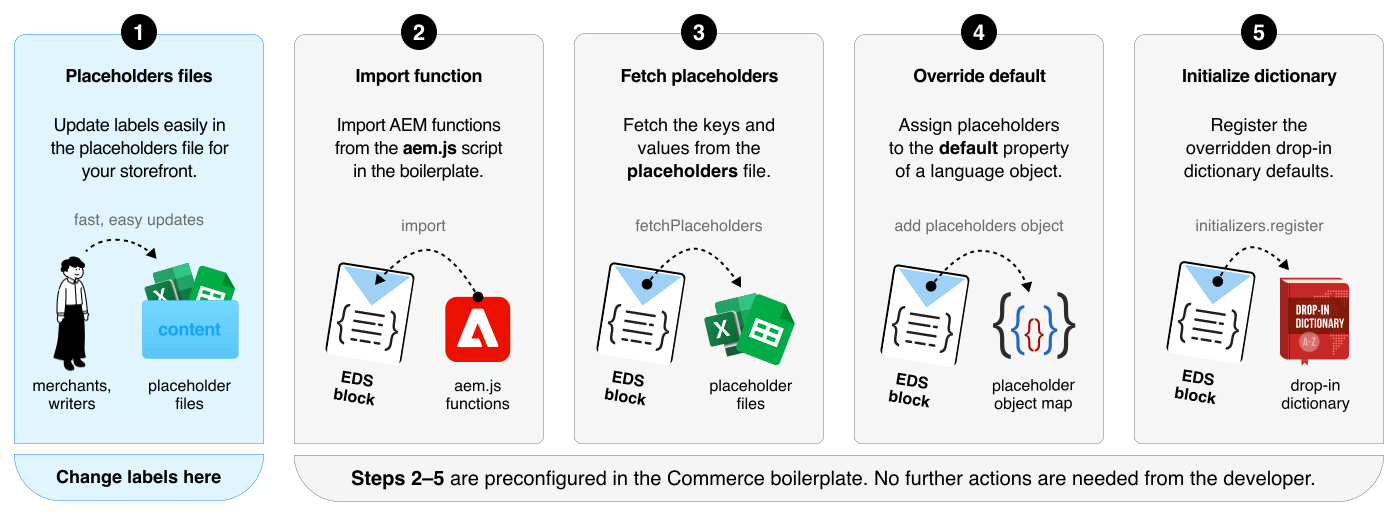
*How localization and labeling works in storefronts.*
1. **Placeholder files**. Merchants can change the storefront labels by changing the values in the placeholder JSON files, which are organized by drop-in components—`cart.json`, `checkout.json`, `pdp.json`, and so on.
1. **Import function**. You need to import the `fetchPlaceholders` function from the boilerplate's `commerce.js` file.
1. **Fetch placeholders.** Use the `fetchPlaceholders` function to retrieve the `placeholders` key-value pairs from the content folder.
1. **Override default dictionary**. Override the `default` property from the `langDefinitions` object with the keys and values from the `placeholder` object.
1. **Initialize dictionary**. Use the `register` function to update the dictionary at runtime.
## Step-by-step
In the boilerplate code, the UI text labels in drop-in components come from the placeholder files. By using these files as the source for all storefront UI labels, merchants can easily change labels without involving developers.
There are two things to be aware of when using the `fetchPlaceholders()` function:
1. **During initialization**:
You must provide the path to the drop-in’s placeholders file. This file will be fetched and merged into the existing placeholders object. Subsequent calls to `fetchPlaceholders()` without a path will return the merged object containing all fetched labels.
2. **After initialization**:
You can call `fetchPlaceholders()` without a path to retrieve all initialized placeholders as a single object. This object can be accessed from a Block or anywhere else in the project.
### 1. Import `fetchPlaceholders` function
In the drop-in block (for example, `product-details.js`, `cart.js`), import the `fetchPlaceholders` function from the boilerplate's `commerce.js` file.
```javascript
```
### 2. Initialize placeholders with path
During initialization, you must use the `fetchPlaceholders()` function using an argument to the path to your drop-in's placeholders file. This fetches and merges the placeholders into the global object.
```javascript
// Initialize placeholders for this drop-in
const placeholders = await fetchPlaceholders('placeholders/cart.json');
const langDefinitions = {
default: {
...placeholders,
},
};
// Register Initializers
initializers.mountImmediately(initialize, {
langDefinitions,
//...
});
```
> **Locale key**: The boilerplate uses `default` as the locale key for the primary language. Under the hood, this maps to the drop-in's `en_US` locale. For multi-language implementations, see the [Dictionary customization guide](https://experienceleague.adobe.com/developer/commerce/storefront/dropins/all/dictionaries/).
### 3. Fetch placeholders after initialization
After initialization, you can use the `fetchPlaceholders` function without a path to retrieve all merged placeholders. The following diagram and code snippet shows how to fetch the placeholders.
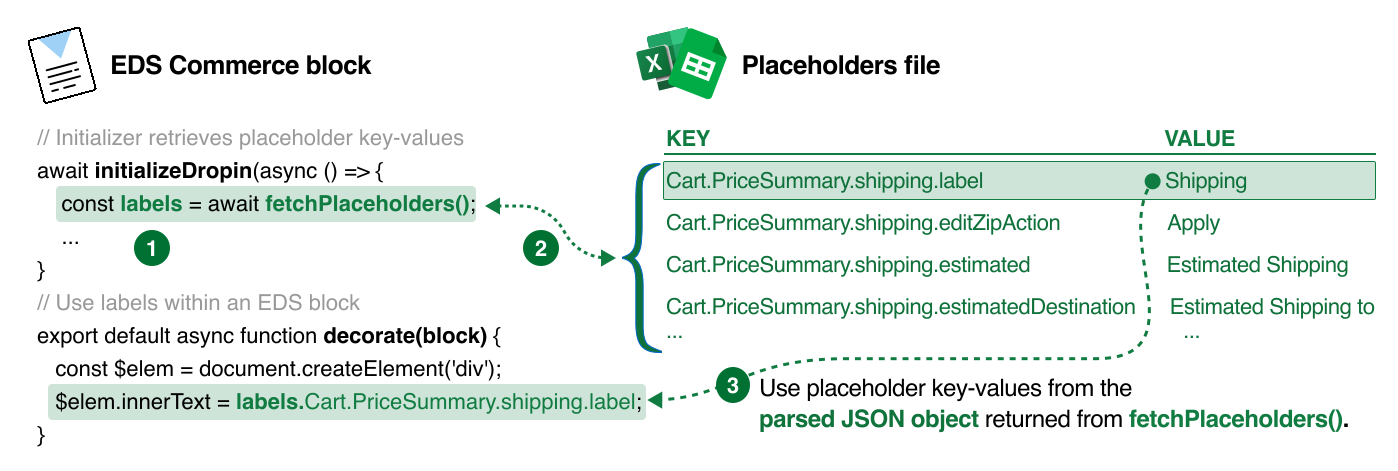
*Using placeholder labels in your EDS commerce block*
```javascript
// Retrieve the placeholders language object
const labels = await fetchPlaceholders();
export default async function decorate(block) {
const $elem = document.createElement('div');
$elem.innerText = labels.Cart.PriceSummary.shipping.label;
}
```
### 4. Test the changes
After you've updated the drop-in component dictionary with the new `langDefinitions` object, test the changes in the storefront to ensure the new labels are displayed correctly. If the labels are not displaying as expected, review the mapping between the placeholder keys and the drop-in component dictionary keys. Make sure the keys match exactly. If the keys don't match, the drop-in component will use the default dictionary values.
---
# Commerce block layouts
A drop-in component's layout is defined by an HTML fragment that controls where the drop-in's containers appear on the page. You can customize the layout as you would with any HTML, by using CSS and adding, removing, or rearranging the elements in the HTML. In this topic, we'll customize the product details layout by adding the Product Recommendations block.
## Big picture
This screenshot shows the product details page with the Product Recommendations block below the product gallery container.
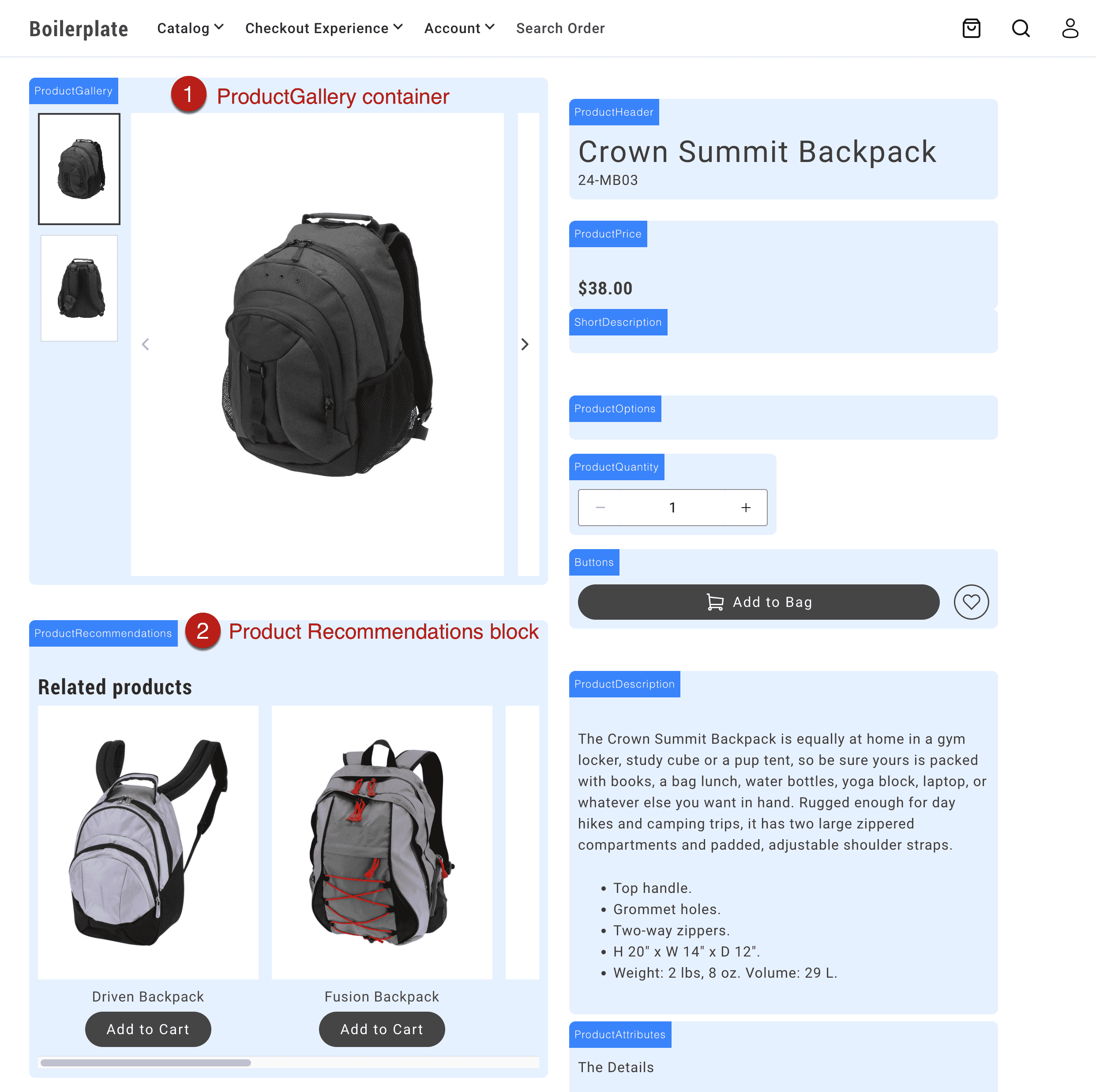
*Add Product Recommendations block to the page*
## Customize commerce block layouts
For this use case, we'll customize the product details layout by adding the Product Recommendations block inside the product details block, instead of below it.
### 1. Add an Edge Delivery block to a commerce page
For example, add a Product Recommendations block to the product details page so that it can be rendered on the page, then referenced and moved to the layout (in code):

*Add Product Recommendations block to the page*
### 2. Add an element to the layout and reference it
Add an HTML element to the commerce block's layout where you want the Edge Delivery block (or other content) to appear. In this example, we want the Product Recommendations block to appear in the left column of the product-details layout, below the product gallery. So we add a `div` element to the left column with a class of `product-details__prex`.
```js ins={12}
export default async function decorate(block) {
// eslint-disable-next-line no-underscore-dangle
const product = events._lastEvent?.['pdp/data']?.payload ?? null;
const labels = await fetchPlaceholders();
// Layout
const fragment = document.createRange().createContextualFragment(`
`);
```
Then, we reference the `div` element in the layout as follows:
```js
// Reference the element
const $prex = fragment.querySelector('.product-details__prex');
```
### 3. Move the Edge Delivery block to the layout
Within the `eds/lcp` lifecycle event, query the Edge Delivery block's class selector from the rendered block and append it to right element in the layout. In this example, we select the Product Recommendations block using the `.product-recommendations` class, then move it to the element you want in the layout (`$prex`).
```js ins={9-12}
events.on(
'eds/lcp',
() => {
if (product) {
setJsonLdProduct(product);
setMetaTags(product);
document.title = product.name;
}
const $productRecommendations = document.querySelector('.product-recommendations');
if ($productRecommendations) {
$prex.appendChild($productRecommendations);
}
},
{ eager: true },
);
```
---
# Localizing links
Learn how the boilerplate automatically localizes internal links for multistore/multilingual storefronts. The system keeps users within their chosen locale as they navigate the site.
> **Merchant guide** For merchant-friendly guidance on link localization and using `#nolocal` in store switchers, see [Commerce localization tasks - Link localization](https://experienceleague.adobe.com/developer/commerce/storefront/merchants/quick-start/content-localization-commerce-tasks/#link-localization).
## decorateLinks
The `decorateLinks` function automatically prepends all content links with the root path for each language. This ensures users stay within their current locale as they navigate the site.
**How it works:**
- On `/en-ca/` pages: `/products/` becomes `/en-ca/products/`
- On `/fr/` pages: `/products/` becomes `/fr/products/`
- Links with `#nolocal` hash are not modified (useful for store switcher links)
This function is enabled by default in the Commerce Boilerplate via `scripts/script.js`.
```js
/**
* Decorates the main element.
* @param {Element} main The main element
*/
export function decorateMain(main) {
decorateLinks(main); // enables localization of links
decorateButtons(main);
decorateIcons(main);
buildAutoBlocks(main);
decorateSections(main);
decorateBlocks(main);
}
```
## rootLink
The `rootLink` function prepends the appropriate language root path to a given link. Use it within a block to localize links from a drop-in for loading scripts, styles or links to other pages within a drop-in. This approach ensures consistency across languages and store views.
```js
export async function decorateMyBlock(block) {
const atag = document.createElement('a');
atag.innerText = 'My Link';
atag.href = rootLink('/my-path'); // returns the localized url for '/my-path'
// ...
}
```
---
# Using drop-ins
Drop-in components add Commerce functionality to your storefront. The https://github.com/hlxsites/aem-boilerplate-commerce includes all drop-ins pre-installed—no package installation needed.
## How to use drop-ins
Three steps: import the initializer (A JavaScript module that configures a drop-in when imported, such as setting endpoints, registering dictionaries, and preparing runtime behavior.), import the container (A pre-built UI module that renders drop-in functionality and manages logic, state, and data for a feature.), and render it. Most blocks use a single container.
### 1. Import the initializer
Import the initializer for the drop-in. This configures the GraphQL endpoint, loads placeholder text, and registers the drop-in.
```js title="blocks/commerce-login/commerce-login.js"
// Import initializer (side-effect import handles all setup)
```
> **Initializers** Initializers run once when imported. They configure the drop-in for use throughout your application.
### 2. Import the container
Import the container you need and the render provider (The render function exported by a drop-in package that mounts containers into a storefront block.). Import maps in `head.html` resolve paths to the optimized code.
```js title="blocks/commerce-login/commerce-login.js"
// Import the container
// Import the provider
```
### 3. Render the container
Render the container in your block decorate function (The JavaScript module that runs for a block after the page loads. It imports the initializer, then calls provider.render() to mount the drop-in UI into the block region of the page.). Pass configuration options to customize behavior.
```js title="blocks/commerce-login/commerce-login.js"
export default async function decorate(block) {
await authRenderer.render(SignIn, {
routeForgotPassword: () => rootLink('/customer/forgot-password'),
routeRedirectOnSignIn: () => rootLink('/customer/account'),
})(block);
}
```
**Complete example:**
```js title="blocks/commerce-login/commerce-login.js"
export default async function decorate(block) {
await authRenderer.render(SignIn, {
routeForgotPassword: () => rootLink('/customer/forgot-password'),
routeRedirectOnSignIn: () => rootLink('/customer/account'),
})(block);
}
```
> **Container documentation** See the Containers documentation for each drop-in for available configuration options.
## Drop-in specific guides
Each drop-in has its own Quick Start page with package names, versions, and drop-in-specific requirements:
- [Cart](https://experienceleague.adobe.com/developer/commerce/storefront/dropins/cart/quick-start/)
- [Checkout](https://experienceleague.adobe.com/developer/commerce/storefront/dropins/checkout/quick-start/)
- [Order](https://experienceleague.adobe.com/developer/commerce/storefront/dropins/order/quick-start/)
- [Payment Services](https://experienceleague.adobe.com/developer/commerce/storefront/dropins/payment-services/installation/)
- [Personalization](https://experienceleague.adobe.com/developer/commerce/storefront/dropins/personalization/quick-start/)
- [Product Details](https://experienceleague.adobe.com/developer/commerce/storefront/dropins/product-details/quick-start/)
- [Product Discovery](https://experienceleague.adobe.com/developer/commerce/storefront/dropins/product-discovery/quick-start/)
- [Recommendations](https://experienceleague.adobe.com/developer/commerce/storefront/dropins/recommendations/quick-start/)
- [User Account](https://experienceleague.adobe.com/developer/commerce/storefront/dropins/user-account/quick-start/)
- [User Auth](https://experienceleague.adobe.com/developer/commerce/storefront/dropins/user-auth/quick-start/)
- [Wishlist](https://experienceleague.adobe.com/developer/commerce/storefront/dropins/wishlist/quick-start/)
## Advanced patterns
These patterns show how to handle more complex scenarios in your blocks.
### Multiple containers in one block
Most blocks use a single container, but complex blocks can render multiple containers together. Use `Promise.all()` to render them in parallel for better performance. The Cart block demonstrates this pattern:
```js title="blocks/commerce-cart/commerce-cart.js"
export default async function decorate(block) {
// Create layout structure
const fragment = document.createRange().createContextualFragment(`
`);
const $list = fragment.querySelector('.cart__list');
const $summary = fragment.querySelector('.cart__order-summary');
block.appendChild(fragment);
// Helper to create product links
const createProductLink = (product) => getProductLink(product.url.urlKey, product.topLevelSku);
// Render multiple containers in parallel
await Promise.all([
provider.render(CartSummaryList, {
routeProduct: createProductLink,
enableRemoveItem: true,
})($list),
provider.render(OrderSummary, {
routeCheckout: () => rootLink('/checkout'),
})($summary),
]);
}
```
### Nesting containers with slots
Render containers inside other container slots for advanced composition. Use conditional logic to control which slots render:
```js title="blocks/commerce-cart/commerce-cart.js"
export default async function decorate(block) {
const { 'enable-estimate-shipping': enableEstimateShipping = 'false' } = readBlockConfig(block);
const createProductLink = (product) => getProductLink(product.url.urlKey, product.topLevelSku);
await provider.render(OrderSummary, {
routeProduct: createProductLink,
routeCheckout: () => rootLink('/checkout'),
slots: {
EstimateShipping: async (ctx) => {
if (enableEstimateShipping === 'true') {
const wrapper = document.createElement('div');
await provider.render(EstimateShipping, {})(wrapper);
ctx.replaceWith(wrapper);
}
},
Coupons: (ctx) => {
const coupons = document.createElement('div');
provider.render(Coupons)(coupons);
ctx.appendChild(coupons);
},
},
})(block);
}
```
### Combining multiple drop-ins
Use multiple drop-ins in a single block when functionality overlaps. The Cart block combines Cart and Wishlist:
```js title="blocks/commerce-cart/commerce-cart.js"
// Import event bus
// Import initializers for both drop-ins
// Import from both drop-ins
export default async function decorate(block) {
// Create notification area
const fragment = document.createRange().createContextualFragment(`
`);
const $notification = fragment.querySelector('.cart__notification');
block.appendChild(fragment);
// Wishlist route
const routeToWishlist = '/wishlist';
// Helper to create product links
const createProductLink = (product) => getProductLink(product.url.urlKey, product.topLevelSku);
// Render cart with wishlist functionality in slots
await provider.render(CartSummaryList, {
routeProduct: createProductLink,
slots: {
Footer: (ctx) => {
// Add wishlist toggle to each cart item
const $wishlistToggle = document.createElement('div');
$wishlistToggle.classList.add('cart__action--wishlist-toggle');
wishlistRender.render(WishlistToggle, {
product: ctx.item,
removeProdFromCart: Cart.updateProductsFromCart,
})($wishlistToggle);
ctx.appendChild($wishlistToggle);
},
},
})(block);
// Listen for wishlist events
events.on('wishlist/alert', ({ action, item }) => {
wishlistRender.render(WishlistAlert, {
action,
item,
routeToWishlist,
})($notification);
setTimeout(() => {
$notification.innerHTML = '';
}, 5000);
});
}
```
### Using API functions without containers
Call API functions directly for programmatic control without rendering UI:
```js title="blocks/custom-block/custom-block.js"
export default async function decorate(block) {
// Get cached cart data synchronously
const cachedCart = Cart.getCartDataFromCache();
console.log('Cached cart:', cachedCart);
// Fetch fresh cart data
const freshCart = await Cart.getCartData();
console.log('Fresh cart:', freshCart);
// Add products programmatically
const button = block.querySelector('.add-to-cart-button');
if (button) {
button.addEventListener('click', async () => {
try {
await Cart.addProductsToCart([
{ sku: 'ABC123', quantity: 1 }
]);
console.log('Product added successfully');
} catch (error) {
console.error('Failed to add product:', error);
}
});
}
// Update cart totals in custom UI
events.on('cart/data', (cartData) => {
const totalElement = block.querySelector('.cart-total');
if (totalElement && cartData?.prices?.grandTotal) {
totalElement.textContent = cartData.prices.grandTotal.value;
}
}, { eager: true });
}
```
### Error handling
Handle errors gracefully with try/catch blocks and user notifications:
```js title="blocks/commerce-mini-cart/commerce-mini-cart.js"
export default async function decorate(block) {
const placeholders = await fetchPlaceholders();
let currentModal = null;
// Custom message display function
const showMessage = (message) => {
const messageEl = block.querySelector('.mini-cart__message');
if (messageEl) {
messageEl.textContent = message;
messageEl.classList.add('visible');
setTimeout(() => messageEl.classList.remove('visible'), 3000);
}
};
async function handleEditButtonClick(cartItem) {
try {
// Attempt to load and show mini PDP
const miniPDPContent = await createMiniPDP(cartItem);
currentModal = await createModal([miniPDPContent]);
if (currentModal.block) {
currentModal.block.setAttribute('id', 'mini-pdp-modal');
}
currentModal.showModal();
} catch (error) {
console.error('Error opening mini PDP modal:', error);
// Show error message using mini-cart's message system
showMessage(placeholders?.Global?.ProductLoadError || 'Failed to load product');
}
}
// ... rest of block implementation
}
```
> **Always provide feedback** Always provide feedback to users when operations fail. The example shows how to define a custom message function, but you can also use the `InLineAlert` component from `@dropins/tools/components.js` for consistent error messaging.
## What the boilerplate provides
The boilerplate includes everything you need:
- Drop-in packages installed in `package.json`.
- Optimized code in `scripts/__dropins__/`.
- Import maps in `head.html`.
- Initializers in `scripts/initializers/` for automatic setup.
- Example blocks demonstrating usage.
## How it works
The following diagram shows how drop-ins integrate into your boilerplate project:
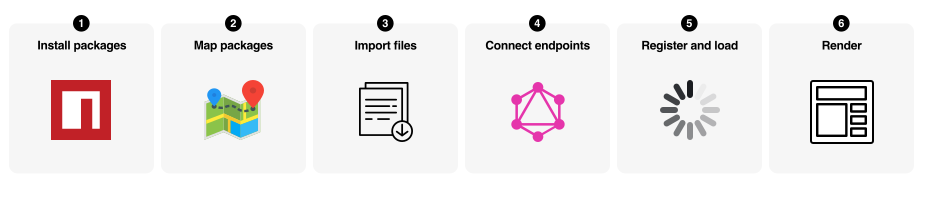
## Additional concepts
Additional terms you'll encounter as you work with drop-ins.
**Drop-in**
A self-contained Commerce component (Cart, Checkout, Product Details) that includes containers, API functions, and events.
**Import maps** (in `head.html`)
Configuration that maps clean import paths (for example, `@dropins/storefront-cart`) to optimized code in `scripts/__dropins__/`. The boilerplate includes these pre-configured.
**Event bus** (`@dropins/tools/event-bus.js`)
Pub/sub system for drop-in communication. Drop-ins emit events when state changes (for example, `cart/data`, `checkout/updated`). Listen to events to update custom UI or trigger logic.
**API functions**
Programmatic interfaces to control drop-in behavior without rendering UI. Fetch data, trigger actions, and read cached state (for example, `Cart.addProductsToCart()`, `Cart.getCartData()`).
**Slots**
Extension points in containers where you can inject custom content or replace default behavior. Used for deep customization beyond configuration options.
## Summary
The boilerplate makes using drop-ins straightforward: import an initializer for automatic setup, import the containers you need, render them with configuration options, and optionally listen to events for custom behavior. No manual package installation or complex configuration required.
---
# Slots
Using slots (An extension point inside a drop-in where custom UI or behavior can be added, replaced, or removed.) provides the deepest level of customization for drop-in components. A slot provides a place in a drop-in container (A pre-built UI module that renders drop-in functionality and manages logic, state, and data for a feature.) to add your own UI components and functions. This architecture makes it easy to change the default look, layout, and behavior. Let's learn how slots work.
## Big Picture
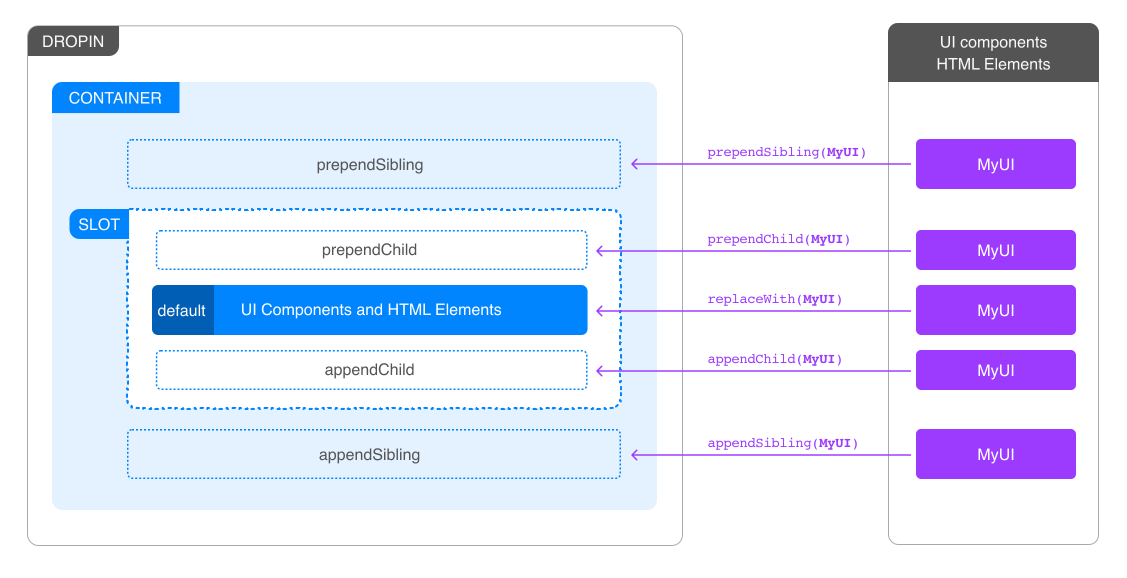
*What is a slot?*
The following functions are available to all slots:
1. `prependSibling`: Prepends a new HTML element before the content of the slot.
1. `prependChild`: Prepends a new HTML element to the content of the slot.
1. `replaceWith`: Replaces the content of the slot with a new HTML element.
1. `appendChild`: Appends a new HTML element to the content of the slot.
1. `appendSibling`: Appends a new HTML element after the content of the slot.
1. `remove`: Removes the slot from the DOM.
1. `getSlotElement`: Gets a slot element.
1. `onChange`: Listens to changes in the context of the slot.
1. `dictionary`: Provides a JSON Object for the current locale. If the locale changes, the `dictionary` values change to reflect the values for the selected language.
## Best practice for dynamic slot content
**Do not use context methods inside other context methods.** Context methods include `appendChild()`, `prependChild()`, `replaceWith()`, `appendSibling()`, `prependSibling()`, `remove()`, `getSlotElement()`, and `onChange()`.
Instead, create and append wrapper elements on mount, then update their content inside callbacks using standard DOM methods like `innerHTML`:
```js
slots: {
MySlot: (ctx) => {
const wrapper = document.createElement('div');
// Use context method on mount (outside other context methods)
ctx.appendChild(wrapper);
// Update content inside onChange using standard DOM methods
ctx.onChange((next) => {
if (next.data.condition) {
wrapper.innerHTML = 'Content A';
} else {
wrapper.innerHTML = 'Content B';
}
});
}
}
```
```js
// ❌ Incorrect: Calling context method inside context method
ctx.onChange((next) => {
const element = document.createElement('div');
ctx.appendChild(element); // Incorrect - context method inside context method
});
```
## Related resources
- [Extending drop-in components](https://experienceleague.adobe.com/developer/commerce/storefront/dropins/all/extending/) - Advanced customization techniques
- [Cart drop-in](https://experienceleague.adobe.com/developer/commerce/storefront/dropins/cart/) - Cart drop-in documentation
- [Recommendations drop-in](https://experienceleague.adobe.com/developer/commerce/storefront/dropins/recommendations/) - Recommendations drop-in documentation
---
# Styling Drop-In Components
export const brandColors = [
{
"name": "--color-brand-300",
"value": "#6d6d6d",
"resolvedColor": "#6d6d6d"
},
{
"name": "--color-brand-500",
"value": "#454545",
"resolvedColor": "#454545"
},
{
"name": "--color-brand-600",
"value": "#383838",
"resolvedColor": "#383838"
},
{
"name": "--color-brand-700",
"value": "#2b2b2b",
"resolvedColor": "#2b2b2b"
}
];
export const neutralColors = [
{
"name": "--color-neutral-50",
"value": "#fff",
"resolvedColor": "#fff"
},
{
"name": "--color-neutral-100",
"value": "#fafafa",
"resolvedColor": "#fafafa"
},
{
"name": "--color-neutral-200",
"value": "#f5f5f5",
"resolvedColor": "#f5f5f5"
},
{
"name": "--color-neutral-300",
"value": "#e8e8e8",
"resolvedColor": "#e8e8e8"
},
{
"name": "--color-neutral-400",
"value": "#d6d6d6",
"resolvedColor": "#d6d6d6"
},
{
"name": "--color-neutral-500",
"value": "#b8b8b8",
"resolvedColor": "#b8b8b8"
},
{
"name": "--color-neutral-600",
"value": "#8f8f8f",
"resolvedColor": "#8f8f8f"
},
{
"name": "--color-neutral-700",
"value": "#666",
"resolvedColor": "#666"
},
{
"name": "--color-neutral-800",
"value": "#3d3d3d",
"resolvedColor": "#3d3d3d"
},
{
"name": "--color-neutral-900",
"value": "#292929",
"resolvedColor": "#292929"
}
];
export const semanticColors = [
{
"name": "--color-positive-200",
"value": "#eff5ef",
"resolvedColor": "#eff5ef"
},
{
"name": "--color-positive-500",
"value": "#7fb078",
"resolvedColor": "#7fb078"
},
{
"name": "--color-positive-800",
"value": "#53824c",
"resolvedColor": "#53824c"
},
{
"name": "--color-informational-200",
"value": "#eeeffb",
"resolvedColor": "#eeeffb"
},
{
"name": "--color-informational-500",
"value": "#6978d9",
"resolvedColor": "#6978d9"
},
{
"name": "--color-informational-800",
"value": "#5d6dd6",
"resolvedColor": "#5d6dd6"
},
{
"name": "--color-warning-200",
"value": "#fdf3e9",
"resolvedColor": "#fdf3e9"
},
{
"name": "--color-warning-500",
"value": "#e79f5c",
"resolvedColor": "#e79f5c"
},
{
"name": "--color-warning-800",
"value": "#cc7a2e",
"resolvedColor": "#cc7a2e"
},
{
"name": "--color-alert-200",
"value": "#ffebeb",
"resolvedColor": "#ffebeb"
},
{
"name": "--color-alert-500",
"value": "#db7070",
"resolvedColor": "#db7070"
},
{
"name": "--color-alert-800",
"value": "#c35050",
"resolvedColor": "#c35050"
}
];
export const buttonColors = [
{
"name": "--color-button-active",
"value": "var(--color-brand-700)",
"resolvedColor": "#2b2b2b"
},
{
"name": "--color-button-focus",
"value": "var(--color-neutral-400)",
"resolvedColor": "#d6d6d6"
},
{
"name": "--color-button-hover",
"value": "var(--color-brand-600)",
"resolvedColor": "#383838"
},
{
"name": "--color-action-button-active",
"value": "var(--color-neutral-50)",
"resolvedColor": "#fff"
},
{
"name": "--color-action-button-hover",
"value": "var(--color-neutral-300)",
"resolvedColor": "#e8e8e8"
}
];
export const opacityColors = [
{
"name": "--color-opacity-16",
"value": "rgb(255 255 255 / 16%)",
"resolvedColor": "rgb(255 255 255 / 16%)"
},
{
"name": "--color-opacity-24",
"value": "rgb(255 255 255 / 24%)",
"resolvedColor": "rgb(255 255 255 / 24%)"
}
];
Customize drop-in components using the design token system and CSS classes from the boilerplate. This guide covers the universal styling approach used across all drop-ins.
## Drop-in-specific styles
Each drop-in has a dedicated styles page with practical customization examples. See the individual drop-in documentation:
- [Cart styles](https://experienceleague.adobe.com/developer/commerce/storefront/dropins/cart/styles/)
- [Checkout styles](https://experienceleague.adobe.com/developer/commerce/storefront/dropins/checkout/styles/)
- [Order styles](https://experienceleague.adobe.com/developer/commerce/storefront/dropins/order/styles/)
- [Payment Services styles](https://experienceleague.adobe.com/developer/commerce/storefront/dropins/payment-services/styles/)
- [Personalization styles](https://experienceleague.adobe.com/developer/commerce/storefront/dropins/personalization/styles/)
- [Product Details styles](https://experienceleague.adobe.com/developer/commerce/storefront/dropins/product-details/styles/)
- [Product Discovery styles](https://experienceleague.adobe.com/developer/commerce/storefront/dropins/product-discovery/styles/)
- [Recommendations styles](https://experienceleague.adobe.com/developer/commerce/storefront/dropins/recommendations/styles/)
- [User Account styles](https://experienceleague.adobe.com/developer/commerce/storefront/dropins/user-account/styles/)
- [User Auth styles](https://experienceleague.adobe.com/developer/commerce/storefront/dropins/user-auth/styles/)
- [Wishlist styles](https://experienceleague.adobe.com/developer/commerce/storefront/dropins/wishlist/styles/)
## Where to add custom styles
Add your custom CSS in the appropriate location based on the scope of your changes:
### Global styles and design token overrides
- Edit https://github.com/hlxsites/aem-boilerplate-commerce/blob/main/styles/styles.css to override design tokens or add site-wide styles
- These styles load immediately and affect all drop-ins
### Block-specific styles
- Add styles to `blocks/{block-name}/{block-name}.css`
- For example: https://github.com/hlxsites/aem-boilerplate-commerce/blob/main/blocks/product-details/product-details.css
- These styles load only when the block is used
- See all https://github.com/hlxsites/aem-boilerplate-commerce/tree/main/blocks in the boilerplate
### Deferred global styles
- Add to https://github.com/hlxsites/aem-boilerplate-commerce/blob/main/styles/lazy-styles.css for non-critical styles that can load after page render
- Improves initial page load performance
## Design tokens
The drop-in components use CSS custom properties (design tokens) defined in the `styles/styles.css` file from the boilerplate. These tokens ensure consistent styling across all drop-ins and make global theme changes easy to apply.
### Override design tokens
Change the appearance of all drop-ins by overriding design tokens in your custom CSS:
```css
:root {
/* Brand colors */
--color-brand-500: #0066cc;
--color-brand-600: #0052a3;
--color-brand-700: #003d7a;
/* Typography */
--type-base-font-family: 'Inter', system-ui, sans-serif;
/* Spacing */
--spacing-small: 12px;
--spacing-medium: 20px;
}
```
## Finding CSS classes
Use the browser DevTools to find specific class names for your customizations:
Inspect the UI of any drop-in component using your browser developer tools:
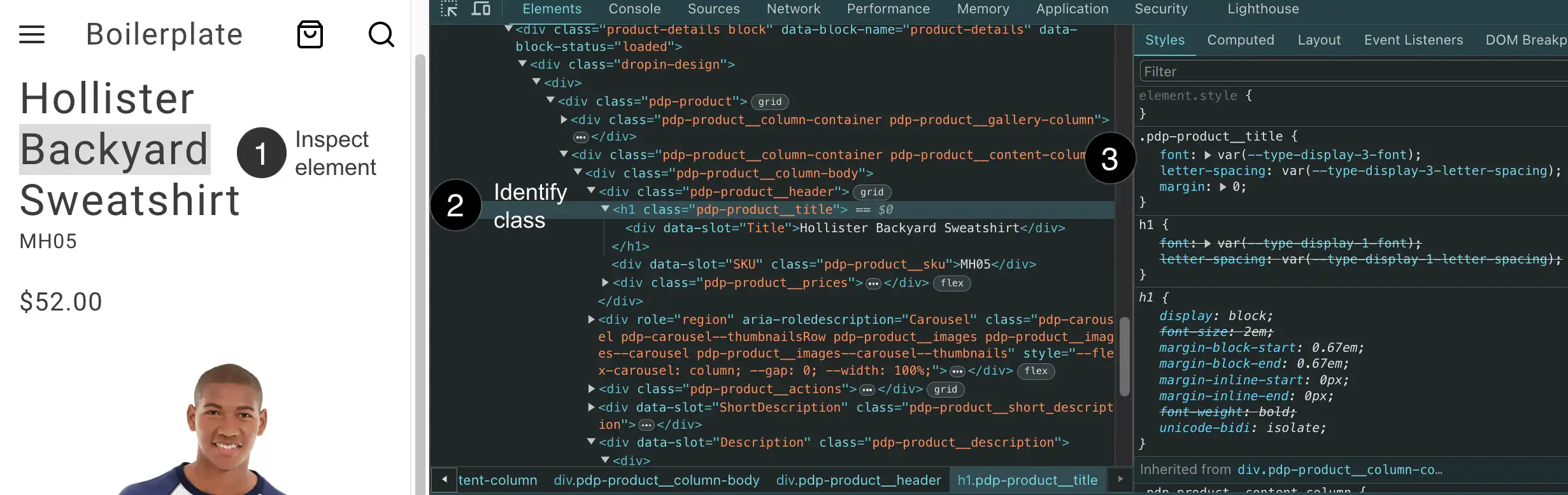
*Find CSS classes to override.*
1. **Inspect the element** you want to customize (right-click the element and select "Inspect" from the menu).
1. **Identify the CSS class(es)** for the element. We use https://getbem.com/naming/, which makes components and their elements easy to identify. For example, `.pdp-product__title` indicates the title element of the product component.
1. **Copy the CSS class** to your CSS file to override existing rules or add new rules. If the class uses design tokens (like `var(--spacing-small)`), override the token value instead of removing it. This keeps your customizations consistent with the design system.
## Examples
These examples show common component customization patterns:
```css
/* Adjust layout for a specific component */
.pdp-product__options {
grid-column: 1 / span 3;
}
.pdp-product__quantity {
grid-column: 1 / span 3;
}
/* Modify spacing using design tokens */
.pdp-product__buttons {
gap: var(--spacing-small);
}
```
## Responsive breakpoints
Drop-in components use these breakpoints:
- **Mobile**: up to 767px
- **Tablet**: 768px - 1023px
- **Desktop**: 1024px and up
Use a mobile-first approach when you add responsive styles:
```css
/* Mobile styles (default) */
.my-component {
padding: var(--spacing-small);
}
/* Desktop styles */
@media (min-width: 1024px) {
.my-component {
padding: var(--spacing-big);
}
}
```
## Design tokens reference
The following sections show all available design tokens with their default values for reference when customizing your storefront.
### Colors
Color tokens define the palette for branding, UI elements, semantic states, and interactive components.
#### Brand Colors
#### Neutral Colors
#### Semantic Colors
#### Button Colors
#### Opacity
### Spacing
Spacing tokens provide consistent padding, margins, and gaps across all components.
```css
--spacing-xxsmall: 4px
--spacing-xsmall: 8px
--spacing-small: 16px
--spacing-medium: 24px
--spacing-big: 32px
--spacing-xbig: 40px
--spacing-xxbig: 48px
--spacing-large: 64px
--spacing-xlarge: 72px
--spacing-xxlarge: 96px
--spacing-huge: 120px
--spacing-xhuge: 144px
--spacing-xxhuge: 192px
```
### Typography
Typography tokens define font families, sizes, weights, line heights, and letter spacing for text elements.
#### Font Families
```css
--type-base-font-family: adobe-clean, roboto, roboto-fallback, system-ui, sans-serif
--type-fixed-font-family: adobe-clean, "Roboto Mono", menlo, consolas, "Liberation Mono", monospace, system-ui, sans-serif
```
#### Type Scales
```css
--type-display-1-font: normal normal 300 6rem/7.2rem var(--type-base-font-family)
--type-display-1-letter-spacing: 0.04em
--type-display-2-font: normal normal 300 4.8rem/5.6rem var(--type-base-font-family)
--type-display-2-letter-spacing: 0.04em
--type-display-3-font: normal normal 300 3.4rem/4rem var(--type-base-font-family)
--type-display-3-letter-spacing: 0.04em
--type-headline-1-font: normal normal 400 2.4rem/3.2rem var(--type-base-font-family)
--type-headline-1-letter-spacing: 0.04em
--type-headline-2-default-font: normal normal 300 2rem/2.4rem var(--type-base-font-family)
--type-headline-2-default-letter-spacing: 0.04em
--type-headline-2-strong-font: normal normal 700 2rem/2.4rem var(--type-base-font-family)
--type-headline-2-strong-letter-spacing: 0.04em
--type-body-1-default-font: normal normal 300 1.6rem/2.4rem var(--type-base-font-family)
--type-body-1-default-letter-spacing: 0.04em
--type-body-1-strong-font: normal normal 700 1.6rem/2.4rem var(--type-base-font-family)
--type-body-1-strong-letter-spacing: 0.04em
--type-body-1-emphasized-font: normal normal 700 1.6rem/2.4rem var(--type-base-font-family)
--type-body-1-emphasized-letter-spacing: 0.04em
--type-body-2-default-font: normal normal 300 1.4rem/2rem var(--type-base-font-family)
--type-body-2-default-letter-spacing: 0.04em
--type-body-2-strong-font: normal normal 700 1.4rem/2rem var(--type-base-font-family)
--type-body-2-strong-letter-spacing: 0.04em
--type-body-2-emphasized-font: normal normal 700 1.4rem/2rem var(--type-base-font-family)
--type-body-2-emphasized-letter-spacing: 0.04em
--type-button-1-font: normal normal 400 2rem/2.6rem var(--type-base-font-family)
--type-button-1-letter-spacing: 0.08em
--type-button-2-font: normal normal 400 1.6rem/2.4rem var(--type-base-font-family)
--type-button-2-letter-spacing: 0.08em
--type-details-caption-1-font: normal normal 400 1.2rem/1.6rem var(--type-base-font-family)
--type-details-caption-1-letter-spacing: 0.08em
--type-details-caption-2-font: normal normal 300 1.2rem/1.6rem var(--type-base-font-family)
--type-details-caption-2-letter-spacing: 0.08em
--type-details-overline-font: normal normal 400 1.2rem/2rem var(--type-base-font-family)
--type-details-overline-letter-spacing: 0.16em
```
### Shapes & Borders
Shape tokens control the visual appearance of borders, shadows, and icon strokes.
#### Border Radius
```css
--shape-border-radius-1: 3px
--shape-border-radius-2: 8px
--shape-border-radius-3: 24px
```
#### Border Width
```css
--shape-border-width-1: 1px
--shape-border-width-2: 1.5px
--shape-border-width-3: 2px
--shape-border-width-4: 4px
```
#### Shadows
```css
--shape-shadow-1: 0 0 16px 0 rgb(0 0 0 / 16%)
--shape-shadow-2: 0 2px 16px 0 rgb(0 0 0 / 16%)
--shape-shadow-3: 0 2px 3px 0 rgb(0 0 0 / 16%)
```
#### Icon Stroke
```css
--shape-icon-stroke-1: 1px
--shape-icon-stroke-2: 1.5px
--shape-icon-stroke-3: 2px
--shape-icon-stroke-4: 4px
```
### Grid System
```css
--grid-1-columns: 4
--grid-1-margins: 0
--grid-1-gutters: 16px
--grid-2-columns: 12
--grid-2-margins: 0
--grid-2-gutters: 16px
--grid-3-columns: 12
--grid-3-margins: 0
--grid-3-gutters: 24px
--grid-4-columns: 12
--grid-4-margins: 0
--grid-4-gutters: 24px
--grid-5-columns: 12
--grid-5-margins: 0
--grid-5-gutters: 24px
```
## Advanced customization
### Inspect CSS variables in use
Use the browser DevTools to discover which CSS variables (design tokens) a component is using:
1. **Right-click on any element** and select "Inspect"
2. **In the Styles panel**, look for properties using `var()` syntax
3. **Click the variable name** (e.g., `var(--spacing-medium)`) to see its computed value
4. **In the Computed tab**, filter by "spacing", "color", etc. to see all applied tokens
#### Example: Inspecting a button might show
```css
padding: var(--spacing-small); /* Resolves to: 16px */
background: var(--color-brand-500); /* Resolves to: #454545 */
```
### How tokens flow through components
Design tokens control the visual appearance of components by mapping to specific CSS properties. Understanding this flow helps you predict what changes when you override a token.
#### The flow:
1. A design token is defined in the boilerplate: `--spacing-small: 16px`
2. A component uses it in a CSS property: `gap: var(--spacing-small);`
3. The browser resolves it to the actual value: `gap: 16px`
4. The visual effect appears: 16px of spacing between grid items
#### Real-world example: Cart grid spacing
The grid component for the Cart drop-in uses `--spacing-small` to control the gap between product images:
```css
.cart-cart-summary-grid__content {
display: grid;
gap: var(--spacing-small); /* Controls spacing between rows and columns */
grid-template-columns: repeat(6, 1fr);
}
```
```
┌─────────┐ ←──16px──→ ┌─────────┐ ←──16px──→ ┌─────────┐
│ Product │ │ Product │ │ Product │
│ Image │ │ Image │ │ Image │
└─────────┘ └─────────┘ └─────────┘
↓ ↓ ↓
16px 16px 16px
↓ ↓ ↓
┌─────────┐ ┌─────────┐ ┌─────────┐
│ Product │ │ Product │ │ Product │
│ Image │ │ Image │ │ Image │
└─────────┘ └─────────┘ └─────────┘
↓ ↓ ↓
16px 16px 16px
↓ ↓ ↓
┌─────────┐ ┌─────────┐ ┌─────────┐
│ Product │ │ Product │ │ Product │
│ Image │ │ Image │ │ Image │
└─────────┘ └─────────┘ └─────────┘
gap: var(--spacing-small) = 16px
```
*The gap property controls spacing between grid items in both directions.*
When you override `--spacing-small`, you directly change how tightly or loosely the product images are packed together. A smaller value (8px) creates a denser grid, while a larger value (24px) creates more breathing room.
#### Common token-to-property mappings
- `--spacing-*` tokens → `gap`, `padding`, `margin` properties → Controls whitespace
- `--color-*` tokens → `background`, `color`, `border-color` properties → Controls visual identity
- `--shape-border-radius-*` tokens → `border-radius` property → Controls corner roundness
- `--type-*` tokens → `font`, `font-size`, `line-height` properties → Controls typography
### Scoped token overrides
Override design tokens for specific components only, rather than globally:
```css
/* Global override - affects all drop-ins */
:root {
--spacing-small: 12px;
}
/* Scoped override - only affects Cart drop-in */
.cart-cart-summary-grid {
--spacing-small: 16px;
/* This component now uses 16px, others still use the global value */
}
/* Scoped to a specific element state */
.dropin-button:hover {
--color-brand-500: #0066cc;
background: var(--color-brand-500); /* Uses the hover value */
}
```
---
# CartSummaryGrid container
The `CartSummaryGrid` container manages and displays the contents of the shopping cart in a grid layout. Its state is managed by the `CartModel` interface, which contains the cart's initial data and is passed down to any child components.
*CartSummaryGrid container*
## Configurations
The `CartSummaryGrid` container provides the following configuration options:
| Parameter | Type | Required | Description |
|-----------|------|----------|-------------|
| `children` | `CartModel` | Yes | Child elements to be rendered inside the container. |
| `initialData` | `string` | Yes | Initial cart data to preload the component. Defaults to null. |
| `routeProduct` | `function` | No | Callback function that returns a product. |
| `routeEmptyCartCTA` | `function` | No | Callback function that returns an empty cart. |
The `CartModel` object has the following shape:
```ts
export interface CartModel {
id: string;
totalQuantity: number;
errors?: ItemError[];
items: Item[];
miniCartMaxItems: Item[];
total: {
includingTax: Price;
excludingTax: Price;
};
discount?: Price;
subtotal: {
excludingTax: Price;
includingTax: Price;
includingDiscountOnly: Price;
};
appliedTaxes: TotalPriceModifier[];
totalTax?: Price;
appliedDiscounts: TotalPriceModifier[];
shipping?: Price;
isVirtual?: boolean;
addresses: {
shipping?: {
countryCode: string;
zipCode?: string;
regionCode?: string;
}[];
};
isGuestCart?: boolean;
hasOutOfStockItems?: boolean;
hasFullyOutOfStockItems?: boolean;
appliedCoupons?: Coupon[];
}
interface TotalPriceModifier {
amount: Price;
label: string;
coupon?: Coupon;
}
interface FixedProductTax {
amount: Price;
label: string;
}
export interface Item {
taxedPrice: Price;
rowTotal: Price;
rowTotalIncludingTax: Price;
itemType: string;
uid: string;
url: ItemURL;
quantity: number;
sku: string;
name: string;
image: ItemImage;
links?: ItemLinks;
price: Price;
total: Price;
discountedTotal?: Price;
discount?: Price;
regularPrice: Price;
discounted: boolean;
bundleOptions?: { [key: string]: any };
selectedOptions?: { [key: string]: any };
customizableOptions?: { [key: string]: any };
message?: string;
recipient?: string;
recipientEmail?: string;
sender?: string;
senderEmail?: string;
lowInventory?: boolean;
insufficientQuantity?: boolean;
onlyXLeftInStock?: number | null;
outOfStock?: boolean;
notAvailableMessage?: string;
stockLevel?: String;
discountPercentage?: number;
savingsAmount?: Price;
productAttributes?: Attribute[];
fixedProductTaxes?: FixedProductTax[];
}
interface ItemError {
id: string;
text: string;
}
interface ItemImage {
src: string;
alt: string;
}
export interface Price {
value: number;
currency: string;
}
interface ItemURL {
urlKey: string;
categories: string[];
}
interface ItemLinks {
count: number;
result: string;
}
interface AttributeOption {
value: string;
label: string;
}
interface Attribute {
code: string;
value?: string;
selected_options?: AttributeOption[];
}
interface Coupon {
code: string;
}
```
## Example configuration
The following example demonstrates how to render the `CartSummaryGrid` container with the `routeProduct` and `routeEmptyCartCTA` callbacks:
```js
provider.render(CartSummaryGrid, {
routeProduct: (item) => {
return `${item.url.categories.join('/')}/${item.url.urlKey}`;
},
routeEmptyCartCTA: () => '#empty-cart',
})(document.getElementById('@dropins/CartSummaryGrid'));
```
---
# CartSummaryList container
The `CartSummaryList` container displays a summary of the items in the shopping cart by rendering a list of `CartItem` components. Each `CartItem` represents an individual item in the cart.
*CartSummaryList container*
## Configurations
The `CartSummaryList` container provides the following configuration options:
| Parameter | Type | Required | Description |
|-----------|------|----------|-------------|
| `children` | `CartModel` | Yes | Child elements to be rendered inside the container. |
| `routeProduct` | `function` | No | Callback function that returns a product. |
| `routeEmptyCartCTA` | `function` | No | Callback function that returns an empty cart. |
| `initialData` | `string` | Yes | Initial cart data to preload the component. Defaults to null. |
| `hideHeading` | `boolean` | No | Whether to hide the heading of the cart. |
| `hideFooter` | `boolean` | No | Whether to hide the footer of the cart. |
| `routeCart` | `function` | No | Callback function that navigates to the cart. |
| `onItemUpdate` | `function` | No | Callback function that updates the item. |
| `onItemRemove` | `function` | No | Callback function that removes the item. |
| `maxItems` | `number` | No | Maximum number of items to display. |
| `slots` | `function` | No | Allows passing a container or custom component. |
| `attributesToHide` | `string[]` | No | Attributes to hide. |
| `enableRemoveItem` | `boolean` | No | Enable remove item. |
| `enableUpdateItemQuantity` | `boolean` | No | Enable update item quantity. |
| `onItemsErrorsChange` | `function` | No | Callback function that changes the items errors. |
| `accordion` | `boolean` | No | Toggle accordion view. |
| `variant` | `primary \| secondary` | No | Cart variant. |
| `isLoading` | `boolean` | No | Toggle loading state. |
| `showMaxItems` | `boolean` | No | Toggle show max items. |
| `showDiscount` | `boolean` | No | Toggle show discount. |
| `showSavings` | `boolean` | No | Toggle show savings. |
| `quantityType` | `stepper \| dropdown` | No | Display quantity changes as a stepper or in a dropdown menu. |
| `dropdownOptions` | `string[]` | No | An array of items to display in a dropdown menu. |
| `undo` | `boolean` | No | Enables the undo banner to restore recently removed items to the cart. |
| `includeOutOfStockItems` | `boolean` | No | Display out-of-stock and insufficient-quantity items in the main cart item list alongside in-stock items. Default: `false`. |
The `CartModel` object has the following shape:
```ts
export interface CartModel {
id: string;
totalQuantity: number;
errors?: ItemError[];
items: Item[];
miniCartMaxItems: Item[];
total: {
includingTax: Price;
excludingTax: Price;
};
discount?: Price;
subtotal: {
excludingTax: Price;
includingTax: Price;
includingDiscountOnly: Price;
};
appliedTaxes: TotalPriceModifier[];
totalTax?: Price;
appliedDiscounts: TotalPriceModifier[];
shipping?: Price;
isVirtual?: boolean;
addresses: {
shipping?: {
countryCode: string;
zipCode?: string;
regionCode?: string;
}[];
};
isGuestCart?: boolean;
hasOutOfStockItems?: boolean;
hasFullyOutOfStockItems?: boolean;
appliedCoupons?: Coupon[];
}
interface TotalPriceModifier {
amount: Price;
label: string;
coupon?: Coupon;
}
interface FixedProductTax {
amount: Price;
label: string;
}
export interface Item {
taxedPrice: Price;
rowTotal: Price;
rowTotalIncludingTax: Price;
itemType: string;
uid: string;
url: ItemURL;
quantity: number;
sku: string;
name: string;
image: ItemImage;
links?: ItemLinks;
price: Price;
total: Price;
discountedTotal?: Price;
discount?: Price;
regularPrice: Price;
discounted: boolean;
bundleOptions?: { [key: string]: any };
selectedOptions?: { [key: string]: any };
customizableOptions?: { [key: string]: any };
message?: string;
recipient?: string;
recipientEmail?: string;
sender?: string;
senderEmail?: string;
lowInventory?: boolean;
insufficientQuantity?: boolean;
onlyXLeftInStock?: number | null;
outOfStock?: boolean;
notAvailableMessage?: string;
stockLevel?: String;
discountPercentage?: number;
savingsAmount?: Price;
productAttributes?: Attribute[];
fixedProductTaxes?: FixedProductTax[];
}
interface ItemError {
id: string;
text: string;
}
interface ItemImage {
src: string;
alt: string;
}
export interface Price {
value: number;
currency: string;
}
interface ItemURL {
urlKey: string;
categories: string[];
}
interface ItemLinks {
count: number;
result: string;
}
interface AttributeOption {
value: string;
label: string;
}
interface Attribute {
code: string;
value?: string;
selected_options?: AttributeOption[];
}
interface Coupon {
code: string;
}
```
## Supported slots
The `CartSummaryList` container supports the following slots:
* Heading
* EmptyCart
* Footer
* Thumbnail
* ProductAttributes
* CartSummaryFooter
* CartItem
* UndoBanner
* ItemTitle
* ItemPrice
* ItemQuantity
* ItemTotal
* ItemSku
* ItemRemoveAction
## Example configuration
The following example demonstrates how to render the `CartSummaryList` container with the `routeProduct` and `routeEmptyCartCTA` callbacks:
```js
provider.render(CartSummaryList, {
enableRemoveItem: true,
enableUpdateItemQuantity: true,
showDiscount: true,
// accordion: true,
// includeOutOfStockItems: true,
// showMaxItems: false,
// maxItems: 6,
// routeCart: () => '#cart',
// showSavings: true,
// quantityType: 'dropdown',
// dropdownOptions: [
// { value: '1', text: '1' },
// { value: '2', text: '2' },
// { value: '3', text: '3' },
// ],
routeProduct: (item) => {
return `${item.url.categories.join('/')}/${item.url.urlKey}`;
},
routeEmptyCartCTA: () => '#empty-cart',
slots: {
Footer: (ctx) => {
// Runs on mount
const wrapper = document.createElement('div');
ctx.appendChild(wrapper);
// Append Product Promotions on every update
ctx.onChange((next) => {
wrapper.innerHTML = '';
next.item?.discount?.label?.forEach((label) => {
const discount = document.createElement('div');
discount.style.color = '#3d3d3d';
discount.innerText = label;
wrapper.appendChild(discount);
});
});
},
},
})($cartSummaryList);
---
# CartSummaryTable container
The `CartSummaryTable` container displays a summary of the items in the shopping cart by rendering a table of cart items. Each row represents an individual item in the cart, with columns for the item details, price, quantity, subtotal, and actions.
*CartSummaryTable container*
## Features
The `CartSummaryTable` container includes the following features:
- Automatic loading state with skeleton UI
- Support for out-of-stock items with visual indicators
- Quantity update functionality with error handling
- Item removal capability
- Tax price display (including/excluding)
- Product image display with lazy loading
- Configurable product routing
- Customizable slots for all major components
- Support for product configurations
- Warning and alert message display
- Discount and savings display
## Configurations
The `CartSummaryTable` container provides the following configuration options:
| Parameter | Type | Required | Description |
|-----------|------|----------|-------------|
| `initialData` | `CartModel \| null` | No | Initial data for the cart. Defaults to null. |
| `className` | `string` | No | Optional CSS class name for custom styling. |
| `routeProduct` | `function` | No | Function for getting the product page route. |
| `allowQuantityUpdates` | `boolean` | No | Whether to allow quantity updates. Defaults to true. |
| `allowRemoveItems` | `boolean` | No | Whether to allow removing items. Defaults to true. |
| `onQuantityUpdate` | `function` | No | Callback function when quantity is updated. |
| `onItemRemove` | `function` | No | Callback function when an item is removed. |
| `routeEmptyCartCTA` | `function` | No | Function to generate the URL for the empty cart call-to-action button. |
| `undo` | `boolean` | No | Enables the undo banner to restore recently removed items to the cart. |
The `CartModel` object has the following shape:
```ts
export interface CartModel {
id: string;
totalQuantity: number;
errors?: ItemError[];
items: Item[];
miniCartMaxItems: Item[];
total: {
includingTax: Price;
excludingTax: Price;
};
discount?: Price;
subtotal: {
excludingTax: Price;
includingTax: Price;
includingDiscountOnly: Price;
};
appliedTaxes: TotalPriceModifier[];
totalTax?: Price;
appliedDiscounts: TotalPriceModifier[];
shipping?: Price;
isVirtual?: boolean;
addresses: {
shipping?: {
countryCode: string;
zipCode?: string;
regionCode?: string;
}[];
};
isGuestCart?: boolean;
hasOutOfStockItems?: boolean;
hasFullyOutOfStockItems?: boolean;
appliedCoupons?: Coupon[];
}
interface TotalPriceModifier {
amount: Price;
label: string;
coupon?: Coupon;
}
interface FixedProductTax {
amount: Price;
label: string;
}
export interface Item {
taxedPrice: Price;
rowTotal: Price;
rowTotalIncludingTax: Price;
itemType: string;
uid: string;
url: ItemURL;
quantity: number;
sku: string;
name: string;
image: ItemImage;
links?: ItemLinks;
price: Price;
total: Price;
discountedTotal?: Price;
discount?: Price;
regularPrice: Price;
discounted: boolean;
bundleOptions?: { [key: string]: any };
selectedOptions?: { [key: string]: any };
customizableOptions?: { [key: string]: any };
message?: string;
recipient?: string;
recipientEmail?: string;
sender?: string;
senderEmail?: string;
lowInventory?: boolean;
insufficientQuantity?: boolean;
onlyXLeftInStock?: number | null;
outOfStock?: boolean;
notAvailableMessage?: string;
stockLevel?: String;
discountPercentage?: number;
savingsAmount?: Price;
productAttributes?: Attribute[];
fixedProductTaxes?: FixedProductTax[];
}
interface ItemError {
id: string;
text: string;
}
interface ItemImage {
src: string;
alt: string;
}
export interface Price {
value: number;
currency: string;
}
interface ItemURL {
urlKey: string;
categories: string[];
}
interface ItemLinks {
count: number;
result: string;
}
interface AttributeOption {
value: string;
label: string;
}
interface Attribute {
code: string;
value?: string;
selected_options?: AttributeOption[];
}
interface Coupon {
code: string;
}
```
## Supported slots
The `CartSummaryTable` container supports the following slots for customization:
* **Item**: Customize the item cell content
* Context: `{ item: CartModel['items'][number] }`
* **Price**: Customize the price cell content
* Context: `{ item: CartModel['items'][number] }`
* **Quantity**: Customize the quantity cell content
* Context: `{
item: CartModel['items'][number],
isUpdating: boolean,
quantityInputValue: number,
handleInputChange: (e: Event) => void,
itemUpdateErrors: Map
}`
* **Subtotal**: Customize the subtotal cell content
* Context: `{ item: CartModel['items'][number] }`
* **Thumbnail**: Customize the thumbnail image on an item
* Context: `{
item: CartModel['items'][number],
defaultImageProps: ImageProps,
index: number
}`
* **ProductTitle**: Customize the product title on an item
* Context: `{ item: CartModel['items'][number] }`
* **Sku**: Customize the product SKU on an item
* Context: `{ item: CartModel['items'][number] }`
* **Configurations**: Customize the product configurations on an item
* Context: `{ item: CartModel['items'][number] }`
* **ItemAlert**: Customize the product alert on an item
* Context: `{ item: CartModel['items'][number] }`
* **ItemWarning**: Customize the product warning on an item
* Context: `{ item: CartModel['items'][number] }`
* **Actions**: Customize the actions on an item
* Context: `{
item: CartModel['items'][number],
itemsUpdating: Map,
setItemUpdating: (uid: string, state: boolean) => void,
setItemUpdateError: (uid: string, error: string) => void
}`
## Example configuration
The following example demonstrates how to render the `CartSummaryTable` container with the some of the configuration options and slots:
```js
provider.render(CartSummaryTable, {
initialData: cartData,
allowQuantityUpdates: true,
allowRemoveItems: true,
routeProduct: (item) => `/products/${item.urlKey}`,
onQuantityUpdate: (item, quantity) => {
// Handler after quantity update
},
onItemRemove: (item) => {
// Handler after item removal
},
slots: {
Item: (ctx) => {
// Custom item cell content
},
Price: (ctx) => {
// Custom price cell content
},
// ... other slot customizations
}
});
```
---
# Coupons container
The `Coupons` container manages the application of coupons to the shopping cart. It provides a text box for users to enter coupon codes. The container uses the `applyCouponsToCart` function to apply the coupon to the cart.
*Coupons container*
## Configurations
The `Coupons` container has no public configuration options. Render it without any props inside an `OrderSummary` slot.
## Example configuration
The following example demonstrates how to render the `Coupons` container as part of the OrderSummary slot:
```js
{
provider.render(OrderSummary, {
routeCheckout: () => '#checkout',
slots: {
Coupons: (ctx) => {
const coupons = document.createElement('div');
provider.render(Coupons)(coupons);
ctx.appendChild(coupons);
},
},
showTotalSaved: true,
})('.cart__order-summary'),
}
---
# EmptyCart container
The `EmptyCart` container renders a message or component indicating that the cart is empty.
It can provide navigation options to continue shopping or explore products.

*EmptyCart container*
## Configurations
The `EmptyCart` container provides the following configuration options:
| Parameter | Type | Required | Description |
|-----------|------|----------|-------------|
| `routeCTA` | `function` | No | Callback function that returns an empty cart. |
## Example configuration
The following example demonstrates how to render the `EmptyCart` container:
```js
provider.render(EmptyCart, {
routeCTA: startShoppingURL ? () => startShoppingURL : undefined,
})($emptyCart),
```
`;
---
# EstimateShipping container
The `EstimateShipping` container renders a form that allows shoppers to estimate shipping costs based on their specified location. The form includes fields for the shopper to enter their country, state, and postal code.
*EstimateShipping container*
## Configurations
The `EstimateShipping` container provides the following configuration options:
| Parameter | Type | Required | Description |
|-----------|------|----------|-------------|
| `showDefaultEstimatedShippingCost` | `boolean` | Yes | Displays the default estimated shipping cost before the shopper enters location details. |
## Example configuration
The following example demonstrates how to render the `EstimateShipping` container:
```js
EstimateShipping: (ctx) => {
const estimateShippingForm = document.createElement('div');
provider.render(EstimateShipping, {
showDefaultEstimatedShippingCost: true,
})('#estimate-shipping');
---
# GiftCards container
The `GiftCards` container manages the application and removal of gift cards to the shopping cart. It provides a text box for users to enter gift card codes. The container uses the `applyGiftCardToCart` and `removeGiftCardFromCart` functions to apply the coupon to the cart. When a gift card code is applied, the corresponding amount is subtracted from the total order value, and the discount is displayed in the cart and order summary.
The Adobe Commerce merchant can manage gift card configuration from **Marketing** > **Gift Card Accounts**.
*GiftCards container*
## Configurations
The `GiftCards` container provides the following configuration options:
| Parameter | Type | Required | Description |
|-----------|------|----------|-------------|
| `className` | `string` | No | CSS class applied to the container. |
## Example configuration
The following example demonstrates how to render the `GiftCards` container as part of the OrderSummary slot:
```js
provider.render(OrderSummary, {
routeProduct: (product) => rootLink(`/products/${product.url.urlKey}/${product.topLevelSku}`),
routeCheckout: checkoutURL ? () => rootLink(checkoutURL) : undefined,
slots: {
GiftCards: (ctx) => {
const giftCards = document.createElement('div');
provider.render(GiftCards)(giftCards);
ctx.appendChild(giftCards);
},
},
})($summary);
```
---
# GiftOptions container
The `GiftOptions` container allows shoppers to personalize their orders by adding gift wrapping and a gift message for each cart item or by applying gift-related options to the entire order. It can be displayed in a product or order view, with each view supporting both editable and non-editable modes, controlled via props.
Products can have the following gift options:
* Gift wrapping
* Gift message
Orders can have the following gift options:
* Gift receipt
* Printed card
* Gift wrapping
* Gift message
The following diagrams illustrate how gift options can be rendered.
*GiftOptions container with all available options*
*GiftOptions container with options that have been set*
## Admin configuration
Gift options highly configurable, allowing merchants to manage gift options at both the global and product levels. This flexibility ensures that gift options can be tailored to meet the specific needs of the store and its products. These configurations determine how your frontend code will behave and what options will be available to customers during the shopping experience.
### Global configuration
The merchant can manage global gift option configurations from the Admin at **Stores** > Configuration > **Sales** > **Sales** > **Gift Options**. The following options are available:
* **Allow Gift Messages on Order Level**
* **Allow Gift Messages for Order Items**
* **Allow Gift Wrapping on Order Level**
* **Allow Gift Wrapping for Order Items**
* **Allow Gift Receipt**
* **Allow Printed Card**
* **Default Price for Printed Card**
Global configurations apply to all products unless overridden by product level configurations.
### Product-level configuration
Each product can have its own gift option configuration, which takes precedence over the global configurations. To manage product-level configurations, the administrator must ensure that the product is enabled for gift options. This can be done by setting the following options in the product configuration (**Catalog** > **Products** > _Product_ > **Gift Options**):
**Allow Gift Message** - If enabled, customers can add a personalized gift message for this product even if gift messages are globally disabled. If disabled, gift messages will not be available for this product, even if globally enabled.
**Allow Gift Wrapping** - If enabled, customers can select a gift wrapping for this product even if gift wrapping is globally disabled. If disabled, gift wrapping will not be available for this product, even if globally enabled. If gift wrapping is disabled at least for one product in cart, you cannot apply gift wrapping to the whole order, even if order-level gift wrapping is enabled globally.
**Price for Gift Wrapping** - If set, overrides the pricing for all gift-wrapping options for this product.
### Gift wrapping configuration
Gift wrapping options can be configured and managed from **Stores** > Configuration > **Gift Wrapping**. Settings include a title, price, and image for each gift wrapping option.
### Tax Display configuration
Tax display settings define how taxes for gift options are shown on different pages, such as the cart and order summary. These settings can be configured under **Stores** > Configuration > **Sales** > **Tax**.
## Container configurations
The `GiftOptions` container provides the following configuration options:
| Parameter | Type | Required | Description |
|-----------|------|----------|-------------|
| `dataSource` | `cart \| order` | No | Coupon code input field. |
| `view` | `product \| order` | No | Defines which view of the GiftOptions container should be rendered based on the insertion location. |
| `isEditable` | `Boolean` | No | Determines whether the GiftOptions container should be rendered in an editable mode. |
| `item` | `Object` | No | The item prop is required for initializing the product view. It is used to retrieve available gift options and product-level configurations. |
| `initialLoading` | `Boolean` | No | Indicates the initial state of the component, which can be used for UX purposes. |
| `readOnlyFormOrderView` | `primary \| secondary` | No | Determines the styling of the GiftOptions container in order view - non-editable mode. |
| `handleItemsLoading` | `Function` | No | Used to integrate GiftOptions with the CartSummaryList container provided by cart drop-in. |
| `handleItemsError` | `Function` | No | Used to integrate GiftOptions with cart CartSummaryList container provided by cart drop-in. |
| `onItemUpdate` | `Function` | No | Used to integrate GiftOptions with cart CartSummaryList container provided by cart drop-in. |
| `onGiftOptionsChange` | `Function` | No | Used to build custom GiftOptions container integrations. |
For the `dataSource` prop, specify `cart` when the source of truth is the cart page, meaning gift options are applied at the cart level and the container should initialize with the currently selected gift options. Also, specify card on any other page where the cart drop-in fires a `cart/data` event. Specify `order` when the source of truth is a previously-placed order or if the page is controlled by the order drop-in and initialized by an `order/data` event.
For the `view` prop, specify `product` when the `GiftOptions` container is rendered at the product level, allowing users to configure gift options for a specific product. Use `order` when the container is rendered at the order level, enabling users to configure gift options for the entire order.
Set the `isEditable` prop to `true` when gift options should be editable, such as on the cart page, where users can modify options before placing an order. Use `false` when gift options should be non-editable, such as on the Order Details page, where users view gift options for an already placed order.
The `items` prop accepts:
* A cart item object (for seamless integration with the cart and checkout pages).
* A custom-shaped object with the required fields:
```js
export type ProductGiftOptionsConfig = {
giftWrappingAvailable: boolean;
giftMessageAvailable: boolean;
giftWrappingPrice?: Price;
giftMessage?: {
recipientName?: string;
senderName?: string;
message?: string;
};
productGiftWrapping: GiftWrappingConfigProps[];
};
```
## Example configurations
The following examples demonstrate how to configure the `GiftOptions` container in different scenarios.
### Product view: editable
The following example demonstrates how to render the `GiftOptions` container in an editable mode at the product level:
```js
provider.render(CartSummaryList, {
hideHeading: hideHeading === 'true',
routeProduct: (product) => rootLink(`/products/${product.url.urlKey}/${product.topLevelSku}`),
routeEmptyCartCTA: startShoppingURL ? () => rootLink(startShoppingURL) : undefined,
maxItems: parseInt(maxItems, 10) || undefined,
attributesToHide: hideAttributes
.split(',')
.map((attr) => attr.trim().toLowerCase()),
enableUpdateItemQuantity: enableUpdateItemQuantity === 'true',
enableRemoveItem: enableRemoveItem === 'true',
slots: {
Footer: (ctx) => {
const giftOptions = document.createElement('div');
provider.render(GiftOptions, {
item: ctx.item,
view: 'product',
dataSource: 'cart',
handleItemsLoading: ctx.handleItemsLoading,
handleItemsError: ctx.handleItemsError,
onItemUpdate: ctx.onItemUpdate,
})(giftOptions);
ctx.appendChild(giftOptions);
},
},
})($list);
```
### Product View: non-editable
The following example demonstrates how to render the `GiftOptions` container in a non-editable mode at the product level:
```js
CartProvider.render(CartSummaryList, {
variant: 'secondary',
slots: {
Heading: (headingCtx) => {
const title = 'Your Cart ({count})';
const cartSummaryListHeading = document.createElement('div');
cartSummaryListHeading.classList.add('cart-summary-list__heading');
const cartSummaryListHeadingText = document.createElement('div');
cartSummaryListHeadingText.classList.add(
'cart-summary-list__heading-text',
);
cartSummaryListHeadingText.innerText = title.replace(
'({count})',
headingCtx.count ? `(${headingCtx.count})` : '',
);
const editCartLink = document.createElement('a');
editCartLink.classList.add('cart-summary-list__edit');
editCartLink.href = rootLink('/cart');
editCartLink.rel = 'noreferrer';
editCartLink.innerText = 'Edit';
cartSummaryListHeading.appendChild(cartSummaryListHeadingText);
cartSummaryListHeading.appendChild(editCartLink);
headingCtx.appendChild(cartSummaryListHeading);
headingCtx.onChange((nextHeadingCtx) => {
cartSummaryListHeadingText.innerText = title.replace(
'({count})',
nextHeadingCtx.count ? `(${nextHeadingCtx.count})` : '',
);
});
},
Footer: (ctx) => {
const giftOptions = document.createElement('div');
CartProvider.render(GiftOptions, {
item: ctx.item,
view: 'product',
dataSource: 'cart',
isEditable: false,
handleItemsLoading: ctx.handleItemsLoading,
handleItemsError: ctx.handleItemsError,
onItemUpdate: ctx.onItemUpdate,
})(giftOptions);
ctx.appendChild(giftOptions);
},
},
})($cartSummary);
```
### Order view: editable
The following example demonstrates how to render the `GiftOptions` container in an editable mode at the order level:
```js
provider.render(GiftOptions, {
view: 'order',
dataSource: 'cart',
})($giftOptions);
```
### Order view: non-editable
The following example demonstrates how to render the `GiftOptions` container in a non-editable mode at the order level:
```js
CartProvider.render(GiftOptions, {
view: 'order',
dataSource: 'cart',
isEditable: false,
})($giftOptions);
```
## Custom integrations
You can build additional custom integrations for gift option functionality using the GiftOptions container.
As an example, we can integrate the GiftOptions container on the Product Detail Page (PDP), allowing customers to select gift options for products before adding them to the cart. The code examples provided below demonstrate the general approach to building custom integrations with the GiftOptions container.
---
# Cart Containers
The **Cart** drop-in provides pre-built container components for integrating into your storefront.
Version: 3.2.0
## What are Containers?
Containers are pre-built UI components that combine functionality, state management, and presentation. They provide a complete solution for specific features and can be customized through props, slots, and CSS.
## Available Containers
| Container | Description |
| --------- | ----------- |
| [CartSummaryGrid](https://experienceleague.adobe.com/developer/commerce/storefront/dropins/cart/containers/cart-summary-grid/) | Learn about the `CartSummaryGrid` container. |
| [CartSummaryList](https://experienceleague.adobe.com/developer/commerce/storefront/dropins/cart/containers/cart-summary-list/) | Learn about the `CartSummaryList` container. |
| [CartSummaryTable](https://experienceleague.adobe.com/developer/commerce/storefront/dropins/cart/containers/cart-summary-table/) | Learn about the `CartSummaryTable` container. |
| [Coupons](https://experienceleague.adobe.com/developer/commerce/storefront/dropins/cart/containers/coupons/) | Learn about the Coupons container. |
| [EmptyCart](https://experienceleague.adobe.com/developer/commerce/storefront/dropins/cart/containers/empty-cart/) | Learn about the `EmptyCart` container. |
| [EstimateShipping](https://experienceleague.adobe.com/developer/commerce/storefront/dropins/cart/containers/estimate-shipping/) | Learn about the `EstimateShipping` container. |
| [GiftCards](https://experienceleague.adobe.com/developer/commerce/storefront/dropins/cart/containers/gift-cards/) | Learn about the `GiftCards` container. |
| [GiftOptions](https://experienceleague.adobe.com/developer/commerce/storefront/dropins/cart/containers/gift-options/) | Learn about the `GiftOptions` container. |
| [MiniCart](https://experienceleague.adobe.com/developer/commerce/storefront/dropins/cart/containers/mini-cart/) | Displays a summary of the shopper's shopping cart. |
| [OrderSummary](https://experienceleague.adobe.com/developer/commerce/storefront/dropins/cart/containers/order-summary/) | Learn about the `OrderSummary` container. |
| [OrderSummaryLine](https://experienceleague.adobe.com/developer/commerce/storefront/dropins/cart/containers/order-summary-line/) | Learn about the `OrderSummaryLine` container. |
> Each container is designed to work independently but can be composed together to create comprehensive user experiences.
---
# MiniCart container
The `MiniCart` container displays a summary of the shopper's shopping cart. It shows a list of products currently in the cart and subtotal amounts. It also provides call-to-action buttons for proceeding to checkout or updating the cart.
*MiniCart container*
## Configurations
The `MiniCart` container provides the following configuration options:
| Parameter | Type | Required | Description |
|-----------|------|----------|-------------|
| `children` | `VNode[]` | No | The child elements to be rendered inside the mini cart. |
| `initialData` | `CartModel \| null` | No | The initial data for the mini cart. Defaults to null. |
| `hideFooter` | `boolean` | No | Flag to hide the footer in the mini cart. Defaults to true. |
| `slots` | `{ ProductList?: SlotProps }` | No | Slot props for customizing the product list display. |
| `routeProduct` | `function` | No | Function to generate the URL for a product. |
| `routeCart` | `function` | No | Function to generate the URL for the cart page. |
| `routeCheckout` | `function` | No | Function to generate the URL for the checkout page. |
| `routeEmptyCartCTA` | `function` | No | Function to generate the URL for the empty cart call-to-action. |
| `displayAllItems` | `boolean` | No | Flag to show all items. |
| `showDiscount` | `boolean` | No | Flag to show discounts in the mini cart. |
| `showSavings` | `boolean` | No | Flag to show savings in the mini cart. |
| `enableItemRemoval` | `boolean` | Yes | Flag to enable removing items from the mini cart. When set to true, users can remove products from the cart directly in the mini cart interface. |
| `enableQuantityUpdate` | `boolean` | No | Flag to enable updating item quantities in the mini cart. When set to true, users can adjust product quantities directly in the mini cart interface. |
| `hideHeading` | `boolean` | No | Flag to hide the heading in the mini cart. When set to true, the mini cart header will not be displayed. |
| `undo` | `boolean` | No | Enables the undo banner to restore recently removed items to the cart. |
The `CartModel` object has the following shape:
```ts
export interface CartModel {
id: string;
totalQuantity: number;
errors?: ItemError[];
items: Item[];
miniCartMaxItems: Item[];
total: {
includingTax: Price;
excludingTax: Price;
};
discount?: Price;
subtotal: {
excludingTax: Price;
includingTax: Price;
includingDiscountOnly: Price;
};
appliedTaxes: TotalPriceModifier[];
totalTax?: Price;
appliedDiscounts: TotalPriceModifier[];
shipping?: Price;
isVirtual?: boolean;
addresses: {
shipping?: {
countryCode: string;
zipCode?: string;
regionCode?: string;
}[];
};
isGuestCart?: boolean;
hasOutOfStockItems?: boolean;
hasFullyOutOfStockItems?: boolean;
appliedCoupons?: Coupon[];
}
interface TotalPriceModifier {
amount: Price;
label: string;
coupon?: Coupon;
}
interface FixedProductTax {
amount: Price;
label: string;
}
export interface Item {
taxedPrice: Price;
rowTotal: Price;
rowTotalIncludingTax: Price;
itemType: string;
uid: string;
url: ItemURL;
quantity: number;
sku: string;
name: string;
image: ItemImage;
links?: ItemLinks;
price: Price;
total: Price;
discountedTotal?: Price;
discount?: Price;
regularPrice: Price;
discounted: boolean;
bundleOptions?: { [key: string]: any };
selectedOptions?: { [key: string]: any };
customizableOptions?: { [key: string]: any };
message?: string;
recipient?: string;
recipientEmail?: string;
sender?: string;
senderEmail?: string;
lowInventory?: boolean;
insufficientQuantity?: boolean;
onlyXLeftInStock?: number | null;
outOfStock?: boolean;
notAvailableMessage?: string;
stockLevel?: String;
discountPercentage?: number;
savingsAmount?: Price;
productAttributes?: Attribute[];
fixedProductTaxes?: FixedProductTax[];
}
interface ItemError {
id: string;
text: string;
}
interface ItemImage {
src: string;
alt: string;
}
export interface Price {
value: number;
currency: string;
}
interface ItemURL {
urlKey: string;
categories: string[];
}
interface ItemLinks {
count: number;
result: string;
}
interface AttributeOption {
value: string;
label: string;
}
interface Attribute {
code: string;
value?: string;
selected_options?: AttributeOption[];
}
interface Coupon {
code: string;
}
```
## Supported slots
The `MiniCart` container supports the following slots:
* ProductList
* ProductListFooter
* PreCheckoutSection
* Thumbnail
* Heading
* EmptyCart
* Footer
* ProductAttributes
* CartSummaryFooter
* CartItem
* UndoBanner
* ItemTitle
* ItemPrice
* ItemQuantity
* ItemTotal
* ItemSku
* ItemRemoveAction
## Example configuration
The following example demonstrates how to render the `MiniCart` container:
```javascript
provider.render(MiniCart, {
routeProduct: (item) => {
return `${item.url.categories.join('/')}/${item.url.urlKey}`;
},
routeEmptyCartCTA: () => '#empty-cart',
routeCart: () => '#cart',
routeCheckout: () => '#checkout',
showDiscount: true,
// showSavings: true,
// enableItemRemoval: true,
// enableQuantityUpdate: true,
// hideHeading: true,
})($miniCart);
```
---
# OrderSummary container
The `OrderSummary` container displays a detailed summary of the shopper's order. It includes the subtotal, taxes, shipping costs, and total amount due. It optionally applies discounts or coupons.
*OrderSummary container*
This container supports the Coupon and EstimatedShipping slots.
## Configurations
The `OrderSummary` container provides the following configuration options:
| Parameter | Type | Required | Description |
|-----------|------|----------|-------------|
| `children` | `VNode[]` | No | The child elements to be rendered inside the order summary. |
| `initialData` | `CartModel \| null` | No | The initial data for the order summary. Defaults to null. |
| `routeCheckout` | `function` | No | Function to generate the URL for the checkout page. |
| `slots` | `Slot` | No | Slot props for customizing the estimate shipping and coupons display. |
| `errors` | `boolean` | Yes | Flag to indicate if there are errors in the order summary. |
| `showTotalSaved` | `boolean` | No | Flag to show the total amount saved in the order summary. |
| `enableCoupons` | `boolean` | No | Flag to enable or disable the coupons section. |
| `enableGiftCards` | `boolean` | No | Flag to enable or disable the gift cards section. |
| `updateLineItems` | `function` | No | Function to update the line items in the order summary. Defaults to returning the same items. |
The `CartModel` object has the following shape:
```ts
export interface CartModel {
id: string;
totalQuantity: number;
errors?: ItemError[];
items: Item[];
miniCartMaxItems: Item[];
total: {
includingTax: Price;
excludingTax: Price;
};
discount?: Price;
subtotal: {
excludingTax: Price;
includingTax: Price;
includingDiscountOnly: Price;
};
appliedTaxes: TotalPriceModifier[];
totalTax?: Price;
appliedDiscounts: TotalPriceModifier[];
shipping?: Price;
isVirtual?: boolean;
addresses: {
shipping?: {
countryCode: string;
zipCode?: string;
regionCode?: string;
}[];
};
isGuestCart?: boolean;
hasOutOfStockItems?: boolean;
hasFullyOutOfStockItems?: boolean;
appliedCoupons?: Coupon[];
}
interface TotalPriceModifier {
amount: Price;
label: string;
coupon?: Coupon;
}
interface FixedProductTax {
amount: Price;
label: string;
}
export interface Item {
taxedPrice: Price;
rowTotal: Price;
rowTotalIncludingTax: Price;
itemType: string;
uid: string;
url: ItemURL;
quantity: number;
sku: string;
name: string;
image: ItemImage;
links?: ItemLinks;
price: Price;
total: Price;
discountedTotal?: Price;
discount?: Price;
regularPrice: Price;
discounted: boolean;
bundleOptions?: { [key: string]: any };
selectedOptions?: { [key: string]: any };
customizableOptions?: { [key: string]: any };
message?: string;
recipient?: string;
recipientEmail?: string;
sender?: string;
senderEmail?: string;
lowInventory?: boolean;
insufficientQuantity?: boolean;
onlyXLeftInStock?: number | null;
outOfStock?: boolean;
notAvailableMessage?: string;
stockLevel?: String;
discountPercentage?: number;
savingsAmount?: Price;
productAttributes?: Attribute[];
fixedProductTaxes?: FixedProductTax[];
}
interface ItemError {
id: string;
text: string;
}
interface ItemImage {
src: string;
alt: string;
}
export interface Price {
value: number;
currency: string;
}
interface ItemURL {
urlKey: string;
categories: string[];
}
interface ItemLinks {
count: number;
result: string;
}
interface AttributeOption {
value: string;
label: string;
}
interface Attribute {
code: string;
value?: string;
selected_options?: AttributeOption[];
}
interface Coupon {
code: string;
}
```
## Supported slots
The `OrderSummary` container supports the Coupons and EstimateShipping slots.
## Example configuration
The following example demonstrates how to render the `OrderSummary` container with the `EstimateShipping` and `Coupons` slots:
```js
provider.render(OrderSummary, {
routeCheckout: () => '#checkout',
errors: ctx.hasErrors,
slots: {
EstimateShipping: (ctx) => {
const estimateShippingForm = document.createElement('div');
provider.render(EstimateShipping, {
showDefaultEstimatedShippingCost: true
})(estimateShippingForm);
ctx.appendChild(estimateShippingForm);
},
Coupons: (ctx) => {
const coupons = document.createElement('div');
provider.render(Coupons)(coupons);
ctx.appendChild(coupons);
},
},
showTotalSaved: true
})(orderSummary);
```
---
# OrderSummaryLine container
The `OrderSummaryLine` container displays a line item in the order summary. The `OrderSummaryLine` container behaves like a wrapper for the `OrderSummaryLine` component. The component ultimately decides how to render the line item, based on the `children` attribute.

*OrderSummaryLine container*
## Configurations
The `OrderSummaryLine` container provides the following configuration options:
| Parameter | Type | Required | Description |
|-----------|------|----------|-------------|
| `label` | `VNode \| string` | Yes | The label for the order summary line. Accepts a plain string or a VNode for custom rendering. |
| `price` | `VNode` | Yes | The price for the order summary line. |
| `classSuffixes` | `string[]` | No | An array of class suffixes to apply to the order summary line. |
| `labelClassSuffix` | `string` | No | The class suffix to apply to the label. |
| `testId` | `string` | No | The test ID for the order summary line. |
| `children` | `VNode[]` | No | The child elements to be rendered inside the order summary. |
## Example configuration
The following example adds the Fixed Product Tax (PDT) line to the order summary:
```js
updateLineItems: (lineItems) => {
const totalFpt = ctx.data.items.reduce((allItemsFpt, item) => {
const itemFpt = item.fixedProductTaxes.reduce(
(accumulator, fpt) => {
accumulator.labels.push(fpt.label);
accumulator.total += fpt.amount.value;
return accumulator;
},
{
labels: [],
total: 0
}
);
allItemsFpt.labels = [...allItemsFpt.labels, ...itemFpt.labels];
allItemsFpt.total += itemFpt.total;
return allItemsFpt;
}, {
labels: [],
total: 0
});
lineItems.push({
key: 'fpt',
sortOrder: 350,
title: 'Fixed Product Tax',
content: OrderSummaryLine({
label: "FPT(" + totalFpt.labels.join(',') + ')',
price: Price({ amount: totalFpt.total }),
classSuffix: 'fpt'
})
});
return lineItems;
};
```
---
# Cart Dictionary
The **Cart dictionary** contains all user-facing text, labels, and messages displayed by this drop-in. Customize the dictionary to:
- **Localize** the drop-in for different languages and regions
- **Customize** labels and messages to match your brand voice
- **Override** default text without modifying source code for the drop-in
Dictionaries use the **i18n (internationalization)** pattern, where each text string is identified by a unique key path.
Version: 3.2.0
## How to customize
Override dictionary values during drop-in initialization. The drop-in deep-merges your custom values with the defaults.
```javascript
await initialize({
langDefinitions: {
en_US: {
"Cart": {
"Cart": {
"heading": "My Custom Title",
"editCart": "Custom value"
}
}
}
}
});
```
You only need to include the keys you want to change. For multi-language support and advanced patterns, see the [Dictionary customization guide](https://experienceleague.adobe.com/developer/commerce/storefront/dropins/all/dictionaries/).
## Default keys and values
Below are the default English (`en_US`) strings provided by the **Cart** drop-in:
```json title="en_US.json"
{
"Cart": {
"Cart": {
"heading": "Shopping Cart ({count})",
"editCart": "Edit",
"viewAll": "View all in cart",
"viewMore": "View more"
},
"CartSummaryTable": {
"item": "Item",
"price": "Price",
"qty": "Qty",
"subtotal": "Subtotal",
"mobilePrice": "Price",
"mobileQty": "Qty",
"mobileSubtotal": "Subtotal"
},
"MiniCart": {
"heading": "Shopping Cart ({count})",
"subtotal": "Subtotal",
"subtotalExcludingTaxes": "Subtotal excluding taxes",
"cartLink": "View Cart",
"checkoutLink": "Checkout"
},
"EmptyCart": {
"heading": "Your cart is empty",
"cta": "Start shopping"
},
"PriceSummary": {
"taxToBeDetermined": "TBD",
"checkout": "Checkout",
"orderSummary": "Order Summary",
"giftCard": {
"label": "Gift Card",
"applyAction": "Apply",
"ariaLabel": "Enter gift card code",
"ariaLabelRemove": "Remove gift card",
"placeholder": "Enter code",
"title": "Gift Card",
"errors": {
"empty": "Please enter a gift card code."
},
"appliedGiftCards": {
"label": {
"singular": "Gift card",
"plural": "Gift cards"
},
"remainingBalance": "Remaining balance"
}
},
"giftOptionsTax": {
"printedCard": {
"title": "Printed card",
"inclTax": "Including taxes",
"exclTax": "excluding taxes"
},
"itemGiftWrapping": {
"title": "Item gift wrapping",
"inclTax": "Including taxes",
"exclTax": "excluding taxes"
},
"orderGiftWrapping": {
"title": "Order gift wrapping",
"inclTax": "Including taxes",
"exclTax": "excluding taxes"
}
},
"subTotal": {
"label": "Subtotal",
"withTaxes": "Including taxes",
"withoutTaxes": "excluding taxes"
},
"shipping": {
"label": "Shipping",
"editZipAction": "Apply",
"estimated": "Estimated Shipping",
"estimatedDestination": "Estimated Shipping to",
"destinationLinkAriaLabel": "Change destination",
"zipPlaceholder": "Zip Code",
"withTaxes": "Including taxes",
"withoutTaxes": "excluding taxes",
"alternateField": {
"zip": "Estimate using country/zip",
"state": "Estimate using country/state"
}
},
"taxes": {
"total": "Tax Total",
"totalOnly": "Tax",
"breakdown": "Taxes",
"showBreakdown": "Show Tax Breakdown",
"hideBreakdown": "Hide Tax Breakdown",
"estimated": "Estimated Tax"
},
"total": {
"estimated": "Estimated Total",
"free": "Free",
"label": "Total",
"withoutTax": "Total excluding taxes",
"saved": "Total saved"
},
"estimatedShippingForm": {
"country": {
"placeholder": "Country"
},
"state": {
"placeholder": "State"
},
"zip": {
"placeholder": "Zip Code"
},
"apply": {
"label": "Apply"
}
},
"freeShipping": "Free",
"coupon": {
"applyAction": "Apply",
"placeholder": "Enter code",
"title": "Discount code",
"ariaLabelRemove": "Remove coupon"
}
},
"CartItem": {
"discountedPrice": "Discounted Price",
"download": "file",
"message": "Note",
"recipient": "To",
"regularPrice": "Regular Price",
"sender": "From",
"file": "{count} file",
"files": "{count} files",
"lowInventory": "Only {count} left!",
"insufficientQuantity": "Only {inventory} of {count} in stock",
"insufficientQuantityGeneral": "Not enough items for sale",
"notAvailableMessage": "Requested qty. not available",
"discountPercentage": "{discount}% off",
"savingsAmount": "Savings",
"includingTax": "Incl. tax",
"excludingTax": "Excl. tax",
"itemBeingRemoved": "\"{product}\" is being removed",
"itemRemoved": "\"{product}\" was removed",
"itemRemovedDescription": "Changed your mind? You can undo this action.",
"undoAction": "Undo",
"dismissAction": "Dismiss"
},
"EstimateShipping": {
"label": "Shipping",
"editZipAction": "Apply",
"estimated": "Estimated Shipping",
"estimatedDestination": "Estimated Shipping to",
"destinationLinkAriaLabel": "{destination}, Change destination",
"zipPlaceholder": "Zip Code",
"withTaxes": "Including taxes",
"withoutTaxes": "excluding taxes",
"alternateField": {
"zip": "Estimate using country/zip",
"state": "Estimate using country/state"
}
},
"OutOfStockMessage": {
"heading": "Your cart contains items with limited stock",
"message": "Please adjust quantities to continue",
"alert": "Out of stock",
"action": "Remove all out of stock items from cart"
},
"GiftOptions": {
"formText": {
"requiredFieldError": "This field is required"
},
"modal": {
"defaultTitle": "Gift wrapping for Cart",
"title": "Gift wrapping for",
"wrappingText": "Wrapping choice",
"wrappingSubText": "",
"modalConfirmButton": "Apply",
"modalCancelButton": "Cancel",
"ariaLabelModal": "Gift modal",
"ariaLabelModalOpen": "open",
"ariaLabelModalClose": "close",
"ariaLabelWrapping": "Wrapping options"
},
"order": {
"customize": "Customize",
"accordionHeading": "Gift options",
"giftReceiptIncluded": {
"title": "Use gift receipt",
"subtitle": "The receipt and order invoice will not show the price."
},
"printedCardIncluded": {
"title": "Include printed card",
"subtitle": ""
},
"giftOptionsWrap": {
"title": "Gift wrap this order",
"subtitle": "Wrapping option:"
},
"formContent": {
"formTitle": "Add a message to the order (optional)",
"formTo": "To",
"formFrom": "From",
"giftMessageTitle": "Gift message",
"formToPlaceholder": "Recipient's name",
"formFromPlaceholder": "Sender's name",
"formMessagePlaceholder": "Gift message"
},
"readOnlyFormView": {
"title": "Selected gift order options",
"giftWrap": "Gift wrap this order",
"giftWrapOptions": "Wrapping option:",
"giftReceipt": "Use gift receipt",
"giftReceiptText": "The receipt and order invoice will not show the price.",
"printCard": "Use printed card",
"printCardText": "",
"formTitle": "Your gift message",
"formTo": "To",
"formFrom": "From",
"formMessageTitle": "Gift message"
}
},
"product": {
"customize": "Customize",
"accordionHeading": "Gift options",
"giftReceiptIncluded": {
"title": "Use gift receipt",
"subtitle": "The receipt and order invoice will not show the price."
},
"printedCardIncluded": {
"title": "Include printed card",
"subtitle": ""
},
"giftOptionsWrap": {
"title": "Gift wrap this item",
"subtitle": "Wrapping option:"
},
"formContent": {
"formTitle": "Add a message to the item (optional)",
"formTo": "To",
"formFrom": "From",
"giftMessageTitle": "Gift message",
"formToPlaceholder": "Recipient's name",
"formFromPlaceholder": "Sender's name",
"formMessagePlaceholder": "Gift message"
},
"readOnlyFormView": {
"title": "This item is a gift",
"wrapping": "Wrapping:",
"recipient": "To:",
"sender": "From:",
"message": "Message:"
}
}
}
}
}
```
---
# Cart Data & Events
The **Cart** drop-in uses the [event bus](https://experienceleague.adobe.com/developer/commerce/storefront/sdk/reference/events/) to emit and listen to events for communication between drop-ins and external integrations.
Version: 3.2.0
## Events reference
{/* EVENTS_TABLE_START */}
| Event | Direction | Description |
|-------|-----------|-------------|
| [cart/initialized](#cartinitialized-emits) | Emits | Emitted when the component completes initialization. |
| [cart/product/added](#cartproductadded-emits) | Emits | Emitted when an item is added. |
| [cart/product/removed](#cartproductremoved-emits) | Emits | Emitted when an item is removed. |
| [cart/product/updated](#cartproductupdated-emits) | Emits | Emitted when the component state is updated. |
| [checkout/initialized](#checkoutinitialized-listens) | Listens | Fired by Checkout (`checkout`) when the component completes initialization. |
| [checkout/updated](#checkoutupdated-listens) | Listens | Fired by Checkout (`checkout`) when the component state is updated. |
| [requisitionList/alert](#requisitionlistalert-listens) | Listens | Fired by Requisition List (`requisitionList`) when an alert or notification is triggered. |
| [cart/data](#cartdata-emits-and-listens) | Emits and listens | Triggered when data is available or changes. |
| [cart/merged](#cartmerged-emits-and-listens) | Emits and listens | Triggered when data is merged. |
| [cart/reset](#cartreset-emits-and-listens) | Emits and listens | Triggered when the component state is reset. |
| [cart/updated](#cartupdated-emits-and-listens) | Emits and listens | Triggered when the component state is updated. |
| [shipping/estimate](#shippingestimate-emits-and-listens) | Emits and listens | Triggered when an estimate is calculated. |
{/* EVENTS_TABLE_END */}
## Event details
The following sections provide detailed information about each event, including its direction, event payload, and usage examples.
### `cart/data` (emits and listens)
Emitted when cart data is available or changes. This event is triggered during cart initialization and updates to provide the current cart state.
#### Event payload
```typescript
CartModel | null
```
See [`CartModel`](#cartmodel) for full type definition.
#### Example
```js
events.on('cart/data', (payload) => {
console.log('cart/data event received:', payload);
// Add your custom logic here
});
```
### `cart/initialized` (emits)
Emitted when the component completes initialization.
#### Event payload
```typescript
CartModel | null
```
See [`CartModel`](#cartmodel) for full type definition.
#### Example
```js
events.on('cart/initialized', (payload) => {
console.log('cart/initialized event received:', payload);
// Add your custom logic here
});
```
### `cart/merged` (emits and listens)
Emitted when a guest cart is merged with a customer cart after login. This typically happens when an unauthenticated user adds items to their cart, then signs in, and their guest cart items are combined with any existing items in their customer cart.
#### Event payload
```typescript
{
oldCartItems: Item[] | null;
newCart: CartModel | null;
}
```
See [`Item`](#item), [`CartModel`](#cartmodel) for full type definitions.
#### Example
```js
events.on('cart/merged', (payload) => {
console.log('cart/merged event received:', payload);
// Add your custom logic here
});
```
### `cart/product/added` (emits)
Emitted when new products are added to the cart. This event fires for genuinely new items, not quantity updates of existing items.
#### Event payload
```typescript
Item[] | null
```
See [`Item`](#item) for full type definition.
#### Example
```js
events.on('cart/product/added', (payload) => {
console.log('cart/product/added event received:', payload);
// Add your custom logic here
});
```
### `cart/product/removed` (emits)
Emitted when an item is removed.
#### Event payload
#### Example
```js
events.on('cart/product/removed', (payload) => {
console.log('cart/product/removed event received:', payload);
// Add your custom logic here
});
```
### `cart/product/updated` (emits)
Emitted when the quantity of existing cart items is increased. This event fires when adding more of a product that's already in the cart, as opposed to adding a brand new product.
#### Event payload
```typescript
Item[] | null
```
See [`Item`](#item) for full type definition.
#### Example
```js
events.on('cart/product/updated', (payload) => {
console.log('cart/product/updated event received:', payload);
// Add your custom logic here
});
```
### `cart/reset` (emits and listens)
Triggered when the component state is reset.
#### Event payload
#### Example
```js
events.on('cart/reset', (payload) => {
console.log('cart/reset event received:', payload);
// Add your custom logic here
});
```
### `cart/updated` (emits and listens)
Triggered when the component state is updated.
#### Event payload
```typescript
CartModel | null
```
See [`CartModel`](#cartmodel) for full type definition.
#### Example
```js
events.on('cart/updated', (payload) => {
console.log('cart/updated event received:', payload);
// Add your custom logic here
});
```
### `checkout/initialized` (listens)
Fired by Checkout (`checkout`) when the component completes initialization.
#### Event payload
```typescript
Cart | NegotiableQuote | null
```
See [`Cart`](https://experienceleague.adobe.com/developer/commerce/storefront/dropins/checkout/events/#cart), [`NegotiableQuote`](https://experienceleague.adobe.com/developer/commerce/storefront/dropins/checkout/events/#negotiablequote) for full type definitions.
#### Example
```js
events.on('checkout/initialized', (payload) => {
console.log('checkout/initialized event received:', payload);
// Add your custom logic here
});
```
### `checkout/updated` (listens)
Fired by Checkout (`checkout`) when the component state is updated.
#### Event payload
```typescript
Cart | NegotiableQuote | null
```
See [`Cart`](https://experienceleague.adobe.com/developer/commerce/storefront/dropins/checkout/events/#cart), [`NegotiableQuote`](https://experienceleague.adobe.com/developer/commerce/storefront/dropins/checkout/events/#negotiablequote) for full type definitions.
#### Example
```js
events.on('checkout/updated', (payload) => {
console.log('checkout/updated event received:', payload);
// Add your custom logic here
});
```
### `requisitionList/alert` (listens)
Fired by Requisition List (`requisitionList`) when an alert or notification is triggered.
#### Event payload
#### Example
```js
events.on('requisitionList/alert', (payload) => {
console.log('requisitionList/alert event received:', payload);
// Add your custom logic here
});
```
### `shipping/estimate` (emits and listens)
Emitted when shipping cost estimates are calculated for a given address. This event provides both the address used for estimation and the resulting shipping method with its cost.
#### Event payload
```typescript
{
address: PartialAddress;
shippingMethod: ShippingMethod | null;
}
```
See [`PartialAddress`](#partialaddress), [`ShippingMethod`](#shippingmethod) for full type definitions.
#### Example
```js
events.on('shipping/estimate', (payload) => {
console.log('shipping/estimate event received:', payload);
// Add your custom logic here
});
```
## Data Models
The following data models are used in event payloads for this drop-in.
### CartModel
The `CartModel` represents the complete state of a shopping cart, including items, pricing, discounts, shipping estimates, and gift options.
Used in: [`cart/data`](#cartdata-emits-and-listens), [`cart/initialized`](#cartinitialized-emits), [`cart/merged`](#cartmerged-emits-and-listens), [`cart/updated`](#cartupdated-emits-and-listens).
```ts
interface CartModel {
totalGiftOptions: {
giftWrappingForItems: Price;
giftWrappingForItemsInclTax: Price;
giftWrappingForOrder: Price;
giftWrappingForOrderInclTax: Price;
printedCard: Price;
printedCardInclTax: Price;
};
cartGiftWrapping: {
uid: string;
design: string;
selected: boolean;
image: WrappingImage;
price: Price;
}[];
giftReceiptIncluded: boolean;
printedCardIncluded: boolean;
giftMessage: {
recipientName: string;
senderName: string;
message: string;
};
appliedGiftCards: AppliedGiftCardProps[];
id: string;
totalQuantity: number;
totalUniqueItems: number;
errors?: ItemError[];
items: Item[];
miniCartMaxItems: Item[];
total: {
includingTax: Price;
excludingTax: Price;
};
discount?: Price;
subtotal: {
excludingTax: Price;
includingTax: Price;
includingDiscountOnly: Price;
};
appliedTaxes: TotalPriceModifier[];
totalTax?: Price;
appliedDiscounts: TotalPriceModifier[];
shipping?: Price;
isVirtual?: boolean;
addresses: {
shipping?: {
countryCode: string;
zipCode?: string;
regionCode?: string;
}[];
};
isGuestCart?: boolean;
hasOutOfStockItems?: boolean;
hasFullyOutOfStockItems?: boolean;
appliedCoupons?: Coupon[];
}
```
### Item
The `Item` interface represents a single product in the cart, including product details, pricing, quantity, customization options, and inventory status.
Used in: [`cart/merged`](#cartmerged-emits-and-listens), [`cart/product/added`](#cartproductadded-emits), [`cart/product/updated`](#cartproductupdated-emits).
```ts
interface Item {
giftWrappingAvailable: boolean;
giftWrappingPrice: {
currency: string;
value: number;
};
productGiftWrapping: {
uid: string;
design: string;
selected: boolean;
image: WrappingImage;
price: Price;
}[];
giftMessage: {
recipientName: string;
senderName: string;
message: string;
};
priceTiers: PriceTier[];
giftMessageAvailable: boolean | null;
taxedPrice: Price;
rowTotal: Price;
rowTotalIncludingTax: Price;
itemType: string;
uid: string;
url: ItemURL;
canonicalUrl: string;
categories: string[];
quantity: number;
sku: string;
topLevelSku: string;
name: string;
image: ItemImage;
links?: ItemLinks;
price: Price;
total: Price;
discountedTotal?: Price;
discount?: Price;
regularPrice: Price;
discounted: boolean;
bundleOptions?: { [key: string]: any };
bundleOptionsUIDs?: string[];
selectedOptions?: { [key: string]: any };
selectedOptionsUIDs?: { [key: string]: any };
customizableOptions?: { [key: string]: any };
message?: string;
recipient?: string;
recipientEmail?: string;
sender?: string;
senderEmail?: string;
lowInventory?: boolean;
insufficientQuantity?: boolean;
onlyXLeftInStock?: number | null;
outOfStock?: boolean;
notAvailableMessage?: string;
stockLevel?: String;
discountPercentage?: number;
savingsAmount?: Price;
productAttributes?: Attribute[];
fixedProductTaxes?: FixedProductTax[];
}
```
### PartialAddress
The `PartialAddress` interface represents a minimal address used for shipping estimates, containing country, postal code, and region information.
Used in: [`shipping/estimate`](#shippingestimate-emits-and-listens).
```ts
interface PartialAddress {
countryCode: string;
postCode?: string;
region?: string;
regionCode?: string;
regionId?: number;
}
```
### ShippingMethod
The `ShippingMethod` interface represents a shipping option with carrier and method codes, along with pricing information.
Used in: [`shipping/estimate`](#shippingestimate-emits-and-listens).
```ts
interface ShippingMethod {
carrierCode: string;
methodCode: string;
amountExclTax?: Price;
amountInclTax?: Price;
}
```
---
# Cart Functions
The Cart drop-in provides API functions that enable you to programmatically control behavior, fetch data, and integrate with Adobe Commerce backend services.
Version: 3.2.0
| Function | Description |
| --- | --- |
| [`addProductsToCart`](#addproductstocart) | Adds products to a cart. |
| [`applyCouponsToCart`](#applycouponstocart) | Applies or replaces one or more coupons to the cart. |
| [`applyGiftCardToCart`](#applygiftcardtocart) | Apply a gift card to the current shopping cart. |
| [`createGuestCart`](#createguestcart) | Creates a new empty cart for a guest user. |
| [`getCartData`](#getcartdata) | Is mainly used internally by the `initializeCart`() and `refreshCart`() functions. |
| [`getCartDataFromCache`](#getcartdatafromcache) | Returns the current cart data from local storage without making an API call. |
| [`getCountries`](#getcountries) | API function for the drop-in. |
| [`getCustomerCartPayload`](#getcustomercartpayload) | Fetches the authenticated customer's cart, merging with any existing guest cart if needed. |
| [`getEstimatedTotals`](#getestimatedtotals) | Returns estimated totals for cart based on an address. |
| [`getEstimateShipping`](#getestimateshipping) | Returns the first available shipping method and its estimated cost, based on the provided address. |
| [`getGuestCartPayload`](#getguestcartpayload) | Fetches the current guest cart data using the cart ID stored in state. |
| [`getRegions`](#getregions) | API function for the drop-in. |
| [`getStoreConfig`](#getstoreconfig) | Returns information about a store's configuration. |
| [`initializeCart`](#initializecart) | Initializes a guest or customer cart. |
| [`publishShoppingCartViewEvent`](#publishshoppingcartviewevent) | Publishes a shopping cart view event to the ACDL. |
| [`refreshCart`](#refreshcart) | Refreshes the cart data. |
| [`removeGiftCardFromCart`](#removegiftcardfromcart) | This function removes a single gift card from the cart. |
| [`resetCart`](#resetcart) | This function resets the cart drop-in. |
| [`setGiftOptionsOnCart`](#setgiftoptionsoncart) | `setGiftOptionsOnCart` is a function that sets gift options on the cart. |
| [`updateProductsFromCart`](#updateproductsfromcart) | Updates cart items by either changing the quantity or removing and adding an item in one step. |
## addProductsToCart
The `addProductsToCart` function adds products to a cart. You must supply a `sku` and `quantity` for each product. The other parameters are specified for complex product types. The function calls the https://developer.adobe.com/commerce/webapi/graphql/schema/cart/mutations/add-products/ mutation.
```ts
const addProductsToCart = async (
items: { sku: string; parentSku?: string; quantity: number; optionsUIDs?: string[]; enteredOptions?: { uid: string; value: string }[]; customFields?: Record; }[]
): Promise
```
| Parameter | Type | Req? | Description |
|---|---|---|---|
| `sku` | `string` | Yes | The product identifier (SKU) to add to the cart. For configurable products (like a shirt available in multiple colors and sizes), use the child product SKU that represents the specific variant selected by the customer (e.g., \`MS09-M-Blue\` for a medium blue shirt). |
| `parentSku` | `string` | No | For configurable products, this is the SKU of the parent (base) product. For example, if adding a specific variant like \`MS09-M-Blue\` (child SKU), the \`parentSku\` would be \`MS09\` (the base configurable product). This helps Commerce track the relationship between the variant and its parent product. |
| `quantity` | `number` | Yes | The number of items to add to the cart. For example, \`1\` to add a single item, or \`3\` to add three units of the product. This value must be a positive number. |
| `optionsUIDs` | `string[]` | No | An array of option UIDs for configurable products. These are the UIDs of the selected product options (such as color or size) that define which product variant the customer wants. For example, if a customer selects \*\*Medium\*\* and \*\*Blue\*\* for a configurable shirt, you would include the UIDs for those specific options. Use the product query to retrieve available option UIDs for a product. |
| `enteredOptions` | `{ uid: string; value: string }[]` | No | An array of custom options that allow text input for customizable products. Each object contains a \`uid\` (the unique identifier for the custom option field from the product data) and a \`value\` (the text the customer entered). For example, if a product offers monogram personalization, you would provide the field's UID and the customer's text like \`\{ uid: 'Y3VzdG9tLW9wdGlvbi8x', value: 'ABC' \}\`. |
| `customFields` | `Record` | No | An optional object for passing additional custom data or attributes to associate with the cart item. This can include any key-value pairs needed for your implementation, such as gift messages, special handling instructions, or custom metadata. The structure and usage of this field depends on your Commerce backend configuration and any custom extensions you have installed. |
### Events
Emits the [`cart/updated`](https://experienceleague.adobe.com/developer/commerce/storefront/dropins/cart/events/#cartupdated-emits-and-listens) and [`cart/data`](https://experienceleague.adobe.com/developer/commerce/storefront/dropins/cart/events/#cartdata-emits-and-listens) events with the [`CartModel`](#cartmodel) as the data payload. Additionally, emits `cart/product/added` for new items and `cart/product/updated` for items with increased quantities. Also publishes add-to-cart or remove-from-cart events to the Adobe Client Data Layer (ACDL).
### Returns
Returns [`CartModel`](#cartmodel) or `null`.
## applyCouponsToCart
A function that applies or replaces one or more coupons to the cart. The function calls the https://developer.adobe.com/commerce/webapi/graphql/schema/cart/mutations/apply-coupon/ mutation.
```ts
const applyCouponsToCart = async (
couponCodes: string[],
type: ApplyCouponsStrategy
): Promise
```
| Parameter | Type | Req? | Description |
|---|---|---|---|
| `couponCodes` | `string[]` | Yes | An array of coupon codes to apply to the cart. |
| `type` | `ApplyCouponsStrategy` | Yes | The strategy for applying coupons. See \[\`ApplyCouponsStrategy\`\](#applycouponsstrategy). |
### Events
Emits the [`cart/updated`](https://experienceleague.adobe.com/developer/commerce/storefront/dropins/cart/events/#cartupdated-emits-and-listens) and [`cart/data`](https://experienceleague.adobe.com/developer/commerce/storefront/dropins/cart/events/#cartdata-emits-and-listens) events with the updated cart information after applying the coupons.
### Returns
Returns [`CartModel`](#cartmodel) or `null`.
## applyGiftCardToCart
The `applyGiftCardToCart` function is used to apply a gift card to the current shopping cart. It takes the gift card code as an argument and updates the cart with the applied gift card. The function calls the https://developer.adobe.com/commerce/webapi/graphql/schema/cart/mutations/apply-giftcard/ mutation.
```ts
const applyGiftCardToCart = async (
giftCardCode: string
): Promise
```
| Parameter | Type | Req? | Description |
|---|---|---|---|
| `giftCardCode` | `string` | Yes | The code assigned to a gift card. |
### Events
Emits the [`cart/updated`](https://experienceleague.adobe.com/developer/commerce/storefront/dropins/cart/events/#cartupdated-emits-and-listens) and [`cart/data`](https://experienceleague.adobe.com/developer/commerce/storefront/dropins/cart/events/#cartdata-emits-and-listens) events. Also publishes add-to-cart or remove-from-cart events to the Adobe Client Data Layer (ACDL).
### Returns
Returns [`CartModel`](#cartmodel) or `null`.
## createGuestCart
The `createGuestCart` function creates a new empty cart for a guest user. This is typically used internally by the cart initialization process.
```ts
const createGuestCart = async (): Promise
```
### Events
Does not emit any drop-in events.
### Returns
Returns the cart ID for the newly created guest cart: `cartId: string | null`
## getCartData
The `getCartData` function is mainly used internally by the `initializeCart()` and `refreshCart()` functions. If you need detailed information about the current user's shopping cart, a more optimal approach is to listen for `c`art/dat`a` or `c`art/update`d` events so that you do not need to make another network call.
```ts
const getCartData = async (): Promise
```
### Events
Does not emit any drop-in events.
### Returns
Returns [`CartModel`](#cartmodel) or `null`.
## getCountries
```ts
const getCountries = async (): Promise<[CountryData]>
```
### Events
Does not emit any drop-in events.
### Returns
Returns `[CountryData]`.
## getEstimatedTotals
A function that returns estimated totals for cart based on an address. It takes an `address` parameter. The function calls the https://developer.adobe.com/commerce/webapi/graphql/schema/cart/mutations/estimate-totals/ mutation.
```ts
const getEstimatedTotals = async (
address: EstimateAddressShippingInput
): Promise
```
| Parameter | Type | Req? | Description |
|---|---|---|---|
| `address` | `EstimateAddressShippingInput` | Yes | The shipping address used to calculate estimated cart totals, taxes, and shipping costs. See \[\`EstimateAddressShippingInput\`\](#estimateaddressshippinginput). |
### Events
Does not emit any drop-in events.
### Returns
Returns [`CartModel`](#cartmodel) or `null`.
## getEstimateShipping
The `getEstimateShipping` function returns the first available shipping method and its estimated cost, based on the provided address. The function calls the https://developer.adobe.com/commerce/webapi/graphql/schema/cart/mutations/estimate-shipping-methods/ mutation. Note: This function returns raw `GraphQL` data. For a transformed `ShippingMethod` object, listen to the [`shipping/estimate`](https://experienceleague.adobe.com/developer/commerce/storefront/dropins/cart/events/#shippingestimate-emits-and-listens) event instead.
```ts
const getEstimateShipping = async (
address: EstimateAddressInput
): Promise
```
| Parameter | Type | Req? | Description |
|---|---|---|---|
| `address` | `EstimateAddressInput` | Yes | The address criteria used to determine available shipping methods. See \[\`EstimateAddressInput\`\](#estimateaddressinput). |
### Events
Emits the [`shipping/estimate`](https://experienceleague.adobe.com/developer/commerce/storefront/dropins/cart/events/#shippingestimate-emits-and-listens) event, which contains the transformed `ShippingMethod` data along with address information.
### Returns
Returns a [`RawShippingMethodGraphQL`](#rawshippingmethodgraphql) object with snake_case properties from the GraphQL response, or null if no valid shipping method is available.
## getRegions
```ts
const getRegions = async (
countryId: string
): Promise>
```
| Parameter | Type | Req? | Description |
|---|---|---|---|
| `countryId` | `string` | Yes | See function signature above |
### Events
Does not emit any drop-in events.
### Returns
Returns `Array<{ code: string; name: string }>`.
## getStoreConfig
The `getStoreConfig` function returns information about a store's configuration. The function calls the https://developer.adobe.com/commerce/webapi/graphql/schema/store/queries/store-config/ query.
```ts
const getStoreConfig = async (): Promise
```
### Events
Does not emit any drop-in events.
### Returns
Returns [`StoreConfigModel`](#storeconfigmodel) or `null`.
## initializeCart
The `initializeCart` function initializes a guest or customer cart. This function is automatically called during the initialize phase of a drop-in's lifecycle. You do not need to call this manually. The function calls the https://developer.adobe.com/commerce/webapi/graphql/schema/cart/mutations/merge/ mutation.
```ts
const initializeCart = async (): Promise
```
### Events
Emits the [`cart/initialized`](https://experienceleague.adobe.com/developer/commerce/storefront/dropins/cart/events/#cartinitialized-emits), [`cart/data`](https://experienceleague.adobe.com/developer/commerce/storefront/dropins/cart/events/#cartdata-emits-and-listens), and [`cart/merged`](https://experienceleague.adobe.com/developer/commerce/storefront/dropins/cart/events/#cartmerged-emits-and-listens) events. The event payload contains data about the address and shipping method.
### Returns
Returns [`CartModel`](#cartmodel) or `null`.
## publishShoppingCartViewEvent
Publishes a shopping cart view event to the ACDL. This function sets the shopping cart context and triggers a `SHOPPING_CART_VIEW` event on the Adobe Client Data Layer, typically used when a cart page loads.
```ts
const publishShoppingCartViewEvent = async (): any
```
### Events
Does not emit any drop-in events.
Publishes the `SHOPPING_CART_VIEW` event to the Adobe Client Data Layer (ACDL) with the current cart context.
### Returns
Returns `void`.
## refreshCart
The `refreshCart` function refreshes the cart data.
```ts
const refreshCart = async (): Promise
```
### Events
Emits the [`cart/data`](https://experienceleague.adobe.com/developer/commerce/storefront/dropins/cart/events/#cartdata-emits-and-listens) event with the updated cart information.
### Returns
Returns [`CartModel`](#cartmodel) or `null`.
## removeGiftCardFromCart
This function removes a single gift card from the cart. It function calls the https://developer.adobe.com/commerce/webapi/graphql/schema/cart/mutations/remove-giftcard/ mutation.
```ts
const removeGiftCardFromCart = async (
giftCardCode: string
): Promise
```
| Parameter | Type | Req? | Description |
|---|---|---|---|
| `giftCardCode` | `string` | Yes | Defines the gift card code to remove. |
### Events
Emits the [`cart/updated`](https://experienceleague.adobe.com/developer/commerce/storefront/dropins/cart/events/#cartupdated-emits-and-listens) and [`cart/data`](https://experienceleague.adobe.com/developer/commerce/storefront/dropins/cart/events/#cartdata-emits-and-listens) events.
### Returns
Returns [`CartModel`](#cartmodel) or `null`.
## resetCart
This function resets the cart drop-in. As a result, the cart ID is set to null and the authenticated status is set to false.
```ts
const resetCart = async (): Promise
```
### Events
Does not emit any drop-in events.
### Returns
Returns [`CartModel`](#cartmodel) or `null`.
## setGiftOptionsOnCart
https://developer.adobe.com/commerce/webapi/graphql/schema/cart/mutations/set-gift-options/ is a function that sets gift options on the cart. It takes a `giftOptions` parameter.
```ts
const setGiftOptionsOnCart = async (
giftForm: GiftFormDataType
): Promise
```
| Parameter | Type | Req? | Description |
|---|---|---|---|
| `giftForm` | `GiftFormDataType` | Yes | Defines the gift options to set. |
### Events
Emits the [`cart/updated`](https://experienceleague.adobe.com/developer/commerce/storefront/dropins/cart/events/#cartupdated-emits-and-listens) and [`cart/data`](https://experienceleague.adobe.com/developer/commerce/storefront/dropins/cart/events/#cartdata-emits-and-listens) events.
### Returns
Returns [`CartModel`](#cartmodel) or `null`.
## updateProductsFromCart
The `updateProductsFromCart` function updates cart items by either changing the quantity or removing and adding an item in one step. When passing a specified quantity, the function replaces the current quantity. Setting the quantity to 0 removes an item from the cart. The function calls the https://developer.adobe.com/commerce/webapi/graphql/schema/cart/mutations/update-items/ mutation.
When an `optionsUIDs` array is sent along with the cart item’s UID and quantity, the function adds the item with the specified options. It removes any pre-existing item with the same UID that lacks the newly provided `optionsUIDs`. In this process, the function invokes first the https://developer.adobe.com/commerce/webapi/graphql/schema/cart/mutations/add-products/, and later the https://developer.adobe.com/commerce/webapi/graphql/schema/cart/mutations/update-items/ mutations.
```ts
const updateProductsFromCart = async (
items: UpdateProductsFromCart
): Promise
```
| Parameter | Type | Req? | Description |
|---|---|---|---|
| `items` | `UpdateProductsFromCart` | Yes | An input object that defines products to be updated. |
### Events
Emits the [`cart/updated`](https://experienceleague.adobe.com/developer/commerce/storefront/dropins/cart/events/#cartupdated-emits-and-listens) and [`cart/data`](https://experienceleague.adobe.com/developer/commerce/storefront/dropins/cart/events/#cartdata-emits-and-listens) events. Additionally, emits `cart/product/updated` event with the affected items when their quantities are changed. Also publishes add-to-cart or remove-from-cart events to the Adobe Client Data Layer (ACDL).
### Returns
Returns [`CartModel`](#cartmodel) or `null`.
## getCartDataFromCache
The `getCartDataFromCache` function returns the current cart data from local storage without making a network request. This is useful when you need a synchronous read of the last-known cart state.
```ts
const getCartDataFromCache = (): CartModel | null
```
### Events
Does not emit any drop-in events.
### Returns
Returns [`CartModel`](#cartmodel) or `null` if no cart data is cached.
## getCustomerCartPayload
The `getCustomerCartPayload` function fetches the authenticated customer's cart from the backend. If a guest cart exists in state, it is merged into the customer cart before the result is returned. Used internally by `initializeCart`.
```ts
const getCustomerCartPayload = async (): Promise
```
### Events
Emits the [`cart/merged`](https://experienceleague.adobe.com/developer/commerce/storefront/dropins/cart/events/#cartmerged-emits-and-listens) event when a guest cart is merged into the customer cart.
### Returns
Returns [`CartModel`](#cartmodel) or `null`.
## getGuestCartPayload
The `getGuestCartPayload` function fetches the current guest cart data using the cart ID stored in the drop-in state. Returns `null` if guest carts are disabled or if no cart ID is present. Used internally by `initializeCart`.
```ts
const getGuestCartPayload = async (): Promise
```
### Events
Does not emit any drop-in events.
### Returns
Returns [`CartModel`](#cartmodel) or `null`.
## Data Models
The following data models are used by functions in this drop-in.
### CartModel
The `CartModel` object is returned by the following functions: [`addProductsToCart`](#addproductstocart), [`applyCouponsToCart`](#applycouponstocart), [`applyGiftCardToCart`](#applygiftcardtocart), [`getCartData`](#getcartdata), [`getEstimatedTotals`](#getestimatedtotals), [`initializeCart`](#initializecart), [`refreshCart`](#refreshcart), [`removeGiftCardFromCart`](#removegiftcardfromcart), [`resetCart`](#resetcart), [`setGiftOptionsOnCart`](#setgiftoptionsoncart), [`updateProductsFromCart`](#updateproductsfromcart).
```ts
interface CartModel {
totalGiftOptions: {
giftWrappingForItems: Price;
giftWrappingForItemsInclTax: Price;
giftWrappingForOrder: Price;
giftWrappingForOrderInclTax: Price;
printedCard: Price;
printedCardInclTax: Price;
};
cartGiftWrapping: {
uid: string;
design: string;
selected: boolean;
image: WrappingImage;
price: Price;
}[];
giftReceiptIncluded: boolean;
printedCardIncluded: boolean;
giftMessage: {
recipientName: string;
senderName: string;
message: string;
};
appliedGiftCards: AppliedGiftCardProps[];
id: string;
totalQuantity: number;
totalUniqueItems: number;
errors?: ItemError[];
items: Item[];
miniCartMaxItems: Item[];
total: {
includingTax: Price;
excludingTax: Price;
};
discount?: Price;
subtotal: {
excludingTax: Price;
includingTax: Price;
includingDiscountOnly: Price;
};
appliedTaxes: TotalPriceModifier[];
totalTax?: Price;
appliedDiscounts: TotalPriceModifier[];
shipping?: Price;
isVirtual?: boolean;
addresses: {
shipping?: {
countryCode: string;
zipCode?: string;
regionCode?: string;
}[];
};
isGuestCart?: boolean;
hasOutOfStockItems?: boolean;
hasFullyOutOfStockItems?: boolean;
appliedCoupons?: Coupon[];
}
```
### StoreConfigModel
The `StoreConfigModel` object is returned by the following functions: [`getStoreConfig`](#getstoreconfig).
```ts
interface StoreConfigModel {
displayMiniCart: boolean;
miniCartMaxItemsDisplay: number;
cartExpiresInDays: number;
cartSummaryDisplayTotal: number;
cartSummaryMaxItems: number;
defaultCountry: string;
categoryFixedProductTaxDisplaySetting: string;
productFixedProductTaxDisplaySetting: string;
salesFixedProductTaxDisplaySetting: string;
shoppingCartDisplaySetting: {
fullSummary: boolean;
grandTotal: boolean;
price: number | string;
shipping: number | string;
subtotal: number | string;
taxGiftWrapping: number | string;
zeroTax: boolean;
};
useConfigurableParentThumbnail: boolean;
allowGiftWrappingOnOrder: boolean | null;
allowGiftWrappingOnOrderItems: boolean | null;
allowGiftMessageOnOrder: boolean | null;
allowGiftMessageOnOrderItems: boolean | null;
allowGiftReceipt: boolean;
allowPrintedCard: boolean;
printedCardPrice: Price;
cartGiftWrapping: string;
cartPrintedCard: string;
}
```
### RawShippingMethodGraphQL
The raw GraphQL response structure with snake_case properties returned by the estimateShippingMethods mutation.
Returned by: [`getEstimateShipping`](#getestimateshipping).
```ts
interface RawShippingMethodGraphQL {
amount: {
currency: string;
value: number;
};
carrier_code: string;
method_code: string;
error_message?: string;
price_excl_tax: {
currency: string;
value: number;
};
price_incl_tax: {
currency: string;
value: number;
};
}
```
### ApplyCouponsStrategy
Strategy for how coupons should be applied to the cart:
- `APPEND`: Adds the specified coupons to any existing coupons already applied to the cart
- `REPLACE`: Removes all existing coupons and applies only the specified coupons
Used by: [`applyCouponsToCart`](#applycouponstocart).
```ts
enum ApplyCouponsStrategy {
APPEND = "APPEND",
REPLACE = "REPLACE"
}
```
### EstimateAddressInput
Defines the address criteria for estimating shipping methods.
Used by: [`getEstimateShipping`](#getestimateshipping).
```ts
interface EstimateAddressInput {
countryCode: string;
postcode?: string;
region?: {
region?: string;
code?: string;
id?: number;
};
}
```
### EstimateAddressShippingInput
Defines the shipping address for calculating cart totals.
Used by: [`getEstimatedTotals`](#getestimatedtotals).
```ts
interface EstimateAddressShippingInput {
countryCode: string;
postcode?: string;
region?: {
region?: string;
id?: number;
};
shipping_method?: {
carrier_code?: string;
method_code?: string;
};
}
```
{/* This documentation is auto-generated from the drop-in source repository: REPO_URL */}
---
# Cart overview
The cart drop-in component provides a variety of fully editable controls to help you view, update, and merge the products in your cart and mini-cart, including image thumbnails, pricing, descriptions, quantities, estimated shipping and taxes, order summary, merging guest and authenticated carts, and more.
## Supported Commerce features
The following table provides an overview of the Adobe Commerce features that the cart supports:
| Feature | Status |
| ---------------------------------------------------------------- | ------------------------------------------ |
| Adobe Experience Platform Audiences | Roadmap |
| All product types | Supported |
| Apply coupons | Supported |
| Apply gift cards | Supported |
| Apply gift options | Supported |
| Cart API extensibility | Supported |
| Cart layout templates | Supported |
| Cart rules | Supported |
| Cart with 100+ products | Supported |
| Commerce segments | Supported |
| Customer cart | Supported |
| Edit product configuration in cart | Supported |
| Estimate tax/shipping | Supported |
| Guest cart | Supported |
| Low product stock alert | Supported |
| Mini-cart | Supported |
| No-code UI configurations | Supported |
| Out of stock/insufficient quantity products | Supported |
| Product line discounts (catalog rule, special price, tier price) | Supported |
| Save to wishlist | Supported |
| Slots for extensibility | Supported |
| Taxes: Fixed | Roadmap |
| Taxes: Sales, VAT | Supported |
| Undo remove product from cart | Supported |
## Section topics
The topics in this section will help you understand how to customize and use the cart effectively within your storefront.
### Quick Start
Provides quick reference information and a getting started guide for the Cart drop-in. This topic covers package details, import paths, and basic usage examples to help you integrate shopping cart functionality into your site. Visit the [Cart quick start](https://experienceleague.adobe.com/developer/commerce/storefront/dropins/cart/quick-start/) page to get started.
### Styles
Describes how to customize the appearance of the cart using CSS. We provide guidelines and examples for applying styles to various components within the drop-in. This customization allows brands to align the drop-in component's look and feel with their overall design aesthetic, enhancing brand consistency across the platform. Visit the [cart styles](https://experienceleague.adobe.com/developer/commerce/storefront/dropins/cart/styles/) page to learn more.
### Containers
Describes the structural elements of the cart, specifically focusing on how containers manage and display content. It includes information on configuration options and how to leverage these settings to customize the user experience. Understanding containers is essential for developers looking to optimize the layout and styling of the cart. Visit the cart containers page to learn more.
### Slots
Slots allow developers to customize the appearance of the cart by adding or modifying content within specific sections of the drop-in component. Visit the [cart slots](https://experienceleague.adobe.com/developer/commerce/storefront/dropins/cart/slots/) page to learn more.
### Functions
Describes the API functions available in the Cart drop-in. These functions allow developers to retrieve and display detailed cart information dynamically. Visit the [Cart Functions](https://experienceleague.adobe.com/developer/commerce/storefront/dropins/cart/functions/) page to learn more.
---
# Cart initialization
The **Cart initializer** configures how the cart manages shopping cart data, including items, pricing, discounts, and customer information. Use initialization to customize cart behavior, enable guest cart features, and transform cart data models to match your storefront requirements.
Version: 3.2.0
## Configuration options
The following table describes the configuration options available for the **Cart** initializer:
| Parameter | Type | Req? | Description |
|---|---|---|---|
| `langDefinitions` | [`LangDefinitions`](#langdefinitions) | No | Language definitions for internationalization (i18n). Override dictionary keys for localization or branding. |
| `models` | [`Record`](#models) | No | Custom data models for type transformations. Extend or modify default models with custom fields and transformers. |
| `disableGuestCart` | `boolean` | No | When set to \`true\`, prevents guest users from creating or accessing shopping carts, requiring authentication before cart operations. |
## Default configuration
The initializer runs with these defaults when no configuration is provided:
```javascript title="scripts/initializers/cart.js"
// All configuration options are optional
await initializers.mountImmediately(initialize, {
langDefinitions: {}, // Uses built-in English strings
models: {}, // Uses default data models
// Drop-in-specific defaults:
// disableGuestCart: undefined // See configuration options below
});
```
## Language definitions
Override dictionary keys for localization or branding. The `langDefinitions` object maps locale keys to custom strings that override default text for the drop-in.
```javascript title="scripts/initializers/cart.js"
const customStrings = {
'AddToCart': 'Add to Bag',
'Checkout': 'Complete Purchase',
'Price': 'Cost',
};
const langDefinitions = {
default: customStrings,
};
await initializers.mountImmediately(initialize, { langDefinitions });
```
> For complete dictionary customization including all available keys and multi-language support, see the [Cart Dictionary](https://experienceleague.adobe.com/developer/commerce/storefront/dropins/cart/dictionary/) page.
## Customizing data models
Extend or transform data models by providing custom transformer functions. Use the `models` option to add custom fields or modify existing data structures returned from the backend.
### Available models
The following models can be customized through the `models` configuration option:
| Model | Description |
|---|---|
| [`CartModel`](#cartmodel) | Transforms cart data from `GraphQL` including items, totals, discounts, taxes, gift options, addresses, and payment methods. Use this to add custom fields or modify existing cart data structures. |
The following example shows how to customize the `CartModel` model for the **Cart** drop-in:
```javascript title="scripts/initializers/cart.js"
const models = {
CartModel: {
transformer: (data) => ({
// Add custom fields from backend data
customField: data?.custom_field,
promotionBadge: data?.promotion?.label,
// Transform existing fields
displayPrice: data?.price?.value ? `${data.price.value}` : 'N/A',
}),
},
};
await initializers.mountImmediately(initialize, { models });
```
## Drop-in configuration
The **Cart initializer** configures how the cart manages shopping cart data, including items, pricing, discounts, and customer information. Use initialization to customize cart behavior, enable guest cart features, and transform cart data models to match your storefront requirements.
```javascript title="scripts/initializers/cart.js"
await initializers.mountImmediately(initialize, {
disableGuestCart: true,
langDefinitions: {},
models: {},
});
```
> Refer to the [Configuration options](#configuration-options) table for detailed descriptions of each option.
## Configuration types
The following TypeScript definitions show the structure of each configuration object:
### langDefinitions
Maps locale identifiers to dictionaries of key-value pairs. The `default` locale is used as the fallback when no specific locale matches. Each dictionary key corresponds to a text string used in the drop-in UI.
```typescript
langDefinitions?: {
[locale: string]: {
[key: string]: string;
};
};
```
### models
Maps model names to transformer functions. Each transformer receives data from GraphQL and returns a modified or extended version. Use the `Model` type from `@dropins/tools` to create type-safe transformers.
```typescript
models?: {
[modelName: string]: Model;
};
```
## Model definitions
The following TypeScript definitions show the structure of each customizable model:
### CartModel
```typescript
export interface CartModel {
totalGiftOptions: {
giftWrappingForItems: Price;
giftWrappingForItemsInclTax: Price;
giftWrappingForOrder: Price;
giftWrappingForOrderInclTax: Price;
printedCard: Price;
printedCardInclTax: Price;
};
cartGiftWrapping: {
uid: string;
design: string;
selected: boolean;
image: WrappingImage;
price: Price;
}[];
giftReceiptIncluded: boolean;
printedCardIncluded: boolean;
giftMessage: {
recipientName: string;
senderName: string;
message: string;
};
appliedGiftCards: AppliedGiftCardProps[];
id: string;
totalQuantity: number;
totalUniqueItems: number;
errors?: ItemError[];
items: Item[];
miniCartMaxItems: Item[];
total: {
includingTax: Price;
excludingTax: Price;
};
discount?: Price;
subtotal: {
excludingTax: Price;
includingTax: Price;
includingDiscountOnly: Price;
};
appliedTaxes: TotalPriceModifier[];
totalTax?: Price;
appliedDiscounts: TotalPriceModifier[];
shipping?: Price;
isVirtual?: boolean;
addresses: {
shipping?: {
countryCode: string;
zipCode?: string;
regionCode?: string;
}[];
};
isGuestCart?: boolean;
hasOutOfStockItems?: boolean;
hasFullyOutOfStockItems?: boolean;
appliedCoupons?: Coupon[];
}
```
---
# Cart Quick Start
The Cart drop-in is one of the most commonly used components in the Commerce boilerplate. It provides a complete shopping cart experience with features like product management, coupon codes, gift cards, and shipping estimates.
Version: 3.2.0
## Quick example
The Cart drop-in is included in the https://github.com/hlxsites/aem-boilerplate-commerce. This example shows the basic pattern:
```js
// 1. Import initializer (handles all setup)
// 2. Import the container you need
// 3. Import the provider
// 4. Render in your block
export default async function decorate(block) {
await provider.render(CartSummaryGrid, {
// Configuration options - see Containers page
})(block);
}
```
**New to drop-ins?** See the [Using drop-ins](https://experienceleague.adobe.com/developer/commerce/storefront/dropins/all/quick-start/) guide for complete step-by-step instructions.
## Quick reference
**Import paths:**
- Initializer: `import '../../scripts/initializers/cart.js'`
- Containers: `import ContainerName from '@dropins/storefront-cart/containers/ContainerName.js'`
- Provider: `import { render } from '@dropins/storefront-cart/render.js'`
**Package:** `@dropins/storefront-cart`
**Version:** 3.2.0 (verify compatibility with your Commerce instance)
**Example container:** `CartSummaryGrid`
## Learn more
- [Containers](https://experienceleague.adobe.com/developer/commerce/storefront/dropins/cart/containers/) - Available UI components and configuration options
- [Initialization](https://experienceleague.adobe.com/developer/commerce/storefront/dropins/cart/initialization/) - Customize initializer settings and data models
- [Functions](https://experienceleague.adobe.com/developer/commerce/storefront/dropins/cart/functions/) - Control drop-in behavior programmatically
- [Events](https://experienceleague.adobe.com/developer/commerce/storefront/dropins/cart/events/) - Listen to and respond to drop-in state changes
- [Slots](https://experienceleague.adobe.com/developer/commerce/storefront/dropins/cart/slots/) - Extend containers with custom content
---
# Cart Slots
The Cart drop-in exposes slots for customizing specific UI sections. Use slots to replace or extend container components. For default properties available to all slots, see [Extending drop-in components](https://experienceleague.adobe.com/developer/commerce/storefront/dropins/all/extending/).
Version: 3.2.0
> **Slot usage best practice** Do not use context methods inside other context methods (for example, `appendChild()` inside `onChange()`). See [Slots best practices](https://experienceleague.adobe.com/developer/commerce/storefront/dropins/all/slots/#best-practice-for-dynamic-slot-content) for details and examples.
| Container | Slots |
|-----------|-------|
| [`CartSummaryGrid`](#cartsummarygrid-slots) | `Thumbnail` |
| [`CartSummaryList`](#cartsummarylist-slots) | `Heading`, `EmptyCart`, `Footer`, `RowTotalFooter`, `Thumbnail`, `ProductAttributes`, `CartSummaryFooter`, `CartItem`, `UndoBanner`, `ItemTitle`, `ItemPrice`, `ItemQuantity`, `ItemTotal`, `ItemSku`, `ItemRemoveAction` |
| [`CartSummaryTable`](#cartsummarytable-slots) | `Item`, `Price`, `Quantity`, `Subtotal`, `Thumbnail`, `ProductTitle`, `Sku`, `Configurations`, `ItemAlert`, `ItemWarning`, `Actions`, `UndoBanner`, `EmptyCart` |
| [`GiftOptions`](#giftoptions-slots) | `SwatchImage` |
| [`MiniCart`](#minicart-slots) | `ProductList`, `ProductListFooter`, `PreCheckoutSection`, `Thumbnail`, `Heading`, `EmptyCart`, `Footer`, `RowTotalFooter`, `ProductAttributes`, `CartSummaryFooter`, `CartItem`, `UndoBanner`, `ItemTitle`, `ItemPrice`, `ItemQuantity`, `ItemTotal`, `ItemSku`, `ItemRemoveAction` |
| [`OrderSummary`](#ordersummary-slots) | `EstimateShipping`, `Coupons`, `GiftCards` |
## CartSummaryGrid slots
The slots for the `CartSummaryGrid` container allow you to customize its appearance and behavior.
```typescript
interface CartSummaryGridProps {
slots?: {
Thumbnail?: SlotProps<{
item: CartModel['items'][number],
defaultImageProps: ImageProps
}>;
};
}
```
### Thumbnail slot
The Thumbnail slot allows you to customize the thumbnail section of the `CartSummaryGrid` container.
#### Example
```js
await provider.render(CartSummaryGrid, {
slots: {
Thumbnail: (ctx) => {
// Your custom implementation
const element = document.createElement('div');
element.innerText = 'Custom Thumbnail';
ctx.appendChild(element);
}
}
})(block);
```
## CartSummaryList slots
The slots for the `CartSummaryList` container allow you to customize its appearance and behavior.
```typescript
interface CartSummaryListProps {
slots?: {
Heading?: SlotProps;
EmptyCart?: SlotProps;
Footer?: SlotProps;
Thumbnail?: SlotProps<{
item: CartModel['items'][number];
defaultImageProps: ImageProps;
}>;
ProductAttributes?: SlotProps;
RowTotalFooter?: SlotProps<{ item: CartModel['items'][number] }>;
CartSummaryFooter?: SlotProps;
CartItem?: SlotProps;
UndoBanner?: SlotProps<{
item: CartModel['items'][0];
loading: boolean;
error?: string;
onUndo: () => void;
onDismiss: () => void;
}>;
ItemTitle?: SlotProps<{ item: CartModel['items'][number] }>;
ItemPrice?: SlotProps<{ item: CartModel['items'][number] }>;
ItemQuantity?: SlotProps<{
item: CartModel['items'][number];
enableUpdateItemQuantity: boolean;
handleItemQuantityUpdate: (
item: CartModel['items'][number],
quantity: number
) => void;
itemsLoading: Set;
handleItemsError: (uid: string, message?: string) => void;
handleItemsLoading: (uid: string, state: boolean) => void;
onItemUpdate?: ({ item }: { item: CartModel['items'][number] }) => void;
}>;
ItemTotal?: SlotProps<{ item: CartModel['items'][number] }>;
ItemSku?: SlotProps<{ item: CartModel['items'][number] }>;
ItemRemoveAction?: SlotProps<{
item: CartModel['items'][number];
enableRemoveItem: boolean;
handleItemQuantityUpdate: (
item: CartModel['items'][number],
quantity: number
) => void;
handleItemsError: (uid: string, message?: string) => void;
handleItemsLoading: (uid: string, state: boolean) => void;
onItemUpdate?: ({ item }: { item: CartModel['items'][number] }) => void;
itemsLoading: Set;
}>;
};
}
```
### Heading slot
The Heading slot allows you to customize the heading section of the `CartSummaryList` container.
#### Example
```js
await provider.render(CartSummaryList, {
slots: {
Heading: (ctx) => {
// Your custom implementation
const element = document.createElement('div');
element.innerText = 'Custom Heading';
ctx.appendChild(element);
}
}
})(block);
```
### EmptyCart slot
The `EmptyCart` slot allows you to customize the empty cart section of the `CartSummaryList` container.
#### Example
```js
await provider.render(CartSummaryList, {
slots: {
EmptyCart: (ctx) => {
// Your custom implementation
const element = document.createElement('div');
element.innerText = 'Custom EmptyCart';
ctx.appendChild(element);
}
}
})(block);
```
### Footer slot
The Footer slot allows you to customize the footer section of the `CartSummaryList` container.
#### Example
```js
await provider.render(CartSummaryList, {
slots: {
Footer: (ctx) => {
// Your custom implementation
const element = document.createElement('div');
element.innerText = 'Custom Footer';
ctx.appendChild(element);
}
}
})(block);
```
### RowTotalFooter slot
The `RowTotalFooter` slot lets you show custom content beneath each cart item’s total price. Use it to display promotions, special offers, or other relevant information based on your business logic.
#### Context
The slot receives the following context:
| Property | Type | Description |
|----------|------|-------------|
| `item` | `CartModel['items'][number]` | The cart item data for the current row |
#### Example
```js
await provider.render(CartSummaryList, {
slots: {
RowTotalFooter: (ctx) => {
// Display a promotional message based on item data
const promoMessage = document.createElement('div');
promoMessage.style.color = 'var(--color-positive-500)';
promoMessage.style.fontSize = '0.875rem';
promoMessage.innerText = 'Special offer applied!';
ctx.appendChild(promoMessage);
}
}
})(block);
```
#### Example with conditional content
```js
await provider.render(CartSummaryList, {
slots: {
RowTotalFooter: (ctx) => {
// Only show message for discounted items
if (ctx.item.discounted) {
const savings = document.createElement('span');
savings.style.color = 'var(--color-alert-800)';
savings.innerText = 'You saved on this item!';
ctx.appendChild(savings);
}
}
}
})(block);
```
### Thumbnail slot
The Thumbnail slot allows you to customize the thumbnail section of the `CartSummaryList` container.
#### Example
```js
await provider.render(CartSummaryList, {
slots: {
Thumbnail: (ctx) => {
// Your custom implementation
const element = document.createElement('div');
element.innerText = 'Custom Thumbnail';
ctx.appendChild(element);
}
}
})(block);
```
### ProductAttributes slot
The `ProductAttributes` slot allows you to customize the product attributes section of the `CartSummaryList` container.
#### Example
```js
await provider.render(CartSummaryList, {
slots: {
ProductAttributes: (ctx) => {
// Your custom implementation
const element = document.createElement('div');
element.innerText = 'Custom ProductAttributes';
ctx.appendChild(element);
}
}
})(block);
```
### CartSummaryFooter slot
The `CartSummaryFooter` slot allows you to customize the cart summary footer section of the `CartSummaryList` container.
#### Example
```js
await provider.render(CartSummaryList, {
slots: {
CartSummaryFooter: (ctx) => {
// Your custom implementation
const element = document.createElement('div');
element.innerText = 'Custom CartSummaryFooter';
ctx.appendChild(element);
}
}
})(block);
```
### CartItem slot
The `CartItem` slot allows you to customize the cart item section of the `CartSummaryList` container.
#### Example
```js
await provider.render(CartSummaryList, {
slots: {
CartItem: (ctx) => {
// Your custom implementation
const element = document.createElement('div');
element.innerText = 'Custom CartItem';
ctx.appendChild(element);
}
}
})(block);
```
### ItemTitle slot
The `ItemTitle` slot allows you to customize the item title section of the `CartSummaryList` container.
#### Example
```js
await provider.render(CartSummaryList, {
slots: {
ItemTitle: (ctx) => {
// Your custom implementation
const element = document.createElement('div');
element.innerText = 'Custom ItemTitle';
ctx.appendChild(element);
}
}
})(block);
```
### ItemPrice slot
The `ItemPrice` slot allows you to customize the item price section of the `CartSummaryList` container.
#### Example
```js
await provider.render(CartSummaryList, {
slots: {
ItemPrice: (ctx) => {
// Your custom implementation
const element = document.createElement('div');
element.innerText = 'Custom ItemPrice';
ctx.appendChild(element);
}
}
})(block);
```
### ItemTotal slot
The `ItemTotal` slot allows you to customize the item total section of the `CartSummaryList` container.
#### Example
```js
await provider.render(CartSummaryList, {
slots: {
ItemTotal: (ctx) => {
// Your custom implementation
const element = document.createElement('div');
element.innerText = 'Custom ItemTotal';
ctx.appendChild(element);
}
}
})(block);
```
### ItemSku slot
The `ItemSku` slot allows you to customize the item sku section of the `CartSummaryList` container.
#### Example
```js
await provider.render(CartSummaryList, {
slots: {
ItemSku: (ctx) => {
// Your custom implementation
const element = document.createElement('div');
element.innerText = 'Custom ItemSku';
ctx.appendChild(element);
}
}
})(block);
```
## CartSummaryTable slots
The slots for the `CartSummaryTable` container allow you to customize its appearance and behavior.
```typescript
interface CartSummaryTableProps {
slots?: {
Item?: SlotProps<{ item: CartModel['items'][number] }>;
Price?: SlotProps<{ item: CartModel['items'][number] }>;
Quantity?: SlotProps<{
item: CartModel['items'][number];
isUpdating: boolean;
quantityInputValue: number;
handleInputChange: (e: Event) => void;
itemUpdateErrors: Map;
}>;
Subtotal?: SlotProps<{ item: CartModel['items'][number] }>;
Thumbnail?: SlotProps<{
item: CartModel['items'][number];
defaultImageProps: ImageProps;
index: number;
}>;
ProductTitle?: SlotProps<{ item: CartModel['items'][number] }>;
Sku?: SlotProps<{ item: CartModel['items'][number] }>;
Configurations?: SlotProps<{ item: CartModel['items'][number] }>;
ItemAlert?: SlotProps<{ item: CartModel['items'][number] }>;
ItemWarning?: SlotProps<{ item: CartModel['items'][number] }>;
Actions?: SlotProps<{
item: CartModel['items'][number];
itemsUpdating: Map;
setItemUpdating: (uid: string, state: boolean) => void;
setItemUpdateError: (uid: string, error: string) => void;
}>;
UndoBanner?: SlotProps<{
item: CartModel['items'][number];
loading: boolean;
error?: string;
onUndo: () => void;
onDismiss: () => void;
}>;
EmptyCart?: SlotProps;
};
}
```
## GiftOptions slots
The slots for the `GiftOptions` container allow you to customize its appearance and behavior.
```typescript
interface GiftOptionsProps {
slots?: {
SwatchImage?: SlotProps<{
item: Item | ProductGiftOptionsConfig
imageSwatchContext: ImageNodeRenderProps['imageSwatchContext']
defaultImageProps: ImageProps
}>;
};
}
```
### SwatchImage slot
The `SwatchImage` slot allows you to customize the swatch image section of the `GiftOptions` container.
#### Example
```js
await provider.render(GiftOptions, {
slots: {
SwatchImage: (ctx) => {
// Your custom implementation
const element = document.createElement('div');
element.innerText = 'Custom SwatchImage';
ctx.appendChild(element);
}
}
})(block);
```
## MiniCart slots
The slots for the `MiniCart` container allow you to customize its appearance and behavior.
```typescript
interface MiniCartProps {
slots?: {
ProductList?: SlotProps;
ProductListFooter?: SlotProps;
PreCheckoutSection?: SlotProps;
Thumbnail?: SlotProps<{
item: CartModel['items'][number];
defaultImageProps: ImageProps;
}>;
Heading?: SlotProps;
EmptyCart?: SlotProps;
Footer?: SlotProps;
ProductAttributes?: SlotProps;
RowTotalFooter?: SlotProps<{ item: CartModel['items'][number] }>;
CartSummaryFooter?: SlotProps;
CartItem?: SlotProps;
UndoBanner?: SlotProps<{
item: CartModel['items'][0];
loading: boolean;
error?: string;
onUndo: () => void;
onDismiss: () => void;
}>;
ItemTitle?: SlotProps<{ item: CartModel['items'][number] }>;
ItemPrice?: SlotProps<{ item: CartModel['items'][number] }>;
ItemQuantity?: SlotProps<{
item: CartModel['items'][number];
enableUpdateItemQuantity: boolean;
handleItemQuantityUpdate: (
item: CartModel['items'][number],
quantity: number
) => void;
itemsLoading: Set;
handleItemsError: (uid: string, message?: string) => void;
handleItemsLoading: (uid: string, state: boolean) => void;
onItemUpdate?: ({ item }: { item: CartModel['items'][number] }) => void;
}>;
ItemTotal?: SlotProps<{ item: CartModel['items'][number] }>;
ItemSku?: SlotProps<{ item: CartModel['items'][number] }>;
ItemRemoveAction?: SlotProps<{
item: CartModel['items'][number];
enableRemoveItem: boolean;
handleItemQuantityUpdate: (
item: CartModel['items'][number],
quantity: number
) => void;
handleItemsError: (uid: string, message?: string) => void;
handleItemsLoading: (uid: string, state: boolean) => void;
onItemUpdate?: ({ item }: { item: CartModel['items'][number] }) => void;
itemsLoading: Set;
}>;
};
}
```
### ProductList slot
The `ProductList` slot allows you to customize the product list section of the `MiniCart` container.
#### Example
```js
await provider.render(MiniCart, {
slots: {
ProductList: (ctx) => {
// Your custom implementation
const element = document.createElement('div');
element.innerText = 'Custom ProductList';
ctx.appendChild(element);
}
}
})(block);
```
### ProductListFooter slot
The `ProductListFooter` slot allows you to customize the product list footer section of the `MiniCart` container.
#### Example
```js
await provider.render(MiniCart, {
slots: {
ProductListFooter: (ctx) => {
// Your custom implementation
const element = document.createElement('div');
element.innerText = 'Custom ProductListFooter';
ctx.appendChild(element);
}
}
})(block);
```
### PreCheckoutSection slot
The `PreCheckoutSection` slot allows you to customize the pre-checkout section of the `MiniCart` container.
#### Example
```js
await provider.render(MiniCart, {
slots: {
PreCheckoutSection: (ctx) => {
// Your custom implementation
const element = document.createElement('div');
element.innerText = 'Custom PreCheckoutSection';
ctx.appendChild(element);
}
}
})(block);
```
### Thumbnail slot
The Thumbnail slot allows you to customize the thumbnail section of the `MiniCart` container.
#### Example
```js
await provider.render(MiniCart, {
slots: {
Thumbnail: (ctx) => {
// Your custom implementation
const element = document.createElement('div');
element.innerText = 'Custom Thumbnail';
ctx.appendChild(element);
}
}
})(block);
```
### Heading slot
The Heading slot allows you to customize the heading section of the `MiniCart` container.
#### Example
```js
await provider.render(MiniCart, {
slots: {
Heading: (ctx) => {
// Your custom implementation
const element = document.createElement('div');
element.innerText = 'Custom Heading';
ctx.appendChild(element);
}
}
})(block);
```
### EmptyCart slot
The `EmptyCart` slot allows you to customize the empty cart section of the `MiniCart` container.
#### Example
```js
await provider.render(MiniCart, {
slots: {
EmptyCart: (ctx) => {
// Your custom implementation
const element = document.createElement('div');
element.innerText = 'Custom EmptyCart';
ctx.appendChild(element);
}
}
})(block);
```
### Footer slot
The Footer slot allows you to customize the footer section of the `MiniCart` container.
#### Example
```js
await provider.render(MiniCart, {
slots: {
Footer: (ctx) => {
// Your custom implementation
const element = document.createElement('div');
element.innerText = 'Custom Footer';
ctx.appendChild(element);
}
}
})(block);
```
### RowTotalFooter slot
The RowTotalFooter slot lets you show custom content beneath each cart item’s total price. Use it to display promotions, special offers, or other relevant information based on your business logic.
#### Context
The slot receives the following context:
| Property | Type | Description |
|----------|------|-------------|
| `item` | `CartModel['items'][number]` | The cart item data for the current row |
#### Example
```js
await provider.render(MiniCart, {
slots: {
RowTotalFooter: (ctx) => {
// Display a promotional message based on item data
const promoMessage = document.createElement('div');
promoMessage.style.color = 'var(--color-positive-500)';
promoMessage.style.fontSize = '0.875rem';
promoMessage.innerText = 'Special offer applied!';
ctx.appendChild(promoMessage);
}
}
})(block);
```
### ProductAttributes slot
The `ProductAttributes` slot allows you to customize the product attributes section of the `MiniCart` container.
#### Example
```js
await provider.render(MiniCart, {
slots: {
ProductAttributes: (ctx) => {
// Your custom implementation
const element = document.createElement('div');
element.innerText = 'Custom ProductAttributes';
ctx.appendChild(element);
}
}
})(block);
```
### CartSummaryFooter slot
The `CartSummaryFooter` slot allows you to customize the cart summary footer section of the `MiniCart` container.
#### Example
```js
await provider.render(MiniCart, {
slots: {
CartSummaryFooter: (ctx) => {
// Your custom implementation
const element = document.createElement('div');
element.innerText = 'Custom CartSummaryFooter';
ctx.appendChild(element);
}
}
})(block);
```
### CartItem slot
The `CartItem` slot allows you to customize the cart item section of the `MiniCart` container.
#### Example
```js
await provider.render(MiniCart, {
slots: {
CartItem: (ctx) => {
// Your custom implementation
const element = document.createElement('div');
element.innerText = 'Custom CartItem';
ctx.appendChild(element);
}
}
})(block);
```
### ItemTitle slot
The `ItemTitle` slot allows you to customize the item title section of the `MiniCart` container.
#### Example
```js
await provider.render(MiniCart, {
slots: {
ItemTitle: (ctx) => {
// Your custom implementation
const element = document.createElement('div');
element.innerText = 'Custom ItemTitle';
ctx.appendChild(element);
}
}
})(block);
```
### ItemPrice slot
The `ItemPrice` slot allows you to customize the item price section of the `MiniCart` container.
#### Example
```js
await provider.render(MiniCart, {
slots: {
ItemPrice: (ctx) => {
// Your custom implementation
const element = document.createElement('div');
element.innerText = 'Custom ItemPrice';
ctx.appendChild(element);
}
}
})(block);
```
### ItemTotal slot
The `ItemTotal` slot allows you to customize the item total section of the `MiniCart` container.
#### Example
```js
await provider.render(MiniCart, {
slots: {
ItemTotal: (ctx) => {
// Your custom implementation
const element = document.createElement('div');
element.innerText = 'Custom ItemTotal';
ctx.appendChild(element);
}
}
})(block);
```
### ItemSku slot
The `ItemSku` slot allows you to customize the item sku section of the `MiniCart` container.
#### Example
```js
await provider.render(MiniCart, {
slots: {
ItemSku: (ctx) => {
// Your custom implementation
const element = document.createElement('div');
element.innerText = 'Custom ItemSku';
ctx.appendChild(element);
}
}
})(block);
```
## OrderSummary slots
The slots for the `OrderSummary` container allow you to customize its appearance and behavior.
```typescript
interface OrderSummaryProps {
slots?: {
EstimateShipping?: SlotProps;
Coupons?: SlotProps;
GiftCards?: SlotProps;
};
}
```
### EstimateShipping slot
The `EstimateShipping` slot allows you to customize the estimate shipping section of the `OrderSummary` container.
#### Example
```js
await provider.render(OrderSummary, {
slots: {
EstimateShipping: (ctx) => {
// Your custom implementation
const element = document.createElement('div');
element.innerText = 'Custom EstimateShipping';
ctx.appendChild(element);
}
}
})(block);
```
### Coupons slot
The Coupons slot allows you to customize the coupons section of the `OrderSummary` container.
#### Example
```js
await provider.render(OrderSummary, {
slots: {
Coupons: (ctx) => {
// Your custom implementation
const element = document.createElement('div');
element.innerText = 'Custom Coupons';
ctx.appendChild(element);
}
}
})(block);
```
### GiftCards slot
The `GiftCards` slot allows you to customize the gift cards section of the `OrderSummary` container.
#### Example
```js
await provider.render(OrderSummary, {
slots: {
GiftCards: (ctx) => {
// Your custom implementation
const element = document.createElement('div');
element.innerText = 'Custom GiftCards';
ctx.appendChild(element);
}
}
})(block);
```
---
# Cart styles
Customize the Cart drop-in using CSS classes and design tokens. This page covers the Cart-specific container classes and customization examples. For comprehensive information about design tokens, responsive breakpoints, and styling best practices, see [Styling Drop-In Components](https://experienceleague.adobe.com/developer/commerce/storefront/dropins/all/styling/).
Version: 3.2.0
## Customization example
Add this to https://github.com/hlxsites/aem-boilerplate-commerce/blob/main/blocks/commerce-cart/commerce-cart.css to customize the Cart drop-in.
For a complete list of available design tokens (colors, spacing, typography, and more), see the [Design tokens reference](https://experienceleague.adobe.com/developer/commerce/storefront/dropins/all/styling/#design-tokens-reference).
```css title="styles/styles.css" del={2-3} ins={4-5}
.cart-estimate-shipping {
gap: var(--spacing-xsmall);
color: var(--color-neutral-800);
gap: var(--spacing-small);
color: var(--color-brand-800);
}
```
## Container classes
The Cart drop-in uses BEM-style class naming. Use the browser DevTools to inspect elements and find specific class names.
```css
/* CartSummaryGrid */
.cart-cart-summary-grid {}
.cart-cart-summary-grid__content {}
.cart-cart-summary-grid__content--empty {}
.cart-cart-summary-grid__empty-cart {}
.cart-cart-summary-grid__item-container {}
/* CartSummaryList */
.cart-cart-summary-list {}
.cart-cart-summary-list--include-out-of-stock {}
.cart-cart-summary-list-accordion {}
.cart-cart-summary-list-accordion__section {}
.cart-cart-summary-list-footer__action {}
.cart-cart-summary-list__background--secondary {}
.cart-cart-summary-list__content {}
.cart-cart-summary-list__content--empty {}
.cart-cart-summary-list__empty-cart {}
.cart-cart-summary-list__heading {}
.cart-cart-summary-list__heading--full-width {}
.cart-cart-summary-list__heading-divider {}
.cart-cart-summary-list__out-of-stock-message {}
.dropin-cart-item__quantity {}
/* CartSummaryTable */
.cart-cart-summary-table {}
.cart-cart-summary-table__body {}
.cart-cart-summary-table__cell-item {}
.cart-cart-summary-table__cell-price {}
.cart-cart-summary-table__cell-qty {}
.cart-cart-summary-table__cell-qty-input {}
.cart-cart-summary-table__cell-qty-updater {}
.cart-cart-summary-table__cell-qty-updater--disabled {}
.cart-cart-summary-table__cell-qty-updater--error {}
.cart-cart-summary-table__cell-subtotal {}
.cart-cart-summary-table__header {}
.cart-cart-summary-table__header-price {}
.cart-cart-summary-table__header-qty {}
.cart-cart-summary-table__header-subtotal {}
.cart-cart-summary-table__item-actions {}
.cart-cart-summary-table__item-footer {}
.cart-cart-summary-table__item-price {}
.cart-cart-summary-table__item-price-tax-label {}
.cart-cart-summary-table__item-subtotal {}
.cart-cart-summary-table__item-subtotal-tax-label {}
.cart-cart-summary-table__mobile-label {}
.cart-cart-summary-table__row {}
.cart-cart-summary-table__row--error {}
.cart-cart-summary-table__row--updating {}
.cart-cart-summary-table__skeleton {}
.elsie-skeleton-row {}
/* Item */
.cart-cart-summary-table__item {}
.cart-cart-summary-table__item-configuration {}
.cart-cart-summary-table__item-configuration-label {}
.cart-cart-summary-table__item-configuration-value {}
.cart-cart-summary-table__item-configurations {}
.cart-cart-summary-table__item-details {}
.cart-cart-summary-table__item-image-wrapper {}
.cart-cart-summary-table__item-name {}
.cart-cart-summary-table__item-qty {}
.cart-cart-summary-table__item-quantity-alert-icon {}
.cart-cart-summary-table__item-quantity-alert-text {}
.cart-cart-summary-table__item-quantity-alert-wrapper {}
.cart-cart-summary-table__item-quantity-warning-icon {}
.cart-cart-summary-table__item-quantity-warning-text {}
.cart-cart-summary-table__item-quantity-warning-wrapper {}
.cart-cart-summary-table__item-remove-button {}
.cart-cart-summary-table__sku {}
/* Coupons */
.cart-coupons__accordion-section {}
.cart-gift-cards {}
.coupon-code-form__action {}
.coupon-code-form__applied {}
.coupon-code-form__applied-item {}
.coupon-code-form__codes {}
.coupon-code-form__error {}
.dropin-accordion-section__content-container {}
.dropin-accordion-section__title-container {}
.dropin-input-container {}
.dropin-tag-container {}
/* EmptyCart */
.cart-empty-cart {}
.cart-empty-cart__wrapper {}
.dropin-card {}
.dropin-card--secondary {}
/* EstimateShipping */
.cart-estimate-shipping {}
.cart-estimate-shipping--edit {}
.cart-estimate-shipping--hide {}
.cart-estimate-shipping--loading {}
.cart-estimate-shipping--state {}
.cart-estimate-shipping--zip {}
.cart-estimate-shippingLink {}
.cart-estimate-shipping__caption {}
.cart-estimate-shipping__label {}
.cart-estimate-shipping__label--bold {}
.cart-estimate-shipping__label--muted {}
.cart-estimate-shipping__link {}
.cart-estimate-shipping__price {}
.cart-estimate-shipping__price--bold {}
.cart-estimate-shipping__price--muted {}
/* GiftOptions */
.cart-gift-options-readonly__checkboxes {}
.cart-gift-options-readonly__form {}
.cart-gift-options-readonly__header {}
.cart-gift-options-view {}
.cart-gift-options-view--loading {}
.cart-gift-options-view--order {}
.cart-gift-options-view--product {}
.cart-gift-options-view--readonly {}
.cart-gift-options-view__field-gift-wrap {}
.cart-gift-options-view__footer {}
.cart-gift-options-view__icon--success {}
.cart-gift-options-view__modal {}
.cart-gift-options-view__modal-content {}
.cart-gift-options-view__modal-grid {}
.cart-gift-options-view__modal-wrapper {}
.cart-gift-options-view__spinner {}
.cart-gift-options-view__top {}
.cart-gift-options-view__top--hidden {}
.dropin-accordion-section__content-container {}
.dropin-accordion-section__flex {}
.dropin-accordion-section__heading {}
.dropin-accordion-section__title {}
.dropin-accordion-section__title-container {}
.dropin-button {}
.dropin-card {}
.dropin-card--primary {}
.dropin-card__content {}
.dropin-checkbox__label {}
.dropin-checkbox__label--medium {}
.dropin-content-grid {}
.dropin-content-grid__content {}
.dropin-divider {}
.dropin-field {}
.dropin-iconButton {}
.dropin-modal {}
.dropin-modal--dim {}
.dropin-modal__body--centered {}
.dropin-modal__content {}
.dropin-modal__header {}
.dropin-modal__header-title {}
.dropin-modal__header-title-content {}
.dropin-price {}
.dropin-textarea {}
.dropin-textarea--error {}
.dropin-textarea__label--floating {}
.dropin-textarea__label--floating--error {}
.dropin-textarea__label--floating--text {}
/* MiniCart */
.cart-cart-summary-list__heading {}
.cart-mini-cart {}
.cart-mini-cart__empty-cart {}
.cart-mini-cart__footer {}
.cart-mini-cart__footer__ctas {}
.cart-mini-cart__footer__estimated-total {}
.cart-mini-cart__footer__estimated-total-excluding-taxes {}
.cart-mini-cart__heading {}
.cart-mini-cart__heading-divider {}
.cart-mini-cart__preCheckoutSection {}
.cart-mini-cart__productListFooter {}
.cart-mini-cart__products {}
.dropin-cart-item__configurations {}
/* OrderSummary */
.cart-order-summary {}
.cart-order-summary--loading {}
.cart-order-summary__applied-gift-cards {}
.cart-order-summary__caption {}
.cart-order-summary__content {}
.cart-order-summary__coupon__code {}
.cart-order-summary__coupons {}
.cart-order-summary__discount {}
.cart-order-summary__divider-primary {}
.cart-order-summary__divider-secondary {}
.cart-order-summary__entry {}
.cart-order-summary__gift-cards {}
.cart-order-summary__heading {}
.cart-order-summary__label {}
.cart-order-summary__price {}
.cart-order-summary__primary {}
.cart-order-summary__primaryAction {}
.cart-order-summary__secondary {}
.cart-order-summary__shipping--edit {}
.cart-order-summary__shipping--hide {}
.cart-order-summary__shipping--state {}
.cart-order-summary__shipping--zip {}
.cart-order-summary__shippingLink {}
.cart-order-summary__spinner {}
.cart-order-summary__taxEntry {}
.cart-order-summary__taxes {}
.cart-order-summary__total {}
.dropin-accordion {}
.dropin-accordion-section__content-container {}
.dropin-divider {}
/* OrderSummaryLine */
.cart-order-summary__label {}
.cart-order-summary__label--bold {}
.cart-order-summary__label--muted {}
.cart-order-summary__price {}
.cart-order-summary__price--bold {}
.cart-order-summary__price--muted {}
```
---
# Add messages to mini cart
This tutorial shows you how to add inline and overlay feedback messages that appear in the mini cart when products are added or updated to the cart. These messages provide visual feedback to shoppers about their cart actions.
Inline messages appear at the top of the mini cart for a brief period (three seconds by default) and then automatically disappear, providing immediate feedback to users about their cart actions.
*Minicart inline message*
Overlay messages are displayed at the top center of the mini cart with a semi-transparent background when the same events occur.
*Minicart overlay message*
You can customize the appearance and behavior of the inline and overlay messages by modifying the following:
- **Message text**: Update the translations in the content placeholders sheet under the `Cart.MiniCart.Message` namespace.
- **Message styling**: Modify the CSS classes in `commerce-mini-cart.css`. The styles use design tokens (prefixed with `--`) to maintain consistency with the design system. Overlays can be customized as follows:
- Background opacity using the alpha value in the overlay's `background-color` (default is 50%)
- Message position using the `top`, `left`, and `transform` properties
- Colors, spacing, shadows, and other visual properties using design tokens
- **Message position**: For inline messages, change where the message appears in the mini cart by modifying the insertion point in the DOM.
- **Display duration**: Change the timeout value in the `showMessage` function (default is 3000ms).
## Prerequisites
Before implementing inline messages, ensure you have:
- Access to the content folder to manage message localization through placeholders.
- Understanding of the design system tokens used in the Commerce boilerplate template.
- The `commerce-mini-cart.css` file in your `blocks/commerce-mini-cart/` directory.
## Events
The inline and overlay messages respond to two cart events:
- `cart/product/added`: Triggered when products are added to the cart
- `cart/product/updated`: Triggered when products in the cart are updated
## Implementation
To add inline or overlay messages to your mini cart, follow these steps:
### 1. Retrieve translations for message texts using placeholders
Get translations for custom messages from the content folder.
```javascript
const placeholders = await fetchPlaceholders();
// Access the message texts from the Cart.MiniCart.Message namespace
const MESSAGES = {
ADDED: placeholders?.Cart?.MiniCart?.Message?.added,
UPDATED: placeholders?.Cart?.MiniCart?.Message?.updated,
};
```
### 2. Create the appropriate message containers
Inline messages require a container for the update message and a shadow wrapper to display the message. Overlay messages require an overlay container and a message container.
### Inline messages
```javascript
// Create a container for the update message
const updateMessage = document.createElement('div');
updateMessage.className = 'commerce-mini-cart__update-message';
// Create a shadow wrapper
const shadowWrapper = document.createElement('div');
shadowWrapper.className = 'commerce-mini-cart__message-wrapper';
shadowWrapper.appendChild(updateMessage);
```
### Overlay messages
```javascript
// Create an overlay container
const overlay = document.createElement('div');
overlay.className = 'commerce-mini-cart__overlay';
// Create a message container
const messageContainer = document.createElement('div');
messageContainer.className = 'commerce-mini-cart__message';
overlay.appendChild(messageContainer);
```
### 3. Create a function to show and hide messages
Create a function that displays the message in the container and then hides it after a specified duration, such as three seconds.
### Inline messages
```javascript
const showMessage = (message) => {
updateMessage.textContent = message;
updateMessage.classList.add('commerce-mini-cart__update-message--visible');
shadowWrapper.classList.add('commerce-mini-cart__message-wrapper--visible');
setTimeout(() => {
updateMessage.classList.remove('commerce-mini-cart__update-message--visible');
shadowWrapper.classList.remove('commerce-mini-cart__message-wrapper--visible');
}, 3000);
};
```
### Overlay messages
```javascript
const showMessage = (message) => {
messageContainer.textContent = message;
overlay.classList.add('commerce-mini-cart__overlay--visible');
setTimeout(() => {
overlay.classList.remove('commerce-mini-cart__overlay--visible');
}, 3000);
};
```
### 4. Add event listeners for cart updates
Listen for the `cart/product/added` and `cart/product/updated` events and display the appropriate message.
```javascript
events.on('cart/product/added', () => showMessage(MESSAGES.ADDED), {
eager: true,
});
events.on('cart/product/updated', () => showMessage(MESSAGES.UPDATED), {
eager: true,
});
```
### 5. Insert the message container into the mini cart block
Add the message container to the mini cart block to display the messages.
### Inline messages
```javascript
// Find the products container and add the message div at the top
const productsContainer = block.querySelector('.cart-mini-cart__products');
if (productsContainer) {
productsContainer.insertBefore(shadowWrapper, productsContainer.firstChild);
} else {
console.info('Products container not found, appending message to block');
block.appendChild(shadowWrapper);
}
```
### Overlay messages
```javascript
block.appendChild(overlay);
```
### 6. Update the CSS styles
Add styles to your `commerce-mini-cart.css` file.
### Inline messages
```css
.commerce-mini-cart__update-message {
display: none;
font: var(--type-body-2-default-font);
letter-spacing: var(--type-body-2-default-letter-spacing);
}
.commerce-mini-cart__message-wrapper {
background-color: var(--color-positive-200);
border-radius: var(--shape-border-radius-1);
padding: var(--spacing-xsmall);
display: none;
margin-bottom: var(--spacing-small);
}
.commerce-mini-cart__message-wrapper--visible,
.commerce-mini-cart__update-message--visible {
display: block;
}
```
### Overlay messages
```css
.commerce-mini-cart__overlay {
background-color: rgb(0 0 0 / 50%);
display: none;
position: absolute;
inset: 0;
z-index: 1000;
border-radius: var(--shape-border-radius-1);
}
.commerce-mini-cart__message {
background-color: var(--color-positive-200);
border-radius: var(--shape-border-radius-1);
padding: var(--spacing-small);
position: absolute;
top: var(--spacing-medium);
left: 50%;
transform: translateX(-50%);
font: var(--type-body-2-default-font);
letter-spacing: var(--type-body-2-default-letter-spacing);
box-shadow: var(--shape-shadow-3);
width: 90%;
max-width: 400px;
text-align: center;
}
.commerce-mini-cart__overlay--visible {
display: block;
}
```
## Complete example
Here's a complete example of implementing inline and overlay messages in your `commerce-mini-cart.js` block file:
### Inline messages
```javascript
// Initializers
export default async function decorate(block) {
const {
'start-shopping-url': startShoppingURL = '',
'cart-url': cartURL = '',
'checkout-url': checkoutURL = '',
} = readBlockConfig(block);
// Get translations for custom messages
const placeholders = await fetchPlaceholders();
const MESSAGES = {
ADDED: placeholders?.Cart?.MiniCart?.Message?.added,
UPDATED: placeholders?.Cart?.MiniCart?.Message?.updated,
};
// Create a container for the update message
const updateMessage = document.createElement('div');
updateMessage.className = 'commerce-mini-cart__update-message';
// Create shadow wrapper
const shadowWrapper = document.createElement('div');
shadowWrapper.className = 'commerce-mini-cart__message-wrapper';
shadowWrapper.appendChild(updateMessage);
const showMessage = (message) => {
updateMessage.textContent = message;
updateMessage.classList.add('commerce-mini-cart__update-message--visible');
shadowWrapper.classList.add('commerce-mini-cart__message-wrapper--visible');
setTimeout(() => {
updateMessage.classList.remove('commerce-mini-cart__update-message--visible');
shadowWrapper.classList.remove('commerce-mini-cart__message-wrapper--visible');
}, 3000);
};
// Add event listeners for cart updates
events.on('cart/product/added', () => showMessage(MESSAGES.ADDED), {
eager: true,
});
events.on('cart/product/updated', () => showMessage(MESSAGES.UPDATED), {
eager: true,
});
block.innerHTML = '';
// Render MiniCart first
await provider.render(MiniCart, {
routeEmptyCartCTA: startShoppingURL ? () => rootLink(startShoppingURL) : undefined,
routeCart: cartURL ? () => rootLink(cartURL) : undefined,
routeCheckout: checkoutURL ? () => rootLink(checkoutURL) : undefined,
routeProduct: (product) => rootLink(`/products/${product.url.urlKey}/${product.topLevelSku}`),
})(block);
// Find the products container and add the message div at the top
const productsContainer = block.querySelector('.cart-mini-cart__products');
if (productsContainer) {
productsContainer.insertBefore(shadowWrapper, productsContainer.firstChild);
} else {
console.info('Products container not found, appending message to block');
block.appendChild(shadowWrapper);
}
return block;
}
```
### Overlay messages
```javascript
// Initializers
export default async function decorate(block) {
const {
'start-shopping-url': startShoppingURL = '',
'cart-url': cartURL = '',
'checkout-url': checkoutURL = '',
} = readBlockConfig(block);
// Get translations for custom messages
const placeholders = await fetchPlaceholders();
const MESSAGES = {
ADDED: placeholders?.Cart?.MiniCart?.Message?.added,
UPDATED: placeholders?.Cart?.MiniCart?.Message?.updated,
};
block.innerHTML = '';
// Render MiniCart first
await provider.render(MiniCart, {
routeEmptyCartCTA: startShoppingURL ? () => rootLink(startShoppingURL) : undefined,
routeCart: cartURL ? () => rootLink(cartURL) : undefined,
routeCheckout: checkoutURL ? () => rootLink(checkoutURL) : undefined,
routeProduct: (product) => rootLink(`/products/${product.url.urlKey}/${product.topLevelSku}`),
})(block);
// Create overlay container
const overlay = document.createElement('div');
overlay.className = 'commerce-mini-cart__overlay';
// Create message container
const messageContainer = document.createElement('div');
messageContainer.className = 'commerce-mini-cart__message';
overlay.appendChild(messageContainer);
block.appendChild(overlay);
const showMessage = (message) => {
messageContainer.textContent = message;
overlay.classList.add('commerce-mini-cart__overlay--visible');
setTimeout(() => {
overlay.classList.remove('commerce-mini-cart__overlay--visible');
}, 3000);
};
// Add event listeners for cart updates
events.on('cart/product/added', () => showMessage(MESSAGES.ADDED), {
eager: true,
});
events.on('cart/product/updated', () => showMessage(MESSAGES.UPDATED), {
eager: true,
});
return block;
}
```
And here's the accompanying CSS file (`commerce-mini-cart.css`):
### Inline messages
```css
.commerce-mini-cart__update-message {
display: none;
font: var(--type-body-2-default-font);
letter-spacing: var(--type-body-2-default-letter-spacing);
}
.commerce-mini-cart__message-wrapper {
background-color: var(--color-positive-200);
border-radius: var(--shape-border-radius-1);
padding: var(--spacing-xsmall);
display: none;
margin-bottom: var(--spacing-small);
}
.commerce-mini-cart__message-wrapper--visible,
.commerce-mini-cart__update-message--visible {
display: block;
}
```
### Overlay messages
```css
.commerce-mini-cart__overlay {
background-color: rgb(0 0 0 / 50%);
display: none;
position: absolute;
inset: 0;
z-index: 1000;
border-radius: var(--shape-border-radius-1);
}
.commerce-mini-cart__message {
background-color: var(--color-positive-200);
border-radius: var(--shape-border-radius-1);
padding: var(--spacing-small);
position: absolute;
top: var(--spacing-medium);
left: 50%;
transform: translateX(-50%);
font: var(--type-body-2-default-font);
letter-spacing: var(--type-body-2-default-letter-spacing);
box-shadow: var(--shape-shadow-3);
width: 90%;
max-width: 400px;
text-align: center;
}
.commerce-mini-cart__overlay--visible {
display: block;
}
```
---
# Add custom product lines to the cart summary
This tutorial describes how to make the following customizations to the `CartSummaryList` container using the Adobe Commerce Boilerplate:
- Add text from a custom product attribute
- Display promotional information in the footer of each product in the cart
## Prerequisites
This tutorial requires that you create the following entities in the Adobe Commerce Admin:
- A custom product attribute. Here, the product attribute is assigned the label `Shipping Notes`, and the **Catalog Input Type for Store Owner* is set to **Text Field**. You can optionally set the **Used for Sorting in Product Listing** option to **Yes** to increase the visibility of products using the product attribute in the Products grid. https://experienceleague.adobe.com/en/docs/commerce-admin/catalog/product-attributes/product-attributes describes how to create a custom product attribute.
In addition, you must assign the product attribute to one or more products. In this tutorial, the text fields will contain the strings "These item(s) are available to ship on Nov 1, 2024" and "FINAL SALE: This item ships separately and is ineligible for return.".
- A custom cart price rule. In this tutorial, a cart price rule named `25% Off $75+ with Code BOO24` has been created. Its definition defines the coupon code, the discount amount, and the conditions that must be met to apply the discount. https://experienceleague.adobe.com/en/docs/commerce-admin/marketing/promotions/cart-rules/price-rules-cart describes how to create a cart price rule.
## Step-by-step
The following steps describe how to modify the https://github.com/hlxsites/aem-boilerplate-commerce/blob/main/blocks/commerce-cart/commerce-cart.js block file in the boilerplate template to add custom content to the `CartSummaryList` container.
### 1. Add text from a custom product attribute
In this task, we'll add text that provides shipping information when certain conditions apply. For example, an item might be out of stock, and therefore cannot be shipped immediately. Or maybe the product is on clearance and cannot be returned. The `CartSummaryList` component is extended to display text defined by a merchant in the Admin using a custom product attribute. If the custom product attribute is not assigned to a product, then no additional information is displayed.
The following images show how these custom lines can be rendered:
**
**
1. Open the `blocks/commerce-cart/commerce-cart.js` boilerplate file. This file imports the `CartSummaryList` container, and we want to use a slot to display the custom product attribute. Find the `provider.render(CartSummaryList, {` line in the file and insert a `ProductAttributes` slot with the following code:
```javascript
slots: {
ProductAttributes: (ctx) => {
// Prepend Product Attributes
const ProductAttributes = ctx.item?.productAttributes;
ProductAttributes?.forEach((attr) => {
if(attr.code === "shipping_notes") {
if(attr.selected_options) {
const selectedOptions = attr.selected_options
.filter((option) => option.label.trim() !== '')
.map((option) => option.label)
.join(', ');
if(selectedOptions) {
const productAttribute = document.createElement('div');
productAttribute.innerText = `${attr.code}: ${selectedOptions}`;
ctx.appendChild(productAttribute);
}
} else if (attr.value) {
const productAttribute = document.createElement('div');
productAttribute.innerText = `${attr.code}: ${attr.value}`;
ctx.appendChild(productAttribute);
}
}
})
},
```
This code creates a slot named `ProductAttributes` that displays the custom product attribute `Shipping Notes`, if it is assigned to a product. If the corresponding attribute is found, the slot creates a new `div` element and appends the attribute code and value to the element. The element is then appended to the `ctx` element, which is the product line in the cart summary.
1. Save the file and generate the page to see the changes.
### 2. Display promotional information in the footer of a cart item
Now we'll add information defined in a custom cart price rule to the footer of the `CartSummaryList` container. If the conditions set in the cart price rules are not met, then no additional information is displayed. For example, if a specific coupon has not been applied or if the subtotal threshold has not been met, then this information is not displayed.
*Display coupon information*
1. Add a `Footer` slot beneath the `ProductAttributes` slot.
```javascript
slots: {
ProductAttributes: (ctx) => {
...
}
Footer: (ctx) => {
// Runs on mount
const wrapper = document.createElement('div');
ctx.appendChild(wrapper);
// Append Product Promotions on every update
ctx.onChange((next) => {
wrapper.innerHTML = '';
next.item?.discount?.label?.forEach((label) => {
const discount = document.createElement('div');
discount.style.color = '#3d3d3d';
discount.innerText = label;
wrapper.appendChild(discount);
});
});
},
```
This code creates a slot named `Footer`, which displays the promotional information defined in the custom cart price rule. If the conditions set in the cart price rule are met, the slot creates a new `div` element and appends the promotional information to the element. The element is then appended to the `ctx` element, which is the product line in the cart summary.
1. Save the file. Add products that total at least $75 and apply the BOO24 coupon code to the cart. The page displays the rule name beneath each item in the cart.
---
# Customize the cart summary block
This tutorial describes how to make the following customizations to the `CartSummaryList` container using the Adobe Commerce Boilerplate:
- Change the product quantity selector to a dropdown menu.
- Configure how to display savings.
- Configure the savings display from the Cart content document.
## Step-by-step
The following steps describe how to modify the https://github.com/hlxsites/aem-boilerplate-commerce/blob/main/blocks/commerce-cart/commerce-cart.js block file in the boilerplate template to add custom content to the `CartSummaryList` container.
### 1. Change the product quantity selector to a dropdown menu
By default, the product quantity selector is a stepper, as shown below:
*Stepper quantity selector*
In this task, you'll change the quantity selector to a dropdown menu. The dropdown allows shoppers to select a maximum of 20 items.
*Dropdown quantity selector*
1. Navigate to the `blocks/commerce-cart/commerce-cart.js` file and enable the dropdown selector by adding the following lines to the `provider.render(CartSummaryList)` method:
```js
quantityType: 'dropdown',
dropdownOptions,
```
The `quantityType` property specifies the type of quantity selector to use. The `dropdownOptions` property specifies the values to display in the dropdown. It is defined in the next step.
1. Define the `dropdownOptions` constant at the top of the file, in the `export default async function decorate(block){}` statement.
```js
const DROPDOWN_MAX_QUANTITY = 20;
const dropdownOptions = Array.from(
{ length: parseInt(DROPDOWN_MAX_QUANTITY, 10) },
(_, i) => {
const quantityOption = i + 1;
return {
value: `${quantityOption}`,
text: `${quantityOption}`,
};
}
);
```
This code creates an array of objects with `value` and `text` properties. The `value` property is the quantity value, and the `text` property is the text displayed in the dropdown.
1. Save the file and generate the page to see the changes.
### 2. Display savings as a percentage or a fixed amount
In order to encourage shoppers to buy more, you can display the savings they'll get by purchasing more items. You can display the savings on an item that's on sale as a percentage or as a fixed amount.
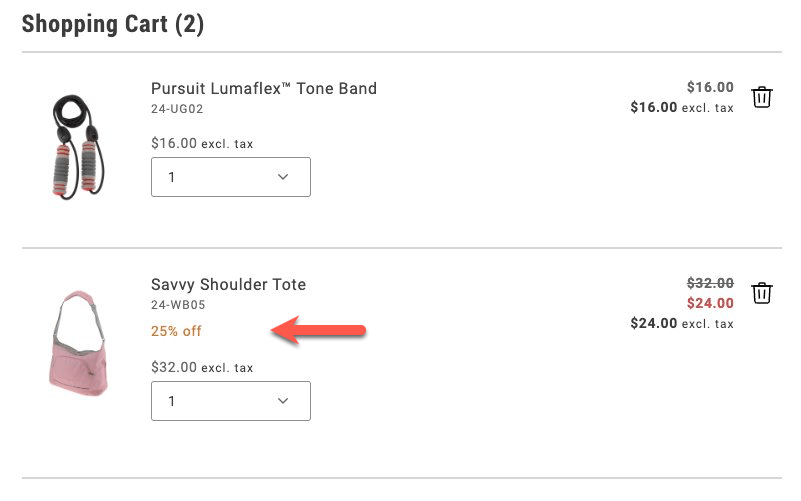
*Savings expressed as a percentage*
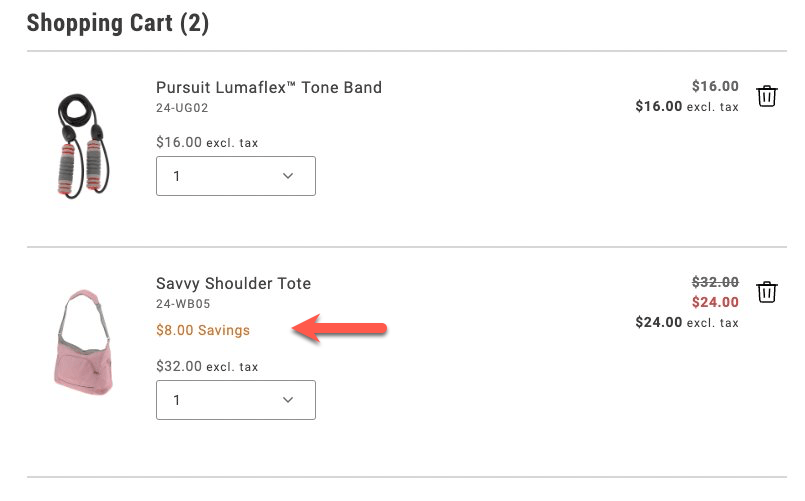
*Savings expressed as a total*
1. Add the following lines to the `provider.render(CartSummaryList)` method, below the `dropdownOptions,` line:
```js
showDiscount: true,
//showSavings: true
```
Comment out one of the lines to choose between displaying the discount as a percentage or a fixed amount.
1. Save the file and generate the page to see the changes.
### 3. Configure the savings display from the Cart content document
To allow a merchandiser or other non-developer to configure how to display savings values, you need to make more changes to the `commerce-cart.js` file and the relevant content documents. For guidance on starter content and the Sidekick browser extension, review https://experienceleague.adobe.com/developer/commerce/storefront/get-started/.
1. Comment out the savings properties from the `provider.render(CartSummaryList)` method.
```js
//showDiscount: true,
//showSavings: true
```
1. Add the following lines to the constant definitions in the `export default async function decorate(block){}` statement:
```js
'show-discount': showDiscount = 'false',
'show-savings': showSavings = 'false',
```
1. Add new lines in the `provider.render(CartSummaryList)` method to check whether `showDiscount` or `showSavings` is set to `true`:
```js
showDiscount: showDiscount === 'true',
showSavings: showSavings === 'true',
```
1. Save the file. When you generate the page, discounts are not displayed because the default values are `false`.
1. Find the `cart` content document in your site's content folder, and add two rows to the Commerce Cart table that set the visibility values for these properties.
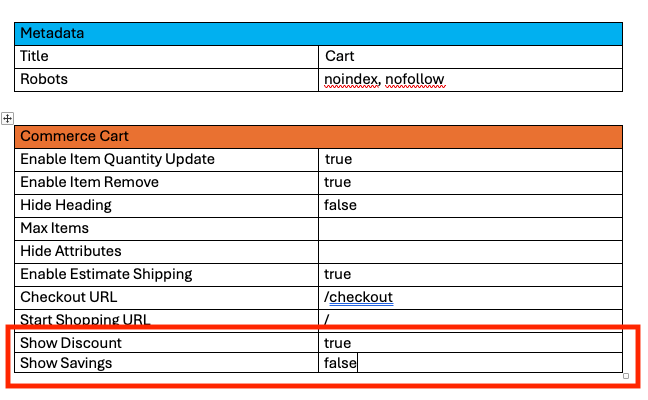
*Commerce Cart table*
Set the values of the Show Discount and Show Savings rows to either `true` or `false`.
1. Preview the changes with the Sidekick browser extension. Then publish the changes to your staging or production environment.
---
# Configuring Product Variation Updates in the Cart
This tutorial shows you how to configure the Edit feature for product variations in both the cart and mini-cart. The **Edit** button allows shoppers to update product variations (like size or color) directly from the cart pages.
The implementation is already available in the codebase. This tutorial focuses on how to *enable* or *disable* this feature through the AEM block configuration.
## How it Works
The **Edit** button feature is controlled by a configuration flag (`enable-updating-product`) that can be set on both the `commerce-cart` and `commerce-mini-cart` blocks in AEM. When activated, it opens a modal interface with a mini Product Detail Page (PDP) that allows shoppers to modify their selected options contextually.
### Cart
In the `commerce-cart.js` implementation, the code checks for this flag and conditionally renders an **Edit** button in the `Footer` slot for configurable products:
```javascript
// First, the configuration is read from the block with a default of 'false'
const {
'hide-heading': hideHeading = 'false',
'max-items': maxItems,
// ... other config properties ...
'checkout-url': checkoutURL = '',
'enable-updating-product': enableUpdatingProduct = 'false',
} = readBlockConfig(block);
// Later in the code, inside the Footer slot
if (ctx.item?.itemType === 'ConfigurableCartItem' && enableUpdatingProduct === 'true') {
const editLink = document.createElement('div');
editLink.className = 'cart-item-edit-link';
UI.render(Button, {
children: placeholders?.Global?.CartEditButton,
variant: 'tertiary',
size: 'medium',
icon: h(Icon, { source: 'Edit' }),
onClick: () => handleEditButtonClick(ctx.item),
})(editLink);
ctx.appendChild(editLink);
}
```
When a shopper clicks the **Edit** button, a modal opens with a mini-PDP interface that allows them to modify their product options. An auto-dismissing notification appears after a successful update.
### Mini Cart
Similarly, in the `commerce-mini-cart.js` implementation, the code uses the same configuration flag to determine whether to display an **Edit** button for each configurable product in the mini-cart, implementing it in the `Thumbnail` slot:
```javascript
// First, the configuration is read from the block with a default of 'false'
const {
'start-shopping-url': startShoppingURL = '',
'cart-url': cartURL = '',
'checkout-url': checkoutURL = '',
'enable-updating-product': enableUpdatingProduct = 'false',
} = readBlockConfig(block);
// Later in the code, inside the Thumbnail slot
if (item?.itemType === 'ConfigurableCartItem' && enableUpdatingProduct === 'true') {
const editLinkContainer = document.createElement('div');
editLinkContainer.className = 'cart-item-edit-container';
const editLink = document.createElement('div');
editLink.className = 'cart-item-edit-link';
UI.render(Button, {
children: placeholders?.Global?.CartEditButton,
variant: 'tertiary',
size: 'medium',
icon: h(Icon, { source: 'Edit' }),
onClick: () => handleEditButtonClick(item),
})(editLink);
editLinkContainer.appendChild(editLink);
ctx.appendChild(editLinkContainer);
}
```
When enabled, this provides a convenient modal-based editing experience. Success messages appear in both the mini-cart and main cart notification areas simultaneously, ensuring consistent user feedback across all cart interfaces.
## Configuration Steps
To modify this feature's configuration, follow these steps:
### 1. Configure the Cart Summary Block
The cart block shows **Edit** buttons *by default* when configurable products are present. If you want to disable it:
1. In your AEM authoring environment, navigate to the page containing your `commerce-cart` block.
2. Select the `commerce-cart` block and open its properties dialog.
3. Locate the existing property with the *Key* `Enable Updating Product`.
4. Change its *Value* to `false` to disable the feature.
5. Save the changes.
6. Preview the changes by clicking the **Preview** button.
7. Publish the changes by clicking the **Publish** button.
> The configuration is already provided in the content block, so you don't need to add a new property - just modify the existing one as needed.
### 2. Configure the Mini Cart Block
The `enable-updating-product` property is *already set to `false` by default* in the mini-cart block. If you want to enable it:
1. In your AEM authoring environment, navigate to the page or header that contains your `commerce-mini-cart` block.
2. Select the `commerce-mini-cart` block and open its properties dialog.
3. Locate the existing property with the *Key* `Enable Updating Product`.
4. Change its *Value* to `true` to enable the feature.
5. Save the changes.
6. Preview the changes by clicking the **Preview** button.
7. Publish the changes by clicking the **Publish** button.
### 3. Example Block Configurations
Here's how your block configuration should look like:
**Cart Block (Enabled by Default):**
| Key | Value |
| :------------------------ | :---- |
| `Enable Updating Product` | `true`|
| `Checkout URL` | `/checkout` | *(Example of another common property)*
**Mini Cart Block (Disabled by Default):**
| Key | Value |
| :------------------------ | :---- |
| `Enable Updating Product` | `false`|
| `Checkout URL` | `/checkout` | *(Example of another common property)*
> The property appears as `Enable Updating Product` (with spaces) in the AEM properties dialog, but is converted to kebab-case (`enable-updating-product`) when processed by the code.
## Testing the Configuration
After configuring the feature, you should test it to ensure it's working as expected:
1. Add a configurable product to your cart.
2. View your cart page:
- If enabled, you should see an **Edit** button for each configurable product.
- If disabled, no **Edit** button should appear.
3. Open the mini cart:
- If enabled, you should see an `Edit` option for configurable products.
- If disabled, no `Edit` option should be visible.
## Feature Behavior
When the **Edit** button is clicked, the following happens:
1. **Modal Interface**: A mini-PDP modal opens directly over the current page, maintaining user context.
2. **Pre-populated Options**: The modal displays the product with current selections already chosen.
3. **In-place Updates**: Changes are applied to the existing cart item.
4. **Comprehensive Messaging**: Success notifications appear in:
- The main cart notification area (if present)
- The mini-cart message system
- Both locations simultaneously for consistent feedback
5. **Auto-dismissing Notifications**: Messages automatically disappear for better UX.
> Using modals ensures users don't lose their shopping context when making product modifications.
With this simple configuration, you can provide your shoppers with a more convenient shopping experience by allowing them to modify product variations directly from the cart.
---
# Add gift options to a product detail page
The [`GiftOptions` container](https://experienceleague.adobe.com/developer/commerce/storefront/dropins/cart/containers/gift-options/) allows you to add gift options, such as gift wrapping or personalized messages, at various places on the storefront, including product detail pages. The gift option features enhance the shopping experience by enabling customers to select these options at multiple times during their shopping experience, such as when adding a product to the cart or during checkout.
The code examples provided here demonstrate the general approach to building custom integrations with the `GiftOptions` container.
> This tutorial is not a fully functional integration and should only be used as a reference.
## Step-by-step
The following steps describe how to render the `GiftOptions` container on the PDP page and apply the selected gift options to the cart when the product is added.
### 1. Import required modules
Import the `GiftOptions` container and `CartProvider`.
```js
```
### 2. Define gift options configuration for an item
In this step, we will define the gift options configuration for a specific item. This can be done in different ways, such as by fetching configurations from the backend using API methods or retrieving them from product data.
#### Example 1: Use `cartItem` data
Use this technique when the product has already been added to the cart, such as on the cart page:
```js
const cartItem = JSON.parse(
sessionStorage.getItem('DROPIN__CART__CART__DATA'),
)?.items?.find((el) => el.sku === product.sku);
```
#### Example 2: Use a custom integration configuration
This configuration can be composed using product data available on the PDP and a store configuration query.
:::tip
It is crucial that the manually-composed configuration matches the actual backend configurations. For example, the available gift wrappings must be fetched from the backend. Otherwise, they will not be applied correctly. The [`GiftOptions` container](https://experienceleague.adobe.com/developer/commerce/storefront/dropins/cart/containers/gift-options/) lists the relevant configuration screens in the Admin.
:::
```js
type ProductGiftOptionsConfig = {
giftWrappingAvailable: boolean;
giftMessageAvailable: boolean;
giftWrappingPrice?: Price;
giftMessage?: {
recipientName?: string;
senderName?: string;
message?: string;
};
productGiftWrapping: GiftWrappingConfigProps[];
};
const predefinedConfig = {
giftWrappingAvailable: true,
giftMessageAvailable: true,
productGiftWrapping: [
{
design: 'Glossy Print Paper',
uid: 'Mg==',
selected: false,
image: {
url: 'https://aemshop.example.com/media/wrapping/glossy.png',
label: 'glossy.png',
},
price: {
currency: 'USD',
value: 25,
},
},
{
design: 'Foil Finish Paper',
uid: 'NQ==',
selected: false,
image: {
url: 'https://aemshop.example.com/media/wrapping/random-grid.jpg',
label: 'random-grid.jpg',
},
price: {
currency: 'USD',
value: 30,
},
},
{
design: 'Kraft Brown Paper',
uid: 'OA==',
selected: false,
image: {
url: 'https://mcstaging.aemshop.net/media/wrapping/brown-paper.jpg',
label: 'brown-paper.jpg',
},
price: {
currency: 'USD',
value: 45,
},
},
],
};
```
### 3. Render the GiftOptions container
For custom integration, we must pass an item prop, which can be either a `cartItem` or a manually-composed gift options configuration. In addition, we need to pass the `onGiftOptionsChange` callback. When provided, the container will not automatically save the gift options. Instead, the integration layer must handle this. The callback receives the updated gift options whenever they change.
```js
CartProvider.render(GiftOptions, {
item: cartItem ?? predefinedConfig,
view: 'product',
onGiftOptionsChange: async (data) => {
console.info('onGiftOptionsChange :>> ', data);
if (data) {
sessionStorage.setItem('updatedGiftOptions', JSON.stringify(data));
}
},
})($giftOptions);
```
### 4. Update the Add to Cart button
At this stage, we extend the **Add to Cart** button functionality by calling the `updateProductsFromCart` API method provided by the cart drop-in component to apply gift options after adding the product to the cart.
> Gift options must be applied after adding the product to the cart. Adobe Commerce does not support applying gift options before adding the product.
```js
// Configuration - Button - Add to Cart
UI.render(Button, {
children: labels.PDP?.Product?.AddToCart?.label,
icon: Icon({ source: 'Cart' }),
onClick: async () => {
try {
addToCart.setProps((prev) => ({
...prev,
children: labels.Custom?.AddingToCart?.label,
disabled: true,
}));
// get the current selection values
const values = pdpApi.getProductConfigurationValues();
const valid = pdpApi.isProductConfigurationValid();
// add the product to the cart
if (valid) {
const { addProductsToCart, updateProductsFromCart } = await import(
'@dropins/storefront-cart/api.js'
);
await addProductsToCart([{ ...values }]).then(async (response) => {
const updatedGiftOptions = JSON.parse(
sessionStorage.getItem('updatedGiftOptions'),
);
if (!updatedGiftOptions) return;
const { items } = response;
const dropinCartData = items.find((el) => el.sku === values.sku);
const {
recipientName,
senderName,
message,
giftWrappingId,
isGiftWrappingSelected,
} = updatedGiftOptions;
const giftOptions = {
gift_message: {
to: recipientName,
from: senderName,
message,
},
gift_wrapping_id: isGiftWrappingSelected
? giftWrappingId
: null,
};
await updateProductsFromCart([
{
uid: dropinCartData.uid,
quantity: dropinCartData.quantity,
giftOptions,
},
]);
});
}
// reset any previous alerts if successful
inlineAlert?.remove();
} catch (error) {
// add alert message
inlineAlert = await UI.render(InLineAlert, {
heading: 'Error',
description: error.message,
icon: Icon({ source: 'Warning' }),
'aria-live': 'assertive',
role: 'alert',
onDismiss: () => {
inlineAlert.remove();
},
})($alert);
// Scroll the alertWrapper into view
$alert.scrollIntoView({
behavior: 'smooth',
block: 'center',
});
} finally {
addToCart.setProps((prev) => ({
...prev,
children: labels.PDP?.Product?.AddToCart?.label,
disabled: false,
}));
}
},
})($addToCart);
```
As a result of these customizations, the default `GiftOption` container is rendered as follows:
*Default GiftOption container*
When the shopper makes a selection, the container is rendered as follows:
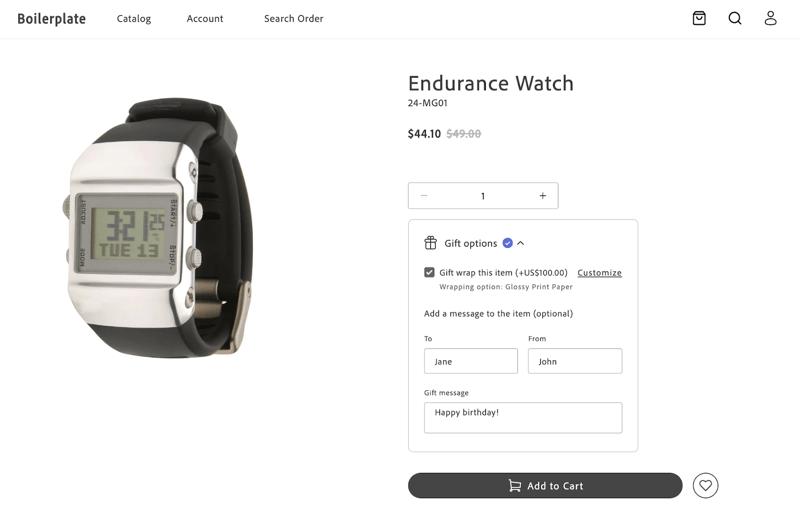
*Default GiftOption container*
After clicking **Add to Cart**, the product is added to the cart, and the selected gift options are applied. The cart page displays the applied gift options.
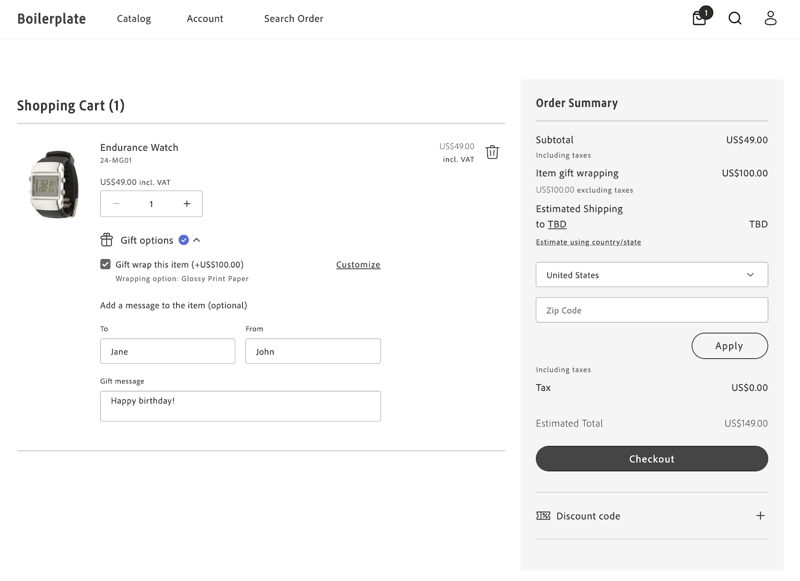
*Default GiftOption container*
---
# Order Summary Lines
The Cart drop-in allows you to customize the lines of the Order Summary to meet your requirements.
You might want to group and sort the order summary lines into sections using the Accordion component from the Storefront SDK (Elsie). See the /sdk/components/accordion/ component reference in this documentation.
:::note[Note]
For the full set of UI primitives (including icons), start from the /sdk/components/overview/ in this documentation.
:::
You can specify the line items shown in the accordion and decide the order in which they are displayed.
You can also customize the title and content of these order summary lines.
## Customize the lines of the Order Summary to meet your needs
This customization is possible thanks to the attribute `updateLineItems` from the `OrderSummary` container. This attribute allows you to modify the order summary lines before they are rendered.
```typescript
export const OrderSummary: Container = ({
...
updateLineItems = (lineItems) => lineItems,
...
});
```
It doesn't matter if you want to customize the existing order summary lines, add new ones, or skip some of them.
The `OrderSummary` container passes the `updateLineItems` to the `OrderSummary` component, which performs the appropriate actions.
`updateLineItems` is an optional function that receives the line items as an argument and returns the updated line items. In both cases, `lineItems` are an array of `OrderSummaryLineItem` object.
```typescript
export interface OrderSummaryLineItem {
key: string;
title?: string;
className?: string;
sortOrder: number;
content:
| string
| JSXInternal.Element
| VNode>
| OrderSummaryLineItem[]
| undefined;
}
```
There are default order summary lines in the `OrderSummary` component. If no customization is needed, and therefore nothing is passed using the `updateLineItems` attribute, the default order summary lines will be rendered.
Let's imagine that `lineItems` contains the following lines:
```typescript
const lineItems: Array = [
{
key: 'subTotalContent',
sortOrder: 100,
content: subTotalContent,
},
{
key: 'discountsContent',
sortOrder: 300,
content: discountsContent,
},
{
key: 'taxContent',
sortOrder: 400,
content: taxContent,
},
];
```
In the example above, the `OrderSummary` component renders the sub-total, discounts, and tax lines, in that order.
The value of the `sortOrder` attribute determines the order in which the lines are rendered.
The larger the `sortOrder` value, the lower the line will be rendered in the order summary.
The `content` attribute can be a string, a JSX element, or an array of `OrderSummaryLineItem` objects (whenever is not `undefined`).
For instance, you could choose to render a JSX element in a form of a `OrderSummaryLine` container.
This `OrderSummaryLine` container it is defined as follows:
```typescript
export interface OrderSummaryLineProps extends HTMLAttributes {
label: string;
price: VNode>;
classSuffixes?: Array;
labelClassSuffix?: string;
testId?: string;
children?: any;
}
```
See an example of how to use the `OrderSummaryLine` container below, where only the mandatory props are passed:
```html
{children}
);
```
Note that the `OrderSummaryLine` container behaves like a wrapper for the `OrderSummaryLine` component.
The component ultimately decides how to render the line item based on the `children` attribute.
```typescript
export interface OrderSummaryLineComponentProps
extends HTMLAttributes {
label: string;
price: VNode>;
classSuffixes?: Array;
labelClassSuffix?: string;
testId?: string;
children?: any;
}
```
### Where to perform the customizations
To customize the order summary lines, you need to render the `Cart` component passing the `OrderSummary` component as a slot.
When rendering the `OrderSummary` component, you can pass the `updateLineItems` attribute to customize the order summary lines as needed.
```typescript
// Cart
provider.render(Cart, {
slots: {
OrderSummary: (ctx) => {
const orderSummary = document.createElement('div');
provider.render(OrderSummary, {
updateLineItems: (lineItems) => {
// Customize the order summary lines here
return lineItems;
}
}
}
}
});
```
## Examples
For the examples shown below, assume that this is how `Order Summary` looks originally:
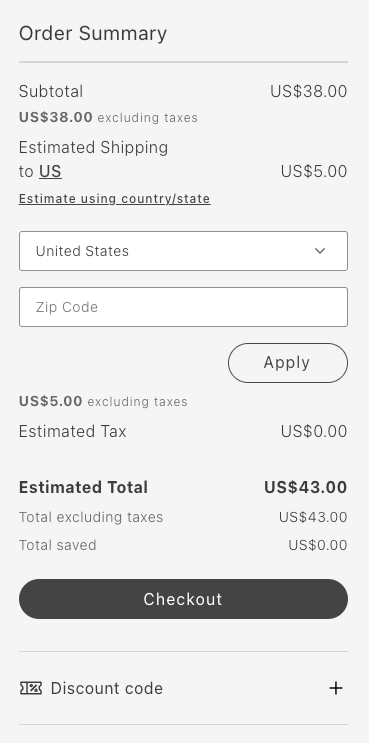
*Cart without any customization*
### Remove Item: Remove total saved
The following example removes the Total saved line:
```typescript
updateLineItems: (lineItems) => {
const index = lineItems.map(item => item.key).indexOf('totalSavedContent');
lineItems.splice(index, 1);
return lineItems;
}
```
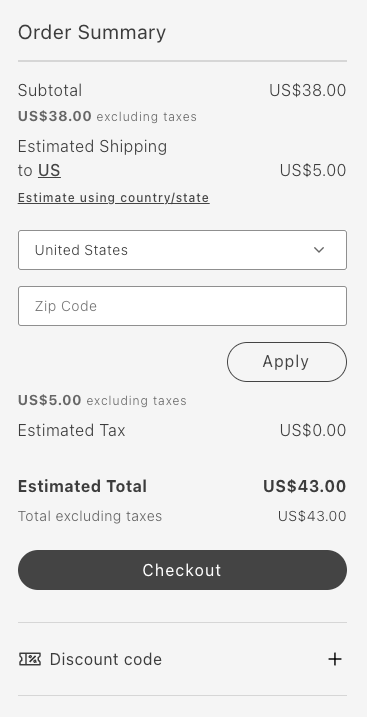
*Cart after removing Total Saved line*
### Reorder items: Move primary action to the beginning
The following example moves the Checkout button to the top:
```typescript
updateLineItems: (lineItems) => {
lineItems.map(lineItem => {
if (lineItem.key === 'primaryActionContent') {
lineItem.sortOrder = 50;
}
return lineItem;
});
return lineItems;
};
```
*Cart after moving primary action to the beginning*
### Group items: Group subtotal and tax in an accordion
The following example groups the subtotal and tax in an accordion:
```typescript
updateLineItems: (lineItems) => {
const totalsIndex = lineItems.map(item => item.key).indexOf('taxContent');
const taxContent = lineItems.splice(totalsIndex, 1)[0];
const subtotalIndex = lineItems.map(item => item.key).indexOf('subTotalContent');
const subTotalContent = lineItems.splice(subtotalIndex, 1)[0];
lineItems.push({
key: 'subtotalTaxGrouped',
sortOrder: 50,
title: 'Subtotal and Tax',
content: [
taxContent,
subTotalContent,
],
});
return lineItems;
}
```
*Cart after grouping subtotal and tax in an accordion*
### Add item: Add a new order summary line
The following example adds the FPT line:
```typescript
updateLineItems: (lineItems) => {
const totalFpt = ctx.data.items.reduce((allItemsFpt, item) => {
const itemFpt = item.fixedProductTaxes.reduce((accumulator, fpt) => {
accumulator.labels.push(fpt.label);
accumulator.total += fpt.amount.value;
return accumulator;
}, {
labels: [],
total: 0
});
allItemsFpt.labels = [...allItemsFpt.labels, ...itemFpt.labels];
allItemsFpt.total += itemFpt.total;
return allItemsFpt;
}, {
labels: [],
total: 0
});
lineItems.push({
key: 'fpt',
sortOrder: 350,
title: 'Fixed Product Tax',
content: OrderSummaryLine({label: "FPT(" + totalFpt.labels.join(',') + ')', price: Price({amount: totalFpt.total}), classSuffix: 'fpt'})
})
return lineItems;
};
```
*Cart after adding a new order summary line*
---
# AddressValidation container
The `AddressValidation` container displays a suggested shipping address (from a third-party verification service) alongside the entered address, allowing shoppers to choose between them.
Typically invoked from a modal during checkout after calling your address verification service.
## AddressValidation configurations
The `AddressValidation` container provides the following configuration options:
```text
[
['Option', 'Type', 'Req?', 'Description'],
['suggestedAddress', 'CartAddressInput | null', 'No', 'Address suggestion to present to the shopper.'],
['handleSelectedAddress', 'function', 'No', 'Async callback fired when the shopper selects an address. Receives the selection and the chosen address.'],
]
```
### AddressValidationProps interface
The `AddressValidation` container receives an object that implements the following interface:
```ts
interface AddressValidationProps {
suggestedAddress: Partial | null;
handleSelectedAddress?: (payload: {
selection: 'suggested' | 'original';
address: CartAddressInput | null | undefined;
}) => void;
}
```
- `suggestedAddress` - The normalized address to propose to the shopper.
- `handleSelectedAddress` - Called when the shopper selects an address. Use this to persist the selection or continue checkout.
## CartAddressInput type
The `CartAddressInput` type has this shape:
```ts
interface CartAddressInput {
city: string;
countryCode: string;
postcode: string;
region: string;
street: string[];
}
```
> **Get the current address** The container automatically maps the current shipping address to `CartAddressInput` from checkout events. Only pass `suggestedAddress` when available.
> **Normalization** Transform your address verification service output to `CartAddressInput` format (with fields like `street`, `city`, `region`, `countryCode`, `postcode`) before passing to the container. Missing properties default to the original address values.
## Example
For a complete walkthrough, see the [Validate shipping address](https://experienceleague.adobe.com/developer/commerce/storefront/dropins/checkout/tutorials/validate-shipping-address/) tutorial.
---
# BillToShippingAddress container
The `BillToShippingAddress` container includes a checkbox that allows users to indicate if the billing address is the same as the shipping address. If unchecked, the billing address form will be displayed.
This container provides internal business logic to hide itself in case the cart is empty or virtual.
## BillToShippingAddress configurations
The `BillToShippingAddress` container provides the following configuration options:
```text
[
['Option', 'Type', 'Req?', 'Description'],
['active', 'boolean', 'No', 'Activates/deactivates the container (default value is true).'],
['autoSync', 'boolean', 'No', 'Synchronizes/does not synchronize the container local state with the backend (default value is true).'],
['onCartSyncError', 'function', 'No', 'A function that takes an error as argument. It is called when the setBillingAddressOnCart() API throws an error when bill to shipping address checkbox is clicked to be stored to the backend.'],
['onChange', 'function', 'No', 'Callback function that is called when the checkbox state changes.'],
]
```
These configuration options implement the `BillToShippingAddressProps` interface:
### BillToShippingAddressProps interface
The `BillToShippingAddress` container receives an object as a parameter which implements the `BillToShippingAddressProps` interface with the following properties:
```ts
interface CartSyncError {
error: Error;
}
export interface BillToShippingAddressProps extends Omit, 'onChange'> {
active?: boolean;
autoSync?: boolean;
onCartSyncError?: (error: CartSyncError) => void;
onChange?: (checked: boolean) => void;
}
```
- Set the `active` property to _true_ to have the container in reactive mode (it is visible and responds to system events). If it is set to _false_, the container is deactivated (it does not subscribe to system events and is not rendered).
- Set the `autoSync` property to _true_ to automatically synchronize the container state changes with the backend via API calls. If it is set to _false_ the container does not automatically synchronize its state, but still maintains local updates.
- The `onCartSyncError` property is a handler used to perform actions called when bill to shipping address checkbox is clicked and the setBillingAddressOnCart() API throws an error. It could be used as a callback in the integration layer by the merchant to show errors or perform other actions.
- The `onChange` property is a handler used to perform actions called when the checkbox is checked/unchecked.
## Example
The following example renders the `BillToShippingAddress` container on a checkout page. It handles changes to the billing address form visibility and validation. If the billing address form is shown, it validates the form data and updates the billing address on the cart. Finally, an error message is shown in case there is an issue saving the billing address to the backend.
```ts
const DEBOUNCE_TIME = 1000;
const $billToShipping = checkoutFragment.querySelector(
'.checkout__bill-to-shipping',
);
const $billingForm = checkoutFragment.querySelector(
'.checkout__billing-form',
);
const billingFormRef = { current: null };
CheckoutProvider.render(BillToShippingAddress, {
onCartSyncError: (error) => {
const billToShippingMsg = document.createElement('div');
billToShippingMsg.style.color = 'red';
billToShippingMsg.innerText = `Error saving the Billing address with the Shipping address information: ${error.message}`;
$billToShipping.appendChild(billToShippingMsg);
},
onChange: (checked) => {
$billingForm.style.display = checked ? 'none' : 'block';
if (!checked && billingFormRef?.current) {
const { formData, isDataValid } = billingFormRef.current;
setAddressOnCart({
api: checkoutApi.setBillingAddress,
debounceMs: DEBOUNCE_TIME,
placeOrderBtn: placeOrder,
})({ data: formData, isDataValid });
}
},
})($billToShipping),
```
---
# EstimateShipping container
The `EstimateShipping` container is designed to estimate and display shipping costs during the checkout process.
This container is read-only, unlike the editable [`EstimateShipping`](https://experienceleague.adobe.com/developer/commerce/storefront/dropins/cart/containers/estimate-shipping/) container in the cart drop-in component. Initially, it displays estimated shipping costs. After a customer provides a shipping address and selects a shipping method, it shows the actual shipping cost. This container is designed to be used as a slot within the `OrderSummary` container from the cart, where the estimated shipping information is displayed.
## EstimateShipping configurations
The `EstimateShipping` container provides the following configuration options:
```text
[
['Option', 'Type', 'Req?', 'Description'],
['active', 'boolean', 'No', 'Activates/deactivates the container (default value is true).'],
]
```
These configuration options implement the `EstimateShippingProps` interface:
### EstimateShippingProps interface
The `EstimateShipping` container receives an object as a parameter which implements the `EstimateShippingProps` interface with the following properties:
```ts
export interface EstimateShippingProps {
active?: boolean;
}
```
- Set the `active` property to _true_ to have the container in reactive mode (it is visible and responds to system events). If it is set to _false_, the container is deactivated (it does not subscribe to system events and is not rendered).
## Example
The following example renders an `OrderSummary` container within a checkout page and includes a slot for estimating shipping:
```ts
const $orderSummary = checkoutFragment.querySelector(
'.checkout__order-summary',
);
CartProvider.render(OrderSummary, {
slots: {
EstimateShipping: (esCtx) => {
const estimateShippingForm = document.createElement('div');
CheckoutProvider.render(EstimateShipping)(estimateShippingForm);
esCtx.appendChild(estimateShippingForm);
},
},
})($orderSummary),
```
---
# Checkout Containers
The **Checkout** drop-in provides pre-built container components for integrating into your storefront.
Version: 3.2.0
## What are Containers?
Containers are pre-built UI components that combine functionality, state management, and presentation. They provide a complete solution for specific features and can be customized through props, slots, and CSS.
## Available Containers
| Container | Description |
| --------- | ----------- |
| [AddressValidation](https://experienceleague.adobe.com/developer/commerce/storefront/dropins/checkout/containers/address-validation/) | Configure the `AddressValidation` container to present suggested vs. |
| [BillToShippingAddress](https://experienceleague.adobe.com/developer/commerce/storefront/dropins/checkout/containers/bill-to-shipping-address/) | Configure the `BillToShippingAddress` container to manage and display the billing address form during checkout. |
| [EstimateShipping](https://experienceleague.adobe.com/developer/commerce/storefront/dropins/checkout/containers/estimate-shipping/) | Learn how the `EstimateShipping` container displays shipping costs during checkout. |
| [LoginForm](https://experienceleague.adobe.com/developer/commerce/storefront/dropins/checkout/containers/login-form/) | Configure the `LoginForm` container to handle user email input and validation during checkout. |
| [MergedCartBanner](https://experienceleague.adobe.com/developer/commerce/storefront/dropins/checkout/containers/merged-cart-banner/) | Configure the `MergedCartBanner` container to display notifications when items from an old cart are merged into the current cart. |
| [OutOfStock](https://experienceleague.adobe.com/developer/commerce/storefront/dropins/checkout/containers/out-of-stock/) | Configure the `OutOfStock` container to handle and display out-of-stock items in the cart. |
| [PaymentMethods](https://experienceleague.adobe.com/developer/commerce/storefront/dropins/checkout/containers/payment-methods/) | Configure the `PaymentMethods` container to manage and display available payment methods during checkout. |
| [PaymentOnAccount](https://experienceleague.adobe.com/developer/commerce/storefront/dropins/checkout/containers/payment-on-account/) | *Enrichment needed - add description to `_dropin-enrichments/checkout/containers.json`* |
| [PlaceOrder](https://experienceleague.adobe.com/developer/commerce/storefront/dropins/checkout/containers/place-order/) | Configure the `PlaceOrder` container to handle the final checkout step, including place order action, button disablement, and main slot management. |
| [PurchaseOrder](https://experienceleague.adobe.com/developer/commerce/storefront/dropins/checkout/containers/purchase-order/) | *Enrichment needed - add description to `_dropin-enrichments/checkout/containers.json`* |
| [ServerError](https://experienceleague.adobe.com/developer/commerce/storefront/dropins/checkout/containers/server-error/) | Configure the `ServerError` container to handle and display server error messages during checkout. |
| [ShippingMethods](https://experienceleague.adobe.com/developer/commerce/storefront/dropins/checkout/containers/shipping-methods/) | Configure the `ShippingMethods` container to manage and display available shipping methods during checkout. |
| [TermsAndConditions](https://experienceleague.adobe.com/developer/commerce/storefront/dropins/checkout/containers/terms-and-conditions/) | Configure the `TermsAndConditions` container to manage and display the terms and conditions form during checkout. |
> Each container is designed to work independently but can be composed together to create comprehensive user experiences.
---
# LoginForm container
The `LoginForm` container handles user email input and validation within the checkout process.
## LoginForm configurations
The `LoginForm` container provides the following configuration options:
```text
[
['Option', 'Type', 'Req?', 'Description'],
['displayTitle (*)', 'boolean', 'No', 'Displays the container title (default value is true).'],
['active', 'boolean', 'No', 'Activates/deactivates the container (default value is true).'],
['autoSync', 'boolean', 'No', 'Synchronizes/does not synchronize the container local state with the backend (default value is true).'],
['displayHeadingContent', 'boolean', 'No', 'Displays the container heading content (default value is true).'],
['onSignInClick', 'function', 'No', 'A function that handles the sign-in button click. It takes the email (string or null) as an argument.'],
['onSignOutClick', 'function', 'No', 'A function that handles the sign-out button click. It takes no arguments.'],
['onCartSyncError', 'function', 'No', 'A function that takes an error and the email address as arguments. It is called when the setGuestEmailOnCart() API throws an error when filling in the email address to be stored to the backend.'],
['onValidationError', 'function', 'No', 'A function that takes the email validated with the type of error and its message as arguments. It is called when the email form field is validated with an error (due to it\'s missing or has an invalid format).'],
['slots', 'object', 'No', 'Object with the content to be displayed on the LoginForm container. This slot allows setting the heading content dynamically based on the user authentication status.'],
]
```
(*) Properties inherited from `TitleProps`
These configuration options are implementing the `LoginFormProps` interface:
### LoginFormProps interface
The `LoginForm` container receives an object as a parameter which implements the `LoginFormProps` interface with the following properties:
```ts
interface ValidationError {
email: string;
message: string;
type: 'missing' | 'invalid';
}
interface CartSyncError {
email: string;
error: Error;
}
export interface LoginFormProps extends HTMLAttributes, TitleProps {
active?: boolean;
autoSync?: boolean;
displayHeadingContent?: boolean;
onSignInClick?: (email: string) => void;
onSignOutClick?: () => void;
onCartSyncError?: (error: CartSyncError) => void;
onValidationError?: (error: ValidationError) => void;
slots?: {
Heading?: SlotProps<{
authenticated: boolean;
}>;
Preferences?: SlotProps<{
email: string;
isEmailValid: boolean;
isAuthenticated: boolean;
}>;
} & TitleProps['slots'];
}
```
- The `displayTitle (*)` property inherits from the `TitleProps` interface to display or hide the title.
- Set the `active` property to _true_ to have the container in reactive mode (it is visible and responds to system events). If it is set to _false_, the container is deactivated (it does not subscribe to system events and is not rendered).
- Set the `autoSync` property to _true_ to automatically synchronize the container state changes with the backend via API calls. If it is set to _false_ the container does not automatically synchronize its state, but still maintains local updates.
- Set the `displayHeadingContent` property to _true_ to display the heading content with the sign-in/sign-out button.
- The `onSignInClick` property is a handler used to perform actions called when the sign-in button is clicked. It accepts an email as an input parameter.
- The `onSignOutClick` property is a handler used to perform actions called when the sign-out button is clicked.
- The `onCartSyncError` property is a handler used to perform actions called when filling in the email address and the setGuestEmailOnCart() API throws an error. It could be used as a callback in the integration layer by the merchant to show errors or perform other actions.
- The `onValidationError` property is a handler used to perform actions called when the email address form field is validated with an error. It could be used as a callback in the integration layer by the merchant to show errors or perform other actions.
- The `slots` property is an object containing the following properties:
- Use the `Title (*)` property to render a custom title. This property is inherited from `TitleProps` interface.
- The `Heading` property is a handler used to render a customized heading content based on the authenticated status provided by the context.
- The `Preferences` property is a handler used to render custom marketing preference fields (such as newsletter subscriptions or promotional consent checkboxes). The slot receives context with the current email address, email validation state, and authentication status.
## Example 1: Render with title and heading content by default
The following example renders the `LoginForm` container on a checkout page, which includes rendering the [`AuthCombine`](https://experienceleague.adobe.com/developer/commerce/storefront/dropins/user-auth/containers/auth-combine/) container from the user auth drop-in component in a modal for authentication:
```ts
const LOGIN_FORM_NAME = 'login-form';
const $loader = checkoutFragment.querySelector('.checkout__loader');
const $login = checkoutFragment.querySelector('.checkout__login');
let loader;
const displayOverlaySpinner = async () => {
if (loader) return;
loader = await UI.render(ProgressSpinner, {
className: '.checkout__overlay-spinner',
})($loader);
};
CheckoutProvider.render(LoginForm, {
name: LOGIN_FORM_NAME,
onSignInClick: async (initialEmailValue) => {
const signInForm = document.createElement('div');
AuthProvider.render(AuthCombine, {
signInFormConfig: {
renderSignUpLink: true,
initialEmailValue,
onSuccessCallback: () => {
displayOverlaySpinner();
},
},
signUpFormConfig: {
slots: {
...authPrivacyPolicyConsentSlot,
},
},
resetPasswordFormConfig: {},
})(signInForm);
showModal(signInForm);
},
onSignOutClick: () => {
authApi.revokeCustomerToken();
},
})($login),
```
## Example 2: Render without title and heading content
The following example renders the `LoginForm` container on a checkout page but without displaying both title and heading content:
```ts
const LOGIN_FORM_NAME = 'login-form';
const $login = checkoutFragment.querySelector('.checkout__login');
CheckoutProvider.render(LoginForm, {
displayTitle: false,
displayHeadingContent: false,
})($login),
```
## Example 3: Render with customized title and heading content
The following example renders the `LoginForm` container on a checkout page providing customized title and heading content:
```ts
const LOGIN_FORM_NAME = 'login-form';
const $login = checkoutFragment.querySelector('.checkout__login');
CheckoutProvider.render(LoginForm, {
name: LOGIN_FORM_NAME,
onSignInClick: async (initialEmailValue) => { . . . },
onSignOutClick: () => { . . . },
slots: {
Title: (ctx) => {
const content = document.createElement('div');
content.innerText = 'Custom title';
ctx.replaceWith(content);
},
Heading: (ctx) => {
const content = document.createElement('div');
if (ctx.authenticated) {
// Put here a customized content when the user has signed-in
} else {
// Put here a customized content when the user still has not signed-in
}
ctx.replaceWith(content);
},
},
})($login),
```
## Example 4: Render with callbacks for error handling
The following example renders the `LoginForm` container on a checkout page providing handlers for validation and API errors:
```ts
const LOGIN_FORM_NAME = 'login-form';
const $login = checkoutFragment.querySelector('.checkout__login');
CheckoutProvider.render(LoginForm, {
name: LOGIN_FORM_NAME,
onSignInClick: async (initialEmailValue) => { . . . },
onSignOutClick: () => { . . . },
onCartSyncError: ({ email, error }) => {
const loginFormMsg = document.createElement('div');
loginFormMsg.style.color = 'red';
loginFormMsg.innerText = `Error saving the email address ${email}: ${error.message}`;
$login.appendChild(loginFormMsg);
},
onValidationError: ({ email, message, type }) => {
const loginFormMsg = document.createElement('div');
loginFormMsg.style.color = 'red';
loginFormMsg.innerText = `Validation error (${type}) introducing the email address ${email}: ${message}`;
$login.appendChild(loginFormMsg);
},
})($login),
```
## Example 5: Render with marketing preferences slot
The following example renders the `LoginForm` container with a custom marketing preferences slot that allows merchants to capture newsletter subscription consent:
```ts
const LOGIN_FORM_NAME = 'login-form';
const $login = checkoutFragment.querySelector('.checkout__login');
CheckoutProvider.render(LoginForm, {
name: LOGIN_FORM_NAME,
onSignInClick: async (initialEmailValue) => { . . . },
onSignOutClick: () => { . . . },
slots: {
Preferences: (ctx) => {
// Only show preferences when email is valid and user is not authenticated
if (!ctx.isEmailValid || ctx.isAuthenticated) {
return;
}
const label = document.createElement('label');
label.className = 'checkout__preference-item';
const checkbox = document.createElement('input');
checkbox.type = 'checkbox';
checkbox.name = 'newsletter';
checkbox.id = 'newsletter-subscription';
const text = document.createElement('span');
text.textContent = 'Subscribe to our newsletter for exclusive offers';
label.appendChild(checkbox);
label.appendChild(text);
ctx.appendChild(label);
},
},
})($login),
```
---
# MergedCartBanner container
Use the `MergedCartBanner` container to display a notification banner when items from an old cart are merged into the current cart.
When a customer signs in, if they had items in a previous cart, a banner will notify them that the items from their previous cart have been merged with the current cart. You can apply styles to the banner by passing a CSS `className` prop to the container.
## MergedCartBanner configurations
The `MergedCartBanner` container provides the following configuration options:
```text
[
['Option', 'Type', 'Req?', 'Description'],
['active', 'boolean', 'No', 'Activates/deactivates the container (default value is true).'],
]
```
These configuration options are implementing the `MergedCartBannerProps` interface:
### MergedCartBannerProps interface
The `MergedCartBanner` container receives an object as a parameter which implements the `MergedCartBannerProps` interface with the following properties:
```ts
export interface MergedCartBannerProps extends AlertBannerProps {
active?: boolean;
}
```
- Set the `active` property to _true_ to have the container in reactive mode (it is visible and responds to system events). If it is set to _false_, the container is deactivated (it does not subscribe to system events and is not rendered).
## Example
The following example renders the `MergedCartBanner` container with a custom class name:
```ts
const $mergedCartBanner = checkoutFragment.querySelector(
'.checkout__merged-cart-banner'
);
CheckoutProvider.render(MergedCartBanner, {
className: 'checkout__merged-cart-banner--custom',
})($mergedCartBanner);
```
---
# OutOfStock container
The `OutOfStock` container is designed to handle and display items in the shopping cart that are out of stock or have insufficient quantity. You can configure it to handle the removal of out-of-stock items and provide a route to the cart page.
## OutOfStock configurations
The `OutOfStock` container provides the following configuration options:
```text
[
['Option', 'Type', 'Req?', 'Description'],
['active', 'boolean', 'No', 'Activates/deactivates the container (default value is true).'],
['onCartProductsUpdate', 'function', 'No', 'Handles the removal of out-of-stock items. It takes the list of items that are out of stock as an argument.'],
['routeCart', 'function', 'No', 'The route to the cart page.'],
]
```
These configuration options implement the `OutOfStockProps` interface:
### OutOfStockProps interface
The `OutOfStock` container receives an object as a parameter which implements the `OutOfStockProps` interface with the following properties:
```ts
export type UpdateProductsFromCart = Array<{
uid: string;
quantity: number;
}>;
export interface OutOfStockProps extends Omit, 'icon'> {
active?: boolean;
onCartProductsUpdate?: (items: UpdateProductsFromCart) => void;
routeCart?: () => string;
}
```
- Set the `active` property to _true_ to have the container in reactive mode (it is visible and responds to system events). If it is set to _false_, the container is deactivated (it does not subscribe to system events and is not rendered).
- The `onCartProductsUpdate` property is a handler used to perform actions called when there are out-of-stock items. It takes the list of items (array with pairs of _uid_ and _quantity_ values) as an input parameter.
- The `routeCart` property is a handler used to indicate the route to the cart page.
## Example
The following example renders the `OutOfStock` container to handle and display out-of-stock items in the cart:
```ts
const $outOfStock = checkoutFragment.querySelector('.checkout__out-of-stock');
CheckoutProvider.render(OutOfStock, {
routeCart: () => '/cart',
onCartProductsUpdate: (items) => {
cartApi.updateProductsFromCart(items).catch(console.error);
},
})($outOfStock),
```
---
# PaymentMethods container
Use the `PaymentMethods` container to manage and display the available payment methods during the checkout process. Configuration options:
- Set the payment method automatically or manually (starting without a selected payment method)
- Show an icon beside of the label
- Display or hide the label
- Provide a specific handler to render the payment method
## PaymentMethods configurations
The `PaymentMethods` container provides the following configuration options:
```text
[
['Option', 'Type', 'Req?', 'Description'],
['displayTitle (*)', 'boolean', 'No', 'Displays the container title (default value is true).'],
['active', 'boolean', 'No', 'Activates/deactivates the container (default value is true).'],
['autoSync', 'boolean', 'No', 'Synchronizes/does not synchronize the container local state with the backend (default value is true).'],
['onCartSyncError', 'function', 'No', 'A function that takes a PaymentMethod object and an error as arguments. It is called when the setPaymentMethodOnCart() API throws an error when a payment method is selected to be stored to the backend.'],
['onSelectionChange', 'function', 'No', 'A function that takes a PaymentMethod object as an argument. It is called when a payment method is selected.'],
['slots', 'object', 'No', 'Object with a list of configurations for existing payment methods.'],
['UIComponentType', 'string', 'No', 'String with the UI component type to be used as selector (default value is \'ToggleButton\').'],
]
```
(*) Properties inherited from `TitleProps`
These configuration options are implementing the `PaymentMethodsProps` interface:
### PaymentMethodsProps interface
The `PaymentMethods` container receives an object as parameter which implements the `PaymentMethodsProps` interface with the following properties:
```ts
export type UIComponentType = 'ToggleButton' | 'RadioButton';
interface CartSyncError {
method: PaymentMethod;
error: Error;
}
export interface PaymentMethodsProps extends HTMLAttributes, TitleProps {
active?: boolean;
autoSync?: boolean;
onCartSyncError?: (error: CartSyncError) => void;
onSelectionChange?: (method: PaymentMethod) => void;
slots?: {
Methods?: PaymentMethodsSlot;
} & TitleProps['slots'];
UIComponentType?: UIComponentType;
}
```
- The `displayTitle (*)` property is inherited from the `TitleProps` interface. It is used to determine whether to display the title.
- Set the `active` property to _true_ to have the container in reactive mode (it is visible and responds to system events). If it is set to _false_, the container is deactivated (it does not subscribe to system events and is not rendered).
- Set the `autoSync` property to _true_ to automatically synchronize the container state changes with the backend via API calls. If it is set to _false_ the container does not automatically synchronize its state, but still maintains local updates.
- The `onCartSyncError` property is a handler used to perform actions called when a payment method is selected and the setPaymentMethodOnCart() API throws an error. It could be used in the integration layer by the merchant to show errors.
- The `onSelectionChange` property is a handler used to perform actions called when a payment method is selected.
- The `UIComponentType` property is a string containing the name of the UI component type to be used as a selector for each payment method. The available UI components are: `ToggleButton` or `RadioButton`.
- The `slots` property is an object containing the following properties:
- Use the `Title (*)` property to render a custom title. This property is inherited from `TitleProps` interface.
- The `Methods` property is an object which implements the `PaymentMethodsSlot` interface:
```ts
export interface PaymentMethodsSlot {
[code: string]: PaymentMethodConfig;
}
```
It consists on a list of payment method codes providing a set of configurations to customize the payment method.
Each payment method will have its own set of configurations implementing the `PaymentMethodConfig` interface:
```ts
export type SlotProps = (
ctx: T & DefaultSlotContext,
element: HTMLDivElement | null
) => Promise | void;
export interface PaymentMethodRenderCtx {
cartId: string;
replaceHTML: (domElement: HTMLElement) => void;
additionalData?: Record;
setAdditionalData: (data: Record) => void;
}
export interface PaymentMethodConfig {
displayLabel?: boolean;
enabled?: boolean;
icon?: string;
autoSync?: boolean;
render?: SlotProps;
}
```
- The `PaymentMethodConfig` interface is composed by:
- The `displayLabel` configuration hides the payment method label (for instance, if you only want to display the icon).
- The `enabled` configuration allows merchants to individually hide payment methods filtering them from the available payment methods list (for instance, it is useful when a payment provider has enabled a payment method in the backend, which is configured with more than one payment option and you don't want to display one of them).
- The `icon` configuration specifies the name of the icon to be shown beside of the label. The icon name must exist within the list of available icons defined on the /sdk/components/icon/.
- The `autoSync` configuration sets the payment method automatically when it is selected. Only if a payment method is specifically set to _false_, the container will not automatically set the payment method to the cart when selected (for instance, if a payment method needs more information obtained during the place order action). This specific configuration has more priority than the generic one declared on the `PaymentMethodsProps`. In case this configuration is not provided, then it will be used the generic `autoSync` property.
- The `render` configuration is a handler used to render and configure the payment method.
## Example 1: Render the available payment methods with callbacks
The following example renders the `PaymentMethods` container on a checkout page, displaying the available payment methods in the element with the class `checkout__payment-methods`. It includes configurations to show a message if the chosen payment method is Credit Card, and show an error message in case there was an issue saving the selected payment method to the backend.
```ts
// Checkout Dropin
// Payment Services Dropin
const $paymentMethods = checkoutFragment.querySelector(
'.checkout__payment-methods',
);
CheckoutProvider.render(PaymentMethods, {
onCartSyncError: ({ method, error }) => {
const paymentMsg = document.createElement('div');
paymentMsg.style.color = 'red';
paymentMsg.innerText = `Error selecting the Payment Method ${method.code} ${method.title}: ${error.message}`;
$paymentMethods.appendChild(paymentMsg);
},
onSelectionChange: (method) => {
if (method.code === PaymentMethodCode.CREDIT_CARD) {
const paymentMsg = document.createElement('div');
paymentMsg.innerText = 'Payment method not available for the country selected';
$paymentMethods.appendChild(paymentMsg);
}
},
})($paymentMethods),
```
## Example 2: Render with the `displayLabel` and `icon` configurations
The following example renders the `PaymentMethods` container on a checkout page, displaying the available payment methods in the element with the class `checkout__payment-methods`, providing an icon for `checkmo` and `banktransfer`, and hiding the label for `banktransfer`.
```ts
// Checkout Dropin
const $paymentMethods = checkoutFragment.querySelector(
'.checkout__payment-methods',
);
CheckoutProvider.render(PaymentMethods, {
slots: {
Methods: {
checkmo: {
icon: 'Wallet',
render: (ctx) => {
const $content = document.createElement('div');
$content.innerText = 'Pay later with Checkmo config handler';
ctx.replaceHTML($content);
},
},
banktransfer: {
displayLabel: false,
icon: 'Card',
},
},
},
})($paymentMethods),
```
## Example 3: Render with the `autoSync` and `render` configurations
The following example renders the `PaymentMethods` container on a checkout page, displaying the available payment methods in the element with the class `checkout__payment-methods`, providing a specific handler for `braintree` payment method indicating it cannot be set to the cart when selected.
```ts
// Checkout Dropin
const $paymentMethods = checkoutFragment.querySelector(
'.checkout__payment-methods',
);
let braintreeInstance;
CheckoutProvider.render(PaymentMethods, {
slots: {
Methods: {
braintree: {
autoSync: false,
render: async (ctx) => {
const container = document.createElement('div');
window.braintree.dropin.create({
authorization: 'sandbox_cstz6tw9_sbj9bzvx2ngq77n4',
container,
}, (err, dropinInstance) => {
if (err) {
console.error(err);
}
braintreeInstance = dropinInstance;
});
ctx.replaceHTML(container);
},
},
},
},
})($paymentMethods),
```
## Example 4: Render with the `enabled` configurations
The following example renders the `PaymentMethods` container on a checkout page, displaying the available payment methods in the element with the class `checkout__payment-methods`, providing a specific handler for the credit card payment option but disabling the rest of payment options from `PaymentServices` payment method.
```ts
// Checkout Dropin
// Payment Services Dropin
const $paymentMethods = checkoutFragment.querySelector(
'.checkout__payment-methods',
);
// Container and component references
const creditCardFormRef = { current: null };
// Adobe Commerce GraphQL endpoint
const commerceCoreEndpoint = await getConfigValue('commerce-core-endpoint');
CheckoutProvider.render(PaymentMethods, {
slots: {
Methods: {
[PaymentMethodCode.CREDIT_CARD]: {
render: (ctx) => {
const $content = document.createElement('div');
PaymentServicesProvider.render(CreditCard, {
apiUrl: commerceCoreEndpoint,
getCustomerToken: getUserTokenCookie,
getCartId: () => ctx.cartId,
creditCardFormRef,
})($content);
ctx.replaceHTML($content);
},
},
[PaymentMethodCode.SMART_BUTTONS]: {
enabled: false,
},
[PaymentMethodCode.APPLE_PAY]: {
enabled: false,
},
[PaymentMethodCode.GOOGLE_PAY]: {
enabled: false,
},
[PaymentMethodCode.VAULT]: {
enabled: false,
},
},
},
})($paymentMethods),
```
## Example 5: Render with custom title and radio button as selector
The following example renders the `PaymentMethods` container on a checkout page to display a custom title and radio buttons instead of toggle buttons for selecting the payment options.
```ts
// Checkout Dropin
const $paymentMethods = checkoutFragment.querySelector(
'.checkout__payment-methods',
);
CheckoutProvider.render(PaymentMethods, {
UIComponentType: 'RadioButton',
displayTitle: true,
slots: {
Title: (ctx) => {
const content = document.createElement('div');
content.innerText = 'Custom title';
ctx.replaceWith(content);
},
},
})($paymentMethods),
```
---
# PaymentOnAccount Container
Version: 3.2.0
## Configuration
The `PaymentOnAccount` container provides the following configuration options:
| Parameter | Type | Req? | Description |
|---|---|---|---|
| `initialReferenceNumber` | `string` | No | |
| `onReferenceNumberChange` | `function` | No | Callback function triggered when reference number change |
| `onReferenceNumberBlur` | `function` | No | Callback function triggered when reference number blur |
## Slots
This container does not expose any customizable slots.
## Usage
The following example demonstrates how to use the `PaymentOnAccount` container:
```js
await provider.render(PaymentOnAccount, {
initialReferenceNumber: "example",
onReferenceNumberChange: onReferenceNumberChange,
onReferenceNumberBlur: onReferenceNumberBlur,
})(block);
```
---
# PlaceOrder container
The `PlaceOrder` container handles the final step in the checkout process, where the user confirms and places an order. Configure it to disable the button, perform validations before submitting the form, handle the place order action, and manage the content slot for the place order button.
## PlaceOrder configurations
The `PlaceOrder` container provides the following configuration options:
```text
[
['Option', 'Type', 'Req?', 'Description'],
['active', 'boolean', 'No', 'Activates/deactivates the container (default value is true).'],
['disabled', 'boolean', 'No', 'Disables the Place Order button.'],
['handleValidation', 'function', 'No', 'Performs validation checks and returns a boolean or Promise<boolean>. Supports asynchronous validation for server-side fraud checks. The order proceeds only when this function returns true (or a promise that resolves to true).'],
['handlePlaceOrder', 'function', 'Yes', 'Handles the order placement process asynchronously. Receives a context object containing the selected payment method code and the cart ID.'],
['slots', 'object', 'No', 'Sets the PlaceOrder container content dynamically based on the selected payment method.'],
]
```
These configuration options implement the `PlaceOrderProps` interface:
### PlaceOrderProps interface
The `PlaceOrder` container receives an object that implements the `PlaceOrderProps` interface:
```ts
export interface PlaceOrderProps extends HTMLAttributes {
active?: boolean;
disabled?: boolean;
handleValidation?: () => boolean | Promise;
handlePlaceOrder: (ctx: HandlePlaceOrderContext) => Promise;
slots?: {
Content?: SlotProps;
};
}
```
- The `active` property controls whether the container responds to system events and renders. Set to _true_ (default) for reactive mode. Set to _false_ to deactivate and hide the container.
- The `disabled` property forces the Place Order button into a disabled state when set to _true_.
- The `handleValidation` property performs validation checks before submitting the checkout forms and placing the order. It returns a `boolean` synchronously or a `Promise` for asynchronous validation (for example, server-side fraud checks).
- The `handlePlaceOrder` property executes when the user clicks the Place Order button and `handleValidation` returns _true_ (when provided). It accepts a context parameter that implements the `HandlePlaceOrderContext` interface:
```ts
export interface HandlePlaceOrderContext {
code: string;
cartId: string;
}
```
- The `slots` property contains the following:
- The `Content` slot renders PlaceOrder container content based on the selected payment method code:
```ts
export type SlotProps = (
ctx: T & DefaultSlotContext,
element: HTMLDivElement | null
) => Promise | void;
export interface ContentSlotContext {
code: string;
}
```
## Example 1: Render performing validations and a handler for order placement
The following example renders the `PlaceOrder` container on a checkout page using the `PaymentServices` drop-in component as a payment method. It includes functionality to validate login, shipping, billing, and terms & conditions forms before placing an order. If the validation passes, it attempts to place the order and handles any errors.
```ts
// Checkout Dropin
// Order Dropin Modules
// Payment Services Dropin
const LOGIN_FORM_NAME = 'login-form';
const SHIPPING_FORM_NAME = 'selectedShippingAddress';
const BILLING_FORM_NAME = 'selectedBillingAddress';
const TERMS_AND_CONDITIONS_FORM_NAME = 'checkout-terms-and-conditions__form';
const $placeOrder = checkoutFragment.querySelector('.checkout__place-order');
const shippingFormRef = { current: null };
const billingFormRef = { current: null };
const creditCardFormRef = { current: null };
CheckoutProvider.render(PlaceOrder, {
handleValidation: () => {
let success = true;
const { forms } = document;
const loginForm = forms[LOGIN_FORM_NAME];
if (loginForm) {
success = loginForm.checkValidity();
if (!success) scrollToElement($login);
}
const shippingForm = forms[SHIPPING_FORM_NAME];
if (
success
&& shippingFormRef.current
&& shippingForm
&& shippingForm.checkVisibility()
) {
success = shippingFormRef.current.handleValidationSubmit(false);
}
const billingForm = forms[BILLING_FORM_NAME];
if (
success
&& billingFormRef.current
&& billingForm
&& billingForm.checkVisibility()
) {
success = billingFormRef.current.handleValidationSubmit(false);
}
const termsAndConditionsForm = forms[TERMS_AND_CONDITIONS_FORM_NAME];
if (success && termsAndConditionsForm) {
success = termsAndConditionsForm.checkValidity();
if (!success) scrollToElement($termsAndConditions);
}
return success;
},
handlePlaceOrder: async ({ cartId, code }) => {
await displayOverlaySpinner();
try {
// Payment Services credit card
if (code === PaymentMethodCode.CREDIT_CARD) {
if (!creditCardFormRef.current) {
console.error('Credit card form not rendered.');
return;
}
if (!creditCardFormRef.current.validate()) {
// Credit card form invalid; abort order placement
return;
}
// Submit Payment Services credit card form
await creditCardFormRef.current.submit();
}
// Place order
await orderApi.placeOrder(cartId);
} catch (error) {
console.error(error);
throw error;
} finally {
removeOverlaySpinner();
}
},
})($placeOrder),
```
## Example 2: Render providing explicit content for the button
The following example renders the `PlaceOrder` container on a checkout page providing different text for the Place Order button depending on the selected payment method.
```ts
// Checkout Dropin
// Order Dropin Modules
const $placeOrder = checkoutFragment.querySelector('.checkout__place-order');
CheckoutProvider.render(PlaceOrder, {
handlePlaceOrder: async ({ cartId }) => {
orderApi.placeOrder(cartId).catch(console.error);
},
slots: {
Content: (ctx) => {
const content = document.createElement('span');
ctx.appendChild(content);
function setContent(currentCtx) {
switch (currentCtx.code) {
case 'checkmo': {
content.textContent = 'Pay Now';
break;
}
case 'banktransfer': {
content.textContent = 'Make a transfer';
break;
}
default: {
content.textContent = currentCtx.dictionary.Checkout.PlaceOrder.button;
}
}
}
setContent(ctx);
ctx.onChange(setContent);
},
},
})($placeOrder),
```
---
# PurchaseOrder Container
Version: 3.2.0
## Configuration
The `PurchaseOrder` container provides the following configuration options:
| Parameter | Type | Req? | Description |
|---|---|---|---|
| `initialReferenceNumber` | `string` | No | |
| `onReferenceNumberChange` | `function` | No | Callback function triggered when reference number change |
| `onReferenceNumberBlur` | `function` | No | Callback function triggered when reference number blur |
## Slots
This container does not expose any customizable slots.
## Usage
The following example demonstrates how to use the `PurchaseOrder` container:
```js
await provider.render(PurchaseOrder, {
initialReferenceNumber: "example",
onReferenceNumberChange: onReferenceNumberChange,
onReferenceNumberBlur: onReferenceNumberBlur,
})(block);
```
---
# ServerError container
The `ServerError` container is designed to handle and display server error messages during the checkout process. You can configure it to display an error message and handle click events.
## ServerError configurations
The `ServerError` container provides the following configuration options:
```text
[
['Option', 'Type', 'Req?', 'Description'],
['active', 'boolean', 'No', 'Activates/deactivates the container (default value is true).'],
['autoScroll', 'boolean', 'No', 'Scrolls the element`s ancestor containers such that the error message is visible to the user.'],
['onRetry', 'function', 'No', 'A function to handle retry actions.'],
['onServerError', 'function', 'No', 'A function to handle when there are server errors.'],
]
```
These configuration options are implementing the `ServerErrorProps` interface:
### ServerErrorProps interface
The `ServerError` container receives an object as parameter which implements the `ServerErrorProps` interface with the following properties:
```ts
export interface ServerErrorProps {
active?: boolean;
autoScroll?: boolean;
onRetry?: () => void;
onServerError?: (error: string) => void;
}
```
- Set the `active` property to _true_ to have the container in reactive mode (it is visible and responds to system events). If it is set to _false_, the container is deactivated (it does not subscribe to system events and is not rendered).
- The `autoScroll` property is a boolean to indicate if the page should scroll to the element containing the error message and put the focus on it to be visible to the user.
- The `onRetry` property is a handler used to perform actions called when the retry button is clicked.
- The `onServerError` property is a handler used to perform actions called when there is a new error message.
## Example
The following example renders the `ServerError` container on a checkout page. It provides functionality to handle retry actions by removing an error class from the content element and to handle server errors by adding an error class to the content element. The page will scroll to the element containing the error message focusing on it.
```ts
const $serverError = checkoutFragment.querySelector(
'.checkout__server-error'
);
CheckoutProvider.render(ServerError, {
autoScroll: true,
onRetry: () => {
$content.classList.remove('checkout__content--error');
},
onServerError: () => {
$content.classList.add('checkout__content--error');
},
})($serverError),
```
---
# ShippingMethods container
The `ShippingMethods` container is designed to manage and display the selection of available shipping methods during the checkout process. You can configure it to handle the selection of shipping methods, display the available shipping methods, and manage the main slot for the shipping methods.
This container includes internal business logic to hide itself if the cart is empty or virtual.
Finally, if an error is thrown selecting a shipping method, a callback function is provided in order to handle that error in the integration layer; a rollback will be performed to the last valid shipping method selected by the user.
## ShippingMethods configurations
The `ShippingMethods` container provides the following configuration options:
```text
[
['Option', 'Type', 'Req?', 'Description'],
['displayTitle (*)', 'boolean', 'No', 'Displays the container title (default value is true).'],
['active', 'boolean', 'No', 'Activates/deactivates the container (default value is true).'],
['autoSync', 'boolean', 'No', 'Synchronizes/does not synchronize the container local state with the backend (default value is true).'],
['onCartSyncError', 'function', 'No', 'A function that takes a ShippingMethod object and an error as arguments. It is called when the setShippingMethodsOnCart() API throws an error when a shipping method is selected to be stored to the backend.'],
['onSelectionChange', 'function', 'No', 'A function that takes a ShippingMethod object as an argument. It is called when a shipping method is selected.'],
['slots (*)', 'object', 'No', 'Object with the title to be displayed on the `ShippingMethods` container and optional `ShippingMethodItem` slot for a fully custom row per method (icons, descriptions, badges, layout) while keeping selection behavior. See [ShippingMethods slots](https://experienceleague.adobe.com/developer/commerce/storefront/dropins/checkout/slots/#shippingmethods-slots).'],
['UIComponentType', 'string', 'No', 'String with the UI component type to be used as selector (default value is \'RadioButton\').'],
]
```
(*) Properties inherited from `TitleProps`
These configuration options are implementing the `ShippingMethodsProps` interface:
### ShippingMethodsProps interface
The `ShippingMethods` container receives an object as a parameter which implements the `ShippingMethodsProps` interface with the following properties:
```ts
interface CartSyncError {
method: ShippingMethod;
error: Error;
}
/** Context for the ShippingMethodItem slot (published `ShippingMethodItemContext`). */
export interface ShippingMethodItemContext {
method: ShippingMethod;
isSelected: boolean;
onSelect: () => void;
}
export interface ShippingMethodsProps extends HTMLAttributes, TitleProps {
active?: boolean;
autoSync?: boolean;
onCartSyncError?: (error: CartSyncError) => void;
onSelectionChange?: (method: ShippingMethod) => void;
UIComponentType?: UIComponentType;
slots?: {
ShippingMethodItem?: SlotProps;
} & TitleProps['slots'];
}
```
- The `displayTitle (*)` property is inherited from the `TitleProps` interface. It is used to determine whether to display the title.
- Set the `active` property to _true_ to have the container in reactive mode (it is visible and responds to system events). If it is set to _false_, the container is deactivated (it does not subscribe to system events and is not rendered).
- Set the `autoSync` property to _true_ to automatically synchronize the container state changes with the backend via API calls. If it is set to _false_ the container does not automatically synchronize its state, but still maintains local updates.
- The `onCartSyncError` property is a handler used to perform actions called when a shipping method is selected and the setShippingMethodsOnCart() API throws an error. It could be used in the integration layer by the merchant to show errors.
- The `onSelectionChange` property is a handler used to perform actions called when a shipping method is selected.
- The `UIComponentType` property is a string containing the name of the UI component type to be used as a selector for each shipping method. The available UI components are: `ToggleButton` or `RadioButton`.
- The `slots (*)` property is inherited from the `TitleProps` interface. It is an object that contains the following properties:
- Use the `Title (*)` property to render a custom title. This property is inherited from `TitleProps` interface.
- Use the `ShippingMethodItem` property to fully replace the default UI for each shipping method (for example, add an icon, description, or badge next to the price). The slot context provides `method`, `isSelected`, and `onSelect` per `ShippingMethodItemContext`. See [ShippingMethods slots](https://experienceleague.adobe.com/developer/commerce/storefront/dropins/checkout/slots/#shippingmethods-slots) for details, including how `busy` relates to the internal presentation component rather than the slot context.
### ShippingMethod model
Each shipping method is represented by the following model:
```ts
type ShippingMethod = {
amount: Money;
carrier: {
code: string;
title: string;
};
code: string;
title: string;
value: string;
amountExclTax?: Money;
amountInclTax?: Money;
originalAmount?: Money;
};
```
## Strikethrough pricing
The `ShippingMethods` container supports displaying strikethrough pricing for discounted shipping methods. When a shipping method includes an `originalAmount` field, the component automatically displays the original price crossed out next to the discounted price, making promotional shipping offers more visible to customers.
To enable this feature, merchants must:
1. **Extend the GraphQL schema on the backend** to add an `original_amount` field to the `AvailableShippingMethod` type with `value` and `currency` subfields.
2. **Extend the checkout GraphQL fragment** to request the `original_amount` field by modifying the `build.mjs` script:
```js title='build.mjs'
overrideGQLOperations([
{
npm: '@dropins/storefront-checkout',
operations: [
`
fragment CHECKOUT_DATA_FRAGMENT on Cart {
shipping_addresses {
available_shipping_methods {
original_amount {
value
currency
}
}
}
}
`,
],
},
]);
```
When the `original_amount` field is present in the GraphQL response, the component automatically renders it with a strikethrough style next to the discounted price.
## Example
The following example renders the `ShippingMethods` container on a checkout page. It includes configurations to hide the title, show a message if the chosen shipping method is `Best Way` (Table Rate), and show an error message in case there was an issue saving the selected shipping method to the backend.
```ts
const $delivery = checkoutFragment.querySelector('.checkout__delivery');
CheckoutProvider.render(ShippingMethods, {
displayTitle: false,
onCartSyncError: ({ method, error }) => {
const shippingMsg = document.createElement('div');
shippingMsg.style.color = 'red';
shippingMsg.innerText = `Error selecting the Shipping Method ${method.code} for the carrier ${method.carrier.title}: ${error.message}`;
$delivery.appendChild(shippingMsg);
},
onSelectionChange: (method) => {
if (method.carrier.code === 'tablerate' && method.code === 'bestway') {
const shippingMsg = document.createElement('div');
shippingMsg.innerText = 'Shipping method not available for Canary Islands';
$delivery.appendChild(shippingMsg);
}
},
})($delivery),
```
---
# TermsAndConditions container
The `TermsAndConditions` container displays a checkbox that users must select to agree to the terms and conditions of the sale before confirming their purchase.
During the checkout process, users must check all required agreements before placing an order. If an agreement is unchecked, a validation error appears when the user clicks the **Place Order** button.
> **TermsAndConditions not displayed for any reason?** - The `TermsAndConditions` container requires a store configuration to be enabled; so it won't be displayed if the component is not properly configured.
Visit the [Terms & Conditions setup](https://experienceleague.adobe.com/developer/commerce/storefront/merchants/content-customizations/terms-and-conditions/) documentation for more information on how to enable the Terms and Conditions feature.
> **TermsAndConditions requirements** In order to use the `TermsAndConditions` container, the **Storefront Compatibility Package (SCP) 4.7.1-beta8** (or higher) module must be installed.
The **SCP 4.7.1-beta8** added support for retrieving Terms and Conditions configuration setting via the _StoreConfig_ GraphQL query. This setting is required by `TermsAndConditions` container to allow frontend applications to dynamically enable and configure agreements by store-view in checkout page.
## TermsAndConditions configurations
The `TermsAndConditions` container provides the following configuration options:
```text
[
['Option', 'Type', 'Req?', 'Description'],
['active', 'boolean', 'No', 'Activates/deactivates the container (default value is true).'],
['slots', 'object', 'No', 'Object with a list of agreements to be accepted by the user.'],
]
```
These configuration options implement the `TermsAndConditionsProps` interface:
### TermsAndConditionsProps interface
The `TermsAndConditions` container receives an object as a parameter which implements the `TermsAndConditionsProps` interface with the following properties:
```ts
export interface TermsAndConditionsProps {
active?: boolean;
slots?: {
Agreements?: SlotProps<{
appendAgreement: SlotMethod<{
name: string;
mode: AgreementMode;
text?: string;
translationId?: string;
}>;
}>;
};
}
```
- Set the `active` property to _true_ to have the container in reactive mode (it is visible and responds to system events). If it is set to _false_, the container is deactivated (it does not subscribe to system events and is not rendered).
- The `slots` property is an object containing the following properties:
- The `Agreements` property is a handler used to render and configure the list of agreements. It provides a context by including the method `appendAgreement()` to add a new agreement:
```ts
export type SlotProps = (
ctx: T & DefaultSlotContext,
element: HTMLDivElement | null
) => Promise | void;
export type SlotMethod
= (
callback: (next: unknown, state: State) => P
) => void;
export enum AgreementMode {
MANUAL = 'manual',
AUTO = 'auto',
}
. . .
Agreements?: SlotProps<{
appendAgreement: SlotMethod<{
name: string;
mode: AgreementMode;
text?: string;
translationId?: string;
}>;
}>;
. . .
```
- The `appendAgreement` configuration is a callback function which accepts the following attributes to configure an agreement:
- **`name`**
The agreement identifier
- **`mode`**
Specifies the mode how the checkbox should appear:
- 'manual': the user is required to manually check and accept the conditions to place an order
- 'auto': the checkbox will appear checked by default, conditions are automatically accepted upon checkout
- **`text`**
Optional attribute that contains directly the text to show, and it accepts HTML with links to a specific page in EDS. In case this attribute is not provided, the `translationId` must to. Finally, if both `text` and `translationId` are provided, the `text` has more preference and its content will be shown
- **`translationId`**
- This attribute references the translation label that contains the checkbox text. It first looks in the placeholders/checkout.json file for this label identifier, otherwise it looks up the entry in the dictionary. This attribute must be provided if it is not. As a reminder, if both `text` and `translationId` are provided, the `text` has more preference and its content will be shown.
## Example 1: Render a custom agreement
The following example renders the `TermsAndConditions` container on the checkout page, displaying a custom agreement that directly includes the label to show along with the link to the EDS page, within the element having the class `.checkout__terms-and-conditions`:
```ts
// Checkout Dropin
const $termsAndConditions = checkoutFragment.querySelector(
'.checkout__terms-and-conditions',
);
CheckoutProvider.render(TermsAndConditions, {
slots: {
Agreements: (ctx) => {
ctx.appendAgreement(() => ({
name: 'custom',
mode: 'auto',
text: 'Custom terms and conditions [Terms & Conditions](/en/terms-and-conditions).',
}));
},
},
})($termsAndConditions),
```
## Example 2: Render three different agreements using the translations configured in EDS
The following example renders the `TermsAndConditions` container on the checkout page. The container displays three different agreements using the labels from the translations in the **`placeholders`** sheet, within the element with the class `.checkout__terms-and-conditions`:
```ts
// Checkout Dropin
const $termsAndConditions = checkoutFragment.querySelector(
'.checkout__terms-and-conditions',
);
CheckoutProvider.render(TermsAndConditions, {
slots: {
Agreements: (ctx) => {
ctx.appendAgreement(() => ({
name: 'default',
mode: 'auto',
translationId: 'Checkout.TermsAndConditions.label',
}));
ctx.appendAgreement(() => ({
name: 'terms',
mode: 'manual',
translationId: 'Checkout.TermsAndConditions.terms_label',
}));
ctx.appendAgreement(() => ({
name: 'privacy',
mode: 'auto',
translationId: 'Checkout.TermsAndConditions.privacy_label',
}));
},
},
})($termsAndConditions),
```
## Example 3: Render the available agreements configured in the Admin Panel
The following example renders the `TermsAndConditions` container on a checkout page, displaying the available agreements configured in the Admin Panel retrieved using the `getCheckoutAgreements()` API function, in the element with the class `.checkout__terms-and-conditions`:
```ts
// Checkout Dropin
const $termsAndConditions = checkoutFragment.querySelector(
'.checkout__terms-and-conditions',
);
CheckoutProvider.render(TermsAndConditions, {
slots: {
Agreements: async (ctx) => {
const agreements = await checkoutApi.getCheckoutAgreements();
agreements.forEach((agreement) => {
ctx.appendAgreement(() => ({
name: agreement.name,
mode: agreement.mode,
text: agreement.text,
}));
});
},
},
})($termsAndConditions),
```
---
# Checkout Dictionary
The **Checkout dictionary** contains all user-facing text, labels, and messages displayed by this drop-in. Customize the dictionary to:
- **Localize** the drop-in for different languages and regions
- **Customize** labels and messages to match your brand voice
- **Override** default text without modifying source code for the drop-in
Dictionaries use the **i18n (internationalization)** pattern, where each text string is identified by a unique key path.
Version: 3.2.0
## How to customize
Override dictionary values during drop-in initialization. The drop-in deep-merges your custom values with the defaults.
```javascript
await initialize({
langDefinitions: {
en_US: {
"Checkout": {
"AddressValidation": {
"title": "My Custom Title",
"subtitle": "My Custom Title"
}
}
}
}
});
```
You only need to include the keys you want to change. For multi-language support and advanced patterns, see the [Dictionary customization guide](https://experienceleague.adobe.com/developer/commerce/storefront/dropins/all/dictionaries/).
## Default keys and values
Below are the default English (`en_US`) strings provided by the **Checkout** drop-in:
```json title="en_US.json"
{
"Checkout": {
"AddressValidation": {
"title": "Verify your address",
"subtitle": "To ensure accurate delivery, we suggest the changes highlighted below. Please choose which address you would like to use. If neither option is correct, edit your address.",
"suggestedAddress": "Suggested Address",
"originalAddress": "Original Address"
},
"BillToShippingAddress": {
"cartSyncError": "We were unable to save your changes. Please try again later.",
"title": "Bill to shipping address"
},
"EmptyCart": {
"button": "Start shopping",
"title": "Your cart is empty"
},
"EstimateShipping": {
"estimated": "Estimated Shipping",
"freeShipping": "Free",
"label": "Shipping",
"taxToBeDetermined": "TBD",
"withoutTaxes": "Excluding taxes",
"withTaxes": "Including taxes"
},
"LoginForm": {
"account": "Already have an account?",
"ariaLabel": "Email",
"emailExists": {
"alreadyHaveAccount": "It looks like you already have an account.",
"forFasterCheckout": "for a faster checkout.",
"signInButton": "Sign in"
},
"floatingLabel": "Email *",
"invalidEmailError": "Please enter a valid email address.",
"missingEmailError": "Enter an email address.",
"cartSyncError": "We were unable to save your changes. Please try again later.",
"placeholder": "Enter your email address",
"signIn": "Sign In",
"signOut": "Sign Out",
"switch": "Do you want to switch account?",
"title": "Contact details"
},
"MergedCartBanner": {
"items": {
"many": "{{count}} items from a previous session were added to your cart. Please review your new subtotal.",
"one": "1 item from a previous session was added to your cart. Please review your new subtotal."
}
},
"OutOfStock": {
"actions": {
"removeOutOfStock": "Remove out of stock items",
"reviewCart": "Review cart"
},
"alert": "Out of stock!",
"lowInventory": {
"many": "Only {{count}} left!",
"one": "Last item!"
},
"message": "The following items are out of stock:",
"title": "Your cart contains items that are out of stock"
},
"PaymentMethods": {
"cartSyncError": "We were unable to save your changes. Please try again later.",
"emptyState": "No payment methods available",
"title": "Payment"
},
"PaymentOnAccount": {
"referenceNumberLabel": "Custom Reference Number",
"referenceNumberPlaceholder": "Enter custom reference number",
"referenceNumberHint": "",
"availableCreditLabel": "Available Credit",
"exceedLimitWarning": "The credit limit is {{creditLimit}}. It will be exceeded by {{exceededAmount}} with this order.",
"exceedLimitWarningPrefix": "The credit limit is",
"exceedLimitWarningMiddle": ". It will be exceeded by",
"exceedLimitWarningSuffix": "with this order.",
"exceedLimitError": "Payment On Account cannot be used for this order because your order amount exceeds your credit amount."
},
"PurchaseOrder": {
"missingReferenceNumberError": "Reference number is required",
"referenceNumberHint": "",
"referenceNumberLabel": "Custom Reference Number",
"referenceNumberPlaceholder": "Enter custom reference number"
},
"PlaceOrder": {
"button": "Place Order"
},
"ServerError": {
"button": "Try again",
"contactSupport": "If you continue to have issues, please contact support.",
"title": "We were unable to process your order",
"unexpected": "An unexpected error occurred while processing your order. Please try again later.",
"permissionDenied": "You do not have permission to complete checkout. Please contact your administrator for assistance."
},
"Quote": {
"permissionDenied": "You do not have permission to checkout with this quote.",
"dataError": "We were unable to retrieve the quote data. Please try again later."
},
"ShippingMethods": {
"cartSyncError": "We were unable to save your changes. Please try again later.",
"emptyState": "This order can't be shipped to the address provided. Please review the address details you entered and make sure they're correct.",
"title": "Shipping options"
},
"Summary": {
"Edit": "Edit",
"heading": "Your Cart ({count})"
},
"Addresses": {
"billToNewAddress": "Bill to new address",
"shippingAddressTitle": "Shipping address",
"billingAddressTitle": "Billing address"
},
"TermsAndConditions": {
"error": "Please accept the Terms and Conditions to continue.",
"label": "I have read, understand, and accept our [Terms of Use, Terms of Sales, Privacy Policy, and Return Policy](https://www.adobe.com/legal/terms.html)."
},
"title": "Checkout"
}
}
```
---
# Error handling
Errors that occur during the checkout process must be caught and logged with clear context for quick resolution. This prevents unnecessary error propagation and provides better user experience and debugging capabilities. The checkout drop-in component must implement an error handling mechanism to improve observability and debugging capabilities.
It is critical to resolve errors promptly to avoid inconsistent states and clearly inform users about what occurred. This prevents data inconsistencies between the local application and the backend, which could result in incorrect orders.
## Generic strategy
Most issues arise from API call errors. The system must focus on how these errors propagate from API calls to the user interface and how they are presented to users in a friendly manner across different scenarios. Each container requires a centralized error handling system that captures errors as they occur, enabling control over error management and decision-making about subsequent actions.
## "Optimistic" UI updates with rollback pattern
The system implements optimistic UI updates with a rollback mechanism. This technique improves user experience by making the application feel more responsive to user interactions.
In an optimistic update, the UI behaves as though a change was successfully completed before receiving confirmation from the backend that it actually occurred. The system optimistically assumes it will eventually receive confirmation rather than an error. This approach allows for a more responsive user experience.
When a user performs an action that changes the state, the system immediately sends the information to the backend and optimistically updates the user interface (UI) to reflect the change. This process is called "optimistic" because the system updates the UI with the expectation that the backend will accept the state change. If the system waited for backend confirmation before updating the UI, the delay would negatively impact the user experience.
If the backend returns an error, the system performs a rollback to revert to the previous state (when possible) and displays an error message such as an inline alert. Additionally, the containers provide callback functions that merchants can use in the integration layer to display custom error messages.
---
# Event handling
The checkout drop-in component implements an event-driven architecture that uses the `@adobe-commerce/event-bus` package to facilitate communication between components. This event system enables containers to respond to application state changes, maintain loose coupling between components, and keep their state synchronized with the cart.
## Event system architecture
The system uses a publish-subscribe pattern where containers can:
1. Subscribe to specific events using `events.on()`
2. Emit events using `events.emit()`
3. Unsubscribe using `subscription.off()`
## Events declaration
The following code snippet shows the contracts that define the relationship between each event and its payload:
```js title='event-bus.d.ts'
declare module '@adobe-commerce/event-bus' {
interface Events {
'cart/initialized': CartModel | null;
'cart/updated': CartModel | null;
'cart/reset': void;
'cart/merged': { oldCartItems: any[] };
'checkout/initialized': CheckoutData | null;
'checkout/updated': CheckoutData | null;
'checkout/values': ValuesModel;
'shipping/estimate': ShippingEstimate;
authenticated: boolean;
error: { source: string; type: string; error: Error };
}
interface Cart extends CartModel {}
}
```
## Event subscription
If a component wants to listen for an event fired in another component, the component must subscribe to that event.
### Subscription configuration
To subscribe to an event, you must provide the following information:
1. The name of the event.
2. The event handler, which is a callback function to be executed when a new event is fired (the payload is passed as a parameter).
3. Event subscriptions can include an additional configuration parameter:
- `eager: true`: The handler executes immediately if the event has been emitted previously.
- `eager: false`: The handler only responds to future emissions of the event.
```js
const subscription = events.on('event-name', handler, { eager: true/false });
```
### Events subscribed by containers
The following list shows the events subscribed by the checkout drop-in component containers:
#### (i) External
When the event is fired by external components:
- `authenticated`: Indicates that a user has authenticated.
- `cart/initialized`: Indicates that a new cart has been created and initialized.
- `cart/reset`: Indicates that the order has been placed and the cart is not active any more.
- `cart/updated`: Indicates that the cart data has been added or updated.
- `cart/merged`: Indicates that a guest cart (created during the anonymous checkout) has been merged with a customer cart (recovered from a previous checkout process).
- `cart/data`: Provides cart data.
- `locale`: Indicates that the locale has been changed.
#### (ii) Internal
When the event is fired by internal checkout drop-in components:
- `checkout/initialized`: Indicates that the checkout drop-in has been initialized with cart data.
- `checkout/updated`: Indicates that the checkout data has been added or updated.
- `shipping/estimate`: Provides shipping estimate based on shipping method selected within a shipping address.
### Example
Listen to the checkout initialization event:
```js
events.on('checkout/initialized', (data) => {
// Handle checkout data
});
```
## Event emission
Each component can emit an event if it wants to share information with other components or drop-ins.
### Emission configuration
To emit an event, you must provide the following information:
1. The name of the event
2. The payload containing the data to be shared
```js
events.emit('event-name', payload);
```
### Events emitted by containers
The following list shows the events emitted by the checkout drop-in component containers:
- `checkout/initialized`: Indicates that the checkout drop-in has been initialized with cart data.
- `checkout/updated`: Indicates that the checkout data has been added or updated.
- `checkout/values`: Provides the local state values.
- `shipping/estimate`: Provides shipping estimate based on shipping method selected within a shipping address.
- `error`: Indicates that the system has received a network error type.
### Example
Emit the checkout values event:
```js
events.emit('checkout/values', data);
```
---
# Checkout Data & Events
The **Checkout** drop-in uses the [event bus](https://experienceleague.adobe.com/developer/commerce/storefront/sdk/reference/events/) to emit and listen to events for communication between drop-ins and external integrations.
Version: 3.2.0
## Events reference
{/* EVENTS_TABLE_START */}
| Event | Direction | Description |
|-------|-----------|-------------|
| [checkout/values](#checkoutvalues-emits) | Emits | Emitted when form or configuration values change. |
| [cart/data](#cartdata-listens) | Listens | Fired by Cart (`cart`) when data is available or changes. |
| [cart/initialized](#cartinitialized-listens) | Listens | Fired by Cart (`cart`) when the component completes initialization. |
| [cart/merged](#cartmerged-listens) | Listens | Fired by Cart (`cart`) when data is merged. |
| [cart/reset](#cartreset-listens) | Listens | Fired by Cart (`cart`) when the component state is reset. |
| [quote-management/quote-data](#quote-managementquote-data-listens) | Listens | Fired by Quote-management (`quote-management`) when a specific condition or state change occurs. |
| [checkout/error](#checkouterror-emits-and-listens) | Emits and listens | Triggered when an error occurs. |
| [checkout/initialized](#checkoutinitialized-emits-and-listens) | Emits and listens | Triggered when the component completes initialization. |
| [checkout/updated](#checkoutupdated-emits-and-listens) | Emits and listens | Triggered when the component state is updated. |
| [shipping/estimate](#shippingestimate-emits-and-listens) | Emits and listens | Triggered when an estimate is calculated. |
| [authenticated](#authenticated-listens) | Listens | Fired by Auth (`auth`) when the user authentication state changes. |
{/* EVENTS_TABLE_END */}
## Event details
The following sections provide detailed information about each event, including its direction, event payload, and usage examples.
### `cart/data` (listens)
Triggered when cart data is available or changes. This event provides the current cart state including items, totals, and addresses.
#### Event payload
```typescript
Cart | null
```
See [`Cart`](#cart) for full type definition.
#### Example
```js
events.on('cart/data', (payload) => {
console.log('cart/data event received:', payload);
// Add your custom logic here
});
```
### `cart/initialized` (listens)
Fired by Cart (`cart`) when the component completes initialization.
#### Event payload
```typescript
CartModel | null
```
See [`CartModel`](#cartmodel) for full type definition.
#### Example
```js
events.on('cart/initialized', (payload) => {
console.log('cart/initialized event received:', payload);
// Add your custom logic here
});
```
### `cart/merged` (listens)
Fired by Cart (`cart`) when data is merged.
#### Event payload
```typescript
{ oldCartItems: any[] }
```
#### Example
```js
events.on('cart/merged', (payload) => {
console.log('cart/merged event received:', payload);
// Add your custom logic here
});
```
### `cart/reset` (listens)
Fired by Cart (`cart`) when the component state is reset.
#### Event payload
#### Example
```js
events.on('cart/reset', (payload) => {
console.log('cart/reset event received:', payload);
// Add your custom logic here
});
```
### `checkout/error` (emits and listens)
Triggered when an error occurs during checkout operations such as address validation, payment processing, or order placement.
#### Event payload
```typescript
CheckoutError
```
See [`CheckoutError`](#checkouterror) for full type definition.
#### Example
```js
events.on('checkout/error', (payload) => {
console.log('checkout/error event received:', payload);
// Add your custom logic here
});
```
### `checkout/initialized` (emits and listens)
Triggered when the checkout component completes initialization with either cart or negotiable quote data. This indicates the checkout is ready for user interaction.
#### Event payload
```typescript
Cart | NegotiableQuote | null
```
See [`Cart`](#cart), [`NegotiableQuote`](#negotiablequote) for full type definitions.
#### Example
```js
events.on('checkout/initialized', (payload) => {
console.log('checkout/initialized event received:', payload);
// Add your custom logic here
});
```
### `checkout/updated` (emits and listens)
Triggered when the checkout state is updated, such as when shipping methods are selected, addresses are entered, or payment methods are chosen.
#### Event payload
```typescript
Cart | NegotiableQuote | null
```
See [`Cart`](#cart), [`NegotiableQuote`](#negotiablequote) for full type definitions.
#### Example
```js
events.on('checkout/updated', (payload) => {
console.log('checkout/updated event received:', payload);
// Add your custom logic here
});
```
### `checkout/values` (emits)
Emitted when form or configuration values change in the checkout. This event is useful for tracking user input, validating form fields, or synchronizing state across components.
#### Event payload
```typescript
ValuesModel
```
See [`ValuesModel`](#valuesmodel) for full type definition.
#### Example
```js
events.on('checkout/values', (payload) => {
console.log('checkout/values event received:', payload);
// Add your custom logic here
});
```
### `quote-management/quote-data` (listens)
Fired by Quote-management (`quote-management`) when a specific condition or state change occurs.
#### Event payload
```typescript
{
quote: NegotiableQuoteModel;
permissions: {
requestQuote: boolean;
editQuote: boolean;
deleteQuote: boolean;
checkoutQuote: boolean;
}
}
```
See [`NegotiableQuoteModel`](#negotiablequotemodel) for full type definition.
#### Example
```js
events.on('quote-management/quote-data', (payload) => {
console.log('quote-management/quote-data event received:', payload);
// Add your custom logic here
});
```
### `shipping/estimate` (emits and listens)
Triggered when shipping cost estimates are calculated for a given address. This event provides both the address used for estimation and the resulting shipping method with its cost.
#### Event payload
```typescript
ShippingEstimate
```
See [`ShippingEstimate`](#shippingestimate) for full type definition.
#### Example
```js
events.on('shipping/estimate', (payload) => {
console.log('shipping/estimate event received:', payload);
// Add your custom logic here
});
```
### `authenticated` (listens)
Fired by Auth (`auth`) when the user authentication state changes. Checkout listens to this event to update the `LoginForm` display — hiding the sign-in prompt when a user is authenticated and restoring it when they sign out.
#### Event payload
```typescript
boolean
```
The payload is `true` if the user is authenticated, `false` otherwise.
#### Example
```js
events.on('authenticated', (isAuthenticated) => {
console.log('authenticated event received:', isAuthenticated);
// Add your custom logic here
});
```
## Data Models
The following data models are used in event payloads for this drop-in.
### Cart
The `Cart` interface represents a shopping cart including items, pricing, addresses, and shipping/payment methods.
Used in: [`cart/data`](#cartdata-listens), [`checkout/initialized`](#checkoutinitialized-emits-and-listens), [`checkout/updated`](#checkoutupdated-emits-and-listens).
```ts
interface Cart {
type: 'cart';
availablePaymentMethods?: PaymentMethod[];
billingAddress?: CartAddress;
email?: string;
id: string;
isEmpty: boolean;
isGuest: boolean;
isVirtual: boolean;
selectedPaymentMethod?: PaymentMethod;
shippingAddresses: CartShippingAddress[];
}
```
### CartModel
Used in: [`cart/initialized`](#cartinitialized-listens).
```ts
interface CartModel {
id: string;
totalQuantity: number;
errors?: ItemError[];
items: Item[];
miniCartMaxItems: Item[];
total: {
includingTax: Price;
excludingTax: Price;
};
discount?: Price;
subtotal: {
excludingTax: Price;
includingTax: Price;
includingDiscountOnly: Price;
};
appliedTaxes: TotalPriceModifier[];
totalTax?: Price;
appliedDiscounts: TotalPriceModifier[];
shipping?: Price;
isVirtual?: boolean;
addresses: {
shipping?: {
countryCode: string;
zipCode?: string;
regionCode?: string;
}[];
};
isGuestCart?: boolean;
}
```
### CheckoutError
Used in: [`checkout/error`](#checkouterror-emits-and-listens).
```ts
interface CheckoutError {
/**
* The primary, user-friendly error message. This should be safe to display
* directly in the UI.
* @example "Your card was declined."
*/
message: string;
/**
* An optional, unique error code for programmatic handling. This allows the
* ServerError component to show specific icons, links, or actions.
* @example "payment_intent_declined"
*/
code?: string;
}
```
### NegotiableQuote
The `NegotiableQuote` interface represents a B2B negotiable quote, which functions similarly to a cart but includes additional negotiation features like price adjustments and approval workflows.
Used in: [`checkout/initialized`](#checkoutinitialized-emits-and-listens), [`checkout/updated`](#checkoutupdated-emits-and-listens).
```ts
interface NegotiableQuote {
type: 'quote';
availablePaymentMethods?: PaymentMethod[];
billingAddress?: Address;
email?: string;
isEmpty: boolean;
isVirtual: boolean;
name: string;
selectedPaymentMethod?: PaymentMethod;
shippingAddresses: ShippingAddress[];
status: NegotiableQuoteStatus;
uid: string;
}
```
### NegotiableQuoteModel
Used in: [`quote-management/quote-data`](#quote-managementquote-data-listens).
```ts
interface NegotiableQuoteModel {
uid: string;
name: string;
createdAt: string;
salesRepName: string;
expirationDate: string;
updatedAt: string;
status: NegotiableQuoteStatus;
buyer: {
firstname: string;
lastname: string;
};
templateName?: string;
comments?: {
uid: string;
createdAt: string;
author: {
firstname: string;
lastname: string;
};
text: string;
attachments?: {
name: string;
url: string;
}[];
}[];
history?: NegotiableQuoteHistoryEntry[];
prices: {
appliedDiscounts?: Discount[];
appliedTaxes?: Tax[];
discount?: Currency;
grandTotal?: Currency;
grandTotalExcludingTax?: Currency;
shippingExcludingTax?: Currency;
shippingIncludingTax?: Currency;
subtotalExcludingTax?: Currency;
subtotalIncludingTax?: Currency;
subtotalWithDiscountExcludingTax?: Currency;
totalTax?: Currency;
};
items: NegotiableQuoteCartItem[];
shippingAddresses?: ShippingAddress[];
canCheckout: boolean;
canSendForReview: boolean;
}
```
### ShippingEstimate
Used in: [`shipping/estimate`](#shippingestimate-emits-and-listens).
```ts
interface ShippingEstimate {
address: PartialShippingAddress;
availableShippingMethods?: ShippingMethod[];
shippingMethod: ShippingEstimateShippingMethod | null;
success?: boolean;
}
```
### ValuesModel
Used in: [`checkout/values`](#checkoutvalues-emits).
```ts
interface ValuesModel {
email: string;
isBillToShipping: boolean | undefined;
selectedPaymentMethod: PaymentMethod | null;
selectedShippingMethod: ShippingMethod | null;
}
```
---
# Extending the checkout drop-in component
The checkout drop-in component follows the Adobe Commerce out-of-process extensibility (OOPE) pattern, which requires components to be flexible and extensible. When the checkout drop-in component lacks a specific feature, it provides mechanisms that allow developers to easily expand and customize its functionality.
## GraphQL API
To extend the data payload of the drop-in, developers must use the GraphQL Extensibility API. This API allows developers to extend existing GraphQL operations to meet additional data requirements without increasing code complexity or negatively impacting performance. The API provides a flexible and efficient way to customize GraphQL fragments by integrating build-time modifications into the storefront's development pipeline.
GraphQL fragments are reusable pieces of GraphQL that developers can use to extend or customize the API for a drop-in component. Drop-in components expose the list of fragments that can be extended in the `fragments.ts` file. If the drop-in component does not expose these fragments, the build process fails when you install the application because it cannot locate the fragment you want to extend.
The checkout drop-in component exposes the following fragments:
```js title='fragments.ts'
export {
BILLING_CART_ADDRESS_FRAGMENT,
SHIPPING_CART_ADDRESS_FRAGMENT,
} from '@/checkout/api/graphql/CartAddressFragment.graphql';
export { CHECKOUT_DATA_FRAGMENT } from '@/checkout/api/graphql/CheckoutDataFragment.graphql';
export { CUSTOMER_FRAGMENT } from '@/checkout/api/graphql/CustomerFragment.graphql';
export {
NEGOTIABLE_QUOTE_BILLING_ADDRESS_FRAGMENT,
NEGOTIABLE_QUOTE_SHIPPING_ADDRESS_FRAGMENT,
} from '@/checkout/api/graphql/NegotiableQuoteAddressFragment.graphql';
export { NEGOTIABLE_QUOTE_FRAGMENT } from '@/checkout/api/graphql/NegotiableQuoteFragment.graphql';
export {
AVAILABLE_PAYMENT_METHOD_FRAGMENT,
SELECTED_PAYMENT_METHOD_FRAGMENT,
} from '@/checkout/api/graphql/PaymentMethodFragment.graphql';
export {
AVAILABLE_SHIPPING_METHOD_FRAGMENT,
ESTIMATE_SHIPPING_METHOD_FRAGMENT,
SELECTED_SHIPPING_METHOD_FRAGMENT,
} from '@/checkout/api/graphql/ShippingMethodFragment.graphql';
```
The fragment names above match the symbols exported from `@dropins/storefront-checkout` (for example, the package `fragments` entry). The `@/checkout/...` import paths reflect the checkout drop-in source layout; in your storefront, point `build.mjs` at the same fragment names using whatever `fragments.ts` path and re-exports your scaffold provides.
The `ESTIMATE_SHIPPING_METHOD_FRAGMENT` applies to the `estimateShippingMethods` mutation. Pair it with the `EstimateShippingModel` initializer model when you need to transform extended fields from the shipping estimate response. `AVAILABLE_SHIPPING_METHOD_FRAGMENT` and `SELECTED_SHIPPING_METHOD_FRAGMENT` cover cart shipping methods on the main checkout flow.
### Extend or customize a fragment
To make GraphQL fragments extensible in the drop-in component, you must first update the GraphQL fragment that the drop-in uses to request the additional field. You accomplish this by modifying the `build.mjs` script located at the root of your storefront project.
The `build.mjs` script automatically generates a new GraphQL query for the checkout drop-in component when you run the install command. This generated query includes the additional data that you specified in your fragment extensions.
#### Example 1: Adding new information
The merchant wants to extend the customer information by adding the gender and date of birth data.
```js title='build.mjs'
/* eslint-disable import/no-extraneous-dependencies */
overrideGQLOperations([
{
npm: '@dropins/storefront-checkout',
operations: [
`
fragment CUSTOMER_FRAGMENT on Customer {
gender
date_of_birth
}
`,
],
},
]);
```
After extending the API, you must extend the models and transformers during the initialization phase if data transformation is required. You accomplish this by modifying the `/scripts/initializers/checkout.js` script.
```js title='/scripts/initializers/checkout.js'
// Initialize checkout
await initializeDropin(async () => {
// Register the checkout component with models extensibility
const models = {
CustomerModel: {
transformer: (data) => ({
gender: ((gender) => {
switch (gender) {
case 1:
return "Male";
case 2:
return "Female";
case 3:
return "Not Specified";
default:
return "";
}
})(data?.gender),
dateOfBirth: data?.date_of_birth,
}),
},
};
// Register initializers
return initializers.mountImmediately(initialize, {
models
});
})();
```
#### Example 2: Removing information
The merchant wants to remove the selected payment method data.
```js title='build.mjs'
/* eslint-disable import/no-extraneous-dependencies */
overrideGQLOperations([
{
npm: '@dropins/storefront-checkout',
skipFragments: ['SELECTED_PAYMENT_METHOD_FRAGMENT'],
operations: [],
},
]);
```
> **Extending fragments** If the `build.mjs` script references a fragment that the drop-in component does not expose, the application build process fails.
> **Extending drop-in components** See the [GraphQL Extensibility API](https://experienceleague.adobe.com/developer/commerce/storefront/sdk/reference/graphql/) and [Extending drop-in components](https://experienceleague.adobe.com/developer/commerce/storefront/dropins/all/extending/) documentation to learn more about how to extend the API for a drop-in component.
---
# Checkout Functions
The Checkout drop-in provides API functions that enable you to programmatically control behavior, fetch data, and integrate with Adobe Commerce backend services.
Version: 3.2.0
| Function | Description |
| --- | --- |
| [`authenticateCustomer`](#authenticatecustomer) | API function for the drop-in. |
| [`estimateShippingMethods`](#estimateshippingmethods) | Calls the `estimateShippingMethods` mutation. |
| [`getCart`](#getcart) | Retrieves the current cart's checkout data from Adobe Commerce. |
| [`getCheckoutAgreements`](#getcheckoutagreements) | Returns a list with the available checkout agreements. |
| [`getCompanyCredit`](#getcompanycredit) | API function for the drop-in. |
| [`getCustomer`](#getcustomer) | API function for the drop-in. |
| [`getNegotiableQuote`](#getnegotiablequote) | Retrieves a negotiable quote for B2B customers. |
| [`getStoreConfig`](#getstoreconfig) | The `storeConfig` query defines information about a store's configuration. |
| [`getStoreConfigCache`](#getstoreconfigcache) | API function for the drop-in. |
| [`initializeCheckout`](#initializecheckout) | API function for the drop-in. |
| [`isEmailAvailable`](#isemailavailable) | Calls the `isEmailAvailable` query. |
| [`resetCheckout`](#resetcheckout) | API function for the drop-in. |
| [`setBillingAddress`](#setbillingaddress) | Calls the `setBillingAddressOnCart` mutation. |
| [`setGuestEmailOnCart`](#setguestemailoncart) | Calls the `setGuestEmailOnCart` mutation. |
| [`setPaymentMethod`](#setpaymentmethod) | Calls the `setPaymentMethodOnCart` mutation. |
| [`setShippingAddress`](#setshippingaddress) | Calls the `setShippingAddressesOnCart` mutation. |
| [`setShippingMethods`](#setshippingmethods) | Sets one or more shipping methods on the cart. Also exported as `setShippingMethodsOnCart`. |
| [`synchronizeCheckout`](#synchronizecheckout) | API function for the drop-in. |
## authenticateCustomer
### Signature
```typescript
function authenticateCustomer(authenticated = false): Promise
```
### Parameters
| Parameter | Type | Required | Description |
|---|---|---|---|
---
## estimateShippingMethods
The `estimateShippingMethods` function calls the https://developer.adobe.com/commerce/webapi/graphql/schema/cart/mutations/estimate-shipping-methods/ mutation.
```ts
const estimateShippingMethods = async (
input?: EstimateShippingInput
): Promise
```
| Parameter | Type | Req? | Description |
|---|---|---|---|
| `input` | `EstimateShippingInput` | No | An object of type EstimateShippingInput, which contains a criteria object including the following fields: country_code, region_name, region_id, and zip. |
### Events
Emits the [`shipping/estimate`](https://experienceleague.adobe.com/developer/commerce/storefront/dropins/checkout/events/#shippingestimate-emits-and-listens) event.
### Returns
Returns an array of [`ShippingMethod`](#shippingmethod) objects or `null`.
## getCart
The `getCart` function retrieves the current cart's checkout data from Adobe Commerce. It automatically uses the cart ID from internal state and calls either the `getCart` or `customerCart` `GraphQL` query depending on authentication status. The returned data includes billing address, shipping addresses, available and selected payment methods, email, total quantity, and virtual cart status—all the information needed to complete the checkout process.
```ts
const getCart = async (): Promise
```
### Events
Does not emit any drop-in events.
### Returns
Returns a [`Cart`](#cart) model containing complete checkout information.
## getCheckoutAgreements
The `getCheckoutAgreements` function returns a list with the available checkout agreements. Each agreement has a name and the mode (manual or automatic).
```ts
const getCheckoutAgreements = async (): Promise
```
### Events
Does not emit any drop-in events.
### Returns
Returns an array of [`CheckoutAgreement`](#checkoutagreement) objects.
## getCompanyCredit
```ts
const getCompanyCredit = async (): Promise
```
### Events
Does not emit any drop-in events.
### Returns
Returns [`CompanyCredit`](#companycredit) or `null`.
## getCustomer
```ts
const getCustomer = async (): Promise
```
### Events
Does not emit any drop-in events.
### Returns
Returns [`Customer`](#customer) or `null`.
## getNegotiableQuote
The `getNegotiableQuote` function retrieves a negotiable quote for B2B customers. The function calls the https://developer.adobe.com/commerce/webapi/graphql/schema/b2b/negotiable-quote/queries/quote/ query.
```ts
const getNegotiableQuote = async (
input: GetNegotiableQuoteInput = {}
): Promise
```
| Parameter | Type | Req? | Description |
|---|---|---|---|
| `input` | `GetNegotiableQuoteInput` | No | Input parameters including the quote UID to retrieve. |
### Events
Does not emit any drop-in events.
### Returns
Returns `void`.
## getStoreConfig
The `storeConfig` query defines information about a store's configuration. You can query a non-default store by changing the header in your `GraphQL` request.
```ts
const getStoreConfig = async (): Promise
```
### Events
Does not emit any drop-in events.
### Returns
Returns `void`.
## getStoreConfigCache
```ts
const getStoreConfigCache = async (): any
```
### Events
Does not emit any drop-in events.
### Returns
Returns `void`.
## initializeCheckout
### Signature
```typescript
function initializeCheckout(input: InitializeInput): Promise
```
### Parameters
| Parameter | Type | Required | Description |
|---|---|---|---|
| `input` | `InitializeInput` | Yes | |
---
## isEmailAvailable
The `isEmailAvailable` function calls the https://developer.adobe.com/commerce/webapi/graphql/schema/customer/queries/is-email-available/ query.
```ts
const isEmailAvailable = async (
email: string
): Promise
```
| Parameter | Type | Req? | Description |
|---|---|---|---|
| `email` | `string` | Yes | A string representing the email address to check for availability. |
### Events
Does not emit any drop-in events.
### Returns
Returns [`EmailAvailability`](#emailavailability).
## resetCheckout
```ts
const resetCheckout = async (): any
```
### Events
Emits the [`checkout/updated`](https://experienceleague.adobe.com/developer/commerce/storefront/dropins/checkout/events/#checkoutupdated-emits-and-listens) event.
### Returns
Returns `void`.
## setBillingAddress
The `setBillingAddress` function calls the https://developer.adobe.com/commerce/webapi/graphql/schema/cart/mutations/set-billing-address/ mutation.
```ts
const setBillingAddress = async (
input: BillingAddressInputModel
): Promise
```
| Parameter | Type | Req? | Description |
|---|---|---|---|
| `input` | `BillingAddressInputModel` | Yes | The billing address to set on the cart, including street, city, region, country, and postal code. |
### Events
Does not emit any drop-in events.
### Returns
Returns `void`.
## setGuestEmailOnCart
The `setGuestEmailOnCart` function calls the https://developer.adobe.com/commerce/webapi/graphql/schema/cart/mutations/set-guest-email/ mutation.
```ts
const setGuestEmailOnCart = async (
email: string
): Promise
```
| Parameter | Type | Req? | Description |
|---|---|---|---|
| `email` | `string` | Yes | The guest customer's email address for order confirmation and communication. |
### Events
Does not emit any drop-in events.
### Returns
Returns `void`.
## setPaymentMethod
The `setPaymentMethod` function calls the https://developer.adobe.com/commerce/webapi/graphql/schema/cart/mutations/set-payment-method/ mutation.
```ts
const setPaymentMethod = async (
input: PaymentMethodInputModel
): Promise
```
| Parameter | Type | Req? | Description |
|---|---|---|---|
| `input` | `PaymentMethodInputModel` | Yes | The payment method code and additional payment data required by the selected payment processor. |
### Events
Does not emit any drop-in events.
### Returns
Returns `void`.
## setShippingAddress
The `setShippingAddress` function calls the https://developer.adobe.com/commerce/webapi/graphql/schema/cart/mutations/set-shipping-address/ mutation.
```ts
const setShippingAddress = async (
input: ShippingAddressInputModel
): Promise
```
| Parameter | Type | Req? | Description |
|---|---|---|---|
| `input` | `ShippingAddressInputModel` | Yes | The shipping address to set on the cart, including street, city, region, country, and postal code. |
### Events
Does not emit any drop-in events.
### Returns
Returns `void`.
## setShippingMethods
The `setShippingMethods` function sets one or more shipping methods on the cart. The function calls the https://developer.adobe.com/commerce/webapi/graphql/schema/cart/mutations/set-shipping-method/ mutation.
```ts
const setShippingMethods = async (
input: Array
): Promise
```
| Parameter | Type | Req? | Description |
|---|---|---|---|
| `input` | `Array` | Yes | An array of shipping method objects, each containing a carrier code and method code. |
### Events
Does not emit any drop-in events.
### Returns
Returns `void`.
## synchronizeCheckout
### Signature
```typescript
function synchronizeCheckout(data: SynchronizeInput): Promise
```
### Parameters
| Parameter | Type | Required | Description |
|---|---|---|---|
| `data` | `SynchronizeInput` | Yes | |
---
## Data Models
The following data models are used by functions in this drop-in.
### Cart
The `Cart` object is returned by the following functions: [`getCart`](#getcart).
```ts
interface Cart {
type: 'cart';
availablePaymentMethods?: PaymentMethod[];
billingAddress?: CartAddress;
email?: string;
id: string;
isEmpty: boolean;
isGuest: boolean;
isVirtual: boolean;
selectedPaymentMethod?: PaymentMethod;
shippingAddresses: CartShippingAddress[];
}
```
### CheckoutAgreement
The `CheckoutAgreement` object is returned by the following functions: [`getCheckoutAgreements`](#getcheckoutagreements).
```ts
interface CheckoutAgreement {
content: AgreementContent;
id: number;
mode: AgreementMode;
name: string;
text: string;
}
```
### CompanyCredit
The `CompanyCredit` object is returned by the following functions: [`getCompanyCredit`](#getcompanycredit).
```ts
type CompanyCredit = {
availableCredit: Money;
exceedLimit?: boolean;
};
```
### Customer
The `Customer` object is returned by the following functions: [`getCustomer`](#getcustomer).
```ts
interface Customer {
firstName: string;
lastName: string;
email: string;
}
```
### EmailAvailability
The `EmailAvailability` object is returned by the following functions: [`isEmailAvailable`](#isemailavailable).
```ts
type EmailAvailability = boolean;
```
### ShippingMethod
The `ShippingMethod` object is returned by the following functions: [`estimateShippingMethods`](#estimateshippingmethods).
```ts
type ShippingMethod = {
amount: Money;
carrier: Carrier;
code: string;
title: string;
value: string;
amountExclTax?: Money;
amountInclTax?: Money;
};
```
{/* This documentation is auto-generated from the drop-in source repository: REPO_URL */}
---
# Checkout overview
The checkout drop-in component provides a variety of fully-customizable controls to help complete a purchase.
These controls include forms to introduce required information for contact details like email address, delivery and billing addresses, shipping options, and payment methods. Established customers who added items to the cart as a guest have the ability to sign in, automatically loading default addresses and contact details.
## Available resources
The checkout drop-in component includes the following resources:
- **[API Functions](https://experienceleague.adobe.com/developer/commerce/storefront/dropins/checkout/functions/)** - Core functions for managing checkout operations like authentication, shipping methods, and order placement
- **[Utility Functions](https://experienceleague.adobe.com/developer/commerce/storefront/dropins/checkout/utilities/)** - Helper functions for DOM manipulation, form handling, data transforms, and more
- **[Containers](https://experienceleague.adobe.com/developer/commerce/storefront/dropins/checkout/containers/)** - Pre-built UI components for checkout steps
- **[Event Handling](https://experienceleague.adobe.com/developer/commerce/storefront/dropins/all/events/)** - Event-driven architecture for component communication
## Supported Commerce features
The following table provides an overview of the Adobe Commerce features that the checkout component supports:
| Feature | Status |
| ---------------------------------------------------------------------------------- | ----------------------------------------- |
| All product types | Supported |
| Any checkout flow (BOPIS, one/two step) | Supported |
| Any checkout layout | Supported |
| Apply coupons to the order | Supported |
| Apply gift cards to the order | Supported |
| Cart rules | Supported |
| Create account after checkout | Supported |
| Custom customer address attributes | Supported |
| Customer address selection at checkout | Supported |
| Customer checkout | Supported |
| Customer segments | Supported |
| Default customer shipping and billing applied at checkout | Supported |
| Extensibility for payment providers | Supported |
| Guest checkout | Supported |
| Log in during checkout | Supported |
| Low product stock alert | Supported |
| Out of stock/insufficient quantity products | Supported |
| Taxes: Fixed | Roadmap|
| Taxes: Sales, VAT | Supported |
| Terms and conditions consent | Supported |
| Zero subtotal checkout | Supported |
| Multi-step checkout | Supported |
---
# Checkout initialization
The **Checkout initializer** configures the checkout flow, payment processing, shipping options, and order placement. Use initialization to customize checkout behavior, integrate payment providers, and transform checkout data models to match your storefront requirements.
Version: 3.2.0
## Configuration options
The following table describes the configuration options available for the **Checkout** initializer:
| Parameter | Type | Req? | Description |
|---|---|---|---|
| `langDefinitions` | [`LangDefinitions`](#langdefinitions) | No | Language definitions for internationalization (i18n). Override dictionary keys for localization or branding. |
| `models` | [`Record`](#models) | No | Custom data models for type transformations. Extend or modify default models with custom fields and transformers. |
| `defaults` | [`defaults`](#defaults) | No | Configures default checkout behaviors including whether billing address defaults to shipping address and which shipping method is pre-selected. |
| `shipping` | [`shipping`](#shipping) | No | Configures shipping method filtering to control which shipping options are available to customers during checkout. |
| `features` | [`features`](#features) | No | Enables or disables checkout features including B2B quote functionality and custom login routing. |
## Default configuration
The initializer runs with these defaults when no configuration is provided:
```javascript title="scripts/initializers/checkout.js"
// All configuration options are optional
await initializers.mountImmediately(initialize, {
langDefinitions: {}, // Uses built-in English strings
models: {}, // Uses default data models
// Drop-in-specific defaults:
// defaults: undefined // See configuration options below
// shipping: undefined // See configuration options below
// features: undefined // See configuration options below
});
```
## Language definitions
Override dictionary keys for localization or branding. The `langDefinitions` object maps locale keys to custom strings that override default text for the drop-in.
```javascript title="scripts/initializers/checkout.js"
const customStrings = {
'AddToCart': 'Add to Bag',
'Checkout': 'Complete Purchase',
'Price': 'Cost',
};
const langDefinitions = {
default: customStrings,
};
await initializers.mountImmediately(initialize, { langDefinitions });
```
> For complete dictionary customization including all available keys and multi-language support, see the [Checkout Dictionary](https://experienceleague.adobe.com/developer/commerce/storefront/dropins/checkout/dictionary/) page.
## Customizing data models
Extend or transform data models by providing custom transformer functions. Use the `models` option to add custom fields or modify existing data structures returned from the backend.
### Available models
The following models can be customized through the `models` configuration option:
| Model | Description |
|---|---|
| [`CartModel`](#cartmodel) | Transforms cart data during checkout including items, pricing, shipping, billing, and payment information. Use this to add custom fields specific to the checkout flow. |
| [`CustomerModel`](#customermodel) | Transforms `CustomerModel` data from `GraphQL`. |
The following example shows how to customize the `CartModel` model for the **Checkout** drop-in:
```javascript title="scripts/initializers/checkout.js"
const models = {
CartModel: {
transformer: (data) => ({
// Add custom fields from backend data
customField: data?.custom_field,
promotionBadge: data?.promotion?.label,
// Transform existing fields
displayPrice: data?.price?.value ? `${data.price.value}` : 'N/A',
}),
},
};
await initializers.mountImmediately(initialize, { models });
```
## Drop-in configuration
The **Checkout initializer** configures the checkout flow, payment processing, shipping options, and order placement. Use initialization to customize checkout behavior, integrate payment providers, and transform checkout data models to match your storefront requirements.
```javascript title="scripts/initializers/checkout.js"
await initializers.mountImmediately(initialize, {
defaults: {},
shipping: {},
features: {},
langDefinitions: {},
models: {},
});
```
> Refer to the [Configuration options](#configuration-options) table for detailed descriptions of each option.
## Configuration types
The following TypeScript definitions show the structure of each configuration object:
### defaults
Configures default checkout behaviors including whether billing address defaults to shipping address and which shipping method is pre-selected.
```typescript
defaults?: {
isBillToShipping?: boolean;
selectedShippingMethod?: Selector;
}
```
### shipping
Configures shipping method filtering to control which shipping options are available to customers during checkout.
```typescript
shipping?: {
filterOptions?: Filter;
}
```
### features
Enables or disables checkout features including B2B quote functionality and custom login routing.
```typescript
features?: {
b2b?: {
quotes?: boolean;
routeLogin?: () => string | void;
};
}
```
### langDefinitions
Maps locale identifiers to dictionaries of key-value pairs. The `default` locale is used as the fallback when no specific locale matches. Each dictionary key corresponds to a text string used in the drop-in UI.
```typescript
langDefinitions?: {
[locale: string]: {
[key: string]: string;
};
};
```
### models
Maps model names to transformer functions. Each transformer receives data from GraphQL and returns a modified or extended version. Use the `Model` type from `@dropins/tools` to create type-safe transformers.
```typescript
models?: {
[modelName: string]: Model;
};
```
## Model definitions
The following TypeScript definitions show the structure of each customizable model:
### CartModel
```typescript
export interface CartAddress extends Address {}
```
### CustomerModel
```typescript
export interface Customer {
firstName: string;
lastName: string;
email: string;
}
```
---
# Checkout Quick Start
The Checkout drop-in component provides a customizable UI for the checkout process. The checkout component is designed to be integrated into your storefront and provides a seamless checkout experience for customers.
Version: 3.2.0
## Prerequisites
Since the checkout component relies on containers from several other drop-in components, you must install and configure those components before you can use the checkout component.
The https://github.com/hlxsites/aem-boilerplate-commerce includes all of the necessary drop-in components and configurations to help you get started quickly, so Adobe recommends relying on the boilerplate instead of installing, configuring, and integrating the drop-in components individually.
## Admin configuration
Before you can use the checkout component on your storefront, you must enable and configure https://experienceleague.adobe.com/en/docs/commerce-admin/stores-sales/payments/payments and https://experienceleague.adobe.com/en/docs/commerce-admin/stores-sales/point-of-purchase/checkout/checkout-process in the Adobe Commerce Admin.
:::note
The checkout [overview](https://experienceleague.adobe.com/developer/commerce/storefront/dropins/checkout/) provides a summary of supported Adobe Commerce features.
:::
## Quick example
The Checkout drop-in is included in the https://github.com/hlxsites/aem-boilerplate-commerce. This example shows the basic pattern:
```js
// 1. Import initializer (handles all setup)
// 2. Import the container you need
// 3. Import the provider
// 4. Render in your block
export default async function decorate(block) {
await provider.render(AddressValidation, {
// Configuration options - see Containers page
})(block);
}
```
**New to drop-ins?** See the [Using drop-ins](https://experienceleague.adobe.com/developer/commerce/storefront/dropins/all/quick-start/) guide for complete step-by-step instructions.
## Quick reference
**Import paths:**
- Initializer: `import '../../scripts/initializers/checkout.js'`
- Containers: `import ContainerName from '@dropins/storefront-checkout/containers/ContainerName.js'`
- Provider: `import { render } from '@dropins/storefront-checkout/render.js'`
**Package:** `@dropins/storefront-checkout`
**Version:** 3.2.0 (verify compatibility with your Commerce instance)
**Example container:** `AddressValidation`
## Learn more
- [Containers](https://experienceleague.adobe.com/developer/commerce/storefront/dropins/checkout/containers/) - Available UI components and configuration options
- [Initialization](https://experienceleague.adobe.com/developer/commerce/storefront/dropins/checkout/initialization/) - Customize initializer settings and data models
- [Functions](https://experienceleague.adobe.com/developer/commerce/storefront/dropins/checkout/functions/) - Control drop-in behavior programmatically
- [Events](https://experienceleague.adobe.com/developer/commerce/storefront/dropins/checkout/events/) - Listen to and respond to drop-in state changes
- [Slots](https://experienceleague.adobe.com/developer/commerce/storefront/dropins/checkout/slots/) - Extend containers with custom content
---
# Checkout Slots
The Checkout drop-in exposes slots for customizing specific UI sections. Use slots to replace or extend container components. For default properties available to all slots, see [Extending drop-in components](https://experienceleague.adobe.com/developer/commerce/storefront/dropins/all/extending/).
Version: 3.2.0
| Container | Slots |
|-----------|-------|
| [`LoginForm`](#loginform-slots) | `Heading`, `Preferences` |
| [`PaymentMethods`](#paymentmethods-slots) | None |
| [`PlaceOrder`](#placeorder-slots) | `Content` |
| [`ShippingMethods`](#shippingmethods-slots) | `ShippingMethodItem` |
| [`TermsAndConditions`](#termsandconditions-slots) | `Agreements` |
## LoginForm slots
The slots for the `LoginForm` container allow you to customize its appearance and behavior.
```typescript
interface LoginFormProps {
slots?: {
Heading?: SlotProps<{
authenticated: boolean;
}>;
Preferences?: SlotProps<{
email: string;
isEmailValid: boolean;
isAuthenticated: boolean;
}>;
};
}
```
### Heading slot
The Heading slot allows you to customize the heading section of the `LoginForm` container.
#### Example
```js
await provider.render(LoginForm, {
slots: {
Heading: (ctx) => {
// Your custom implementation
const element = document.createElement('div');
element.innerText = 'Custom Heading';
ctx.appendChild(element);
}
}
})(block);
```
### Preferences slot
The Preferences slot allows you to add custom marketing preference fields within the login form. This slot enables merchants to add their own consent options (such as newsletter subscriptions, SMS updates, or promotional offers) based on their specific business needs and compliance requirements.
The slot receives a context with the following properties:
- `email` - The current email address entered by the user
- `isEmailValid` - A boolean indicating whether the email address is valid
- `isAuthenticated` - A boolean indicating whether the user is authenticated
#### Example
```js
await provider.render(LoginForm, {
slots: {
Preferences: (ctx) => {
if (!ctx.isEmailValid || ctx.isAuthenticated) return;
const element = document.createElement('div');
element.innerHTML = `
`;
ctx.appendChild(element);
}
}
})(block);
```
## PaymentMethods slots
The slots for the `PaymentMethods` container allow you to customize its appearance and behavior.
```typescript
interface PaymentMethodsProps {
slots?: {
Methods?: PaymentMethodHandlers;
};
}
```
## PlaceOrder slots
The slots for the `PlaceOrder` container allow you to customize its appearance and behavior.
```typescript
interface PlaceOrderProps {
slots?: {
Content?: SlotProps;
};
}
```
### Content slot
The Content slot allows you to customize the content section of the `PlaceOrder` container.
#### Example
```js
await provider.render(PlaceOrder, {
slots: {
Content: (ctx) => {
// Your custom implementation
const element = document.createElement('div');
element.innerText = 'Custom Content';
ctx.appendChild(element);
}
}
})(block);
```
## ShippingMethods slots
The slots for the `ShippingMethods` container allow you to fully replace the default shipping method UI with a custom implementation.
```typescript
interface ShippingMethodsProps {
slots?: {
ShippingMethodItem?: SlotProps<{
method: ShippingMethod;
isSelected: boolean;
onSelect: () => void;
}>;
};
}
```
### ShippingMethodItem slot
The ShippingMethodItem slot allows you to replace the default RadioButton or ToggleButton UI for each shipping method with a completely custom element. Use `ctx.replaceWith()` to provide your own UI and `ctx.onRender()` to update it when the context changes.
The slot receives a `ShippingMethodItemContext` with the following properties:
- `method` - The shipping method data (`ShippingMethod` model with carrier, amount, title, and so on.)
- `isSelected` - Whether this method is currently selected
- `onSelect` - Callback that selects this shipping method and triggers the API call to set it on the cart
The internal presentation component that renders the list also accepts a `busy` flag (see the checkout drop-in `ShippingMethods` UI props) when the flow is waiting on pending checkout updates or a shipping estimate. That state is not part of `ShippingMethodItemContext`.
#### Example
```js
function buildShippingMethodCard(ctx) {
const { method, isSelected } = ctx;
const price = method.amount.value === 0
? 'FREE'
: `$${method.amount.value.toFixed(2)}`;
const card = document.createElement('label');
card.className = `custom-shipping-card ${isSelected ? 'custom-shipping-card--selected' : ''}`;
card.innerHTML = `
${method.carrier.title}${method.title}${price}
`;
card.querySelector('input').addEventListener('change', () => {
ctx.onSelect();
});
return card;
}
await provider.render(ShippingMethods, {
slots: {
ShippingMethodItem: (ctx) => {
const card = buildShippingMethodCard(ctx);
ctx.replaceWith(card);
ctx.onRender((updatedCtx) => {
card.className = `custom-shipping-card ${updatedCtx.isSelected ? 'custom-shipping-card--selected' : ''}`;
card.querySelector('input').checked = updatedCtx.isSelected;
});
},
},
})(block);
```
## TermsAndConditions slots
The slots for the `TermsAndConditions` container allow you to customize its appearance and behavior.
```typescript
interface TermsAndConditionsProps {
slots?: {
Agreements?: SlotProps<{
appendAgreement: SlotMethod<{
name: string;
mode: AgreementMode;
translationId?: string;
text?: string;
}>;
}>;
};
}
```
### Agreements slot
The Agreements slot allows you to customize the agreements section of the `TermsAndConditions` container.
#### Example
```js
await provider.render(TermsAndConditions, {
slots: {
Agreements: (ctx) => {
// Your custom implementation
const element = document.createElement('div');
element.innerText = 'Custom Agreements';
ctx.appendChild(element);
}
}
})(block);
```
---
# Checkout styles
Customize the Checkout drop-in using CSS classes and design tokens. This page covers the Checkout-specific container classes and customization examples. For comprehensive information about design tokens, responsive breakpoints, and styling best practices, see [Styling Drop-In Components](https://experienceleague.adobe.com/developer/commerce/storefront/dropins/all/styling/).
Version: 3.2.0
## Customization example
Add this to https://github.com/hlxsites/aem-boilerplate-commerce/blob/main/blocks/commerce-checkout/commerce-checkout.css to customize the Checkout drop-in.
For a complete list of available design tokens (colors, spacing, typography, and more), see the [Design tokens reference](https://experienceleague.adobe.com/developer/commerce/storefront/dropins/all/styling/#design-tokens-reference).
```css title="styles/styles.css" del={2-2} ins={3-3}
.checkout-out-of-stock__title {
color: var(--color-neutral-900);
color: var(--color-brand-900);
}
```
## Container classes
The Checkout drop-in uses BEM-style class naming. Use the browser DevTools to inspect elements and find specific class names.
```css
/* AddressValidation */
.checkout-address-validation {}
.checkout-address-validation__option {}
.checkout-address-validation__option-title {}
.checkout-address-validation__options {}
.checkout-address-validation__options--busy {}
.checkout-address-validation__subtitle {}
.checkout-address-validation__title {}
/* BillToShippingAddress */
.checkout-bill-to-shipping-address {}
.checkout-bill-to-shipping-address__error {}
/* EstimateShipping */
.cart-order-summary__shipping {}
.checkout-estimate-shipping {}
.checkout-estimate-shipping__caption {}
.checkout-estimate-shipping__label {}
.checkout-estimate-shipping__label--bold {}
.checkout-estimate-shipping__label--muted {}
.checkout-estimate-shipping__price {}
.checkout-estimate-shipping__price--bold {}
.checkout-estimate-shipping__price--muted {}
.dropin-skeleton {}
/* LoginForm */
.checkout-login-form__content {}
.checkout-login-form__customer-details {}
.checkout-login-form__customer-email {}
.checkout-login-form__customer-name {}
.checkout-login-form__heading {}
.checkout-login-form__heading-label {}
.checkout-login-form__link {}
.checkout-login-form__sign-in {}
.checkout-login-form__sign-out {}
.checkout-login-form__title {}
.dropin-field__hint {}
/* OutOfStock */
.checkout-out-of-stock {}
.checkout-out-of-stock__action {}
.checkout-out-of-stock__actions {}
.checkout-out-of-stock__item {}
.checkout-out-of-stock__items {}
.checkout-out-of-stock__message {}
.checkout-out-of-stock__title {}
.dropin-card {}
.dropin-card__content {}
/* PaymentMethods */
.checkout-payment-methods--full-width {}
.checkout-payment-methods__content {}
.checkout-payment-methods__error {}
.checkout-payment-methods__methods {}
.checkout-payment-methods__spinner {}
.checkout-payment-methods__title {}
.checkout-payment-methods__wrapper {}
.checkout-payment-methods__wrapper--busy {}
.checkout__content {}
/* PaymentOnAccount */
.checkout-payment-on-account {}
.checkout-payment-on-account__credit {}
.checkout-payment-on-account__credit-amount {}
.checkout-payment-on-account__credit-label {}
.checkout-payment-on-account__exceed-message {}
.checkout-payment-on-account__form {}
.dropin-field {}
/* PlaceOrder */
.checkout-place-order {}
.checkout-place-order__button {}
/* PurchaseOrder */
.checkout-purchase-order {}
.checkout-purchase-order__form {}
.dropin-field {}
/* ServerError */
.checkout-server-error {}
.checkout-server-error__icon {}
.error-icon {}
/* ShippingMethods */
.checkout-shipping-methods__content {}
.checkout-shipping-methods__error {}
.checkout-shipping-methods__method {}
.checkout-shipping-methods__options--busy {}
.checkout-shipping-methods__options--toggleButton {}
.checkout-shipping-methods__spinner {}
.checkout-shipping-methods__title {}
.dropin-price {}
.dropin-radio-button__label {}
.dropin-toggle-button__content {}
/* TermsAndConditions */
.checkout-terms-and-conditions {}
.checkout-terms-and-conditions__error {}
/* MergedCartBanner */
.checkout__banner {}
```
---
# Add a payment method
The Checkout drop-in component provides extensibility features for integrating third-party payment providers. Use slots to customize the list of payment methods shown during the checkout process.
> **Supported payment providers** The Checkout drop-in supports Adyen payment methods (including Bancontact) and payment extensions in addition to the Braintree example below. See the [release notes](https://experienceleague.adobe.com/developer/commerce/storefront/releases/) for the latest supported providers.
## Step-by-step
This tutorial walks you through integrating Braintree as a payment provider with the Commerce boilerplate template. While we use Braintree as an example, you can adapt these same steps for other payment providers.
### 1. Prerequisites
For this tutorial, you must configure the Braintree extension on your Adobe Commerce backend before integrating it with the Commerce boilerplate template. The Braintree extension is bundled with Adobe Commerce and can be https://experienceleague.adobe.com/en/docs/commerce-admin/stores-sales/payments/braintree in the Admin.
If you choose to integrate with a different payment provider, consider the following:
- The provider must be supported by Adobe Commerce.
- The provider likely offers an extension that you must install and configure on your Adobe Commerce backend.
### 2. Add the Braintree client SDK
To integrate the Braintree payment provider with the Commerce boilerplate template, you must add the Braintree client SDK to your project.
### HTML element
Use the following `script` tag to add the Braintree client SDK to an HTML file.
```html
```
### Import declaration
Use the following `import` declaration to add the Braintree client SDK directly to the `commerce-checkout.js` block file.
```js
import 'https://js.braintreegateway.com/web/dropin/1.43.0/js/dropin.min.js';
```
### 3. Define a custom handler
1. Create a `braintreeInstance` variable to manage the Braintree drop-in instance.
```js
let braintreeInstance;
```
1. Update the [`PaymentMethods`](https://experienceleague.adobe.com/developer/commerce/storefront/dropins/checkout/containers/payment-methods/) container to include a custom handler for the Braintree payment method. Set `autoSync` to `false` to prevent automatic calls to the [`setPaymentMethod`](https://experienceleague.adobe.com/developer/commerce/storefront/dropins/checkout/functions/#setpaymentmethod) function when the payment method changes.
```js
CheckoutProvider.render(PaymentMethods, {
slots: {
Methods: {
braintree: {
autoSync: false,
render: async (ctx) => {
const container = document.createElement('div');
window.braintree.dropin.create({
authorization: 'sandbox_cstz6tw9_sbj9bzvx2ngq77n4',
container,
}, (err, dropinInstance) => {
if (err) {
console.error(err);
}
braintreeInstance = dropinInstance;
});
ctx.replaceHTML(container);
},
},
},
},
})($paymentMethods),
```
### 4. Handle the payment method
Implement the Braintree payment logic within the `handlePlaceOrder` handler of the [`PlaceOrder`](https://experienceleague.adobe.com/developer/commerce/storefront/dropins/checkout/containers/place-order/) container. This involves processing the payment using the Braintree https://developer.paypal.com/braintree/docs/guides/payment-method-nonces.
```js
CheckoutProvider.render(PlaceOrder, {
handlePlaceOrder: async ({ cartId, code }) => {
await displayOverlaySpinner();
try {
switch (code) {
case 'braintree': {
braintreeInstance.requestPaymentMethod(async (err, payload) => {
if (err) {
removeOverlaySpinner();
console.error(err);
return;
}
await checkoutApi.setPaymentMethod({
code: 'braintree',
braintree: {
is_active_payment_token_enabler: false,
payment_method_nonce: payload.nonce,
},
});
await orderApi.placeOrder(cartId);
});
break;
}
default: {
// Place order
await orderApi.placeOrder(cartId);
}
}
} catch (error) {
console.error(error);
throw error;
} finally {
await removeOverlaySpinner();
}
},
})($placeOrder),
```
## Example
See https://github.com/hlxsites/aem-boilerplate-commerce/tree/demos/blocks/commerce-checkout-braintree in the `demos` branch of the boilerplate repository for complete JS and CSS code for the Braintree payment method checkout flow.
---
# Integrate with a third-party address verification API
You might want to enhance the shopper experience by streamlining the process of populating and verifying the shipping address, thereby reducing the risk of user error. You can achieve this by implementing a third-party address lookup and autocomplete APIs, such as those provided by https://mapsplatform.google.com/maps-products/#places-section.
This tutorial describes how to override any field in a checkout address form and extend it to integrate with this service. The implementation supports backend-configurable validation and full form submission integration.
Upon successful completion of this tutorial, a form similar to the following will be displayed:
*Autocomplete shipping address*
## Step-by-step
The following steps describe how to integrate the Google Address Validation API with the Commerce boilerplate template using the provided address autocomplete implementation.
### 1. Prerequisites
For this tutorial, you must have a valid Google API key. https://developers.google.com/maps/documentation/javascript/get-api-key describes the process to obtain and set up this key.
### 2. Download and configure the address autocomplete implementation
1. **Download the implementation:**
Copy the `address-autocomplete.js` file from `/public/samples/address-autocomplete.js` in this documentation repository to your project directory.
2. **Replace the API key placeholder:**
Open the `address-autocomplete.js` file and replace `ADD-YOUR-GOOGLE-API-KEY-HERE` with your actual Google API key:
```javascript
const CONFIG = {
googleApiKey: 'YOUR_ACTUAL_GOOGLE_API_KEY',
// ... rest of configuration
};
```
### 3. Import and initialize the autocomplete service
In your `commerce-checkout.js` file, make the following changes to enable address autocomplete:
1. **Import the autocomplete service:**
```javascript
import { initializeAutocompleteWhenReady } from './address-autocomplete.js';
```
2. **Initialize the autocomplete in the `initializeCheckout` function:**
```javascript
const initializeCheckout = async () => {
// ... existing checkout initialization code ...
// Initialize address autocomplete for shipping form
const shippingContainer = document.querySelector('[data-commerce-checkout-shipping]');
if (shippingContainer) {
initializeAutocompleteWhenReady(shippingContainer, 'input[name="street"]');
}
// ... rest of initialization code ...
};
```
The `initializeAutocompleteWhenReady` function automatically:
- Waits for the address form to be rendered
- Attaches autocomplete functionality to the street input field
- Handles form field population when an address is selected
- Manages Google Maps API loading and initialization
## Example
The complete address autocomplete implementation is available in `/public/samples/address-autocomplete.js`. This implementation includes:
- **AddressAutocompleteService class**: Handles Google Places API integration
- **initializeAutocompleteWhenReady function**: Utility function for easy integration
- **Automatic form field population**: Populates street, city, country, and postal code fields
- **Keyboard navigation**: Arrow keys, Enter, and Escape support
- **Error handling**: Graceful fallback when Google Maps API is unavailable
For additional customization options and advanced usage, see the implementation comments in the sample file.
---
# Buy online, pickup in store
Buy online, pickup in store (BOPIS) is a popular fulfillment option that allows customers to purchase items online and pick them up in-store.
The Commerce boilerplate template does not include a BOPIS checkout flow by default, but you can easily implement one using Adobe's drop-in components.
## Step-by-step
The following steps describe how to modify the https://github.com/hlxsites/aem-boilerplate-commerce/blob/main/blocks/commerce-checkout/commerce-checkout.js block file in the boilerplate template to allow users to choose between delivery and in-store pickup during the checkout process.
### 1. Prerequisites
Before you start, you must configure https://experienceleague.adobe.com/en/docs/commerce-admin/stores-sales/delivery/basic-methods/shipping-in-store-delivery options in the Adobe Commerce Admin to define pickup locations. The [`fetchPickupLocations`](#fetch-pickup-locations) function retrieves the list of available pickup locations using a GraphQL query.
### 2. Update content fragment
1. To create a new section for the delivery options, additional DOM elements are required. You can add these elements by modifying the content fragment.
```html
Delivery Method
```
1. You must also add new selectors to render the required components and content.
```javascript
const $deliveryButton = checkoutFragment.querySelector('.checkout-delivery-method__delivery-button');
const $inStorePickupButton = checkoutFragment.querySelector('. checkout-delivery-method__in-store-pickup-button');
const $inStorePickup = checkoutFragment.querySelector('.checkout__in-store-pickup');
```
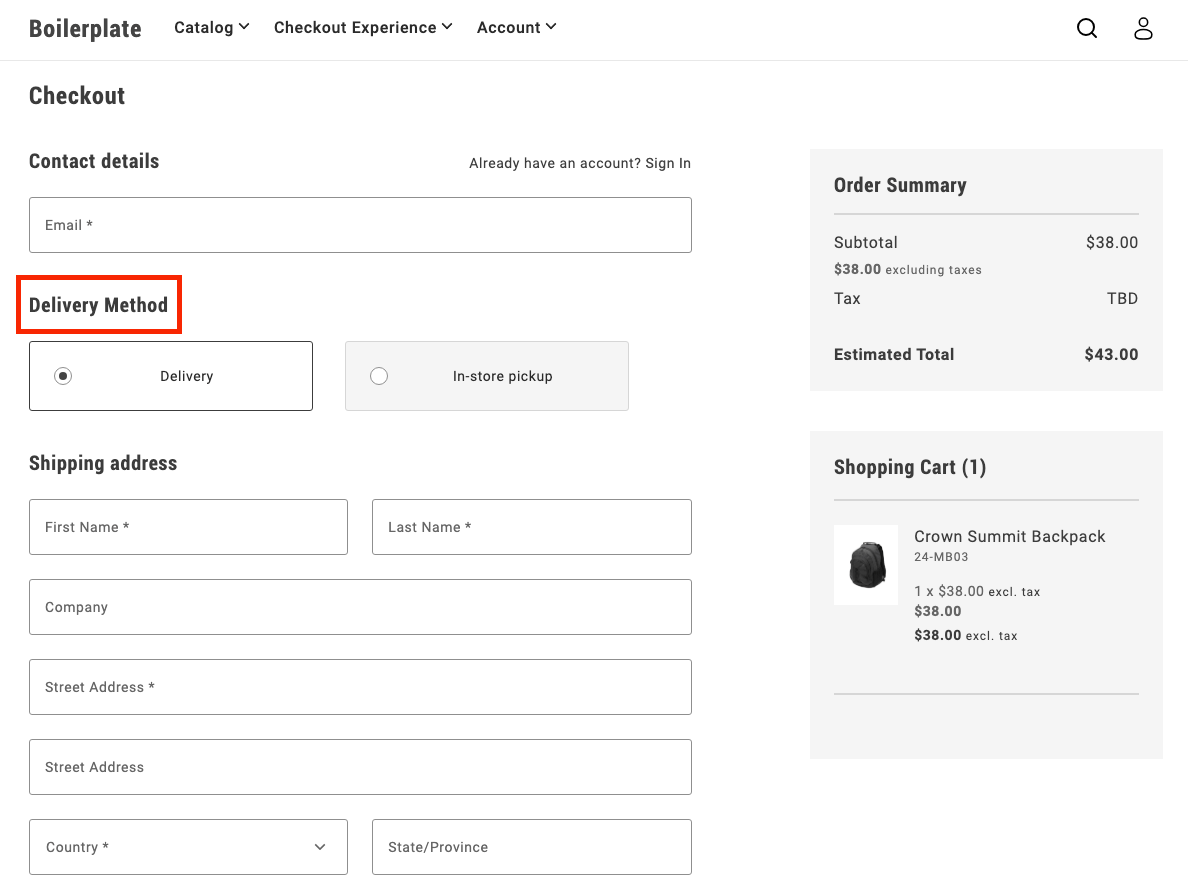
### 3. Add toggle buttons
During initialization, the code renders two buttons:
- Delivery
- In-store pickup
These buttons allow users to toggle between the two options.
```js
UI.render(ToggleButton, {
label: 'Delivery',
onChange: () => onToggle('delivery'),
})($deliveryButton),
UI.render(ToggleButton, {
label: 'In-store Pickup',
onChange: () => onToggle('in-store-pickup'),
})($inStorePickupButton),
```
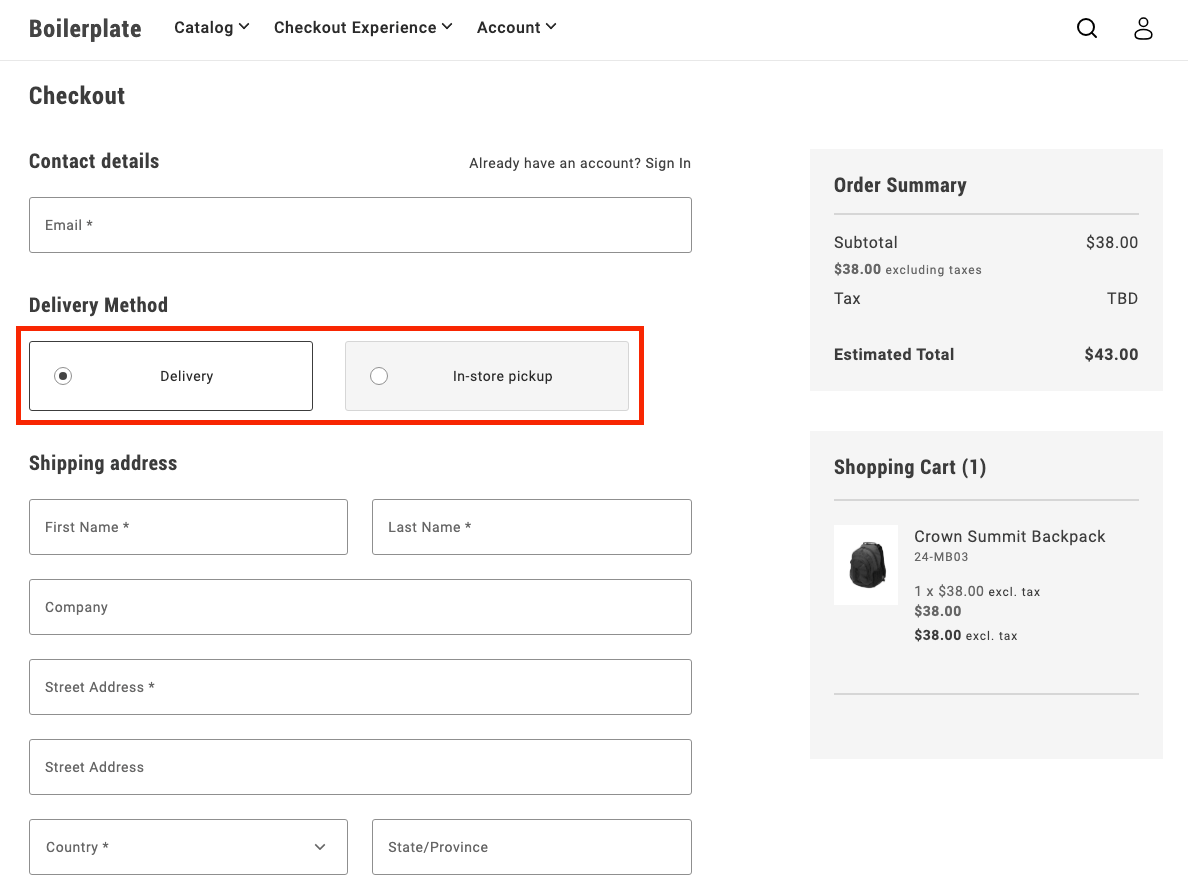
### 4. Toggle between options
The `onToggle` function manages switching between the delivery and in-store pickup options. It updates the selected state of the buttons and toggles the visibility of the corresponding forms.
```js
async function onToggle(type) {
if (type === 'delivery') {
deliveryButton.setProps((prev) => ({ ...prev, selected: true }));
inStorePickupButton.setProps((prev) => ({ ...prev, selected: false }));
$shippingForm.removeAttribute('hidden');
$delivery.removeAttribute('hidden');
$inStorePickup.setAttribute('hidden', '');
} else {
inStorePickupButton.setProps((prev) => ({ ...prev, selected: true }));
deliveryButton.setProps((prev) => ({ ...prev, selected: false }));
$shippingForm.setAttribute('hidden', '');
$delivery.setAttribute('hidden', '');
$inStorePickup.removeAttribute('hidden');
}
}
```
### 5. Fetch pickup locations
The `fetchPickupLocations` function retrieves the list of available pickup locations using a GraphQL query. Users can choose a location where they'd like to pick up their order.
```js
async function fetchPickupLocations() {
return checkoutApi
.fetchGraphQl(
`query pickupLocations {
pickupLocations {
items {
name
pickup_location_code
}
total_count
}
}`,
{ method: 'GET', cache: 'no-cache' }
)
.then((res) => res.data.pickupLocations.items);
}
```
### 6. Render location options
After the code fetches the pickup locations, it renders options as radio buttons. The user can select a location, which updates the shipping address with the corresponding pickup location code.
```js
const pickupLocations = await fetchPickupLocations();
pickupLocations.forEach((location) => {
const { name, pickup_location_code } = location;
const locationRadiobutton = document.createElement('div');
UI.render(RadioButton, {
label: name,
name: 'pickup-location',
value: name,
onChange: () => {
checkoutApi.setShippingAddress({
address: {},
pickupLocationCode: pickup_location_code,
});
},
})(locationRadiobutton);
$inStorePickup.appendChild(locationRadiobutton);
});
```
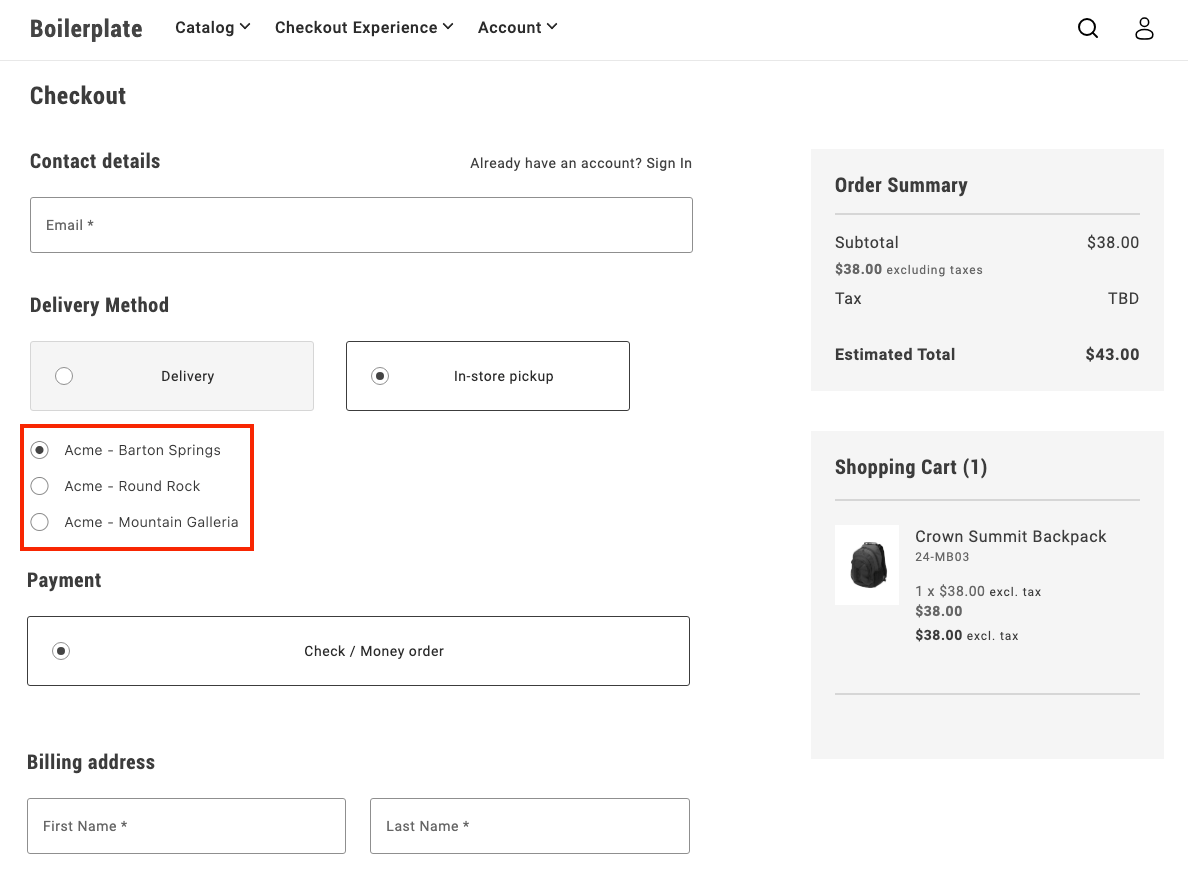
### 7. Finalize the flow
After a user selects **In-store pickup** and chooses a location, the pickup form is shown, while the shipping form is hidden. This provides a clear and seamless way for users to choose how they want to receive their order.
## Example
See https://github.com/hlxsites/aem-boilerplate-commerce/tree/demos/blocks/commerce-checkout-bopis in the `demos` branch of the boilerplate repository for complete JS and CSS code for the BOPIS checkout flow.
---
# Implement multi-step checkout
This tutorial provides a customizable example to implement a comprehensive multi-step checkout in your Adobe Commerce storefront that supports **all user scenarios**: guest users, logged-in customers, and virtual products.
## Overview
This implementation provides a **complete multi-step checkout** for the Adobe Commerce boilerplate that handles:
- **Guest users** - Email capture and address entry
- **Logged-in customers** - Saved address selection and account integration
- **Virtual products** - Automatic shipping step bypass
- **Mixed carts** - Physical + virtual product combinations
- **Modular architecture** - Event-driven step coordination
## Implementation Features
| Feature | Status |
|---------|--------|
| Guest users | ✅ |
| Logged-in customers | ✅ |
| Virtual products | ✅ |
| Mixed carts (physical + virtual products) | ✅ |
| Custom payment/shipping methods | 🔧 |
## Multi-step Customization
Key areas specific to multi-step checkout customization:
- **Step progression logic** - Modify `steps.js` for custom user flows and step transitions
- **Individual step modules** - Customize step behavior in `steps/` folder
- **Step validation** - Control when users can advance between steps
- **Fragment management** - Adapt step-specific HTML fragments in `fragments.js`
- **Step visibility** - Customize CSS classes for active/inactive step states
- **Manual synchronization** - Control when data is saved to the cart
## Architecture
### File Structure
The multi-step checkout implementation follows a modular architecture:
| File | Purpose | Key Features |
|------|---------|--------------|
| `commerce-checkout-multi-step.js` | Entry point and block decorator | Initializes the checkout system |
| `commerce-checkout-multi-step.css` | Step styling and visibility controls | Step progression, visual states, responsive design |
| `steps.js` | Main implementation | Step coordination and state management |
| `steps/shipping.js` | Shipping/contact step logic | Login detection, address forms, email validation |
| `steps/shipping-methods.js` | Delivery method selection | Shipping options, cost calculation |
| `steps/payment-methods.js` | Payment method selection | Payment provider integration |
| `steps/billing-address.js` | Billing address step | Conditional billing form rendering |
| `fragments.js` | HTML fragment creation | Step-specific DOM structure generation |
| `containers.js` | Container rendering functions | Drop-in container management |
| `components.js` | UI component functions | Reusable UI elements |
| `utils.js` | Utility functions and helpers | Virtual cart detection, validation |
| `constants.js` | Shared constants and configuration | CSS classes, form names, storage keys |
### Manual Synchronization Control
In multi-step checkout, containers use **`autoSync: false`** to disable automatic backend synchronization, allowing manual control over when data is saved:
```javascript
// Containers with manual sync control
const containers = [
'LoginForm', // Manual email/authentication handling
'ShippingMethods', // Manual shipping method selection
'PaymentMethods', // Manual payment method selection
'BillToShippingAddress' // Manual billing address control
];
// Example: ShippingMethods with manual sync
CheckoutProvider.render(ShippingMethods, {
UIComponentType: 'ToggleButton',
autoSync: false, // Disable automatic cart updates
})(container);
```
**AutoSync behavior:**
- **`autoSync: true` (default)** - Local changes automatically sync with backend via GraphQL mutations
- **`autoSync: false`** - Changes maintained locally only, no automatic API calls
**Why disable autoSync in multi-step:**
- **Controlled timing** - Save data only when step is completed and validated
- **Better UX** - Prevent partial/invalid data from being sent to cart
- **Step coordination** - Parent step manager controls when to persist data
- **Validation first** - Ensure all step requirements met before saving
**Manual sync example:**
```javascript
// Step completion with manual sync (triggered by continue button)
const continueFromStep = async () => {
if (!validateStepData()) return;
// Manual API call with error handling
try {
await checkoutApi.setShippingMethodsOnCart([{
carrier_code: selectedMethod.carrier.code,
method_code: selectedMethod.code,
}]);
} catch (error) {
console.error('Failed to save step data:', error);
return; // Don't proceed if API call fails
}
// Only continue if API call succeeded
await displayStepSummary(selectedMethod);
await continueToNextStep();
events.emit('checkout/step/completed', null);
};
```
**Key patterns:**
- **Continue button trigger** - API calls happen when user clicks continue, not on selection
- **Try-catch wrapping** - All API calls must be wrapped for error handling
- **Early return on error** - If API fails, don't proceed to next step
- **Success-only progression** - Only move forward if data successfully saved
This approach ensures data integrity and provides smooth step transitions without premature backend updates.
### API Reference
Step modules rely on the checkout drop-in's API functions for cart management. The complete API reference is available in the [Checkout functions](https://experienceleague.adobe.com/developer/commerce/storefront/dropins/checkout/functions/) documentation.
**Key APIs for multi-step implementation:**
| Function | Purpose | Used In Step |
|----------|---------|--------------|
| `setGuestEmailOnCart()` | Set guest user email | Shipping (email capture) |
| `setShippingAddress()` | Set shipping address on cart | Shipping (address collection) |
| `setShippingMethodsOnCart()` | Set shipping methods on cart | Shipping Methods |
| `setPaymentMethod()` | Set payment method on cart | Payment Methods |
| `setBillingAddress()` | Set billing address on cart | Payment Methods, Billing Address |
| `isEmailAvailable()` | Check email availability | Order Header (account creation) |
| `getStoreConfigCache()` | Get cached store configuration | Address forms (default country) |
| `estimateShippingMethods()` | Estimate shipping costs | Address forms (cost calculation) |
All step completion logic should use these APIs with proper error handling as shown in the manual sync examples above.
**Note:** The implementation uses event-driven data (`events.lastPayload()`) instead of direct `getCart()` or `getCustomer()` calls for performance optimization and real-time state management.
### Component Registry Pattern
The `components.js` file implements a registry system specifically for **SDK components and external UI library components**:
```javascript
// components.js - Component registry (separate from containers)
const registry = new Map();
// Component IDs for UI elements
export const COMPONENT_IDS = {
CHECKOUT_HEADER: 'checkoutHeader',
SHIPPING_STEP_CONTINUE_BTN: 'shippingStepContinueBtn',
PAYMENT_STEP_TITLE: 'paymentStepTitle',
// ... more component IDs
};
// Core component methods
export const hasComponent = (id) => registry.has(id);
export const removeComponent = (id) => {
const component = registry.get(id);
if (component) {
component.remove();
registry.delete(id);
}
};
// Render SDK components
export const renderCheckoutHeader = (container) => renderComponent(
COMPONENT_IDS.CHECKOUT_HEADER,
async () => UI.render(Header, {
className: 'checkout-header',
level: 1,
size: 'large',
title: 'Checkout',
})(container)
);
export const renderStepContinueBtn = async (container, stepId, onClick) =>
renderPrimaryButton(container, stepId, { children: 'Continue', onClick });
```
**Key distinction from containers:**
- **`containers.js`** - Manages **drop-in containers** (LoginForm, AddressForm, ShippingMethods, etc.)
- **`components.js`** - Manages **SDK/UI library components** (Button, Header, ProgressSpinner, etc.)
**Usage guidelines:**
- **Use `components.js` for:** Headers, buttons, spinners, modals, and other UI elements from the SDK
- **Use `containers.js` for:** Checkout drop-ins, account drop-ins, cart drop-ins, and other business logic containers
- **Recommended approach:** Keep drop-in containers and UI components in separate registries for better organization
This ensures clean architecture where `components.js` handles pure UI elements while `containers.js` manages complex business logic containers.
### Container Management
The `containers.js` file provides a complete system for managing **drop-in containers** (LoginForm, AddressForm, ShippingMethods, etc.) with registry-based lifecycle management.
**Registry System:**
```javascript
// containers.js - Registry system for drop-in containers
const registry = new Map();
// Core registry methods
export const hasContainer = (id) => registry.has(id);
export const getContainer = (id) => registry.get(id);
export const unmountContainer = (id) => {
if (!registry.has(id)) return;
const containerApi = registry.get(id);
containerApi.remove();
registry.delete(id);
};
// Helper to render or get existing container
const renderContainer = async (id, renderFn) => {
if (registry.has(id)) {
return registry.get(id); // Return existing
}
const container = await renderFn(); // Render new
registry.set(id, container);
return container;
};
```
**Container IDs and render functions:**
Each container is identified by a unique string ID and has a corresponding render function that handles the registry logic:
```javascript
// Predefined container identifiers
export const CONTAINERS = Object.freeze({
LOGIN_FORM: 'loginForm',
SHIPPING_ADDRESS_FORM: 'shippingAddressForm',
SHIPPING_METHODS: 'shippingMethods',
PAYMENT_METHODS: 'paymentMethods',
// ... more containers
});
// Usage in container functions
export const renderLoginForm = async (container) => renderContainer(
CONTAINERS.LOGIN_FORM,
async () => CheckoutProvider.render(LoginForm, { /* config */ })(container)
);
```
**Key benefits of the container system:**
- **Centralized logic** - Complex container configuration in one place
- **Prevents duplicates** - Registry ensures same container isn't rendered multiple times
- **Memory management** - Automatic cleanup prevents memory leaks
- **State preservation** - Containers maintain state across step transitions
**Registry lifecycle:**
1. **Check existing** - `hasContainer()` / `getContainer()` to find existing instances
2. **Render once** - `renderContainer()` creates new containers only if needed
3. **Cleanup** - `unmountContainer()` removes containers and clears references
This comprehensive container management approach ensures efficient resource usage and prevents common issues like duplicate event listeners or memory leaks.
### Step Modules
The `steps/` folder contains individual step modules that handle specific checkout phases. Each step module implements a consistent interface and manages its own domain logic, UI rendering, and data validation.
**Step module structure:**
Each step file in the `steps/` folder follows the same architectural pattern:
```javascript
// steps/shipping.js - Example step module
export const createShippingStep = ({ getElement, api, events, ui }) => {
return {
async display(data) {
// Render step UI using containers (LoginForm, AddressForm)
// Handle different user types (guest vs logged-in)
// Use manual sync patterns for form data
},
async displaySummary(data) {
// Show completed step summary using fragment functions
// Create edit functionality for step modifications
},
async continue() {
// Validate step data and make API calls
// Handle step progression logic
// Emit completion events
},
isComplete(data) {
// Validate step completion based on cart data
// Handle virtual product logic
},
isActive() {
// Check if step is currently active
}
};
};
```
**Available step modules:**
- **`shipping.js`** - Handles email capture (LoginForm) and shipping address collection (AddressForm)
- **`shipping-methods.js`** - Manages delivery method selection and shipping cost calculation
- **`payment-methods.js`** - Handles payment provider integration and method selection
- **`billing-address.js`** - Manages conditional billing address form rendering
**Step module responsibilities:**
- **UI rendering** - Uses container functions to render drop-ins
- **Data validation** - Validates step completion
- **API integration** - Makes manual API calls with error handling
- **Event handling** - Responds to checkout events
- **Summary creation** - Generates read-only summaries with edit functionality
### Fragment Management
The `fragments.js` file is responsible for creating all DOM structure in the multi-step checkout. It provides a centralized system for generating HTML fragments, managing selectors, and creating reusable summary components.
**Core responsibilities:**
- **DOM Structure Creation** - Generates HTML fragments for each step and the main checkout layout
- **Selector Management** - Centralizes all CSS selectors in a frozen object for consistency
- **Summary Components** - Provides reusable functions for creating step summaries with edit functionality
- **Utility Functions** - Helper functions for fragment creation and DOM querying
**Fragment Creation Pattern:**
```javascript
// Step-specific fragment creation
function createShippingStepFragment() {
return createFragment(`
`);
}
// Main checkout structure
export function createCheckoutFragment() {
const checkoutFragment = createFragment(`
`);
// Append step fragments to main structure
return checkoutFragment;
}
```
**Centralized Selector System:**
```javascript
// All selectors defined in one place
export const selectors = Object.freeze({
checkout: {
loginForm: '.checkout__login',
shippingAddressForm: '.checkout__shipping-form',
shippingStepContinueBtn: '.checkout__continue-to-shipping-methods',
// ... more selectors
}
});
```
**Summary Creation Functions:**
```javascript
// Reusable summary components with edit functionality
export const createLoginFormSummary = (email, onEditClick) => {
const content = document.createElement('div');
content.textContent = email;
return createSummary(content, onEditClick);
};
export const createAddressSummary = (data, onEditClick) => {
// Format address data into summary display
return createSummary(formattedContent, onEditClick);
};
```
**Key benefits of fragment management:**
- **Consistent DOM structure** - All HTML is generated through standardized functions
- **CSS class coordination** - Selectors and fragments use the same class names
- **Reusable components** - Summary functions can be used across different steps
- **Maintainable markup** - All HTML structure defined in one centralized location
### Element Access Pattern
Step modules access DOM elements using the centralized selector system from `fragments.js`. Here's how step modules import and use those selectors:
```javascript
// steps/shipping.js - Element access in step modules
const { checkout } = selectors;
const elements = {
$loginForm: getElement(checkout.loginForm),
$loginFormSummary: getElement(checkout.loginFormSummary),
$shippingAddressForm: getElement(checkout.shippingAddressForm),
$shippingAddressFormSummary: getElement(checkout.shippingAddressFormSummary),
$shippingStep: getElement(checkout.shippingStep),
$shippingStepContinueBtn: getElement(checkout.shippingStepContinueBtn),
};
```
**Key benefits of this pattern:**
- **Centralized selectors** - All CSS classes defined in one location
- **Type safety** - Object structure prevents typos and missing selectors
- **Maintainability** - Easy to update selectors across the entire system
- **Consistency** - All step modules follow the same element access pattern
- **Fragment coordination** - Selectors match the structure created by fragments
This ensures that fragments create the DOM structure and steps access it through a consistent, maintainable selector system.
### Summary and Edit Pattern
When users complete a step by clicking the continue button and validation succeeds, the step transitions to **summary mode**:
```javascript
// Step completion flow
async function continueFromStep() {
// 1. Validate step data
if (!validateStep()) return;
// 2. Save data to cart
await api.setStepData(formData);
// 3. Hide step content, show summary
await displayStepSummary(data);
// 4. Move to next step
await displayNextStep();
}
```
**Summary features:**
- **Read-only display** - Shows completed step information in condensed format
- **Edit functionality** - "Edit" link allows users to return and modify data
- **Visual state** - Different styling indicates step completion
- **Persistent data** - Summary reflects the actual saved cart data
**Edit flow:**
```javascript
// Edit button functionality
const handleEdit = async () => {
await displayStep(true); // Reactivate step
// Previous data automatically pre-fills forms
};
```
This pattern ensures users can review their choices and make changes at any point without losing progress.
### Place Order Button Enablement
The **Place Order** button is disabled by default and only becomes enabled when all required steps are completed:
```javascript
// Place order button management
async function updatePlaceOrderButton(data) {
const allStepsComplete = steps.shipping.isComplete(data) &&
(!isVirtualCart(data) ? steps.shippingMethods.isComplete(data) : true) &&
steps.paymentMethods.isComplete(data) &&
steps.billingAddress.isComplete(data);
if (allStepsComplete) {
placeOrderButton.setProps({ disabled: false });
} else {
placeOrderButton.setProps({ disabled: true });
}
}
```
**Progressive enablement features:**
- **Disabled by default** - Prevents incomplete order submissions
- **Step validation** - Checks each step's completion status
- **Virtual product logic** - Skips shipping validation for virtual carts
- **Real-time updates** - Button state updates as users complete steps
- **Visual feedback** - Users can see their progress toward completion
## Implementation Guide
The following sections demonstrate how to build a **production-ready multi-step checkout** using Adobe's drop-in components. This implementation replaces the regular one-step checkout in the boilerplate template with a sophisticated, modular system.
### 1. Create the entry point and main structure
Create the main block file `commerce-checkout.js` and set up the modular architecture:
```javascript
// Initializers
// Block-level utils
// Fragments
export default async function decorate(block) {
setMetaTags('Checkout');
document.title = 'Checkout';
block.replaceChildren(createCheckoutFragment());
const stepsManager = createStepsManager(block);
await stepsManager.init();
}
```
Create `fragments.js` for the main HTML structure:
```javascript
export function createCheckoutFragment() {
return document.createRange().createContextualFragment(`
`);
}
```
This modular approach separates concerns: the entry point coordinates everything, fragments handle HTML creation, and the steps manager handles step logic.
### 2. Step fragments and HTML structure
Create the step-specific fragments in `fragments.js`. Each checkout step gets its own fragment with specific containers and CSS classes:
```javascript
/**
* Creates the shipping address fragment for the checkout.
* Includes login form and address form containers.
*/
function createShippingStepFragment() {
return document.createRange().createContextualFragment(`
`);
}
/**
* Creates the shipping methods fragment for the checkout.
*/
function createShippingMethodsStepFragment() {
return document.createRange().createContextualFragment(`
`);
}
```
**Key fragment concepts:**
- **CHECKOUT_STEP_CONTENT** - Shows containers when step is active (editable mode)
- **CHECKOUT_STEP_SUMMARY** - Shows completed step information (read-only mode)
- **CHECKOUT_STEP_BUTTON** - Continue buttons for step progression
- **Multiple containers per step** - Each fragment can contain multiple containers with their own summary versions
- **CSS-driven visibility** - No DOM manipulation, just class-based show/hide
The shipping step includes **both login and address containers** because guests need both email capture (via LoginForm) and shipping address entry (via AddressForm).
### 3. Create step modules
Create individual step modules that implement the universal step interface. Each step module follows the pattern described in the [Step Modules architecture section](#step-modules).
**Required step files:**
- **`steps/shipping.js`** - Email capture (LoginForm) and shipping address collection (AddressForm)
- **`steps/shipping-methods.js`** - Delivery method selection and cost calculation
- **`steps/payment-methods.js`** - Payment provider integration and method selection
- **`steps/billing-address.js`** - Conditional billing address form rendering
**Implementation reference:**
For complete implementations of these step modules, see the sample files in the https://github.com/hlxsites/aem-boilerplate-commerce/tree/demos/blocks/commerce-checkout-multi-step/steps. Each file demonstrates the full step interface implementation with proper error handling, user flow logic, and integration with containers and APIs.
### 4. Implement the steps manager
Create `steps.js` to coordinate all step logic and manage the checkout flow. Build this step by step:
1. **Set up the basic structure** with imports and function signature:
```javascript
import { createShippingStep } from './steps/shipping.js';
import { createShippingMethodsStep } from './steps/shipping-methods.js';
import { createPaymentMethodsStep } from './steps/payment-methods.js';
import { createBillingAddressStep } from './steps/billing-address.js';
export default function createStepsManager(block) {
// Implementation will go here
}
```
2. **Create step instances** by gathering dependencies and instantiating each step module:
```javascript
export default function createStepsManager(block) {
const elements = getElements(block);
const dependencies = { elements, api, events, ui };
const steps = {
shipping: createShippingStep(dependencies),
shippingMethods: createShippingMethodsStep(dependencies),
paymentMethods: createPaymentMethodsStep(dependencies),
billingAddress: createBillingAddressStep(dependencies)
};
}
```
3. **Implement step coordination logic** that determines which step to show based on completion status:
```javascript
async function handleCheckoutUpdated(data) {
// Step 1: Shipping - always required
if (!steps.shipping.isComplete(data)) {
await steps.shipping.display(data);
return;
}
await steps.shipping.displaySummary(data);
// Step 2: Shipping Methods (skip for virtual products)
if (!isVirtualCart(data)) {
if (!steps.shippingMethods.isComplete(data)) {
await steps.shippingMethods.display(data);
return;
}
await steps.shippingMethods.displaySummary(data);
}
// Step 3: Payment Methods
if (!steps.paymentMethods.isComplete(data)) {
await steps.paymentMethods.display(data);
return;
}
await steps.paymentMethods.displaySummary(data);
// Step 4: Billing Address (if needed)
if (!steps.billingAddress.isComplete(data)) {
await steps.billingAddress.display(data);
return;
}
await steps.billingAddress.displaySummary(data);
}
```
4. **Wire up event handling** to respond to checkout state changes:
```javascript
return {
async init() {
events.on('checkout/initialized', handleCheckoutUpdated);
events.on('checkout/updated', handleCheckoutUpdated);
}
};
```
The steps manager uses the **early return pattern** - if a step is incomplete, it displays that step and exits. Only when all previous steps are complete does it move to the next step. This ensures proper linear progression through the checkout flow.
### 5. Add CSS styling for step controls
Create the CSS that controls step visibility and progression. Add this to your `commerce-checkout-multi-step.css` file:
1. **Step visibility controls** - Define the core classes that show/hide step content:
```css
/* Hide all step content by default */
.checkout-step-content {
display: none;
}
/* Show content when step is active */
.checkout-step-active .checkout-step-content {
display: block;
}
/* Hide summaries by default */
.checkout-step-summary {
display: none;
}
/* Show summaries when step is completed (not active) */
.checkout-step:not(.checkout-step-active) .checkout-step-summary {
display: block;
}
/* Hide continue buttons when step is completed */
.checkout-step:not(.checkout-step-active) .checkout-step-button {
display: none;
}
```
2. **Step progression styling** - For complete visual styling (borders, colors, animations, etc.), see https://github.com/hlxsites/aem-boilerplate-commerce/tree/demos/blocks/commerce-checkout-multi-step/commerce-checkout-multi-step.css in the demo repository.
These CSS rules create the core multi-step behavior: **content shows when active**, **summaries show when completed**, and **step progression controls** guide users through the checkout flow.
## Example
See https://github.com/hlxsites/aem-boilerplate-commerce/tree/demos/blocks/commerce-checkout-multi-step in the `demos` branch of the boilerplate repository for complete JS and CSS code for the multi-step checkout flow.
---
# Validate shipping address
Use the `AddressValidation` container to present both the original and suggested addresses from your verification service, letting shoppers choose before placing their order.
This tutorial shows how to integrate the container in the `commerce-checkout` block.
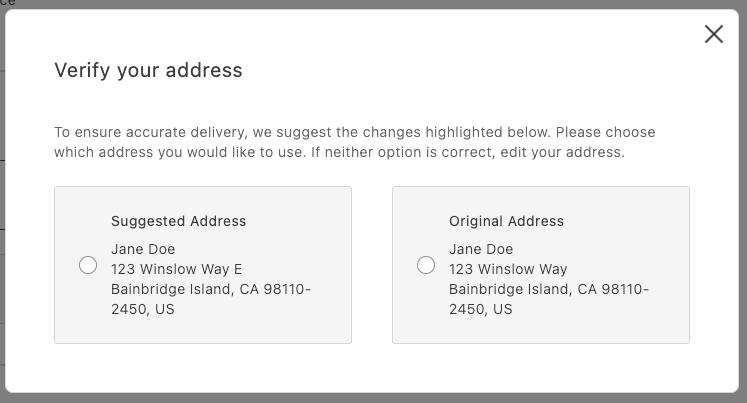
*AddressValidation displayed in a modal*
## Overview
At a high level:
- Call your address verification service before placing the order.
- If it returns a suggestion, open a modal and render `AddressValidation`.
- If the shopper selects the suggestion, persist it as the shipping address; otherwise, use the original address.
## Integration
```javascript
// in commerce-checkout.js block
// Handler passed to the PlaceOrder container
const handlePlaceOrder = async ({ cartId, code }) => {
await displayOverlaySpinner(loaderRef, $loader);
try {
// Payment Services credit card
if (code === PaymentMethodCode.CREDIT_CARD) {
if (!creditCardFormRef.current) {
console.error('Credit card form not rendered.');
return;
}
if (!creditCardFormRef.current.validate()) {
// Credit card form invalid; abort order placement
return;
}
// Submit Payment Services credit card form
await creditCardFormRef.current.submit();
}
// Address validation
const suggestion = await validateAddress();
if (suggestion) {
const container = document.createElement('div');
await showModal(container);
await renderAddressValidation(container, {
suggestedAddress: suggestion,
handleSelectedAddress: async ({ selection, address }) => {
if (selection === 'suggested') {
// Update the shipping form using the suggested address
sessionStorage.removeItem(SHIPPING_ADDRESS_DATA_KEY);
shippingForm.setProps((prevProps) => ({
...prevProps,
inputsDefaultValueSet: address,
}));
} else {
// Place order
await orderApi.placeOrder(cartId);
}
removeModal();
},
});
} else {
// Place order
await orderApi.placeOrder(cartId);
}
} catch (error) {
console.error(error);
throw error;
} finally {
removeOverlaySpinner(loaderRef, $loader);
}
};
```
```javascript
// in containers.js
/**
* Renders the AddressValidation container in its own host element
* @param {HTMLElement} container - DOM element to render into
*/
export const renderAddressValidation = async (
container,
{ suggestedAddress, handleSelectedAddress }
) =>
CheckoutProvider.render(AddressValidation, {
suggestedAddress,
handleSelectedAddress,
})(container);
```
```javascript
// in utils.js (example stub)
export const validateAddress = async () => {
// Here’s where your API call goes
return {
city: 'Bainbridge Island',
countryCode: 'US',
postcode: '98110-2450',
region: 'CA',
street: ['123 Winslow Way E'],
};
};
```
Finally, add some padding for better appearance:
```css
/* commerce-checkout.css */
.modal-content .checkout-address-validation {
padding: var(--spacing-big);
}
```
## Next steps
- See the [`AddressValidation` container](https://experienceleague.adobe.com/developer/commerce/storefront/dropins/checkout/containers/address-validation/) for props and behaviors.
- Ensure your suggestion matches the `CartAddressInput` format.
---
# Checkout utility functions
This topic provides details and instructions for using the utility functions available in the checkout drop-in component. These functions were moved from the integration layer and are now publicly accessible within the checkout block from `@dropins/storefront-checkout/lib/utils.js`.
### Quick imports
```ts
```
## API Functions
### setAddressOnCart
The `setAddressOnCart` function creates a debounced handler for setting shipping or billing addresses on the cart, preventing excessive API calls when address data changes frequently.
```ts
export function setAddressOnCart({
type = 'shipping',
debounceMs = 0,
placeOrderBtn,
}: {
type?: 'shipping' | 'billing';
debounceMs?: number;
placeOrderBtn?: RenderAPI;
}): (change: AddressFormChange) => void;
```
```text
[
['Parameter', 'Type', 'Req?', 'Description'],
['type', 'string', 'No', 'Address type: "shipping" or "billing". Defaults to "shipping".'],
['debounceMs', 'number', 'No', 'Milliseconds to debounce API calls. Defaults to 0.'],
['placeOrderBtn', 'RenderAPI', 'No', 'Place order button API to manage disabled state.'],
]
```
### Returns
Returns a function that accepts address form changes and updates the cart accordingly.
### Usage
```ts
// Set up debounced shipping address handler
const handleShippingChange = setAddressOnCart({
type: 'shipping',
debounceMs: 500,
placeOrderBtn: placeOrderButtonAPI
});
// Use with form change events
shippingForm.addEventListener('input', (event) => {
const formData = getFormValues(event.target.form);
const isValid = validateForm(event.target.form);
handleShippingChange({
data: formData,
isDataValid: isValid
});
});
```
### estimateShippingCost
The `estimateShippingCost` function creates a debounced handler for estimating shipping costs based on address information.
```ts
export function estimateShippingCost({ debounceMs = 0 }): (change: AddressFormChange) => void;
```
```text
[
['Parameter', 'Type', 'Req?', 'Description'],
['debounceMs', 'number', 'No', 'Milliseconds to debounce API calls. Defaults to 0.'],
]
```
### Returns
Returns a function that estimates shipping costs when address data changes.
### Usage
```ts
// Set up shipping cost estimation
const handleEstimateShipping = estimateShippingCost({ debounceMs: 300 });
// Use with address form changes
addressForm.addEventListener('input', (event) => {
const formData = getFormValues(event.target.form);
const isValid = validateForm(event.target.form);
handleEstimateShipping({
data: formData,
isDataValid: isValid
});
});
```
## Cart Data Functions
### isVirtualCart
The `isVirtualCart` function checks if a cart contains only virtual products (no shipping required). If no argument is provided, it reads the latest checkout data.
```ts
export function isVirtualCart(data?: Cart | null): boolean;
```
```text
[
['Parameter', 'Type', 'Req?', 'Description'],
['data', 'Cart | null', 'Yes', 'The cart data object to check.'],
]
```
### Returns
Returns `true` if the cart is virtual, `false` otherwise.
### Usage
```ts
// Check if shipping is required using explicit data
const cartData = await getCart();
const skipShipping = isVirtualCart(cartData);
// Or check using the latest checkout data
const skipShippingFromState = isVirtualCart();
if (skipShipping) {
// Hide shipping-related UI
document.querySelector('.shipping-section').style.display = 'none';
}
```
### isEmptyCart
The `isEmptyCart` function checks if a cart is empty or null.
```ts
export function isEmptyCart(data: Cart | null): boolean;
```
```text
[
['Parameter', 'Type', 'Req?', 'Description'],
['data', 'Cart | null', 'Yes', 'The cart data object to check.'],
]
```
### Returns
Returns `true` if the cart is empty or null, `false` otherwise.
### Usage
```ts
const cartData = await getCart();
if (isEmptyCart(cartData)) {
// Show empty cart message
showEmptyCartMessage();
return;
}
// Proceed with checkout
proceedToCheckout(cartData);
```
### getCartShippingMethod
The `getCartShippingMethod` function retrieves the selected shipping method from cart data.
```ts
export function getCartShippingMethod(data: Cart | null): ShippingMethod | null;
```
```text
[
['Parameter', 'Type', 'Req?', 'Description'],
['data', 'Cart | null', 'Yes', 'The cart data object.'],
]
```
### Returns
Returns the selected shipping method object or `null` if none is selected.
### Usage
```ts
const cartData = await getCart();
const shippingMethod = getCartShippingMethod(cartData);
if (shippingMethod) {
console.log(`Shipping: ${shippingMethod.title} - $${shippingMethod.amount.value}`);
}
```
### getCartAddress
The `getCartAddress` function retrieves shipping or billing address from cart data.
```ts
export function getCartAddress(
data: Cart | null,
type: 'shipping' | 'billing' = 'shipping'
): Record | null;
```
```text
[
['Parameter', 'Type', 'Req?', 'Description'],
['data', 'Cart | null', 'Yes', 'The cart data object.'],
['type', 'string', 'No', 'Address type: "shipping" or "billing". Defaults to "shipping".'],
]
```
### Returns
Returns the address object or `null` if no address is set.
### Usage
```ts
const cartData = await getCart();
const shippingAddress = getCartAddress(cartData, 'shipping');
const billingAddress = getCartAddress(cartData, 'billing');
if (shippingAddress) {
populateAddressForm(shippingAddress);
}
```
### getCartPaymentMethod
The `getCartPaymentMethod` function retrieves the selected payment method from cart data.
```ts
export function getCartPaymentMethod(data: Cart | null): PaymentMethod | null;
```
```text
[
['Parameter', 'Type', 'Req?', 'Description'],
['data', 'Cart | null', 'Yes', 'The cart data object.'],
]
```
### Returns
Returns the selected payment method object or `null` if none is selected.
### Usage
```ts
const cartData = await getCart();
const paymentMethod = getCartPaymentMethod(cartData);
if (paymentMethod) {
console.log(`Payment method: ${paymentMethod.code}`);
}
```
## DOM and Fragment Functions
### createFragment
The `createFragment` function creates a `DocumentFragment` from an HTML string.
```ts
export function createFragment(html: string): DocumentFragment;
```
```text
[
['Parameter', 'Type', 'Req?', 'Description'],
['html', 'string', 'Yes', 'The HTML string to convert to a DocumentFragment.'],
]
```
### Returns
Returns a DocumentFragment containing the parsed HTML.
### Usage
```ts
const html = `
## Payment Information
`;
const fragment = createFragment(html);
document.querySelector('.checkout-container').appendChild(fragment);
```
### createScopedSelector
The `createScopedSelector` function creates a scoped `querySelector` function for a DocumentFragment.
```ts
export function createScopedSelector(
fragment: DocumentFragment
): (selector: string) => HTMLElement | null;
```
```text
[
['Parameter', 'Type', 'Req?', 'Description'],
['fragment', 'DocumentFragment', 'Yes', 'The DocumentFragment to scope the selector to.'],
]
```
### Returns
Returns a function that queries elements within the given fragment.
### Usage
```ts
const html = `
`;
const fragment = createFragment(html);
const $ = createScopedSelector(fragment);
// Query within the fragment only
const nextButton = $('.next-btn');
const prevButton = $('.prev-btn');
nextButton?.addEventListener('click', handleNext);
```
## Form Functions
### validateForm
The `validateForm` function validates a form by name using form references.
```ts
export function validateForm(
formName: string,
formRef: RefObject
): boolean;
```
```text
[
['Parameter', 'Type', 'Req?', 'Description'],
['formName', 'string', 'Yes', 'The name attribute of the form to validate.'],
['formRef', 'RefObject', 'Yes', 'Reference object to the form component.'],
]
```
### Returns
Returns `true` if the form is valid, `false` otherwise.
### Usage
```ts
// Validate checkout form before submission
const isShippingValid = validateForm('shipping-form', shippingFormRef);
const isBillingValid = validateForm('billing-form', billingFormRef);
if (isShippingValid && isBillingValid) {
proceedToPayment();
} else {
showValidationErrors();
}
```
## Meta Functions
### createMetaTag
The `createMetaTag` function creates or updates meta tags in the document head.
```ts
export function createMetaTag(property: string, content: string, type: string): void;
```
```text
[
['Parameter', 'Type', 'Req?', 'Description'],
['property', 'string', 'Yes', 'The property/name of the meta tag.'],
['content', 'string', 'Yes', 'The content value for the meta tag.'],
['type', 'string', 'Yes', 'The type of meta tag: "name" or "property".'],
]
```
### Returns
The function does not return a value; it modifies the document head.
### Usage
```ts
// Set checkout-specific meta tags
createMetaTag('description', 'Complete your purchase securely', 'name');
createMetaTag('og:title', 'Checkout - Your Store', 'property');
```
### setMetaTags
The `setMetaTags` function sets standard meta tags for a drop-in component.
```ts
export function setMetaTags(dropin: string): void;
```
```text
[
['Parameter', 'Type', 'Req?', 'Description'],
['dropin', 'string', 'Yes', 'The name of the drop-in component.'],
]
```
### Returns
The function does not return a value; it sets multiple meta tags.
### Usage
```ts
// Set meta tags for checkout page
setMetaTags('Checkout');
```
## Utility Functions
### scrollToElement
The `scrollToElement` function smoothly scrolls to and focuses on an HTML element.
```ts
export function scrollToElement(element: HTMLElement): void;
```
```text
[
['Parameter', 'Type', 'Req?', 'Description'],
['element', 'HTMLElement', 'Yes', 'The element to scroll to and focus.'],
]
```
### Returns
The function does not return a value; it performs scrolling and focusing.
### Usage
```ts
// Scroll to error field
const errorField = document.querySelector('.field-error');
if (errorField) {
scrollToElement(errorField);
}
// Scroll to next checkout step
const nextStep = document.querySelector('.checkout-step.active');
scrollToElement(nextStep);
```
## Data Transformer Functions
### transformAddressFormValuesToCartAddressInput
The `transformAddressFormValuesToCartAddressInput` function converts form data to cart address input format.
```ts
export const transformAddressFormValuesToCartAddressInput = (
data: Record
): ShippingAddressInput | BillingAddressInput;
```
```text
[
['Parameter', 'Type', 'Req?', 'Description'],
['data', 'Record', 'Yes', 'Form data object containing address information.'],
]
```
### Returns
Returns a formatted address input object for cart API calls.
### Usage
```ts
// Transform form data for API
const formData = getFormValues(addressForm);
const addressInput = transformAddressFormValuesToCartAddressInput(formData);
// Send to cart API
await setShippingAddress(addressInput);
```
### transformCartAddressToFormValues
The `transformCartAddressToFormValues` function converts cart address data to the form values format.
```ts
export const transformCartAddressToFormValues = (
address: CartAddress
): Record;
```
```text
[
['Parameter', 'Type', 'Req?', 'Description'],
['address', 'CartAddress', 'Yes', 'Cart address object to transform.'],
]
```
### Returns
Returns a form-compatible object with address data.
### Usage
```ts
// Pre-populate form with existing address
const cartData = await getCart();
const shippingAddress = getCartAddress(cartData, 'shipping');
if (shippingAddress) {
const formValues = transformCartAddressToFormValues(shippingAddress);
populateForm(shippingForm, formValues);
}
```
## Common Usage Patterns
These utility functions work together to create robust checkout experiences:
### Complete Address Handling
```ts
// Set up address form handling
const handleAddressChange = setAddressOnCart({
type: 'shipping',
debounceMs: 500,
placeOrderBtn: placeOrderAPI
});
// Pre-populate form with existing data
const cartData = await getCart();
const existingAddress = getCartAddress(cartData, 'shipping');
if (existingAddress) {
const formValues = transformCartAddressToFormValues(existingAddress);
populateAddressForm(formValues);
}
// Handle form changes
addressForm.addEventListener('input', (event) => {
const formData = getFormValues(event.target.form);
const isValid = validateForm('shipping-address', formRef);
handleAddressChange({ data: formData, isDataValid: isValid });
});
```
### Cart State Management
```ts
function updateCheckoutUI(cartData) {
// Handle empty cart
if (isEmptyCart(cartData)) {
showEmptyCartMessage();
return;
}
// Handle virtual cart (no shipping)
if (isVirtualCart(cartData)) {
hideShippingSection();
} else {
const shippingMethod = getCartShippingMethod(cartData);
updateShippingDisplay(shippingMethod);
}
// Update payment display
const paymentMethod = getCartPaymentMethod(cartData);
updatePaymentDisplay(paymentMethod);
}
```
### Dynamic Content Creation
```ts
function createCheckoutStep(stepHtml, stepName) {
const fragment = createFragment(stepHtml);
const $ = createScopedSelector(fragment);
// Set up step-specific interactions
const nextButton = $('.next-step');
const prevButton = $('.prev-step');
nextButton?.addEventListener('click', () => {
if (validateCurrentStep()) {
proceedToNextStep();
} else {
const errorField = $('.field-error');
if (errorField) scrollToElement(errorField);
}
});
return fragment;
}
```
---
# Overview
Drop-ins are pre-built, customizable UI components that provide complete commerce functionality for your storefront. Each drop-in handles a specific aspect of the shopping experience, from browsing products to completing checkout.
| Item | Description |
|------|-------------|
| [Cart overview](https://experienceleague.adobe.com/developer/commerce/storefront/dropins/cart/) | Provides editable controls to help you view, update, and merge the products in your cart and mini-cart, including image thumbnails, pricing. |
| [Checkout overview](https://experienceleague.adobe.com/developer/commerce/storefront/dropins/checkout/) | Provides customizable controls to help complete a purchase. |
| [Order overview](https://experienceleague.adobe.com/developer/commerce/storefront/dropins/order/) | Provides tools to manage and display order-related data across various pages and scenarios. |
| [Payment Services overview](https://experienceleague.adobe.com/developer/commerce/storefront/dropins/payment-services/) | Renders the credit card form and the Apple Pay button. |
| [Personalization overview](https://experienceleague.adobe.com/developer/commerce/storefront/dropins/personalization/) | Provides tools to display content conditionally, based on Adobe Commerce customer groups, segments, and cart price rules. |
| [Product details page overview](https://experienceleague.adobe.com/developer/commerce/storefront/dropins/product-details/) | Renders detailed information about your products, including descriptions, specifications, options, pricing, and images. |
| [Product Discovery overview](https://experienceleague.adobe.com/developer/commerce/storefront/dropins/product-discovery/) | Enables you to display and customize product search results, category listings, and faceted navigation. |
| [Product Recommendations overview](https://experienceleague.adobe.com/developer/commerce/storefront/dropins/recommendations/) | Enables you to suggest products to customers based on their browsing patterns and behaviors. |
| [User account overview](https://experienceleague.adobe.com/developer/commerce/storefront/dropins/user-account/) | Provides account management features. |
| [User auth overview](https://experienceleague.adobe.com/developer/commerce/storefront/dropins/user-auth/) | Provides user authentication to allow customers to sign up, log in, and log out. |
| [Wishlist overview](https://experienceleague.adobe.com/developer/commerce/storefront/dropins/wishlist/) | Lets customers store products they are interested in purchasing later. |
---
# OrderStatus container
The `OrderStatus` container displays the current order status and a service message about the order’s condition. It supports three actions: Return, Cancel, and Reorder. The availability of these actions is defined by the backend, based on the order status, individual items, and global configurations.
To display all information, you must enable the following features:
- https://experienceleague.adobe.com/en/docs/commerce-admin/stores-sales/order-management/returns/rma-configure
- https://experienceleague.adobe.com/en/docs/commerce-admin/stores-sales/shopper-tools/reorders-allow
- https://experienceleague.adobe.com/en/docs/commerce-admin/stores-sales/shopper-tools/cancel-allow

*OrderStatus container*
## Configurations
The `OrderStatus` container provides the following configuration options:
```text
[
['Options', 'Type', 'Req?', 'Description'],
['slots.OrderActions', 'slot', 'No', 'Provides the ability to customize / extend available order actions.'],
['orderData', 'OrderDataModel', 'No', 'Contains order information, including the order ID and a list of items.'],
['className', 'string', 'No', 'Allows custom CSS classes to be applied to the form for styling.'],
['statusTitle', 'string', 'No', 'Provides the ability to manually input a custom title for the status section.'],
['status', 'StatusEnumProps', 'No', 'Displays one of the predefined statuses, such as Pending, Shipping, Complete, Processing, On Hold, Canceled, Suspected Fraud, or Payment Review.'],
['routeCreateReturn', 'function', 'No', 'A function that returns the URL to redirect the user to create return page.'],
['onError', 'function', 'No', 'A function executed when an error occurs. It receives an errorInformation object with details about the error.'],
]
```
## Example
The following example demonstrates how to render the `OrderStatus` container:
```javascript
export default async function decorate(block) {
await orderRenderer.render(OrderStatus, {
routeCreateReturn: ({ token, number: orderNumber }) => {
const isAuthenticated = checkIsAuthenticated();
const { searchParams } = new URL(window.location.href);
const orderRefFromUrl = searchParams.get('orderRef');
const newOrderRef = isAuthenticated ? orderNumber : token;
const encodedOrderRef = encodeURIComponent(orderRefFromUrl || newOrderRef);
return checkIsAuthenticated() ? `${CUSTOMER_CREATE_RETURN_PATH}?orderRef=${encodedOrderRef}` : `${CREATE_RETURN_PATH}?orderRef=${encodedOrderRef}`;
},
routeOnSuccess: () => '/cart',
})(block);
}
```
---
# CreateReturn container
The `CreateReturn` container manages the creation of return requests. It supports custom return attributes and configurable validation through the Adobe Commerce Admin. This container consists of three sequential screens that guide users through the item return process:
1. **Select Items.** The first screen displays a list of items eligible for return. The user can select items by checking the boxes next to them and specifying the quantity of each item they wish to return. Once the selection is complete, the user can click the **Continue** button to proceed to the next step.
*CreateReturn container*
1. **Return Reasons.** The second screen shows the selected items. Below each item, an additional form is displayed that allows the customer to specify the reason for the return. This step helps gather information on why each item is being returned, which can be valuable for analytics and improving customer experience.
*CreateReturn container — Return reasons*
1. **Success Screen.** The final screen displays a success message confirming the return process. It also includes a customizable button that allows redirection to any specified page on the website.
*CreateReturn container — Success*
## Prerequisites
- https://experienceleague.adobe.com/en/docs/commerce-admin/stores-sales/order-management/returns/rma-configure. The **Stores** > Configuration > **Sales** > **Sales** > **RMA Settings** in the Adobe Commerce Admin.
- If you need to add custom return attributes, add them at **Stores** > **Attributes** > **Returns**. You can optionally use the Input Validation field to define custom validation rules.
## Configurations
The `CreateReturn` container provides the following configuration options:
```text
[
['Options', 'Type', 'Req?', 'Description'],
['className', 'string', 'No', 'Allows custom CSS classes to be applied to the container for styling purposes.'],
['orderData', 'OrderDataModel', 'No', 'A structured object containing order-related data. It can be used as an initial value if data is not fetched from the backend, serving as a fallback.'],
['slots.ReturnOrderItem', 'function', 'No', 'Enables integration of additional elements or functionality, allowing customization to meet specific requirements. This can include adding new components, modifying existing ones, or inserting custom content.'],
['slots.ReturnFormActions', 'function', 'No', 'Provides the ability to add custom events or replace existing actions with tailored functionality. Examples include adding unique buttons, setting up custom redirects, or modifying interface elements.'],
['onSuccess', 'function', 'No', 'A callback function executed after the form is successfully submitted.'],
['onError', 'function', 'No', 'A callback function executed when an error occurs during submission. The error is passed as a parameter for handling.'],
['routeReturnSuccess', 'function', '', 'Defines a custom URL to redirect users upon successful return submission.'],
['showConfigurableOptions', 'function', 'No', 'Allows rendering additional product parameters during container integration by defining key-value pairs for further customization.'],
]
```
## Example
The following example demonstrates how to render the `CreateReturn` container:
```javascript
export default async function decorate(block) {
await orderRenderer.render(CreateReturn, {
routeReturnSuccess: (orderData) =>
checkIsAuthenticated()
? `${CUSTOMER_ORDER_DETAILS_PATH}?orderRef=${orderData.number}`
: `${ORDER_DETAILS_PATH}?orderRef=${orderData.token}`,
})(block);
}
```
---
# CustomerDetails container
The `CustomerDetails` container organizes customer and order information into the following sections:
- Contact details
- Shipping address
- Billing address
- Shipping method
- Payment method
- Return details:
The return details section is available exclusively on return pages. It provides information about the return.
*CustomerDetails container*
## Configurations
The `CustomerDetails` container provides the following configuration options:
```text
[
['Options', 'Type', 'Req?', 'Description'],
['paymentIconsMap', 'Record', 'No', 'Configures the icon list by specifying key-value pairs to set custom icons where value can be either the name of SDK icon or custom SVG icon.'],
['orderData', 'OrderDataModel', 'No', 'A structured object containing transformed order data. It can be used as an initial value if data is not fetched from the backend, serving as a fallback.'],
['title', 'string', 'No', 'Enables setting a custom title to replace the default one during container interaction.'],
['className', 'string', 'No', 'Allows custom CSS classes to be applied to the form.'],
['slots.OrderReturnInformation', 'SlotProps', 'No', 'Allows adding or expanding the return information details section by including additional data or attributes.'],
]
```
## Example
The following example demonstrates how to integrate the `CustomerDetails` container:
```javascript
export default async function decorate(block) {
await orderRenderer.render(CustomerDetails, {})(block);
}
```
---
# Order Containers
The **Order** drop-in provides pre-built container components for integrating into your storefront.
Version: 3.2.0
## What are Containers?
Containers are pre-built UI components that combine functionality, state management, and presentation. They provide a complete solution for specific features and can be customized through props, slots, and CSS.
## Available Containers
| Container | Description |
| --------- | ----------- |
| [CreateReturn](https://experienceleague.adobe.com/developer/commerce/storefront/dropins/order/containers/create-return/) | Learn about the `CreateReturn` container. |
| [CustomerDetails](https://experienceleague.adobe.com/developer/commerce/storefront/dropins/order/containers/customer-details/) | Learn about the `CustomerDetails` container. |
| [OrderCancelForm](https://experienceleague.adobe.com/developer/commerce/storefront/dropins/order/containers/order-cancel-form/) | Learn about the `OrderCancelForm` container. |
| [OrderComments](https://experienceleague.adobe.com/developer/commerce/storefront/dropins/order/containers/order-comments/) | Learn about the `OrderComments` container. |
| [OrderCostSummary](https://experienceleague.adobe.com/developer/commerce/storefront/dropins/order/containers/order-cost-summary/) | Learn about the `OrderCostSummary` container. |
| [OrderHeader](https://experienceleague.adobe.com/developer/commerce/storefront/dropins/order/containers/order-header/) | *Enrichment needed - add description to `_dropin-enrichments/order/containers.json`* |
| [OrderProductList](https://experienceleague.adobe.com/developer/commerce/storefront/dropins/order/containers/order-product-list/) | Learn about the `OrderProductList` container. |
| [OrderReturns](https://experienceleague.adobe.com/developer/commerce/storefront/dropins/order/containers/order-returns/) | Learn about the `OrderReturns` container. |
| [OrderSearch](https://experienceleague.adobe.com/developer/commerce/storefront/dropins/order/containers/order-search/) | Learn about the `OrderSearch` container. |
| [OrderStatus](https://experienceleague.adobe.com/developer/commerce/storefront/dropins/order/containers/order-status/) | *Enrichment needed - add description to `_dropin-enrichments/order/containers.json`* |
| [ReturnsList](https://experienceleague.adobe.com/developer/commerce/storefront/dropins/order/containers/returns-list/) | Learn about the `ReturnsList` container. |
| [ShippingStatus](https://experienceleague.adobe.com/developer/commerce/storefront/dropins/order/containers/shipping-status/) | Learn about the `ShippingStatus` container. |
> Each container is designed to work independently but can be composed together to create comprehensive user experiences.
---
# OrderCancelForm container
The `OrderCancelForm` container provides a cancellation form that allows users to select reasons for canceling an order and perform the cancellation operation.
* OrderCancelForm container*
## Configurations
The `OrderCancelForm container provides the following configuration options:
```text
[
['Options', 'Type', 'Req?', 'Description'],
['orderRef', 'string', 'Yes', 'ID of the order to be canceled.'],
['pickerProps', 'PickerProps', 'No', 'Configuration for the picker used to display and select the reason for order cancellation.'],
['submitButtonProps', 'ButtonProps', 'No', 'Configuration for the button used to submit the order cancellation.'],
['cancelReasons', 'PickerOption[]', 'Yes', 'An array of reasons available for order cancellation.'],
]
```
## Example
The `OrderCancelForm` container is not directly integrated within the boilerplate, but it is delivered as part of the `OrderStatus` container. However, the `OrderCancelForm` container can also be used independently to create custom implementations.
Here’s an integration example from the drop-in component development environment:
```javascript
provider.render(OrderCancelForm, {
orderRef: "",
pickerProps: {} ,
submitButtonProps: {} ,
cancelReasons: [] ,
})(containerWrapper);
```
---
# OrderComments container
The `OrderComments` container displays order-level comments on the Order Details page. It renders a read-only list of comments associated with the order, each showing a timestamp and message.
- **Comment list**: Displays all comments from the `CustomerOrder.comments` GraphQL field in a chronological list, with each entry showing a formatted date and time alongside the comment message.
- **Empty state**: When there are no comments for the order, the container displays an empty state message ("No order comments.").
- **Loading state**: While order data is being fetched, the container displays a skeleton loader.
The container listens to the `order/data` event to receive order data. When order data becomes available, it extracts the `comments` array and renders the comment list.
## Configurations
The `OrderComments` container provides the following configuration options:
```text
[
['Options', 'Type', 'Req?', 'Description'],
['orderData', 'OrderDataModel', 'No', 'A structured object containing transformed order data. It can be used as an initial value if data is not fetched from the backend, serving as a fallback.'],
['className', 'string', 'No', 'Allows custom CSS classes to be applied to the container.'],
]
```
## Example
The following example demonstrates how to render the `OrderComments` container:
```javascript
export default async function decorate(block) {
await orderRenderer.render(OrderComments, {})(block);
}
```
---
# OrderCostSummary container
The `OrderCostSummary` container displays detailed order costs on the Order Details and Return Details pages. It includes the following sections:
- **Subtotal**: Displays the total cost of all items in the order before applying discounts, taxes, or additional charges.
- **Shipping**: Displays the shipping cost, which depends on the shipping method, location, and weight of the order.
- **Discount**: Displays any applicable discounts, such as promotional or volume-based offers, subtracted from the subtotal.
- **Coupon**: Displays the value of any applied coupons and their impact on the final cost.
- **Tax**: Displays the tax amount added to the order, calculated based on jurisdiction and item type.
- **Total**: Displays the final payable amount, including all adjustments such as discounts, shipping, and taxes.
If a value is not provided for any section (such as no discount or coupons are applied), the corresponding line is hidden. This ensures the container only displays relevant information.
The settings for displaying tax amounts can be configured at **Stores** > Configuration > **Sales** > **Tax** > **Order, Invoices, Credit Memos Display Settings**.
*OrderCostSummary container*
## Configurations
The `OrderCostSummary` container provides the following configuration options:
```text
[
['Options', 'Type', 'Req?', 'Description'],
['withHeader', 'boolean', 'Yes', 'Enables showing or hiding the container header.'],
['orderData', 'OrderDataModel', 'No', 'A structured object containing transformed order data. It can be used as an initial value if data is not fetched from the backend, serving as a fallback.'],
['className', 'string', 'No', 'Allows custom CSS classes to be applied to the form.'],
]
```
## Example
The following example demonstrates how to render the `OrderCostSummary` container:
```javascript
export default async function decorate(block) {
await orderRenderer.render(OrderCostSummary, {})(block);
}
```
---
# OrderHeader Container
Version: 3.2.0
## Configuration
The `OrderHeader` container provides the following configuration options:
| Parameter | Type | Req? | Description |
|---|---|---|---|
| `handleEmailAvailability` | `function` | No | Callback to check whether a given email is available (not yet registered). Used to conditionally offer sign-up during guest order lookup. |
| `handleSignUpClick` | `function` | No | Callback invoked when the sign-up action is triggered from the order header. |
| `orderData` | `OrderDataModel` | No | A structured object containing order data used to pre-populate the header. |
## Slots
This container does not expose any customizable slots.
## Usage
The following example demonstrates how to use the `OrderHeader` container:
```js
await provider.render(OrderHeader, {
handleEmailAvailability: handleEmailAvailability,
handleSignUpClick: handleSignUpClick,
orderData: orderData,
})(block);
```
---
# OrderProductList container
The `OrderProductList` container displays a list of products associated with a specific order or return. Each item in the list is represented by a product card containing details such as the price, applied discounts, tax information, final amount, and product attributes.
The settings for displaying tax amounts can be configured at **Stores** > Configuration > **Sales** > **Tax** > **Order, Invoices, Credit Memos Display Settings**.
*OrderProductList container*
## Configurations
The `OrderProductList` container provides the following configuration options:
```text
[
['Options', 'Type', 'Req?', 'Description'],
['className', 'string', 'No', 'Allows custom CSS classes to be applied to the form.'],
['orderData', 'OrderDataModel', 'No', 'A structured object containing transformed order data. It can be passed as an initial value and used as a fallback if data is not received from the backend.'],
['withHeader', 'boolean', 'No', 'Controls the visibility of the container header, allowing it to be shown or hidden.'],
['showConfigurableOptions', 'function', 'No', 'Allows rendering additional product parameters during container integration by defining key-value pairs for further customization.'],
['routeProductDetails', 'function', 'No', 'A function that returns the URL for the product details page. Receives the product data as an argument.'],
]
```
## Example
The following example demonstrates how to render the `OrderProductList` container:
```javascript
export default async function decorate(block) {
await orderRenderer.render(OrderProductList, {
routeProductDetails: (product) => `/products/${product.productUrlKey}/${product.product.sku}`,
})(block);
}
```
---
# OrderReturns container
The `OrderReturns` container displays the list of returns associated with a specific order. Each return is presented with relevant details, such as return status and associated items. If no returns have been created for the order, the container is not rendered, ensuring that the interface remains clean and free of unnecessary placeholders.
*OrderReturns container*
## Configurations
The `OrderReturns` container provides the following configuration options:
```text
[
['Options', 'Type', 'Req?', 'Description'],
['slot.ReturnItemsDetails', 'slot', 'No', 'Provides the ability to expand information for a specific card. Allows adding additional data or attributes to make the card more detailed and customizable, adapting it to specific product or interface requirements.'],
['slot.DetailsActionParams', 'slot', 'No', 'Enables customization of actions by adding elements, buttons, or links to replace the default setup. This allows for tailored functionality to meet specific user tasks or requirements.'],
['className', 'string', 'No', 'Allows custom CSS classes to be applied to the form for styling.'],
['orderData', 'OrderDataModel', 'No', 'A structured object containing transformed order data. It can be passed as an initial value and used as a fallback if data is not received from the backend.'],
['withHeader', 'boolean', 'No', 'Controls the visibility of the container header, allowing it to be shown or hidden.'],
['withThumbnails', 'boolean', 'No', 'Enables or disables the display of product thumbnails on order cards.'],
['routeReturnDetails', 'function', 'No', 'Specifies the URL where the return number link redirects the customer.'],
['routeProductDetails', 'function', 'No', 'A function that returns the URL for the product details page.'],
['routeTracking', 'function', 'No', 'Specifies the URL where the tracking number link redirects the customer.'],
]
```
## Example
The following example demonstrates how to render the `OrderReturns` container:
```javascript
export default async function decorate(block) {
const isAuthenticated = checkIsAuthenticated();
const returnDetailsPath = isAuthenticated
? CUSTOMER_RETURN_DETAILS_PATH
: RETURN_DETAILS_PATH;
await orderRenderer.render(OrderReturns, {
routeTracking: ({ carrier, number }) => {
if (carrier?.toLowerCase() === 'ups') {
return `${UPS_TRACKING_URL}?tracknum=${number}`;
}
return '';
},
routeReturnDetails: ({ orderNumber, returnNumber, token }) => {
const { searchParams } = new URL(window.location.href);
const orderRefFromUrl = searchParams.get('orderRef');
const newOrderRef = isAuthenticated ? orderNumber : token;
const encodedOrderRef = encodeURIComponent(orderRefFromUrl || newOrderRef);
return `${returnDetailsPath}?orderRef=${encodedOrderRef}&returnRef=${returnNumber}`;
},
routeProductDetails: (productData) => (productData ? `/products/${productData.product.urlKey}/${productData.product.sku}` : '#'),
})(block);
}
```
---
# OrderSearch container
The `OrderSearch` container enables order searches using email, last name, and order number. It is available to both guest and registered users for quick access to order details.
*OrderSearch container*
## Configurations
The `OrderSearch` container provides the following configuration options:
```text
[
['Options', 'Type', 'Req?', 'Description'],
['className', 'string', 'No', 'Allows custom CSS classes to be applied to the form for styling.'],
['isAuth', 'boolean', 'No', 'Indicates whether the user is authenticated.'],
['renderSignIn', 'function', 'No', 'A function responsible for rendering the sign-in form for the user.'],
['routeGuestOrder', 'function', 'No', 'A function that returns the URL for the guest (unauthenticated user) order route.'],
['routeCustomerOrder', 'function', 'No', 'A function that returns the URL for an authenticated customer order details page.'],
['onError', 'function', 'No', 'A function executed when an error occurs. It receives an errorInformation object containing details about the error.'],
]
```
## Example
The following example demonstrates how to render the `OrderSearch` container:
```javascript
const renderSignIn = async (element, email, orderNumber) => authRenderer.render(SignIn, {
initialEmailValue: email,
renderSignUpLink: false,
labels: {
formTitleText: email
? 'Enter your password to view order details'
: 'Sign in to view order details',
primaryButtonText: 'View order',
},
routeForgotPassword: () => 'reset-password.html',
routeRedirectOnSignIn: () => `${CUSTOMER_ORDER_DETAILS_PATH}?orderRef=${orderNumber}`,
})(element);
export default async function decorate(block) {
block.innerHTML = '';
events.on('order/data', async (order) => {
if (!order) return;
block.innerHTML = '';
await orderRenderer.render(OrderSearch, {
isAuth: checkIsAuthenticated(),
renderSignIn: async ({ render, formValues }) => {
if (render) {
renderSignIn(
block,
formValues?.email ?? '',
formValues?.number ?? '',
);
return false;
}
return true;
},
routeCustomerOrder: () => CUSTOMER_ORDER_DETAILS_PATH,
routeGuestOrder: () => ORDER_DETAILS_PATH,
onError: async (errorInformation) => {
console.info('errorInformation', errorInformation);
},
})(block);
});
await orderRenderer.render(OrderSearch, {
isAuth: checkIsAuthenticated(),
renderSignIn: async ({ render, formValues }) => {
if (render) {
renderSignIn(block, formValues?.email ?? '', formValues?.number ?? '');
return false;
}
return true;
},
routeCustomerOrder: () => CUSTOMER_ORDER_DETAILS_PATH,
routeGuestOrder: () => ORDER_DETAILS_PATH,
onError: async (errorInformation) => {
console.info('errorInformation', errorInformation);
},
})(block);
}
```
---
# OrderStatus Container
Version: 3.2.0
## Configuration
The `OrderStatus` container provides the following configuration options:
| Parameter | Type | Req? | Description |
|---|---|---|---|
| `className` | `string` | No | Additional CSS classes to apply to the container |
| `orderData` | `OrderDataModel` | No | A structured object containing order data. Used as an initial value or fallback if data is not fetched from the backend. |
| `statusTitle` | `string` | No | Custom title text to display above the order status indicator. |
| `status` | `StatusEnumProps` | No | The current order status value used to display the status indicator. |
| `routeCreateReturn` | `function` | No | Function that returns the URL for the create return page. |
| `routeOnSuccess` | `function` | No | Function that returns the URL to redirect to after a successful action. |
| `onError` | `function` | No | Callback function triggered when error |
## Slots
This container exposes the following slots for customization:
| Slot | Type | Required | Description |
|------|------|----------|-------------|
| `OrderActions` | `SlotProps` | Yes | |
## Usage
The following example demonstrates how to use the `OrderStatus` container:
```js
await provider.render(OrderStatus, {
className: "Example Name",
orderData: orderData,
statusTitle: "Example Title",
slots: {
// Add custom slot implementations here
}
})(block);
```
---
# ReturnsList container
The `ReturnsList` container displays a complete list of all created returns available to the user. Each return card follows the same structure as the `OrderReturns` container, allowing consistent presentation of return details. It provides an overview of all return requests, enabling users to manage and track their status in one place.
*ReturnsList container*
## Configurations
The `ReturnsList` container provides the following configuration options:
```text
[
['Options', 'Type', 'Req?', 'Description'],
['slot.ReturnItemsDetails', 'slot', 'No', 'Provides the ability to expand information for a specific return card. Allows adding additional data or attributes to make the card more detailed and customizableto specific requirements.'],
['slot.DetailsActionParams', 'slot', 'No', 'Enables customization of actions by adding elements, buttons, or links to replace the default setup. This allows for tailored functionality to meet specific user tasks or requirements.'],
['withReturnsListButton', 'boolean', 'No', 'Determines whether the button at the bottom of the container is visible (applies only in minified view).'],
['className', 'string', 'No', 'Allows custom CSS classes to be applied to the form for styling.'],
['minifiedView', 'boolean', 'No', 'Enables or disables the minified view of the container.'],
['withHeader', 'boolean', 'No', 'Controls the visibility of the container header.'],
['withThumbnails', 'boolean', 'No', 'Enables or disables the display of product thumbnails on order cards.'],
['returnPageSize', 'number', 'No', 'Specifies the number of items displayed on a single page of the returns list.'],
['returnsInMinifiedView', 'number', 'No', 'Defines the number of returns visible in the minified view (default is 1).'],
['routeReturnDetails', 'function', 'No', 'Specifies the URL where the return number link redirects the customer.'],
['routeOrderDetails', 'function', 'No', 'Specifies the URL where the customer should be redirected when clicking the order number link (number and token).'],
['routeTracking', 'function', 'No', 'Specifies the URL where the tracking number link redirects the customer.'],
['routeReturnsList', 'function', 'No', 'Defines the URL for the button click at the bottom of the container.'],
['routeProductDetails', 'function', 'No', 'A function that returns the URL for the product details page.'],
]
```
## Example
The following example demonstrates how to render the `ReturnsList` container:
```javascript
export default async function decorate(block) {
const {
'minified-view': minifiedViewConfig = 'false',
} = readBlockConfig(block);
if (!checkIsAuthenticated()) {
window.location.href = CUSTOMER_LOGIN_PATH;
} else {
await orderRenderer.render(ReturnsList, {
minifiedView: minifiedViewConfig === 'true',
routeTracking: ({ carrier, number }) => {
if (carrier?.toLowerCase() === 'ups') {
return `${UPS_TRACKING_URL}?tracknum=${number}`;
}
return '';
},
routeReturnDetails: ({ orderNumber, returnNumber }) => `${CUSTOMER_RETURN_DETAILS_PATH}?orderRef=${orderNumber}&returnRef=${returnNumber}`,
routeOrderDetails: ({ orderNumber }) => `${CUSTOMER_ORDER_DETAILS_PATH}?orderRef=${orderNumber}`,
routeReturnsList: () => CUSTOMER_RETURNS_PATH,
routeProductDetails: (productData) => (productData ? `/products/${productData.product.urlKey}/${productData.product.sku}` : '#'),
})(block);
}
}
```
---
# ShippingStatus container
The `ShippingStatus` container displays information about shipments, including product images, the delivery service used, and tracking numbers. A separate block is rendered for each shipment created for the order. It also lists products that have not yet been shipped, providing a clear overview of the shipping status for all items.
*ShippingStatus container*
## Configurations
The `ShippingStatus` container provides the following configuration options:
```text
[
['Options', 'Type', 'Req?', 'Description'],
['slots.DeliveryTimeLine', 'slot', 'No', 'Allows integration of the delivery process in a timeline format. Displays key events from dispatch to arrival, making it easier to track delivery progress and view the current stage in real-time.'],
['slots.DeliveryTrackActions', 'slot', 'No', 'Enables integration of custom actions related to order and delivery tracking. Allows customization with parameters such as delivery type, status updates, and timestamps, providing flexibility and control over user interactions and tracking.'],
['slots.ReturnItemsDetails', 'slot', 'No', 'Supports adding or customizing additional data for return items, enabling tailored content to meet specific requirements.'],
['className', 'string', 'No', 'CSS class for additional styling customization of the container.'],
['collapseThreshold', 'number', 'No', 'Sets the minimum number of elements required for images to be displayed in an accordion view.'],
['orderData', 'OrderDataModel', 'No', 'Contains order data, including the order ID and a list of items.'],
['routeOrderDetails', 'function', 'No', 'A function that returns the URL for the product details route.'],
['routeTracking', 'function', 'No', 'Specifies the URL where the customer should be redirected when clicking the tracking number link.'],
['routeProductDetails', 'function', 'No', 'A function that returns the URL for the product details page.'],
]
```
## Example
The following example demonstrates how to render the `ShippingStatus` container:
```javascript
export default async function decorate(block) {
await orderRenderer.render(ShippingStatus, {
routeTracking: ({ carrier, number }) => {
if (carrier?.toLowerCase() === 'ups') {
return `${UPS_TRACKING_URL}?tracknum=${number}`;
}
return '';
},
routeProductDetails: (data) => {
if (data?.orderItem) {
return `/products/${data?.orderItem?.productUrlKey}/${data?.orderItem?.product?.sku}`;
}
if (data?.product) {
return `/products/${data?.product?.urlKey}/${data?.product?.sku}`;
}
return '#';
},
})(block);
}
```
---
# Order Dictionary
The **Order dictionary** contains all user-facing text, labels, and messages displayed by this drop-in. Customize the dictionary to:
- **Localize** the drop-in for different languages and regions
- **Customize** labels and messages to match your brand voice
- **Override** default text without modifying source code for the drop-in
Dictionaries use the **i18n (internationalization)** pattern, where each text string is identified by a unique key path.
Version: 3.2.0
## How to customize
Override dictionary values during drop-in initialization. The drop-in deep-merges your custom values with the defaults.
```javascript
await initialize({
langDefinitions: {
en_US: {
"Order": {
"CreateReturn": {
"headerText": "Your custom message here",
"downloadableCount": "Custom value"
}
}
}
}
});
```
You only need to include the keys you want to change. For multi-language support and advanced patterns, see the [Dictionary customization guide](https://experienceleague.adobe.com/developer/commerce/storefront/dropins/all/dictionaries/).
## Default keys and values
Below are the default English (`en_US`) strings provided by the **Order** drop-in:
```json title="en_US.json"
{
"Order": {
"CreateReturn": {
"headerText": "Return items",
"downloadableCount": "Files",
"returnedItems": "Returned items:",
"configurationsList": {
"quantity": "Quantity"
},
"stockStatus": {
"inStock": "In stock",
"outOfStock": "Out of stock"
},
"giftCard": {
"sender": "Sender",
"recipient": "Recipient",
"message": "Note"
},
"success": {
"title": "Return submitted",
"message": "Your return request has been successfully submitted."
},
"buttons": {
"nextStep": "Continue",
"backStep": "Back",
"submit": "Submit return",
"backStore": "Back to order"
}
},
"OrderComments": {
"emptyState": "No order comments.",
"title": "Order comments"
},
"OrderCostSummary": {
"headerText": "Order summary",
"headerReturnText": "Return summary",
"totalFree": "Free",
"subtotal": {
"title": "Subtotal"
},
"shipping": {
"title": "Shipping",
"freeShipping": "Free shipping"
},
"appliedGiftCards": {
"label": {
"singular": "Gift card",
"plural": "Gift cards"
}
},
"giftOptionsTax": {
"printedCard": {
"title": "Printer card",
"inclTax": "Including taxes",
"exclTax": "Excluding taxes"
},
"itemGiftWrapping": {
"title": "Item gift wrapping",
"inclTax": "Including taxes",
"exclTax": "Excluding taxes"
},
"orderGiftWrapping": {
"title": "Order gift wrapping",
"inclTax": "Including taxes",
"exclTax": "Excluding taxes"
}
},
"tax": {
"accordionTitle": "Taxes",
"accordionTotalTax": "Tax Total",
"totalExcludingTaxes": "Total excluding taxes",
"title": "Tax",
"incl": "Including taxes",
"excl": "Excluding taxes"
},
"discount": {
"title": "Discount",
"subtitle": "discounted"
},
"total": {
"title": "Total"
}
},
"Returns": {
"minifiedView": {
"returnsList": {
"viewAllOrdersButton": "View all returns",
"ariaLabelLink": "Redirect to full order information",
"emptyOrdersListMessage": "No returns",
"minifiedViewTitle": "Recent returns",
"orderNumber": "Order number:",
"returnNumber": "Return number:",
"carrier": "Carrier:",
"itemText": {
"none": "",
"one": "item",
"many": "items"
},
"returnStatus": {
"pending": "Pending",
"authorized": "Authorized",
"partiallyAuthorized": "Partially authorized",
"received": "Received",
"partiallyReceived": "Partially received",
"approved": "Approved",
"partiallyApproved": "Partially approved",
"rejected": "Rejected",
"partiallyRejected": "Partially rejected",
"denied": "Denied",
"processedAndClosed": "Processed and closed",
"closed": "Closed"
}
}
},
"fullSizeView": {
"returnsList": {
"viewAllOrdersButton": "View all orders",
"ariaLabelLink": "Redirect to full order information",
"emptyOrdersListMessage": "No returns",
"minifiedViewTitle": "Returns",
"orderNumber": "Order number:",
"returnNumber": "Return number:",
"carrier": "Carrier:",
"itemText": {
"none": "",
"one": "item",
"many": "items"
},
"returnStatus": {
"pending": "Pending",
"authorized": "Authorized",
"partiallyAuthorized": "Partially authorized",
"received": "Received",
"partiallyReceived": "Partially received",
"approved": "Approved",
"partiallyApproved": "Partially approved",
"rejected": "Rejected",
"partiallyRejected": "Partially rejected",
"denied": "Denied",
"processedAndClosed": "Processed and closed",
"closed": "Closed"
}
}
}
},
"OrderProductListContent": {
"cancelledTitle": "Cancelled",
"allOrdersTitle": "Your order",
"returnedTitle": "Returned",
"refundedTitle": "Your refunded",
"downloadableCount": "Files",
"stockStatus": {
"inStock": "In stock",
"outOfStock": "Out of stock"
},
"GiftCard": {
"sender": "Sender",
"recipient": "Recipient",
"message": "Note"
}
},
"OrderSearchForm": {
"title": "Enter your information to view order details",
"description": "You can find your order number in the receipt you received via email.",
"button": "View Order",
"email": "Email",
"lastname": "Last Name",
"orderNumber": "Order Number"
},
"Form": {
"notifications": {
"requiredFieldError": "This is a required field."
}
},
"ShippingStatusCard": {
"orderNumber": "Order number:",
"returnNumber": "Return number:",
"itemText": {
"none": "",
"one": "Package contents ({{count}} item)",
"many": "Package contents ({{count}} items)"
},
"trackButton": "Track package",
"carrier": "Carrier:",
"prepositionOf": "of",
"returnOrderCardTitle": "Package details",
"shippingCardTitle": "Package details",
"shippingInfoTitle": "Shipping information",
"notYetShippedTitle": "Not yet shipped",
"notYetShippedImagesTitle": {
"singular": "Package contents ({{count}} item)",
"plural": "Package contents ({{count}} items)"
}
},
"OrderStatusContent": {
"noInfoTitle": "Check back later for more details.",
"returnMessage": "The order was placed on {ORDER_CREATE_DATE} and your return process started on {RETURN_CREATE_DATE}",
"returnStatus": {
"pending": "Pending",
"authorized": "Authorized",
"partiallyAuthorized": "Partially authorized",
"received": "Received",
"partiallyReceived": "Partially received",
"approved": "Approved",
"partiallyApproved": "Partially approved",
"rejected": "Rejected",
"partiallyRejected": "Partially rejected",
"denied": "Denied",
"processedAndClosed": "Processed and closed",
"closed": "Closed"
},
"actions": {
"cancel": "Cancel order",
"confirmGuestReturn": "Return request confirmed",
"confirmGuestReturnMessage": "Your return request has been successfully confirmed.",
"createReturn": "Return or replace",
"createAnotherReturn": "Start another return",
"reorder": "Reorder"
},
"orderPlaceholder": {
"title": "",
"message": "Your order has been in its current status since {DATE}.",
"messageWithoutDate": "Your order has been in its current status for some time."
},
"orderPending": {
"title": "Pending",
"message": "The order was successfully placed on {DATE} and your order is processing. Check back for more details when your order ships.",
"messageWithoutDate": "Your order is processing. Check back for more details when your order ships."
},
"orderProcessing": {
"title": "Processing",
"message": "The order was successfully placed on {DATE} and your order is processing. Check back for more details when your order ships.",
"messageWithoutDate": "Your order is processing. Check back for more details when your order ships."
},
"orderOnHold": {
"title": "On hold",
"message": "We’ve run into an issue while processing your order on {DATE}. Please check back later or contact us at support@adobe.com for more information.",
"messageWithoutDate": "We’ve run into an issue while processing your order. Please check back later or contact us at support@adobe.com for more information."
},
"orderReceived": {
"title": "Order received",
"message": "The order was successfully placed on {DATE} and your order is processing. Check back for more details when your order ships.",
"messageWithoutDate": "Your order is processing. Check back for more details when your order ships."
},
"orderComplete": {
"title": "Complete",
"message": "Your order is complete. Need help with your order? Contact us at support@adobe.com"
},
"orderCanceled": {
"title": "Canceled",
"message": "This order was cancelled by you. You should see a refund to your original payment method with 5-7 business days.",
"messageWithoutDate": "This order was cancelled by you. You should see a refund to your original payment method with 5-7 business days."
},
"orderSuspectedFraud": {
"title": "Suspected fraud",
"message": "We’ve run into an issue while processing your order on {DATE}. Please check back later or contact us at support@adobe.com for more information.",
"messageWithoutDate": "We’ve run into an issue while processing your order. Please check back later or contact us at support@adobe.com for more information."
},
"orderPaymentReview": {
"title": "Payment Review",
"message": "The order was successfully placed on {DATE} and your order is processing. Check back for more details when your order ships.",
"messageWithoutDate": "Your order is processing. Check back for more details when your order ships."
},
"guestOrderCancellationRequested": {
"title": "Cancellation requested",
"message": "The cancellation has been requested on {DATE}. Check your email for further instructions.",
"messageWithoutDate": "The cancellation has been requested. Check your email for further instructions."
},
"orderPendingPayment": {
"title": "Pending Payment",
"message": "The order was successfully placed on {DATE}, but it is awaiting payment. Please complete the payment so we can start processing your order.",
"messageWithoutDate": "Your order is awaiting payment. Please complete the payment so we can start processing your order."
},
"orderRejected": {
"title": "Rejected",
"message": "Your order was rejected on {DATE}. Please contact us for more information.",
"messageWithoutDate": "Your order was rejected. Please contact us for more information."
},
"orderAuthorized": {
"title": "Authorized",
"message": "Your order was successfully authorized on {DATE}. We will begin processing your order shortly.",
"messageWithoutDate": "Your order was successfully authorized. We will begin processing your order shortly."
},
"orderPaypalCanceledReversal": {
"title": "PayPal Canceled Reversal",
"message": "The PayPal transaction reversal was canceled on {DATE}. Please check your order details for more information.",
"messageWithoutDate": "The PayPal transaction reversal was canceled. Please check your order details for more information."
},
"orderPendingPaypal": {
"title": "Pending PayPal",
"message": "Your order is awaiting PayPal payment confirmation since {DATE}. Please check your PayPal account for the payment status.",
"messageWithoutDate": "Your order is awaiting PayPal payment confirmation. Please check your PayPal account for the payment status."
},
"orderPaypalReversed": {
"title": "PayPal Reversed",
"message": "The PayPal payment was reversed on {DATE}. Please contact us for further details.",
"messageWithoutDate": "The PayPal payment was reversed. Please contact us for further details."
},
"orderClosed": {
"title": "Closed",
"message": "The order placed on {DATE} has been closed. For any further assistance, please contact support.",
"messageWithoutDate": "Your order has been closed. For any further assistance, please contact support."
}
},
"CustomerDetails": {
"headerText": "Customer information",
"freeShipping": "Free shipping",
"orderReturnLabels": {
"createdReturnAt": "Return requested on: ",
"returnStatusLabel": "Return status: ",
"orderNumberLabel": "Order number: "
},
"returnStatus": {
"pending": "Pending",
"authorized": "Authorized",
"partiallyAuthorized": "Partially authorized",
"received": "Received",
"partiallyReceived": "Partially received",
"approved": "Approved",
"partiallyApproved": "Partially approved",
"rejected": "Rejected",
"partiallyRejected": "Partially rejected",
"denied": "Denied",
"processedAndClosed": "Processed and closed",
"closed": "Closed"
},
"email": {
"title": "Contact details"
},
"shippingAddress": {
"title": "Shipping address"
},
"shippingMethods": {
"title": "Shipping method"
},
"billingAddress": {
"title": "Billing address"
},
"paymentMethods": {
"title": "Payment method"
},
"returnInformation": {
"title": "Return details"
}
},
"Errors": {
"invalidOrder": "Invalid order. Please try again.",
"invalidSearch": "No order found with these order details."
},
"OrderCancel": {
"buttonText": "Cancel Order"
},
"OrderCancelForm": {
"title": "Cancel order",
"description": "Select a reason for canceling the order",
"label": "Reason for cancel",
"button": "Submit Cancellation",
"errorHeading": "Error",
"errorDescription": "There was an error processing your order cancellation."
},
"OrderHeader": {
"title": "{{name}}, thank you for your order!",
"defaultTitle": "Thank you for your order!",
"order": "ORDER #{{order}}",
"CreateAccount": {
"message": "Save your information for faster checkout next time.",
"button": "Create an account"
}
}
}
}
```
---
# Order Data & Events
The **Order** drop-in uses the [event bus](https://experienceleague.adobe.com/developer/commerce/storefront/sdk/reference/events/) to emit and listen to events for communication between drop-ins and external integrations.
Version: 3.2.0
## Events reference
{/* EVENTS_TABLE_START */}
| Event | Direction | Description |
|-------|-----------|-------------|
| [cart/reset](#cartreset-emits) | Emits | Emitted when the component state is reset. |
| [order/placed](#orderplaced-emits) | Emits | Emitted when an order is placed. |
| [companyContext/changed](#companycontextchanged-listens) | Listens | Fired by Company Context (`companyContext`) when a change occurs. |
| [order/data](#orderdata-emits-and-listens) | Emits and listens | Triggered when data is available or changes. |
| [order/error](#ordererror-emits-and-listens) | Emits and listens | Triggered when an error occurs. |
{/* EVENTS_TABLE_END */}
## Event details
The following sections provide detailed information about each event, including its direction, event payload, and usage examples.
### `cart/reset` (emits)
Emitted when the component state is reset.
#### Event payload
#### Example
```js
events.on('cart/reset', (payload) => {
console.log('cart/reset event received:', payload);
// Add your custom logic here
});
```
### `companyContext/changed` (listens)
Fired by Company Context (`companyContext`) when a change occurs.
#### Event payload
```typescript
string | null | undefined
```
#### Example
```js
events.on('companyContext/changed', (payload) => {
console.log('companyContext/changed event received:', payload);
// Add your custom logic here
});
```
### `order/data` (emits and listens)
Emitted when order data is loaded or updated. This includes order details, items, shipping information, and payment status.
#### Event payload
```typescript
OrderDataModel
```
See [`OrderDataModel`](#orderdatamodel) for full type definition.
#### Example
```js
events.on('order/data', (payload) => {
console.log('order/data event received:', payload);
// Add your custom logic here
});
```
### `order/error` (emits and listens)
Emitted when an error occurs during order operations such as fetching order details, reordering items, or processing returns.
#### Event payload
```typescript
{ source: string; type: string; error: Error | string }
```
#### Example
```js
events.on('order/error', (payload) => {
console.log('order/error event received:', payload);
// Add your custom logic here
});
```
### `order/placed` (emits)
Emitted when an order is placed.
#### Event payload
```typescript
OrderDataModel
```
See [`OrderDataModel`](#orderdatamodel) for full type definition.
#### Example
```js
events.on('order/placed', (payload) => {
console.log('order/placed event received:', payload);
// Add your custom logic here
});
```
## Data Models
The following data models are used in event payloads for this drop-in.
### OrderDataModel
Used in: [`order/data`](#orderdata-emits-and-listens), [`order/placed`](#orderplaced-emits).
```ts
type OrderDataModel = {
giftReceiptIncluded: boolean;
printedCardIncluded: boolean;
giftWrappingOrder: {
price: MoneyProps;
uid: string;
};
placeholderImage?: string;
returnNumber?: string;
id: string;
orderStatusChangeDate?: string;
number: string;
email: string;
token?: string;
status: string;
isVirtual: boolean;
totalQuantity: number;
shippingMethod?: string;
carrier?: string;
orderDate: string;
returns: OrdersReturnPropsModel[];
discounts: { amount: MoneyProps; label: string }[];
coupons: {
code: string;
}[];
payments: {
code: string;
name: string;
}[];
shipping?: { code: string; amount: number; currency: string };
shipments: ShipmentsModel[];
items: OrderItemModel[];
totalGiftCard: MoneyProps;
grandTotal: MoneyProps;
grandTotalExclTax: MoneyProps;
totalShipping?: MoneyProps;
subtotalExclTax: MoneyProps;
subtotalInclTax: MoneyProps;
totalTax: MoneyProps;
shippingAddress: OrderAddressModel;
totalGiftOptions: {
giftWrappingForItems: MoneyProps;
giftWrappingForItemsInclTax: MoneyProps;
giftWrappingForOrder: MoneyProps;
giftWrappingForOrderInclTax: MoneyProps;
printedCard: MoneyProps;
printedCardInclTax: MoneyProps;
};
billingAddress: OrderAddressModel;
availableActions: AvailableActionsProps[];
taxes: { amount: MoneyProps; rate: number; title: string }[];
appliedGiftCards: {
code: string;
appliedBalance: MoneyProps;
}[];
};
```
### OrderItemProductModel
```ts
type OrderItemProductModel = {
onlyXLeftInStock?: number;
priceRange?: {
maximumPrice?: {
regularPrice?: MoneyProps;
};
};
uid: string;
__typename: string;
stockStatus?: string;
canonicalUrl?: string;
urlKey?: string;
id: string;
image?: string;
imageAlt?: string;
name: string;
productType: string;
sku: string;
thumbnail: {
url: string;
label: string;
};
giftWrappingAvailable?: boolean;
};
```
### OrderItemModel
```ts
type OrderItemModel = {
giftMessage: {
senderName: string;
recipientName: string;
message: string;
};
giftWrappingPrice: MoneyProps;
productGiftWrapping: {
uid: string;
design: string;
selected: boolean;
image: {
url: string;
label: string;
};
price: MoneyProps;
}[];
taxCalculations: {
includeAndExcludeTax: {
originalPrice: MoneyProps;
baseOriginalPrice: MoneyProps;
baseDiscountedPrice: MoneyProps;
baseExcludingTax: MoneyProps;
};
excludeTax: {
originalPrice: MoneyProps;
baseOriginalPrice: MoneyProps;
baseDiscountedPrice: MoneyProps;
baseExcludingTax: MoneyProps;
};
includeTax: {
singleItemPrice: MoneyProps;
baseOriginalPrice: MoneyProps;
baseDiscountedPrice: MoneyProps;
};
};
productSalePrice: MoneyProps;
status?: string;
currentReturnOrderQuantity?: number;
eligibleForReturn: boolean;
productSku?: string;
type?: string;
discounted?: boolean;
id: string;
productName?: string;
productUrlKey?: string;
regularPrice?: MoneyProps;
price: MoneyProps;
product?: OrderItemProductModel;
selectedOptions?: Array<{
label: string;
value: any;
}>;
thumbnail?: {
label: string;
url: string;
};
downloadableLinks: {
count: number;
result: string;
} | null;
prices: {
priceIncludingTax: MoneyProps;
originalPrice: MoneyProps;
originalPriceIncludingTax: MoneyProps;
price: MoneyProps;
discounts: {
label: string;
amount: { value: number };
}[];
};
itemPrices: {
priceIncludingTax: MoneyProps;
originalPrice: MoneyProps;
originalPriceIncludingTax: MoneyProps;
price: MoneyProps;
discounts: {
label: string;
amount: { value: number };
}[];
};
bundleOptions: Record | null;
totalInclTax: MoneyProps;
priceInclTax: MoneyProps;
total: MoneyProps;
configurableOptions: Record | undefined;
giftCard?: {
senderName: string;
senderEmail: string;
recipientEmail: string;
recipientName: string;
message: string;
};
quantityCanceled: number;
quantityInvoiced: number;
quantityOrdered: number;
quantityRefunded: number;
quantityReturned: number;
quantityShipped: number;
requestQuantity?: number;
totalQuantity: number;
returnableQuantity?: number;
quantityReturnRequested: number;
};
```
---
# Order Functions
The Order drop-in provides API functions that enable you to programmatically control behavior, fetch data, and integrate with Adobe Commerce backend services.
Version: 3.2.0
| Function | Description |
| --- | --- |
| [`cancelOrder`](#cancelorder) | Calls the `cancelOrder` mutation. |
| [`confirmCancelOrder`](#confirmcancelorder) | Confirms the cancellation of an order using the provided order ID and confirmation key. |
| [`confirmGuestReturn`](#confirmguestreturn) | Confirms a return request for a guest order using an order ID and confirmation key. |
| [`getAttributesForm`](#getattributesform) | Calls the `attributesForm` query. |
| [`getAttributesList`](#getattributeslist) | Is a wrapper for the `attributesList` query. |
| [`getCustomer`](#getcustomer) | Is a wrapper for the customer query. |
| [`getCustomerOrdersReturn`](#getcustomerordersreturn) | Returns details about the returns a customer has requested. |
| [`getGuestOrder`](#getguestorder) | Is a wrapper for the `guestOrder` query. |
| [`getOrderDetailsById`](#getorderdetailsbyid) | Fetches detailed order data by order ID from the Commerce backend. |
| [`getStoreConfig`](#getstoreconfig) | Returns information about the storefront configuration. |
| [`guestOrderByToken`](#guestorderbytoken) | Retrieves a guest order using a token generated by Adobe Commerce. |
| [`placeNegotiableQuoteOrder`](#placenegotiablequoteorder) | Places an order for a negotiable quote. |
| [`placeOrder`](#placeorder) | API function for the drop-in. |
| [`reorderItems`](#reorderitems) | Allows a logged-in customer to add all the products from a previous order into their cart. |
| [`requestGuestOrderCancel`](#requestguestordercancel) | Is similar to the `cancelOrder` function, but it is used for guest orders. |
| [`requestGuestReturn`](#requestguestreturn) | Initiates a return request for a guest order. |
| [`requestReturn`](#requestreturn) | Takes the `RequestReturnProps` form as an argument and initiates the process of returning items from an order. |
| [`setPaymentMethodAndPlaceOrder`](#setpaymentmethodandplaceorder) | Sets the payment method on a cart and immediately places the order. |
## cancelOrder
The `cancelOrder` function calls the https://developer.adobe.com/commerce/webapi/graphql/schema/orders/mutations/cancel-order/ mutation. You must pass an order ID and reason.
```ts
const cancelOrder = async (
orderId: string,
reason: string,
onSuccess: Function,
onError: Function
): Promise
```
| Parameter | Type | Req? | Description |
|---|---|---|---|
| `orderId` | `string` | Yes | The ID of the order to cancel. |
| `reason` | `string` | Yes | The reason for canceling the order. |
| `onSuccess` | `Function` | Yes | The callback function to execute when the order is successfully canceled. |
| `onError` | `Function` | Yes | The callback function to execute when an error occurs. |
### Events
Does not emit any drop-in events.
### Returns
Returns `void | null | undefined`.
## confirmCancelOrder
The `confirmCancelOrder` function confirms the cancellation of an order using the provided order ID and confirmation key. The function calls the https://developer.adobe.com/commerce/webapi/graphql/schema/orders/mutations/confirm-cancel-order/ mutation.
```ts
const confirmCancelOrder = async (
orderId: string,
confirmationKey: string
): Promise
```
| Parameter | Type | Req? | Description |
|---|---|---|---|
| `orderId` | `string` | Yes | The ID of the order to cancel. |
| `confirmationKey` | `string` | Yes | A key generated when a guest requests to cancel an order. |
### Events
Emits the [`order/data`](https://experienceleague.adobe.com/developer/commerce/storefront/dropins/order/events/#orderdata-emits-and-listens) event with the updated order information after confirming the cancellation.
### Returns
Returns `void`.
## confirmGuestReturn
The `confirmGuestReturn` function confirms a return request for a guest order using an order ID and confirmation key. The function calls the https://developer.adobe.com/commerce/webapi/graphql/schema/orders/mutations/confirm-return/ mutation.
```ts
const confirmGuestReturn = async (
orderId: string,
confirmationKey: string
): Promise
```
| Parameter | Type | Req? | Description |
|---|---|---|---|
| `orderId` | `string` | Yes | The ID of the order for which the return is being confirmed. |
| `confirmationKey` | `string` | Yes | The confirmation key sent to the guest's email address to authorize the return. |
### Events
Emits the [`order/data`](https://experienceleague.adobe.com/developer/commerce/storefront/dropins/order/events/#orderdata-emits-and-listens) event.
### Returns
Returns [`OrderDataModel`](#orderdatamodel) or `null`.
## getAttributesForm
The `getAttributesForm` function calls the https://developer.adobe.com/commerce/webapi/graphql/schema/attributes/queries/attributes-form/ query.
```ts
const getAttributesForm = async (
formCode: string
): Promise
```
| Parameter | Type | Req? | Description |
|---|---|---|---|
| `formCode` | `string` | Yes | One of "customer_account_create", "customer_account_edit", "customer_address_create", "customer_address_edit". |
### Events
Does not emit any drop-in events.
### Returns
Returns `AttributesFormModel[]`.
## getAttributesList
The `getAttributesList` function is a wrapper for the https://developer.adobe.com/commerce/webapi/graphql/schema/attributes/queries/attributes-list/ query. You must pass an attribute code to retrieve the list. The system default values are `CUSTOMER`, `CUSTOMER_ADDRESS`, `CATALOG_PRODUCT` and `RMA_ITEM`.
```ts
const getAttributesList = async (
entityType: string
): Promise
```
| Parameter | Type | Req? | Description |
|---|---|---|---|
| `entityType` | `string` | Yes | The entity type for which to retrieve the list of attributes. |
### Events
Does not emit any drop-in events.
### Returns
Returns `AttributesFormModel[] | []`.
## getCustomer
The `getCustomer` function is a wrapper for the https://developer.adobe.com/commerce/webapi/graphql/schema/customer/queries/customer/ query. You must pass a customer ID to retrieve the customer data.
```ts
const getCustomer = async (): Promise
```
### Events
Does not emit any drop-in events.
### Returns
Returns [`CustomerDataModelShort`](#customerdatamodelshort).
## getCustomerOrdersReturn
The `getCustomerOrdersReturn` function returns details about the returns a customer has requested. It is a wrapper for the https://developer.adobe.com/commerce/webapi/graphql/schema/customer/queries/customer/ query.
```ts
const getCustomerOrdersReturn = async (
pageSize = 10,
currentPage = 1
): Promise
```
| Parameter | Type | Req? | Description |
|---|---|---|---|
| `pageSize` | `number` | No | The number of orders to return at a time. |
| `currentPage` | `number` | No | See function signature above |
### Events
Does not emit any drop-in events.
### Returns
Returns [`CustomerOrdersReturnModel`](#customerordersreturnmodel) or `null`.
## getGuestOrder
The `getGuestOrder` function is a wrapper for the https://developer.adobe.com/commerce/webapi/graphql/schema/orders/queries/guest-order/ query.
```ts
const getGuestOrder = async (
form: { number: string; email: string; lastname: string; }
): Promise
```
| Parameter | Type | Req? | Description |
|---|---|---|---|
| `number` | `string` | Yes | The order number. |
| `email` | `string` | Yes | The email address associated with the order. |
| `lastname` | `string` | Yes | The last name associated with the order. |
### Events
Does not emit any drop-in events.
### Returns
Returns [`OrderDataModel`](#orderdatamodel) or `null`.
## getStoreConfig
The `getStoreConfig` function returns information about the storefront configuration. It is a wrapper for the https://developer.adobe.com/commerce/webapi/graphql/schema/store/queries/store-config/ query.
```ts
const getStoreConfig = async (): Promise
```
### Events
Does not emit any drop-in events.
### Returns
Returns [`StoreConfigModel`](#storeconfigmodel) or `null`.
## guestOrderByToken
The `guestOrderByToken` function retrieves a guest order using a token generated by Adobe Commerce. It is a wrapper for the `guestOrderByToken` query. The function calls the https://developer.adobe.com/commerce/webapi/graphql/schema/orders/queries/guest-order-by-token/ query.
```ts
const guestOrderByToken = async (
token?: string,
returnRef?: string
): Promise
```
| Parameter | Type | Req? | Description |
|---|---|---|---|
| `token` | `string` | No | A token for the order assigned by Adobe Commerce. |
| `returnRef` | `string` | No | The reference to return. |
### Events
Does not emit any drop-in events.
### Returns
Returns [`OrderDataModel`](#orderdatamodel) or `null`.
## placeNegotiableQuoteOrder
The `placeNegotiableQuoteOrder` function places an order for a negotiable quote. It is a wrapper for the `placeNegotiableQuoteOrder` mutation. The function calls the https://developer.adobe.com/commerce/webapi/graphql/schema/b2b/negotiable-quote/mutations/place-order/ mutation.
```ts
const placeNegotiableQuoteOrder = async (
quoteUid: string
): Promise